How to Fix PDF Font Size Issues in Puppeteer
Puppeteer PDFs can look smaller than the browser when print CSS, font loading, or page-fit scaling changes the output. Diagnose those causes in order before changing font sizes.
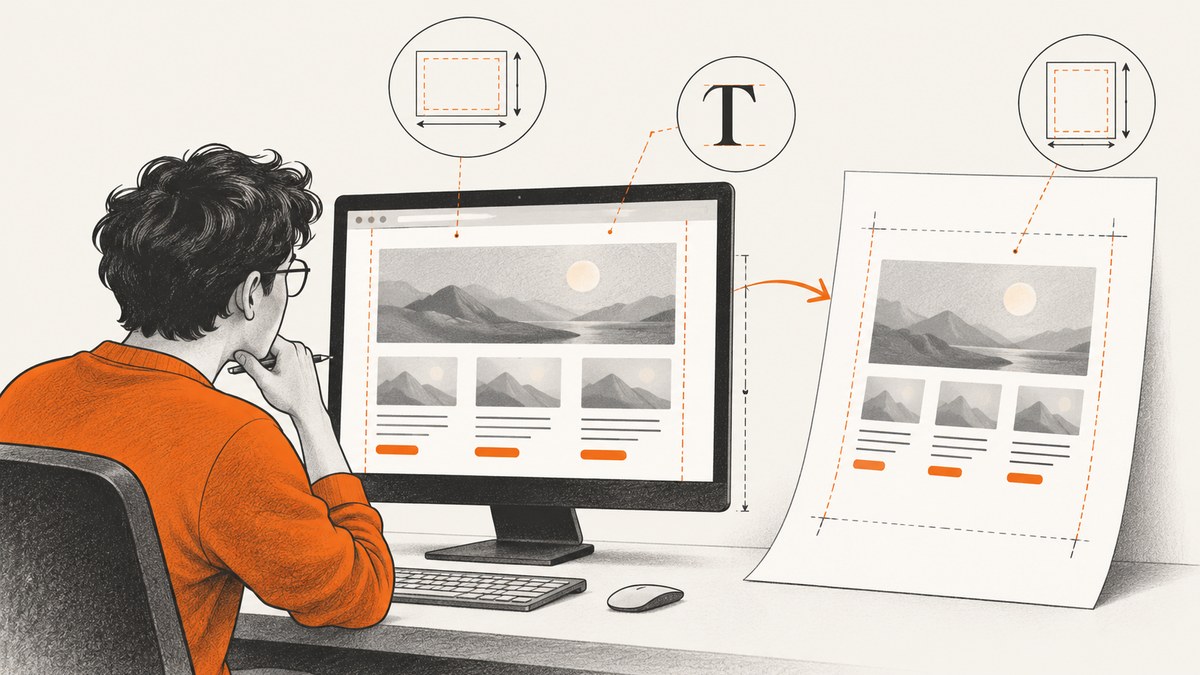
If text in a Puppeteer PDF looks smaller than it does in the browser, first check whether the PDF is using print CSS, whether the intended font loaded, and whether the PDF options are scaling the page to fit its paper size. Don’t start by increasing font-size: the CSS value may be correct while print rules or page-fit behavior changes the result.
page.pdf() uses the print CSS media type by default. To generate a PDF using screen styles, call page.emulateMediaType('screen') before page.pdf(). Puppeteer also waits for fonts by default, but the font still needs to be available and load successfully in the environment generating the PDF. [Puppeteer Page.pdf() documentation] [Puppeteer PDF generation guide]
Work through the checks below in order. The right fix depends on your document’s CSS, the intended print or screen appearance, the PDF options, and the Puppeteer and Chromium versions in your runtime.
1. Confirm whether the PDF should use print or screen styles
Start by deciding which appearance the PDF is supposed to preserve. Puppeteer generates PDFs with print media by default. That can activate @media print rules and print stylesheets that change font size, line height, visibility, widths, and layout. A browser tab may show screen styles, so comparing it directly with a print-styled PDF can be misleading.
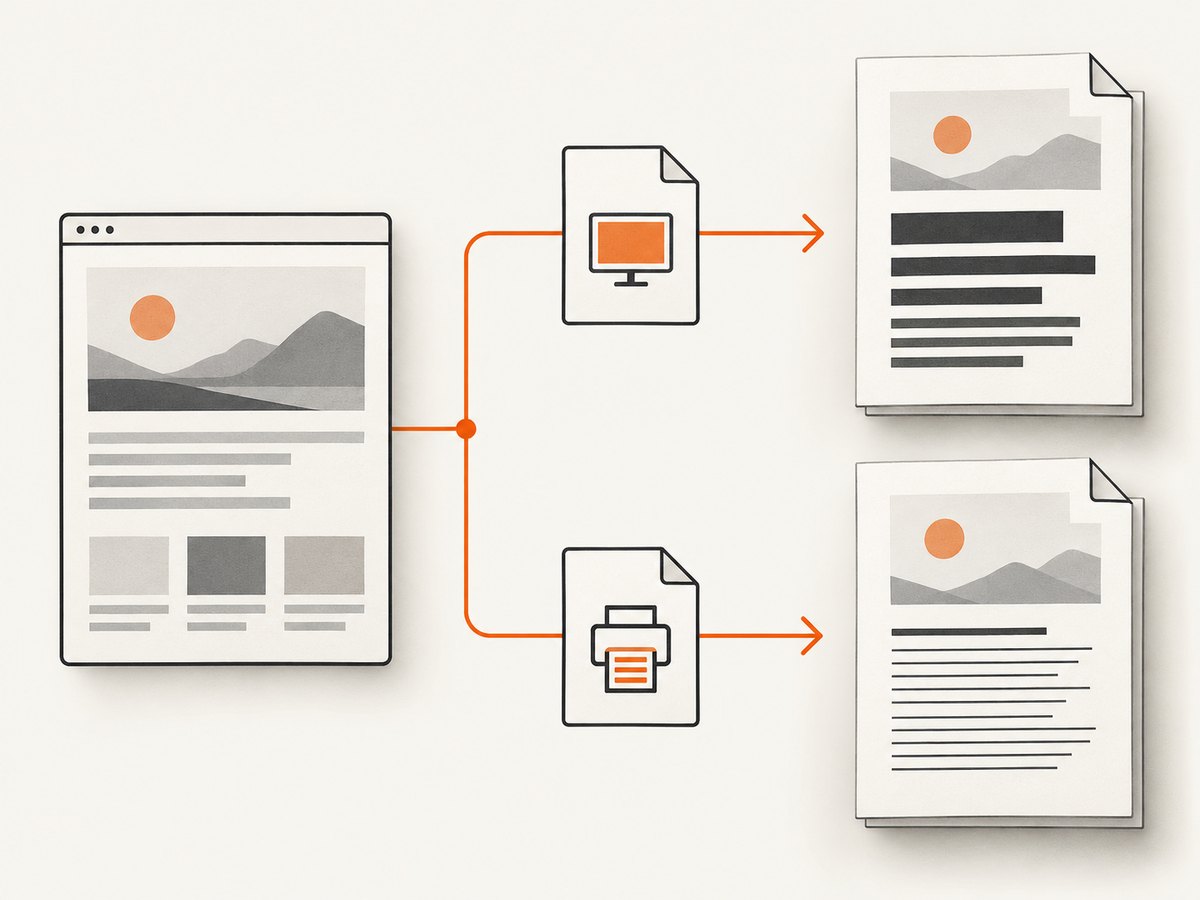
Search the document and its stylesheets for print-specific rules such as:
@media print {
  body { font-size: 10pt; }
  .screen-only { display: none; }
}

@page {
  size: A4;
  margin: 18mm;
}
If the smaller type is intentional for paper, retain print media and correct the print CSS. If the PDF is meant to look like the screen version, emulate screen media before generating it:
await page.emulateMediaType('screen');
const pdf = await page.pdf({
  format: 'A4',
  scale: 1,
  waitForFonts: true,
});
Changing the media type does not simply enlarge text: it selects a different set of CSS rules. It can also change backgrounds and layout. Compare the result with the intended design, and use print styles when the PDF is a document intended for printing.
2. Verify that the intended font loaded
A fallback font can make a page look different even when computed CSS reports the expected size. Font family metrics differ: glyph widths and apparent height affect wrapping, line breaks, and the visual density of text. Check that the intended font files can be reached from the environment running Puppeteer, and that the page actually loaded them.
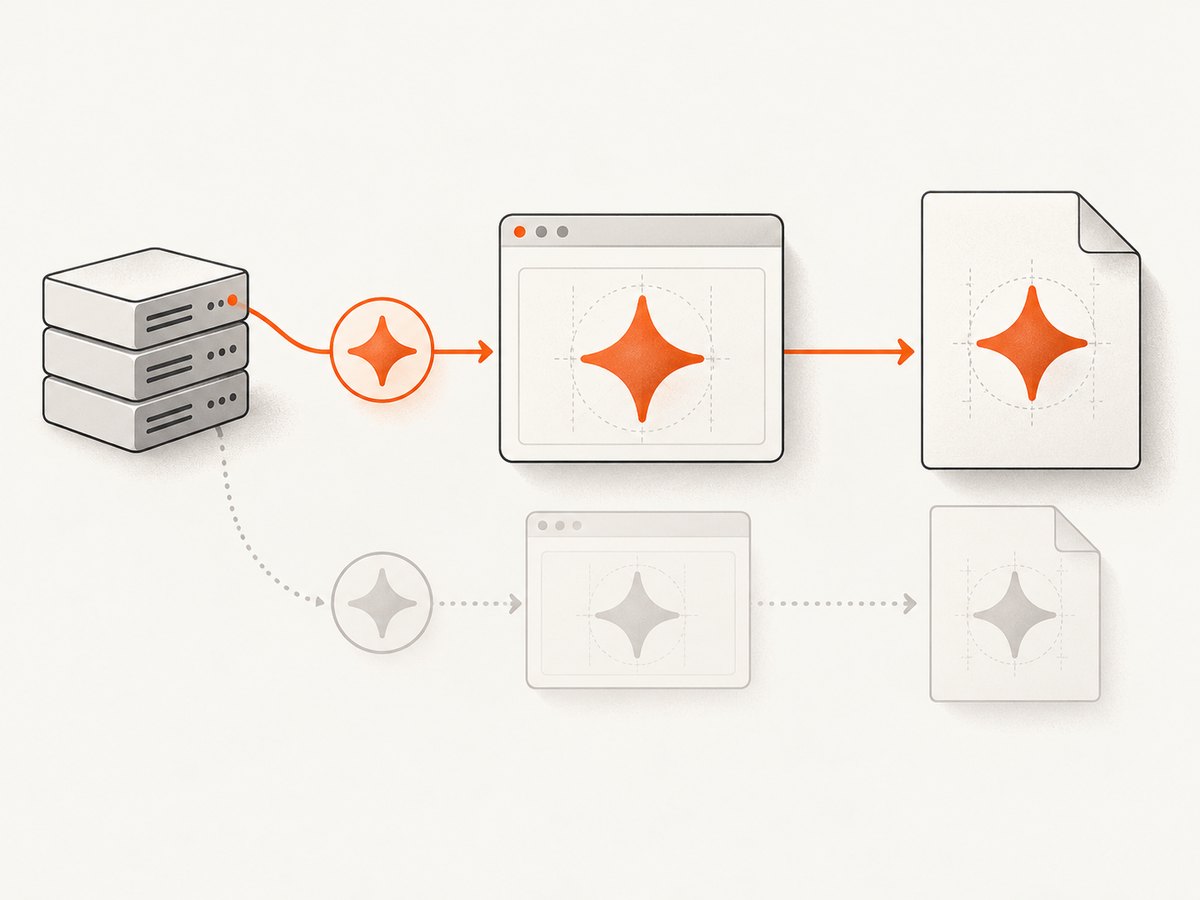
Puppeteer’s current PDF options document waitForFonts as enabled by default; it waits for document.fonts.ready. You can make the intent explicit and inspect the page’s font state before capture:
await page.goto('https://example.com/report', { waitUntil: 'networkidle2' });

await page.evaluate(async () => {
  await document.fonts.ready;
  console.log('Font status:', document.fonts.status);
  console.log('Brand font available:', document.fonts.check('16px "Brand Sans"'));
});

await page.bringToFront();
const pdf = await page.pdf({
  path: 'report.pdf',
  waitForFonts: true,
});
The bringToFront() call is relevant if the page is in the background: Puppeteer’s documentation notes that waiting for fonts might require activating a background page. A resolved font-ready promise means loading has settled; it does not prove the specific font you wanted was successfully downloaded. Check the browser’s network or console output for failed font requests, incorrect URLs, blocked cross-origin requests, or missing font files. [Puppeteer PDFOptions]
3. Check scaling and paper dimensions together
Next, inspect the PDF options and CSS @page dimensions as one configuration. Puppeteer’s scale defaults to 1 and accepts values from 0.1 to 2. A value below one makes the rendered page smaller; a value above one makes it larger.
Paper size can also create a fit transformation. The PDF format option defaults to Letter. If preferCSSPageSize is false (the default), Puppeteer can scale content to fit the paper size. If it is true, a CSS @page size takes priority over the PDF options’ width, height, or format. [Puppeteer PDFOptions]
| Setting | What to inspect | Diagnostic action |
|---|---|---|
scale |
Explicit value or default of 1 | Set it to 1 to remove a custom scale from the diagnosis. |
format |
Paper format; if set, takes priority over width and height | Choose the paper size the document is designed for. |
width / height |
Explicit dimensions and units | Check for a mismatch with the intended page dimensions. |
preferCSSPageSize |
False fits content to the PDF paper; true gives CSS @page precedence |
Choose one source of truth for page size. |
margin and CSS @page |
Both can affect available page area and layout | Align the CSS page rule and PDF options; avoid competing settings. |
For example, this configuration uses the CSS page size as the source of truth:
await page.pdf({
  path: 'report.pdf',
  preferCSSPageSize: true,
  scale: 1,
  waitForFonts: true,
});
Use that only if the CSS @page dimensions are the ones you want. If the PDF options should control paper size instead, specify a format or dimensions and keep the CSS page rule consistent with that choice. Do not set competing sizes and assume the browser preview will reveal which one wins. The official options documentation describes their precedence and the default fit behavior. [Puppeteer PDFOptions]
4. Generate a diagnostic PDF with Puppeteer
This runnable Node.js example keeps the important choices visible. It uses print media, which is Puppeteer’s default. Set USE_SCREEN_MEDIA to true only when the document should use screen styles. Install Puppeteer in your project with npm install puppeteer, save this as make-pdf.mjs, and run it with Node.js.
import puppeteer from 'puppeteer';

const targetUrl = process.argv[2] ?? 'https://example.com';
const outputPath = 'output.pdf';
const USE_SCREEN_MEDIA = false;

const browser = await puppeteer.launch();
try {
  const page = await browser.newPage();
  await page.goto(targetUrl, {
    waitUntil: 'networkidle2',
    timeout: 60_000,
  });

  if (USE_SCREEN_MEDIA) {
    await page.emulateMediaType('screen');
  }

  await page.bringToFront();
  await page.evaluate(() => document.fonts.ready);

  const diagnostics = await page.evaluate(() => ({
    media: matchMedia('print').matches ? 'print' : 'screen',
    fontStatus: document.fonts.status,
    brandFontAvailable: document.fonts.check('16px "Brand Sans"'),
    bodyFont: getComputedStyle(document.body).font,
    bodyFontSize: getComputedStyle(document.body).fontSize,
  }));
  console.log('Page diagnostics:', diagnostics);

  await page.pdf({
    path: outputPath,
    format: 'A4',
    scale: 1,
    printBackground: true,
    waitForFonts: true,
    timeout: 60_000,
    // Set true only when CSS @page owns the paper dimensions.
    preferCSSPageSize: false,
  });
  console.log(`Saved ${outputPath}`);
} finally {
  await browser.close();
}
Replace Brand Sans in the diagnostic with the actual family name. The example reports computed body styling and whether that family is available for the sample font string; inspect the styles on the specific text element too if the body is not representative. The media diagnostic checks whether print media currently matches, which helps catch an unintended media switch.
For a print document, correct print CSS and use the matching page size. For a screen-like document, set USE_SCREEN_MEDIA to true before the call to page.pdf(). Save and inspect the PDF itself; do not treat the browser preview alone as proof that the output is correct.
5. Keep CSS font size and physical output in perspective
CSS font size describes the page’s styling. A PDF viewer then displays a physical page within a window, zoom level, and screen density. As a result, text can look smaller on screen in a PDF viewer even though the PDF’s page content uses the intended CSS size. Compare PDFs at a known viewer zoom or inspect a printed page at its intended size before deciding the CSS must change.
Also check whether you are comparing the same element and conditions. A heading may inherit a print-specific rule; a parent may set zoom or a transform; a responsive breakpoint may change at the configured viewport; and a different font weight may load a separate font file. Inspect the computed styles under the same media type used for PDF generation.
deviceScaleFactor is not the first control to change for this problem. A historical report using Puppeteer 1.12.2 said changing it had no effect for that reporter’s PDF. That old report does not establish behavior for current versions. Prefer the documented PDF controls above, and reproduce against your installed Puppeteer and Chromium versions. [Historical Puppeteer issue #4043]
6. Troubleshoot common PDF font-size problems
| Symptom | Likely cause | What to do |
|---|---|---|
| PDF text is uniformly smaller than the browser | Print CSS changes sizes, PDF uses a smaller scale, or content is fitted to paper | Compare print and screen styles; inspect scale, page size, and preferCSSPageSize. |
| Text wraps differently or looks like a fallback font | Intended font did not load, or the font’s metrics differ | Check document.fonts.check(), failed font requests, and runtime font availability. |
| One environment produces a different PDF | Different Puppeteer/Chromium version, installed fonts, or resource access | Record both versions and verify font URLs and permissions in the generation runtime. |
Changing font-size fixes one page but breaks another |
The underlying cause is scale, paper sizing, or different page content | Revert the compensating size change; isolate media, font, and page-size behavior. |
| CSS page dimensions seem ignored | preferCSSPageSize remains false or PDF format/dimensions conflict |
Choose the intended source of truth and configure precedence explicitly. |
| Font wait appears to hang or capture starts before a font is ready | Font request is stalled, page is backgrounded, or the site never settles | Bring the page forward, inspect network activity, and verify font loading rather than disabling the wait as a first fix. |
| Colors or backgrounds differ | PDF print color adjustments or omitted print backgrounds | Check print styles and printBackground; Puppeteer documents print-oriented color modification. |
For a persistent mismatch, make a small reproduction with one representative text block, the same font files, the same CSS media rules, the paper dimensions, and the PDF options. Record the generated HTML, Puppeteer version, Chromium version, font-loading state, and a sample PDF. A historical multipage sizing report shows that changing font size, line height, and preferCSSPageSize did not solve every individual layout; an old issue is a clue to investigate, not proof of a current general defect. [Historical Puppeteer issue #6617]
7. Performance, reliability, and cost considerations
PDF generation cost in your own system depends on browser startup, page navigation, page complexity, font and image loading, and PDF output size. Reusing a browser process for controlled jobs can avoid launching Chromium for every document, while creating a fresh page per job helps isolate page state. Always close pages and the browser when their work is complete, and put sensible timeouts around navigation and PDF generation.
Reliability begins with deterministic inputs. Keep the HTML and CSS version stable, make fonts reachable in the runtime, choose a consistent paper-size source, and wait for the content your document needs. networkidle2 is one possible navigation condition, not a guarantee that every application’s late-loading content or fonts are ready. If the site renders data after navigation, wait for a page-specific selector or application-ready signal before creating the PDF.
For debugging, save the PDF and retain enough metadata to reproduce its generation: URL or HTML revision, media type, PDF options, font status, and runtime versions. Avoid compensating for unknown rendering changes with per-document font-size overrides; such fixes can shift line breaks or cause overflow when the source page changes.
8. Or skip the browser setup
If your task is capturing a webpage rather than generating a document from a Puppeteer-controlled workflow, ScreenshotNeo provides a website screenshot API and MCP server. Its screenshot endpoint returns PNG, JPEG, or WebP; PDF is also available. It can capture full pages or a selected element, with viewport, device, and rendering options. See the ScreenshotNeo API documentation for parameters and setup.
curl -G "https://api.screenshotneo.com/v1/shot" \
  -d access_key=YOUR_API_KEY \
  --data-urlencode url=https://stripe.com \
  -o shot.webp
import requests
r = requests.get(
"https://api.screenshotneo.com/v1/shot",
params={"access_key": "YOUR_API_KEY", "url": "https://stripe.com"},
timeout=90,
)
r.raise_for_status()
open("shot.webp", "wb").write(r.content)const q = new URLSearchParams({
access_key: 'YOUR_API_KEY',
url: 'https://stripe.com',
});
const res = await fetch(`https://api.screenshotneo.com/v1/shot?${q}`);
if (!res.ok) throw new Error(`Screenshot request failed: ${res.status}`);
await import('node:fs/promises').then(({ writeFile }) =>
writeFile('shot.webp', Buffer.from(await res.arrayBuffer()))
);ScreenshotNeo removes cookie banners, newsletter popups, and chat widgets before the shot. Bot checks, blank pages, and failed loads are never billed. Its MCP server lets AI agents take screenshots. The free plan includes 1,000 screenshots a month with no card; paid plans start at $5 for 3,000. Sign up free and get 1,000 screenshots a month, no card required.
9. Frequently asked questions
Does Puppeteer convert CSS pixels to PDF points at a different font size?
Do not infer a bug from an on-screen comparison alone. First account for media rules, font availability, page fit, PDF scale, and the PDF viewer’s zoom. Verify the rendered PDF at a known scale.
Should I set waitForFonts: false to avoid font problems?
Usually not as a diagnostic shortcut. The documented default waits for fonts. Disabling the wait can make output less predictable if fonts have not finished loading. Find out why the intended font is unavailable or delayed first.
Will preferCSSPageSize: true always make text larger?
No. It changes which page-size declaration takes precedence. Whether content appears larger depends on the CSS page size, the PDF options, and the content’s layout.
Can a historical Puppeteer issue confirm the same bug in my version?
No. Issue reports describe specific versions and setups. Reproduce the problem with your installed Puppeteer and Chromium versions and share a minimal example when seeking help.
Diagnostic checklist
- Decide whether the PDF should use print CSS or screen CSS.
- Inspect computed styles for the affected text under that media type.
- Confirm the intended font loaded in the PDF generation runtime.
- Review
scale, paper dimensions,preferCSSPageSize, CSS@page, and margins together. - Generate and inspect the PDF; record versions and options if the mismatch remains.
Most apparent font-size mismatches become easier to explain once media, fonts, and page fitting are isolated. Correct the underlying rendering choice first, then change CSS font sizes only when the PDF’s intended design actually calls for it.


