How to Fix PDFKit Hanging When Generating PDFs with Images
Find whether PDFKit is stuck decoding an image, generating the document, or waiting on an unfinished stream, then fix it with a measured diagnostic workflow.
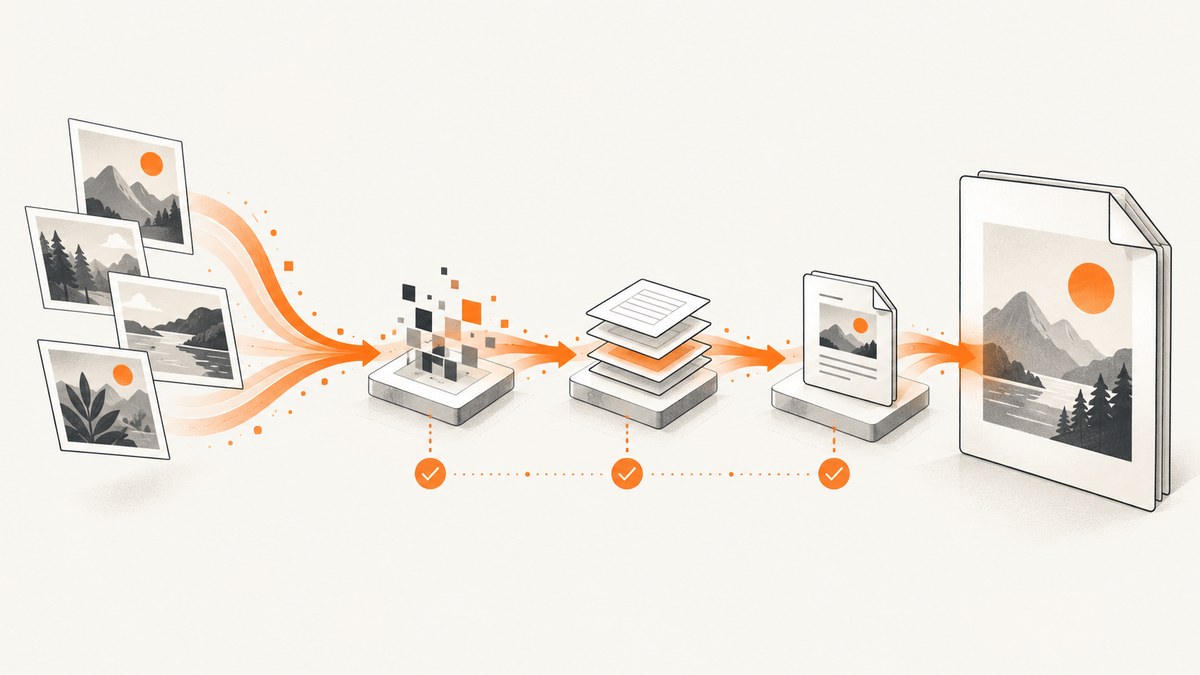
When PDFKit appears to hang while generating a PDF that contains images, the cause is usually in one of three places: the image cannot be decoded in the current runtime, document generation is consuming more time or memory than expected, or the output stream is never finalized or observed. Treat those as separate stages and you can locate the failure instead of changing image formats at random.
The shortest reliable fix is to use a supported image representation, pipe the PDFDocument to a writable stream before adding content, call doc.end() on every successful path, and listen for errors and completion on both streams. Then reproduce with one small image before scaling up.
1. Understand PDFKit’s lifecycle
In Node.js, a PDFKit PDFDocument is a readable stream. The documented pattern is:
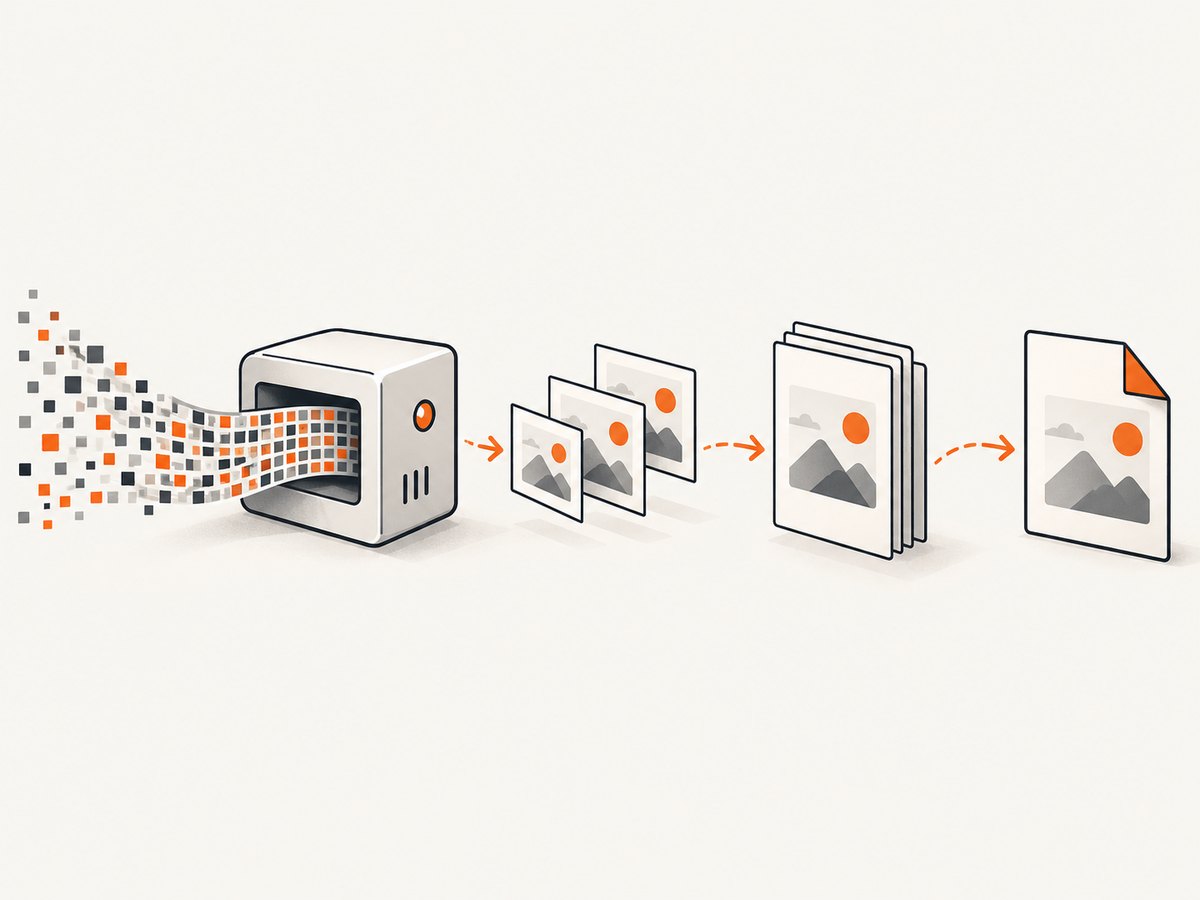
- Create a document.
- Pipe it to a writable destination such as a file stream.
- Add pages, text, and images.
- Call
doc.end(). - Wait for the destination’s
finishevent and handle errors.
If step four never runs, the destination can remain open forever. If the destination is not observed, a disk, permission, or stream error can look like a PDFKit hang. The official PDFKit Getting Started documentation describes the stream-based API and the differences between Node and browser builds.
const PDFDocument = require('pdfkit');
const fs = require('node:fs');

const doc = new PDFDocument({ autoFirstPage: false });
const output = fs.createWriteStream('output.pdf');

output.on('error', (err) => {
  console.error('Output stream failed:', err);
});

doc.on('error', (err) => {
  console.error('PDF generation failed:', err);
});

output.on('finish', () => {
  console.log('PDF complete');
});

doc.pipe(output);
doc.addPage({ size: 'A4' });
doc.fontSize(18).text('Image report');
doc.end();
Do not wait for an image callback that PDFKit does not provide before ending the document. Image loading must complete before doc.end(), but the stream still needs to be closed explicitly.
2. Build a minimal image reproduction
Reduce the problem to one page and one image. This tells you whether the failure is tied to input decoding or to workload size.
const PDFDocument = require('pdfkit');
const fs = require('node:fs');
const path = require('node:path');

const imagePath = path.resolve(__dirname, 'sample.jpg');
const outputPath = path.resolve(__dirname, 'one-image.pdf');
const doc = new PDFDocument({ autoFirstPage: false });
const output = fs.createWriteStream(outputPath);

let ended = false;
const finish = () => {
  if (!ended) {
    ended = true;
    doc.end();
  }
};

doc.on('error', (error) => console.error('PDFKit error:', error));
output.on('error', (error) => console.error('File error:', error));
output.on('finish', () => console.log(`Wrote ${outputPath}`));

doc.pipe(output);
doc.addPage({ size: 'A4', margin: 36 });
console.log('Before image');
doc.image(imagePath, 36, 36, { fit: [523, 750], align: 'center', valign: 'center' });
console.log('After image');
finish();
Run this with a known-good JPEG and then a known-good PNG. If the JPEG completes and the PNG does not, preserve both files and record their dimensions and byte sizes; do not conclude that PNG is universally broken. PDFKit’s project documentation describes JPEG and PNG support, including PNG transparency, and supported in-memory forms such as byte arrays and data URLs. See the PDFKit repository for the current implementation and release context.
What each log line proves
- Before image appears: page creation and earlier code ran.
- After image appears: the synchronous image call returned; a later stall is more likely generation, backpressure, or finalization.
finishappears: the writable destination received and flushed the complete PDF.- An
errorappears: fix the reported input, permission, path, stream, or resource problem before changing code.
3. Verify the runtime and image input
The same source code behaves differently in Node, a browser bundle, and a serverless runtime.
Node.js paths
In Node, a string passed to doc.image() can refer to a filesystem path. Confirm the path from the process’s working directory rather than the source file’s directory:
const fs = require('node:fs');
const path = require('node:path');

const imagePath = path.resolve(process.cwd(), 'assets', 'photo.png');
console.log({ imagePath, exists: fs.existsSync(imagePath) });
if (!fs.existsSync(imagePath)) {
  throw new Error(`Image does not exist: ${imagePath}`);
}
Relative paths often fail after a process manager, test runner, Docker image, or serverless platform changes the working directory. Use an absolute path and check file permissions. A path that exists on your laptop may not exist in the deployed artifact.
Browser-targeted builds
A browser build cannot read an operating-system path. Register image bytes or another supported in-memory representation instead. Fetch the image as an ArrayBuffer, convert it to a Uint8Array, and pass that value where your PDFKit build supports it:
const response = await fetch('/assets/photo.jpg');
if (!response.ok) throw new Error(`Image HTTP ${response.status}`);
const bytes = new Uint8Array(await response.arrayBuffer());

doc.addPage();
doc.image(bytes, 36, 36, { fit: [523, 750] });
Also check your bundler target. A browser-targeted bundle may replace Node filesystem modules with stubs, while a Node-targeted bundle may leave browser APIs unavailable. Record the exact PDFKit version, Node.js version, operating system, bundler, and execution environment before diagnosing a format defect.
4. Check image validity before PDFKit sees it
Image decoding can be the apparent stopping point. Validate the bytes independently and record metadata:
const fs = require('node:fs');
const crypto = require('node:crypto');
const file = 'assets/photo.png';
const stat = fs.statSync(file);
const bytes = fs.readFileSync(file);

console.log({
  bytes: stat.size,
  sha256: crypto.createHash('sha256').update(bytes).digest('hex'),
  signature: bytes.subarray(0, 8).toString('hex')
});
Check that a download is actually an image rather than an HTML error page saved with a .png extension. For remote images, verify the HTTP status, content type, redirect behavior, authentication, and complete response body before handing bytes to PDFKit. A truncated transfer can produce symptoms that resemble a hang.
Use one known-good JPEG and one known-good PNG with similar dimensions. Change one variable at a time: path versus bytes, JPEG versus PNG, dimensions, and image count. Historical issue reports include empty output and garbled PNG examples, but those reports involve old versions and different environments; they are reproduction leads, not universal diagnoses.
5. Make finalization impossible to miss
Put doc.end() in the same control flow that completes content generation. If images are processed in a loop, make failures reject the operation and close the document or destroy the streams.
async function createPdf(images, destination) {
  const doc = new PDFDocument({ autoFirstPage: false });
  const output = fs.createWriteStream(destination);
  doc.pipe(output);

  const result = new Promise((resolve, reject) => {
    output.once('finish', resolve);
    output.once('error', reject);
    doc.once('error', reject);
  });

  try {
    for (const image of images) {
      doc.addPage({ size: 'A4', margin: 36 });
      doc.image(image, 36, 36, { fit: [523, 750] });
    }
    doc.end();
  } catch (error) {
    doc.destroy(error);
    output.destroy(error);
    throw error;
  }

  await result;
}

createPdf(['assets/a.jpg', 'assets/b.png'], 'report.pdf')
  .then(() => console.log('done'))
  .catch(console.error);
When using a callback, promise, HTTP response, or serverless handler, resolve it only after the writable stream finishes. Returning immediately after doc.end() can terminate a short-lived process before all bytes are flushed.
6. Measure memory and scale gradually
A large PDF can be slow or memory-intensive without containing a software leak. A historical report described a roughly 550 MB PDF assembled from many data-URI images in Lambda. That is one user’s workload, not a PDFKit benchmark or proof that current versions always leak memory.
Measure each stage:
function report(label, count, started) {
  const memory = process.memoryUsage();
  console.log({
    label,
    images: count,
    elapsedMs: Date.now() - started,
    rss: memory.rss,
    heapUsed: memory.heapUsed,
    external: memory.external
  });
}
Start with one image, then 10, 25, 50, and the production count. Log image dimensions, source bytes, output bytes, elapsed time, and peak resident memory. If memory rises with image count and does not fall after batches complete, inspect retained buffers, data-URI strings, arrays of decoded images, and application-level caches. Avoid holding every original buffer and every generated PDF in memory at once; stream input where practical and process bounded batches.
Large dimensions matter even when compressed files are small. A highly compressed image can expand substantially during decoding. Resize images to the display dimensions needed in the PDF, while preserving enough resolution for the intended paper size. Do not switch JPEG or PNG solely because one old report mentioned it; compare your actual files.
7. Troubleshooting table
| Symptom | Likely cause | Fix |
|---|---|---|
| No output file or zero bytes | doc.end() is not reached, or the process exits early |
Log before and after content generation; call doc.end(); await finish. |
| Process waits forever | Writable stream remains open, or an awaited promise has no completion path | Listen for finish and error; inspect every callback and loop branch. |
ENOENT |
Relative path is resolved from an unexpected working directory | Use path.resolve() and verify the deployed file exists. |
| Permission error | Destination directory is not writable | Write to an allowed directory and log the exact destination. |
| Browser build cannot open image path | Browser code has no filesystem access | Fetch bytes or use a supported data URL/in-memory representation. |
| Malformed image error | Truncated bytes, an HTML error response, or unsupported encoding | Check HTTP status and content type; validate with an independent image tool; retry download. |
| Works with one image but stalls at scale | Resource pressure, huge dimensions, or retained buffers | Scale gradually, log memory, resize inputs, and bound concurrency. |
| PDF downloads but is incomplete | HTTP response or serverless handler returned before writable completion | Finish the response only after the PDF stream completes. |
| PNG looks garbled | Input-specific decoding or version issue | Preserve the sample, test a known-good PNG, record versions, and create a minimal reproduction. |
8. Reliability and performance practices
- Pin and record the PDFKit version so reproductions are repeatable.
- Use a timeout around remote image downloads, but do not abandon the PDF stream without destroying it.
- Limit concurrent PDF jobs in server processes; concurrency multiplies decoded image memory.
- Write to a local temporary file when the final destination is remote storage, then upload after
finish. - Keep structured logs with job ID, image count, dimensions, input bytes, output bytes, elapsed time, and peak memory.
- Test with missing files, corrupt bytes, transparent PNGs, redirects, and an empty image list.
- Clean up temporary files on success and failure.
There is no source-supported claim that JPEG is always faster or uses less memory than PNG. Measure the formats and dimensions your application receives. Likewise, upgrading RAM or storage is only justified after measurements show a resource bottleneck.
9. Or skip the browser setup
If the input is a web page rather than local image files, ScreenshotNeo can capture the page and return a PDF through one API request. Its browser handles full-page capture and lazy images, while options cover paper size, margins, landscape mode, and page ranges. Cookie banners, newsletter popups, and chat widgets are removed before the shot. Bot checks, blank pages, timeouts, failed loads, and cache hits are not billed, and the response identifies the result with X-Page-Verdict and X-Billed headers. ScreenshotNeo also provides an MCP server with take_screenshot, get_page_info, and capture_pdf tools for AI clients.

See the ScreenshotNeo API documentation for all options. The following request captures a page as a PDF; adapt the target URL and PDF parameters to your job.
curl -G "https://api.screenshotneo.com/v1/shot" \
  -d access_key=YOUR_API_KEY \
  --data-urlencode url=https://stripe.com \
  -d format=pdf \
  -d paper_size=A4 \
  -o page.pdf
import requests
r = requests.get(
"https://api.screenshotneo.com/v1/shot",
params={
"access_key": "YOUR_API_KEY",
"url": "https://stripe.com",
"format": "pdf",
"paper_size": "A4",
},
timeout=90,
)
r.raise_for_status()
open("page.pdf", "wb").write(r.content)
print(r.headers.get("X-Page-Verdict"), r.headers.get("X-Billed"))const q = new URLSearchParams({
access_key: 'YOUR_API_KEY',
url: 'https://stripe.com',
format: 'pdf',
paper_size: 'A4'
});
const res = await fetch(`https://api.screenshotneo.com/v1/shot?${q}`);
if (!res.ok) throw new Error(`ScreenshotNeo HTTP ${res.status}`);
const bytes = Buffer.from(await res.arrayBuffer());
require('node:fs').writeFileSync('page.pdf', bytes);
console.log(res.headers.get('X-Page-Verdict'), res.headers.get('X-Billed'));ScreenshotNeo includes 1,000 screenshots a month free with no card. Paid plans start at $5 for 3,000 shots, and every feature is available on every plan. Create a free ScreenshotNeo account.
10. A reproducible diagnostic checklist
- Record PDFKit, Node.js, operating system, bundler, and runtime.
- Confirm the image exists, is complete, and is decoded in that runtime.
- Generate one page with one known-good JPEG.
- Repeat with one known-good PNG using identical dimensions.
- Pipe before adding content and attach document and destination error handlers.
- Log entry and exit around every image call.
- Call
doc.end()on the success path and await writablefinish. - Scale image count and dimensions gradually while logging memory and elapsed time.
- Reduce concurrency and retained buffers if memory grows with workload.
- Save a minimal reproduction with the image sample and last successful log line.
FAQ
Does calling doc.end() solve every PDFKit image hang?
No. It fixes an unfinalized document, but invalid input, browser filesystem assumptions, output errors, and resource pressure need separate fixes.
Can I use a filesystem path in a browser application?
No. Browser code cannot read your server’s filesystem. Supply supported image bytes, an in-memory representation, or a data URL instead.
Should I convert every PNG to JPEG?
No. PDFKit supports both formats. Compare a controlled JPEG and PNG reproduction and choose based on your required transparency, dimensions, and measured resource use.
Why does the PDF work locally but hang in Lambda?
Paths, writable directories, memory limits, process lifetime, and response finalization differ in serverless environments. Log those variables and await stream completion before returning.
What information should a bug report include?
Include the smallest reproducing code, a safe image sample, PDFKit and Node versions, runtime details, dimensions and byte sizes, memory observations, and the last completed log line.


