How to Fix Python pdfkit FileNotFoundError for the which Command
The pdfkit “which” error means Python cannot launch the command used to find wkhtmltopdf. Diagnose PATH, install dependencies, or configure an absolute binary path.
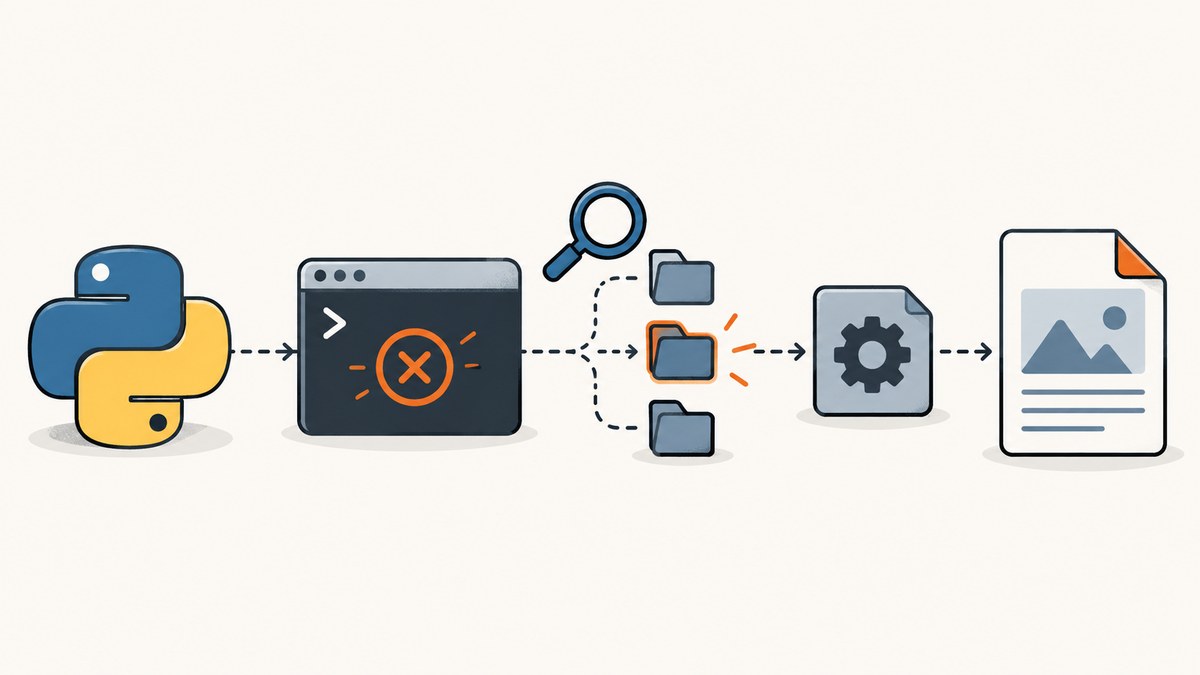
Short answer: when Python pdfkit raises FileNotFoundError: [Errno 2] No such file or directory: 'which', it has failed before wkhtmltopdf starts. On Unix-like systems, pdfkit launches the operating-system which command to discover the wkhtmltopdf binary. The error says that Python cannot launch which; it does not prove that wkhtmltopdf is missing. On Windows, discovery uses where instead.
Fix the problem in the same environment that runs your Python process: make sure the discovery utility is installed and on PATH, install wkhtmltopdf, then verify both commands. For reproducible deployments, skip discovery and give pdfkit the absolute path to wkhtmltopdf.
1. Understand what the traceback is telling you
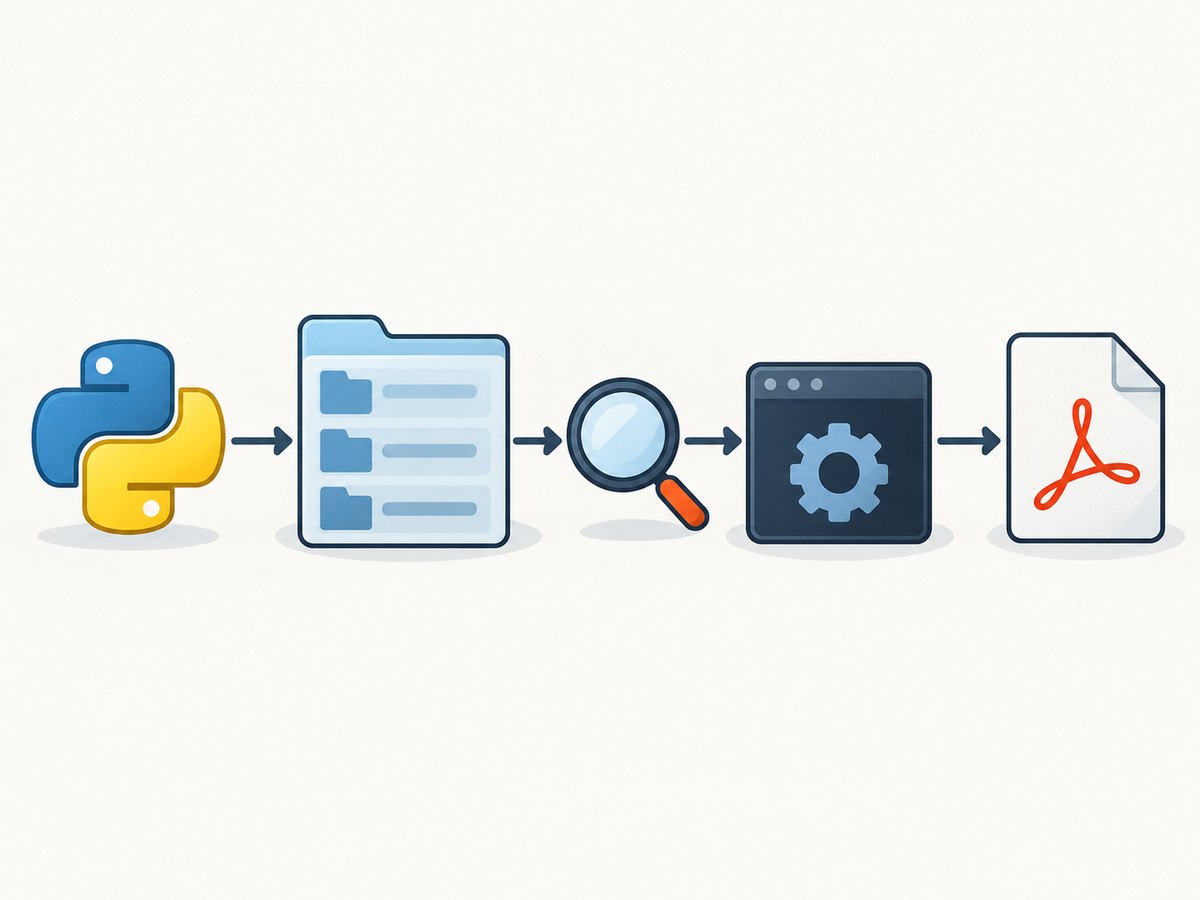
pdfkit is a Python wrapper around the wkhtmltopdf command-line program. By default it tries to locate that executable by running which wkhtmltopdf on Unix-like systems or where wkhtmltopdf on Windows. The pdfkit documentation describes this behavior in its configuration section: pdfkit configuration.
There are two different failures that are often confused:
| Error text | Meaning | Next action |
|---|---|---|
No such file or directory: 'which' |
Python could not start the discovery utility. | Install or expose which, then check the process PATH. |
No wkhtmltopdf executable found: "b''" |
Discovery ran, but returned no wkhtmltopdf path. | Install wkhtmltopdf or add its directory to PATH. |
| wkhtmltopdf exits with a non-zero status | The binary started, but rejected an option, HTML input, or resource. | Run wkhtmltopdf directly and inspect stderr. |
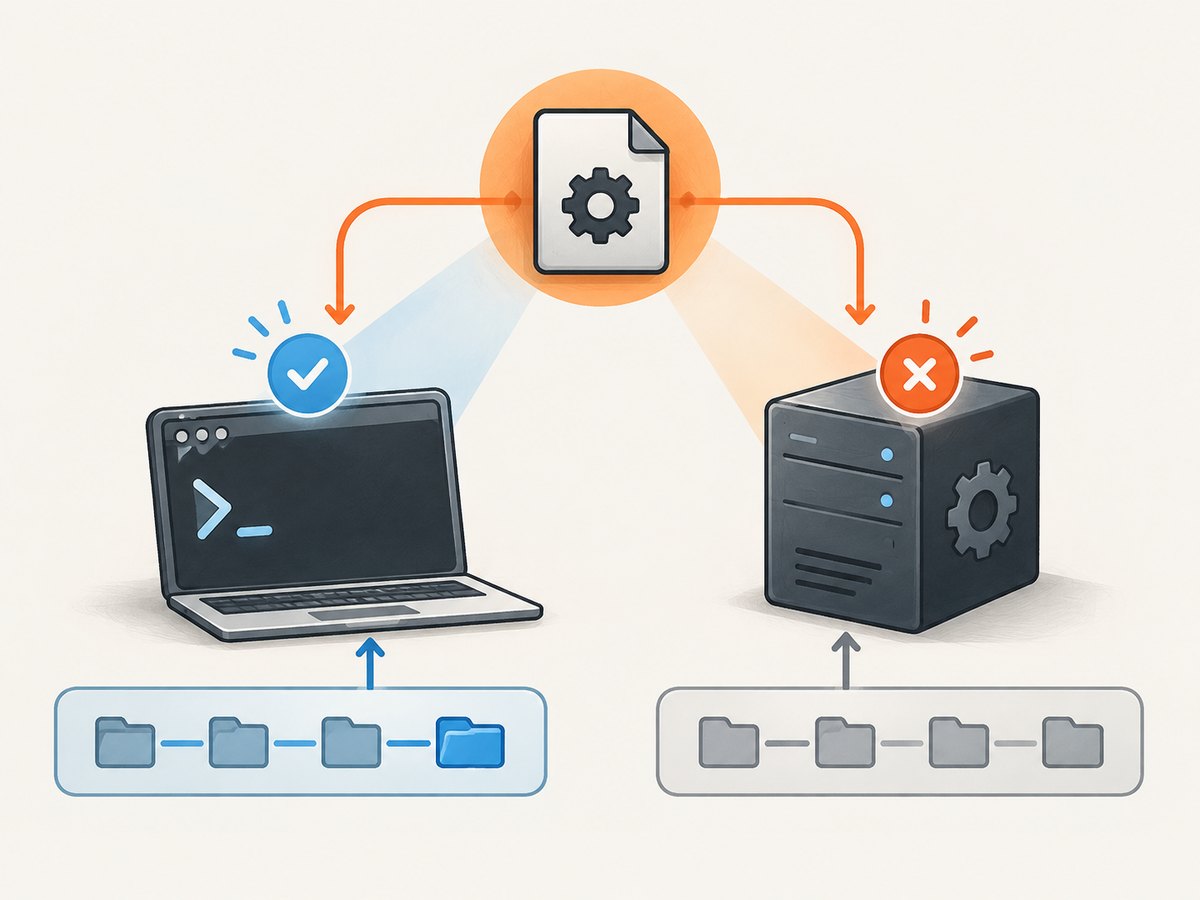
A working command in your interactive terminal does not guarantee that a web server, queue worker, Docker container, virtual environment, or CI job can run it. Those processes may have a different user, filesystem, environment, or PATH.
2. Check the exact runtime environment
Unix-like systems
command -v which
which which
which wkhtmltopdf
wkhtmltopdf --version
python -c "import os; print(os.environ.get('PATH'))"
command -v which and which which should print a path such as /usr/bin/which. The wkhtmltopdf check should print the full executable path, followed by a version when you run wkhtmltopdf --version. If the first command fails, repair the operating-system package that supplies which. If only the wkhtmltopdf command fails, install wkhtmltopdf or correct its PATH entry.
Windows
where where
where wkhtmltopdf
wkhtmltopdf.exe --version
python -c "import os; print(os.environ.get('PATH'))"
Windows pdfkit discovery uses where. If where wkhtmltopdf returns nothing, either install the program or pass its absolute .exe path in pdfkit configuration.
Check from Python itself
Run this diagnostic inside the same virtual environment, service, or container as your application:
import os
import shutil

print("PATH:", os.environ.get("PATH"))
print("which utility:", shutil.which("which"))
print("wkhtmltopdf:", shutil.which("wkhtmltopdf"))
On Windows, replace the first lookup with shutil.which("where"). A None result identifies what that Python process cannot discover.
3. Install the missing dependencies
Debian and Ubuntu
sudo apt-get update
sudo apt-get install wkhtmltopdf
which wkhtmltopdf
wkhtmltopdf --version
The pdfkit project documents this package-manager installation path. Some minimal images do not include the package that provides which; install the distribution’s standard command utilities package if which itself is absent, then make sure its directory is on PATH.
macOS
brew install homebrew/cask/wkhtmltopdf
which wkhtmltopdf
wkhtmltopdf --version
For other operating systems, use the platform downloads published by the official wkhtmltopdf project. Verify the executable after installation instead of assuming that an installer updated the environment used by your service.
4. Configure pdfkit with an absolute path
Explicit configuration is the most deterministic remedy when PATH differs between shells and services. The path must point to the executable itself, not only its containing directory.
import pdfkit

config = pdfkit.configuration(
    wkhtmltopdf="/absolute/path/to/wkhtmltopdf"
)

pdfkit.from_string(
    "<h1>Hello</h1>",
    "out.pdf",
    configuration=config,
)
On Windows, use a raw string or escaped backslashes:
import pdfkit

config = pdfkit.configuration(
    wkhtmltopdf=r"C:\\Program Files\\wkhtmltopdf\\bin\\wkhtmltopdf.exe"
)
pdfkit.from_string("<h1>Hello</h1>", "out.pdf", configuration=config)
The same configuration=config argument works with URL and file conversion:
pdfkit.from_url("https://example.com", "site.pdf", configuration=config)
pdfkit.from_file("page.html", "page.pdf", configuration=config)
Keep the path in deployment configuration when possible:
import os
import pdfkit

binary = os.environ["WKHTMLTOPDF_PATH"]
config = pdfkit.configuration(wkhtmltopdf=binary)
pdfkit.from_url("https://example.com", "site.pdf", configuration=config)
This makes a missing or incorrect path fail at startup, where it is easier to diagnose, instead of failing during a user request.
5. Make PATH consistent in services, containers, and CI
Interactive shells often load profile files that service managers do not. Set PATH in the process that launches Python, or use the absolute-path configuration above.
- systemd: define an
Environment=PATH=...entry in the unit or useWKHTMLTOPDF_PATH. - Docker: install wkhtmltopdf in the image and verify it in the container with
docker run ... which wkhtmltopdf. - Workers: check the worker’s environment, not only the web process’s environment.
- CI: install the binary during the job and print its path and version before tests or conversion.
- Virtual environments: remember that a Python virtual environment changes Python package resolution, not necessarily system executable visibility.
A useful deployment check is:
python - <<'PY'
import os, shutil, sys
print(sys.executable)
print(os.environ.get("PATH"))
print(shutil.which("which"))
print(shutil.which("wkhtmltopdf"))
PY
6. Verify wkhtmltopdf independently
After discovery is fixed, test the executable without pdfkit. This separates command-discovery problems from HTML, CSS, and application problems.
printf '<html><body><h1>Smoke test</h1></body></html>' > /tmp/test.html
/absolute/path/to/wkhtmltopdf /tmp/test.html /tmp/test.pdf
ls -lh /tmp/test.pdf
If this command fails, read the stderr output and resolve that failure first. Common later-stage causes include an unsupported option, blocked network resource, inaccessible local file, missing fonts, or an HTML page that never finishes loading. They are separate from a missing which executable.
7. pdfkit options and practical conversion patterns
pdfkit passes options to wkhtmltopdf. Options are supplied as a dictionary; omit the leading command-line dashes:
options = {
    "page-size": "A4",
    "margin-top": "10mm",
    "margin-right": "10mm",
    "margin-bottom": "10mm",
    "margin-left": "10mm",
    "encoding": "UTF-8",
    "quiet": "",
}
pdfkit.from_url("https://example.com", "example.pdf", options=options, configuration=config)
For HTML strings, include a complete document when styles or relative assets matter:
html = """
<!doctype html>
<html>
<head><meta charset='utf-8'><style>body{font-family: sans-serif}</style></head>
<body><h1>Invoice</h1></body>
</html>
"""
pdfkit.from_string(html, "invoice.pdf", options={"encoding": "UTF-8"}, configuration=config)
Use absolute or correctly based asset URLs, and allow enough time for remote resources. A successful process invocation does not guarantee that every image, font, stylesheet, or script was available when the PDF was rendered.
8. Troubleshooting checklist
| Symptom | Likely cause | Fix |
|---|---|---|
Missing filename is exactly which |
The discovery utility is absent from the Python process PATH. | Install the utility package or configure PATH; then retry. |
which wkhtmltopdf works in SSH but not in the app |
The service has a different environment or user. | Set PATH in the service definition or pass an absolute path. |
| “No wkhtmltopdf executable found” | wkhtmltopdf is not installed or is not discoverable. | Install it, verify with shutil.which, or configure its full path. |
| Permission denied | The file is not executable or the service cannot traverse its directory. | Correct executable permissions and directory permissions; check the service user. |
| Conversion hangs | Remote assets, JavaScript, or a page load never completes. | Test the URL directly, simplify the page, and apply appropriate timeout or load options. |
| PDF has missing images or fonts | Relative URLs, blocked requests, or unavailable fonts. | Use reachable asset URLs, verify network access, and install required fonts. |
| Works locally but fails in CI | The CI image lacks the binary, libraries, fonts, or PATH entry. | Install dependencies in the job and print executable path and version. |
9. Security, performance, reliability, and cost
Security
The wkhtmltopdf project warns: “Do not use wkhtmltopdf with any untrusted HTML.” Treat user-supplied HTML and JavaScript as untrusted. Sanitize input, restrict which files and URLs the renderer can access, and isolate conversion in a constrained worker when processing external content. See the official project download page for the warning and supported releases.
Performance
Starting a wkhtmltopdf process has a fixed cost, while complex pages add network, JavaScript, layout, and font work. Reuse a prepared worker where your architecture allows it, keep HTML and assets close to the renderer, and avoid unnecessary remote requests. Measure conversion time in the same container and workload used in production.
Reliability
Pin the wkhtmltopdf version in deployment, verify the binary during startup, and log the exact command, exit status, stderr, input type, and output path. Retry only transient failures; repeated retries will not fix a missing executable or malformed HTML. Use a temporary output file and rename it after a successful conversion so readers never receive a partial PDF.
Cost
Running pdfkit yourself means operating the host, dependencies, fonts, storage, and worker capacity. Package updates can change rendering behavior, so keep a small set of representative documents for regression checks. If you only need screenshots or PDFs from URLs and do not want to maintain a browser or binary, an API can move that operational work out of your application.
10. Or skip the browser setup
ScreenshotNeo provides a website screenshot API and MCP server. One GET request returns a PNG, JPEG, WebP, or PDF. It removes cookie and consent banners, newsletter popups, and chat widgets before capture; each cleanup step can be disabled. Bot checks, blank pages, timeouts, failed loads, and cache hits are not billed, and the response identifies the result with X-Page-Verdict and X-Billed headers.
See the ScreenshotNeo API documentation for all options. A direct call looks like this:
curl -G "https://api.screenshotneo.com/v1/shot" -d access_key=YOUR_API_KEY --data-urlencode url=https://stripe.com -o shot.webp
import requests
r = requests.get("https://api.screenshotneo.com/v1/shot", params={"access_key": "YOUR_API_KEY", "url": "https://stripe.com"}, timeout=90)
open("shot.webp", "wb").write(r.content)
const q = new URLSearchParams({ access_key: 'YOUR_API_KEY', url: 'https://stripe.com' }); const res = await fetch(`https://api.screenshotneo.com/v1/shot?${q}`);
ScreenshotNeo supports full-page captures with lazy images loaded, CSS-selector element captures, dark mode, device presets and custom viewports, retina scale, PDF paper and page options, custom CSS and JavaScript, clicks, waits, blocked requests, headers, cookies, user agents, authorization, timezone, geolocation, transparent backgrounds, resizing, caching with a chosen TTL, signed links, asynchronous jobs with signed webhooks, bulk capture of up to 100 URLs per call, a usage API, and an OpenAPI specification. It also provides an MCP server with take_screenshot, get_page_info, and capture_pdf for Claude, Cursor, and other MCP clients.
The Free plan includes 1,000 screenshots each month with no card. Paid plans start at $5 for 3,000 screenshots; yearly billing gives two months free, and every feature is available on every plan. Create a free ScreenshotNeo account.
11. FAQ
Does installing wkhtmltopdf fix the “which” error?
Not necessarily. The specific error means Python cannot launch which. Install or expose that utility first, then verify that wkhtmltopdf is discoverable.
Can I avoid the discovery command completely?
Yes. Pass wkhtmltopdf='/absolute/path/to/wkhtmltopdf' to pdfkit.configuration. This is usually the most reproducible approach in CI and containers.
Why does Windows mention “where” instead?
pdfkit uses the platform’s standard executable-discovery command: which on Unix-like systems and where on Windows.
Is this an HTML or CSS problem?
The missing which exception occurs before wkhtmltopdf processes HTML. Diagnose discovery first; investigate HTML, assets, and renderer options only after the executable runs directly.
Where should I set the binary path in production?
Set it in application configuration or an environment variable such as WKHTMLTOPDF_PATH, validate it during startup, and use the same value in every worker that performs conversions.


