How to Fix Incorrect Fonts in Percy Screenshots from Cypress
Trace incorrect Percy typography to a font that failed in the app or a difference during snapshot rendering. Use Cypress checks to narrow down where it happens.

If text looks different in a Percy screenshot captured from Cypress, first check whether the intended font loaded in the Cypress browser before cy.percySnapshot() runs. If the page already shows a fallback font, investigate the app and font request. If the page shows the intended font but Percy’s snapshot differs, compare the snapshot environment, viewport, and timing. There is no universal Percy-specific font fix: the failing build’s actual font requests and rendered typeface are the evidence to follow.
Cypress controls the test flow, while Percy captures and compares snapshots in the described workflow. Both application readiness and snapshot rendering can affect what appears in a visual diff. This guide uses that distinction to isolate the cause before changing code.
1. Determine where the font changes
Start with the browser running the failing Cypress test, before the Percy command. Look at the affected text and determine whether it uses the intended family or a fallback. This first check divides the investigation into two paths:
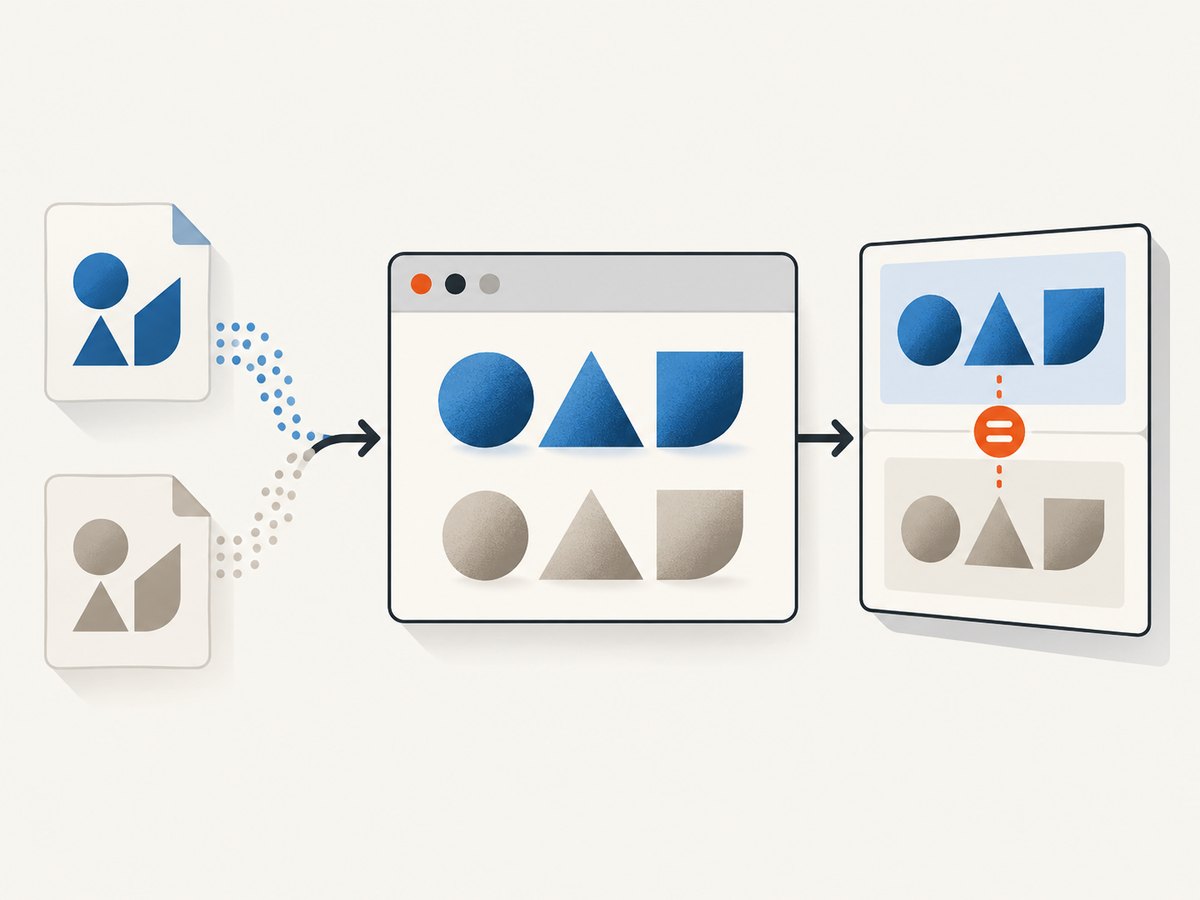
- The Cypress browser already shows the wrong font: investigate the application state and font asset request.
- The Cypress browser shows the intended font, but the Percy result does not: compare snapshot timing and rendering conditions with a passing run.
A failed font load can leave text using a fallback, and font rendering or timing can contribute to visual diffs. Those are possible causes, not a diagnosis of any particular build. Check the failing environment rather than assuming a hosting, CORS, or Percy configuration issue.
2. Check the font request in the failing environment
Use the browser’s developer tools during the Cypress run. Inspect the Network and Console panels for the font asset associated with the affected text. Confirm whether the request succeeds and whether its URL is reachable from the test environment. The request details can tell you if the app is receiving the asset or silently falling back.
- Open the affected route through the same Cypress run and environment that produces the bad Percy snapshot.
- Inspect the font request in Network. Note its URL, status, and any browser-reported loading error.
- Check Console for related errors. Record the evidence before changing configuration.
- Compare those results with a passing run, if one is available.
If the font request failed, follow the evidence to the app’s font URL, deployment, or test environment. This research does not establish a universal CORS rule, required font format, or packaging fix for Percy. Avoid applying a generic fix until you know what the failing request reports.
3. Verify the rendered family and wait for app readiness
A successful request alone does not prove that the affected text is rendered in the intended family. Inspect the computed style for the element and, where browser tooling permits, the rendered fonts used for its glyphs. Check the exact element that looks wrong: a page can use multiple families or apply a different rule to a particular component.

Next, make the Cypress flow wait for a meaningful application-specific condition before calling Percy. For example, wait for the route’s loaded state or for the component containing the affected text to become ready. The condition should reflect when the application has reached the state you intend to snapshot.
Percy’s Cypress guidance demonstrates checking image readiness and cautions that fixed waits can be unreliable. That example is about images; it is not a font readiness API or a guarantee that a font has loaded. Adapt the readiness check to the app, and verify the rendered family separately.
4. Add a focused Cypress check
The following example shows the shape of a useful test: visit the page, wait on a meaningful app condition, inspect the affected element, and then take the Percy snapshot. Replace the example route, selector, readiness condition, and expected family with values from your application. The computed-style assertion helps identify an app-side mismatch; by itself it does not prove that every glyph came from that font or explain a Percy-only difference.
describe('typography visual snapshot', () => {
  it('captures the page after the heading is ready', () => {
    cy.visit('/pricing');

    // Use a real app-specific condition, not an arbitrary delay.
    cy.get('[data-testid="pricing-heading"]')
      .should('be.visible')
      .should(($heading) => {
        const family = getComputedStyle($heading[0]).fontFamily;
        expect(family).to.include('Brand Sans');
      });

    cy.percySnapshot('pricing typography');
  });
});
This code assumes your Cypress setup already provides cy.percySnapshot() and that the selector and family name match your app. A computed font-family value reports the CSS family declaration; it should be considered alongside the actual font request and rendered appearance. If an application exposes a better readiness signal for its typography or route data, wait on that signal too.
5. Compare the failing and passing snapshots
If the browser appears correct but the Percy result differs, compare runs along four axes. Keep the comparison narrow enough to identify which condition changed.
| Axis | What to compare | Why it helps |
|---|---|---|
| Browser/rendering environment | Environment used by the failing and passing run | Visual rendering can differ between environments. |
| Viewport | Configured width and height | Viewport is a relevant dimension in visual testing and can change layout or responsive styles. |
| Application state and timing | Route state and when the snapshot command runs | A snapshot taken before the intended state is ready can capture transient output. |
| Font asset | Whether the request succeeds and the text uses the intended family | A missing asset can lead to fallback typography. |
Change one relevant condition at a time and capture again after the app’s readiness condition passes. Review whether the discrepancy remains. A changed result can narrow the cause, but it does not establish a universal remedy for other apps or environments.
6. Troubleshooting common symptoms
| Symptom | Likely area to inspect | Next step |
|---|---|---|
| The Cypress browser itself shows a fallback font | Font asset delivery or app styling | Inspect the font request and computed/rendered family for the affected element. |
| The font request fails in CI but works locally | Test environment access to the asset | Compare the request URL and browser error in both environments; correct the specific delivery or environment issue shown. |
| The request succeeds, but one component looks wrong | Component-specific CSS or font selection | Inspect that element’s computed styles and rendered fonts rather than checking only the page body. |
| The browser looks right but Percy differs | Snapshot timing or rendering conditions | Compare environment, viewport, app state, and font request with a passing run. |
| The result changes between runs | Readiness and transient application state | Wait for a stable, app-specific ready condition before the Percy command; avoid relying on a fixed delay alone. |
| A computed-style assertion passes but the screenshot still looks wrong | Actual rendered glyphs or snapshot context | Check the font request and rendered typeface, then compare the Percy run conditions. A CSS family declaration alone is not proof of the rendered font. |
7. Keep snapshots reliable and efficient
Make each snapshot represent a deliberate application state. Use a route or component readiness condition tied to what the test needs, then call Percy. Fixed waits can waste CI time when too long and still be too short when loading varies. Percy’s example checks that images are complete; treat that as an illustration of readiness thinking, not as a font-specific check.
Keep the viewport and browser configuration consistent when comparing visual results. If either changes, record it as part of the diagnosis rather than attributing every typography difference to font delivery. Retest the failing case after a targeted correction and inspect the new result.
Reliability also depends on separating evidence from assumptions. A failed font request supports an app-side loading investigation. A successful request and correct browser rendering followed by a Percy-only mismatch points toward comparing snapshot context and timing. Neither pattern alone identifies a universal root cause.
8. Cost and maintenance considerations
The practical cost of this diagnosis is usually engineering and CI time spent collecting comparable runs. Avoid broad configuration changes before confirming whether the font loaded and which family the affected text rendered. A focused readiness assertion can also make the intended capture point visible in the test, which helps future maintainers understand why the snapshot occurs there.
Keep the assertion aligned with the application’s actual typography contract. If the family name or component changes, update the check intentionally. Do not treat a passing CSS family assertion as a permanent guarantee that the font asset remains available in every test environment.
9. Or skip the browser setup
If you need a clean reference screenshot while diagnosing a page, ScreenshotNeo offers a one-call website screenshot API. Its API accepts a URL and can return PNG, JPEG, WebP, or PDF. The [ScreenshotNeo documentation](https://screenshotneo.com/docs/) lists its request options.
curl -G "https://api.screenshotneo.com/v1/shot" -d access_key=YOUR_API_KEY --data-urlencode url=https://stripe.com -o shot.webpimport requests
r = requests.get("https://api.screenshotneo.com/v1/shot", params={"access_key": "YOUR_API_KEY", "url": "https://stripe.com"}, timeout=90)
open("shot.webp", "wb").write(r.content)const q = new URLSearchParams({ access_key: 'YOUR_API_KEY', url: 'https://stripe.com' });
const res = await fetch(`https://api.screenshotneo.com/v1/shot?${q}`);ScreenshotNeo accepts cookie or consent banners like a visitor and removes more than 60 known consent platforms, newsletter popups, and chat widgets before capture; each cleanup step can be turned off. Bot checks, blank pages, timeouts, failed loads, and cache hits cost nothing, and responses identify the page verdict and billing status in headers. Its MCP server provides take_screenshot, get_page_info, and capture_pdf tools for AI agents. The free plan includes 1,000 shots per month with no card; paid plans start at $5 for 3,000 shots. Every feature is on every plan. See [ScreenshotNeo](https://screenshotneo.com) for details.
Sign up free for 1,000 screenshots a month, no card required.
10. FAQ
Does a passing Percy snapshot prove the font is available everywhere?
No. It shows the result for that run’s application state and rendering conditions. Check the font request and rendered family in each relevant environment.
Should I add a fixed wait before every snapshot?
Prefer a meaningful application-specific readiness condition. A fixed delay does not tell you that the page reached the intended state.
Is a computed font-family assertion enough?
It is a useful signal for the CSS declaration, but pair it with the font request and rendered appearance when diagnosing a mismatch.
Is every Percy font mismatch caused by CORS?
The available guidance does not establish that. Inspect the actual request and browser error in the failing environment before deciding what to change.
Conclusion
Find the boundary where typography changes: check the font request and rendered family in Cypress before Percy runs, then compare readiness, viewport, and rendering environment if the snapshot still differs. Make a targeted correction based on the failing build’s evidence and capture again from a deliberate ready state.


