How to Fix Blank PhantomJS Screenshots and Bind Errors in Node.js
Diagnose blank PhantomJS screenshots by tracing the failure layer: transparency, page loading, JavaScript, installation, or a local address conflict.

A blank PhantomJS screenshot and a Node.js “bind error” can come from different failure layers. First capture the exact error code and stack, along with your Node.js and PhantomJS versions, operating system, architecture, command, and the stage where it fails. In particular, do not assume that “bind error” means EADDRINUSE: use that diagnosis only when Node reports that exact code.
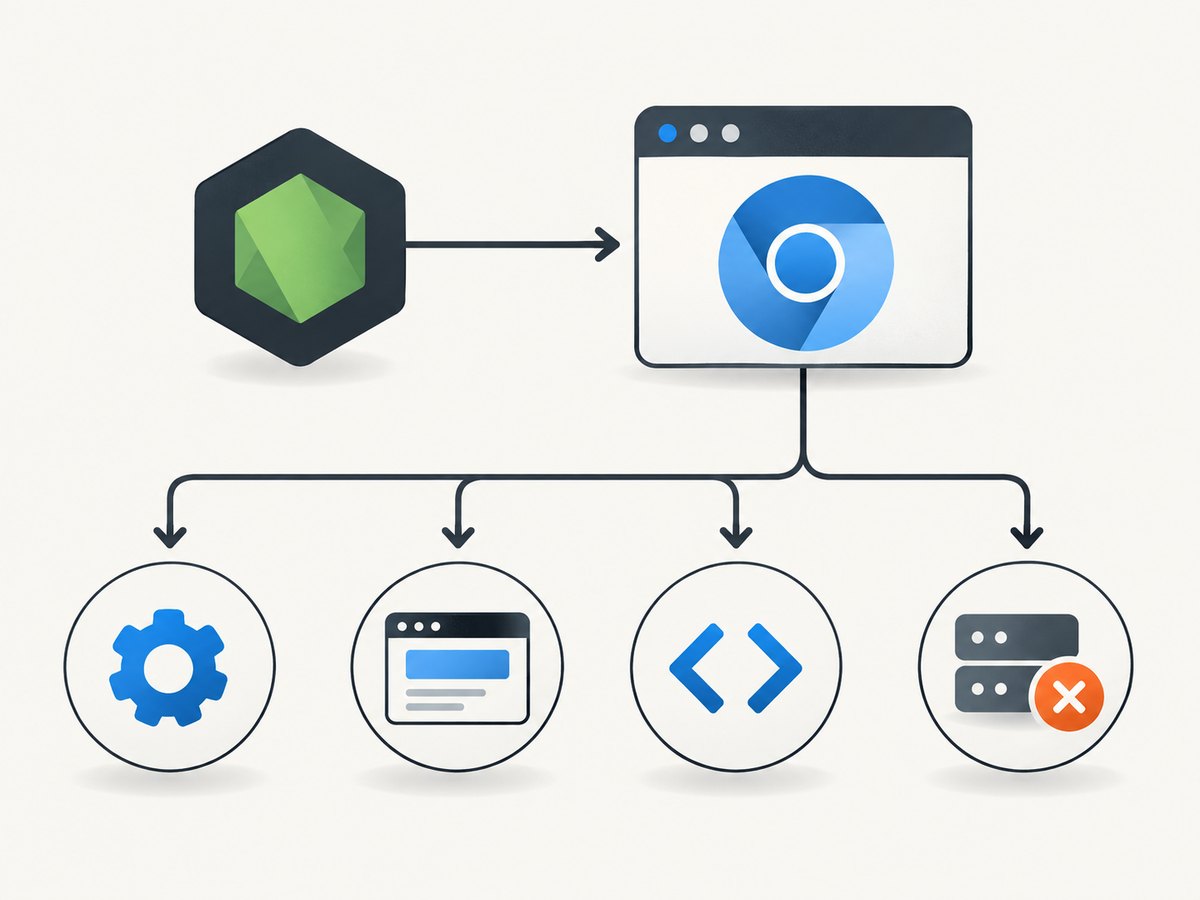
PhantomJS runs as a separate process. Node.js launches it and exchanges data with it; PhantomJS page APIs belong inside the PhantomJS script. A screenshot that appears blank may also contain a rendered page with a transparent background. The steps below distinguish these cases before changing ports, adding Xvfb, or rewriting a working capture flow.
1. Identify which layer is failing
Record this information before changing the environment:
- The full error message and stack, including the exact code such as
ENOENTorEADDRINUSE. node --versionandphantomjs --version.- Operating system and CPU architecture, plus the exact command used to launch the script.
- Whether the issue happens during dependency installation, process launch, page navigation, rendering, or local server startup.
- Whether the target works over HTTP, HTTPS, both, or neither.
PhantomJS guidance warns that multiple installed versions can cause confusion, so confirm which binary the command actually resolves to. When a failure is limited to one machine or deployment, compare the platform, architecture, binary path, and environment before treating it as a page-rendering problem. PhantomJS troubleshooting guidance covers version, network, and rendering checks.
2. Make the Node.js to PhantomJS process boundary explicit
The PhantomJS npm package installs or exposes a platform-specific binary; it is not a Node.js module that provides PhantomJS page APIs in the Node process. The documented integration pattern is a standalone PhantomJS script launched from Node as a child process. Keep require('webpage'), page.open(), and page.render() in that script, and pass arguments or output across the process boundary deliberately. See the PhantomJS npm package documentation and the PhantomJS FAQ.
The following small setup separates the scripts. It assumes the phantomjs executable is available on PATH. If your installation exposes a binary at another path, set PHANTOMJS_BIN to that executable.
PhantomJS script: capture.js
var page = require('webpage').create();
var system = require('system');
var address = system.args[1];
var output = system.args[2] || 'shot.png';

if (!address) {
  console.log('Usage: phantomjs capture.js URL [output.png]');
  phantom.exit(2);
}

page.viewportSize = { width: 1280, height: 800 };
page.onError = function (message, trace) {
  console.log('PAGE_ERROR: ' + message);
  trace.forEach(function (item) {
    console.log('  ' + item.file + ':' + item.line);
  });
};
page.onResourceRequested = function (request) {
  console.log('RESOURCE: ' + request.url);
};
page.open(address, function (status) {
  console.log('OPEN_STATUS: ' + status);
  if (status !== 'success') {
    phantom.exit(1);
    return;
  }

  // An unset page background may remain transparent.
  page.evaluate(function () {
    if (document.body) document.body.bgColor = '#ffffff';
  });
  page.render(output);
  console.log('WROTE: ' + output);
  phantom.exit(0);
});
Node.js launcher: run-capture.js
const { spawn } = require('node:child_process');
const path = require('node:path');

const binary = process.env.PHANTOMJS_BIN || 'phantomjs';
const script = path.join(__dirname, 'capture.js');
const url = process.argv[2] || 'https://example.com';
const output = process.argv[3] || 'shot.png';

const child = spawn(binary, [script, url, output], { stdio: 'inherit' });
child.on('error', (error) => {
  console.error('Could not start PhantomJS:', error.code, error.message);
  process.exitCode = 1;
});
child.on('close', (code, signal) => {
  if (signal) console.error('PhantomJS stopped by signal:', signal);
  process.exitCode = code === null ? 1 : code;
});
Run it with node run-capture.js https://example.com shot.png. This is a diagnostic baseline, not a promise that every modern site will render in an older browser engine. It makes process launch, page-open status, resource requests, page JavaScript errors, and output path visible in the logs.
3. Check whether the “blank” image is transparent
Before investigating navigation, inspect the PNG against a dark or checkerboard background, or inspect its alpha channel. If the image has the expected dimensions and meaningful pixels but appears empty on white, transparency may explain it. PhantomJS does not automatically set a page background; the FAQ notes that an unset background remains transparent. Setting document.body.bgColor to white in page context is the documented workaround. See the FAQ’s transparent-background answer.
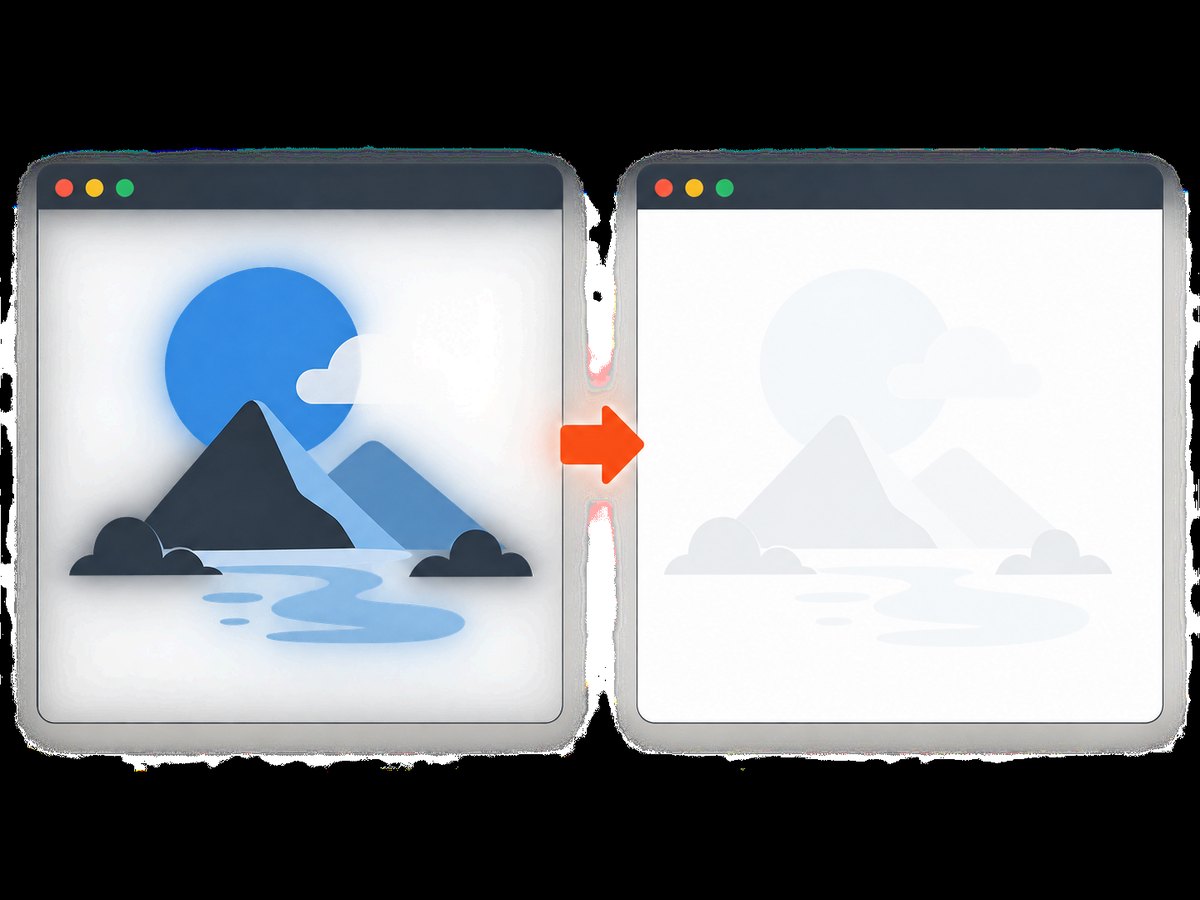
The example sets the color after page.open reports success. Some applications paint their background on a nested element rather than the body, or change it after initialization; in those cases, inspect the document’s computed styles and set an appropriate background for the element that owns the visible page. A white background cannot fix a page that never loaded, nor can it make a failed request succeed.
4. Instrument navigation, resources, and page JavaScript
A successful process launch is not proof that the page loaded or initialized. Check the logged OPEN_STATUS, requested resource URLs, and page errors. PhantomJS troubleshooting recommends request logging for network problems; the API documents page.onError for collecting page exceptions and stack traces. For difficult cases, its remote debugging facilities can help inspect page and script execution. Troubleshooting · onError handler.
- If open status is not success, verify the URL, DNS, proxy settings, connectivity, and whether the target blocks or redirects the request.
- If resources fail, identify whether they are essential scripts, stylesheets, images, or optional third-party calls. Compare the logged URLs with browser access from the same host.
- If page errors appear, use the trace to find the failing script. A page can load while application initialization fails and leaves little content to capture.
- If the page builds content after navigation completes, a capture immediately on open may be early. Wait for an application-specific element or a known delay, then verify that the expected content exists before rendering.
For HTTPS-only failures, PhantomJS troubleshooting suggests checking the installed SSL libraries, including OpenSSL, and examining proxy and network behavior. Do not infer an SSL diagnosis solely from a blank image; use the request and navigation evidence.
5. Diagnose install and process launch errors
spawn ENOENT means the requested executable could not be found at process launch, but the missing executable is whichever command the error identifies. Check the binary path and PATH; if the error occurs during package installation, check the install tools in that environment too. The PhantomJS package documentation identifies missing node or tar on PATH as common causes of install-time spawn ENOENT.
# Confirm Node.js and PhantomJS are visible to this shell
node --version
command -v node
command -v phantomjs
phantomjs --version

# If the executable is elsewhere, point the launcher at it
PHANTOMJS_BIN=/absolute/path/to/phantomjs node run-capture.js https://example.com shot.png
The package uses a platform-specific PhantomJS binary. Dependencies installed on one operating system or architecture may not contain the right binary for another. In deployments where dependencies are checked in or copied across platforms, follow the package’s platform-specific guidance and rebuild dependencies for the target environment (for example, with npm rebuild). Confirm that the rebuilt binary is actually the one launched. Package installation and platform notes.
6. Treat “bind error” as an exact-code diagnosis
If the actual Node.js code is EADDRINUSE, Node defines it as a local server bind attempt failing because another server already occupies the requested address. This is a port or address conflict, separate from PhantomJS page rendering. Identify the process that owns the address, stop or reconfigure that listener, or configure the application to use a free port. Node’s documentation describes this error in its common system errors.
Do not kill processes or change ports based only on the phrase “bind error.” If the code differs, follow that code and the stack to the failing operation. A bind failure during local server startup does not explain a transparent PNG by itself. Conversely, a PhantomJS child-process launch failure does not establish that a server port is occupied.
7. Check legacy X server advice against the version
“Cannot connect to X server” can indicate an old environment, but Xvfb is not a general fix for all PhantomJS versions. The PhantomJS FAQ says versions 1.4 and earlier needed an X server and describes Xvfb as a workaround; it says PhantomJS 1.5 and later is headless and does not need X11/Xvfb. Check phantomjs --version before adding an X server dependency. PhantomJS FAQ: X server requirement.
8. Troubleshooting reference
| Symptom | Likely layer | First checks and fix |
|---|---|---|
| Image looks blank, but dimensions are plausible | Transparency or background styling | Inspect alpha or view against a contrasting background; set an explicit page background after load. |
| Empty or partial page | Navigation, resources, or page JavaScript | Check open status, log resource requests, add page.onError, and verify the content exists before render. |
EADDRINUSE |
Local server bind | Find which process owns the address and stop/reconfigure it or use a free address. |
spawn ENOENT |
Executable lookup or installation | Use the full error to identify the missing command; check its path and PATH. For install-time errors, verify node and tar. |
| Works on one OS but not another | Platform-specific package binary | Check OS and architecture, rebuild dependencies for the target platform, and verify the launched binary. |
| HTTPS fails while HTTP succeeds | SSL or network configuration | Check SSL libraries, proxy configuration, and request logs. |
| “Cannot connect to X server” | Possibly legacy PhantomJS | Check the version. Xvfb advice applies to versions 1.4 and earlier per the FAQ; 1.5+ is described as headless. |
9. Reliability, performance, and maintenance considerations
For a reliable capture job, make the layers observable and keep failures distinct. Log the command and binary version, child-process exit code or signal, navigation status, resource failures, page exceptions, and output path. Use a bounded wait for application content rather than an indefinite sleep; record a useful failure when the expected selector is absent. When running multiple jobs, avoid sharing mutable output filenames or assuming a local port is free. These practices make it easier to tell whether the problem is process startup, networking, application rendering, image appearance, or server binding.
Capture time depends on process startup, page navigation, the site’s resource load, and any wait for dynamic content. Logging resource requests and using a page-specific readiness condition can help locate avoidable waiting, but old browser support and modern site compatibility are separate concerns. No performance figures are asserted here. The supplied documentation describes PhantomJS behavior and troubleshooting; it does not establish current compatibility with every site or a comparative benchmark.
PhantomJS documentation and its npm package guidance are legacy material. If this workflow is part of a new system, account for maintaining an older browser runtime and platform-specific binary in your deployment. If you retain it, pin and verify the executable used in each environment, keep the Node-to-process boundary explicit, and preserve diagnostic output so future failures can be classified from evidence.
10. Or skip the browser setup
For a screenshot without managing a local browser process, ScreenshotNeo is a website screenshot API and MCP server. One GET request with a URL returns PNG, JPEG, WebP, or PDF. See the ScreenshotNeo API docs for the request options.
curl -G "https://api.screenshotneo.com/v1/shot" -d access_key=YOUR_API_KEY --data-urlencode url=https://stripe.com -o shot.webpEquivalent Python and Node.js calls:
import requests

r = requests.get(
    "https://api.screenshotneo.com/v1/shot",
    params={"access_key": "YOUR_API_KEY", "url": "https://stripe.com"},
    timeout=90,
)
open("shot.webp", "wb").write(r.content)
const q = new URLSearchParams({ access_key: 'YOUR_API_KEY', url: 'https://stripe.com' });
const res = await fetch(`https://api.screenshotneo.com/v1/shot?${q}`);
if (!res.ok) throw new Error(`Screenshot request failed: ${res.status}`);
const bytes = new Uint8Array(await res.arrayBuffer());
await import('node:fs/promises').then(({ writeFile }) => writeFile('shot.webp', bytes));- Cookie and consent banners, newsletter popups, and chat widgets are removed before the shot; each cleanup step can be turned off.
- Bot checks and CAPTCHAs, blank pages, timeouts, failed loads, and cache hits cost nothing. Responses include
X-Page-VerdictandX-Billedheaders. - An MCP server gives AI agents, including Claude and Cursor, the tools
take_screenshot,get_page_info, andcapture_pdf. - The free plan includes 1,000 screenshots per month with no card. Paid plans start at $5 for 3,000 screenshots; every feature is on every plan.
Create a free ScreenshotNeo account for 1,000 screenshots a month, with no card.
FAQ
Why is my PhantomJS screenshot blank?
First check whether the image is transparent. If it is not, inspect navigation status, failed resources, and page JavaScript errors before changing the rendering setup.
Why does PhantomJS render a transparent screenshot?
An unset page background can remain transparent. Set a background in page context after the document is available, then inspect whether the visible application uses another element’s background.
How do I fix PhantomJS spawn ENOENT?
Read the full error to identify which executable is missing, then verify its path and PATH. Install-time errors may involve missing node or tar; process-launch errors may point to the PhantomJS binary.
What does EADDRINUSE mean in Node.js?
A local server tried to bind to an address already occupied by another process. Find the listener or configure a free address; it is not, by itself, a PhantomJS rendering error.
Does PhantomJS need Xvfb?
According to the FAQ, versions 1.4 and earlier needed an X server, while version 1.5 and later is headless. Verify your installed version before applying old Xvfb advice.


