How to Fix PhantomJS Clicks That Fail to Submit a Form
Debug PhantomJS form clicks with event checks, page errors, network logs, timing fixes, and reliable success detection.
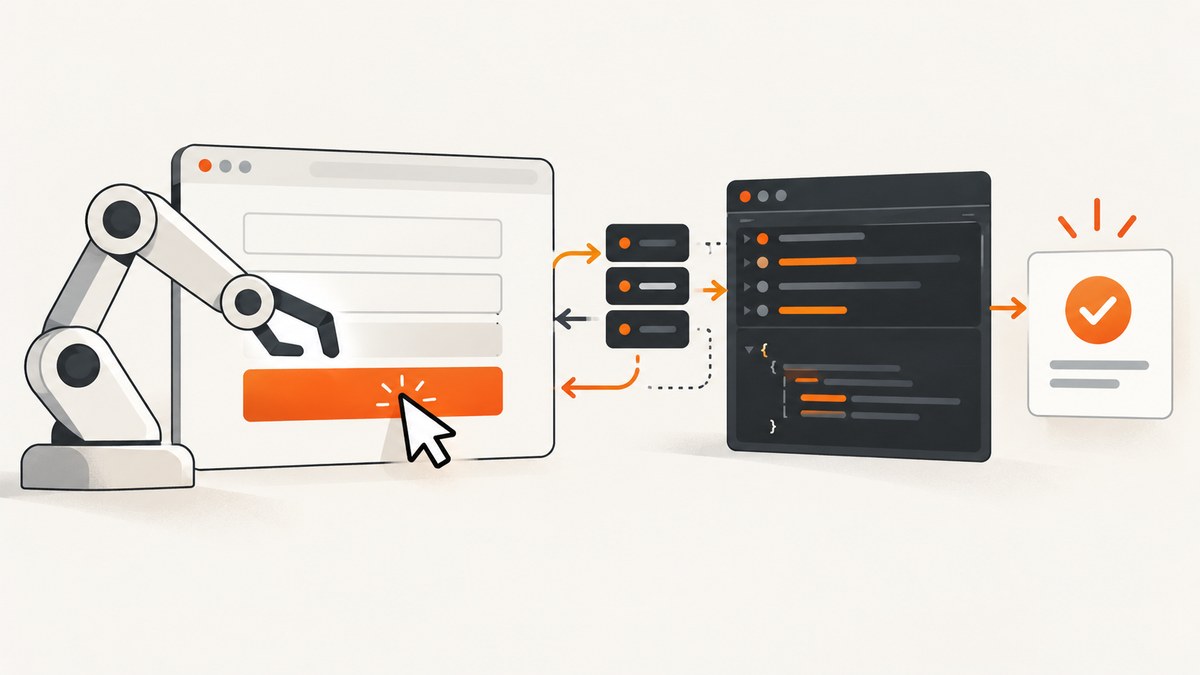
A PhantomJS click can appear to do nothing when the event misses the control, a page-side exception stops the handler, the form is not ready yet, validation rejects a value, or the submission succeeds but your script checks for the result too early. Diagnose those cases separately.
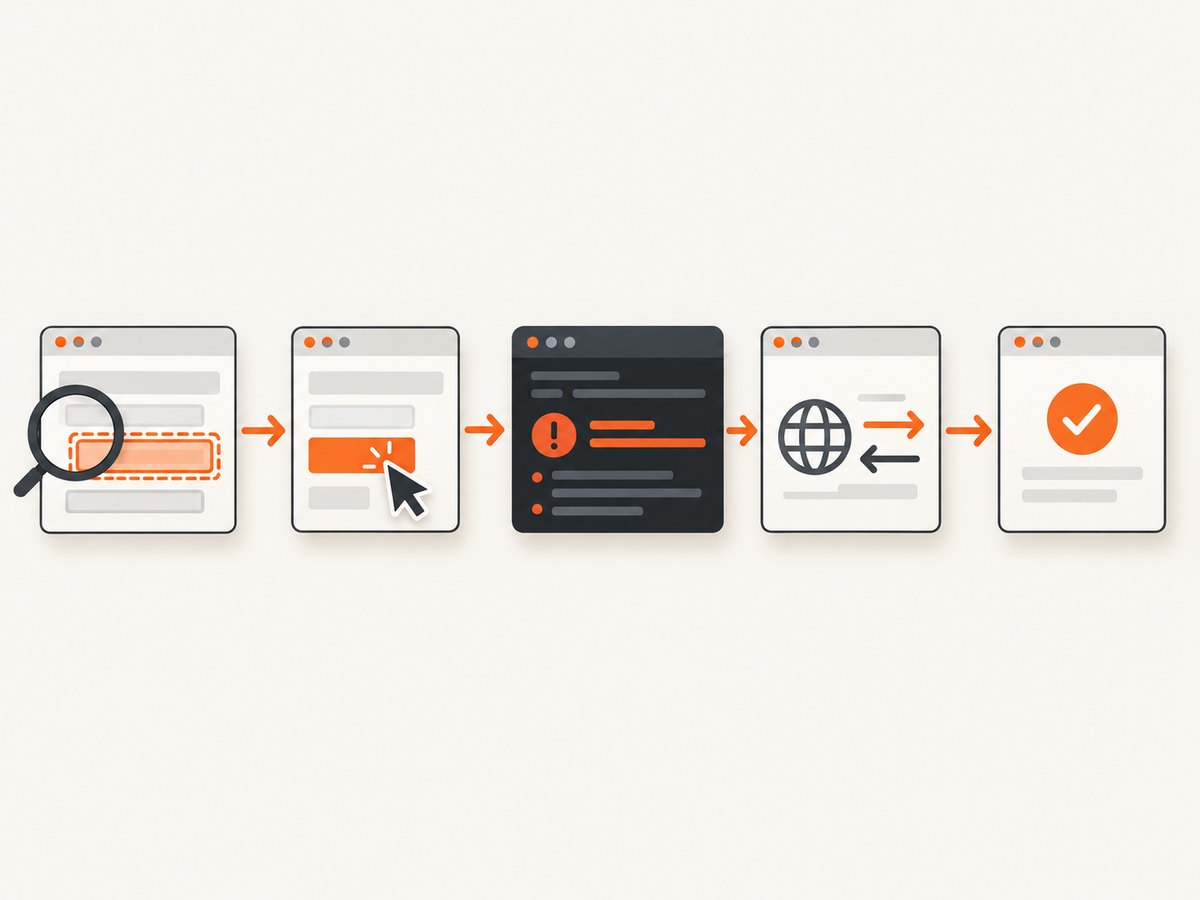
The reliable sequence is:
- Confirm the PhantomJS binary and version you are executing.
- Install page-error, console, request, and response callbacks before loading the page.
- Wait until the form and submit control exist and are usable.
- Send the click to the actual target, then wait for navigation or the asynchronous request.
- Verify a concrete success signal such as a URL, confirmation element, DOM change, request, and response.
1. Confirm the PhantomJS executable
Different installed binaries can produce confusing behavior. Log the executable selected by the same environment that runs your script:
phantomjs --version
which phantomjs
If a scheduler, container, or CI job uses another path, invoke that absolute path explicitly and compare its version with your local run. PhantomJS’s troubleshooting guide calls out conflicts between multiple installed versions as a source of problems (official troubleshooting guide).
2. Use a diagnostic script before changing the click
This complete script records page exceptions, console output, requests, responses, the form state, and the post-click result. Replace the URL, selector, and test values.
var system = require('system');
var webpage = require('webpage');

var page = webpage.create();
var targetUrl = system.args[1] || 'https://example.com/form';
var submitSelector = system.args[2] || 'form button[type="submit"]';

function log(message) {
  console.log(new Date().toISOString() + ' ' + message);
}

page.onError = function (message, trace) {
  log('[page error] ' + message);
  trace.forEach(function (frame) {
    log('  at ' + frame.file + ':' + frame.line +
        (frame.function ? ' in ' + frame.function : ''));
  });
};

page.onConsoleMessage = function (message, lineNum, sourceId) {
  log('[console] ' + message + ' (' + sourceId + ':' + lineNum + ')');
};

page.onResourceRequested = function (requestData) {
  log('[request] ' + requestData.method + ' ' + requestData.url);
};

page.onResourceReceived = function (response) {
  if (response.stage === 'end') {
    log('[response] ' + response.status + ' ' + response.url);
  }
};

page.viewportSize = { width: 1280, height: 900 };

page.open(targetUrl, function (status) {
  log('[open] ' + status);
  if (status !== 'success') {
    log('Initial page load failed');
    phantom.exit(1);
    return;
  }

  window.setTimeout(function () {
    var state = page.evaluate(function (selector) {
      var form = document.querySelector('form');
      var button = document.querySelector(selector);
      if (!form || !button) {
        return {
          form: !!form,
          button: !!button,
          ready: false,
          url: location.href
        };
      }
      return {
        form: true,
        button: true,
        ready: !button.disabled,
        buttonText: button.textContent,
        formAction: form.action,
        url: location.href
      };
    }, submitSelector);

    log('[state] ' + JSON.stringify(state));
    if (!state.ready) {
      log('Form or enabled submit control is not ready');
      phantom.exit(1);
      return;
    }

    var clicked = page.evaluate(function (selector) {
      var button = document.querySelector(selector);
      if (!button) return false;
      button.click();
      return true;
    }, submitSelector);

    log('[click] dispatched=' + clicked);
    if (!clicked) {
      phantom.exit(1);
      return;
    }

    window.setTimeout(function () {
      var result = page.evaluate(function () {
        var confirmation = document.querySelector('.success, .confirmation, [role="alert"]');
        return {
          url: location.href,
          title: document.title,
          confirmation: confirmation ? confirmation.textContent : null,
          bodyPrefix: document.body ? document.body.innerText.slice(0, 300) : ''
        };
      });
      log('[result] ' + JSON.stringify(result));
      page.render('after-submit.png');
      phantom.exit(0);
    }, 5000);
  }, 1500);
});
The callbacks mirror the documented PhantomJS APIs: sendEvent, evaluate, and open. The automation guide also demonstrates DOM selectors and page-side manipulation (Page Automation with PhantomJS).
3. Check that the click reaches the intended control
Selector clicks
A page-side button.click() is useful when the element has a normal DOM click handler. First verify that the selector resolves to exactly the intended element:
var details = page.evaluate(function () {
  var nodes = document.querySelectorAll('form button[type="submit"]');
  return Array.prototype.map.call(nodes, function (node) {
    var box = node.getBoundingClientRect();
    return {
      text: node.textContent,
      disabled: node.disabled,
      display: getComputedStyle(node).display,
      visibility: getComputedStyle(node).visibility,
      x: box.left,
      y: box.top,
      width: box.width,
      height: box.height
    };
  });
});
console.log(JSON.stringify(details));
Check for duplicate controls, a disabled button, zero dimensions, hidden ancestors, and a selector that matches a template or off-screen copy. If the form is inside an iframe, switch to the correct frame before querying it.
Coordinate clicks with sendEvent
page.sendEvent('click', x, y) sends a documented click event as if it came from user interaction. Coordinates can still land on the wrong element or outside a control, so calculate the target’s bounding box and inspect the resulting state:
var point = page.evaluate(function () {
  var node = document.querySelector('form button[type="submit"]');
  if (!node) return null;
  var r = node.getBoundingClientRect();
  return { x: Math.round(r.left + r.width / 2),
           y: Math.round(r.top + r.height / 2) };
});
if (point) {
  page.sendEvent('click', point.x, point.y);
}
Use the selector or coordinates that match the real, visible control. Do not assume that dispatching an event guarantees that a particular site’s handlers will run; confirm the page’s response.
4. Catch page JavaScript errors
A thrown exception can stop validation or the submit handler while PhantomJS itself continues running. page.onError reports page syntax errors and exceptions with stack frames. page.onConsoleMessage forwards useful application logs. Keep both callbacks enabled while diagnosing.
When you control the page, add temporary logging around the handler:
console.log('submit handler entered');
try {
  // validation and submission code
} catch (error) {
  console.log('submit handler failed: ' + error.message);
  throw error;
}
If the error mentions an unsupported browser API, the page may rely on behavior PhantomJS does not implement. In that case, use a compatible browser automation runtime or submit the underlying request directly when browser-side behavior is not required.
5. Respect the evaluate context boundary
page.evaluate runs inside the page. Arguments and return values must be simple serializable values. Do not pass closures, DOM nodes, or functions across the boundary. Return a Boolean, string, URL, or plain object and continue orchestration in the outer PhantomJS script.
var state = page.evaluate(function (selector) {
  var button = document.querySelector(selector);
  return {
    exists: !!button,
    disabled: button ? button.disabled : null
  };
}, 'form button[type="submit"]');
6. Wait for the actual submission result
A click may start a full navigation, an XHR/fetch request, or an in-page state change. A result read immediately after the click can therefore be stale. The open callback reports when a load finishes and whether it succeeded or failed; inspect the new URL or content after that callback. For asynchronous submissions without navigation, wait for a known confirmation element or request response.
Navigation-based form
var before = page.url;
page.evaluate(function () {
  document.querySelector('form button[type="submit"]').click();
});
window.setTimeout(function () {
  console.log('URL changed: ' + (page.url !== before));
  console.log('URL: ' + page.url);
}, 5000);
In-page confirmation
function confirmationVisible() {
  return page.evaluate(function () {
    var node = document.querySelector('.success, .confirmation, [role="alert"]');
    return !!node && node.textContent.trim().length > 0;
  });
}

var deadline = Date.now() + 15000;
function poll() {
  if (confirmationVisible()) {
    console.log('Submission confirmed');
    phantom.exit(0);
    return;
  }
  if (Date.now() >= deadline) {
    console.log('No confirmation before timeout');
    phantom.exit(1);
    return;
  }
  window.setTimeout(poll, 250);
}
poll();
A Stack Overflow report describes a click that submitted successfully while the script failed to observe the returned result; treat that as a debugging example, not a universal rule (community report).
7. Distinguish browser interaction from a direct POST
Use browser interaction when client-side validation, event handlers, tokens, or UI state must run. If you already understand the endpoint and intentionally want to bypass that browser behavior, PhantomJS page.open can send POST data:
var page = require('webpage').create();
var data = 'email=' + encodeURIComponent('dev@example.com') +
           '&message=' + encodeURIComponent('Hello');
page.open('https://example.com/submit', 'post', data, {
  'Content-Type': 'application/x-www-form-urlencoded'
}, function (status) {
  console.log('POST status: ' + status);
  console.log('URL: ' + page.url);
  phantom.exit(status === 'success' ? 0 : 1);
});
This is not equivalent to clicking the form: browser validation and client-side handlers may be skipped, and you must reproduce required cookies, headers, CSRF values, and encoding yourself.
8. Troubleshooting checklist
| Symptom | Likely cause | Fix |
|---|---|---|
| No click effect | Wrong selector, coordinates, frame, or hidden control | Log matching nodes, bounding boxes, visibility, and frame context; click the resolved target. |
| Button exists but does nothing | Button is disabled or validation fails | Inspect disabled, required fields, values, and page console errors. |
| Script exits with no result | Page exception or missing callbacks | Add onError and onConsoleMessage before page.open. |
| URL never changes | Submission uses XHR or in-page rendering | Monitor resources and poll for a confirmation DOM state instead of waiting only for navigation. |
| Load callback says fail | Navigation or resource load failed | Log every request and response, check the target URL, and inspect network activity. |
| Result is read too early | Asynchronous request is still pending | Wait for a selector, response, URL change, or bounded timeout with a clear failure path. |
| Works locally, fails in CI | Different PhantomJS binary, viewport, timing, or environment | Log phantomjs --version, executable path, viewport, and all callbacks in CI. |
| Page needs unsupported browser behavior | PhantomJS cannot execute required JavaScript | Use a compatible browser runtime or send the known request directly when acceptable. |
9. Remote debugging when logs are not enough
When event delivery, page errors, and resource logs do not identify the failure, use PhantomJS’s documented remote debugger to inspect page and script state with a WebKit-based inspector. The troubleshooting guide explains how to connect it (Troubleshooting).
10. Reliability, performance, and cost considerations
- Use bounded waits and exit codes so a hung request cannot block a job forever.
- Prefer a specific confirmation signal over a fixed long sleep; poll at a short interval and stop as soon as success is visible.
- Capture request and response logs only during diagnosis if log volume matters in production.
- Reuse a page for related captures carefully; clear cookies and state when submissions must be isolated.
- Render a diagnostic screenshot after failure to compare the actual page state with the expected control.
- For repeated jobs, record the URL, PhantomJS version, viewport, selector, status, final URL, and confirmation result so failures are reproducible.
Or skip the browser setup
If your goal is a clean screenshot of the result rather than maintaining PhantomJS interaction code, ScreenshotNeo provides a single GET request that returns PNG, JPEG, WebP, or PDF. See the ScreenshotNeo API documentation.
curl -G "https://api.screenshotneo.com/v1/shot" -d access_key=YOUR_API_KEY --data-urlencode url=https://stripe.com -o shot.webpimport requests
r = requests.get("https://api.screenshotneo.com/v1/shot", params={"access_key": "YOUR_API_KEY", "url": "https://stripe.com"}, timeout=90)
open("shot.webp", "wb").write(r.content)const q = new URLSearchParams({ access_key: 'YOUR_API_KEY', url: 'https://stripe.com' });
const res = await fetch(`https://api.screenshotneo.com/v1/shot?${q}`);Cookie banners, newsletter popups, and chat widgets are removed before the shot. Bot checks, blank pages, timeouts, failed loads, and cache hits are never billed; response headers identify the page verdict and billing state. An MCP server lets AI agents take screenshots, inspect pages, and capture PDFs. The free plan includes 1,000 screenshots a month with no card, and paid plans start at $5 for 3,000 shots. Create a free ScreenshotNeo account.
FAQ
Should I use button.click() or sendEvent('click', ...)?
Use a selector-based page-side click when you can identify the DOM control. Use sendEvent when coordinate-level user interaction is required, then verify that the coordinates hit the visible target.
Why does a successful submission not call a new page-load callback?
The form may submit asynchronously and update the current document. Observe a confirmation element or the corresponding request instead of waiting only for navigation.
Can I call page.evaluate and immediately read the new page?
No. Return only serializable values from the current page context, then wait for navigation or asynchronous state before reading the result.
When is a direct POST appropriate?
Use it when the endpoint, parameters, cookies, and headers are known and browser-side validation or handlers are not required. Otherwise keep the browser interaction.


