How to Fix PhantomJS Clicks That Work on One Link but Not Another
Fix PhantomJS clicks that work on one link by checking viewport coordinates, waiting for asynchronous changes, and instrumenting the page.
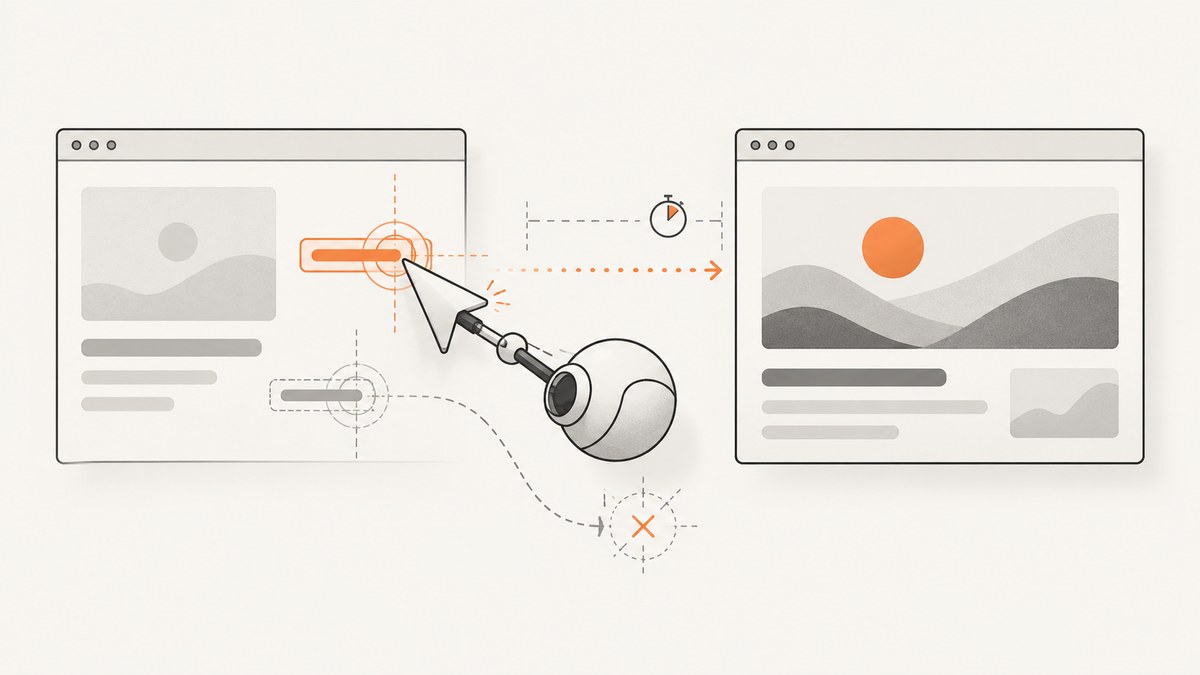
A PhantomJS click that works on one link but appears to fail on another usually needs two checks first: are you sending the event to the target’s viewport coordinates, and are you allowing the page to process the click before you inspect or render it? Parent-relative offsets can point somewhere else, and an immediate screenshot can capture the page before its menu, navigation, or asynchronous request has completed.
Measure the element with getBoundingClientRect(), send page.sendEvent('click', x, y) at a point inside that rectangle, then wait for an observable result such as a URL change, DOM mutation, load callback, or resource activity. The exact cause remains page-specific, so use the sequence below to collect evidence rather than assuming every failed click has one explanation.
1. Understand the coordinate problem
page.sendEvent takes mouse event coordinates. Those coordinates are interpreted in the page viewport. Values such as offsetLeft and offsetTop are commonly relative to an element’s offset parent, so passing them directly can shift the click when the element is nested, scrolled, or positioned inside a layout.
The reliable measurement is the rectangle returned by getBoundingClientRect(). It reports the element’s current viewport-relative position and dimensions. Choose its center, or another point known to be inside the clickable area, and log the rectangle before clicking.
var rect = page.evaluate(function () {
  var link = document.querySelector('#target-link');
  if (!link) return null;
  var r = link.getBoundingClientRect();
  return {
    left: r.left,
    top: r.top,
    right: r.right,
    bottom: r.bottom,
    width: r.width,
    height: r.height,
    text: link.textContent,
    href: link.getAttribute('href')
  };
});

if (!rect || rect.width <= 0 || rect.height <= 0) {
  console.log('Target is missing or has no visible area');
  phantom.exit(1);
}

var x = Math.round(rect.left + rect.width / 2);
var y = Math.round(rect.top + rect.height / 2);
console.log(JSON.stringify({rect: rect, click: {x: x, y: y}}));
page.sendEvent('click', x, y);
Do not return a DOM node, function, or closure from page.evaluate. PhantomJS serializes values across the page boundary; return plain objects, strings, numbers, booleans, and arrays instead. The evaluate documentation describes this boundary.
2. Use a complete diagnostic script
This script loads a page, records errors and console messages, measures a link, clicks it, waits for a configurable period, and renders only after the click has had time to produce a result. Replace the URL and selector with your own values.
var page = require('webpage').create();
var system = require('system');
var targetUrl = system.args[1] || 'https://example.com';
var selector = system.args[2] || '#target-link';
var output = system.args[3] || 'after-click.png';
var waitMs = Number(system.args[4] || 1000);

page.viewportSize = { width: 1280, height: 900 };
page.settings.loadImages = true;

page.onError = function (message, trace) {
  console.log('[page error] ' + message);
  trace.forEach(function (item) {
    console.log('  at ' + item.file + ':' + item.line + ':' + item['function']);
  });
};
page.onConsoleMessage = function (message) {
  console.log('[console] ' + message);
};
page.onUrlChanged = function (url) {
  console.log('[url changed] ' + url);
};
page.onResourceError = function (error) {
  console.log('[resource error] ' + error.url + ' (' + error.errorCode + ') ' + error.errorString);
};

page.open(targetUrl, function (status) {
  if (status !== 'success') {
    console.log('Open failed: ' + status);
    phantom.exit(1);
    return;
  }

  var info = page.evaluate(function (css) {
    var element = document.querySelector(css);
    if (!element) return { found: false };
    var r = element.getBoundingClientRect();
    return {
      found: true,
      left: r.left,
      top: r.top,
      width: r.width,
      height: r.height,
      href: element.getAttribute('href'),
      text: element.textContent
    };
  }, selector);

  if (!info.found || info.width <= 0 || info.height <= 0) {
    console.log('No visible element for selector ' + selector);
    phantom.exit(1);
    return;
  }

  var x = Math.round(info.left + info.width / 2);
  var y = Math.round(info.top + info.height / 2);
  console.log('Clicking ' + JSON.stringify(info) + ' at ' + x + ',' + y);
  page.sendEvent('click', x, y);

  window.setTimeout(function () {
    page.render(output);
    console.log('Rendered ' + output + ' at ' + page.url);
    phantom.exit(0);
  }, waitMs);
});
Run it with phantomjs click-debug.js https://your-site.test '#menu-link' after.png 1500. Record the PhantomJS version with phantomjs --version; the official troubleshooting guide warns that multiple installed executables can make you debug a different version than the one you think you are running.
3. Wait for the click’s actual result
A click can dispatch successfully while its visible result is still pending. A dropdown may be added on the next event loop turn, a single-page app may update after an XHR, and a normal link may trigger navigation after the current callback returns. Rendering immediately after sendEvent can therefore make a successful interaction look broken.
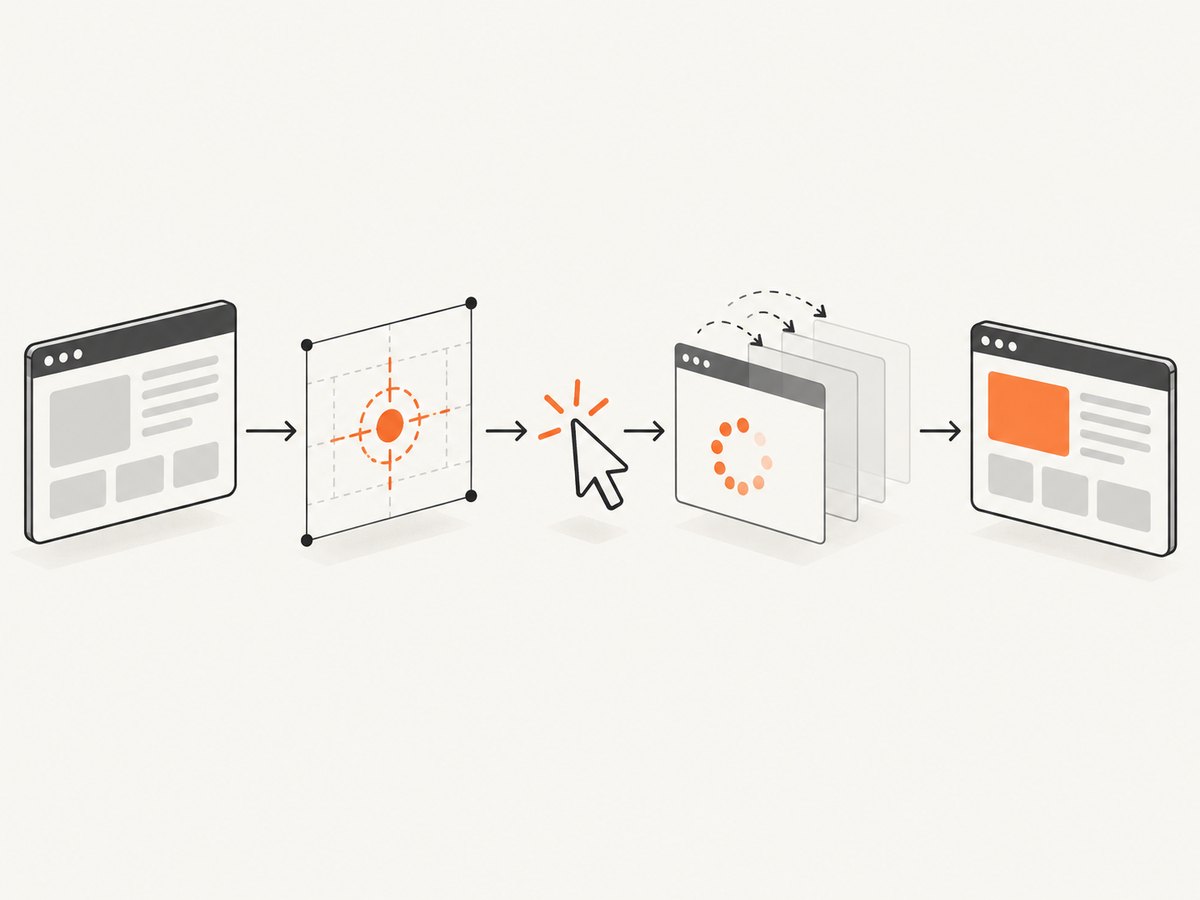
Prefer a state-based wait
If the page exposes a clear state, poll for that state instead of sleeping for an arbitrary duration. For example:
function waitForMenu(test, done, timeout) {
  var started = new Date().getTime();
  function poll() {
    var ready = page.evaluate(test);
    if (ready) return done(true);
    if (new Date().getTime() - started > timeout) return done(false);
    window.setTimeout(poll, 100);
  }
  poll();
}

page.sendEvent('click', x, y);
waitForMenu(function () {
  var menu = document.querySelector('#submenu');
  return menu && menu.offsetWidth > 0 && menu.offsetHeight > 0;
}, function (opened) {
  console.log('Menu opened: ' + opened);
  page.render('after.png');
  phantom.exit(opened ? 0 : 1);
}, 5000);
For navigation, observe page.onUrlChanged or the relevant load callback. For an AJAX interaction, wait for a DOM value, an attribute, or a result element that the application itself changes. PhantomJS provides callbacks for URL changes, navigation requests, resource requests, load events, and errors; connect the callback that matches the expected behavior. A fixed timeout is useful as a diagnostic fallback, but it is not a universal synchronization method.
4. Check the element before blaming the click
- Selector match: confirm that the selector identifies the intended link and not an earlier hidden copy.
- Visibility: reject zero-size rectangles and inspect whether the element is outside the viewport.
- Scroll position: if the target is below the viewport, scroll it into view before measuring again.
- Overlays: cookie notices, modal backdrops, or sticky headers can receive the event. Inspect the topmost element at the click point when the page supports that diagnostic.
- CSS transforms: transformed elements can make visual placement and layout offsets disagree; use the final bounding rectangle.
- Nested browsing contexts: an element inside an iframe belongs to that frame’s document. Find and operate on the frame page context instead of measuring it from the parent document.
- Pointer behavior: some sites require a hover or a sequence of mouse events before the link becomes active. Confirm the page’s event handlers and test the smallest sequence that reproduces the interaction.
These are inspection paths, not conclusions about your page. The closest documented case supports checking coordinate reference frames and timing first.
5. Instrument failures with PhantomJS callbacks
When the rectangle and wait logic look correct, collect evidence. Attach page.onError for JavaScript exceptions and stack traces, and page.onConsoleMessage for application logging. Console messages produced inside the page are not printed by default. Add page.onResourceError and URL or navigation callbacks to identify failed requests and redirects.
page.onNavigationRequested = function (url, type, willNavigate, main) {
  console.log('[navigation] ' + type + ' ' + url + ' main=' + main + ' allowed=' + willNavigate);
};
page.onResourceRequested = function (request) {
  console.log('[request] ' + request.method + ' ' + request.url);
};
Use remote debugging when logs are insufficient, as described in the PhantomJS troubleshooting documentation. Keep the diagnostic output for one failing and one working link; comparing their rectangles, URLs, request activity, and state changes usually reveals the difference.
6. Common errors and fixes
| Symptom | Likely cause | Fix |
|---|---|---|
| The wrong link activates | Parent-relative offsets were used as viewport coordinates. | Measure with getBoundingClientRect() and click its center. |
| The click works but the screenshot is unchanged | Rendering occurred before a menu, navigation, or request completed. | Wait for a DOM, URL, load, or resource signal; use a timeout only while diagnosing. |
| Rectangle is null or zero-sized | Selector mismatch, hidden element, or page not loaded. | Check load status, selector spelling, visibility, and the active document. |
| Page reports an exception | Application JavaScript failed before or during the click. | Read onError output and fix the page error or its compatibility issue. |
| No useful logs appear | Console messages are not wired to the PhantomJS process. | Attach onConsoleMessage and return serializable values from evaluate. |
| Navigation is blocked or unexpected | Request handler, redirect, or page policy changed the destination. | Log navigation and resource callbacks and compare the working link. |
| Results differ between machines | Different PhantomJS executables, viewport sizes, or page timing. | Print the version, set viewport and settings explicitly, and verify the executable path. |
7. Make the fix reliable and affordable
Reliability checklist
- Pin the PhantomJS version used by your job and print it in diagnostics.
- Set a known viewport before measuring coordinates.
- Wait on the page’s meaningful state, with a finite timeout and a clear failure message.
- Capture the URL, rectangle, click point, console errors, resource errors, and final DOM state for failed runs.
- Retry only failures that are demonstrably transient. Repeating a wrong coordinate or a deterministic JavaScript error will not help.
Performance considerations
Loading images, waiting for network activity, and using long polling windows increase capture time. A short state poll (for example, 100 ms intervals) avoids an unnecessarily long fixed sleep while retaining a hard upper bound. Keep the viewport and page settings stable so screenshots are comparable. Instrumentation can be verbose; enable detailed request logging while diagnosing and reduce it in normal jobs.
Cost considerations
A local PhantomJS script has no screenshot-service request charge, but you still pay in build time and maintenance when pages change. If you need many URLs, consistent rendering, or a service that reports failed captures separately, an API can remove browser setup from your worker. Compare the cost of browser runtime, retries, and debugging time with the API plan that fits your volume.
Or skip the browser setup
ScreenshotNeo provides a website screenshot API and MCP server. Its one-request capture is useful when you need the final page image rather than local PhantomJS interaction debugging. Before capture it accepts consent banners and removes more than 60 known consent platforms, newsletter popups, and chat widgets; each step can be disabled. Bot checks, blank pages, timeouts, failed loads, and cache hits are not billed, and the response identifies the result with X-Page-Verdict and X-Billed headers.

See the ScreenshotNeo API documentation for all options, including full-page and element capture, device presets, custom viewports, retina scale, dark mode, waits, custom CSS and JavaScript, clicks, hidden selectors, blocked resources, headers, cookies, user agents, authorization, timezone, geolocation, transparent backgrounds, resizing, caching, signed links, asynchronous jobs, bulk capture, usage, and PDF output.
curl -G "https://api.screenshotneo.com/v1/shot" -d access_key=YOUR_API_KEY --data-urlencode url=https://stripe.com -o shot.webpimport requests
r = requests.get("https://api.screenshotneo.com/v1/shot", params={"access_key": "YOUR_API_KEY", "url": "https://stripe.com"}, timeout=90)
open("shot.webp", "wb").write(r.content)const q = new URLSearchParams({ access_key: 'YOUR_API_KEY', url: 'https://stripe.com' });
const res = await fetch(`https://api.screenshotneo.com/v1/shot?${q}`);The MCP server includes take_screenshot, get_page_info, and capture_pdf for Claude, Cursor, and other MCP clients. One thousand screenshots per month are free with no card; paid plans start at $5 for 3,000, and every feature is on every plan. Create a free ScreenshotNeo account.
FAQ
Should I use the element’s center for every click?
Use a point inside the clickable rectangle, usually its center. If a child element or overlay occupies the center, choose a known clickable point and verify the resulting state.
Is a longer timeout the correct fix?
Only when the page is predictably slow. A state-based wait explains what success means and fails quickly when that state never appears.
Can offsetLeft ever be used?
Yes, when you explicitly convert its offset-parent coordinates into viewport coordinates and account for scrolling. Bounding rectangles are simpler and less error-prone for a mouse event.
Why does a link work manually but not in PhantomJS?
The page may depend on a different viewport, hover sequence, iframe context, browser feature, overlay state, or asynchronous timing. Compare those conditions and inspect callbacks before changing coordinates.
Does ScreenshotNeo reproduce a PhantomJS click workflow?
It can click an element before capture and supports waits, custom scripts, selectors, and request controls. Use the API when you need a resulting screenshot; keep the diagnostic workflow when you need to debug a page-specific interaction.


