How to Fix PhantomJS Not Loading Dynamic Content
PhantomJS can report a successful page load before JavaScript renders the content you need. Diagnose navigation, inspect the DOM, wait for a real readiness condition, and handle callbacks safely.

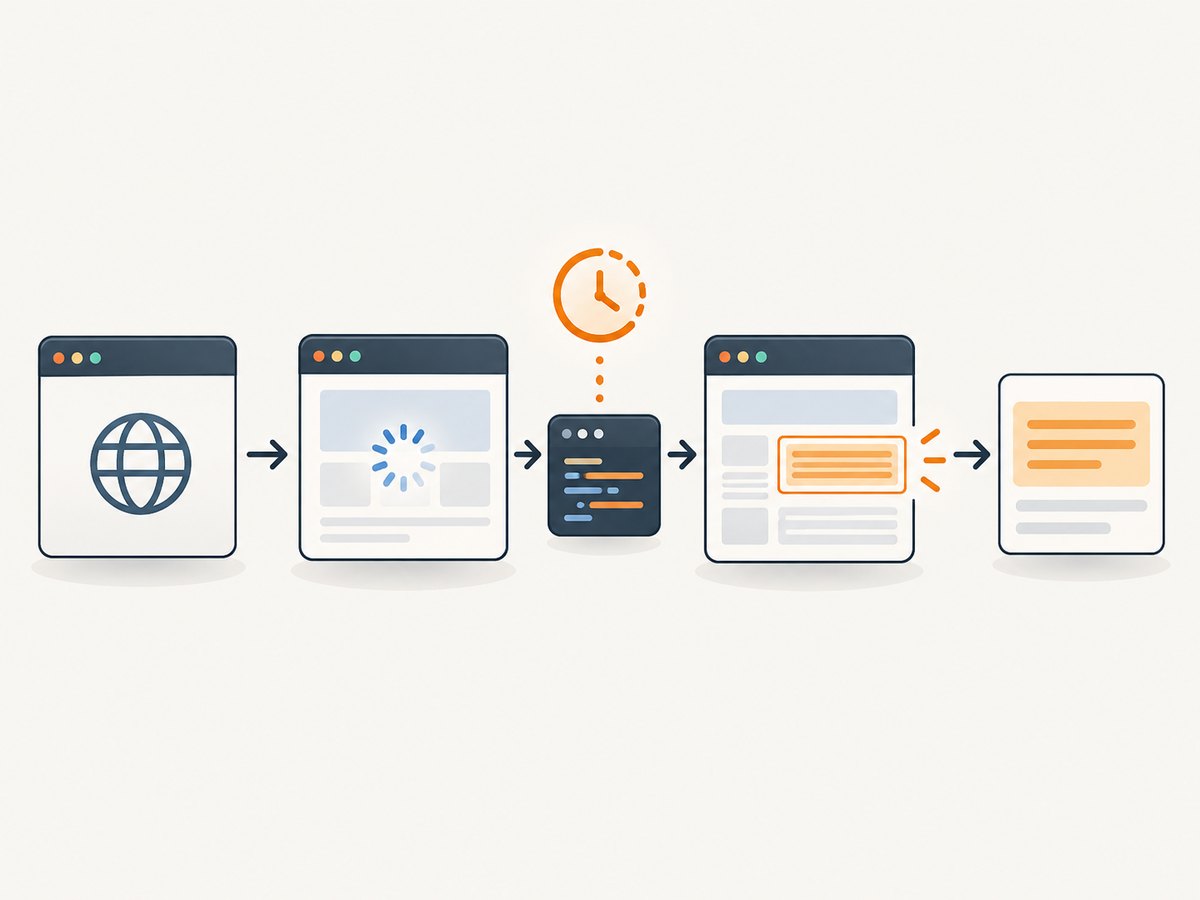
When PhantomJS returns an empty value for JavaScript-rendered content, first determine whether navigation failed or the page loaded before its later rendering finished. A page.open callback with status success means the page load event completed; it does not guarantee that subsequent AJAX requests or client-side rendering are done. Inspect page.content, check the exact element you need, wait for that page-specific condition, and only then extract data. Keep asynchronous work inside its callback chain and call phantom.exit() after extraction.
PhantomJS’s official WebPage API describes the navigation callback, while the evaluate API explains how to inspect the page’s DOM. These are legacy references: the PhantomJS repository is archived and read-only, and its wiki says the 2.x branch is deprecated and no longer maintained.
1. Separate navigation failure from late rendering
Start by recording the status passed to page.open. If it is fail, waiting longer for a selector will not fix a failed navigation. Check that the URL is correct, reachable from the machine running PhantomJS, and not blocked by network policy, redirects, or the target’s request requirements. The PhantomJS Quick Start demonstrates checking the status before rendering.
If status is success, inspect the received markup and the target selector. A successful navigation followed by a missing element points toward delayed client-side rendering, a selector mismatch, content inside a frame, or a runtime incompatibility. This distinction prevents treating every empty result as a timing problem.
2. Use a diagnostic script that waits for the required element
The following PhantomJS script logs navigation status and initial markup, polls for an element containing non-empty text, and exits with an error if the target does not become ready before the timeout. Save it as capture.js and run phantomjs capture.js https://example.com. Replace the example URL and selector with the page you are diagnosing.
var page = require('webpage').create();
var system = require('system');
var address = system.args[1] || 'https://example.com';
var selector = '#app h1';
var timeoutMs = 15000;
var pollMs = 250;
var startedAt;
var timer;

page.onConsoleMessage = function (message) {
  console.log('PAGE:', message);
};
page.onError = function (message, trace) {
  console.log('PAGE ERROR:', message);
  trace.forEach(function (item) {
    console.log('  ', item.file, item.line);
  });
};

page.open(address, function (status) {
  console.log('Navigation status:', status);
  if (status !== 'success') {
    console.log('Navigation failed; check URL, network access, redirects, and request setup.');
    phantom.exit(1);
    return;
  }

  console.log('Initial HTML:', page.content);
  startedAt = Date.now();
  timer = setInterval(function () {
    var result = page.evaluate(function (s) {
      var element = document.querySelector(s);
      return {
        found: !!element,
        text: element ? (element.innerText || element.textContent || '').trim() : ''
      };
    }, selector);

    if (result.found && result.text) {
      console.log('Ready text:', result.text);
      clearInterval(timer);
      phantom.exit(0);
      return;
    }

    if (Date.now() - startedAt >= timeoutMs) {
      console.log('Timed out waiting for selector:', selector);
      console.log('Last selector result:', JSON.stringify(result));
      clearInterval(timer);
      phantom.exit(2);
    }
  }, pollMs);
});
This is a diagnostic pattern, not a universal PhantomJS guarantee. The readiness condition is the selector plus non-empty text; change it to match what the script actually needs. For example, an application may render the element before its text arrives, or a result may be represented by an attribute. The timeout bounds the wait; it does not establish that the page is ready just because time elapsed.
3. Choose a meaningful readiness condition
There is no universally safe delay for every site. A fixed sleep can be useful as a quick diagnostic, but network speed, server response time, and application behavior vary. Prefer checking the state that matters to your extraction.
| What you need | Possible condition | What to watch for |
|---|---|---|
| Rendered text | Selector exists and text is non-empty | Text may update after the node first appears |
| Loaded record | Expected attribute or data marker is present | Confirm the marker means complete data, not a placeholder |
| List populated | At least one matching result node exists | Decide whether zero results is valid or still loading |
| Known application state | A page-specific ready flag or class is set | Only rely on a flag the target actually maintains |
The polling approach calls page.evaluate repeatedly from PhantomJS and returns only simple values. This follows the API’s boundary: arguments and return values crossing between PhantomJS and the page context should be simple serializable objects. Do not try to return a DOM node, a function, or a closure. Return a string, boolean, number, array, or plain object made from those values, then process it in the PhantomJS script.
4. Keep callbacks alive until the work finishes
PhantomJS scripts can finish before the intended extraction if they call phantom.exit() too early. Put dependent work in the callback for the operation that produces it. The official automation guide cautions against exiting during an asynchronous includeJs flow before its callback runs.
var page = require('webpage').create();
page.open('https://example.com', function (status) {
  if (status !== 'success') {
    phantom.exit(1);
    return;
  }

  page.includeJs('https://example.com/some-library.js', function () {
    // Work that depends on the included script belongs here.
    var value = page.evaluate(function () {
      return document.title;
    });
    console.log(value);
    phantom.exit(0);
  });
});
Use the same rule for timers and other asynchronous callbacks: clear pending timers on success, handle failure paths explicitly, and exit only after the last required operation completes. If a callback never fires, add bounded error handling rather than waiting forever.
5. Inspect what PhantomJS actually received
Print page.content after navigation to inspect the main-frame markup available at that time. Then query the target selector directly. A missing selector can mean the application has not rendered yet, the selector is wrong, the content is in a frame, or the page is returning a different document than expected. A selector that exists with empty text suggests a different readiness condition is needed.
Page-side console messages are not automatically printed in PhantomJS. Set page.onConsoleMessage to forward them, as in the diagnostic example. You can also use page.onError to report page errors. Logs and errors can indicate that application code failed before it populated the page. The evaluate documentation covers the console callback and the sandboxed page context.
6. Common errors and fixes
| Symptom | Likely cause | What to do |
|---|---|---|
page.open reports fail |
Navigation did not complete successfully | Check the full URL, network access, redirect destination, and whether the target requires request setup. Diagnose this before adding a content wait. |
| Status is success, selector is absent | Late rendering, selector mismatch, frame content, or incompatible page behavior | Print page.content, verify the selector in a browser, then wait for the correct page state. Check whether the content is inside a frame. |
| Selector exists but extracted text is empty | The element is a shell or placeholder whose data has not arrived | Wait for expected text, an attribute, or a page-specific loaded marker rather than node existence alone. |
| Script exits before output appears | phantom.exit() ran before asynchronous work completed |
Move dependent work into its callback and exit after extraction. |
| Console output from page scripts is missing | Page console messages are not forwarded by default | Set page.onConsoleMessage and inspect page errors. |
evaluate returns an unusable value |
The code returned a function, DOM node, or other non-serializable value | Return JSON-serializable data such as text, attributes, booleans, or plain objects. |
| Longer waits never make the element appear | Possible runtime incompatibility, blocked resources, or application error | Inspect errors and requests, verify manually in a compatible browser, and consider a maintained runtime. A longer timeout cannot fix unsupported browser behavior. |
7. Account for PhantomJS’s age
The PhantomJS GitHub repository was archived on May 30, 2023, and the project wiki says its 2.x branch is deprecated and no longer maintained. That does not prove that a specific page is incompatible. It does mean that if a reproducible target depends on browser behavior PhantomJS does not provide, you should verify it in a maintained browser automation runtime and consider migrating the task. Treat migration as a compatibility decision based on the target page, not as the automatic fix for every empty result.
8. Performance, reliability, and cost
Polling a selector adds repeated page-context evaluations. A modest polling interval and a bounded timeout make the diagnostic predictable; excessively frequent checks add work without making the remote page render faster. Keep the readiness predicate small, and extract only the data needed after it succeeds. If you process many pages, record navigation status, readiness outcome, and elapsed time per URL so slow navigation can be distinguished from slow application rendering.

Reliability depends on using a condition that reflects the required data, handling navigation and timeout failures separately, and keeping callback ordering correct. A fixed delay is less reliable across variable page and network conditions. There is no PhantomJS-specific performance benchmark or universal wait value established by the documentation cited here.
For self-hosted PhantomJS, compute cost depends on your own runtime and infrastructure; the cited PhantomJS material does not specify a hosted price. If you move to a hosted screenshot service, compare its billing rules, output formats, and handling of pages that fail or return bot checks before estimating volume.
Or skip the browser setup
If your goal is a screenshot rather than DOM extraction, ScreenshotNeo takes a URL and returns an image or PDF with one GET request. Its capture flow accepts cookie and consent banners like a visitor and removes 60+ known consent platforms, newsletter popups, and chat widgets; each step can be turned off. Bot checks and CAPTCHAs, blank pages, timeouts, failed loads, and cache hits cost nothing, and response headers identify the page verdict and billing status. Its MCP server provides take_screenshot, get_page_info, and capture_pdf for Claude, Cursor, and other MCP clients. Every feature is on every plan; 1,000 shots per month are free with no card, and paid plans start at $5 for 3,000.
See the ScreenshotNeo API documentation for configuration. Example cURL:
curl -G "https://api.screenshotneo.com/v1/shot" -d access_key=YOUR_API_KEY --data-urlencode url=https://example.com -o shot.webpPython:
import requests
r = requests.get("https://api.screenshotneo.com/v1/shot", params={"access_key": "YOUR_API_KEY", "url": "https://example.com"}, timeout=90)
open("shot.webp", "wb").write(r.content)
Node.js:
const q = new URLSearchParams({ access_key: 'YOUR_API_KEY', url: 'https://example.com' });
const res = await fetch(`https://api.screenshotneo.com/v1/shot?${q}`);
if (!res.ok) throw new Error(`Screenshot request failed: ${res.status}`);
await require('node:fs/promises').writeFile('shot.webp', Buffer.from(await res.arrayBuffer()));
Cookie banners, popups, and chat widgets are removed before the shot; bot checks, blank pages, and failed loads are never billed; an MCP server lets AI agents take screenshots; and 1,000 screenshots a month are free with no card, with paid plans from $5 for 3,000. Sign up for free and capture 1,000 screenshots a month with no card.
FAQ
Does a successful page.open mean JavaScript finished?
No. It reports completion of the load event, not completion of every later asynchronous request or client-side render.
Should I add a longer fixed delay?
Use one only as a temporary diagnostic. A page-specific readiness condition is more useful because rendering time varies and elapsed time alone does not establish that the desired content exists.
Can page.evaluate return an element?
No. Return serializable data from the page context, such as text or an attribute value.
Is PhantomJS always the cause when content is missing?
No. First inspect navigation status, markup, selector correctness, frames, and page errors. Runtime incompatibility is one possibility, especially for a legacy runtime, but it must be verified against the target.


