How to Fix PhantomJS Failing to Load Google Maps
PhantomJS is no longer a supported Google Maps browser. Diagnose loading, credentials, layout, TLS and rendering failures, then migrate safely.

Short answer: PhantomJS uses an old QtWebKit engine, and its own project says development is suspended. Google’s current Maps JavaScript API browser-support list does not include PhantomJS. Treat that compatibility gap as the leading cause, then verify the specific failure with console, resource, network, credential and layout diagnostics. For production behavior and dependable map rendering, move the test or capture to a current supported browser engine.
A configuration error can still be present. The practical fix is to separate API loading from map initialization and rendering, capture the exact error, correct credentials or page setup, and migrate any remaining map work away from PhantomJS.
Why PhantomJS commonly fails with Google Maps
PhantomJS is a headless browser built on QtWebKit. The project homepage states: “Important: PhantomJS development is suspended until further notice.” Its JavaScript and graphics capabilities therefore remain fixed while Google Maps evolves.
Google’s supported-browser guidance names current Microsoft Edge and the two latest major stable versions of Chrome, Firefox and Safari on desktop. PhantomJS is not listed. This does not prove that every blank map is caused by the browser, but it makes runtime incompatibility the most useful first hypothesis.
There are four different failure stages:
| Stage | Typical symptom | What to inspect |
|---|---|---|
| Network/API loading | The Maps script never finishes or returns an error | Resource logs, HTTPS/TLS, proxy and URL |
| Authentication | Google reports an API key, billing or referrer error | Console message, project settings and restrictions |
| Initialization | Script loads but no map object appears | JavaScript exceptions, center, zoom and callback |
| Layout/rendering | Map container is blank or newer features fail | Container height, engine capabilities and WebGL-dependent features |
Step 1: Capture the real PhantomJS error
Do not begin by changing random browser flags. Add diagnostics first so you know whether the failure is a request, authentication, JavaScript or rendering problem.
var page = require('webpage').create();
var system = require('system');

page.onConsoleMessage = function (message) {
  console.log('[console] ' + message);
};

page.onError = function (message, trace) {
  console.log('[page error] ' + message);
  trace.forEach(function (item) {
    console.log('  at ' + item.file + ':' + item.line +
      (item.function ? ' in ' + item.function : ''));
  });
};

page.onResourceRequested = function (requestData, networkRequest) {
  console.log('[request] ' + requestData.method + ' ' + requestData.url);
};

page.onResourceReceived = function (response) {
  if (response.stage === 'end' && response.status >= 400) {
    console.log('[response] ' + response.status + ' ' + response.url);
  }
};

page.open('https://example.test/map', function (status) {
  console.log('[page status] ' + status);
  window.setTimeout(function () {
    page.render('map.png');
    phantom.exit();
  }, 5000);
});
Run it with the same operating system, proxy and command-line flags used by your failing job. Look for the Google Maps script URL, HTTP failures, certificate errors and exceptions thrown by your own callback. PhantomJS’s troubleshooting guidance documents these page-error and resource-request hooks and recommends checking network and TLS behavior.
Step 2: Verify that the Maps API script loads correctly
Load the JavaScript API directly from Google and keep the callback explicit while diagnosing:
<script src="https://maps.googleapis.com/maps/api/js?key=YOUR_API_KEY&callback=initMap" async defer></script>
In PhantomJS output, confirm that the request URL is exactly the Google endpoint and that the response completes. If the script does not load:
- Check DNS, outbound HTTPS access and any corporate proxy.
- Check certificate support and the TLS libraries available to the PhantomJS build.
- Remove malformed query parameters and verify that the key is present.
- Try the same URL from the host with a current browser or command-line HTTP client to separate network failure from engine incompatibility.
A page that works in Chrome but cannot establish the HTTPS connection in PhantomJS has a transport problem before Google Maps code can run.
Step 3: Follow the exact Google Maps console error
Google’s Maps JavaScript API error documentation recommends reading the browser console. Authentication errors should be fixed in Google Cloud rather than hidden with PhantomJS settings.
- Confirm the API key belongs to the intended Google Cloud project.
- Ensure the Maps JavaScript API is enabled for that project.
- Check billing and quota state when the console message mentions them.
- Review application restrictions. If HTTP referrer restrictions are used, the page origin must match an allowed referrer. A local PhantomJS file URL may not satisfy a restriction intended for a hosted site.
- Regenerate or replace a compromised key only after confirming the reported cause.
Keep the key out of logs and source control. During a legacy test, use a narrowly scoped diagnostic key and restore the normal restrictions afterward.
Step 4: Prove that initialization and layout are valid
When the API script loads but the map is invisible, test the smallest possible page. Google specifically calls out map options and element dimensions. A zero-height container produces a blank result even when initialization succeeds.
<!doctype html>
<html>
<head>
  <style>
    html, body { height: 100%; margin: 0; }
    #map { height: 400px; width: 600px; }
  </style>
</head>
<body>
  <div id="map"></div>
  <script>
    function initMap() {
      new google.maps.Map(document.getElementById('map'), {
        center: { lat: 51.5072, lng: -0.1276 },
        zoom: 10
      });
    }
  </script>
  <script src="https://maps.googleapis.com/maps/api/js?key=YOUR_API_KEY&callback=initMap" async defer></script>
</body>
</html>
Check all of the following:
- The element exists before
initMapruns. - The callback name matches the query parameter exactly.
centercontains valid latitude and longitude values.zoomis a number.- The map element has a nonzero width and height in the rendered page.
- Your application is not throwing an earlier exception that prevents the callback.
Step 5: Check PhantomJS networking and TLS
Legacy PhantomJS binaries can fail against modern HTTPS configurations. Compare the failing host with a current browser and inspect every request in onResourceRequested. On Windows, also check proxy settings; the PhantomJS troubleshooting guide identifies proxy configuration as a possible source of latency and failed requests.
If the API request is blocked before JavaScript executes, changing map options cannot help. Fix the host’s CA certificates, proxy route or outbound firewall policy, or run the diagnostic on an environment that can reach Google over HTTPS.
Step 6: Treat WebGL as a rendering branch, not a universal fix
PhantomJS’s standards documentation says WebGL is unsupported by default. That matters when the API initializes but a vector-map or other WebGL-dependent feature fails. It does not explain every API-load error or every blank container.
Use this branch only when your logs show successful script loading and map initialization followed by a rendering failure. For a reliable result, reproduce the page in a current browser with the graphics capabilities required by the feature. Google’s browser and WebGL guidance explains why browser support and hardware acceleration can affect vector rendering.
Choose a durable fix
| Option | Use it when | Trade-off |
|---|---|---|
| Keep PhantomJS with diagnostics | You maintain a frozen legacy test and only need basic compatible pages | Increasing incompatibility and manual maintenance |
| Move to a current browser engine | You need production-like Maps behavior, modern JavaScript or vector rendering | Requires updating automation and possibly selectors |
| Capture a rendered page through an API | You need an image or PDF rather than browser interaction | Less control over interactive test internals, but no local browser setup |
For functional Maps tests, use a current supported browser. For scheduled screenshots, reports or archival images, an HTTP screenshot service can remove browser installation and rendering maintenance.

Or skip the browser setup
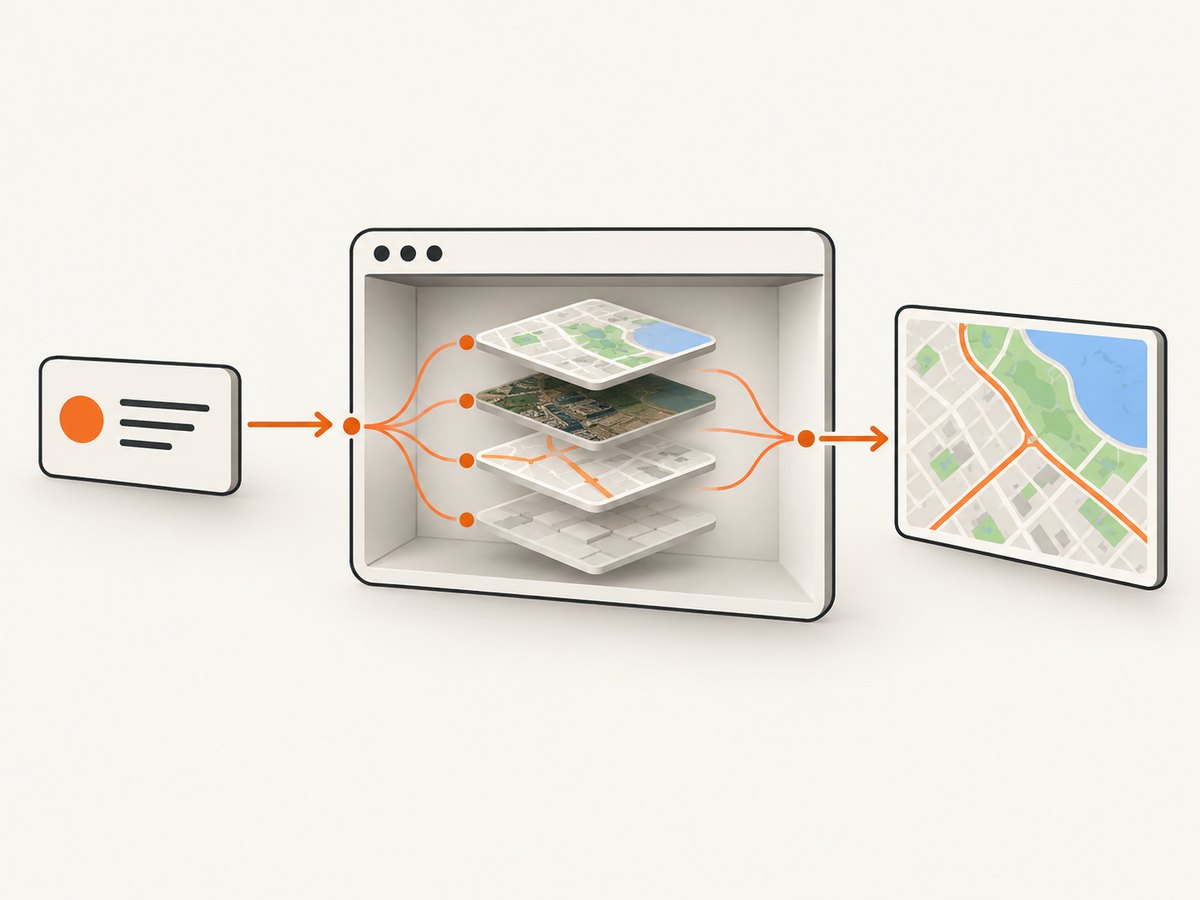
ScreenshotNeo provides a website screenshot API and MCP server. One GET request returns PNG, JPEG, WebP or PDF, so you can capture a map page without maintaining PhantomJS. Before capture, it accepts cookie or consent banners and removes more than 60 known consent platforms, newsletter popups and chat widgets; each step can be turned off. Only clean shots are billed: bot checks or CAPTCHAs, blank pages, timeouts, failed loads and cache hits cost nothing, and response headers identify the page verdict and billing result. Its MCP server exposes take_screenshot, get_page_info and capture_pdf for Claude, Cursor and other MCP clients.
See the ScreenshotNeo documentation for all options.
cURL
curl -G "https://api.screenshotneo.com/v1/shot" \
  -d access_key=YOUR_API_KEY \
  --data-urlencode url=https://example.com/map \
  -o map.webp
Python
import requests

r = requests.get(
    "https://api.screenshotneo.com/v1/shot",
    params={"access_key": "YOUR_API_KEY", "url": "https://example.com/map"},
    timeout=90,
)
r.raise_for_status()
open("map.webp", "wb").write(r.content)
Node.js
const q = new URLSearchParams({
  access_key: 'YOUR_API_KEY',
  url: 'https://example.com/map'
});
const res = await fetch(`https://api.screenshotneo.com/v1/shot?${q}`);
if (!res.ok) throw new Error(`HTTP ${res.status}`);
const fs = await import('node:fs/promises');
await fs.writeFile('map.webp', Buffer.from(await res.arrayBuffer()));
For map pages, useful options include a full-page capture with lazy images loaded, a chosen viewport or one of 12 device presets, retina scale, dark mode, custom CSS or JavaScript, a wait for a selector, delay or network idle, custom headers, cookies, user agent, timezone and geolocation. You can block ads, trackers, requests or resource types, hide selectors and cache a capture with a TTL you choose. Async jobs, signed webhooks, bulk capture for up to 100 URLs per call, usage reporting and signed links are available when you build a larger pipeline.
ScreenshotNeo has a free plan with 1,000 shots per month and no card. Paid plans start at $5 for 3,000 shots; yearly billing provides two months free, and every feature is available on every plan. Create a free ScreenshotNeo account to capture your first page.
Troubleshooting checklist
| Error or symptom | Likely cause | Fix |
|---|---|---|
| Maps script request never appears | Script tag, page navigation or network failure | Log requests, verify the URL and test HTTPS reachability |
| Authentication or loading error in console | Key, API enablement, billing, quota or referrer restriction | Follow Google’s exact console message and correct the Cloud project |
| Callback is never called | Script failed, callback typo or earlier JavaScript exception | Use a minimal page and match the callback name exactly |
| Map container is blank | Zero height, missing element or invalid options | Set explicit CSS height; verify center, zoom and element existence |
| API loads but vector feature fails | Unsupported browser capability or WebGL limitation | Move rendering to a current supported browser |
| Intermittent TLS or timeout failures | Old SSL libraries, proxy or firewall | Inspect response logs and run from a host with current TLS support |
| Screenshot contains a consent banner or chat bubble | Page chrome loaded before capture | Use a capture workflow that can accept consent and remove known overlays, or hide selectors explicitly |
Performance, reliability and cost considerations
- Wait only as long as needed. A fixed delay can waste time or still miss late map tiles. Prefer a selector, network-idle condition or a page-specific readiness signal when your tool supports it.
- Separate retries by failure type. Retry transient network timeouts, but do not retry an invalid API key or a deterministic JavaScript exception.
- Control page weight. Blocking ads, trackers and unrelated resource types can shorten capture time. Do not block the Google Maps resources required for the map itself.
- Use caching for repeated pages. A chosen cache TTL avoids repeated work when the map data does not need second-by-second freshness. Remember that cache hits are not billed by ScreenshotNeo.
- Budget for clean results. A PhantomJS job can consume engineering time even when it produces a blank image. ScreenshotNeo’s verdict and billing headers let a pipeline distinguish a clean shot from a bot check, blank page, timeout, failed load or cache hit.
- Protect credentials. Keep API keys and custom Authorization headers on the server. Signed links are available when a public
<img>tag is required.
FAQ
Can I fix PhantomJS permanently by enabling a flag?
No general flag makes PhantomJS a supported Google Maps browser. Flags may help a specific TLS or logging issue, but the engine remains outside Google’s supported list.
Is a blank map always a PhantomJS bug?
No. A zero-height element, invalid key, blocked referrer, missing API enablement or network failure can produce the same symptom. Capture the console and resource evidence first.
Should I disable API-key restrictions for testing?
Do not remove restrictions as a default fix. Read the reported error and adjust the allowed origin or project configuration precisely, using a limited diagnostic key when necessary.
Does WebGL explain a Maps script that never loads?
No. WebGL is a rendering concern after the API has loaded and initialized. A missing request points to script, network, TLS or authentication diagnostics.
Can ScreenshotNeo automate interactive map tests?
It is designed to return screenshots or PDFs. It also supports custom JavaScript and clicking an element before capture, while MCP tools let AI agents request screenshots and page information. Use a current browser automation framework when you need assertions across many interactive states.


