How to Fix Font Rendering Issues in PhantomJS Screenshots
Diagnose PhantomJS font substitution, missing web fonts, timeouts and Linux fallback problems with logging, Fontconfig checks and reliable capture timing.

PhantomJS font problems usually come from one of four places: the wrong PhantomJS executable or version, a web-font request that fails or arrives after rendering, a rendering host without the intended font, or differences between builds and operating systems. Start by proving which binary is running and by logging font requests. Then make the page wait for fonts before calling page.render, verify the font exists through Fontconfig on Linux, and treat PDF output as a separate case.
PhantomJS uses its WebKit rendering path, and page.render captures the page as PhantomJS has rendered it. A successful page.open callback does not prove that every asynchronous font request has completed. The workflow below gives you a repeatable diagnosis before you change CSS or install packages.
1. Confirm the PhantomJS binary and version
Multiple installations can make a shell, CI runner and application invoke different executables. The PhantomJS troubleshooting guide advises checking the version before reporting an issue, and the CLI documentation describes 2.1.1 as the latest version covered by that legacy documentation. Treat that version reference as historical documentation, not a current maintenance promise.
command -v phantomjs
which -a phantomjs
phantomjs --version
phantomjs --help | head -n 30
Run the same commands inside the container, virtual machine or CI job that creates the screenshot. Record the absolute path and version in your build log. If command -v points to a wrapper, inspect the wrapper and call the intended binary by its absolute path while diagnosing.
Minimal version-reporting script
#!/usr/bin/env bash
set -eu
PHANTOM_BIN="$(command -v phantomjs)"
printf 'binary=%s\n' "$PHANTOM_BIN"
"$PHANTOM_BIN" --version
Do not start by adding Xvfb. PhantomJS documentation says X11/Xvfb is needed only for PhantomJS 1.4 and earlier; from 1.5 it describes PhantomJS as pure headless. A display server is therefore not a general font-rendering remedy.
2. Log resources before changing the font
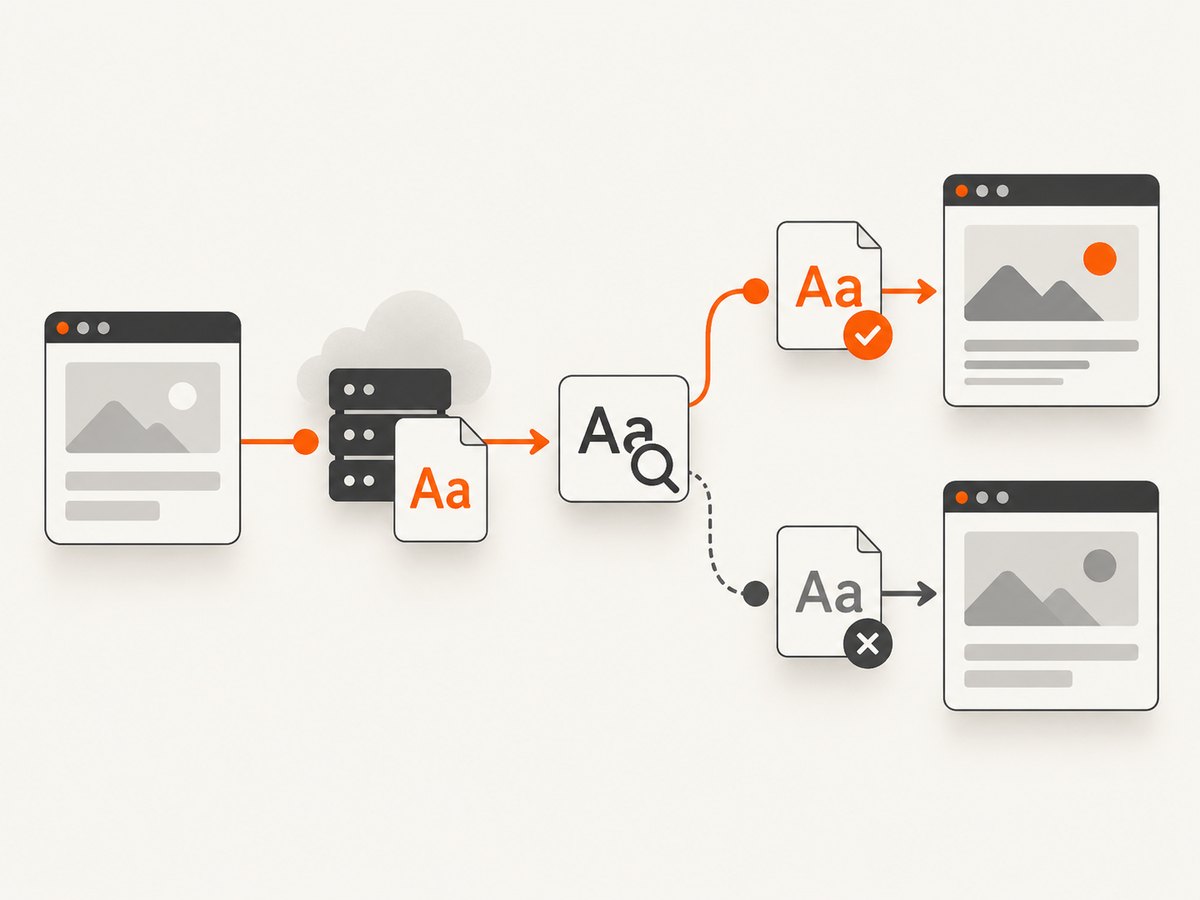
A missing or delayed remote font can cause fallback, but you should observe the request rather than assume it. PhantomJS exposes page.onResourceRequested, page.onResourceReceived, page.onResourceError and page.onResourceTimeout. Log the URL, status and error details while reproducing the bad screenshot.
var system = require('system');
var page = require('webpage').create();

page.settings.resourceTimeout = 30000;

page.onResourceRequested = function (request) {
  console.log('REQUEST ' + request.id + ' ' + request.url);
};

page.onResourceReceived = function (response) {
  if (response.stage === 'end') {
    console.log('RESPONSE ' + response.id + ' ' + response.status + ' ' + response.url);
  }
};

page.onResourceError = function (error) {
  console.log('RESOURCE_ERROR ' + error.id + ' ' + error.errorCode + ' ' + error.errorString + ' ' + error.url);
};

page.onResourceTimeout = function (request) {
  console.log('RESOURCE_TIMEOUT ' + request.id + ' ' + request.url);
};

var address = system.args[1] || 'https://example.com';
page.open(address, function (status) {
  console.log('OPEN_STATUS ' + status);
  window.setTimeout(function () {
    page.render('shot.png');
    phantom.exit();
  }, 3000);
});
Look specifically for .woff, .woff2, .ttf and .otf requests. A 404, TLS error, redirect to an HTML login page, blocked cross-origin request or timeout explains substitution more reliably than visual inspection alone. Check the browser console too:
page.onConsoleMessage = function (message) {
  console.log('CONSOLE ' + message);
};
page.onError = function (message, trace) {
  console.log('PAGE_ERROR ' + message);
  trace.forEach(function (item) {
    console.log('  ' + item.file + ':' + item.line);
  });
};
resourceTimeout must be set before the initial page.open; PhantomJS settings documentation states that these settings apply during that initial load. Increasing the timeout only helps when the request is slow. It cannot repair a bad URL, certificate failure or inaccessible host.
3. Wait for the font before rendering
The common example of opening a page and immediately calling page.render is useful for a static page, but it does not guarantee that arbitrary asynchronous content or remote fonts are ready. Put an explicit readiness condition in the page, then poll it from PhantomJS.
Browser-side readiness flag
/* Add this to the page, or inject an equivalent script before capture. */
(function () {
  function markReady() {
    document.documentElement.setAttribute('data-fonts-ready', 'true');
  }

  if (document.fonts && document.fonts.ready) {
    document.fonts.ready.then(markReady, markReady);
  } else {
    // Older engines have no Font Loading API. Use a page-specific signal.
    window.setTimeout(markReady, 3000);
  }
}());
var page = require('webpage').create();
page.settings.resourceTimeout = 30000;
page.open('https://example.com', function (status) {
if (status !== 'success') {
console.log('OPEN_FAILED ' + status);
phantom.exit(1);
return;
}
var deadline = Date.now() + 30000;
function waitForFonts() {
var ready = page.evaluate(function () {
return document.documentElement.getAttribute('data-fonts-ready') === 'true';
});
if (ready) {
page.render('font-ready.png');
phantom.exit();
return;
}
if (Date.now() > deadline) {
console.log('FONT_WAIT_TIMEOUT');
page.render('font-timeout.png');
phantom.exit(2);
return;
}
window.setTimeout(waitForFonts, 250);
}
waitForFonts();
});For a page you control, a deterministic application flag is often more reliable than a fixed sleep. Set the flag after your CSS, web-font promise and data requests complete. If you cannot modify the page, combine resource logging with a bounded delay and compare several captures; never use an unbounded wait in a worker.
4. Check Linux font availability and fallback
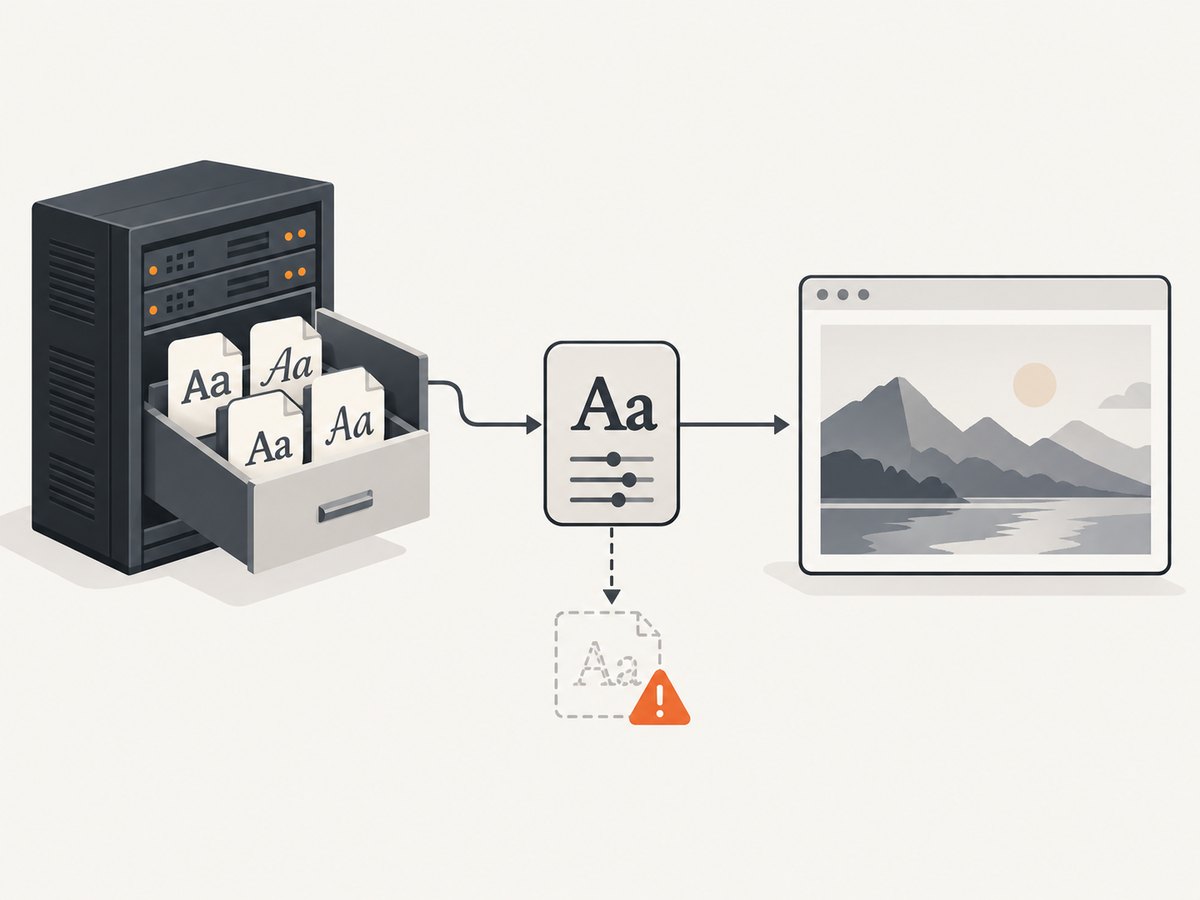
On Linux, Fontconfig handles font matching and fallback. The family named in CSS must be installed and visible to the process. Verify the exact family and style from the same host that runs PhantomJS.
fc-list | head -n 20
fc-list | grep -i 'Your Font Family'
fc-match 'Your Font Family'
fc-match 'Your Font Family:style=Bold'
fc-cache -v
If the intended TTF or OTF files are absent, install them through your image or operating-system package process, then refresh the cache. A PhantomJS issue commenter reported that installing the desired TTF files and running fc-cache -fv fixed one Linux font-substitution case. That is a targeted diagnostic and environment-specific remedy, not a universal PhantomJS requirement.
# Example for a per-user font directory
mkdir -p "$HOME/.local/share/fonts/my-font"
cp ./fonts/*.ttf "$HOME/.local/share/fonts/my-font/"
fc-cache -fv "$HOME/.local/share/fonts/my-font"
fc-match 'Your Font Family'
Check that the process user can read the files. A font installed for your interactive account may be invisible to a service account, container user or CI runner. Also compare the CSS family name with the internal family name reported by Fontconfig; a filename is not necessarily the family name.
5. Make remote web fonts deterministic
Remote fonts add DNS, TLS, redirect, caching and cross-origin failure modes. Confirm that the final font URL responds to the PhantomJS host, that the response has a font content type, and that authentication is not required. If a site sends different CSS to bots or old WebKit clients, save the response and inspect which @font-face rule PhantomJS actually receives.
For a controlled capture pipeline, serving the font from the same origin or bundling it locally removes several variables. Keep each @font-face declaration explicit:
@font-face {
  font-family: 'Report Sans';
  src: url('/fonts/report-sans.woff2') format('woff2'),
       url('/fonts/report-sans.woff') format('woff');
  font-weight: 400;
  font-style: normal;
  font-display: block;
}

body { font-family: 'Report Sans', sans-serif; }
Do not conclude that a successful HTTP status means the font was usable. The response can contain HTML, an unsupported format or a truncated file. Compare the screenshot with a deliberately distinctive fallback and inspect the resource log.
6. Separate screenshots from PDF output
Font rendering in an image and text behavior in a PDF are related but different. A historical PhantomJS issue discussion describes a Linux case where a remote web font led to rasterized PDF text, with local TTF installation described as a workaround. That report concerns PDF text selectability and file size; it does not prove that every screenshot defect has the same cause.
For image captures, inspect glyph shape, weight, spacing and fallback. For PDFs, also test whether text can be selected, searched and copied. If the PDF is rasterized, compare a locally installed font and a locally served web font, then inspect the generated file with your PDF tooling. Keep the two test cases separate so a PDF workaround does not hide an image-rendering problem.
7. Reproduce with a small diagnostic page
Reduce the page to one heading and one font. This isolates PhantomJS, the font file and the host from application JavaScript.
<!doctype html>
<style>
@font-face {
  font-family: TestFace;
  src: url('/fonts/test-face.ttf') format('truetype');
}
body { font-family: TestFace, sans-serif; font-size: 48px; }
</style>
<div>Hamburgefontsiv 0123456789</div>
Capture this page with the same binary, user, network and output format. If it fails, the problem is in the host, font file or PhantomJS build. If it succeeds, compare the original page’s CSS, redirects, timing and security headers.
8. Troubleshooting checklist
| Symptom | Likely cause | Fix |
|---|---|---|
| Everything uses a common system font | Requested family is absent or misspelled | Run fc-match, install the font for the capture user and verify the CSS family name. |
| Only some glyphs look wrong | Missing character coverage causes per-glyph fallback | Test the exact Unicode text and choose a font with the needed coverage. |
| Works locally, fails in CI | Different binary, user, OS image or font cache | Log absolute binary path, version, fc-match output and resource errors in both environments. |
| Font request appears then times out | Slow network, blocked host or TLS/redirect issue | Inspect the final URL, raise resourceTimeout before page.open, or serve the font locally. |
| Screenshot taken before web font applies | Render follows page.open too soon |
Wait for an application readiness flag or a bounded font-ready poll. |
| PDF text is not selectable | PDF path rasterized text | Test local TTF installation and local serving separately; do not assume this explains PNG output. |
| Changing Xvfb changes nothing | Display setup is unrelated on modern PhantomJS | Return to binary, resource and Fontconfig checks. |
9. Performance, reliability and cost considerations
- Logging every resource is expensive on large pages. Enable it during diagnosis, then keep only structured error and timeout logs in production.
- Use a bounded readiness wait. A page that never resolves its font promise should fail or produce a clearly marked diagnostic image rather than consume a worker forever.
- Warm, stable font files reduce network variance. Local fonts also make CI results easier to reproduce, but they require cache invalidation when you deploy a new version.
- Pin the PhantomJS executable and operating-system image for repeatable output. The available documentation does not establish a current compatibility matrix, maintenance status or universal OS guarantee.
- Cache screenshots only when the page, CSS, font files and rendering environment are part of the cache key. A font deployment can change pixels without changing the page URL.
Or skip the browser setup
If you need a dependable screenshot endpoint rather than a PhantomJS maintenance project, ScreenshotNeo accepts one GET request and returns PNG, JPEG, WebP or PDF. Its capture options include full-page screenshots with lazy images loaded, element selectors, device presets, custom viewports, retina scale, custom CSS and JavaScript, waits for a selector, delay or network idle, custom headers and cookies, user agents, timezone and geolocation.
ScreenshotNeo removes cookie and consent banners, newsletter popups and chat widgets before capture. Bot checks, blank pages, timeouts, failed loads and cache hits are not billed, and response headers identify the page verdict and billing status. It also provides an MCP server with take_screenshot, get_page_info and capture_pdf for Claude, Cursor and other MCP clients.
See the ScreenshotNeo API documentation for all options. A basic call is:
curl -G "https://api.screenshotneo.com/v1/shot" -d access_key=YOUR_API_KEY --data-urlencode url=https://stripe.com -o shot.webpimport requests
r = requests.get("https://api.screenshotneo.com/v1/shot", params={"access_key": "YOUR_API_KEY", "url": "https://stripe.com"}, timeout=90)
open("shot.webp", "wb").write(r.content)const q = new URLSearchParams({ access_key: 'YOUR_API_KEY', url: 'https://stripe.com' });
const res = await fetch(`https://api.screenshotneo.com/v1/shot?${q}`);You get 1,000 screenshots per month free with no card. Paid plans start at $5 for 3,000 shots; yearly billing gives two months free, and every feature is available on every plan. Create a free ScreenshotNeo account.
FAQ
Does installing a font always fix PhantomJS substitution?
No. It helps only when the host lacks the requested font or cannot match it. A failed web-font request, an early render or a different PhantomJS build can produce the same visual symptom.
Should I increase the resource timeout first?
Log the request first. Increase the timeout before page.open when the font is genuinely slow; do not use it to mask a 404, certificate error or blocked host.
Is a screenshot taken after page.open guaranteed to use web fonts?
No. The callback indicates the document load result, not that every asynchronous font and application task has finished. Use a readiness signal or bounded poll.
Are PDF and PNG font bugs interchangeable?
No. PDF text selection and rasterization introduce separate behavior. Test the output format you ship.
When should I replace PhantomJS?
If you cannot pin a reproducible binary and host, or you need modern page behavior, move the capture to a maintained browser workflow or use a screenshot API such as ScreenshotNeo.


