How to Fix PhantomJS Hanging After Interactions in Python
Diagnose PhantomJS hangs after clicks, add bounded waits and useful logging, then migrate the workflow to a supported Selenium browser.
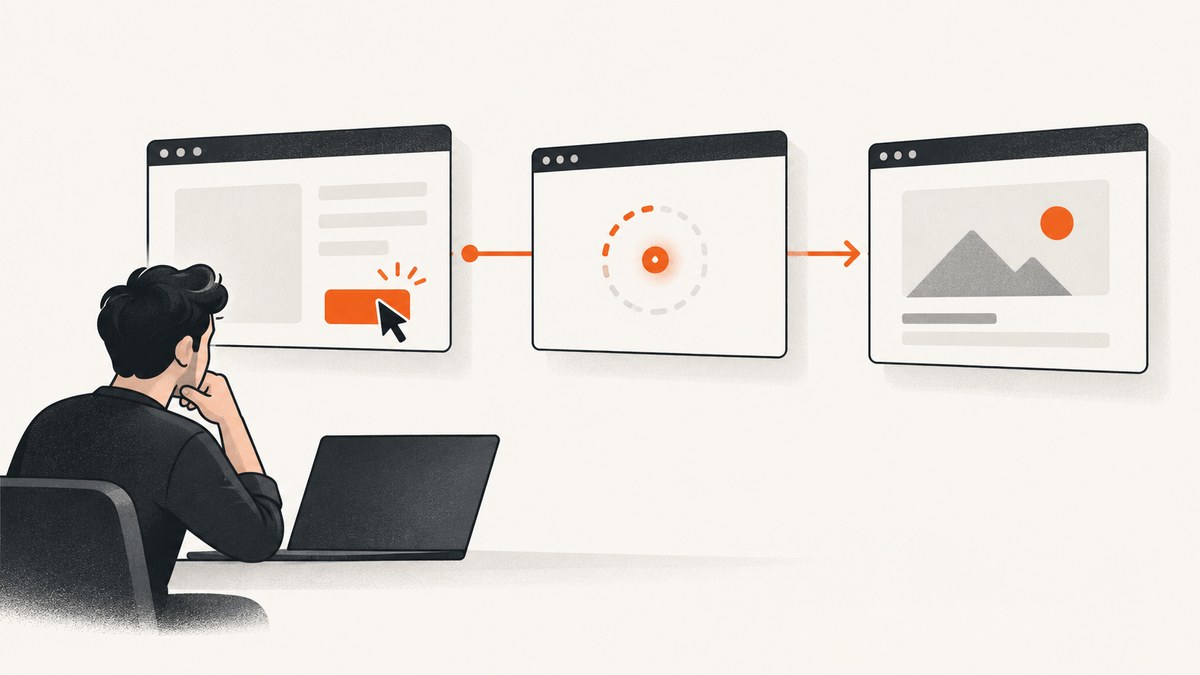
A PhantomJS script that appears to freeze after a click is usually waiting for something that never completes: a network resource, navigation, script execution, element lookup, or application state. First identify the exact command where execution stops. Then put a finite limit on browser waits, log page errors and requests, and wait for the DOM state the click should produce. For a maintained Python automation workflow, plan to migrate: the PhantomJS project says its development is suspended. (PhantomJS project)
This guide covers both Selenium’s PhantomJS driver pattern and PhantomJS’s native page API. The native callbacks are useful when isolating an old script, but Selenium’s timeout and explicit-wait controls are usually the practical first fix for a Python test.
1. Pin down what is hanging
“The click hangs” is not precise enough to diagnose. The click command may return promptly while the following navigation or element lookup blocks. Record the last log line printed, the exact URL and interaction, the PhantomJS and Selenium versions, the operating system, and what result should appear. Make the reproduction as small as possible: one page, one click, one expected result.
Separate the common failure classes:
- Navigation or resource wait: the page load event does not fire, or a request remains pending. An application may keep connections open for polling or server-sent events.
- Application state wait: the click starts asynchronous work, but the expected result is delayed, never appears, or uses a different selector than the script expects.
- JavaScript error: the click handler throws or a later script fails, leaving the expected state unreachable.
- Driver or runtime problem: old PhantomJS and Selenium components do not cooperate reliably with a current page or environment.
Do not begin by increasing every timeout. A larger limit can hide the cause and make each failure slower. Instrument first; use a finite, purposeful timeout for each kind of wait.
2. Make Selenium waits finite and condition based
Selenium separates implicit element lookup, page-load, and asynchronous script timeouts. They control different operations, so configure them deliberately. For interactions, prefer an explicit wait for the resulting state over a fixed sleep. Selenium’s Python API documents the separate timeout categories and its wait helpers. (Selenium timeout API) (Selenium waits)
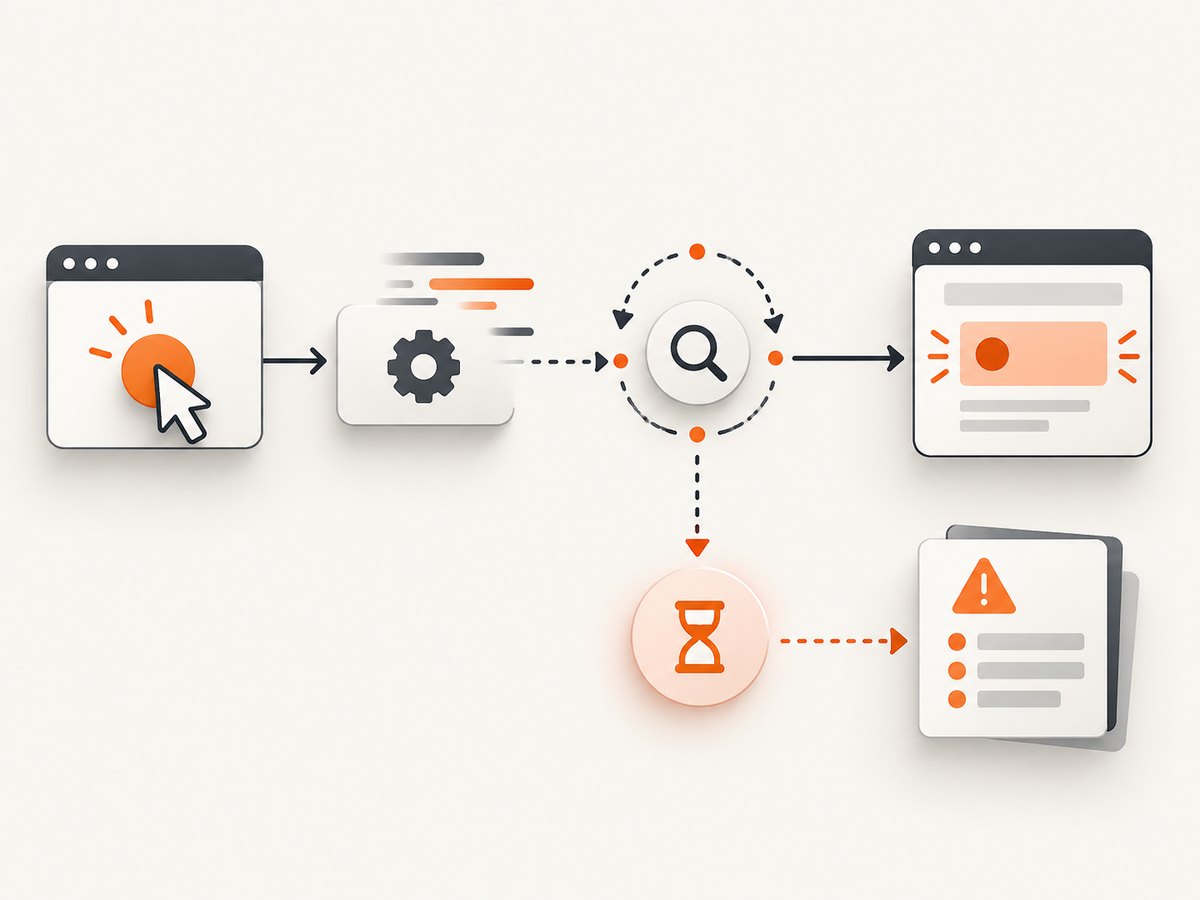
Here is a runnable example using Chrome, a supported browser path for current Selenium Python. Replace the URL and selectors with the page under test. Install Selenium with python -m pip install -U selenium; current Selenium documentation describes Selenium Manager for driver setup. (Selenium Manager)
from selenium import webdriver
from selenium.common.exceptions import TimeoutException
from selenium.webdriver.common.by import By
from selenium.webdriver.support import expected_conditions as EC
from selenium.webdriver.support.ui import WebDriverWait

URL = "https://example.com/search"
CLICK = (By.CSS_SELECTOR, "button#search")
RESULT = (By.CSS_SELECTOR, "#results .result")

options = webdriver.ChromeOptions()
options.add_argument("--headless")

driver = webdriver.Chrome(options=options)
try:
    # Bound navigation and async JavaScript separately.
    driver.set_page_load_timeout(25)
    driver.set_script_timeout(15)
    # Keep implicit wait at zero when using explicit waits.
    driver.implicitly_wait(0)
    driver.get(URL)

    wait = WebDriverWait(driver, 12, poll_frequency=0.2)
    wait.until(EC.element_to_be_clickable(CLICK)).click()

    result = wait.until(EC.visibility_of_element_located(RESULT))
    print("Result:", result.text)
except TimeoutException as exc:
    print("Timed out; current URL:", driver.current_url)
    print("Page title:", driver.title)
    print("HTML prefix:", driver.page_source[:1000])
    raise
finally:
    driver.quit()
The example puts a 25-second ceiling on navigation, a 15-second ceiling on asynchronous script execution, and a 12-second condition wait after the click. Those are sample limits, not universal recommendations. Set them according to the application’s actual response budget. Selenium’s documented default values are not a substitute for explicit limits in a test: its options documentation describes a 30,000 ms script timeout and 300,000 ms page-load timeout. (Selenium browser options)
Choose the condition that proves the click worked
- For a result list, wait for a result row to appear or for its text to become non-empty.
- For a submit button, wait for a confirmation or validation message.
- For a modal, wait for it to become visible; if the action closes it, wait for it to become invisible or stale.
- For client-side routing, wait for the URL or a page-specific element to change.
- For a spinner, wait for it to disappear, then also wait for the result. A missing spinner alone does not prove success.
A condition should represent the outcome needed by the next test step. An arbitrary time.sleep(5) can be both too short on a slow run and wasteful on a fast run. A short sleep can still be useful as a debugging experiment, but it is not a reliable completion rule.
3. Avoid wait combinations that obscure the cause
Keep implicit wait at zero or small when using explicit waits. Implicit wait applies to element-finding calls throughout the session. Combining a long implicit wait with an explicit polling loop can make observed wait durations confusing and longer than expected. Use one clear explicit condition for the step that follows an interaction.
A page-load timeout does not govern every action. It limits navigation behavior; it does not guarantee that an AJAX update has finished. A script timeout bounds asynchronous scripts executed through WebDriver; it does not replace waiting for a DOM result. An explicit wait bounds a condition such as “element is visible.” When navigation is expected after a click, use a navigation-aware condition or a page-specific post-navigation condition rather than assuming the click itself means the destination is ready.
Also distinguish a timeout from an application failure. If a result element never appears, capture the current URL, title, visible error text, and a page source excerpt. If the expected element is present but hidden, waiting for visibility will correctly time out; adjust the condition only if hidden content is genuinely sufficient for the next step.
4. Diagnose native PhantomJS resource and JavaScript stalls
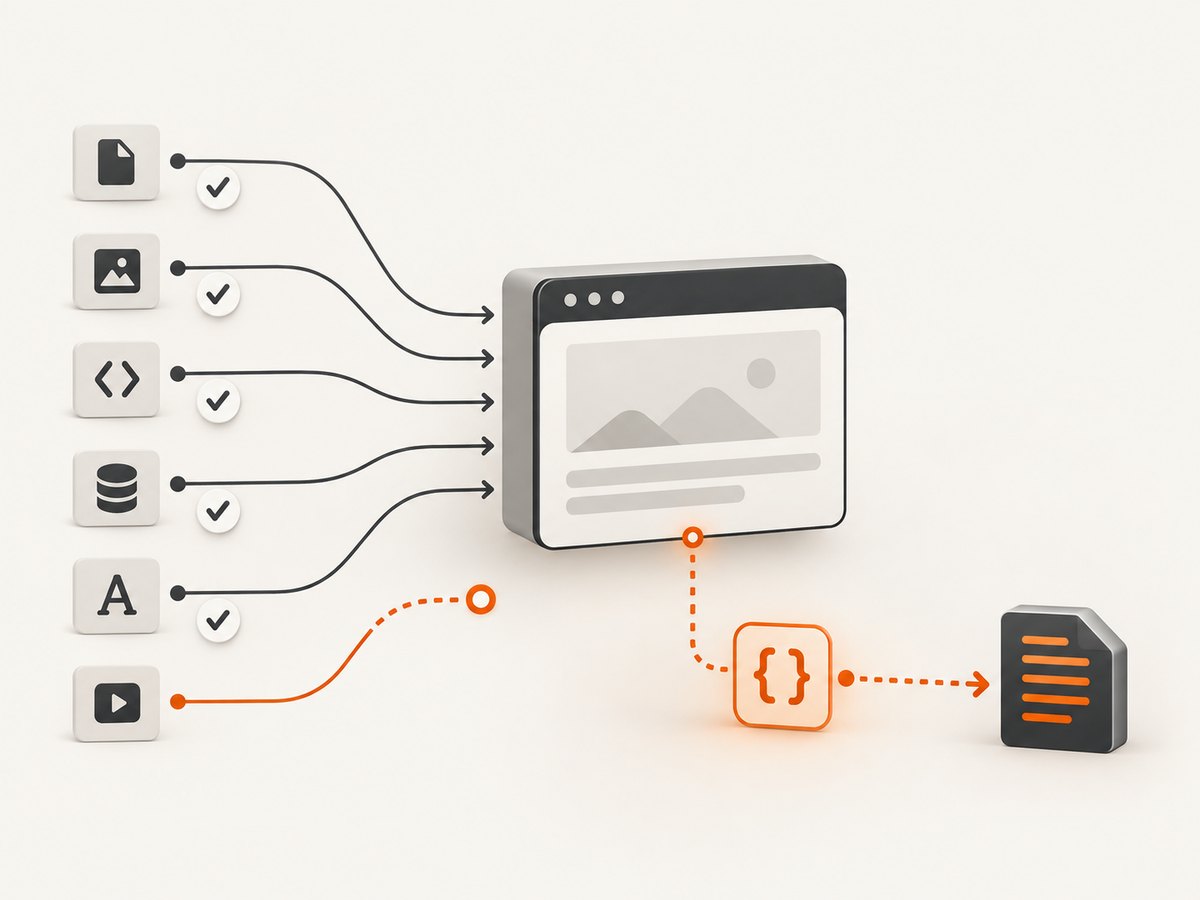
If the old program uses PhantomJS’s native JavaScript API, configure its resource timeout before the first page.open. The API notes that changing settings after the initial open does not affect that load. Add request and resource-timeout callbacks to see what is pending, and add onError to surface page-side exceptions. (PhantomJS WebPage API) (onResourceTimeout) (PhantomJS troubleshooting)
var page = require("webpage").create();
var system = require("system");
var target = system.args[1] || "https://example.com";

// Set before page.open; value is milliseconds.
page.settings.resourceTimeout = 15000;

page.onResourceRequested = function (request) {
  console.log("REQUEST", request.id, request.method, request.url);
};
page.onResourceTimeout = function (request) {
  console.log("RESOURCE TIMEOUT", JSON.stringify(request));
};
page.onError = function (message, trace) {
  console.log("PAGE ERROR", message);
  trace.forEach(function (frame) {
    console.log("  at", frame.file, frame.line, frame.function || "");
  });
};

page.open(target, function (status) {
  console.log("OPEN STATUS", status);
  if (status !== "success") {
    phantom.exit(2);
    return;
  }
  // Add a bounded, page-specific post-interaction check here.
  page.render("debug.png");
  phantom.exit(0);
});
This small script diagnoses navigation and page errors; it does not itself reproduce a click. Add the actual selector/action in the callback and poll for the expected DOM state with a deadline. A resource timeout callback identifies an overdue request, but the timeout should be interpreted in context: a nonessential analytics request may not explain a missing result, while a stalled API request might. Avoid logging secrets embedded in request URLs or headers in shared CI logs.
5. Log enough to make the next failure useful
For each failing run, keep a timestamped log around the interaction: “before click,” “click returned,” “waiting for result,” and “result found” or “wait timed out.” Include browser and driver versions, operating system, target URL with sensitive query parameters removed, and the relevant exception type. In Selenium, a timeout exception tells you which wait expired; the current URL, title, and page source excerpt often show whether navigation, an error page, or the expected content was reached.
For native PhantomJS, log requests and onResourceTimeout events while reproducing the issue. Log onError message and stack frames. Reduce the case to one interaction and report actual versus expected behavior, version details, and reproducible steps; this matches the PhantomJS project’s issue-reporting guidance. (Reporting PhantomJS issues)
6. Common errors and fixes
| Symptom | Likely cause | What to change |
|---|---|---|
Script appears stuck at driver.get() |
Navigation never reaches the configured load condition, often because a resource or long-lived request remains active. | Set a finite page-load timeout; inspect browser logs and reproduce with a minimal URL. Decide whether a different page-load strategy or supported browser is appropriate. |
Click returns, then find_element waits or fails |
Result is asynchronous, selector is wrong, or the click did not trigger. | Wait explicitly for the result condition; verify the selector and inspect visible error text. |
TimeoutException even though content eventually appears |
The condition limit is shorter than real response time, or the condition asks for visibility while the element is hidden. | Measure the normal response, set a bounded realistic deadline, and select the right state condition. |
| Wait duration seems much longer than configured | Long implicit wait is layered into explicit polling or nested lookups. | Set implicit wait to zero and use a single explicit wait with a known timeout. |
| PhantomJS resource timeout callback fires | A resource exceeded resourceTimeout; it may be required or incidental. |
Check the logged URL and request type. Fix the endpoint, allow appropriate time, or establish whether the resource is necessary to the expected state. |
Native callback reports fail or a page error |
Navigation failed or JavaScript threw before producing the expected DOM state. | Use onError stack details and request logs; reproduce in a maintained browser to distinguish page behavior from an obsolete runtime. |
| Works locally, hangs in CI | Different browser/runtime versions, resource access, or timing conditions. | Record versions and OS in both places, keep waits bounded, and capture the same request/error diagnostics in CI. |
7. Migrate away from PhantomJS for durable automation
PhantomJS development is suspended. Selenium’s current Python documentation lists maintained browser choices including Chrome, Edge, Firefox, Safari, WebKitGTK, and WPEWebKit, and documents Selenium Manager for driver setup. (PhantomJS status) (Selenium browsers)
- Record what the current script actually uses: browser capabilities, cookies, custom headers, JavaScript execution, screenshots, and selectors.
- Port one representative test to a supported browser and keep the same bounded timeout and explicit condition pattern.
- Run the reduced case locally and in CI, then compare the resulting DOM state and timing.
- Remove PhantomJS-specific setup only after the replacement covers the workflows that depend on it.
Migration effort depends on how much the code relies on PhantomJS-specific behavior. Simple navigation, element lookup, and clicks are often straightforward to express through Selenium’s supported drivers; capabilities and timing assumptions deserve review. Keeping the interaction outcome explicit helps across browser changes.
8. Reliability, performance, and cost considerations
Unbounded waits turn a single broken page into a stuck worker and can consume an entire test job’s runtime. Finite waits limit the damage and make failure location visible. They do not make a flaky page reliable by themselves: use a stable result condition, avoid unnecessary repeated polling, and retain enough logs to separate transient network failures from deterministic selector or JavaScript errors.
Do not optimize by indiscriminately blocking scripts or resources if the interaction depends on them. Likewise, shortening every timeout may reduce runtime for broken pages while creating false failures on healthy slow pages. Establish realistic per-step budgets from application behavior, then monitor which waits expire. Parallel browser sessions may increase throughput but also increase resource demand; scale concurrency in line with available memory and CPU.
Local execution means your environment owns the browser process, driver compatibility, and runtime capacity. Hosted rendering or automation can be useful when managing a local browser is unreliable, but compare the required interaction support, timeout controls, data handling, and pricing before moving a workflow. PhantomJsCloud documents selector and function waits, navigation timeouts, and a manual-wait workflow where the script signals completion with page.done(); its default maxWait is documented as 35 seconds. (PhantomJsCloud automation docs) Treat documented defaults as provider settings, not a guarantee that a particular page will finish within that time.
Or skip the browser setup
If your goal is to capture a page after dealing with browser installation and environment setup, ScreenshotNeo offers a website screenshot API and MCP server. One GET request returns an image or PDF; see the API documentation for options. This is a screenshot service, not a replacement for tests that must click through application workflows and assert their outcomes.
curl -G "https://api.screenshotneo.com/v1/shot" -d access_key=YOUR_API_KEY --data-urlencode url=https://example.com -o shot.webpimport requests
r = requests.get(
"https://api.screenshotneo.com/v1/shot",
params={"access_key": "YOUR_API_KEY", "url": "https://example.com"},
timeout=90,
)
open("shot.webp", "wb").write(r.content)const q = new URLSearchParams({ access_key: 'YOUR_API_KEY', url: 'https://example.com' });
const res = await fetch(`https://api.screenshotneo.com/v1/shot?${q}`);
if (!res.ok) throw new Error(`Screenshot request failed: ${res.status}`);
const image = Buffer.from(await res.arrayBuffer());
await import('node:fs/promises').then(fs => fs.writeFile('shot.webp', image));- Cookie banners are accepted and removed, and known consent banners, newsletter popups, and chat widgets can be removed before capture.
- Bot checks, blank pages, failed loads, timeouts, and cache hits are not billed; response headers report the page verdict and billing status.
- An MCP server provides
take_screenshot,get_page_info, andcapture_pdftools for AI agents and MCP clients. - The free plan includes 1,000 screenshots per month with no card; paid plans start at $5 for 3,000. All features are available on every plan.
Create a free ScreenshotNeo account for 1,000 screenshots a month with no card.
FAQ
Should I add a longer sleep after the click?
Use a fixed sleep only to investigate timing. For the test’s completion rule, wait for the actual result condition with a finite deadline.
Can I fix every hang by setting a resource timeout?
No. A resource timeout helps identify or bound resource waits in PhantomJS’s page API. It does not replace Selenium page-load/script timeouts or an explicit wait for application state.
Is PhantomJS still maintained?
No. Its project homepage says development is suspended. For a maintained Selenium workflow, migrate to one of Selenium’s currently documented browser options.
Is a screenshot API a substitute for Selenium?
For a static capture, it may avoid local browser setup. For clicking through an interactive flow and asserting its behavior, use browser automation with explicit waits.


