How to Fix PhantomJS Pages That Fail to Load JavaScript
Trace PhantomJS navigation, resource failures, TLS problems, and JavaScript exceptions with runnable diagnostics, then choose a reliable capture path.
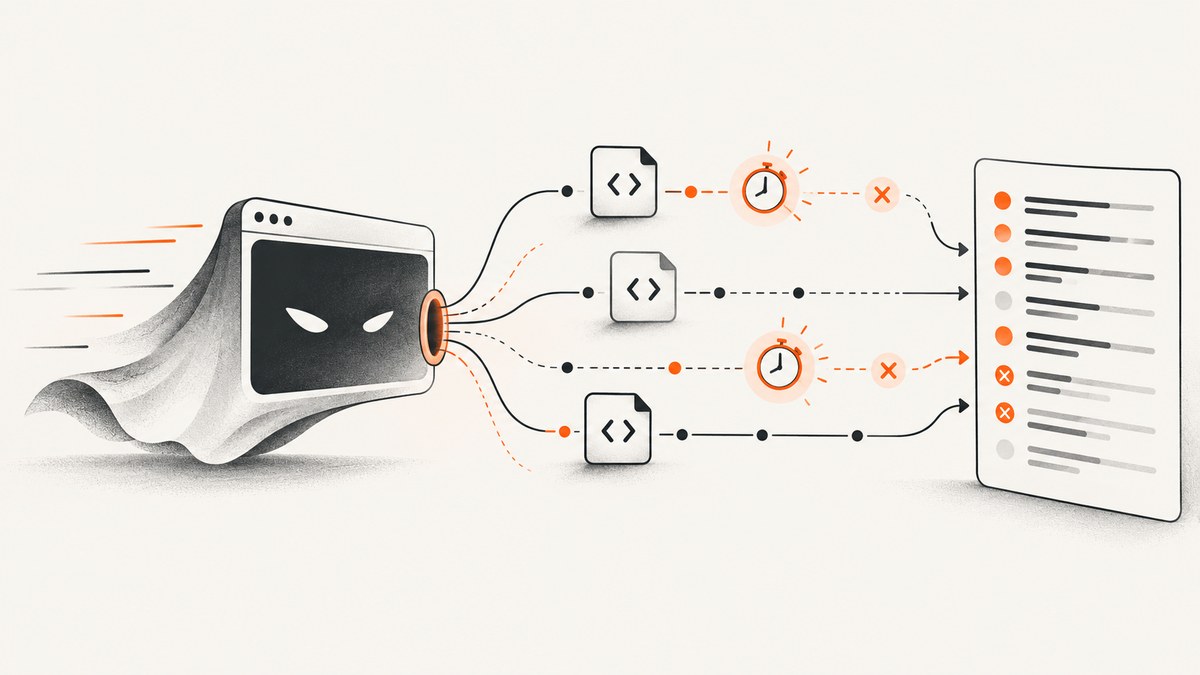
Direct answer: PhantomJS pages that fail to load JavaScript usually fail in one of four layers: JavaScript is disabled or configured too late, the script request never starts, the request times out or errors, or the script loads and throws an exception. A fifth cause is invoking a different PhantomJS binary or build than expected. Instrument those layers first; only then change timeouts or request settings.
PhantomJS is legacy software. Its repository is archived, so use this guide to keep an existing script diagnosable while deciding whether to move to a maintained browser. The APIs below reflect the official PhantomJS documentation.
1. Verify the binary and version first
Run the version command in the same shell, container, service account, or CI job that runs the failing script:
which phantomjs
phantomjs --version
phantomjs --help | head
The troubleshooting guide warns that multiple installations can make your shell invoke a different executable than the one you inspected. Record the full path, version, and whether it is a package or downloaded build. Compare those values on a machine where the page works. If only HTTPS pages fail, inspect the SSL/TLS libraries available to that executable; a JavaScript bug is unlikely when the script request never completes. See the official troubleshooting guide.
2. Set JavaScript and resource settings before page.open
javascriptEnabled defaults to true, but set it explicitly while diagnosing. PhantomJS applies page.settings only during the initial page.open call, so changing a setting after navigation cannot repair that first load (settings documentation).
var page = require('webpage').create();
page.settings.javascriptEnabled = true;
page.settings.resourceTimeout = 15000;
page.open('https://example.com/', function (status) {
  console.log('page.open status: ' + status);
  phantom.exit();
});
A larger timeout only helps a slow resource that eventually responds. It cannot fix an invalid URL, blocked request, incompatible TLS handshake, or unsupported browser feature. Choose the value from observed request timing.
3. Capture navigation, network, and JavaScript evidence
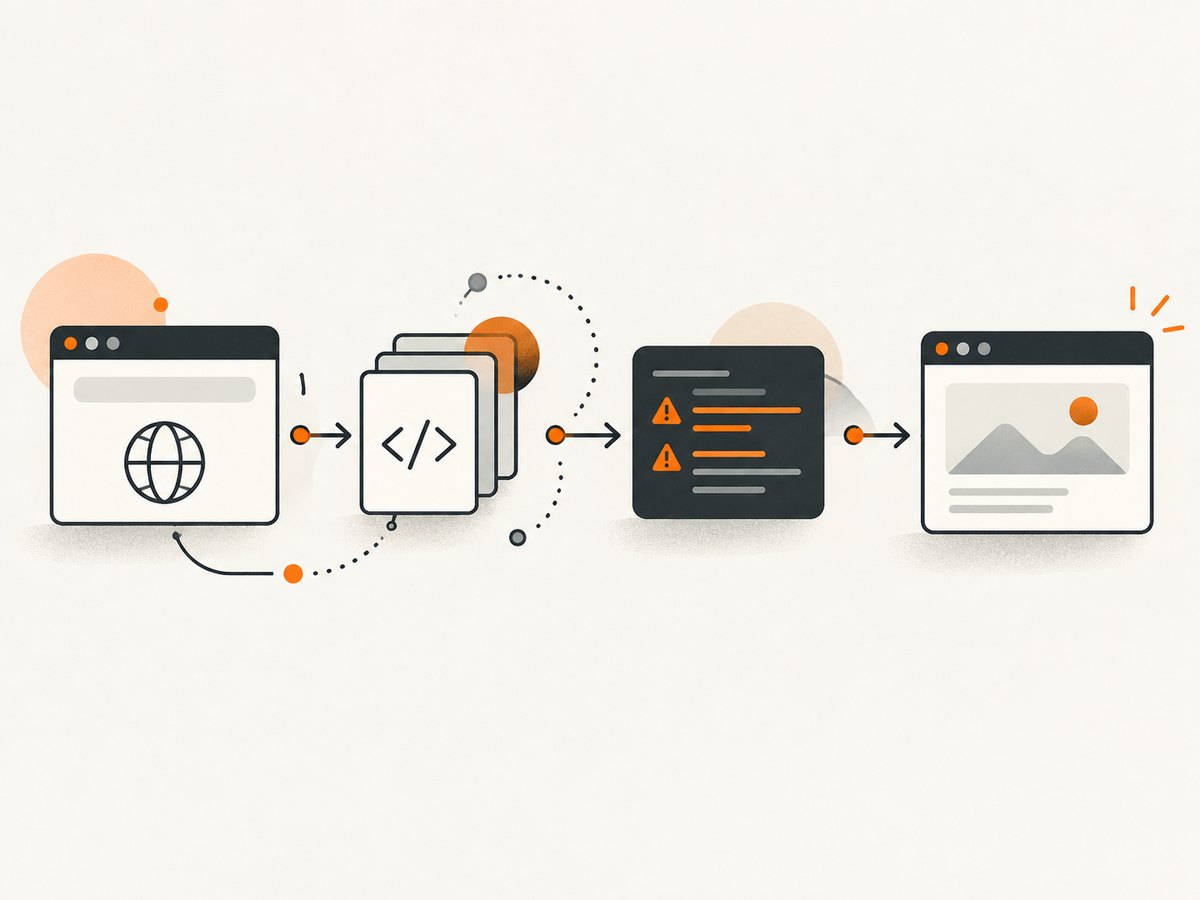
Use every relevant callback in one diagnostic run. The page.open callback reports success or fail, but success means the main load completed; it does not prove delayed application JavaScript has finished.
var system = require('system');
var webpage = require('webpage');

if (system.args.length < 2) {
  console.log('Usage: phantomjs diagnose.js https://example.com/');
  phantom.exit(2);
}

var target = system.args[1];
var page = webpage.create();
page.settings.javascriptEnabled = true;
page.settings.resourceTimeout = 15000;
page.settings.userAgent = 'PhantomJS diagnostic run';

page.onResourceRequested = function (request) {
  console.log('[request] ' + request.id + ' ' + request.url);
};
page.onResourceReceived = function (response) {
  if (response.stage === 'end') console.log('[received] ' + response.status + ' ' + response.url);
};
page.onResourceTimeout = function (request) {
  console.log('[timeout] ' + request.url + ' code=' + request.errorCode + ' message=' + request.errorString);
};
page.onResourceError = function (error) {
  console.log('[resource-error] ' + error.url + ' code=' + error.errorCode + ' message=' + error.errorString);
};
page.onConsoleMessage = function (message, line, source) {
  console.log('[console] ' + source + ':' + line + ' ' + message);
};
page.onError = function (message, trace) {
  console.log('[page-error] ' + message);
  trace.forEach(function (frame) {
    console.log('  at ' + frame.file + ':' + frame.line + (frame.function ? ' in ' + frame.function : ''));
  });
};

page.open(target, function (status) {
  console.log('[load] ' + status + ' ' + target);
  if (status !== 'success') { phantom.exit(1); return; }
  window.setTimeout(function () {
    var state = page.evaluate(function () {
      return { title: document.title, bodyLength: document.body ? document.body.innerHTML.length : 0, readyState: document.readyState, appMarker: !!document.querySelector('[data-app-ready]') };
    });
    console.log('[state] ' + JSON.stringify(state));
    phantom.exit(0);
  }, 1000);
});
The timeout handler receives the request URL, error code, and error string (onResourceTimeout). Keep those fields in your logs. Also log onResourceError; a failed request differs from one that merely exceeded the configured timeout. The open callback gives navigation status.
4. Decide which failure you have
| Evidence | Likely layer | Next action |
|---|---|---|
page.open reports fail |
Main navigation, proxy, DNS, or TLS | Compare binary/version, inspect resource callbacks, and test the URL from the same host. |
| Page succeeds but script URL never appears | Markup, conditional loading, or earlier exception | Inspect script tags and onError; verify the code path creating the request. |
| Script URL appears, then timeout/error | Network or TLS/resource layer | Use URL, error code, and message to check reachability, certificates, proxy rules, and timeout budget. |
| Script loads but state is wrong | Thrown exception, unsupported feature, or async work still running | Read stack frames and console output; wait for a page-specific readiness condition. |
| Different machines produce different results | Binary/build or environment difference | Compare executable path, version, TLS libraries, proxy, and user agent. |
5. Why is PhantomJS not loading JavaScript?
JavaScript is disabled or enabled too late
Check the script and set page.settings.javascriptEnabled = true before page.open. Changing settings after navigation does not reload the initial document.
The script is blocked before it is requested
If no request event contains the script URL, the browser never reached the network layer. The page may add the tag only after another script runs, use a conditional branch, or fail earlier. Save the HTML, inspect script tags, and use onError to find the first exception. Content-security policy, proxy rules, and feature detection can also prevent insertion.
The resource arrives but execution throws
Attach page.onError and print every stack frame. The official troubleshooting documentation says detailed JavaScript exception information, including a stack trace, is printed when this handler is used (source). Keep page.onConsoleMessage as well. Historical issue reports show that console.error routing differed between PhantomJS 2.1.1 builds, so absence of an onError event does not prove the page had no error.
The page needs APIs PhantomJS does not implement
Older WebKit-based PhantomJS cannot execute every modern JavaScript or Web API. Evidence is often an undefined method followed by a page state that never becomes ready. Confirm the first failing line, then decide whether to polyfill, serve a compatible bundle, or move the workload to a maintained browser. Do not hide the exception by extending the timeout.
6. How do I see JavaScript errors in PhantomJS?
Use both handlers and include URL context:
page.onConsoleMessage = function (message, line, source) {
  console.log(source + ':' + line + ' ' + message);
};
page.onError = function (message, trace) {
  console.log('ERROR: ' + message);
  for (var i = 0; i < trace.length; i++) {
    console.log(trace[i].file + ':' + trace[i].line + ' ' + (trace[i].function || 'anonymous'));
  }
};
Frameworks may log an error without throwing, so only the console handler may show it. Thrown errors should provide stack frames, though build-specific routing means collecting both streams is safer.
7. Why does PhantomJS work over HTTP but fail over HTTPS?
First prove whether the HTTPS script request was issued. If absent, inspect page logic. If requested and then errors or times out, investigate TLS negotiation, certificate chains, proxy interception, and SSL libraries linked to PhantomJS. Run the same URL with the same executable and environment; changing only the scheme is a useful comparison. The troubleshooting guide specifically calls out SSL/TLS libraries for HTTPS-only failures. A timeout increase cannot repair an incompatible handshake.
8. Wait for application readiness, not a blind delay
Load completion and application readiness are separate. Poll a condition your page owns, such as a known element, global flag, or result count, with a finite deadline. Log the last observed state:
function waitForReady(page, test, deadline, done) {
  var started = Date.now();
  function poll() {
    var result = page.evaluate(test);
    if (result) { done(true, result); return; }
    if (Date.now() - started > deadline) { done(false, result); return; }
    window.setTimeout(poll, 100);
  }
  poll();
}
page.open(target, function (status) {
  if (status !== 'success') { phantom.exit(1); return; }
  waitForReady(page, function () { return !!document.querySelector('[data-app-ready]'); }, 10000, function (ready, state) {
    console.log('ready=' + ready + ' state=' + state);
    phantom.exit(ready ? 0 : 1);
  });
});
Replace the selector and deadline with application-specific values. A fixed delay is a temporary experiment, not proof that asynchronous work completed.
9. Reliability, performance, and cost considerations
- Reliability: Persist executable path, version, URL, status, resource errors, timeout metadata, console messages, and stack traces for each run.
- Performance: Resource logging is verbose. Enable it for diagnosis, then reduce it after identifying the failing URL. Precise readiness signals avoid unnecessary delays.
- Timeouts: Set a finite resource timeout and overall job deadline. Treat timeout callbacks as evidence, not as a reason to keep increasing numbers.
- Cost: PhantomJS has no hosted capture meter. Your costs are compute, proxy, bandwidth, and engineering time needed to keep a legacy browser running.

Or skip the browser setup
If you only need a dependable screenshot or PDF, ScreenshotNeo accepts one GET request and returns PNG, JPEG, WebP, or PDF. It accepts consent banners before capture and removes more than 60 known consent platforms, newsletter popups, and chat widgets; each cleanup step can be disabled. Bot checks, blank pages, timeouts, failed loads, and cache hits are not billed, and response headers report the page verdict and whether the shot was billed. An MCP server exposes take_screenshot, get_page_info, and capture_pdf to Claude, Cursor, and other MCP clients.
See the ScreenshotNeo API documentation for all options. Parameter names used by many screenshot APIs are accepted, which simplifies switching.
cURL
curl -G 'https://api.screenshotneo.com/v1/shot' \
  -d access_key=YOUR_API_KEY \
  --data-urlencode url=https://stripe.com \
  -o shot.webp
Python
import requests
r = requests.get('https://api.screenshotneo.com/v1/shot', params={'access_key': 'YOUR_API_KEY', 'url': 'https://stripe.com'}, timeout=90)
r.raise_for_status()
open('shot.webp', 'wb').write(r.content)
Node.js
const q = new URLSearchParams({ access_key: 'YOUR_API_KEY', url: 'https://stripe.com' });
const res = await fetch(`https://api.screenshotneo.com/v1/shot?${q}`);
if (!res.ok) throw new Error(`HTTP ${res.status}`);
const data = Buffer.from(await res.arrayBuffer());
require('fs').writeFileSync('shot.webp', data);
You can request full-page captures with lazy images loaded, a CSS-selected element, dark mode, any viewport or one of 12 device presets, retina scale, custom CSS and JavaScript, clicks, selector waits, delay or network-idle waits, ad/tracker/request blocking, custom headers/cookies/user agent/Authorization, timezone and geolocation, transparent backgrounds, resizing, a chosen cache TTL, signed links, async jobs with signed webhooks, bulk capture for up to 100 URLs per call, PDFs with paper size, margins, landscape and page ranges, HTML/CSS-to-image, and usage data. Every feature is on every plan.
The Free plan includes 1,000 shots each month with no card. Paid plans start at $5 for 3,000 shots; Growth is $15 for 15,000, Pro $39 for 60,000, Scale $99 for 250,000, and Business $249 for 1,000,000. Yearly billing gives two months free. Create a free ScreenshotNeo account to try it.
10. Troubleshooting checklist
- Run
which phantomjsandphantomjs --versionin the failing environment. - Set
javascriptEnabledandresourceTimeoutbeforepage.open. - Record the exact target URL and
page.openstatus. - Log requested URLs, received statuses, resource errors, and resource timeouts.
- Attach both
onConsoleMessageandonError; preserve stack frames. - Check a page-specific readiness condition with a deadline.
- For HTTPS-only failures, inspect TLS libraries and proxy/certificate behavior.
- Compare results across binaries before changing application code.
FAQ
Does page.open success mean JavaScript finished?
No. It reports navigation completion. Framework code can continue asynchronously; wait for an observable application condition.
Should I always increase resourceTimeout?
No. Determine whether the URL was requested and whether it failed or timed out. A larger value cannot fix a blocked or incompatible request.
Why are console errors missing?
Use onConsoleMessage and onError together. Error routing varied across PhantomJS builds.
Is PhantomJS suitable for new automation?
The project repository is archived. This workflow is for maintaining legacy scripts; evaluate a maintained browser for new systems.
Can ScreenshotNeo wait for dynamic pages?
Yes. Configure a selector wait, delay, or network-idle wait, and use custom JavaScript when the page needs an explicit readiness action.


