How to Fix Missing Fonts and Box Characters in PhantomJS Screenshots
Fix missing glyphs in PhantomJS screenshots by checking font coverage, installing fonts where Fontconfig can find them, refreshing caches, and waiting for web fonts to load.
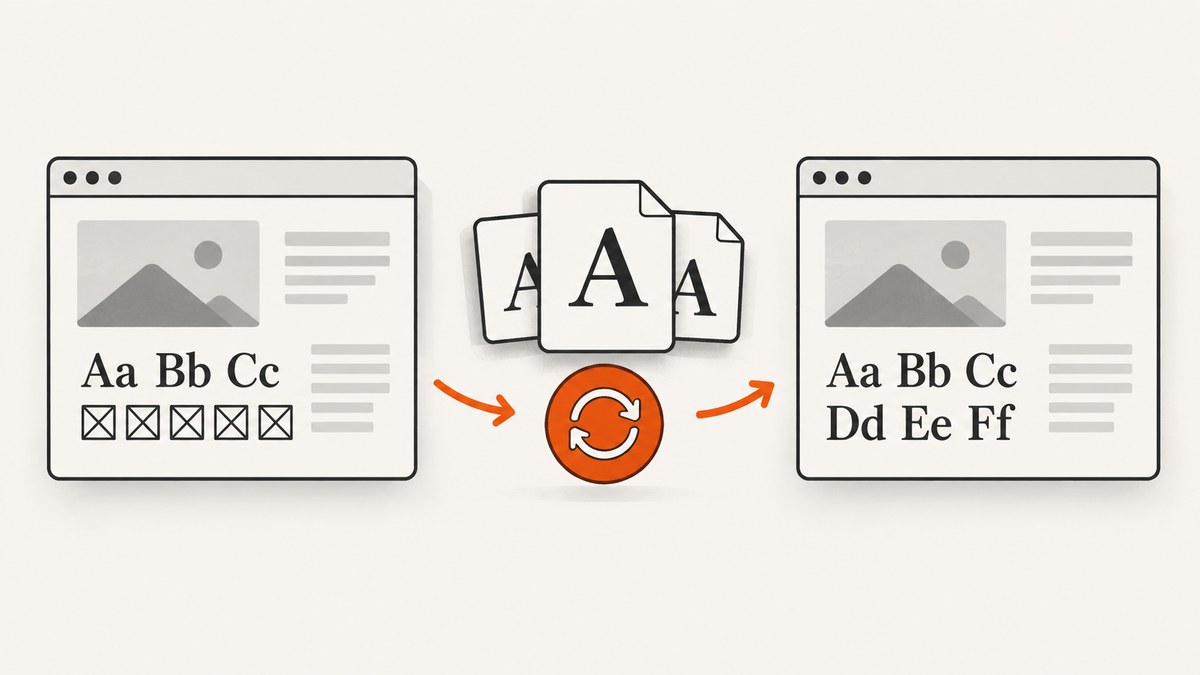
Box characters in a PhantomJS screenshot usually mean the selected font and its fallbacks do not contain the requested glyphs. On Linux, install a font with the needed script coverage somewhere Fontconfig can read, refresh Fontconfig’s cache, restart the PhantomJS process, and capture only after any web font has loaded.
If English renders correctly but Japanese, Chinese, symbols, or emoji appear as boxes, the likely problem is coverage rather than screenshot dimensions. This guide walks through diagnosis, reproducible fixes, validation, troubleshooting, and the limits of keeping PhantomJS in service.
1. Find out which characters are missing
Start by identifying the affected characters and the CSS font stack applied to them. A font can cover Latin text while lacking CJK ideographs, Arabic, a symbol block, or emoji. The fallback list matters too: if none of the fonts available to the renderer has the glyph, the browser cannot draw it and commonly shows a box.
- Record a short sample containing the characters that fail. Include one known-good character from the same page for comparison.
- Inspect the element’s computed
font-familyin the page. A family name in CSS is only a request; it does not prove that the font is installed or loaded. - Check whether the affected text comes from a different element, weight, or CSS rule. A bold face or a particular fallback may have different coverage.
- Run the same sample in the exact PhantomJS machine or container that creates the screenshot.
If only Japanese or Chinese fails, check CJK coverage first. A community report describes that pattern and mentions IPA Gothic and IPA Mincho as example remedies. Those are examples, not a universal package prescription: package names, availability, coverage, and licensing depend on the environment.
2. Check the Linux font layer
PhantomJS uses QtWebKit. On Linux, font discovery depends on Fontconfig. Font files need to be in a directory visible to the runtime user and included in Fontconfig’s configured directories. Fontconfig also maintains caches, so adding a file does not guarantee the running job immediately sees it.
Inspect the process environment and the Fontconfig configuration in the same environment where PhantomJS runs. In particular, FONTCONFIG_FILE and FONTCONFIG_PATH can override which configuration is used. A local terminal and a CI container may therefore see different font directories or cache locations.
Use the distribution’s package manager to find an appropriate font package, or install a font file whose license permits your use. Choose by Unicode coverage, not merely by the font’s name. Latin, CJK, symbols, and emoji are distinct coverage needs; one font should not be assumed to cover them all.
3. Install fonts reproducibly
For a stable CI image used by multiple pages, a system font package is usually the simplest approach to reproduce: declare it in the image build, refresh the cache there, and run the capture job in that same image. The exact package varies by distribution, so select it for the missing script and verify the resulting coverage.
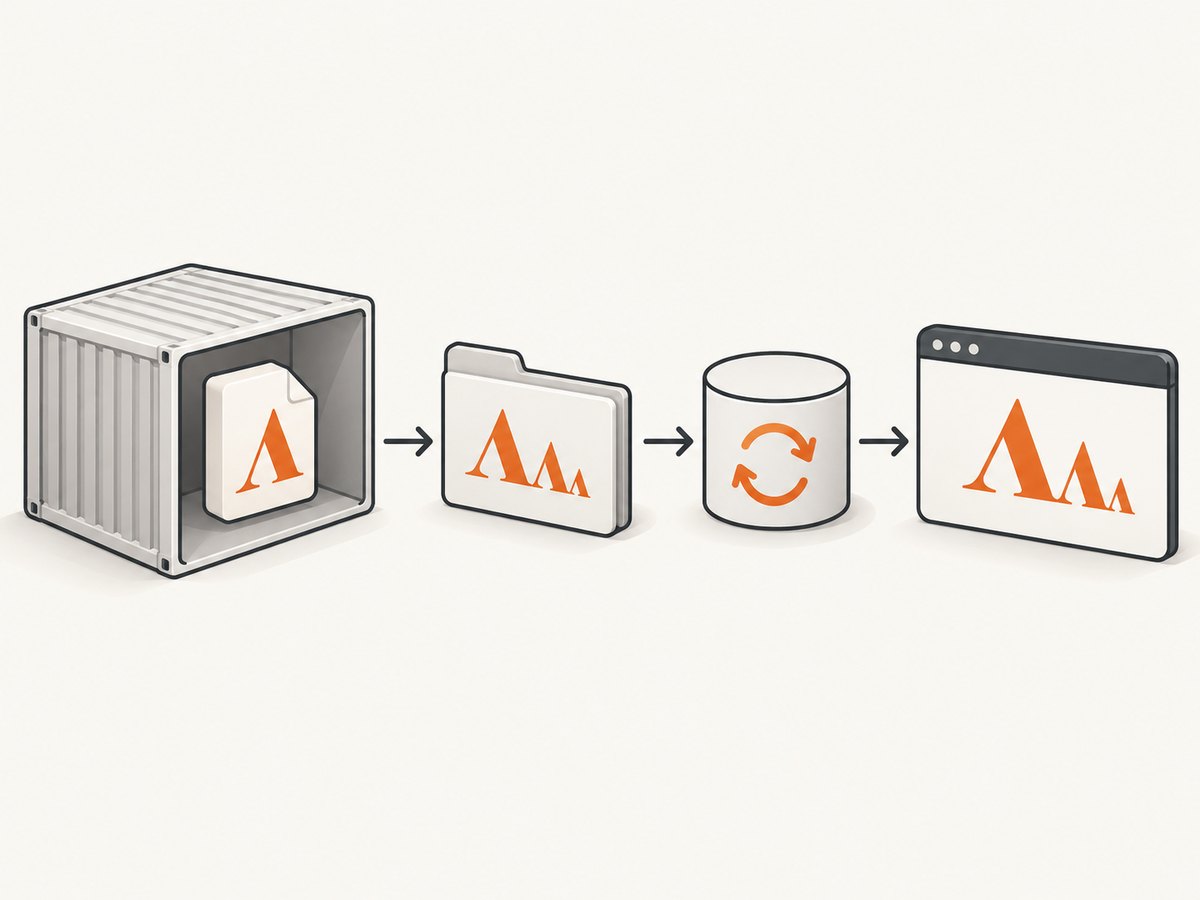
If the process cannot write system directories, a user-level font directory can work, provided the PhantomJS runtime user owns or can read the files and Fontconfig is configured to include that directory. Script the installation and cache refresh as part of job setup. A developer workstation’s fonts do not automatically exist in a headless runner.
For a page or application with controlled assets, a bundled web font may be more portable. Version the font asset with the page and declare it with @font-face. Confirm that the URL is reachable from the PhantomJS process, that any access restrictions permit it, and that the required glyphs are actually included. Account for the font license.
4. Refresh Fontconfig and restart PhantomJS
After adding font files, rebuild Fontconfig’s cache using the command available in your environment. The community report uses fc-cache -vf; use the appropriate options and directories for your system. Run it as the runtime user, or ensure the cache it updates is the one that user reads.
# Example only: run in the same image and user context as the capture job
fc-cache -vf

# Then restart the process that runs PhantomJS so it reloads font information.
A common failure is refreshing a cache as root while PhantomJS runs as another user with a separate cache, or updating a host cache while the job runs inside a container. Keep the font files, cache refresh, and capture in the same machine image or container layer. Restart the PhantomJS process after the refresh so it re-reads the font database.
5. Wait for bundled web fonts before rendering
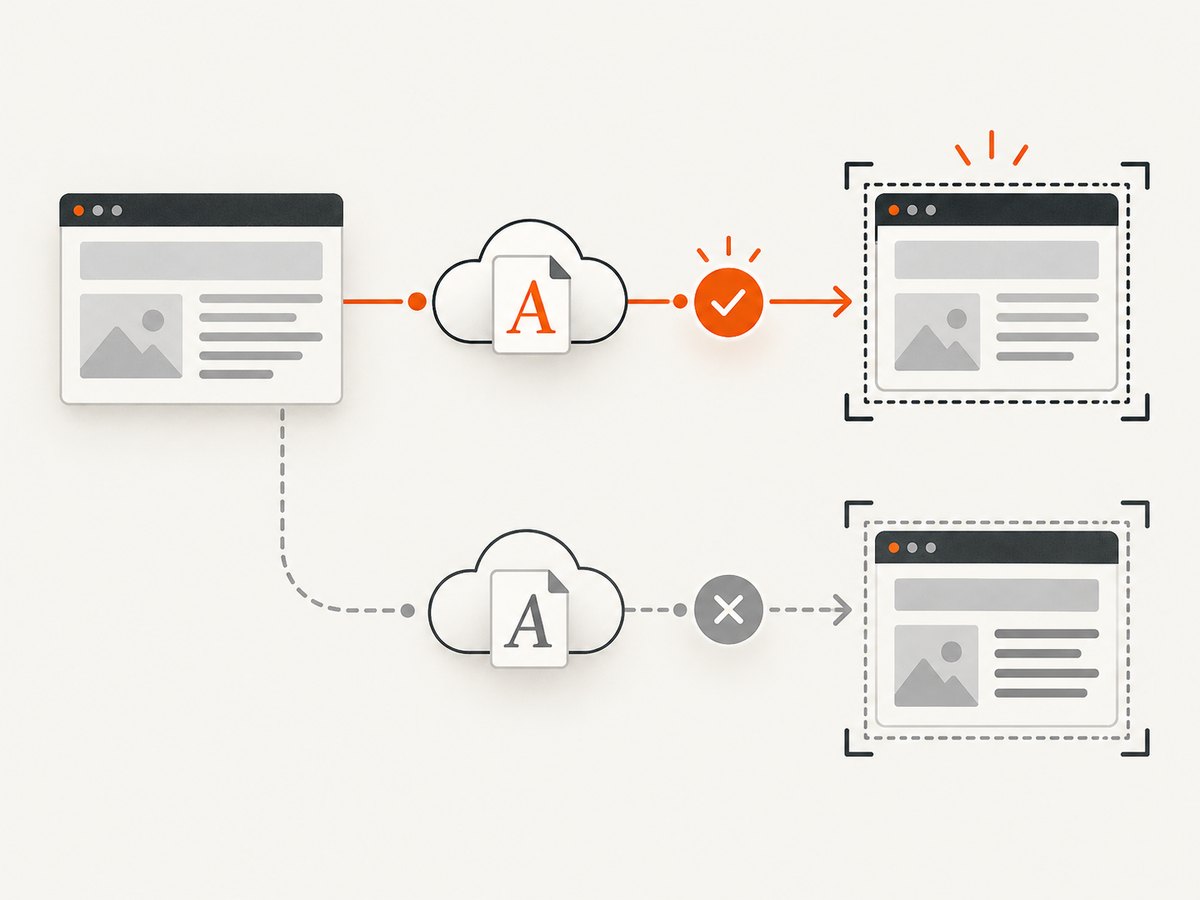
System fonts can be available before page load; web fonts are network resources and may arrive later. The official PhantomJS capture pattern renders from the page-load callback. For a page with a web font, add a controlled wait that confirms the font resource has completed before calling page.render(). Do not rely on an arbitrary short delay when the network or font host can be slow.
var page = require('webpage').create();
var address = 'https://example.com/page-with-web-font';

page.settings.resourceTimeout = 10000;
page.onResourceRequested = function (requestData) {
  console.log('Request: ' + requestData.url);
};
page.onResourceReceived = function (response) {
  if (response.stage === 'end') {
    console.log('Loaded: ' + response.url);
  }
};
page.onResourceTimeout = function (request) {
  console.log('Timed out: ' + request.url);
};

page.open(address, function (status) {
  if (status !== 'success') {
    console.log('Page did not load successfully: ' + status);
    phantom.exit(1);
    return;
  }

  // For production, replace this delay with a page-specific readiness
  // signal that confirms the required font resource has loaded.
  window.setTimeout(function () {
    page.render('capture.png');
    phantom.exit();
  }, 1000);
});
This is a runnable PhantomJS pattern, but the one-second wait is only an example, not a guarantee. A robust page can expose a readiness flag after its font has loaded; poll or otherwise wait for that condition before rendering. Review page.settings.resourceTimeout, URL-access restrictions, and request logs when a font is not applied. A failed or blocked font request can leave the CSS family in place while the browser silently uses a fallback.
6. Validate the actual capture environment
- Create a small test page containing representative characters from every required script, plus ordinary Latin text.
- Capture it with the same PhantomJS binary, runtime user, container image, environment variables, and network policy used in production.
- Compare the screenshot with the computed CSS family and the font request log. Confirm the intended font loaded and contains the affected glyphs.
- Pin the font package or version and the PhantomJS image in CI. Repeat the capture when either changes.
This separates three failure classes: missing glyph coverage, font discovery or cache problems, and a web font that did not finish loading. It also makes the fix reviewable instead of depending on a workstation-only change.
7. Choose an approach for your job
| Approach | Best use | Main risk | Reproducibility |
|---|---|---|---|
| System font package | Stable CI images and multiple pages | Package differs by distribution or has incomplete coverage | High when baked into the image |
Bundled @font-face |
A controlled page or application | URL, access, loading, or licensing problem | High when assets are versioned |
| User-level font directory | Unprivileged jobs and containers | Wrong runtime user or stale cache | Medium unless scripted |
| Browser migration | Long-term maintenance | Screenshot baselines may change | High after the new image is pinned |
PhantomJS development is suspended. If an existing job must keep running, pin its environment and font inventory to stabilize it. For a long-lived service, plan a migration to a maintained browser and re-baseline screenshots: layout and font rendering can differ, so old and new images may not be pixel-identical.
8. Troubleshooting
| Symptom | Likely cause | Fix |
|---|---|---|
| English renders; Japanese or Chinese is boxed | No available fallback has the required CJK glyphs | Install or bundle a font with the needed CJK coverage; validate representative characters |
| Font file exists but PhantomJS ignores it | Font directory is not configured or visible to the runtime user | Check Fontconfig directories, user permissions, and FONTCONFIG_FILE/FONTCONFIG_PATH |
| It works locally but fails in CI | CI uses a different image, user, font inventory, or cache | Install the font and refresh cache in the same pinned CI image used for capture |
| It still fails immediately after installation | Stale cache or a long-running PhantomJS process | Refresh the right cache as the correct user, then restart the process |
| Bundled web font is not applied | Request failed, was blocked, timed out, or had not completed at render time | Inspect resource logs, access restrictions, timeout settings, and wait for font readiness |
| Letters render but emoji or symbols remain boxes | The installed font covers text but not that symbol or emoji range | Select a font with the specific required coverage; test the exact characters |
| Font name in CSS looks correct but glyphs are missing | CSS names a family that is absent, or the chosen face lacks those glyphs | Verify the installed/loaded face and coverage; provide a known-good fallback |
9. Performance, reliability, and cost
System fonts avoid a per-page font download, but they increase the image’s setup and maintenance work. A bundled web font makes the asset explicit and versionable, while adding network or access dependencies unless it is served locally. A user-level install can keep an image unprivileged, but only if user identity and cache handling are controlled.
Reliability comes from pinning the renderer image, font package or file, Fontconfig setup, and readiness behavior together. Treat font changes as rendering changes: validate all required scripts, and review screenshot baselines after upgrades. PhantomJS being suspended also makes migration planning a maintenance concern rather than a glyph-only fix.
There is no general authoritative failure-rate statistic for missing fonts in PhantomJS screenshots. Cost depends on the chosen font’s licensing and distribution, CI image storage and build process, and engineering time spent maintaining the renderer. Check font licenses before bundling or distributing files; do not assume a freely downloadable font is unrestricted.
10. Or skip the browser setup
If you need a clean screenshot without maintaining PhantomJS and its font environment, ScreenshotNeo is a website screenshot API and MCP server. Its API returns PNG, JPEG, WebP, or PDF from one GET request. See the ScreenshotNeo API documentation for parameters and configuration.
curl -G "https://api.screenshotneo.com/v1/shot" \
  -d access_key=YOUR_API_KEY \
  --data-urlencode url=https://example.com \
  -o shot.webp
import requests
r = requests.get(
"https://api.screenshotneo.com/v1/shot",
params={"access_key": "YOUR_API_KEY", "url": "https://example.com"},
timeout=90,
)
open("shot.webp", "wb").write(r.content)const q = new URLSearchParams({
access_key: 'YOUR_API_KEY',
url: 'https://example.com'
});
const res = await fetch(`https://api.screenshotneo.com/v1/shot?${q}`);
if (!res.ok) throw new Error(`Screenshot request failed: ${res.status}`);
const fs = await import('node:fs/promises');
await fs.writeFile('shot.webp', Buffer.from(await res.arrayBuffer()));- Cookie and consent banners, newsletter popups, and chat widgets are removed before the shot; each cleanup step can be turned off.
- Bot checks, blank pages, timeouts, failed loads, and cache hits are not billed. Responses identify page verdict and billing status in headers.
- An MCP server provides
take_screenshot,get_page_info, andcapture_pdftools for Claude, Cursor, and other MCP clients. - The free plan includes 1,000 screenshots a month with no card; paid plans start at $5 for 3,000. Every feature is on every plan.
Create a free ScreenshotNeo account for 1,000 screenshots a month with no card.
11. FAQ
Do I need to run fc-cache after installing a font?
Refresh Fontconfig’s cache after adding font files, and ensure the refresh targets the cache used by the PhantomJS runtime user. Restart the process afterward.
Why do box characters appear for only one language?
The available font stack likely covers one script but not the other. Install or load a face with coverage for the missing script and test sample characters.
Can I use a web font with PhantomJS?
Yes, if its URL is reachable and the resource loads before page.render(). Check request logs and access restrictions when it falls back.
Should I keep fixing PhantomJS indefinitely?
Stabilize a pinned existing job if needed, but PhantomJS development is suspended. Plan a move to a maintained browser when the job needs ongoing support.
Primary references
- PhantomJS official homepage describes its QtWebKit backend and states that development is suspended.
- PhantomJS screen capture documentation documents rendering pages as screenshots.
- Fontconfig user documentation explains configured font directories, caches, and environment controls.


