How to Fix PhantomJS Screenshots That Are Taller Than the Webpage
Set PhantomJS’s viewport and capture rectangle separately to stop screenshots from exceeding the visible browser area.
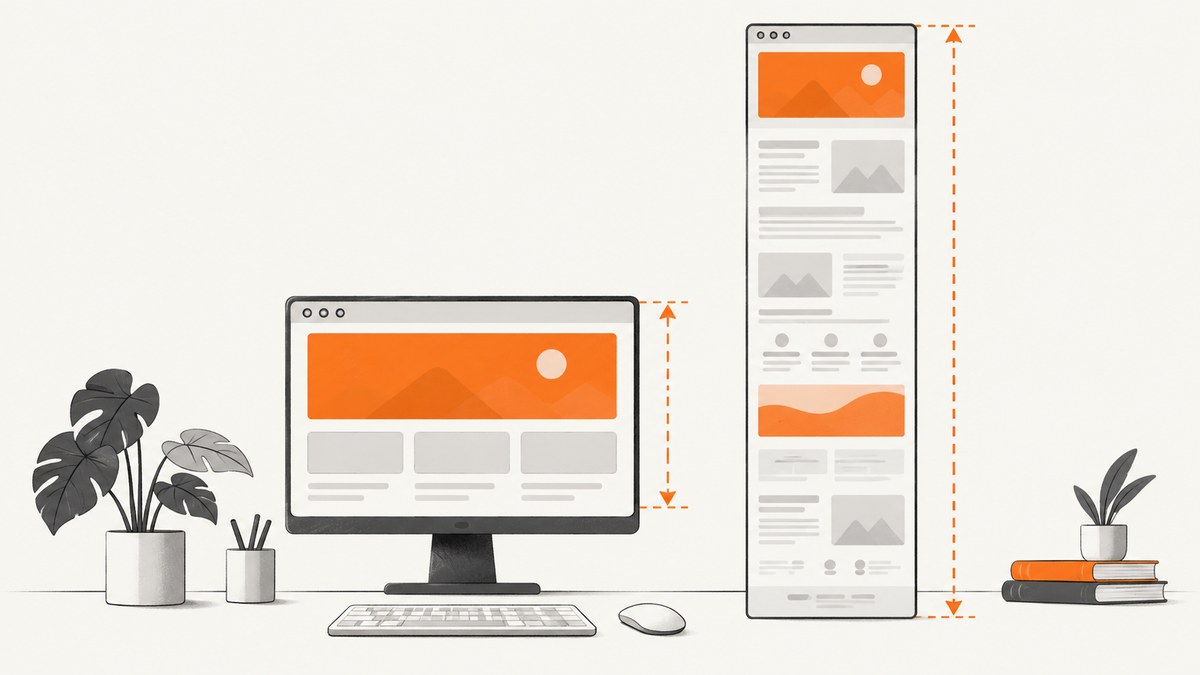
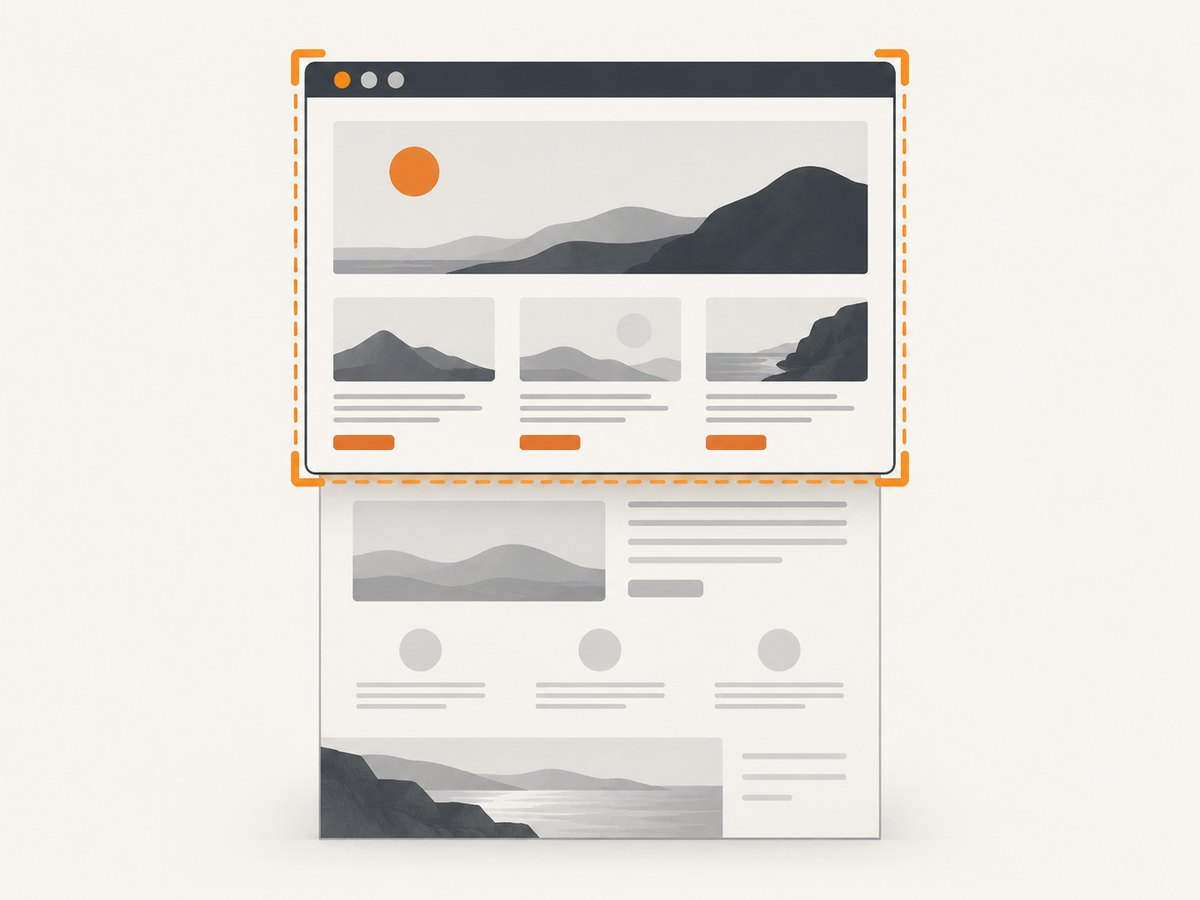
If a PhantomJS screenshot is taller than the visible browser area, set both page.viewportSize and page.clipRect. The viewport controls layout; the clip rectangle controls which pixels are written to the image.
For a 1024 × 768 viewport screenshot, use a clip rectangle with top: 0, left: 0, width: 1024, and height: 768. PhantomJS’s screen-capture guide documents this pairing, while viewportSize describes the layout viewport and render() saves the rendered page.
Why the screenshot becomes too tall
page.viewportSize simulates the browser window used during layout. It does not, by itself, define the final image bounds. When you call page.render() without a bounded clipRect, the output can include content below the fold, so the image is taller than the visible viewport.
| Setting | What it controls | Typical value |
|---|---|---|
page.viewportSize |
Browser layout dimensions before and during page loading | { width: 1024, height: 768 } |
page.clipRect |
Rectangle copied into the screenshot | { top: 0, left: 0, width: 1024, height: 768 } |
page.render() |
Writes the rendered page to an image or PDF | page.render('shot.png') |
Fix it with a viewport-sized clip rectangle
- Choose the output width and height.
- Assign
page.viewportSizebeforepage.open(), so responsive layout uses the intended dimensions. - Open the page and check the load status.
- Assign
page.clipRectafter loading and beforepage.render(). - Render the image and exit PhantomJS.
var page = require('webpage').create();
var width = 1024;
var height = 768;

// Controls layout in the headless browser.
page.viewportSize = { width: width, height: height };

page.open('https://example.com/', function (status) {
  if (status !== 'success') {
    console.error('Unable to load page');
    phantom.exit(1);
    return;
  }

  // Controls the pixels included in the output image.
  page.clipRect = {
    top: 0,
    left: 0,
    width: width,
    height: height
  };

  page.render('screenshot.png');
  phantom.exit();
});
Run it with the PhantomJS executable:
phantomjs screenshot.jsViewport capture versus full-page capture
Decide which result you actually need before changing the script.
| Goal | Configuration | Expected output |
|---|---|---|
| Visible viewport | Set viewportSize and matching clipRect |
Exactly the requested rectangle, such as 1024 × 768 |
| Full page | Set the viewport for layout; do not constrain the capture to viewport height | A tall image containing content below the fold |
| Specific region | Set a custom clipRect with the desired top, left, width, and height |
Only that page region |
When a tall image is correct
A page can be much longer than the initial browser window. If your purpose is archiving the whole document, visual regression across the entire page, or preserving below-the-fold content, a tall screenshot is expected. In that case, do not replace it with a viewport-sized rectangle.
When a fixed rectangle is required
Use a matching rectangle for thumbnails, social previews, fold-level visual tests, or any downstream system that expects fixed dimensions. Keep top and left at zero when you want the visible top-left viewport.
Configuration details and edge cases
Set both dimensions
PhantomJS requires both viewport width and height for the viewport setting to work as intended. Use numbers rather than relying on an implicit height.
Assign settings in the right order
Set viewportSize before opening the URL. Set clipRect after the page has loaded and immediately before rendering. A rectangle assigned after render() cannot affect an image that has already been written.
Wait for late layout changes
A successful page.open() callback means the navigation completed according to PhantomJS, but JavaScript, fonts, or images can still change layout. If the page visibly shifts after loading, wait briefly before setting the clip rectangle and rendering:
page.open('https://example.com/', function (status) {
  if (status !== 'success') {
    phantom.exit(1);
    return;
  }

  window.setTimeout(function () {
    page.clipRect = { top: 0, left: 0, width: 1024, height: 768 };
    page.render('screenshot.png');
    phantom.exit();
  }, 200);
});
The delay is page-specific; it is not a universal guarantee that every resource has finished.
Device-pixel expectations
The rectangle values are CSS-style page coordinates. If another system expects a retina or device-pixel size, account for that conversion outside this basic PhantomJS configuration and verify the actual file dimensions.
Frames and alternate pages
If the dimensions still look wrong, confirm that the script is rendering the page object you configured and that no frame navigation or replacement page occurs before render(). The available PhantomJS references do not establish a universal secondary cause for every script.
Output formats
render() chooses the format from the filename extension. PhantomJS documents PNG, JPEG, PDF, BMP, and PPM output, with GIF support depending on the Qt build. A fixed clip rectangle controls the captured region, not the file format.
Troubleshooting checklist
| Symptom | Likely cause | Fix |
|---|---|---|
| Image is taller than the viewport | No viewport-sized clipRect |
Set top: 0, left: 0, and matching width and height before render(). |
| Image has the wrong width | Clip width differs from the intended output or a different page object is rendered | Log or inspect the rectangle values and ensure the same page instance is used. |
| Responsive layout is wrong | Viewport was assigned after navigation | Set page.viewportSize before page.open(). |
| Content is cut off unexpectedly | The capture is intentionally bounded, or content moved after the rectangle was chosen | Use full-page capture when needed, or wait for late scripts and images before rendering. |
| Blank or incomplete image | Rendering occurred before a successful load or before asynchronous content appeared | Check the status callback, wait for page-specific content, then render. |
| Changes have no effect | clipRect was changed after render() |
Assign every capture setting before the render call. |
Performance, reliability, and cost considerations
- A smaller clip rectangle reduces the amount of image data that must be written compared with a full-page capture, but the page still has to load and lay out at the chosen viewport.
- Fixed dimensions make downstream processing predictable and simplify visual comparisons.
- Use an explicit load-status check and a page-specific readiness condition when asynchronous content matters. A fixed sleep alone can be too short or unnecessarily long.
- Keep viewport and clip dimensions in one pair of variables so they cannot drift apart during maintenance.
- PhantomJS is a legacy headless browser project. If you are starting a new screenshot service, evaluate whether its older rendering engine matches the sites you need to capture.
Or skip the browser setup
ScreenshotNeo provides a website screenshot API and MCP server. One request returns a PNG, JPEG, WebP, or PDF, so you do not need to maintain PhantomJS launch scripts, viewport setup, or clipping logic.
See the ScreenshotNeo API documentation for the complete parameter list. A basic capture is:
curl -G "https://api.screenshotneo.com/v1/shot" -d access_key=YOUR_API_KEY --data-urlencode url=https://stripe.com -o shot.webpimport requests
r = requests.get("https://api.screenshotneo.com/v1/shot", params={"access_key": "YOUR_API_KEY", "url": "https://stripe.com"}, timeout=90)
open("shot.webp", "wb").write(r.content)const q = new URLSearchParams({ access_key: 'YOUR_API_KEY', url: 'https://stripe.com' });
const res = await fetch(`https://api.screenshotneo.com/v1/shot?${q}`);ScreenshotNeo removes cookie banners, newsletter popups, and chat widgets before the shot. Bot checks, blank pages, failed loads, timeouts, and cache hits are not billed, and response headers identify the page verdict and billing result. Its MCP server lets AI agents take screenshots, inspect pages, and capture PDFs. The Free plan includes 1,000 screenshots per month with no card; paid plans start at $5 for 3,000 shots.
Create a free ScreenshotNeo account and start with 1,000 screenshots per month at no cost.
FAQ
Does setting only page.viewportSize guarantee a viewport-sized image?
No. It sets the layout viewport. Use a matching page.clipRect to define the output bounds.

What values should top and left have for the visible viewport?
Use zero for both, then set the rectangle width and height to the desired viewport dimensions.
How do I capture the whole page instead?
Keep the viewport dimensions for layout and avoid a viewport-height clip rectangle. The resulting image can be taller than the initial window.
Why does my screenshot still differ after matching the values?
Check when each property is assigned, whether the page changed after navigation, and whether a different page or frame is rendered. The exact cause depends on the script and target page.
Can I use the same fixed-size idea with JPEG?
Yes. The capture rectangle is independent of the output extension; choose the filename format and optional quality settings separately.


