How to Fix PhantomJS Screenshots Failing on Servers
Diagnose server-side PhantomJS failures by checking the binary, network, TLS, fonts, and runtime. Includes a minimal test and fixes for common errors.

When PhantomJS works on a developer’s machine but fails on a server, start by checking which PhantomJS binary is running and whether the failure is in page loading, rendering, or the process itself. Confirm the version and executable path, then reproduce the problem with a minimal page.open and page.render script. Add Xvfb only for PhantomJS 1.4 or earlier: PhantomJS 1.5 and later are pure headless. If HTTP works but HTTPS does not, investigate the TLS/OpenSSL runtime. On Linux, check Fontconfig and the fonts available to the process.
This guide walks through that diagnosis, provides a runnable PhantomJS example, and explains common server failures. PhantomJS documentation describes older software; behavior with current Linux distributions, OpenSSL versions, and web fonts can vary. Confirm compatibility in the actual environment you deploy.
1. Confirm the version and binary path
Different PhantomJS installations can conflict. A shell may find a different binary from the one used by a service, cron job, container, or application. Check the version and location in the same environment that runs the screenshot job:
phantomjs --version
command -v phantomjs
which phantomjs
Then inspect how your application launches PhantomJS. If it uses an absolute path, check that path directly. If it inherits a different PATH under a service manager, run the diagnostic there or temporarily log the resolved executable path. Remove or explicitly select stale duplicate installations so the version you tested is the version in production. The official [PhantomJS troubleshooting guide](https://phantomjs.org/troubleshooting.html) recommends checking for conflicting installations.
2. Reproduce the failure with a minimal script
Before changing the application, test the smallest script that opens a known page and writes an image. This separates problems in PhantomJS or the server environment from application-specific options. Save as capture.js:
var page = require('webpage').create();
var system = require('system');
var url = system.args[1] || 'https://example.com';
var output = system.args[2] || 'shot.png';

page.viewportSize = { width: 1280, height: 800 };
page.settings.resourceTimeout = 20000;

page.onResourceRequested = function (requestData) {
  console.log('REQUEST ' + requestData.url);
};
page.onResourceError = function (resourceError) {
  console.log('RESOURCE ERROR ' + resourceError.url + ': ' + resourceError.errorString);
};
page.onResourceTimeout = function (request) {
  console.log('RESOURCE TIMEOUT ' + request.url);
};
page.onError = function (message, trace) {
  console.log('PAGE ERROR ' + message);
  trace.forEach(function (frame) {
    console.log('  ' + frame.file + ':' + frame.line);
  });
};

page.open(url, function (status) {
  console.log('PAGE STATUS ' + status);
  if (status !== 'success') {
    phantom.exit(1);
    return;
  }
  page.render(output);
  console.log('WROTE ' + output);
  phantom.exit(0);
});
Run it with the same user and working directory as the failing process:
phantomjs capture.js https://example.com /tmp/shot.png
file /tmp/shot.png
ls -l /tmp/shot.png
page.render chooses the output format from the filename extension. The documented formats include PDF, PNG, JPEG, BMP, and PPM. Set viewportSize explicitly so output dimensions do not depend on defaults. See the [screen capture guide](https://phantomjs.org/screen-capture.html) and [`webpage.render` API](https://phantomjs.org/api/webpage/method/render.html).
3. Identify which stage fails
A screenshot job has several distinct stages: the process starts, the page loads, resources finish or time out, JavaScript runs, and the renderer writes a file. Use logs and the output file to find the first failing stage.

| Evidence | Likely area | Next check |
|---|---|---|
| No script output or process exits immediately | Binary, dependencies, permissions, or crash | Version, executable path, shared libraries, and process logs |
PAGE STATUS fail |
Navigation, DNS, TLS, proxy, or unreachable URL | Resource error logs and a request from the same host |
| Page opens but some assets are missing | Individual resource failures or timeouts | Find the failed URL in resource logs |
| Image exists but content is incomplete | Page timing, JavaScript, delayed resources, or wrong viewport | Inspect page errors and wait for a specific condition |
| Image is empty or has unexpected transparency | Page content or document background | Inspect the page and set an explicit background color |
| Process terminates abnormally | Native crash or incompatible runtime | Preserve the dump and collect a backtrace |
A resource timeout identifies a stalled request; it does not by itself show that screenshot rendering is broken. Log its URL and determine whether it is essential to the page. PhantomJS exposes onResourceRequested, onResourceError, onResourceTimeout, and onError for investigating requests and page JavaScript.
4. Set page settings before opening the URL
PhantomJS page settings must be applied before page.open to affect the initial navigation. Choose settings deliberately: disabling JavaScript or images can change the page, and increasing timeouts can make a stuck job take longer.
page.settings = {
  javascriptEnabled: true,
  loadImages: true,
  webSecurityEnabled: true,
  resourceTimeout: 20000
};

page.open('https://example.com', function (status) {
  // Inspect status, then render after the page is ready for your use case.
});
These are examples of relevant settings, not universal values. Keep cross-origin protections enabled unless the page and capture requirements specifically call for a change. Use onResourceTimeout to learn which request reached the limit. The [PhantomJS page settings API](https://phantomjs.org/api/webpage/) documents settings including JavaScript, image loading, cross-origin access, and resource timeout.
5. If HTTPS fails but HTTP works, check TLS and certificates
When a plain HTTP page loads but its HTTPS equivalent fails, investigate the runtime’s TLS/SSL support before changing screenshot dimensions or adding a display server. PhantomJS troubleshooting points to OpenSSL libraries as a possible cause of HTTPS failures. Also check whether the server’s certificate chain, proxy, or outbound network policy differs from the local machine.
- Run the minimal script against the same host over HTTP and HTTPS, where available.
- Record resource errors and timeouts, including the exact URL.
- Check that OpenSSL libraries required by the PhantomJS binary are installed and usable in the runtime environment.
- Check certificate and proxy behavior from the same container or server account.
- Repeat against another known HTTPS host to distinguish a host-specific certificate or policy issue from a general TLS problem.
Do not treat disabling certificate validation as a general fix: it can hide a broken trust configuration. PhantomJS is maintenance-era software, so compatibility with current TLS libraries and certificate setups should be verified for your deployment. See the [official troubleshooting guide](https://phantomjs.org/troubleshooting.html).
6. Add Xvfb only for legacy versions
Whether a display server is needed depends on the PhantomJS version. The official FAQ states: “Starting with PhantomJS 1.5, it is pure headless and there is no need to run X11/Xvfb anymore.” PhantomJS 1.4 and earlier require an X server and can use Xvfb. Check the version before adding Xvfb to a server image or startup command.
If the installed binary is 1.4 or earlier and your environment has no X server, Xvfb may address that display dependency. If it is 1.5 or later, adding Xvfb solely to fix a server screenshot failure does not address the likely cause; continue with network, dependencies, fonts, page errors, and crash evidence. Refer to the [PhantomJS FAQ](https://phantomjs.org/faq.html).
7. Check Fontconfig and installed fonts on Linux
Linux PhantomJS binaries rely on Fontconfig. A missing Fontconfig package can prevent installation or rendering on a server image. Missing fonts can also cause text layout differences, while incompatible web fonts may fail to load. Check the package and available fonts in the runtime environment, not just on the machine where the image was built.
- Verify Fontconfig is installed and its libraries are available to the PhantomJS process.
- Check that at least the fonts required by the page are installed in the container or host.
- Look for failed web-font requests in resource logs.
- Compare output with system fonts available, since fallback fonts can change wrapping and layout.
The [PhantomJS npm package notes](https://www.npmjs.com/package/phantomjs) list missing Node, tar, or bzip2 as installer failure causes in addition to server dependency concerns. Check its current package instructions when installing in a new image.
8. Fix transparent or blank-looking output
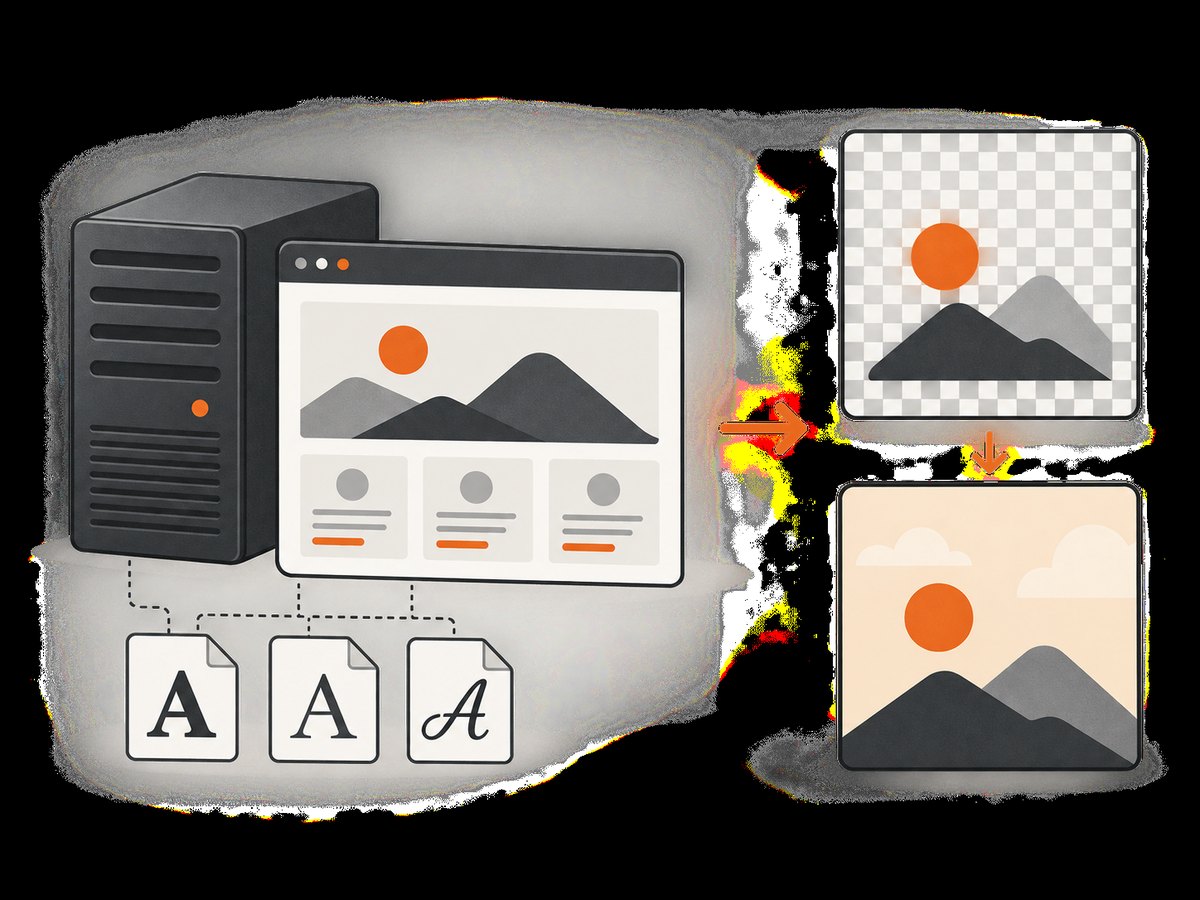
A transparent background may be expected: PhantomJS leaves the background to the document. If the page does not paint an opaque background, transparent pixels can appear in the rendered image. Set a background in the page before rendering when you need an opaque image.
page.open('https://example.com', function (status) {
  if (status !== 'success') {
    phantom.exit(1);
    return;
  }
  page.evaluate(function () {
    document.body.bgColor = '#ffffff';
  });
  page.render('/tmp/opaque.png');
  phantom.exit(0);
});
If the page sets its background later through JavaScript, applying a color immediately after navigation may be overwritten. In that case, wait for the page’s relevant condition and apply the background immediately before rendering. A blank screenshot can also mean the wrong page loaded, page JavaScript failed, resources stalled, or the selected viewport does not include the expected content; use the logs from earlier steps to distinguish these cases. See the [PhantomJS FAQ](https://phantomjs.org/faq.html).
9. Troubleshooting common server errors
| Symptom | Cause to check | Fix |
|---|---|---|
phantomjs: command not found |
Binary is absent or the service has a different PATH | Install the binary and configure the service’s PATH or use its verified absolute path. |
| Works in a terminal, fails in the app | Different user, environment, working directory, PATH, or library paths | Run the minimal script as the app user and compare environment and permissions. |
| HTTPS navigation fails while HTTP works | OpenSSL/TLS libraries, certificates, or proxy behavior | Inspect resource errors; verify TLS dependencies and trust configuration in the runtime. |
| Missing or misaligned text | Fontconfig or required fonts unavailable | Install Fontconfig and needed fonts; check web-font requests and fallback behavior. |
| Output file is transparent | No opaque background was painted | Set a document background before rendering. |
| One page asset never loads | Slow, blocked, or unreachable resource | Use resource callbacks to find the URL; fix access or choose a suitable timeout. |
| Installer fails in a clean image | Missing installer dependencies | Check for Node, tar, and bzip2 where applicable, plus Fontconfig. |
| Process crashes | Native crash, library incompatibility, or page-specific trigger | Save the dump and capture a symbolized stack or gdb backtrace. |
10. Collect useful crash evidence
If PhantomJS exits unexpectedly, preserve the crash dump before cleanup or container restart. Record the operating system, PhantomJS version, exact command, and whether the minimal reproduction crashes. Where available, use matching symbols with minidump_stackwalk; alternatively, reproduce under gdb and collect a backtrace:
gdb --args phantomjs capture.js https://example.com /tmp/shot.png
# In gdb, run:
run
# If it crashes, collect:
bt
Keep the original dump and logs with the report. A stack trace without matching symbols may provide limited detail. The PhantomJS [issue reporting guide](https://phantomjs.org/bug-reporting.html) asks for concrete reproduction details and notes that not every issue can be fixed.
11. Reliability, performance, and operating cost
PhantomJS is self-hosted, so your team owns its installation, runtime libraries, fonts, network access, process supervision, and upgrades or compatibility decisions. A minimal reproduction helps avoid spending time tuning the application around an environmental failure. Explicit viewport dimensions and controlled page settings make captures more repeatable. Resource timeouts bound how long an individual resource can stall, but overly low values can omit legitimate assets; overly high values can leave workers occupied.
For repeated jobs, log the PhantomJS version and capture outcome alongside the URL, and distinguish navigation failures from renderer crashes. Keep a known-page reproduction available when changing the base image or dependencies. Cost depends on the compute and maintenance required by your deployment; the research materials provide no benchmark or cost figure for PhantomJS, so measure your own workload. If the server remains unstable, a hosted rendering API is another operating model to evaluate. The dossier identifies PhantomJsCloud as a hosted option and notes that its troubleshooting material discusses proxy failures, HTTP status failures, and incompatible web fonts; verify availability and terms before relying on it.
Or skip the browser setup
ScreenshotNeo is a website screenshot API and MCP server from Yorker Media. A single request can return a PNG, JPEG, WebP, or PDF. Cookie banners are accepted and removed before the shot, along with known newsletter popups and chat widgets. Bot checks, blank pages, timeouts, failed loads, and cache hits cost nothing; response headers identify the page verdict and billing status. Its MCP server lets AI agents using Claude, Cursor, or another MCP client take screenshots. The free plan includes 1,000 screenshots a month with no card; paid plans start at $5 for 3,000. See [ScreenshotNeo](https://screenshotneo.com) and its [API documentation](https://screenshotneo.com/docs/).
cURL:
curl -G "https://api.screenshotneo.com/v1/shot" -d access_key=YOUR_API_KEY --data-urlencode url=https://example.com -o shot.webpPython:
import requests

r = requests.get(
    "https://api.screenshotneo.com/v1/shot",
    params={"access_key": "YOUR_API_KEY", "url": "https://example.com"},
    timeout=90,
)
open("shot.webp", "wb").write(r.content)
Node.js:
const q = new URLSearchParams({
  access_key: 'YOUR_API_KEY',
  url: 'https://example.com'
});
const res = await fetch(`https://api.screenshotneo.com/v1/shot?${q}`);
if (!res.ok) throw new Error(`Screenshot request failed: ${res.status}`);
await import('node:fs/promises').then(fs => fs.writeFile('shot.webp', Buffer.from(await res.arrayBuffer())));
Create a free account for 1,000 screenshots a month, with no card: sign up for ScreenshotNeo.
FAQ
Should I switch away from PhantomJS?
This guide’s research establishes troubleshooting steps, not a current compatibility recommendation. If you cannot keep the runtime stable for your pages and server image, compare the ongoing maintenance of self-hosting with a hosted API.
Does a resource timeout mean the screenshot engine is broken?
No. It indicates a resource did not finish within the configured limit. Identify the URL and determine whether the page needs it.
Why is the result’s text different from my local screenshot?
Compare installed fonts, Fontconfig, viewport dimensions, and whether web fonts loaded successfully in both environments.
Can I save a PDF instead of an image?
PhantomJS selects output format by filename extension; its documented render formats include PDF. Use a .pdf output filename and check the resulting file.


