How to Fix PhantomJS Selenium AJAX Requests Not Loading
Learn why PhantomJS Selenium misses AJAX content and fix it with explicit waits, request logs, page error diagnostics, and reliable alternatives.

PhantomJS Selenium usually does not miss AJAX content because JavaScript is disabled. The common problem is a timing race: Selenium finishes navigation when the document reaches its load state, while the page continues making asynchronous requests and rendering results afterward. Fix the race by waiting for the exact result your test needs, then inspect requests, JavaScript errors, and load status if that result never appears.
This guide shows a complete diagnostic workflow for PhantomJS and Selenium, with runnable Python, JavaScript, and PhantomJS examples. It also explains when the browser itself, TLS support, a failed request, or a selector problem is responsible.
1. Understand what “page loaded” means
Selenium navigation waits for a document readiness state. That state covers assets defined in the original HTML, but JavaScript can add elements and change content later. Selenium’s waiting guidance describes this distinction directly: a ready document does not guarantee that an element created by later JavaScript is available.
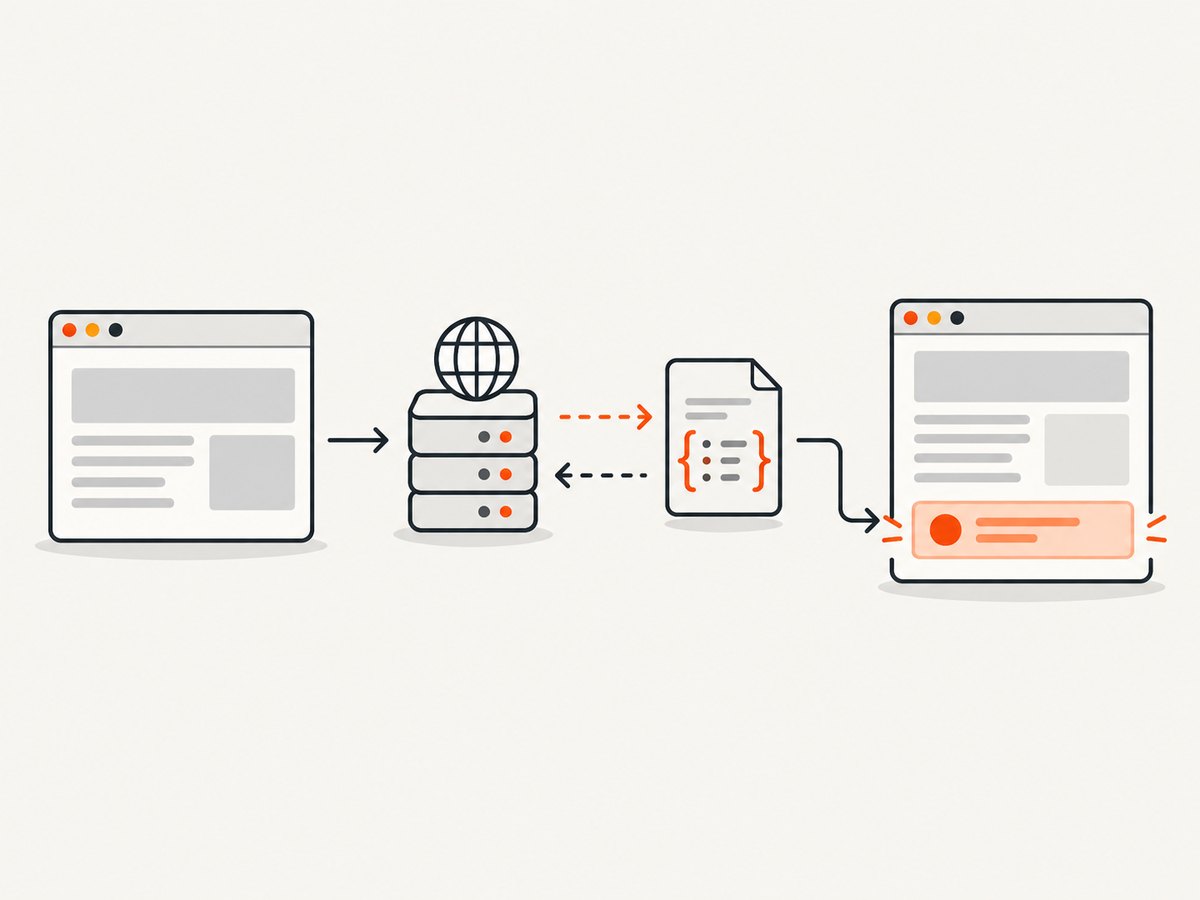
For example, a search page may complete navigation with an empty results container:
<div id="results"></div>Only afterward does JavaScript call /api/search, parse the response, and insert result rows. A test that immediately calls find_element can fail even though the request is still in progress and the browser is functioning normally.
| Signal | What it proves | What it does not prove |
|---|---|---|
Navigation callback returns success |
The document navigation completed according to PhantomJS | Every later AJAX request or UI update finished |
document.readyState is complete |
Initial document assets reached the browser’s ready state | Application data has been fetched and rendered |
| Expected result element is visible | The application produced the output your test uses | All background requests on the page are finished |
| Request appears in a resource log | The browser attempted that request | The response was valid or the application used it successfully |
2. A reliable troubleshooting workflow
- Record the exact PhantomJS, GhostDriver, Selenium, language binding, and operating system versions.
- Confirm JavaScript is enabled and that the page opens successfully.
- Replace arbitrary sleeps with an explicit wait for the result element or state.
- Log requested resources and page errors.
- Check the request’s status, URL, response behavior, and selector logic.
- Investigate TLS, timeouts, proxy rules, and multiple PhantomJS installations.
- Decide whether the legacy PhantomJS stack can meet the site’s current JavaScript and network requirements.
3. Wait for the AJAX result, not a fixed delay
A fixed sleep can hide a race on a fast run and still fail on a slow run. Use an explicit, condition-based wait. The condition should describe what the test actually needs: an element present, an element visible, a non-empty text value, or a loading indicator disappearing.
Python Selenium example
from selenium import webdriver
from selenium.webdriver.common.by import By
from selenium.webdriver.support.ui import WebDriverWait
from selenium.webdriver.support import expected_conditions as EC
from selenium.common.exceptions import TimeoutException

options = webdriver.PhantomJSOptions()
driver = webdriver.PhantomJS(options=options)
driver.set_page_load_timeout(45)

try:
    driver.get("https://example.com/search?q=phantomjs")

    wait = WebDriverWait(driver, 30, poll_frequency=0.25)
    results = wait.until(
        EC.visibility_of_element_located((By.CSS_SELECTOR, "#results .result"))
    )

    print(results.text)
except TimeoutException:
    print("The result did not appear within 30 seconds")
    print(driver.page_source)
finally:
    driver.quit()
The exact constructor differs between Selenium releases. If your installed Python binding does not provide PhantomJSOptions, use the constructor documented for that version and verify that the intended PhantomJS binary is being launched.
Wait for a non-empty result
from selenium.webdriver.support.ui import WebDriverWait

wait = WebDriverWait(driver, 30)
wait.until(lambda d: d.find_element(By.ID, "results").text.strip() != "")
This is useful when the container exists before the AJAX call but its text is initially empty. If the page displays a loading marker, waiting for that marker to disappear can be more precise:
wait.until(EC.invisibility_of_element_located((By.CSS_SELECTOR, ".loading")))JavaScript Selenium example
In JavaScript bindings, use the binding’s explicit wait API and a predicate that checks the application state. PhantomJS support was removed from Selenium’s JavaScript bindings because that WebDriver implementation was no longer under active development. Check your binding’s documentation before changing versions.
const { Builder, By, until } = require('selenium-webdriver');

(async function () {
  const driver = await new Builder()
    .forBrowser('phantomjs')
    .build();

  try {
    await driver.get('https://example.com/search?q=phantomjs');
    const result = await driver.wait(
      until.elementLocated(By.css('#results .result')),
      30000,
      'AJAX result did not appear'
    );
    await driver.wait(until.elementIsVisible(result), 10000);
    console.log(await result.getText());
  } finally {
    await driver.quit();
  }
})();
4. Instrument PhantomJS requests and page errors
If the expected element never appears, stop increasing the delay and collect evidence. PhantomJS WebPage callbacks expose resource activity and page errors. Request logs tell you whether the script and data endpoint were attempted. Error logs reveal JavaScript exceptions that can stop rendering before the result is inserted.
var page = require('webpage').create();
var system = require('system');

page.settings.resourceTimeout = 30000;
page.onResourceRequested = function (requestData, networkRequest) {
  console.log('REQUEST ' + requestData.method + ' ' + requestData.url);
};
page.onResourceReceived = function (response) {
  if (response.stage === 'end') {
    console.log('RESPONSE ' + response.status + ' ' + response.url);
  }
};
page.onResourceError = function (error) {
  console.log('RESOURCE ERROR ' + error.errorCode + ' ' + error.errorString + ' ' + error.url);
};
page.onError = function (message, trace) {
  console.log('PAGE ERROR ' + message);
  trace.forEach(function (item) {
    console.log('  at ' + item.file + ':' + item.line);
  });
};

page.open('https://example.com/search?q=phantomjs', function (status) {
  console.log('OPEN STATUS ' + status);
  window.setTimeout(function () {
    console.log(page.content);
    phantom.exit(status === 'success' ? 0 : 1);
  }, 5000);
});
The page.open callback’s success or fail value is a navigation diagnostic. It is not a promise that application-level asynchronous work has completed. The example uses a short delay only to demonstrate logging; production code should poll for a specific output or expose an application-ready condition.
5. Check JavaScript and browser settings
PhantomJS enables JavaScript by default, but settings and environment problems can still prevent the result:
- JavaScript errors: one exception can prevent the code that inserts results from running. Fix the first meaningful error in
onErrorbefore changing waits. - Resource timeout:
resourceTimeoutstops a resource request after the configured period. Set it high enough for the application, then report the timeout instead of treating an empty page as valid. - TLS or certificate support: HTTPS requests can fail when the PhantomJS build or its SSL/TLS libraries cannot negotiate with the server. Compare the failing URL with a known HTTP resource and inspect resource errors.
- Wrong binary: multiple PhantomJS installations can cause Selenium or GhostDriver to launch an unexpected version. Print the executable path and version used by the test process.
- Blocked network: proxy, firewall, DNS, or host allow-list rules can block the API request while the main HTML still loads.
- Unsupported page features: newer JavaScript syntax, browser APIs, service workers, or security policies may not work in this legacy engine.
6. Verify the AJAX request itself
Once request logging is enabled, classify the failure:
| Observation | Likely cause | Next fix |
|---|---|---|
| No request for the data endpoint | The triggering script did not run, a selector/event failed, or a JavaScript exception stopped execution | Read onError, verify the trigger, and inspect script requests |
| Request appears but ends with an error | DNS, TLS, proxy, timeout, authorization, or server failure | Inspect the error code and status; test the endpoint from the same host |
| Request returns a response but no result appears | Unexpected JSON, application parsing error, or incorrect selector | Log the response behavior where possible, inspect page errors, and validate selectors |
| Result appears only after a long delay | Race condition or slow backend | Use an explicit wait with a realistic timeout and record elapsed time |
| Works in a modern browser only | PhantomJS lacks a required API or JavaScript feature | Move the test to a maintained browser automation stack |
Do not infer a request failure solely from an empty selector result. Confirm whether the request was made, whether it completed, and whether JavaScript processed its response.
7. Page-load strategies and synchronization
Selenium defines normal, eager, and none page-load strategies. These control when navigation returns relative to document loading. They do not wait for an application-specific AJAX result. If you change the strategy, retain the explicit wait for the result element.
Use eager or none only when your test deliberately controls readiness and has robust conditions. Otherwise, the default strategy plus a targeted explicit wait is easier to reason about.
8. Common errors and fixes
“Unable to locate element” immediately after get
Cause: navigation completed before AJAX rendering. Fix: wait for presence or visibility of the final element.
“Element is not clickable” even though it exists
Cause: an overlay, loading state, or animation still covers it. Fix: wait for the overlay to disappear, then wait for the element to be clickable.
PhantomJS reports fail from page.open
Cause: navigation or a required resource failed. Fix: inspect resource errors, URL resolution, DNS, TLS, proxy settings, and the selected PhantomJS binary.
No console output explains the failure
Cause: callbacks were not attached early enough or the page uses errors that are not surfaced by the test. Fix: register onError, onResourceRequested, and resource error callbacks before calling open.
Increasing sleep helps intermittently
Cause: a timing race remains. Fix: replace the sleep with a predicate tied to the rendered output and keep a timeout that produces useful diagnostics.
HTTPS works in another browser but not PhantomJS
Cause: legacy TLS or certificate limitations. Fix: verify the PhantomJS build and SSL libraries, inspect the failed resource, and consider a maintained browser if the site requires newer TLS behavior.
9. Reliability and performance practices
- Wait for the smallest reliable condition instead of waiting for every network request on the page.
- Use a bounded timeout and include the current URL, selector, and page errors in failure output.
- Keep request logging configurable. Enable verbose logs for diagnosis, then reduce noise in routine runs.
- Use stable selectors owned by the application rather than layout-dependent selectors.
- Separate navigation failures, AJAX failures, rendering failures, and assertion failures in test reports.
- Run a single known PhantomJS binary in CI and print its version at startup.
- Measure the time to the specific ready condition. This is more useful than measuring only navigation time.
- Retry only known transient network failures. Retrying JavaScript exceptions or selector mistakes makes failures slower and less clear.
PhantomJS is a legacy browser option. The Selenium JavaScript changelog states that native PhantomJS support was removed because its WebDriver implementation was no longer under active development. That statement is specific to the JavaScript bindings; check the documentation for your own language binding and version. Even where an older binding still runs, a modern browser may be necessary for current sites.
10. Or skip the browser setup
If your goal is a clean image or PDF of a URL rather than an interactive browser test, ScreenshotNeo provides a single request. It handles the capture browser for you and supports full-page shots, element selectors, custom JavaScript and CSS, waits, headers, cookies, user agents, device presets, dark mode, PDFs, caching, async jobs, bulk capture, and more. See the ScreenshotNeo API documentation for all options.

cURL
curl -G "https://api.screenshotneo.com/v1/shot" -d access_key=YOUR_API_KEY --data-urlencode url=https://stripe.com -o shot.webpPython
import requests
r = requests.get("https://api.screenshotneo.com/v1/shot", params={"access_key": "YOUR_API_KEY", "url": "https://stripe.com"}, timeout=90)
open("shot.webp", "wb").write(r.content)
Node.js
const q = new URLSearchParams({ access_key: 'YOUR_API_KEY', url: 'https://stripe.com' });
const res = await fetch(`https://api.screenshotneo.com/v1/shot?${q}`);
Cookie banners, newsletter popups, and chat widgets are removed before the shot. Bot checks, blank pages, failed loads, timeouts, and cache hits are not billed, and response headers identify the page verdict and billing result. ScreenshotNeo also provides an MCP server so Claude, Cursor, and other MCP clients can take screenshots with take_screenshot, inspect pages with get_page_info, and create PDFs with capture_pdf. The free plan includes 1,000 screenshots each month with no card; paid plans start at $5 for 3,000 shots. Create a free ScreenshotNeo account.
11. Cost and operational considerations
Running PhantomJS yourself means maintaining the binary, GhostDriver, Selenium binding, CI image, network access, and debugging infrastructure. The direct software cost may be low, but failures caused by an old browser can consume engineering time. For screenshot workloads, compare the cost of browser workers, retries, and storage with an API that reports whether a response was a clean billed capture.
With ScreenshotNeo, the published plans are Free (1,000 shots/month), Starter ($5 for 3,000), Growth ($15 for 15,000), Pro ($39 for 60,000), Scale ($99 for 250,000), and Business ($249 for 1,000,000). Yearly billing gives two months free, and every feature is available on every plan.
12. FAQ
Does document.readyState === "complete" mean AJAX is finished?
No. It describes document readiness. Wait for the application output your test needs.
Should I add a 10-second sleep?
Use a condition-based wait with a timeout. A fixed delay is slower on fast runs and unreliable on slow ones.
Why does the request log show success but the page is empty?
The response may have unexpected data, parsing may have failed, or the selector may not match the rendered output. Check page errors and the application’s rendering path.
Is PhantomJS still a good choice for new tests?
It is a legacy option. Verify your binding and site requirements; a maintained browser is often necessary for modern JavaScript and TLS.
Can I use ScreenshotNeo for a page that needs cookies or headers?
Yes. ScreenshotNeo supports custom headers, cookies, user agents, and Authorization, along with waits and custom JavaScript.


