How to Fix PhantomJS Websites That Will Not Load with Selenium
Diagnose blank pages, timeouts, HTTPS failures, and unsupported PhantomJS sessions, then migrate Selenium tests to headless Chrome or Firefox.
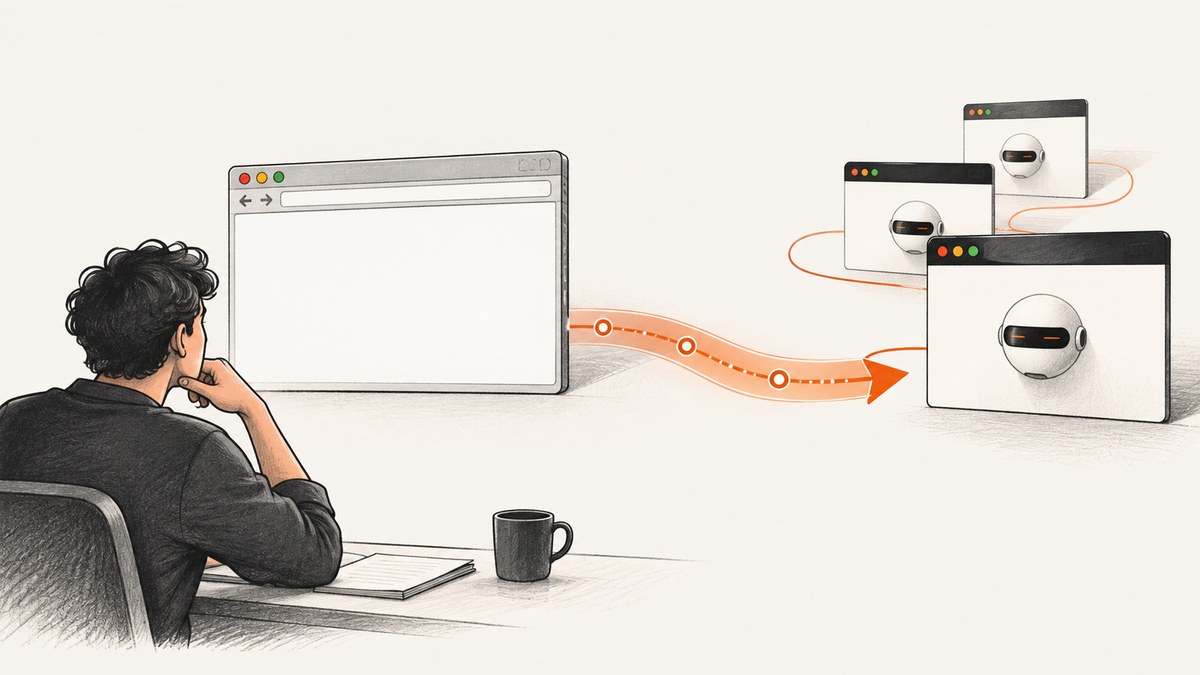
When PhantomJS will not load a site through Selenium, first find out whether the failure is in PhantomJS itself or in Selenium’s WebDriver session. Reproduce the URL in a minimal PhantomJS script, log resource and JavaScript errors, and check TLS, proxy, page settings, and asynchronous rendering. If PhantomJS can open the page but Selenium cannot, investigate the WebDriver integration and waits. For lasting Selenium coverage, migrate to headless Chrome or Firefox: Selenium removed native PhantomJS support because its WebDriver implementation was no longer actively developed.
This guide shows how to isolate the failure, fix common PhantomJS loading problems, and move tests to supported headless browsers without carrying over brittle timing assumptions.
1. Check what is actually failing
There are two layers to diagnose:
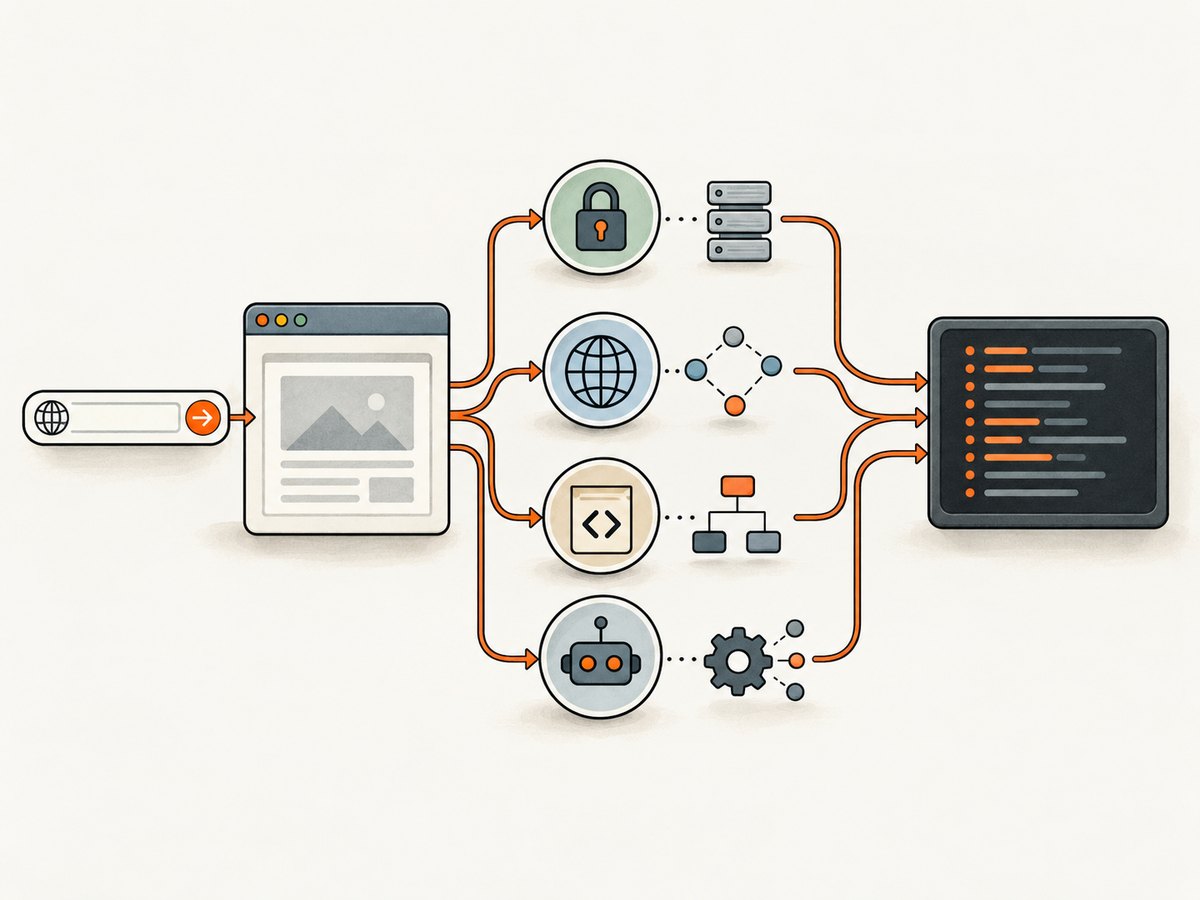
- Page loading: PhantomJS cannot retrieve or render the URL because of TLS, network access, unsupported JavaScript, or a resource timeout.
- WebDriver control: Selenium cannot start or control a PhantomJS session, or the test checks the page before it is ready.
Begin by recording the exact PhantomJS binary version, Selenium binding version, and any driver or wrapper version in use. Run phantomjs --version from the same environment as the test. Check whether multiple PhantomJS binaries are installed: the executable found on the test process’s PATH may differ from the one you expect.
Then copy the failing URL and try it outside Selenium. This one distinction saves time: if PhantomJS cannot open it directly, work on browser and network diagnostics; if it opens directly, focus on the Selenium session and synchronization.
2. Reproduce the page directly in PhantomJS
Create a small script that opens the URL, prints the outcome, and exits. Save as diagnose.js:
var page = require('webpage').create();
var system = require('system');
var url = system.args[1];

page.onResourceRequested = function (request) {
  console.log('REQUEST ' + request.id + ' ' + request.url);
};
page.onResourceError = function (resourceError) {
  console.log('RESOURCE ERROR ' + resourceError.url + ': ' + resourceError.errorString);
};
page.onResourceTimeout = function (request) {
  console.log('RESOURCE TIMEOUT ' + request.url);
};
page.onError = function (message, trace) {
  console.log('PAGE ERROR ' + message);
  trace.forEach(function (frame) {
    console.log('  ' + frame.file + ':' + frame.line);
  });
};

page.open(url, function (status) {
  console.log('OPEN STATUS ' + status);
  if (status === 'success') {
    console.log('TITLE ' + page.title);
    console.log('URL ' + page.url);
  }
  phantom.exit(status === 'success' ? 0 : 1);
});
Run it with the same URL and network environment as the test:
phantomjs diagnose.js https://example.comThe callbacks identify failed transfers, timeouts, and page JavaScript exceptions. Keep the full output; the first failed resource can be more useful than the final blank screenshot. Always call phantom.exit() in the completion callback so a failed run does not leave a hung process.
3. Interpret a blank page or failed load
| Observation | Likely area | Next check |
|---|---|---|
OPEN STATUS fail, no title |
Network, DNS, TLS, proxy, or navigation failure | Resource errors, certificate chain, proxy settings, outbound policy |
| Success status, empty or unexpected title | Application rendering or JavaScript compatibility | Page errors, required DOM element, scripts unsupported by legacy WebKit |
| Some resources time out but document loads | Slow or blocked third-party resources | Identify whether the test needs those resources; set a considered resource timeout |
| Direct script works; Selenium test times out | WebDriver session or test synchronization | Session startup, Selenium support, explicit condition-based waits |
| HTTP loads; HTTPS fails | TLS or certificate trust | OpenSSL/TLS build, certificate chain, protocol, CA path |
A successful navigation status does not prove that a single-page application has finished rendering. It may only mean the initial document response succeeded. Define readiness in terms of the element or state your test needs.
4. Fix HTTPS and certificate failures
If the same host works over HTTP but fails over HTTPS, inspect the PhantomJS build’s TLS and OpenSSL support, the server’s certificate chain, and the protocol negotiation. PhantomJS exposes command-line options for protocol selection and certificate trust:
phantomjs --ssl-protocol=any --ssl-certificates-path=/path/to/ca-bundle.pem diagnose.js https://example.comChoose a CA bundle appropriate to the environment and confirm that it contains the certificate authorities needed to validate the server. The --ssl-protocol option can help diagnose protocol compatibility, but it cannot repair a missing or invalid certificate chain.
--ignore-ssl-errors=true suppresses certificate validation. Use it only as a short diagnostic to determine whether certificate validation is the blocker; it removes an important security check and is not a durable fix for test or production capture workflows.
5. Check proxy and network policy
Confirm the runtime can resolve the hostname and reach the destination through the expected firewall and proxy. Compare the environment where the test runs with a shell or workstation where the same URL works. Corporate egress rules, proxy authentication, DNS differences, or an unavailable upstream can look like browser rendering failures.
On Windows, PhantomJS documents latency related to its default proxy behavior. If the environment should connect directly, try disabling proxy selection:
phantomjs --proxy-type=none diagnose.js https://example.comDo not use this to bypass a required corporate proxy. If direct outbound access is prohibited, configure the correct proxy and verify that the process can authenticate and resolve through it.
6. Verify page settings before navigation
PhantomJS page settings apply during the initial page.open call, so configure them first. JavaScript is enabled by default, but explicitly inspect the settings that can affect loading:
var page = require('webpage').create();
page.settings.javascriptEnabled = true;
page.settings.resourceTimeout = 30000;
// Set only when the page and test require these behaviors:
// page.settings.webSecurityEnabled = true;
// page.settings.localToRemoteUrlAccessEnabled = false;
// page.settings.userAgent = 'Your test user agent';
page.open('https://example.com', function (status) {
  console.log(status);
  phantom.exit(status === 'success' ? 0 : 1);
});
resourceTimeout bounds how long a resource request can wait; use a value suitable for the slowest required resource rather than allowing a test to hang indefinitely. A timeout is not a remedy for an unreachable host. Keep web security enabled unless the test has a specific, understood need to change it. Set a custom user agent only when reproducing a user-agent-specific behavior.
7. Wait for the application, not a fixed number of seconds
Modern pages often fetch data and render after the document loads. In Selenium, wait for a meaningful condition such as a visible result element or a known DOM state. Selenium’s troubleshooting guide identifies poor synchronization as its most common error source.
Example in Python with Selenium 4 and headless Chrome:
from selenium import webdriver
from selenium.webdriver.chrome.options import Options
from selenium.webdriver.common.by import By
from selenium.webdriver.support.ui import WebDriverWait
from selenium.webdriver.support import expected_conditions as EC

options = Options()
options.add_argument('--headless=new')

# Selenium Manager can provision a supported browser/driver combination.
driver = webdriver.Chrome(options=options)
try:
    driver.set_page_load_timeout(45)
    driver.get('https://example.com')
    result = WebDriverWait(driver, 20).until(
        EC.visibility_of_element_located((By.CSS_SELECTOR, 'main'))
    )
    print(driver.title)
    print(result.text[:500])
finally:
    driver.quit()
Replace main with a selector that only appears when the part of the application under test is ready. A fixed sleep is both wasteful when the page is fast and unreliable when it is slow.
8. Migrate from PhantomJS to supported headless browsers
Selenium’s JavaScript change log records the removal of native PhantomJS support because the PhantomJS WebDriver implementation was no longer under active development. The durable route is to migrate browser setup to Chrome or Firefox headless and keep explicit waits and diagnostics.
Headless Chrome or Chromium
With Selenium 4, use a Chrome options object and the current headless mode. Keep Chrome and ChromeDriver on matching major versions if you manage them yourself. Selenium Manager can discover or download supported browser and driver combinations and reduce manual PATH mistakes.
from selenium import webdriver
from selenium.webdriver.chrome.options import Options

options = Options()
options.add_argument('--headless=new')
driver = webdriver.Chrome(options=options)
try:
    driver.get('https://example.com')
    print(driver.title)
finally:
    driver.quit()
Firefox
Selenium 4 supports Firefox 78 or newer with a current geckodriver. Use Firefox’s options object rather than a PhantomJS-specific constructor:
from selenium import webdriver
from selenium.webdriver.firefox.options import Options

options = Options()
options.add_argument('-headless')
driver = webdriver.Firefox(options=options)
try:
    driver.get('https://example.com')
    print(driver.title)
finally:
    driver.quit()
In either migration, remove legacy DesiredCapabilities and browser-specific PhantomJS setup. Selenium 4 uses W3C-compatible capabilities; non-standard, unprefixed capabilities can prevent a session from starting. Keep browser and driver versions current and compatible, and capture browser console and network diagnostics when a migrated test fails.
9. Troubleshooting common errors
| Error or symptom | Cause to check | Fix |
|---|---|---|
| Blank screenshot or empty page | JavaScript exception, unsupported WebKit feature, or app not yet rendered | Inspect page.onError; check required DOM state; migrate if the app relies on newer browser APIs |
PhantomJS page.open reports failure |
DNS, blocked outbound traffic, proxy, TLS, or server response | Read resource callbacks; compare HTTP/HTTPS; verify network access and certificate trust |
| Selenium session creation fails | Removed/unsupported PhantomJS integration, invalid capabilities, or wrong executable | Move to Selenium 4 with Chrome or Firefox options and supported drivers |
| Navigation timeout despite page appearing | One resource never finishes or page-load strategy waits too broadly | Set a reasonable page-load timeout; wait explicitly for the needed element; identify slow resources |
| Intermittent test failures | Fixed sleeps, variable network, or shared state | Use explicit waits, isolate test data, and retain logs for failed runs |
| HTTPS works only with ignored errors | Untrusted CA, incomplete chain, or old TLS stack | Install/use the correct CA bundle or migrate to a maintained browser; do not leave validation disabled |
| Long delay only on Windows | PhantomJS default proxy detection behavior | When direct networking is intended, test --proxy-type=none; otherwise configure the required proxy |
10. Performance, reliability, and maintenance
PhantomJS may still be useful for a short diagnostic when an old environment must be understood, but basing ongoing coverage on a legacy browser introduces compatibility and maintenance limits. Every test also pays the cost of starting a browser, loading page resources, and waiting for application state. Reuse a browser session only when tests are isolated and cleanup is reliable; otherwise, stale cookies or state can make results unpredictable.
For reliable tests, set page-load and script timeouts deliberately, wait on application-specific conditions, and preserve console, resource, and driver logs when a run fails. Avoid globally disabling TLS validation or security settings to make a test green. If page fidelity matters, run the supported browser mode that matches the behavior under test and keep browser and driver versions aligned.
11. Capture a page without maintaining a browser
If the goal is a screenshot rather than browser automation or interaction testing, a screenshot API can avoid installing and maintaining browser binaries. ScreenshotNeo is a website screenshot API and MCP server for developers. One GET request returns a PNG, JPEG, WebP, or PDF. It accepts the parameter names used by other screenshot APIs, which can simplify a switch from an existing integration. See the ScreenshotNeo site and API documentation.

cURL
curl -G "https://api.screenshotneo.com/v1/shot" -d access_key=YOUR_API_KEY --data-urlencode url=https://stripe.com -o shot.webpPython
import requests

r = requests.get(
    "https://api.screenshotneo.com/v1/shot",
    params={"access_key": "YOUR_API_KEY", "url": "https://stripe.com"},
    timeout=90,
)
open("shot.webp", "wb").write(r.content)
Node.js
const q = new URLSearchParams({ access_key: 'YOUR_API_KEY', url: 'https://stripe.com' });
const res = await fetch(`https://api.screenshotneo.com/v1/shot?${q}`);
const bytes = Buffer.from(await res.arrayBuffer());
await import('node:fs/promises').then(fs => fs.writeFile('shot.webp', bytes));
Use your API key in place of YOUR_API_KEY and change the target URL as needed. The API also supports full-page captures, CSS element capture, device and viewport settings, dark mode, custom CSS and JavaScript, wait conditions, request blocking, cookies and headers, caching, asynchronous jobs, bulk capture, and PDF settings. Check the docs for the parameter names and formats for each option.
ScreenshotNeo accepts consent banners before capture and removes more than 60 known consent platforms, newsletter popups, and chat widgets; each step can be turned off. Bot checks, blank pages, timeouts, failed loads, and cache hits are not billed, and response headers report the page verdict and billing status. Its MCP server exposes take_screenshot, get_page_info, and capture_pdf for Claude, Cursor, and other MCP clients.
The Free plan includes 1,000 shots per month with no card. Paid plans start at $5 for 3,000 shots; Growth is $15 for 15,000, Pro $39 for 60,000, Scale $99 for 250,000, and Business $249 for 1,000,000. Yearly billing gives two months free, and every feature is available on every plan. If your Selenium test must click, assert behavior, or inspect an interactive workflow, keep a browser automation framework; an API screenshot is for capture tasks.
Or skip the browser setup
Use the API call above for a clean screenshot without provisioning PhantomJS or a browser driver. Cookie banners, popups, and chat widgets are removed before the shot. Bot checks, blank pages, and failed loads are never billed. An MCP server lets AI agents take screenshots. The Free plan gives 1,000 screenshots a month with no card, and paid plans start at $5 for 3,000. See the API docs and sign up for 1,000 free screenshots a month.
12. FAQ
Can I keep using PhantomJS for an old test suite?
You can use direct PhantomJS diagnostics to understand an existing failure, but native Selenium support was removed and the WebDriver implementation is no longer actively developed. Plan a migration for maintainable coverage.
Does a successful page.open mean my app is ready?
No. It reports navigation status, not whether asynchronous data or client-side rendering has reached the state your test needs. Wait for a specific element or application condition.
Should I disable web security to fix a blank page?
Not as a general fix. First identify the failing request or JavaScript error. Changing browser security can hide the underlying issue and weaken the test’s fidelity.
When should I use a screenshot API instead of Selenium?
Use Selenium when you need interaction, assertions, or browser-driven workflows. Use a screenshot API when the task is to capture a page and you prefer not to manage browser setup.
Primary references
- PhantomJS troubleshooting and WebPage API reference for diagnostics, settings, and callbacks.
- Selenium troubleshooting for synchronization guidance.
- Selenium JavaScript change log for PhantomJS support removal.
- Selenium 4 upgrade guide, Chrome documentation, Firefox documentation, and Selenium Manager for migration and driver provisioning.


