How to Fix PhantomJS WebDriver Timeouts Through Selenium Grid
Separate PhantomJS page, Grid queue, and idle-session timeouts, then use logs and /status to apply the fix that matches the failure.
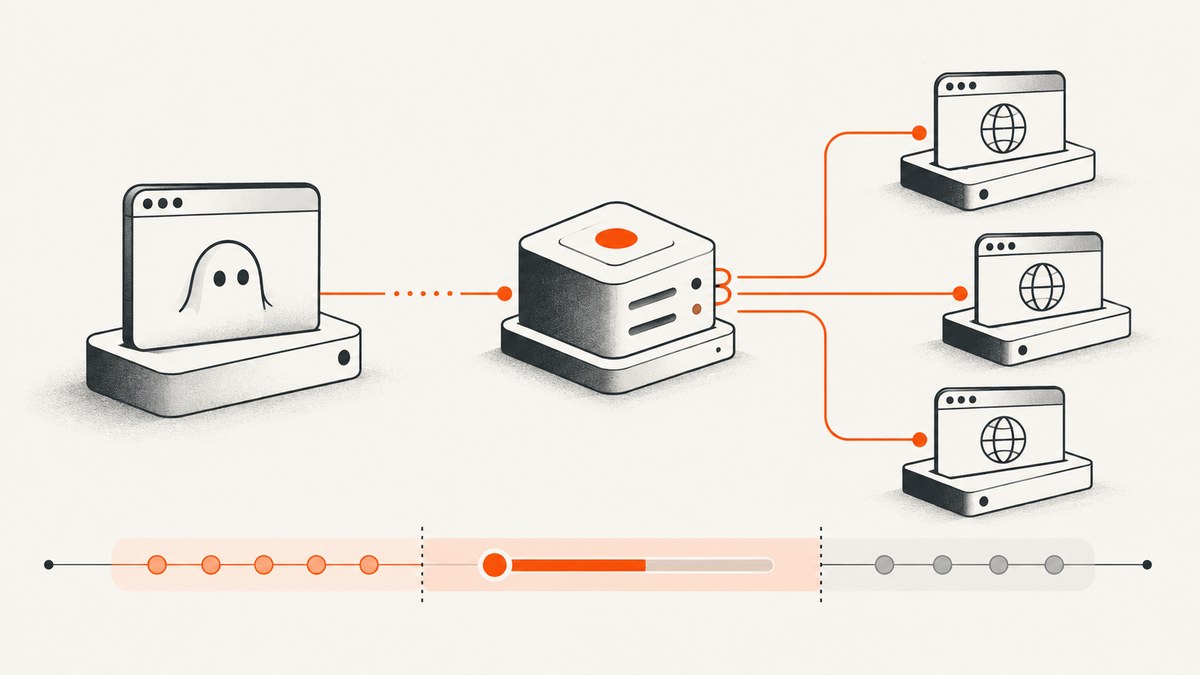
Direct answer: A PhantomJS WebDriver timeout through Selenium Grid can come from three different layers: a new session waiting in the Grid queue, an established session becoming idle on a Node, or a page resource request exceeding PhantomJS’s resourceTimeout. Record the exact failure phase first, then change only the setting owned by that layer. Check the deployed versions before copying commands: the PhantomJS command-line documentation describes PhantomJS 2.1.1, while GhostDriver’s Grid instructions are older integration guidance.
This guide shows how to identify each failure, start PhantomJS with its embedded GhostDriver, inspect Grid health, configure page resource handling, and avoid changes that merely make a slow failure wait longer.
1. Identify which timeout you are seeing
Capture the exception text, timestamps, elapsed time, client-side timeout, Grid logs, and whether a session ID was ever returned. Put the event into one of these buckets:
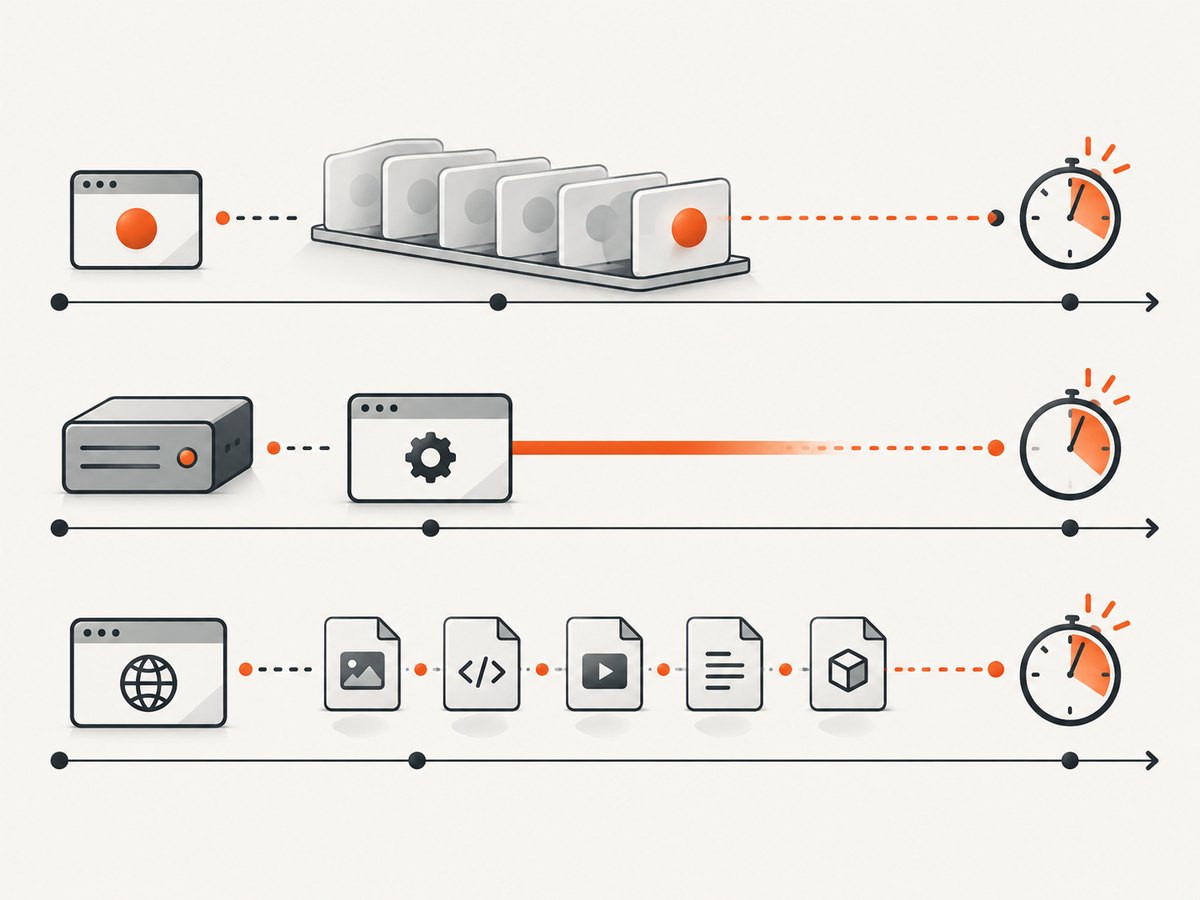
| Failure phase | What is waiting | Control to inspect | Evidence |
|---|---|---|---|
| Before session creation | A new WebDriver request is queued while Grid looks for a matching free slot | Grid --session-request-timeout |
No usable session ID; queue or matching errors |
| After session creation | An existing session has no activity on its Node | Grid --session-timeout |
Session existed, then was removed after an idle gap |
| During navigation or resource loading | PhantomJS waits for a page resource | PhantomJS page.settings.resourceTimeout |
Session is alive; page request stalls or triggers onResourceTimeout |
Selenium documents both Grid timers with a default of 300 seconds in its current CLI reference, but defaults are version-sensitive. Use the documentation matching the Grid binary you actually deploy: Selenium Grid CLI options.
2. Verify the PhantomJS and GhostDriver integration
PhantomJS exposes an embedded GhostDriver WebDriver service. The PhantomJS CLI says --webdriver-selenium-grid-hub works together with --webdriver; GhostDriver’s project documentation gives this historical setup:
phantomjs --webdriver=8080 \
  --webdriver-selenium-grid-hub=http://127.0.0.1:4444
The embedded driver listens on port 8080 and registers with the Hub at port 4444. A normal WebDriver client then sends requests to the Hub and asks for browserName: phantomjs. See the PhantomJS command-line reference and GhostDriver setup documentation. GhostDriver’s setup text mentions Selenium 3.1.0 or newer as project guidance; that is not a compatibility guarantee for every current Grid and client combination.
Confirm the executable used by the test container or service, rather than a different binary on your workstation:
phantomjs --version
which phantomjs
Check that the process stays alive, that the Hub URL is reachable from the PhantomJS host, and that the Node registration appears in Grid status. If the command exits immediately, solve that process or network problem before tuning a timeout.
3. Fix a session request that waits in the Grid queue
If the client never receives a session ID, inspect Grid matching and capacity. A request can wait because no Node advertises phantomjs, all matching slots are busy, or the registration disappeared. Increasing the queue timer only allows the request to wait longer; it cannot create a compatible Node or free a slot.
Check the Grid status endpoint. Selenium documents GET /status as reporting registered Node state, sessions, and slots. The URL depends on your deployment: use the standalone address, the Hub address in Hub/Node mode, or the Router address in a fully distributed Grid. Examples:
curl -sS http://127.0.0.1:4444/status
curl -sS http://grid.example.internal/status | jq .
Look for a ready Node, an available slot, and capabilities that match the requested browser name. If your deployed Grid supports the CLI option, its queue timer is configured when the Grid starts:
java -jar selenium-server.jar hub \
  --session-request-timeout 300
Use the actual command form for your Selenium version and deployment mode. Keep the value in seconds where the version’s CLI reference specifies seconds, and verify the accepted option with:
java -jar selenium-server.jar --helpClient capabilities example
A minimal Selenium client should request the browser that the Node registered. Legacy clients may use desired_capabilities; newer clients use W3C capabilities. The exact client API varies by language and version, so inspect the generated request if matching fails. The key diagnostic is that the requested browser name and the Node registration agree.
4. Fix an established session dropped after inactivity
If a session was created successfully and later disappears while your test or worker performs no WebDriver commands, compare the idle interval with Grid’s Node session timer. Selenium defines --session-timeout as the timeout for a session with no activity on a Node. It is separate from the new-session queue timer and from PhantomJS page loading.
java -jar selenium-server.jar node \
  --session-timeout 300
Use the syntax and units documented by the version deployed in your environment. Prefer reducing unexplained idle gaps in the client first: avoid holding a WebDriver session while waiting on unrelated work, and send the next command promptly. If a long intentional pause is required, configure the Node timeout to cover that pause and confirm the operational impact.
When a test finishes or a worker abandons a run, delete the session. Selenium’s endpoint documentation states that session deletion terminates the WebDriver session and removes it from the active-session map:
curl -X DELETE http://127.0.0.1:4444/session/SESSION_ID5. Fix PhantomJS page and resource timeouts
Once a session exists, a navigation can still stall on a stylesheet, script, image, font, API call, TLS handshake, or proxy. PhantomJS’s page.settings.resourceTimeout is measured in milliseconds. After that interval, the resource request stops trying and the onResourceTimeout callback runs. The setting applies during the initial page.open call. Read the PhantomJS webpage settings documentation before applying it to later application code.
var page = require('webpage').create();
page.settings.resourceTimeout = 30000; // milliseconds

page.onResourceTimeout = function (request) {
  console.error('Resource timeout: ' + JSON.stringify(request));
};

page.open('https://example.com', function (status) {
  console.log('page.open status: ' + status);
  phantom.exit(status === 'success' ? 0 : 1);
});
Set this value from observed resource behavior. A very short value fails on slow but valid resources; a very long value delays feedback when a host is unreachable. Log the URL, method, status, and elapsed time for resources where the callback provides them, then test the failing page outside Grid with the same PhantomJS binary.
6. Check network, TLS, and proxy conditions
PhantomJS troubleshooting recommends checking the version actually invoked, whether network transfers work, and TLS/OpenSSL setup. Its documentation also notes that, on Windows, a default proxy can introduce substantial latency and lists --proxy-type=none as a workaround for that situation. Apply that flag only after confirming the documented proxy condition; disabling a required corporate proxy will make connectivity worse. See the PhantomJS troubleshooting guide.
# Test the target from the same host/container
curl -I -L --max-time 30 https://example.com

# Inspect the PhantomJS version and TLS-related runtime details
phantomjs --version
openssl version
Compare DNS resolution, firewall rules, proxy environment variables, certificate chains, and outbound access between the Grid Node and a working machine. A page that loads in a modern browser can still fail in PhantomJS because of old TLS support or JavaScript features. Treat that as a compatibility problem, not a Grid timer problem.
7. A repeatable diagnostic procedure
- Record the failure point. Mark the timestamp for session creation, each WebDriver command, navigation start, resource timeout, and exception.
- Confirm versions. Run
phantomjs --versionin the deployed runtime and identify the Selenium server, client library, and Java versions. - Verify registration. Start PhantomJS with both WebDriver flags, then query
/statusfor a ready Node, matching capability, and free slot. - Separate queue from idle. No session ID means queueing or matching. A session that vanishes after a quiet interval points to Node inactivity.
- Isolate the page. Reproduce navigation with the same PhantomJS process and log resource callbacks. Check TLS, DNS, proxy, and the slow URL.
- Change one control. Adjust the timer that owns the observed phase, rerun the same case, and compare timestamps and logs.
- Clean up. Delete abandoned sessions and monitor
/statusfor slot leaks.
8. Common errors and their fixes
| Symptom | Likely cause | Fix |
|---|---|---|
| New session times out with no session ID | No matching PhantomJS Node, no free slot, or lost registration | Query /status; fix registration/capabilities/capacity before raising --session-request-timeout. |
| PhantomJS process is unreachable on its WebDriver port | Missing --webdriver, wrong port, process exit, or firewall |
Run the exact command locally, inspect process logs, and test the port from the Hub. |
Hub cannot find phantomjs |
Node registered a different browser name or registration failed | Align the client capability with the Node registration and verify /status. |
| Session disappears after a long test pause | Node --session-timeout exceeded |
Reduce idle time or configure the Node timer for the required pause. |
onResourceTimeout fires during page.open |
A page resource exceeded PhantomJS’s millisecond limit | Log the resource, test connectivity, and set resourceTimeout based on evidence. |
| Modern HTTPS page fails only in PhantomJS | TLS/OpenSSL or browser feature incompatibility | Check runtime versions and certificates; use a browser engine that supports the site if the page requires newer features. |
| Windows requests are unusually slow | Proxy behavior matches PhantomJS’s documented condition | Inspect proxy settings; test --proxy-type=none only when appropriate. |
| Raising every timeout changes nothing | The root cause is matching, network, or a crashed process | Return to timestamps, logs, /status, and one-layer-at-a-time changes. |
9. Performance, reliability, and cost considerations
Longer timers increase the maximum time a bad request can occupy a queue or slot. That can reduce throughput when a Node is offline or a destination never responds. Measure queue wait, session creation time, navigation time, resource failures, and cleanup time separately. Keep Grid capacity visible through /status, and alert on missing registrations, exhausted slots, and sessions that remain active after a test completes.
PhantomJS is a legacy browser. Even after timeout tuning, pages can fail because of unsupported JavaScript, TLS, or web platform behavior. Pin the binary and Selenium versions in the same container image, reproduce with the deployed command line, and document the exact flags. Do not treat a 300-second documented default as a recommended value for every workload.
10. Or skip the browser setup
If your goal is a reliable image or PDF rather than maintaining PhantomJS and Grid, ScreenshotNeo provides a website screenshot API and MCP server. One GET request returns PNG, JPEG, WebP, or PDF. The API accepts the URL and capture options directly, so there is no WebDriver session queue to operate.

cURL:
curl -G "https://api.screenshotneo.com/v1/shot" -d access_key=YOUR_API_KEY --data-urlencode url=https://stripe.com -o shot.webpPython:
import requests
r = requests.get("https://api.screenshotneo.com/v1/shot", params={"access_key": "YOUR_API_KEY", "url": "https://stripe.com"}, timeout=90)
open("shot.webp", "wb").write(r.content)
Node.js:
const q = new URLSearchParams({ access_key: 'YOUR_API_KEY', url: 'https://stripe.com' });
const res = await fetch(`https://api.screenshotneo.com/v1/shot?${q}`);
See the ScreenshotNeo API documentation for request options. It can accept cookie and consent banners before capture and remove more than 60 known consent platforms, newsletter popups, and chat widgets; each step can be disabled. Bot checks or CAPTCHAs, blank pages, timeouts, failed loads, and cache hits are not billed, and response headers identify the page verdict and whether the request was billed.
For capture behavior, configure full-page shots with lazy images loaded, a CSS selector for one element, dark mode, device presets or a custom viewport, retina scale, PDF paper size, margins, landscape mode and page ranges, custom CSS or JavaScript, clicks, selector waits, delay or network-idle waits, blocked ads, trackers, requests or resource types, headers, cookies, user agent, Authorization, timezone, geolocation, transparent backgrounds, resizing, a chosen cache TTL, signed image links, asynchronous jobs with signed webhooks, bulk capture for up to 100 URLs per call, and usage reporting. An MCP server provides take_screenshot, get_page_info, and capture_pdf tools for Claude, Cursor, and other MCP clients.
The Free plan includes 1,000 screenshots per month with no card. Paid plans start at $5 for 3,000 shots; yearly billing gives two months free, and every feature is on every plan. Create a free ScreenshotNeo account.
11. FAQ
Should I increase Grid’s session-request timeout first?
Only when the request is waiting for a new session and the Grid has a matching Node that should become available. A longer queue timeout cannot repair registration, capability mismatch, or a dead Node.
Is PhantomJS resourceTimeout measured in seconds?
No. The PhantomJS page setting is measured in milliseconds. Convert your intended duration explicitly and log the resource that triggered onResourceTimeout.
Can a healthy page still fail through Grid?
Yes. Grid can have no compatible slot, an idle session can expire, or the Node can have different DNS, proxy, TLS, or certificate behavior from your workstation.
What does /status prove?
It gives an operational view of registered Nodes, sessions, and slots. It helps distinguish capacity and matching problems from page-level delays, but it does not prove that a destination page is compatible with PhantomJS.
When should I replace PhantomJS?
Consider replacement when the site requires web features or TLS behavior PhantomJS cannot provide, or when operating a legacy Grid costs more time than the capture result is worth. Validate the replacement browser or service against your pages and required output formats.


