How to Fix Playwright Button Click Not Working
When a Playwright button click fails or appears to do nothing, diagnose the locator, actionability, page readiness, and dialogs in order.
If a Playwright button click is not working, first identify which symptom you have: a locator or actionability timeout means Playwright could not complete the click; a click that completes but appears to do nothing often means the application was not ready to respond, or a browser dialog is blocking progress. Use a role-and-name locator, inspect the action log, verify the page is ready, and handle dialogs deliberately. Avoid using force: true as a general fix: it can hide a problem that a real user would encounter.
This guide uses JavaScript and Playwright Test. The same locator and click APIs are available in Playwright’s other supported languages, though the examples below focus on the JavaScript API. Check the documentation for the version installed in your project when using version-specific options.
1. Start with the exact failure
Read the error and action log before changing the test. A timeout is evidence that one or more parts of the click operation did not finish in time. Playwright resolves the locator, checks that the target is actionable, scrolls it into view if needed, clicks it with the mouse, and waits for any navigation it initiated. The log usually helps show which step failed.
By contrast, if click() completes but the page looks unchanged, the locator may have been clicked successfully while the application failed to react. Page hydration and browser dialogs are two important causes to investigate.
| What you see | First thing to investigate |
|---|---|
| Locator strictness error | More than one element matched; scope or refine the locator. |
| Timeout waiting for the target | Wrong name, missing element, or page state not reached. |
| Timeout during actionability checks | Visibility, enabled state, stability, or another element intercepting the click. |
| Click completes, no apparent effect | Application readiness, hydration, dialog handling, or the expected outcome. |
| Navigation timeout after click | The click may have worked; inspect navigation expectations and the page state. |
2. Choose a locator that identifies the button
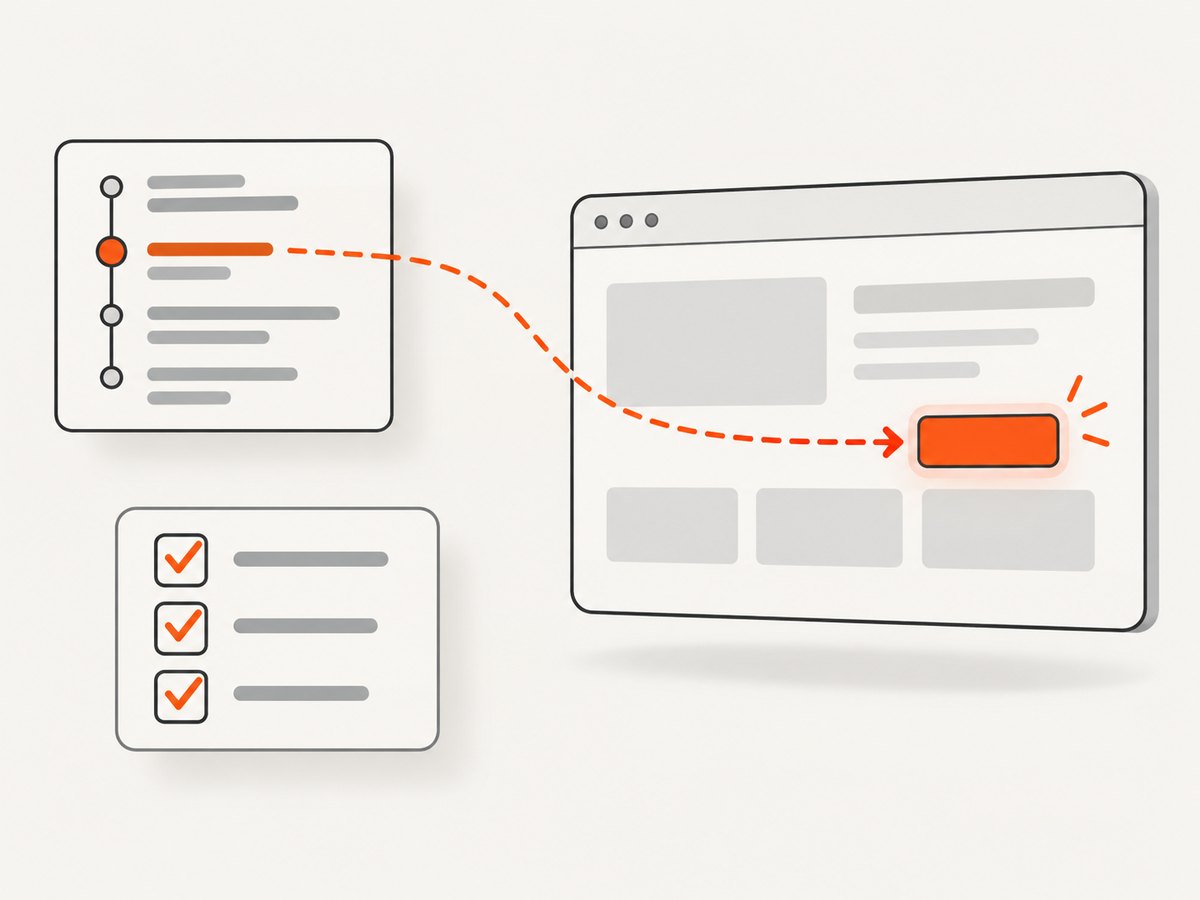
Prefer a locator based on what a user can perceive, such as the button’s accessible role and name. This says what the test means to click and tends to be clearer than a selector tied to incidental DOM structure.
import { test, expect } from '@playwright/test';

test('saves settings', async ({ page }) => {
  await page.goto('https://example.com/settings');
  const saveButton = page.getByRole('button', { name: 'Save' });
  await saveButton.click();
  await expect(page.getByText('Settings saved')).toBeVisible();
});
Replace the example URL and expected confirmation with your application’s real page and outcome. The assertion matters: a successful click only proves that Playwright performed the interaction; it does not prove the application saved the data.
Resolve ambiguous matches
If a page has multiple “Save” buttons, Playwright may report that the locator is not unique. Scope the locator to a region that identifies the intended action, or use a stable test ID where the page has an explicit testing contract.
const profileForm = page.getByRole('form', { name: 'Profile settings' });
const saveButton = profileForm.getByRole('button', { name: 'Save' });
await saveButton.click();
If the form has no accessible name, scope through a suitable landmark, dialog, or container that does. Another option is a test ID:
await page.getByTestId('profile-save').click();Use the test ID only if your application intentionally provides it. Avoid long CSS or XPath chains based on nesting, sibling positions, or generated classes: they are brittle when markup changes. Playwright locators are re-resolved when used, which helps them find the current element after a rerender rather than holding a stale element reference.
Check the accessible name
The accessible name is not always the visible text you expect. A button might contain an icon and an aria-label, or its name may include surrounding text. Inspect the page’s accessibility information or use Playwright’s locator inspection tools to confirm the name. Match the button as users and assistive technology perceive it, rather than guessing from a screenshot.
3. Diagnose actionability instead of bypassing it
For a normal locator click, Playwright waits for the element to be actionable. In practical terms, inspect whether the intended target is present, visible, enabled, stable, and able to receive pointer events at the click point. A hidden loading layer, animation, disabled state, or overlay can prevent a realistic click.
The trial option runs the actionability checks without clicking. It is useful to separate “the button is not ready” from “the click ran but the application did not react.”
const saveButton = page.getByRole('button', { name: 'Save' });

// Check readiness without activating the button.
await saveButton.click({ trial: true });

// Perform the real interaction after the readiness check passes.
await saveButton.click();
A passing trial does not guarantee the application will complete its work; assert a meaningful result after the actual click. If the trial times out, use the log to find the failed condition and inspect the page state at that moment. For example, wait for a known loading indicator to disappear or for the button to become enabled if that is the application’s real readiness signal.
Some click options can help with a specific interaction. A position option clicks at a chosen point relative to the element, which can help when only part of a large control is intended to be interactive. Use it only when that position reflects the intended behavior. A timeout can extend the wait for a slow, understood state, but increasing it does not fix a selector that can never match or an application that never becomes ready.
4. If the click runs but nothing happens, check readiness
A page can look rendered before its client-side JavaScript has attached the event handlers that make a button work. This is a hydration problem: Playwright can see and click a button, but the application may not yet be listening for that interaction. The Playwright navigation guide identifies poor page hydration as a likely explanation when an action appears to do nothing. The guide is under the “next” documentation path, so check the documentation for your installed version as well.
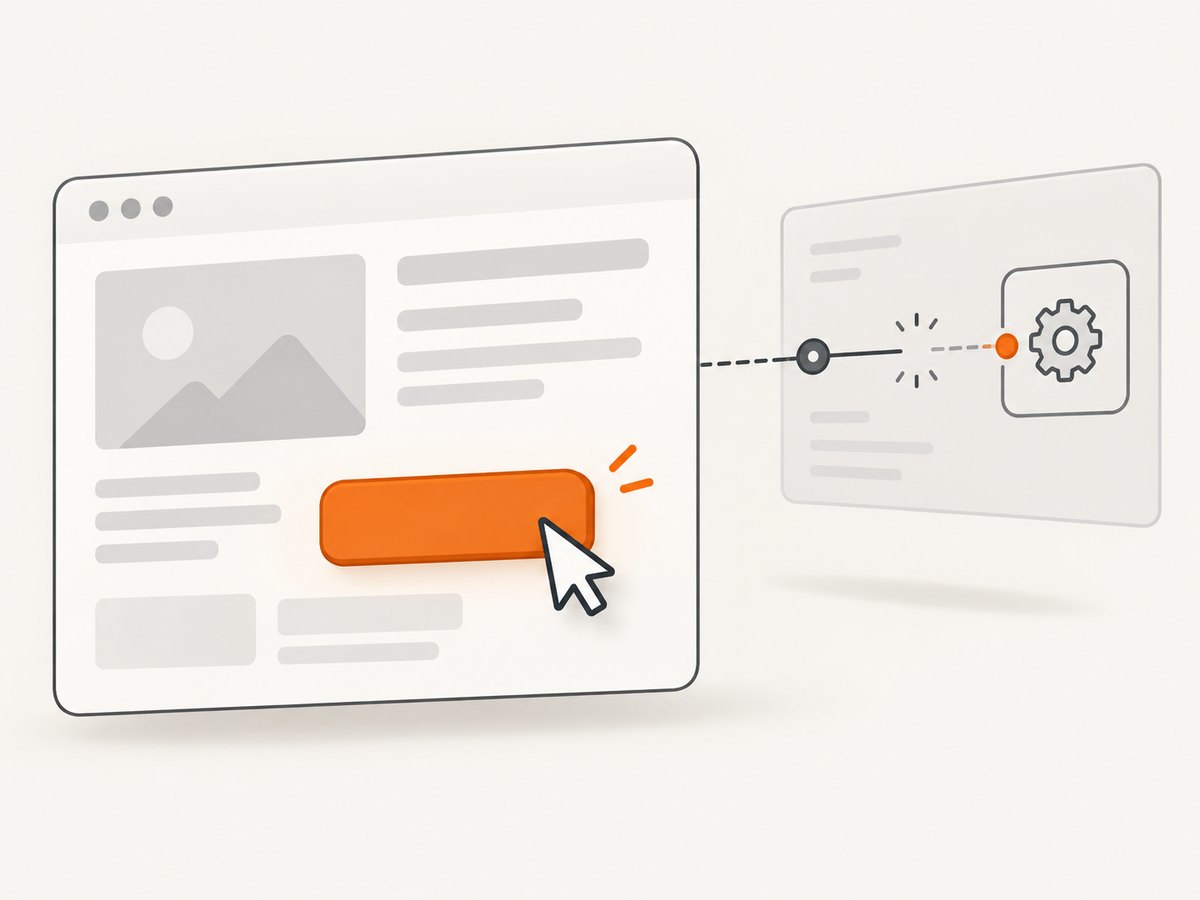
Wait for a meaningful application signal rather than relying on a fixed pause. For example, wait for an enabled button, a ready status, or a page-specific element that only appears after the application has initialized:
await page.goto('https://example.com/checkout');
await expect(page.getByTestId('checkout-ready')).toBeVisible();
await expect(page.getByRole('button', { name: 'Place order' })).toBeEnabled();
await page.getByRole('button', { name: 'Place order' }).click();
await expect(page.getByText('Order received')).toBeVisible();checkout-ready, the button label, and confirmation are illustrative. Use signals your application actually exposes. A fixed waitForTimeout() may appear to solve a race on one machine, but it adds elapsed time on every run and can still be too short under slower conditions. Prefer waiting on the state that means the page can handle the action.
5. Handle dialogs that block the page
Playwright automatically dismisses browser dialogs by default. If your test registers a page.on('dialog') listener, however, that listener must accept or dismiss the dialog. Otherwise, the dialog can block page execution and stall actions such as locator.click().
page.on('dialog', async dialog => {
  await dialog.accept();
});

await page.getByRole('button', { name: 'Delete' }).click();
Accepting every dialog is appropriate only when that matches the test’s purpose. If the application requires confirmation, handle the expected dialog explicitly and make the test verify the relevant behavior. For a prompt, the test may need to provide input; for a confirmation, it may need to accept or dismiss based on the scenario.
6. Use force and dispatched clicks with care
force: true bypasses actionability checks. It can be appropriate for a known special case where intentionally bypassing those checks is part of the test, but it can also mask an overlay or layout bug. If a dialog, banner, or another element covers the button, a person may be unable to click it too. Inspect the real page state before deciding that the test should bypass the check.
// Specialized case only: bypasses actionability checks.
await page.getByRole('button', { name: 'Continue' }).click({ force: true });
dispatchEvent('click') sends a programmatic DOM event. It does not perform normal pointer hit-testing, so it cannot establish that a user could reach and click the control.
// Use only when the test specifically needs a DOM click event.
await page.getByRole('button', { name: 'Refresh preview' }).dispatchEvent('click');
For ordinary end-to-end testing, use locator.click(). A trial click is a diagnostic check; a forced click bypasses checks; a dispatched click tests event handling rather than a realistic mouse interaction.
7. Assert the right result and handle navigation
Make the test wait for the outcome that proves the intended behavior. That might be a confirmation, a changed value, a dialog closing, a new URL, or a navigation. Do not use a short arbitrary sleep as a substitute for observing the result.
When a click should navigate, set up the navigation expectation alongside the click so the test observes the event caused by the interaction:
const destination = page.waitForURL('**/account');
await page.getByRole('button', { name: 'Open account' }).click();
await destination;
await expect(page).toHaveURL(/\/account$/);
Choose the URL pattern and final assertion to fit the application. If the click times out while waiting for navigation, inspect whether the button actually initiated a navigation and whether the expected URL is correct. A click may have happened even if the subsequent wait for its effect failed.
8. Troubleshooting checklist
| Symptom | Likely cause | Fix |
|---|---|---|
| “Strict mode violation” or multiple matches | The role/name locator identifies several buttons. | Scope it to a form, dialog, or region; verify the accessible name. |
| Element not found | Wrong locator, wrong page, or the UI has not reached the expected state. | Confirm the current URL and page state; wait for a meaningful application signal. |
| Element is not visible | The matched button is hidden, or a different responsive variant matched. | Identify the visible intended control and scope the locator accordingly. |
| Element is disabled | The application has not enabled it or validation is incomplete. | Meet the application’s prerequisites and wait for the enabled state. |
| Click intercepted | An overlay, cookie notice, animation, or another layer covers the target. | Inspect the page and address the covering state; do not force through it without a reason. |
| Detached during action | The element was replaced during a rerender. | Use a locator that re-resolves the current element and wait for the final UI state. |
| Click passes but no state changes | Hydration race, missing handler, or the test expects the wrong outcome. | Wait for readiness and assert the application’s actual result. |
| Click stalls after adding a dialog listener | The listener does not handle the browser dialog. | Accept or dismiss the expected dialog in the listener. |
9. Performance, reliability, and cost
Reliable tests wait on observable states that matter to the application. This avoids paying a fixed time penalty on every test run and makes failures more informative. Keep locators specific enough to express intent, but avoid overfitting to generated markup that changes frequently. Give timeouts room for known slow operations only after establishing that the expected state can occur.
When a failure is intermittent, compare the action log and page state across failing and passing runs. Look for races around hydration, loading overlays, disabled controls, or dialogs. Prefer making the application expose a clear readiness state over increasing every timeout or forcing every click.
Browser-based screenshot capture can help inspect a page’s visual state while debugging. It does not replace locator diagnostics or an assertion about application behavior. Keep screenshots of test pages free of secrets and personal data, especially when sending them to an external service.
Or skip the browser setup
If the task is to capture a page image while investigating a test, ScreenshotNeo can return a screenshot with one GET request. It is a website screenshot API and MCP server from ScreenshotNeo. See the ScreenshotNeo API documentation for request options.
curl -G "https://api.screenshotneo.com/v1/shot" -d access_key=YOUR_API_KEY --data-urlencode url=https://stripe.com -o shot.webpimport requests
r = requests.get("https://api.screenshotneo.com/v1/shot", params={"access_key": "YOUR_API_KEY", "url": "https://stripe.com"}, timeout=90)
open("shot.webp", "wb").write(r.content)const q = new URLSearchParams({ access_key: 'YOUR_API_KEY', url: 'https://stripe.com' });
const res = await fetch(`https://api.screenshotneo.com/v1/shot?${q}`);Cookie banners, newsletter popups, and chat widgets are removed before the shot. Bot checks, blank pages, and failed loads are never billed. An MCP server lets AI agents use screenshot tools, and 1,000 screenshots a month are free with no card; paid plans start at $5 for 3,000. Sign up for 1,000 free screenshots a month, with no card.
FAQ
Should I use getByText() for a button?
Use getByRole('button', { name: ... }) when you mean to interact with a button. It makes the control type and its accessible name part of the locator.
Does a passing click mean the button worked?
No. It means Playwright completed the click operation. Assert the application outcome you care about, such as a confirmation or changed URL.
Why does the test pass locally but fail in CI?
Timing differences can expose races in page readiness or overlays. Use the failing action log to identify the state that did not become ready, then wait for that state explicitly.
Is force: true ever valid?
Yes, when bypassing actionability checks is an intentional part of a specialized test. It is a poor default because it can conceal a blocked or inaccessible control.


