How to Fix Playwright Tests That Show Only the Chromium Border
A systematic Playwright checklist for transparent or border-only Chromium windows, blank headed runs, WSL displays, about:blank pages, and rendering failures.
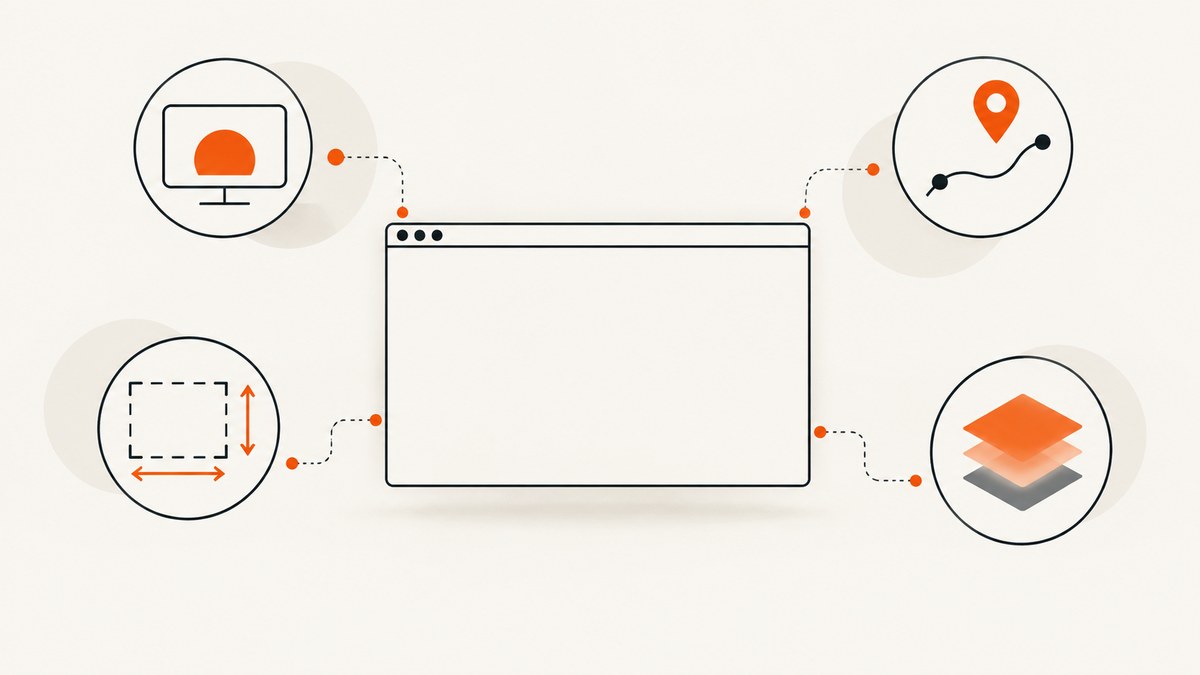
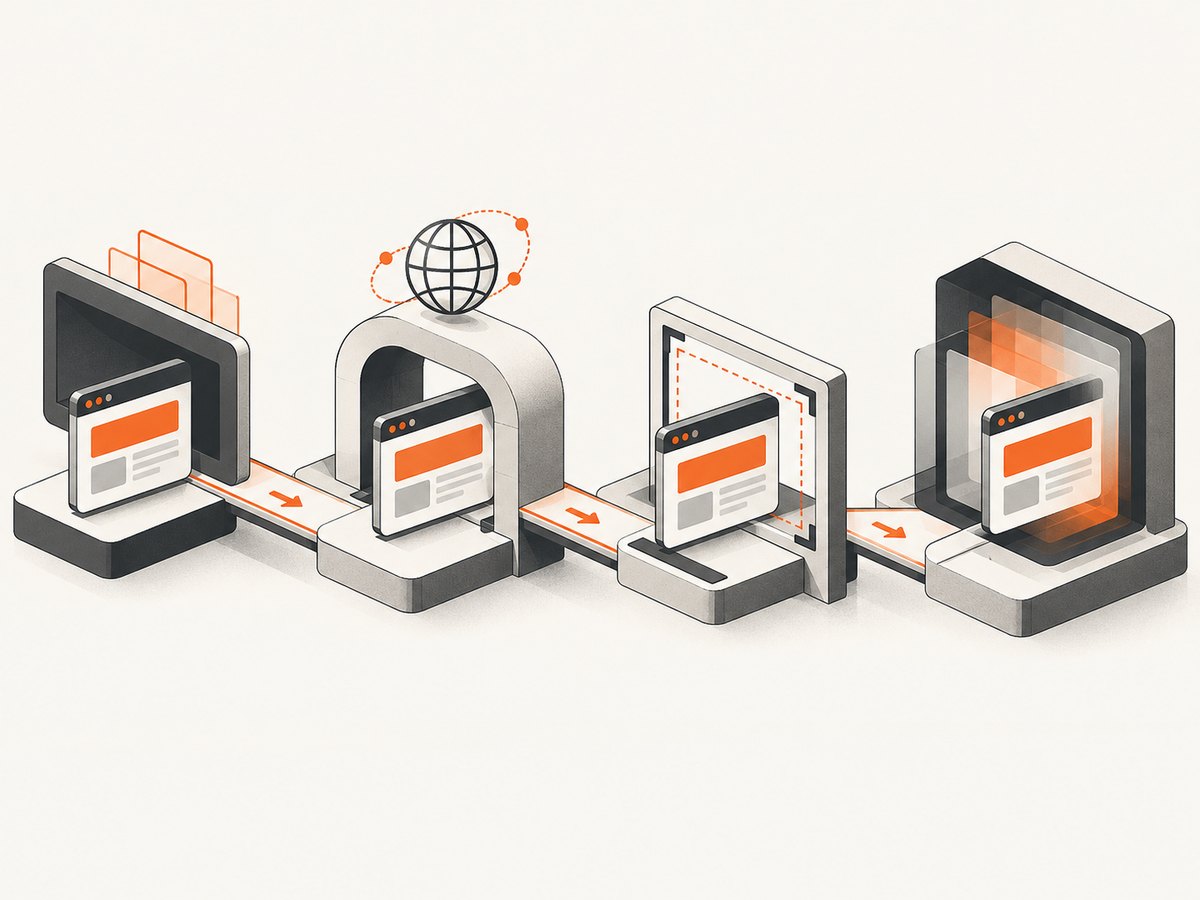
A Chromium window with only its border visible usually means the browser process launched but the page surface is not useful yet. The cause is normally in one of four areas: the display server, navigation, viewport geometry, or browser rendering. Work through those checks in order before changing Chromium flags.
Playwright runs browsers headless by default. Use headless: false, --headed, or --debug when you need to see the browser. A headed browser on WSL, Linux CI, or a container also needs a working graphical display. If the URL remains about:blank, Chromium may be behaving correctly because your test never navigated.
1. Reproduce the problem with a minimal headed test
Remove custom launch arguments, custom executables, extensions, and application code. Start with Playwright’s bundled Chromium, a fixed viewport, and one navigation.
import { test, expect } from '@playwright/test';

test('headed diagnostic', async ({ page }) => {
  await page.goto('https://example.com', { waitUntil: 'domcontentloaded' });
  console.log('url:', page.url());
  console.log('title:', await page.title());
  console.log('body:', (await page.locator('body').innerText()).slice(0, 300));
  await page.screenshot({ path: 'headed-diagnostic.png', fullPage: true });
});
import { defineConfig } from '@playwright/test';
export default defineConfig({
use: {
browserName: 'chromium',
headless: false,
viewport: { width: 1280, height: 720 }
}
});Run it with the Inspector:
npx playwright test --project=chromium --debugThe Inspector opens browsers in headed mode and pauses actions so you can inspect the DOM and actionability log. For library code, add a small slowMo value while diagnosing:
import { chromium } from 'playwright';

const browser = await chromium.launch({ headless: false, slowMo: 150 });
const page = await browser.newPage({ viewport: { width: 1280, height: 720 } });
await page.goto('https://example.com');
console.log(page.url(), await page.title());
await page.screenshot({ path: 'diagnostic.png' });
await browser.close();
Playwright documents headless mode, headed mode, and the debug workflow in its debugging guide.
2. Check the display server in WSL, Linux, and CI
A headed Chromium process needs a graphical display. On a desktop Linux session, check that DISPLAY points to the active X server:
echo "$DISPLAY"
xdpyinfo | head
If xdpyinfo cannot connect, Chromium may open as a transparent or border-only window. This exact symptom has been reported in WSL. Start an X server that is reachable from WSL, configure DISPLAY for that server, and retry. The correct value depends on your WSL and Windows networking setup, so verify connectivity rather than copying a fixed address.
On a headless CI host, use Xvfb when you specifically need headed execution:
sudo apt-get update
sudo apt-get install -y xvfb
xvfb-run -a npx playwright test --headed
Xvfb supplies a virtual display; it does not repair navigation, CSS, or application rendering. If you do not need to observe a window, use the default headless mode instead. A headed browser without a display is an environment failure, not a failed Playwright assertion.
3. Prove that navigation happened
Do not diagnose a blank surface until you know what document Chromium loaded. Log the URL, title, body text, and response status immediately after page.goto.
const response = await page.goto('https://your-app.test', {
  waitUntil: 'domcontentloaded',
  timeout: 30_000
});

console.log({
  status: response?.status(),
  url: page.url(),
  title: await page.title(),
  body: (await page.locator('body').innerText()).slice(0, 500)
});
If the URL is still about:blank, inspect the code that should call goto, waitForURL, or the popup handler. A popup can initially be about:blank before its document is assigned. Pages created with document.write, frames, or delayed navigation can also make the expected content appear somewhere other than the main page.
Prefer an application readiness signal over an arbitrary sleep:
await page.goto('https://your-app.test');
await page.locator('[data-testid="app-ready"]').waitFor({ state: 'visible' });
For a popup, capture the page object and wait for its URL or content:
const popupPromise = page.waitForEvent('popup');
await page.getByRole('button', { name: 'Open report' }).click();
const popup = await popupPromise;
await popup.waitForLoadState('domcontentloaded');
console.log(popup.url(), await popup.title());
4. Inspect viewport size and page geometry
Use an explicit viewport while debugging. Playwright’s normal configuration uses a fixed viewport; viewport: null delegates sizing to the host window and can produce non-repeatable results.
console.log(await page.evaluate(() => ({
  innerWidth: window.innerWidth,
  innerHeight: window.innerHeight,
  devicePixelRatio: window.devicePixelRatio,
  documentWidth: document.documentElement.scrollWidth,
  documentHeight: document.documentElement.scrollHeight
})));

console.log(await page.locator('body').evaluate(el => {
  const r = el.getBoundingClientRect();
  return { display: getComputedStyle(el).display, width: r.width, height: r.height };
}));
Check the root application element as well. A page can have valid HTML while the app root is display:none, has zero dimensions, or is covered by a full-screen loading overlay. Playwright considers elements with empty bounding boxes or display:none not visible. Confirm that the expected selector has a non-zero rectangle and that overlays disappear before assertions.
If you intentionally need the host window’s dimensions, configure viewport: null only after the fixed-size test works:
export default defineConfig({
  use: { browserName: 'chromium', headless: false, viewport: null }
});
5. Verify the browser binary and channel
Playwright ships a regular Chromium build for headed operation and a separate Chromium headless shell. Branded Chrome and Edge channels are different execution targets. A test that works in one target can fail in another because of version, policy, extensions, GPU, or profile differences.
Reinstall the browser matching your installed Playwright version:
npx playwright install chromiumRetry without executablePath, a persistent profile, extensions, or experimental launch flags. If you use a channel, make the choice explicit:
import { chromium } from 'playwright';

const browser = await chromium.launch({
  headless: false,
  channel: 'chromium'
});
Only compare against Chrome or Edge after the bundled browser works. This isolates browser packaging from your test and application.
6. Collect evidence instead of guessing
Enable API logging and save artifacts at the first navigation:
DEBUG=pw:api npx playwright test --project=chromium --debug

# PowerShell
$env:DEBUG="pw:api"
npx playwright test --project=chromium --debug
import { defineConfig } from '@playwright/test';
export default defineConfig({
use: {
trace: 'on-first-retry',
screenshot: 'on',
video: 'retain-on-failure'
}
});The Inspector’s DOM snapshot shows whether content exists even when the window looks empty. A screenshot shows the actual surface. A trace combines actions, timing, console messages, network events, and snapshots. Together they identify whether the failure occurs before navigation, in a frame, during application startup, or in rendering.
7. Investigate rendering-specific causes last
When URL, body text, viewport dimensions, and DOM snapshots are correct but the visible surface is blank, compare headed and headless runs. Check app CSS, canvas and WebGL initialization, iframe contents, font loading, and overlays.
Remove GPU-related arguments one at a time and record the result. Do not assume --disable-gpu is a universal fix: it changes the rendering path and can hide the underlying problem.
const browser = await chromium.launch({
  headless: false,
  args: []
});
If a flag is required by your CI image, document why it is needed and keep the smallest possible set. Test the same URL with a clean browser context to rule out a corrupted profile:
const context = await browser.newContext({
  viewport: { width: 1280, height: 720 }
});
const page = await context.newPage();
Common symptoms and fixes
| Symptom | Likely cause | Action |
|---|---|---|
| Transparent window with only a border | No reachable X/Wayland display in WSL, Linux, or CI | Check DISPLAY, start a real X server, use Xvfb, or run headless |
Window opens on about:blank |
Navigation did not run, popup is not ready, or a frame was mistaken for the page | Log page.url(), await navigation and popup events, inspect frames |
| Page has DOM but appears empty | Zero-size root, display:none, hidden overlay, or app startup failure |
Log bounding boxes and computed styles; wait for the app-ready selector |
| Works headless but not headed | Display, GPU, window-manager, or headed-only rendering issue | Validate the display, compare traces, remove flags one at a time |
| Works in Chrome but not bundled Chromium | Different browser version, channel, profile, or policy | Reinstall bundled Chromium and reproduce with a clean context |
Timeout during goto |
DNS, TLS, proxy, blocked resource, or app never reaches readiness | Check response status, console/network logs, and use a targeted readiness wait |
Reliability and performance practices
- Use a fixed viewport and explicit browser target in CI.
- Reuse a browser process when running many tests, but create isolated contexts for state.
- Wait for meaningful readiness signals instead of long sleeps.
- Capture traces only on failure or first retry to limit artifact size.
- Keep navigation and assertion timeouts separate so slow pages are distinguishable from missing elements.
- Pin Playwright versions and install the matching browser binaries in CI.
- Record URL, status, viewport, browser version, and display configuration with failures.
Or skip the browser setup
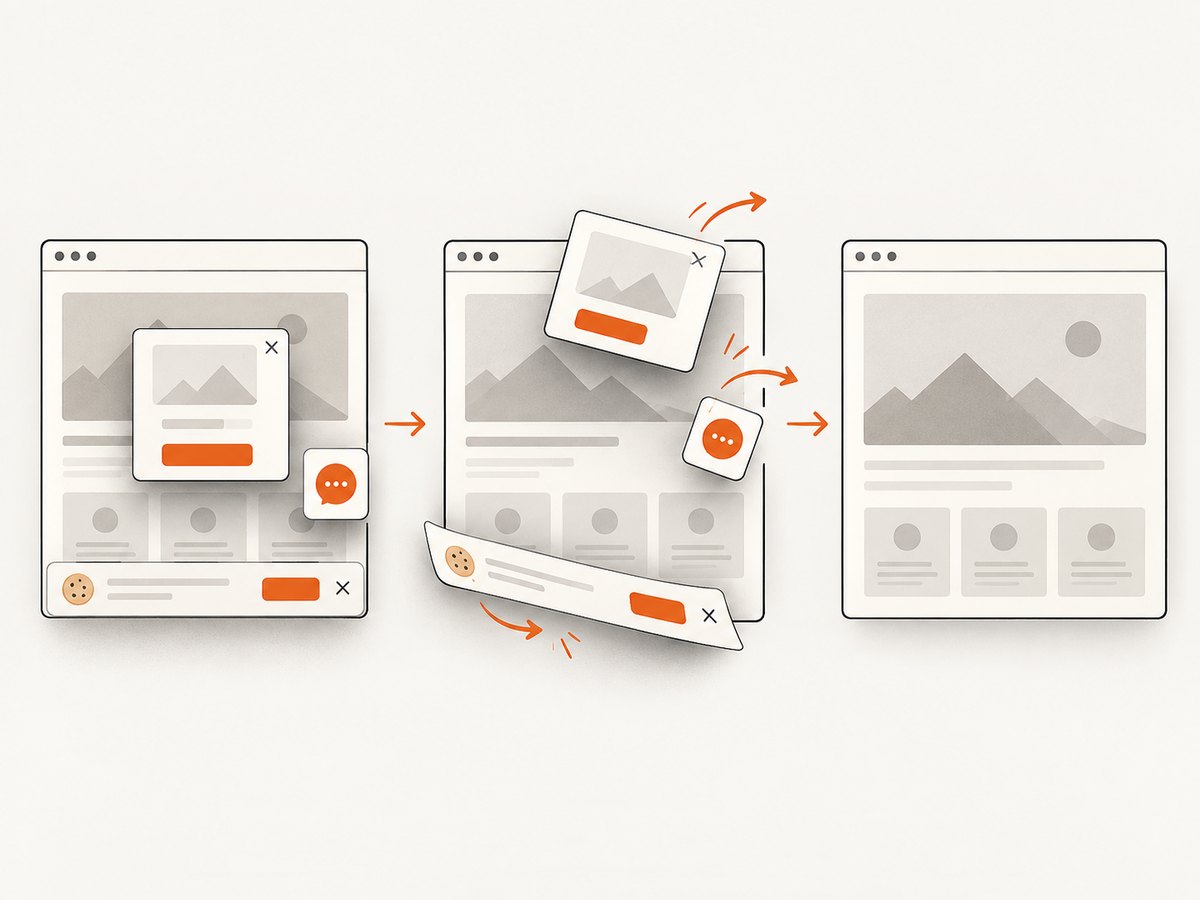
If your goal is a reliable image or PDF rather than interactive browser debugging, ScreenshotNeo provides a website screenshot API and MCP server. It accepts one GET request and returns PNG, JPEG, WebP, or PDF. Cookie and consent banners, newsletter popups, and chat widgets are removed before capture; each step can be turned off. Bot checks, blank pages, timeouts, failed loads, and cache hits are not billed, and response headers identify the page verdict and billing result.
See the ScreenshotNeo API documentation for all options.
cURL
curl -G "https://api.screenshotneo.com/v1/shot" -d access_key=YOUR_API_KEY --data-urlencode url=https://stripe.com -o shot.webpPython
import requests

r = requests.get(
    "https://api.screenshotneo.com/v1/shot",
    params={"access_key": "YOUR_API_KEY", "url": "https://stripe.com"},
    timeout=90,
)
r.raise_for_status()
open("shot.webp", "wb").write(r.content)
Node.js
const q = new URLSearchParams({ access_key: 'YOUR_API_KEY', url: 'https://stripe.com' });
const res = await fetch(`https://api.screenshotneo.com/v1/shot?${q}`);
if (!res.ok) throw new Error(`HTTP ${res.status}`);
const data = Buffer.from(await res.arrayBuffer());
require('fs').writeFileSync('shot.webp', data);
ScreenshotNeo also supports full-page capture with lazy images loaded, CSS-element capture, dark mode, device presets and custom viewports, retina scale, PDF paper and margin settings, custom CSS and JavaScript, clicks, selector or network-idle waits, request blocking, headers, cookies, user agents, authorization, timezone, geolocation, transparent backgrounds, resizing, configurable caching, signed links, asynchronous jobs with signed webhooks, bulk capture for up to 100 URLs per call, a usage API, and an OpenAPI specification. An MCP server exposes take_screenshot, get_page_info, and capture_pdf to Claude, Cursor, and other MCP clients.
There is a free allowance of 1,000 screenshots per month with no card. Paid plans start at $5 for 3,000 screenshots; every feature is included on every plan. Create a free ScreenshotNeo account.
FAQ
Should I always use headed mode to debug?
No. Headless is faster and works without a display. Use headed mode when visual evidence or browser interaction is necessary, then keep automated CI runs headless unless a virtual display is required.
Does increasing the viewport fix a border-only window?
Usually not. A fixed viewport makes the problem measurable; it does not repair a missing display, failed navigation, or hidden application root.
Is --disable-gpu the recommended fix?
No. Try it only after display, URL, DOM, and geometry checks, and compare the result with and without the flag.
Why can a screenshot API be useful when Playwright is broken?
An API moves browser execution to a managed capture environment, so your machine does not need to provide an X server, window manager, browser binary, or headed display.


