How to Fix Playwright Codegen in Visual Studio Code
Diagnose Playwright Codegen problems in VS Code by checking the extension, isolating CLI failures, installing matching browsers, and reviewing generated locators.
If Playwright Codegen will not start in Visual Studio Code, first check that the official Playwright extension is installed and the project is set up. Then run Codegen from the project terminal. That comparison tells you whether the failure is specific to the editor integration or also affects Playwright’s browser launch. If the browser fails to launch, check the Playwright version and install its matching browser binaries and, on Linux, required system dependencies. There is no single fix implied by the title alone: the operating system, versions, and exact error all matter.
This guide walks through the VS Code recording modes, an independent CLI path, browser installation, locator selection, authentication state, and common errors. Commands use npm’s npx; if your project uses another package manager, use its equivalent invocation while keeping the command resolved against the project’s installed Playwright package.
1. Check the VS Code extension and project setup
The documented Playwright for VS Code setup uses Node.js (the guide recommends LTS), Visual Studio Code, and the official Playwright extension published by Microsoft. Open the project that contains your Playwright installation, then open the Command Palette and run Test: Install Playwright. The setup flow can create a starter test and let you choose browser projects; browser projects can also be changed later in playwright.config.ts.
- Confirm Node.js is installed:
node --version. - In VS Code, confirm the official Playwright extension is installed and enabled in this VS Code window.
- Open the repository or workspace folder containing the test project, not only an individual test file.
- Run
Test: Install Playwrightfrom the Command Palette if this project has not been configured through the extension. - Open the Testing view and check that the Playwright project and tests are visible.
The extension’s sidebar depends on the project being recognized in the active window. If the Testing view or Playwright controls are missing, verify the extension and workspace first. Those checks narrow the problem; they do not establish that every missing sidebar control has the same cause.
2. Choose the right recording command
The extension exposes two recording workflows, and they serve different purposes.
| Command | Use it when | Where actions go |
|---|---|---|
Record new |
You want a new generated test. | The extension creates a new test file, documented by the guide as test-1.spec.ts. |
Record at cursor |
You already have a test and want to add recorded actions at a specific point. | Actions are inserted into the existing test at the cursor. |
For Record new, open the Playwright view in the Testing sidebar and start recording. For Record at cursor, open the test file, place the cursor exactly where the actions belong, and start the command. This mode expects a browser associated with the test. If one is not open, run the test with Show browser enabled first, then start recording at the cursor.
When you finish recording, stop or cancel the recording and inspect the generated test. Codegen captures interactions; it cannot decide which parts of a recorded workflow are essential assertions or which implementation details should remain stable over time.
3. Run Codegen independently of VS Code
Use the CLI from the intended project directory to separate a Codegen launch problem from an editor workflow problem. The URL is optional, but supplying one opens the target page immediately.
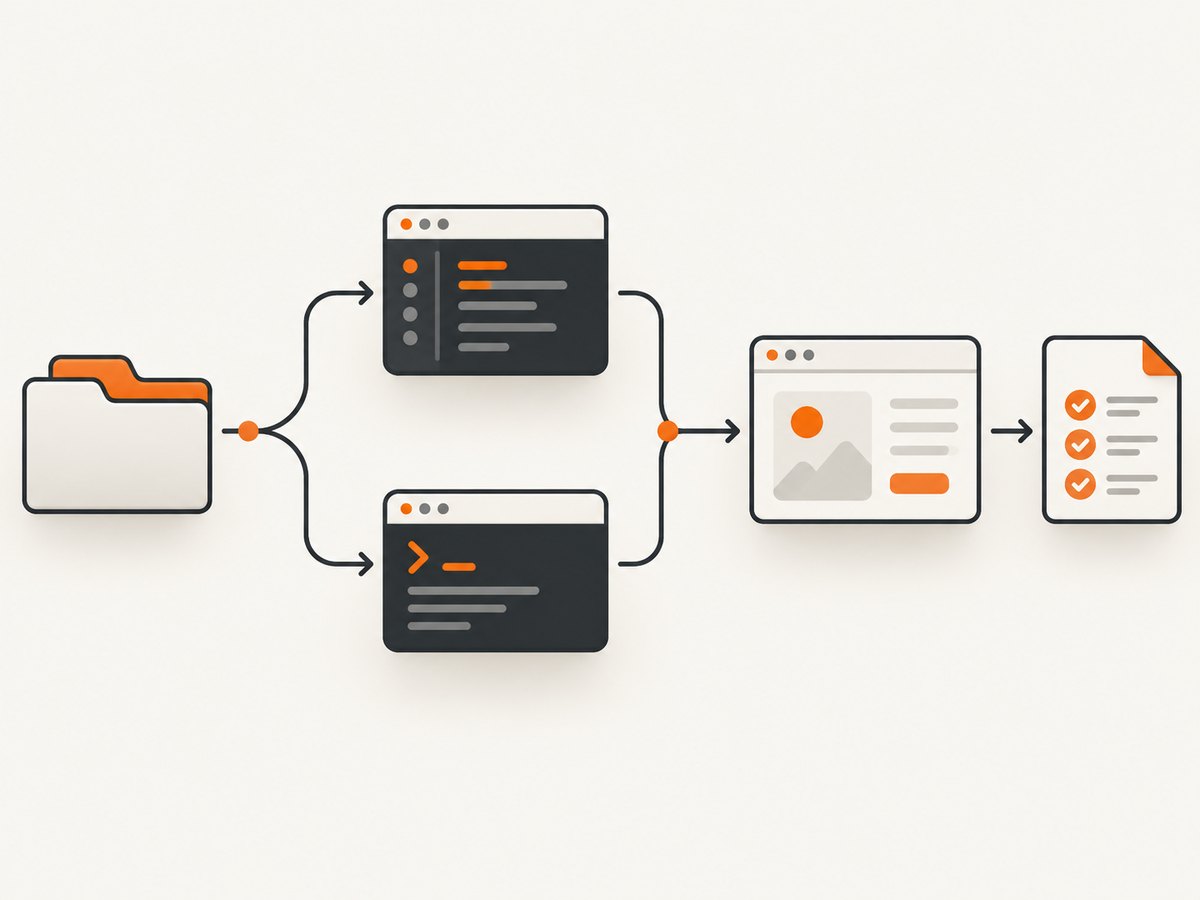
npx playwright codegen https://example.comReplace https://example.com with your application’s URL. This opens a browser and Playwright Inspector. Interact with the page in the browser; the Inspector displays generated code, which you can copy into a test file.
The CLI accepts options for choosing a browser, saving generated output to a file, and selecting the output language. Check the locally installed command’s help for the exact options supported by your version:
npx playwright codegen --help
npx playwright codegen --browser chromium --output=tests/recorded.spec.ts --target=playwright-test https://example.com
Options shown here illustrate browser selection (--browser), output path (--output), and language target (--target). The supported target names can depend on the installed Playwright version, so use the help output if a target is rejected. Run the command within the project so npx resolves the intended Playwright installation.
Interpret the result as a diagnostic comparison:
- CLI works, sidebar fails: browser launch and the CLI generator work in this project. Focus next on the selected VS Code workspace, extension availability, and which recording mode you used. This is an inference from two documented entry points, not proof of a particular extension defect.
- CLI and sidebar both fail: record the exact CLI error and investigate the package and browser installation before assuming the editor is responsible.
- Browser opens but generated output is wrong or ambiguous: the launch path works; inspect the recorded actions and locator behavior separately.
4. Install the browser binaries for your Playwright version
Playwright releases expect specific browser binaries. After installing or updating Playwright, the browser executable required by that package may be missing. First see which package version the project resolves:
npx playwright --versionInstall the default browser set, or install just the browser you need:
npx playwright install
npx playwright install chromium
On Linux, missing operating-system libraries can prevent a browser from starting even when the browser binary is present. Playwright provides commands to install those dependencies:
npx playwright install-deps chromium
npx playwright install --with-deps chromium
The first command installs Chromium system dependencies; the second combines browser installation with dependency installation. These commands address common missing-installation cases, but they cannot diagnose every environment-specific launch failure. Keep the full error output: display availability, permissions, container setup, and other local conditions can also matter.
5. Pick and review generated locators
Codegen chooses locators using page semantics, prioritizing role, text, and test-id locators. In its documentation, Playwright describes the generator as looking at the page and choosing the best locator from those kinds. Generated locators may still need review, especially if a page contains repeated labels, changing text, or several similar controls.
To copy a locator in VS Code, use Pick locator, hover over the target in the opened browser, click the element, and press Enter to copy the locator. In the CLI Inspector flow, stop recording to expose Pick Locator, then select the element and copy the suggested locator.
If a locator is ambiguous:
- Read the generated locator and identify what it matches, such as a role and accessible name.
- Use the picker to select the intended element and check which locator it proposes.
- Look for duplicate buttons or links with the same accessible name, and for text that changes between runs.
- Prefer a stable, user-facing role and name where possible; use a test ID when the application provides one for a stable target.
- Keep the assertion or action that expresses the test’s purpose, and remove incidental recorded steps that do not contribute to it.
Recording is a starting point. Review the result for uniqueness, stability, and meaningful assertions before relying on it in a suite.
6. Record flows that require authentication
For an authenticated workflow, Codegen can use saved browser storage state. The CLI accepts a storage-state file when generating code, allowing the recording session to start with an existing login state. Consult npx playwright codegen --help for the precise flag supported by your installed version.
Storage state can contain sensitive session information. Keep it local, exclude it from source control, and delete it when it is no longer needed. Do not attach a storage-state file or credentials to a public issue or support request. If a recorded flow unexpectedly lands on a sign-in page, first verify that the browser session is authenticated and that the intended state file is being used.
7. Troubleshoot by symptom
| Symptom | Likely area to inspect | Next step |
|---|---|---|
| Playwright controls or Testing view are missing | Extension or active workspace recognition | Confirm the Microsoft-published extension is enabled in this window, open the project folder, and run Test: Install Playwright. |
Record new does nothing or no browser appears |
Project setup or browser launch | Run npx playwright codegen https://example.com in the project terminal. Compare its exact output with the VS Code behavior. |
Record at cursor has no browser to attach to |
Recording mode expects a running test browser | Run the test with Show browser enabled, then place the cursor and start recording at that location. |
| Browser executable is missing | Browser binaries do not match or are absent for the installed package | Check npx playwright --version, then run npx playwright install or install the required browser by name. |
| Linux reports a missing shared library or dependency | Operating-system browser dependencies | Use npx playwright install-deps chromium, or npx playwright install --with-deps chromium where appropriate. |
| Browser opens, but the locator matches multiple elements | Locator uniqueness, not a launch failure | Use Pick Locator, inspect the generated role/name or text, and refine the target based on stable page semantics. |
| Codegen opens the wrong page or sign-in screen | Target URL, redirect, or session state | Check the URL and authentication state. For a saved session, verify the local state file and keep it private. |
| CLI option or language target is rejected | Version-specific CLI syntax or unsupported target | Run npx playwright codegen --help and use options supported by the project’s installed version. |
When the failure remains unclear, collect the exact terminal or extension error, operating system, Playwright version, VS Code version, and project package manager. Those details distinguish a missing binary from an editor-only or environment-specific failure; the title itself does not identify a universal root cause.
8. Improve recording performance and reliability
Codegen’s job is to observe browser interactions and propose code. A slow target page can delay recording even when the Playwright integration is working. Test with a simple known URL to establish whether launch works, then retry the application URL. This separates startup and browser installation from application redirects or page load behavior.
- Use the project-local Playwright version consistently so the CLI and test configuration refer to the same package and browser set.
- After updating Playwright, reinstall its browser binaries if launch errors indicate that an executable is missing.
- Record only the workflow you need. Shorter sessions are easier to inspect and produce less incidental navigation and clicking.
- Review locators and assertions after recording; generated output is not a guarantee that a test captures the intended requirement.
- Keep authenticated state private and stable. Avoid committing session files or depending on expired sessions.
- Preserve error output and version details when reproducing an intermittent launch failure.
Browser installation can use disk space, and the required system packages depend on the platform and browser. Install only the browser projects your tests need when that is appropriate for the repository. No performance or cost benchmark is implied here; the useful operational measure is whether the same project and browser launch consistently in the environment where tests run.
9. Or skip the browser setup
If the goal is a screenshot of a page rather than a recorded Playwright test, ScreenshotNeo provides a website screenshot API and MCP server. It returns PNG, JPEG, WebP, or PDF output from one GET request. See the API documentation for request options.
curl -G "https://api.screenshotneo.com/v1/shot" -d access_key=YOUR_API_KEY --data-urlencode url=https://stripe.com -o shot.webpimport requests
r = requests.get(
"https://api.screenshotneo.com/v1/shot",
params={"access_key": "YOUR_API_KEY", "url": "https://stripe.com"},
timeout=90,
)
open("shot.webp", "wb").write(r.content)const q = new URLSearchParams({ access_key: 'YOUR_API_KEY', url: 'https://stripe.com' });
const res = await fetch(`https://api.screenshotneo.com/v1/shot?${q}`);
if (!res.ok) throw new Error(`Screenshot request failed: ${res.status}`);
const image = Buffer.from(await res.arrayBuffer());
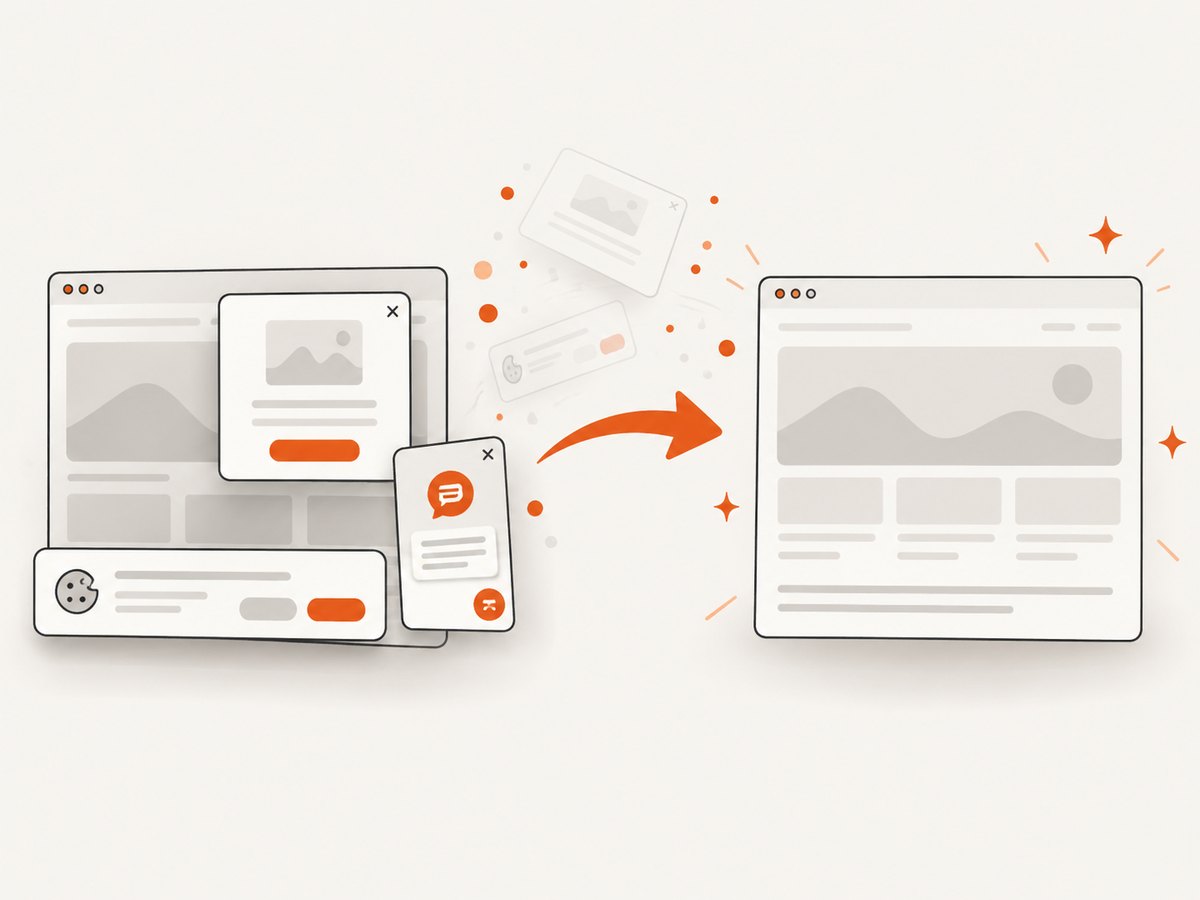
await import('node:fs/promises').then(fs => fs.writeFile('shot.webp', image));Replace the example URL with the page you need and provide your API key. Cookie and consent banners, newsletter popups, and chat widgets are removed before capture. Bot checks, blank pages, failed loads, timeouts, and cache hits are not billed; response headers report the page verdict and billing status. An MCP server provides take_screenshot, get_page_info, and capture_pdf tools for Claude, Cursor, and other MCP clients. The free plan includes 1,000 screenshots a month with no card; paid plans start at $5 for 3,000 shots, and every feature is on every plan. Sign up for 1,000 free screenshots a month, with no card.
Frequently asked questions
Can Codegen create a test in a language other than JavaScript?
The CLI has a language target option. Run npx playwright codegen --help to see target names supported by your installed version, then pass the appropriate value with --target.
Does Codegen replace writing assertions by hand?
No. It can generate code and assertions for observed page properties, but review the test against the behavior you need to protect. A recorded interaction alone does not define the test’s intent.
Should I reinstall VS Code if Codegen fails?
The title does not establish that VS Code itself is the cause. First compare the extension workflow with CLI Codegen and capture the exact errors and version details. That evidence points to the next relevant component to inspect.
Can I share my saved login state to reproduce a bug?
Do not share it publicly. Storage state can contain sensitive authentication data. Provide the error and environment details without credentials or session files.


