How to Fix Playwright Component Screenshot Alignment Failures
Fix Playwright component screenshot alignment failures by checking scope, environment, viewport, device scale, capture state, and baselines.
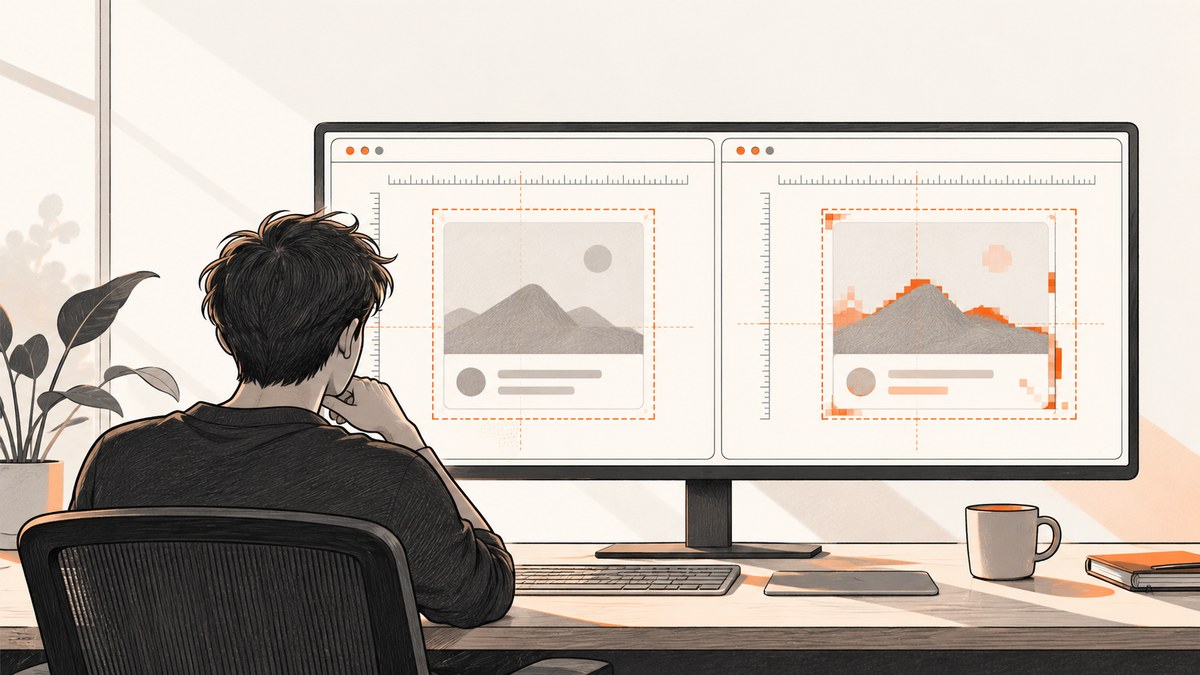
A Playwright component screenshot mismatch that looks like a one-pixel offset is usually caused by the capture target, rendering environment, viewport, device scale, or unstable state. Fix it in that order. First assert on the locator returned by mount(), then make the baseline and comparison environments identical, set an explicit viewport and device scale factor, stabilize animations and network state, inspect the expected/actual/diff images, and only then update a baseline or tune comparison thresholds.
This guide follows Playwright’s component-testing and visual-comparison guidance. The official sources are component testing, visual comparisons, PageAssertions, LocatorAssertions, Browser, emulation, and TestOptions.
1. Start with the correct component screenshot
Component tests should capture the root locator returned from mount(). Capturing page can include the component gallery, route shell, margins, or other content that makes a local component change look like an alignment failure.
import { test, expect } from '@playwright/experimental-ct-react';
import { PrimaryButton } from './PrimaryButton';

test('primary button visual state', async ({ mount }) => {
  const component = await mount(<PrimaryButton>Save</PrimaryButton>);
  await expect(component).toHaveScreenshot('primary-button.png');
});
The locator is also the right place to test a specific state. Mount separate instances for loading, disabled, focused, error, and responsive variants. A fresh mount() navigates independently, so each test can establish its own state without relying on a previous story.
Register routes before mounting
If the component loads data, register page.route() handlers before mount(). Mounting navigates, and a route added afterward may miss the request.
test('card with stable API data', async ({ page, mount }) => {
  await page.route('**/api/profile', async route => {
    await route.fulfill({
      status: 200,
      contentType: 'application/json',
      body: JSON.stringify({ name: 'Ada Lovelace', avatar: '/avatar.png' })
    });
  });

  const component = await mount(<ProfileCard />);
  await expect(component).toHaveScreenshot('profile-card.png');
});
2. Reproduce the failure and classify the diff
Run one failing test in isolation and preserve the expected, actual, and diff images. Ask what moved: the entire component, one child, text baselines, shadows, or only anti-aliased edges. A uniform translation often points to viewport or surrounding layout. Text-only noise commonly indicates fonts, browser version, operating system, or device scale. A changing region on every run indicates unstable data, animation, time, or network state.
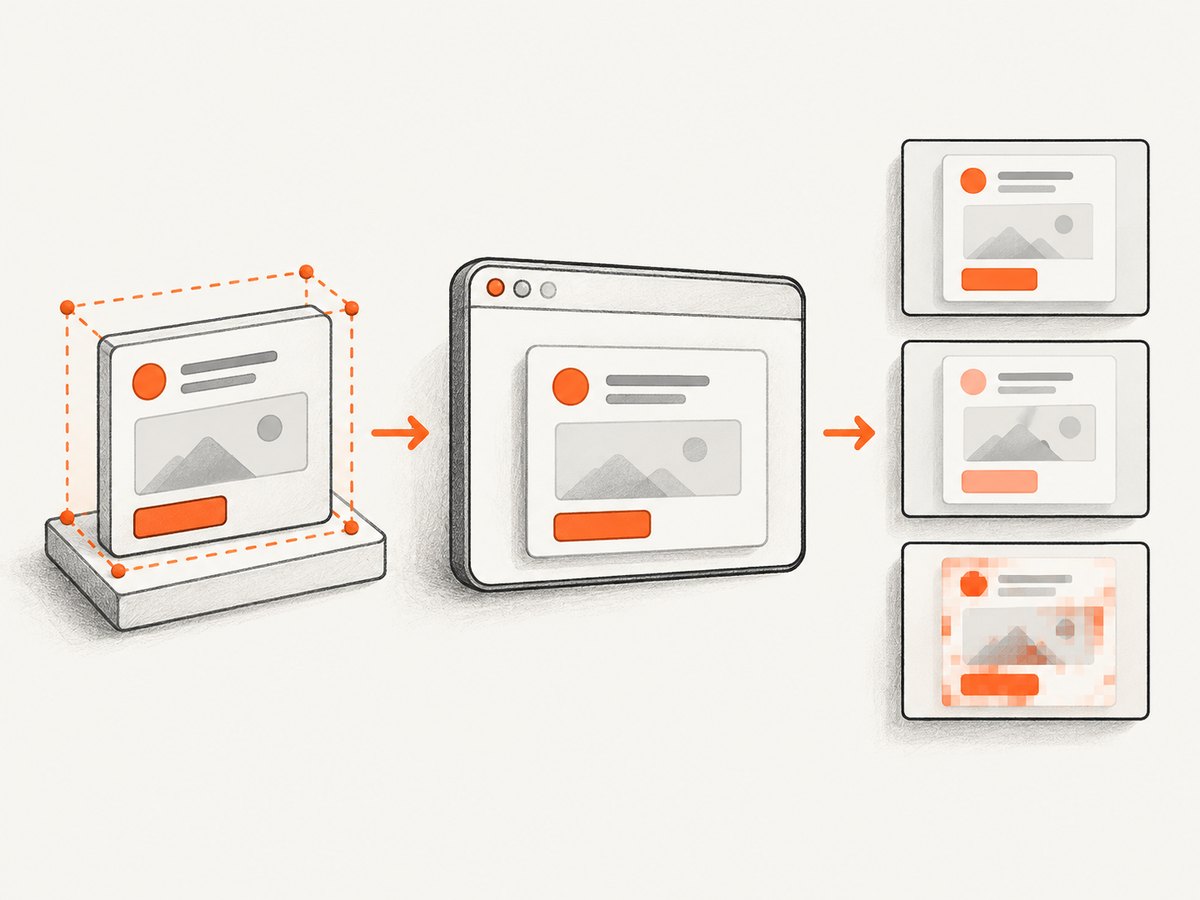
npx playwright test components/button.spec.ts --project=chromium --workers=1
npx playwright show-report
In UI mode and the trace viewer, inspect the browser, viewport, and screenshot metadata. Compare the image dimensions before examining individual pixels. If the actual image has a different width or height, check viewport, device scale factor, and the assertion’s scale before changing CSS.
3. Make the baseline environment identical
Playwright documents visual variation from the host operating system, browser version, browser settings, hardware, power source, and headless mode. A baseline generated on one machine is not guaranteed to match a screenshot made on another. Treat the environment as part of the visual test fixture.
Use one pinned CI image or container for both baseline generation and comparison. Pin the Playwright package and browser binaries, and run the same browser project. Avoid generating references on a laptop and comparing them on a different operating system unless you have accepted the rendering differences.
import { defineConfig, devices } from '@playwright/experimental-ct-react';

export default defineConfig({
  testDir: './components',
  snapshotPathTemplate: '{testDir}/__snapshots__/{arg}{-projectName}{-snapshotSuffix}{ext}',
  projects: [
    {
      name: 'chromium',
      use: {
        ...devices['Desktop Chrome'],
        browserName: 'chromium',
        headless: true,
        viewport: { width: 1280, height: 720 },
        deviceScaleFactor: 1
      }
    }
  ]
});
Do not silently switch between headed and headless runs when creating and checking references. If a font is loaded from the network, serve a deterministic local copy or wait for it to finish loading. A fallback font can change line wrapping, element width, and every downstream position.
4. Check viewport and device pixel ratio separately
Viewport size is the CSS layout space. Device scale factor controls how CSS pixels become device pixels. They are separate settings and both must match. Playwright’s default context viewport is 1280 by 720 and its default device scale factor is 1. A null viewport depends on the host window and is documented as non-deterministic, so avoid it for screenshot tests.
test.use({
  viewport: { width: 1024, height: 768 },
  deviceScaleFactor: 1
});
Check every override, including test.use(), project configuration, browser.newContext(), and page.setViewportSize(). A breakpoint crossed by a one-pixel width change can move a button, wrap a heading, or switch a grid from two columns to one.
Understand screenshot scale
toHaveScreenshot() supports scale: 'css' and scale: 'device'. CSS scale produces one output pixel per CSS pixel. Device scale produces one output pixel per device pixel and therefore creates larger images on high-DPI contexts. Keep this option consistent with the baseline.
await expect(component).toHaveScreenshot('retina.png', {
  scale: 'css'
});
If the image dimensions are correct but edges appear shifted by half a pixel, inspect fractional widths, transforms, zoom, and the device scale factor. Avoid mixing a retina baseline with a CSS-scale comparison.
5. Stabilize the state before capture
Playwright screenshot assertions take repeated captures and wait for two consecutive screenshots to match before comparing. That protects against some layout settling, but it cannot make random data, timers, late fonts, or continuously animated content deterministic.
Animations and transitions
Screenshot assertions disable animations by default. Keep that behavior for regression tests unless the animation itself is what you are testing. For a component with a deliberate transition, wait for its final state and use a bounded assertion.
await component.getByRole('button').click();
await expect(component).toHaveScreenshot('menu-open.png', {
  animations: 'disabled',
  caret: 'hide',
  timeout: 10_000
});
Use style or stylePath to hide a timestamp, rotating ad, or cursor only when that content is outside the purpose of the test. Masking a real layout defect weakens the check.
await expect(component).toHaveScreenshot('account.png', {
  mask: [component.locator('[data-testid="last-seen"]')],
  maskColor: '#ff00ff'
});
Fonts, images, and network
Wait for fonts when they affect geometry, and provide fixed image dimensions so intrinsic-size changes cannot move neighboring elements.
await page.evaluate(async () => {
  await document.fonts.ready;
});
await expect(component).toHaveScreenshot('font-stable.png');
Mock API responses and time-dependent values. Register routes before mounting. If an image is intentionally lazy-loaded, scroll it into view or use the component’s loaded state before asserting.
6. Use screenshot options deliberately
The screenshot assertion options fall into three groups: capture state, output format, and comparison thresholds.
| Option | Use | Common mistake |
|---|---|---|
animations |
Disable or allow CSS/Web Animations during capture. | Allowing transitions to capture at different frames. |
caret |
Hide or show a text caret. | Diffs caused by a focused input. |
scale |
Choose CSS-pixel or device-pixel output. | Mixing DPR and scale settings. |
mask, maskColor |
Cover known volatile regions. | Masking content whose layout is under test. |
maxDiffPixels |
Allow an absolute number of different pixels. | Using a large value to hide a moved component. |
maxDiffPixelRatio |
Allow a proportion of differing pixels. | Applying the same ratio to tiny and huge screenshots. |
threshold |
Set per-pixel color sensitivity. | Increasing it before finding the rendering cause. |
timeout |
Bound the wait for a stable screenshot. | Assuming a longer timeout fixes nondeterminism. |
Start with defaults. Add a tolerance only after you can explain the remaining difference and why it is acceptable. A geometric displacement should be fixed in the component or test setup, not hidden with a pixel threshold.
7. Diagnose common alignment failures
The whole component is offset
First verify that the root locator is the same element used for the baseline. Then check body margins, gallery padding, wrapper width, viewport dimensions, and responsive breakpoints. Capturing page instead of the component locator often introduces exactly this pattern.
Text wraps differently
Compare font files, font loading completion, browser version, operating system, viewport width, and device scale. A fallback font or a one-pixel breakpoint change can alter line breaks and move every element below the text.
Only borders and shadows differ
Check device scale factor, screenshot scale, fractional transforms, and browser version. Anti-aliasing differences can remain after the environment is aligned. Use a small, documented tolerance only when the visual effect is not meaningful to the product.
The screenshot changes on every run
Look for animation, blinking carets, random IDs, current time, network responses, ads, rotating content, and late-loading fonts or images. Mock the source, freeze time where appropriate, disable animation, and wait for a stable selector.
Routes do not intercept requests
Move route registration before mount(). The component test mount navigates, so handlers installed afterward may be too late.
8. Update a baseline only after review
Updating snapshots is correct after an intentional, reviewed visual change. It is not a repair for an unexplained offset.
npx playwright test --update-snapshotsReview every changed image, confirm the change in the component code or design, and commit the snapshot directory with the test change. If the diff is accidental, fix the environment, state, or CSS and regenerate only after the test passes for the intended reason.
9. Performance, reliability, and cost considerations
Component screenshots are fastest when tests reuse a fixed project configuration, mock network calls, avoid unnecessary full-page captures, and run independent workers safely. Parallel workers improve throughput but can expose shared-state bugs; use isolated data and deterministic routes. Serial execution is useful while diagnosing a failure, then restore parallelism once the test is stable.
Keep snapshots focused on the smallest meaningful locator. Smaller images reduce diff work and make review clearer. Do not lower coverage by removing states merely because one state is difficult to stabilize. Instead, separate visual state setup from the screenshot assertion and document any masking or tolerance.
Visual tests consume CI time and browser resources. A stable baseline prevents repeated reruns, while a flaky test creates the largest cost through investigation and ignored failures. Track the browser and OS used to generate references so a rendering change has an obvious owner.
10. Or skip the browser setup
If you need a clean screenshot of a deployed page rather than a component locator, ScreenshotNeo provides a single request API and an MCP server for AI agents. It accepts options for full-page or element capture, dark mode, device presets, custom viewport and retina scale, custom CSS and JavaScript, clicks, waits, blocked resources, headers, cookies, user agents, authorization, timezone, geolocation, transparent backgrounds, resizing, caching, signed links, asynchronous jobs, bulk capture, PDFs, and usage reporting.
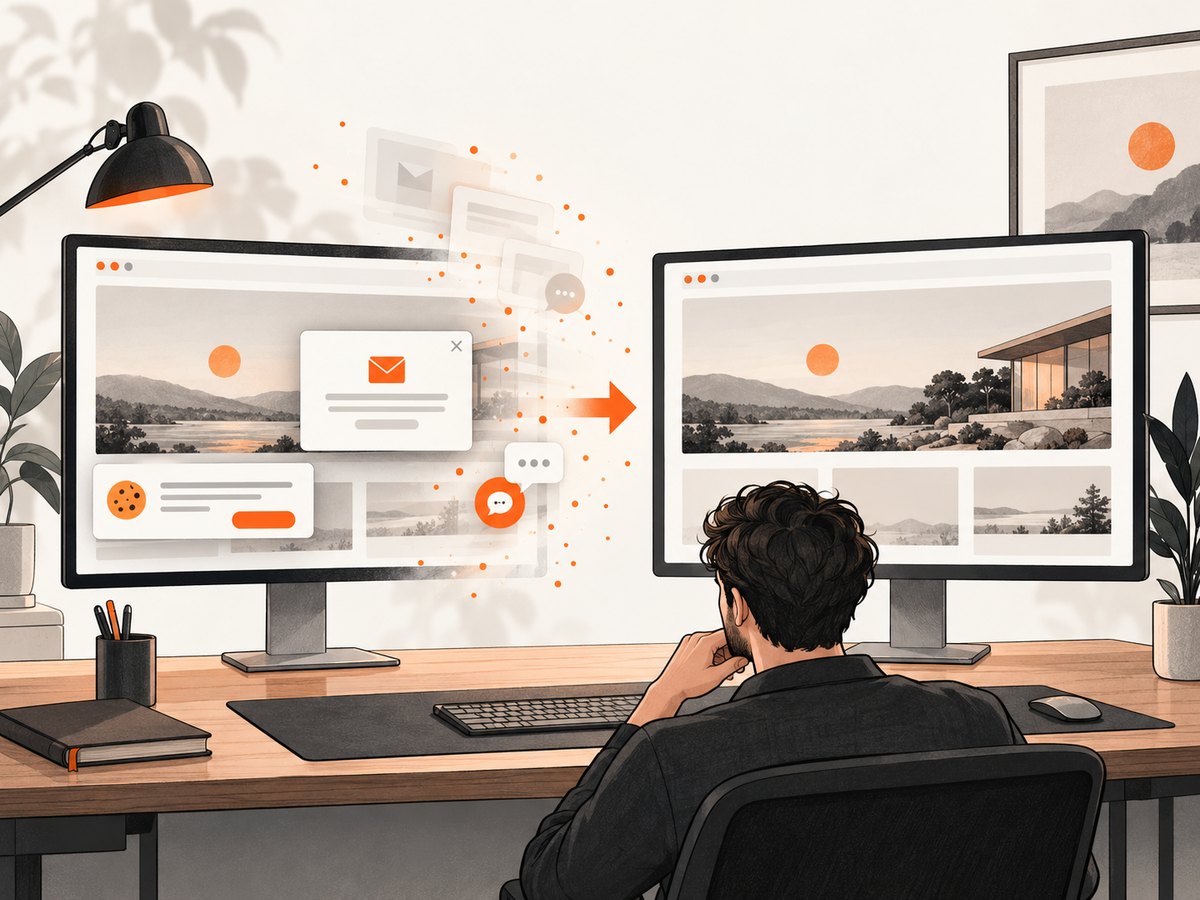
Cookie and consent banners are accepted and 60+ known consent platforms, newsletter popups, and chat widgets are removed before capture; each step can be turned off. Bot checks, blank pages, timeouts, failed loads, and cache hits are not billed, and response headers identify the page verdict and billing status. The MCP server exposes take_screenshot, get_page_info, and capture_pdf for Claude, Cursor, and other MCP clients.
See the ScreenshotNeo API documentation for all parameters.
cURL
curl -G "https://api.screenshotneo.com/v1/shot" -d access_key=YOUR_API_KEY --data-urlencode url=https://stripe.com -o shot.webpPython
import requests
r = requests.get("https://api.screenshotneo.com/v1/shot", params={"access_key": "YOUR_API_KEY", "url": "https://stripe.com"}, timeout=90)
open("shot.webp", "wb").write(r.content)
Node.js
const q = new URLSearchParams({ access_key: 'YOUR_API_KEY', url: 'https://stripe.com' });
const res = await fetch(`https://api.screenshotneo.com/v1/shot?${q}`);
ScreenshotNeo has 1,000 free screenshots per month with no card. Paid plans start at $5 for 3,000 shots, and every feature is available on every plan. Create a free ScreenshotNeo account.
11. A repeatable checklist
- Run the failing test alone and save expected, actual, and diff images.
- Assert on the locator returned by
mount(), not the page. - Register routes before mounting.
- Use the same OS, browser, Playwright version, headless mode, and hardware class for baselines and comparisons.
- Set explicit viewport and device scale factor; avoid a
nullviewport. - Keep screenshot
scaleconsistent. - Stabilize fonts, images, network, time, focus, and animation.
- Inspect dimensions and diff shape before changing thresholds.
- Use masks and tolerances only for understood, acceptable variation.
- Update snapshots only after a reviewed intentional change.
FAQ
Should I use page.screenshot() for component tests?
Usually no. The mounted component locator keeps the assertion focused and avoids unrelated gallery content.
Does increasing maxDiffPixels fix alignment?
No. It changes pass/fail sensitivity. Find and correct the geometry or rendering cause first.
Why does a null viewport cause flaky screenshots?
It follows the host window, so the CSS layout can vary between machines and runs.
When should I regenerate snapshots?
After a reviewed visual change, once the environment and capture state are deterministic.
Can device scale factor and screenshot scale be changed independently?
Yes. The context device scale factor controls rendering pixels; screenshot scale controls how those pixels are written to the image. Keep both intentional and consistent.


