How to Fix Playwright Cookie Banners That Do Not Close
When a Playwright cookie banner stays open after a click, check its locator, frame, timing, and consent state. Use these patterns to diagnose and fix it.
If a Playwright cookie banner stays open after a click, first determine whether it is an HTML banner, a JavaScript dialog, or a control inside an iframe. Then scope a locator to the visible banner, click its real consent button, and assert that the banner becomes hidden. A completed click alone does not prove consent was saved.
For a normal HTML banner, a reliable starting point in TypeScript is:
const banner = page.getByRole('dialog').filter({ hasText: /cookies|privacy|consent/i });
const accept = banner.getByRole('button', { name: /accept all|allow all|agree/i });

await accept.waitFor({ state: 'visible' });
await accept.click();
await expect(banner).toBeHidden();
Adapt the dialog role and accessible button name to the site. If the assertion times out, investigate the page structure, duplicate controls, overlays, and consent persistence before reaching for force: true.
1. Identify what kind of dialog you are handling
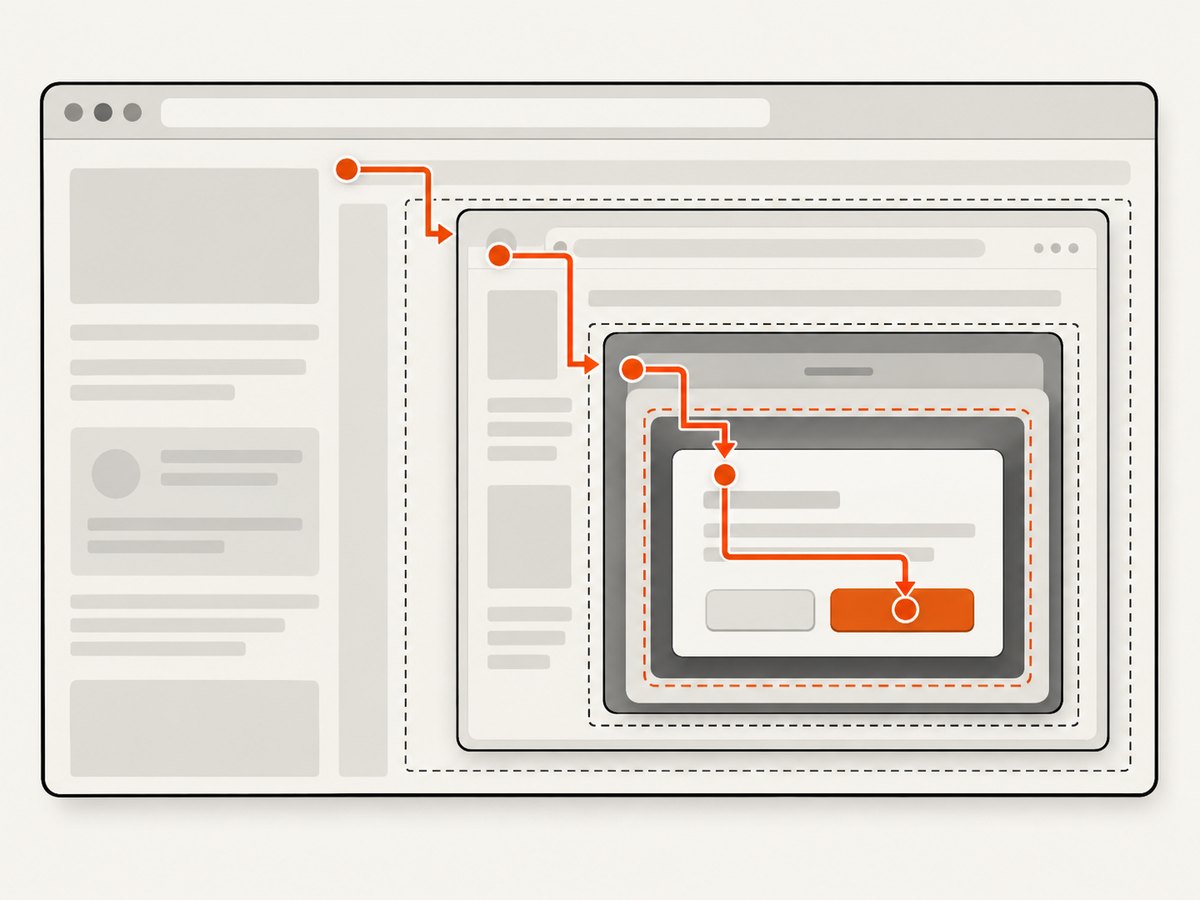
“Cookie popup” can describe several different browser behaviors. The right Playwright API depends on where the control lives:
| What you see | How to handle it |
|---|---|
| An HTML banner or modal in the page | Use page locators such as getByRole(), getByText(), or a stable test id. |
| A consent manager inside an iframe | Enter the frame with frameLocator(), then locate its controls. |
| An open Shadow DOM component | Use normal Playwright locators; they pierce open shadow roots. |
| A JavaScript alert, confirm, or prompt | Listen for the dialog event and accept or dismiss the dialog. |
Do not assume that text saying “cookies” identifies an HTML banner. Inspect the page and its frames first. A JavaScript dialog is not a DOM element, so no locator can click it. Conversely, a consent panel that looks like a browser prompt may still be ordinary HTML.
2. Use a scoped, user-facing locator
Playwright recommends locators based on user-facing attributes and explicit contracts. Locators auto-wait and retry, and locator actions resolve the current DOM element when used. These properties help with consent managers that render late or replace their buttons during an update. See the [Playwright locator documentation](https://playwright.dev/docs/locators).
Scope the button lookup to the banner rather than searching for a matching button anywhere on the page. This avoids clicking a different control with a similar label, such as a footer preference link or a hidden mobile variant.
import { test, expect } from '@playwright/test';

test('accepts the cookie banner', async ({ page }) => {
  await page.goto('https://example.com');

  const banner = page.getByRole('dialog').filter({
    hasText: /cookies|privacy|consent/i,
  });
  const accept = banner.getByRole('button', {
    name: /accept all|allow all|agree/i,
  });

  await expect(banner).toBeVisible();
  await expect(accept).toHaveCount(1);
  await accept.click();
  await expect(banner).toBeHidden();
});
This is a runnable Playwright Test pattern once example.com and the matching text are replaced with the target site’s URL and accessible names. The count assertion is useful when duplicate controls are suspected: strict locator actions fail when a locator matches multiple elements, rather than silently choosing one.
Choose the narrowest stable contract available
- Role and name: Prefer
getByRole('button', { name: /accept/i })when the control has an accessible name. - Dialog scope: Find the banner by dialog role, then search inside it. Filter by visible text if the page has multiple dialogs.
- Test id: If you own the application, add a stable test id or another explicit testing contract to the consent control.
- Text: Use
getByText()if the target is not a button, while checking that it is actually actionable. - CSS: Use a stable provider or application attribute only when semantic locators are unavailable. Avoid long generated class chains.
A broad locator like page.locator('button').first() can appear to work while selecting the wrong button after a layout change. Use it only when document order is itself an intentional and stable contract.
3. Wait for the right state and verify the result
Playwright’s locator actions wait for actionability conditions. A click normally checks that the target is visible, stable, enabled, and receives pointer events. You can also explicitly wait for a control to appear:
const accept = banner.getByRole('button', { name: /accept|agree|allow/i });
await accept.waitFor({ state: 'visible' });
await accept.click();
await expect(banner).toBeHidden();
Use a bounded assertion or waitFor() for the expected UI state rather than inserting an arbitrary sleep. A fixed delay can waste time when the banner appears quickly and still fail when it appears later. The [Playwright actionability guide](https://playwright.dev/docs/actionability) describes the checks performed by actions such as click().
Pick an assertion that matches the site’s behavior:
toBeHidden()works when the banner is detached or hidden after acceptance.toHaveCount(0)is appropriate when the banner should be removed from the DOM entirely.- Assert a changed preference summary or another visible consent result if the banner remains open while showing a confirmation state.
Some consent flows have separate “Close,” “Save choices,” and “Accept all” actions. Closing a settings panel may not submit a choice. Assert the user-visible result that matters to the test, and interact with the commit button when the site requires it.
4. Handle iframe-hosted consent managers
A page locator cannot find an element inside a separate frame’s document. Use frameLocator() with a stable iframe selector, then locate the button within that frame:
const consentFrame = page.frameLocator('iframe[title="consent"]');
const accept = consentFrame.getByRole('button', {
  name: /accept all|allow all|agree/i,
});

await accept.click();
Replace iframe[title="consent"] with the selector observed on the target site. A frame locator is strict if its selector matches multiple frames. If that happens, make the iframe selector more specific or identify the correct frame from the page structure. Playwright also supports frame locators that search across frames when appropriate. See [Playwright frames](https://playwright.dev/docs/frames).
If the button still times out, check whether the iframe is attached and visible, whether it has finished loading, and whether the provider has nested frames. Do not copy an iframe selector from another site: providers and integrations use different markup.
5. Handle a JavaScript alert, confirm, or prompt
Register a handler before the action that triggers a browser dialog. If a dialog is left open, the page can remain blocked waiting for it to be accepted or dismissed. Match the message so unrelated dialogs are not automatically accepted:
page.on('dialog', async dialog => {
  if (/cookie|consent/i.test(dialog.message())) {
    await dialog.accept();
  } else {
    await dialog.dismiss();
  }
});

await page.getByRole('button', { name: /continue/i }).click();
Install the listener before the triggering click or navigation. The handler above accepts dialogs whose message indicates cookie or consent and dismisses others. Change that policy to match the test’s intent. Playwright documents the [dialog event](https://playwright.dev/docs/dialogs) and the requirement to handle dialogs so they do not block page interaction.
6. Check Shadow DOM and duplicate controls
For an open Shadow DOM, normal Playwright locators pierce the shadow root. You can keep using role, text, test id, or supported CSS locators. XPath does not pierce shadow roots, and closed-mode shadow roots are not supported. If a selector works in the regular document but finds nothing in a component, inspect whether the control sits in a shadow root and whether that root is open. Details are in [Playwright’s Shadow DOM locator guidance](https://playwright.dev/docs/locators#locate-in-shadow-dom).
Consent managers may also render desktop and mobile copies at once. Before clicking, count the matches or scope to the visible dialog. If two buttons match, inspect their visibility and accessible names; do not paper over the ambiguity with .first() unless the intended control is known to be first.
7. Persist consent between tests when that is the goal
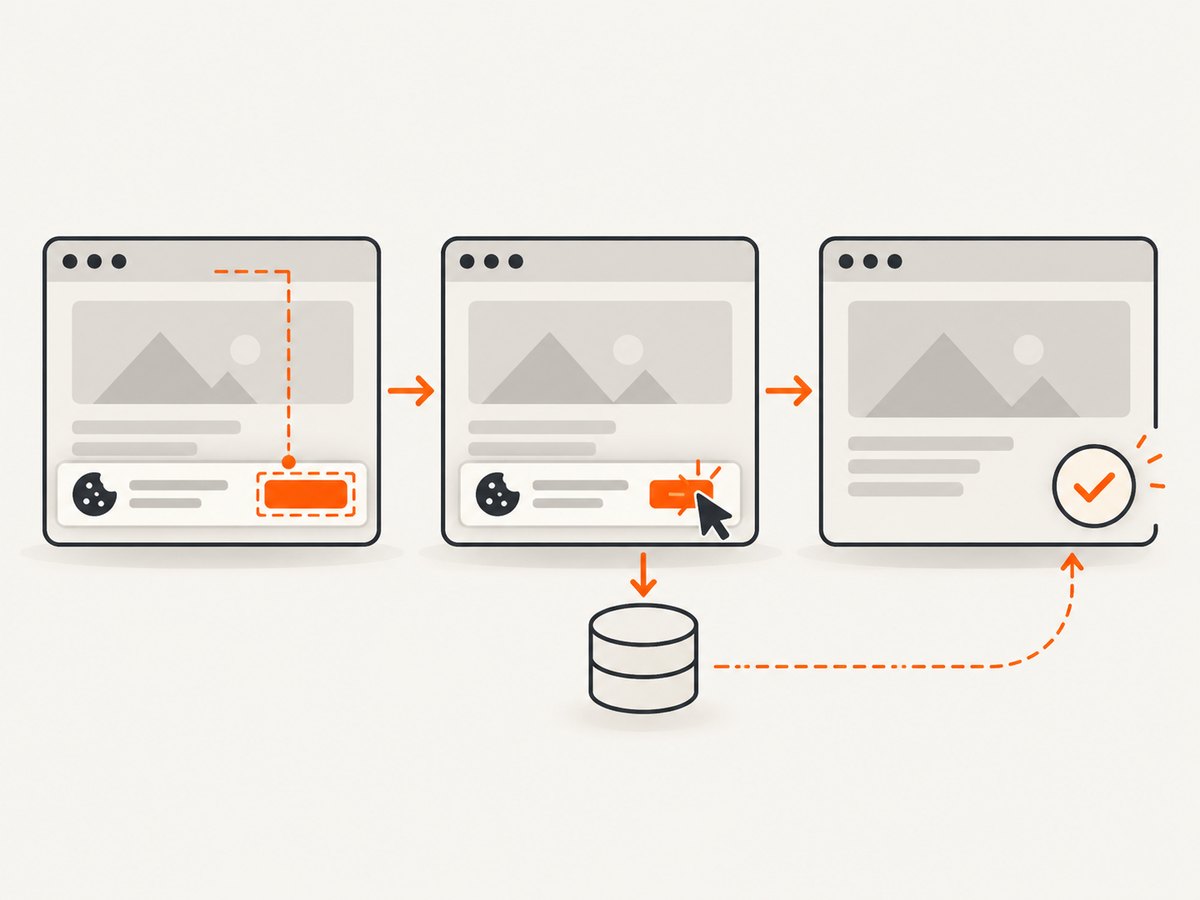
If the banner returns on each test, the browser context may be new each time. After performing a real consent action, save the context’s storage state and reuse it for tests that should start with consent already recorded:
import { test as setup, expect } from '@playwright/test';

setup('save consent state', async ({ page, context }) => {
  await page.goto('https://example.com');
  const banner = page.getByRole('dialog').filter({ hasText: /cookies|privacy/i });
  await banner.getByRole('button', { name: /accept all|agree/i }).click();
  await expect(banner).toBeHidden();
  await context.storageState({ path: 'playwright/.auth/consent.json' });
});
Then configure later contexts or projects to use that state:
import { defineConfig } from '@playwright/test';

export default defineConfig({
  use: {
    storageState: 'playwright/.auth/consent.json',
  },
});
Playwright storage state includes cookies and local storage. The [authentication guide](https://playwright.dev/docs/auth) shows how to capture and reuse it. Consent data can be environment-specific, so generate it through the target site’s own flow. When testing first-visit behavior, use a fresh context or clear the stored state. Do not guess cookie names or values; domain and path must match the site.
8. Diagnose a click that completes but changes nothing
A click can complete while the banner remains visible. Use the failure evidence to narrow the cause:
- Check locator ownership. Confirm the button is in the main document, the expected iframe, or an open shadow root.
- Check the match count. Look for hidden or duplicate desktop/mobile buttons and narrow the locator.
- Read the action error. An interception or actionability error can point to an overlay, animation, or disabled control.
- Check the intended action. “Close” may collapse settings; “Save choices” may be the action that commits consent.
- Assert the post-click state. Check whether the banner hides, detaches, changes text, or requires another step.
- Inspect evidence. Use a screenshot, DOM inspection, and Playwright trace to see what was visible and where the click landed.
Locator actions re-resolve elements, which helps with re-renders; retaining a stale element handle can make a test more fragile. force: true bypasses actionability checks. It can help confirm that hit testing is the blocker, but it may conceal a real overlay or a click a user could not make. Fix the frame, timing, locator, or overlay when possible. See [Playwright actionability](https://playwright.dev/docs/actionability).
9. Decide whether to interact with consent at all
If the test is about your application’s API response or page behavior, a third-party banner may be outside the behavior you need to verify. Playwright’s best practices recommend controlling network dependencies when that is the appropriate test seam. Mocking or intercepting a request can make a test independent of linked content, banners, and overlay pages. Keep at least the tests that verify your consent integration on the real interaction path. See [Playwright best practices](https://playwright.dev/docs/best-practices).
10. Troubleshooting common failures
| Symptom | Likely cause | Fix |
|---|---|---|
| Timeout waiting for the button | Wrong role/name, late rendering, iframe ownership, or banner absent in this context | Inspect the DOM and frames; wait for the visible banner; use the actual accessible name. |
| Strict mode reports multiple matches | Duplicate buttons or an overly broad locator | Scope to the visible dialog, filter by text, and assert one match. |
| Click is intercepted | An overlay, animation, or another element covers the target | Inspect a trace or screenshot; wait for the obstructing layer to disappear or target the correct dialog. |
| Click succeeds but banner stays open | Wrong button, settings were only collapsed, or consent update is asynchronous | Use the commit action and assert the expected post-click state. |
| Banner appears on every test | Each test uses a fresh context without consent storage | Save storage state after a real action for tests that should be pre-consented; keep a fresh-state test too. |
| Locator finds nothing in the main page | Control is inside an iframe or an inaccessible closed shadow root | Use a frame locator for the iframe; closed shadow roots are unsupported, so use an exposed integration contract. |
| Page freezes after a prompt | JavaScript dialog has no handler | Register a dialog listener before the triggering action and accept or dismiss it. |
11. Keep the test reliable and efficient
- Pin Playwright. Locator APIs and behavior can change across versions. Keep the project dependency and CI environment aligned, and re-check official API documentation when upgrading.
- Use fresh state selectively. Reusing consent state avoids repeating the flow in unrelated tests; reserve a fresh context for first-visit and consent tests.
- Prefer state waits to sleeps. Wait for visibility, hidden state, or the expected result. This avoids unnecessary delay and reduces timing assumptions.
- Keep third-party dependencies deliberate. If the test is not about the consent provider, consider network control; if it is about consent, exercise the actual UI and verify its result.
- Use traces for intermittent failures. A trace or screenshot can reveal whether the provider loaded late, rendered duplicate controls, or changed its markup.
These choices affect test time and stability more than any universal timeout value. A longer timeout cannot correct a locator aimed at the wrong frame or button. Likewise, persisting consent improves repeat runs only when the test is not intended to cover the first-visit experience.
12. Or skip the browser setup
If your goal is to get a clean screenshot of a page rather than test your own consent interaction, [ScreenshotNeo](https://screenshotneo.com) provides a website screenshot API. Its clean-shot flow accepts the cookie or consent banner like a visitor and removes more than 60 known consent platforms, newsletter popups, and chat widgets before capture; each step can be turned off. Bot checks and CAPTCHAs, blank pages, timeouts, failed loads, and cache hits cost nothing, and responses identify the page verdict and billing status in headers. The API also has an MCP server with take_screenshot, get_page_info, and capture_pdf tools for AI agents.
One GET request returns an image or PDF. This cURL example saves a WebP screenshot:
curl -G "https://api.screenshotneo.com/v1/shot" \
  -d access_key=YOUR_API_KEY \
  --data-urlencode url=https://stripe.com \
  -o shot.webp
See the [ScreenshotNeo API documentation](https://screenshotneo.com/docs/) for the request options and formats. The same call can be made from Python:
import requests

r = requests.get(
    "https://api.screenshotneo.com/v1/shot",
    params={"access_key": "YOUR_API_KEY", "url": "https://stripe.com"},
    timeout=90,
)
open("shot.webp", "wb").write(r.content)
Or Node.js:
const q = new URLSearchParams({
  access_key: 'YOUR_API_KEY',
  url: 'https://stripe.com',
});
const res = await fetch(`https://api.screenshotneo.com/v1/shot?${q}`);
if (!res.ok) throw new Error(`Screenshot request failed: ${res.status}`);
await import('node:fs/promises').then(fs => fs.writeFile('shot.webp', Buffer.from(await res.arrayBuffer())));
ScreenshotNeo offers full-page and selector capture, device and viewport controls, dark mode, PDF settings, custom CSS and JavaScript, wait conditions, request blocking, cookies and headers, caching, signed links, async jobs, bulk capture, usage reporting, and an OpenAPI specification. The feature list also includes parameter names used by other screenshot APIs to ease migration.
The Free plan includes 1,000 shots each month with no card. Paid plans start at $5 for 3,000 shots; yearly billing gives two months free, and every feature is available on every plan. [Create a free ScreenshotNeo account](https://screenshotneo.com/account/sign-up/) to try 1,000 screenshots a month with no card.
FAQ
Should I use force: true to close a consent banner?
Usually, diagnose the actionability failure first. Forced clicks skip checks that help identify overlays and other blockers, so use them only when bypassing those checks matches the test’s purpose.
Can Playwright interact with a closed Shadow DOM?
No. Playwright locators pierce open shadow roots, but closed-mode shadow roots are unsupported. Use an exposed control or a different test seam.
How do I test both first visit and returning visit behavior?
Use a fresh context for the first-visit case, then save and reuse consent storage for the returning-visit case. Keep the two expectations separate so persisted state does not hide a regression in the initial flow.
Why does the banner vanish locally but fail in CI?
Compare the browser context’s stored state, the loaded frame structure, and the trace from each environment. Consent values and provider markup can vary by environment, so inspect the actual run instead of assuming a universal cookie name.


