How to Fix Playwright .NET Browser Launch Errors
Fix Playwright .NET launch errors by checking browser installation, dependencies, cache paths, versions, and CI setup in a practical order.
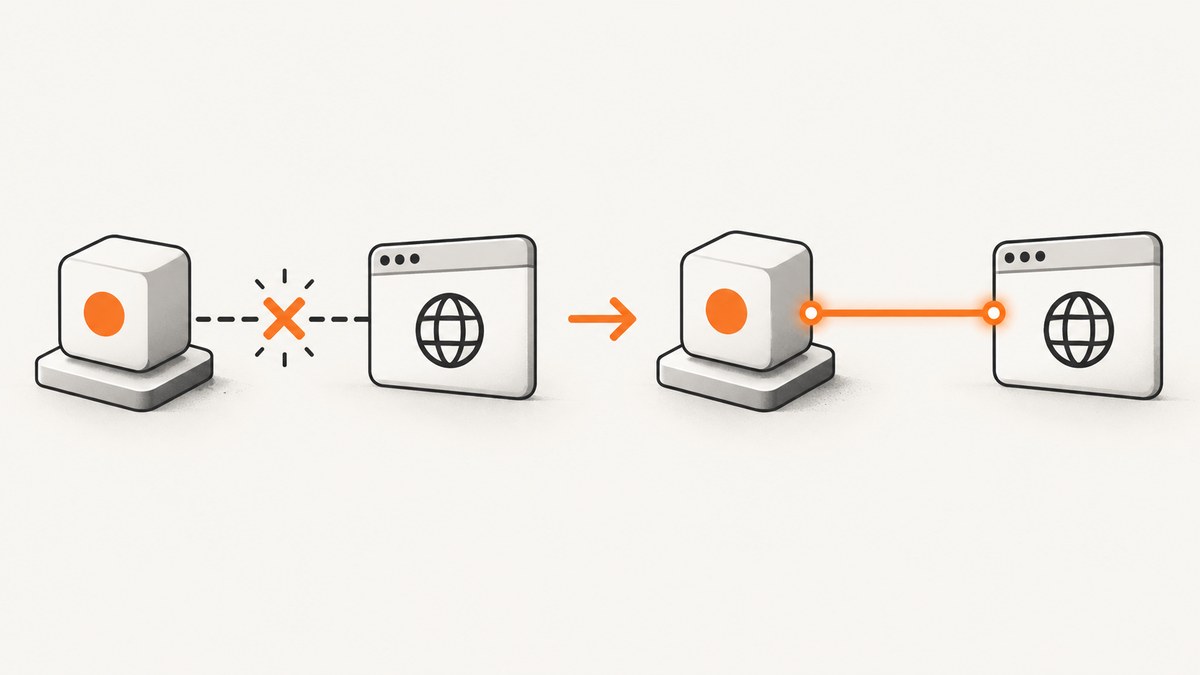
Most Playwright .NET browser launch errors come from an installation, environment, or compatibility mismatch. Build the project first, run the generated playwright.ps1 install script from the output directory for the project’s target framework, install Linux system dependencies where needed, and check that installation and test execution use the same browser cache. Before changing launch options, enable DEBUG=pw:browser to see why the browser process failed.
This guide walks through the common errors, provides local and CI repair steps, and explains when a custom executable path is appropriate. Playwright requires browser binaries that match its version; restoring the .NET package alone does not install them. See the [official Playwright .NET documentation](https://playwright.dev/dotnet/docs/intro) and [browser installation guidance](https://playwright.dev/dotnet/docs/browsers) alongside the steps below.
1. Identify the failure before changing code
Start with the first meaningful line of the exception, not the later stack trace. The wording usually points to one of four causes: missing browser files, missing operating-system libraries, a download/network issue, or a browser/runtime mismatch.
| Error or symptom | Likely cause | First action |
|---|---|---|
Executable doesn't exist at ... ms-playwright |
Browser not installed, installed for another Playwright version, or test process uses another cache path | Rebuild, rerun the generated install script, and compare PLAYWRIGHT_BROWSERS_PATH |
Host system is missing dependencies |
Linux shared libraries or other browser dependencies are absent | Run install --with-deps in an environment where system packages can be installed |
| Download, certificate, or timeout error | Proxy, custom CA, restricted network, or slow CDN connection | Check proxy and download environment variables and network access |
| Works locally, fails in container or CI | Different image, browser cache, system dependencies, architecture, or package version | Compare the complete environment and align the image with the project’s Playwright version |
| Only Chrome or Edge channel fails | Branded browser policy or compatibility issue | Try the bundled browser; check enterprise policy before selecting a channel |
Record the browser engine, Playwright package version, target framework, operating system or container image, cache path, and complete first exception. Those details make local-versus-CI comparisons much more useful than changing launch flags at random.
2. Reinstall the matching browser binaries
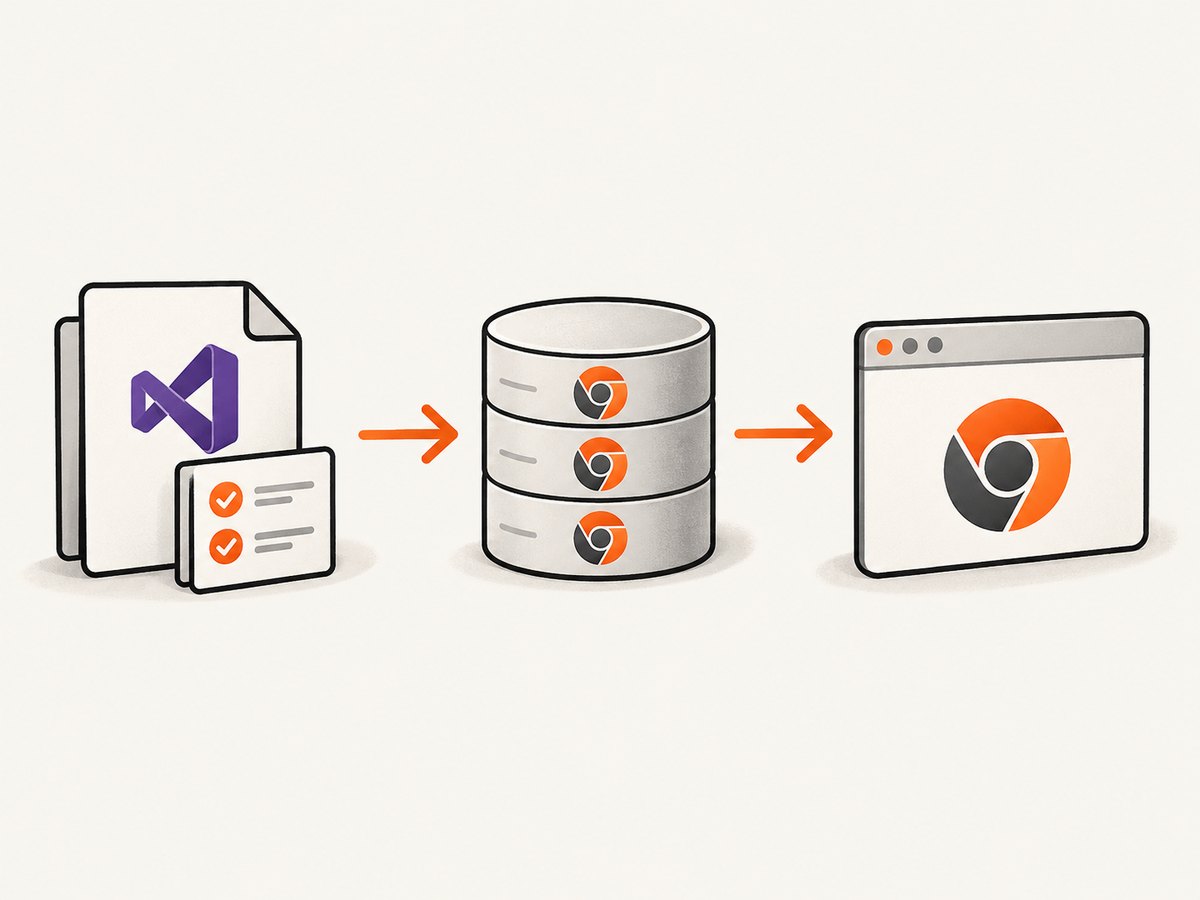
Build the project before using the generated script. Replace netX below with the target framework directory in your build output, such as net8.0. Run the command from the project directory, adjusting the path if your configuration or output location differs.
dotnet build
pwsh bin/Debug/netX/playwright.ps1 install
Playwright’s browser revisions change with package releases. When you upgrade the Playwright .NET package, run the matching install command again. The official guidance states that each Playwright version needs specific browser binaries; binaries left from another version may be missing or incompatible.
On a Linux CI agent, install the operating-system dependencies as well:
pwsh bin/Debug/netX/playwright.ps1 install --with-deps--with-deps installs required system packages as well as browser binaries. It may need elevated permissions or an image setup step that can install packages. If your CI environment cannot modify the machine during the job, use a prepared image with dependencies already present or a version-pinned Playwright Docker image.
You can also invoke installation through the .NET API, for example in a setup step that you control:
using Microsoft.Playwright;

var exitCode = Microsoft.Playwright.Program.Main(new[] { "install" });
if (exitCode != 0)
{
    throw new InvalidOperationException($"Playwright browser installation failed with exit code {exitCode}.");
}
Fail the setup or build when installation returns a nonzero exit code. Continuing to tests after a failed browser download obscures the original cause with a later launch error.
3. Verify the browser cache path
Playwright uses a per-user browser cache by default. The documented default locations are:
- Windows:
%USERPROFILE%\AppData\Local\ms-playwright - macOS:
~/Library/Caches/ms-playwright - Linux:
~/.cache/ms-playwright
If the install step runs under one user and tests run under another, the test process may not see the downloaded browser. The same can happen when CI installs into a workspace path but the test job runs in a different container or home directory.
For an intentional shared cache, set PLAYWRIGHT_BROWSERS_PATH to the same directory for both installation and test execution. For example, on Linux:
export PLAYWRIGHT_BROWSERS_PATH="$PWD/.pw-browsers"
pwsh bin/Debug/netX/playwright.ps1 install
PLAYWRIGHT_BROWSERS_PATH="$PWD/.pw-browsers" dotnet test
On Windows PowerShell, set the environment variable for both commands in the same job:
$env:PLAYWRIGHT_BROWSERS_PATH = "$PWD\.pw-browsers"
pwsh bin/Debug/netX/playwright.ps1 install
dotnet test
Inspect what is installed with:
pwsh bin/Debug/netX/playwright.ps1 install --listShared caches save repeated downloads, but they also create version-collision risk. If you cache browser files in CI, include the Playwright package version and relevant platform in the cache key. A stale cache is not a substitute for running the matching install step after an upgrade.
4. Turn on browser launch diagnostics
Enable browser-specific logs before adding a custom executable path or changing launch arguments. The Playwright CI guidance specifically recommends pw:browser when debugging failed launches.
DEBUG=pw:browser dotnet testFor broader API activity, use:
DEBUG=pw:api dotnet testPowerShell syntax differs from Bash. Set the variable in the current session, then start the test process:
$env:DEBUG = "pw:browser"
dotnet test
Look for the executable path Playwright selected, the process exit details, and any missing library messages. Compare those logs between local and CI. If the browser never starts, changing page timeouts, navigation waits, or application code is unlikely to address the launch problem.
5. Fix Linux, headed, and container-specific failures
Linux dependencies
For a missing-dependency error, install dependencies using install --with-deps or the generated script’s install-deps command. The machine must support the operating system version and architecture in use. The .NET requirements list Windows 11 or Windows Server 2019 and newer, macOS 14 and newer, and supported Debian or Ubuntu releases on x86-64 or arm64. Check the current [system requirements](https://playwright.dev/dotnet/docs/intro#system-requirements) if your environment is outside those combinations.
Headed Linux runs
A headed browser needs a display server. In a headless Linux CI environment, use Xvfb when you must run headed mode:
xvfb-run dotnet testIf the test does not require a visible window, use headless mode to avoid a display-server dependency. Headed mode can be useful for observing behavior, but it adds another environmental component that must be available in CI.
Containers
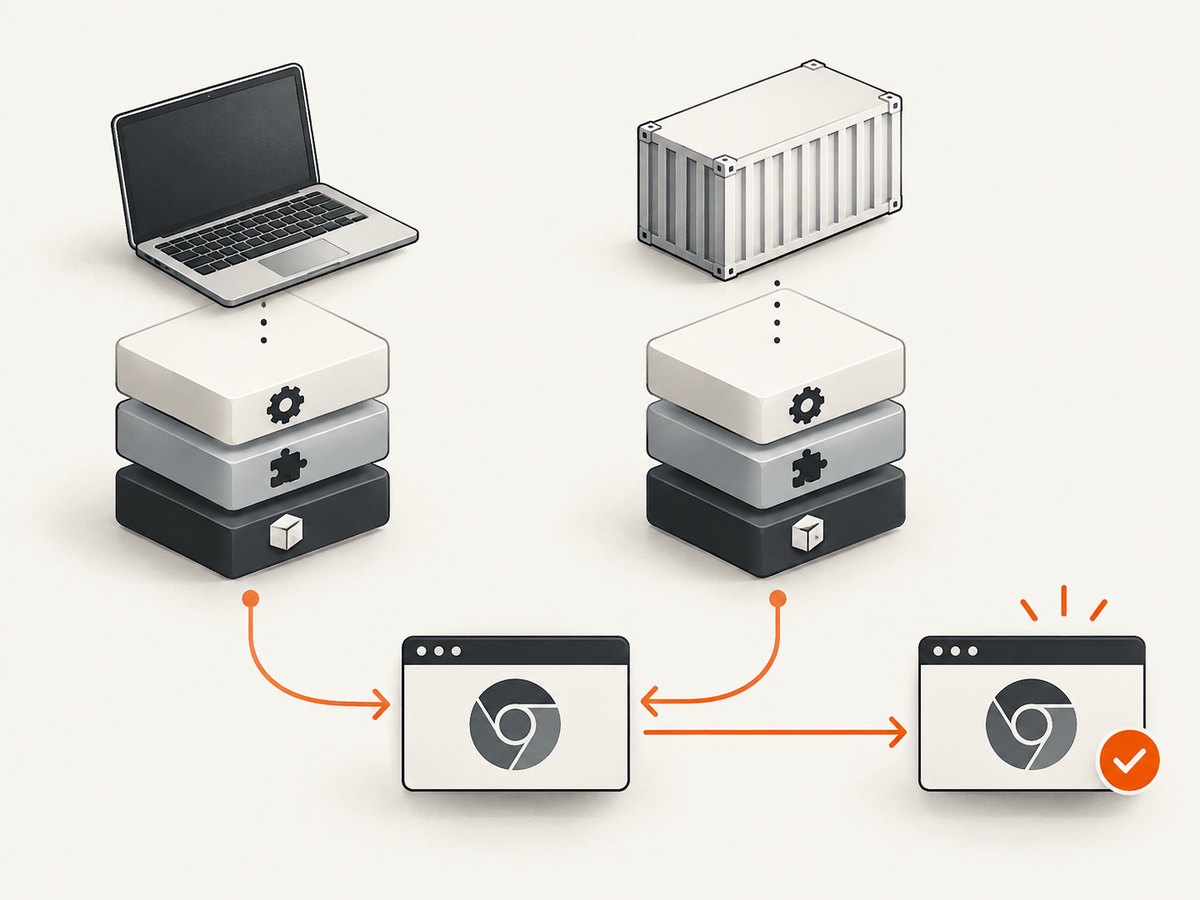
Keep the Playwright Docker image version aligned with the version of the Playwright package in the test project. A mismatch can leave the image with a different browser revision than the .NET client expects. Prefer a version-pinned image over a floating tag when reproducibility matters.
Avoid Alpine for Firefox or WebKit Playwright images: those browser builds require glibc. If you inherit a container image, verify its distribution, architecture, installed dependencies, and browser cache rather than assuming that package restore supplied everything.
6. Check downloads, proxies, and certificates
Playwright downloads browser binaries from Microsoft’s CDN by default. Corporate proxies, custom certificate authorities, outbound network restrictions, and slow links can interrupt installation. Configure the documented variables only when they match your environment:
HTTPS_PROXYfor an HTTPS proxy.PLAYWRIGHT_DOWNLOAD_HOSTwhen downloads need to use an approved alternate host.NODE_EXTRA_CA_CERTSwhen the download connection needs an additional trusted certificate authority.PLAYWRIGHT_DOWNLOAD_CONNECTION_TIMEOUTto change the download connection timeout for a slow network.
Set the relevant variable in the process that runs the install script. If the download succeeds in one job but not another, compare network policy, proxy values, certificate configuration, and timeout settings. Avoid treating a timeout increase as a fix for a blocked host or untrusted certificate.
7. Use bundled browsers by default
Playwright is designed to work with its bundled Chromium, Firefox, and WebKit. A branded Chrome or Edge installation can be selected through a browser channel in launch options, but enterprise policies may block automation and compatibility is not guaranteed for arbitrary browser versions. The BrowserType API explicitly cautions that using a non-bundled executable is at your own risk.
Use a system browser only when you have a concrete requirement, such as validating behavior in a managed browser channel. Prefer a channel option over hard-coding an executable path when that is sufficient:
using Microsoft.Playwright;

using var playwright = await Playwright.CreateAsync();
await using var browser = await playwright.Chromium.LaunchAsync(new BrowserTypeLaunchOptions
{
    Channel = "msedge",
    Headless = true
});
For the normal supported path, omit Channel and let Playwright select its bundled Chromium. A custom ExecutablePath is a last resort for compatibility work: it transfers browser-version and policy maintenance to your application environment.
8. Isolate an engine-specific problem
If only one browser engine fails, run a small test against that engine rather than changing the full test suite. Playwright supports Chromium, Firefox, and WebKit. A simple environment switch can help isolate the failing browser:
using Microsoft.Playwright;

var selected = Environment.GetEnvironmentVariable("BROWSER") ?? "chromium";
using var playwright = await Playwright.CreateAsync();

var browserType = selected.ToLowerInvariant() switch
{
    "chromium" => playwright.Chromium,
    "firefox" => playwright.Firefox,
    "webkit" => playwright.Webkit,
    _ => throw new ArgumentException($"Unknown browser: {selected}")
};

await using var browser = await browserType.LaunchAsync(new BrowserTypeLaunchOptions
{
    Headless = true
});
Console.WriteLine($"Launched {selected}");
Set BROWSER=firefox or BROWSER=webkit for the diagnostic run. A failure isolated to one engine points toward that engine’s binary, dependencies, or platform support. Install the engine explicitly with the same generated script when needed:
pwsh bin/Debug/netX/playwright.ps1 install chromium
pwsh bin/Debug/netX/playwright.ps1 install firefox
pwsh bin/Debug/netX/playwright.ps1 install webkit
9. CI and container checklist
- Run
dotnet buildbefore calling the generated Playwright install script. - Use the script under the output directory for the actual target framework and build configuration.
- On Linux, install dependencies with
--with-depsor prepare an image that already contains them. - Pin the container image and keep its Playwright version aligned with the project package.
- Make the install and test processes use the same
PLAYWRIGHT_BROWSERS_PATH. - Include the Playwright version in browser-cache keys; rerun install after package upgrades.
- Use Xvfb for headed browser execution on Linux agents without a display.
- Capture
DEBUG=pw:browserlogs and compare environment details when CI differs from local.
10. Troubleshooting: common causes and fixes
| Problem | Cause | Fix |
|---|---|---|
| Generated script path does not exist | Project was not built, or target framework/configuration path is wrong | Run dotnet build; use the matching bin/Debug/netX or release output directory |
| Browser executable is missing after installation | Install and test use different users, caches, versions, or containers | Set the same cache path, run the matching install script in the test environment, inspect with install --list |
| Missing dependencies on Linux | Browser binaries exist, but OS libraries do not | Run install --with-deps or build from an image with required dependencies |
| Headed browser fails in CI | No display server is available | Use headless mode or run the test under xvfb-run |
| Download fails with certificate or timeout | Proxy, CA trust, CDN access, or slow network issue | Set the applicable documented environment variable and verify outbound access |
| Firefox or WebKit fails only in Alpine | Those builds require glibc | Use a compatible supported Linux distribution or version-pinned Playwright image |
| Chrome/Edge launches fail while Chromium works | Branded browser policy or version incompatibility | Prefer bundled Chromium unless a branded channel is required; check managed policy |
| Failure started after package upgrade | Browser binaries were not updated with the Playwright package | Rebuild and rerun the generated install script |
11. Performance, reliability, and cost considerations
Browser downloads add time and network traffic to setup, so a controlled cache can reduce repeated downloads in CI. Cache browser binaries only with a key that includes the Playwright version and platform, and keep cache installation and test paths consistent. A cache hit saves installation work, but stale or cross-version cache contents can cause the very launch errors the cache was meant to avoid.
For reliability, prefer pinned tool and image versions, install browsers as an explicit setup step, and fail early if installation fails. Keep diagnostics available for the failing job. Avoid quietly switching to an arbitrary system browser: that can make a test pass on one machine while creating an unsupported version dependency elsewhere.
Browser automation also has an infrastructure cost: browser binaries occupy disk space, downloads consume network, and each launched browser consumes machine resources. Choose headless execution when a visible display is not needed, and avoid installing engines a job never uses. For a fixed engine matrix, install only the required browsers in each job.
12. Or skip the browser setup
If your goal is to capture a website rather than run browser automation, [ScreenshotNeo](https://screenshotneo.com) provides a screenshot API and MCP server. One GET request returns a PNG, JPEG, WebP, or PDF; see the [API documentation](https://screenshotneo.com/docs/) for request options.
curl -G "https://api.screenshotneo.com/v1/shot" -d access_key=YOUR_API_KEY --data-urlencode url=https://stripe.com -o shot.webpimport requests
r = requests.get(
"https://api.screenshotneo.com/v1/shot",
params={"access_key": "YOUR_API_KEY", "url": "https://stripe.com"},
timeout=90,
)
open("shot.webp", "wb").write(r.content)const q = new URLSearchParams({ access_key: 'YOUR_API_KEY', url: 'https://stripe.com' });
const res = await fetch(`https://api.screenshotneo.com/v1/shot?${q}`);
if (!res.ok) throw new Error(`Screenshot request failed: ${res.status}`);
await Bun.write('shot.webp', res);- Cookie and consent banners, newsletter popups, and chat widgets are removed before capture; each cleanup step can be turned off.
- Bot checks, blank pages, timeouts, failed loads, and cache hits cost nothing. Responses identify the page verdict and billing status in headers.
- An MCP server gives AI agents tools for screenshots, page information, and PDF capture.
- The free plan includes 1,000 screenshots a month with no card; paid plans start at $5 for 3,000. Every feature is available on every plan.
Start with 1,000 free screenshots a month, no card required.
13. Frequently asked questions
Does restoring the Microsoft.Playwright NuGet package install browsers?
No. Build the project and run its generated install script to download the browser binaries that match the package version.
Should I set ExecutablePath to my installed Chrome?
Usually not. Use Playwright’s bundled browser by default. A branded channel or custom executable can be useful for a specific compatibility requirement, but enterprise policy and browser-version differences can affect automation.
Why does the same project work locally but fail in GitHub Actions or Docker?
The environments may differ in browser binaries, cache path, Linux dependencies, display server, package version, network access, or architecture. Compare those values and the browser debug log.
Do I need to install all three browser engines?
No. Install only the engines your job uses, unless the test suite explicitly runs a cross-browser matrix.
Can I cache the Playwright browser directory?
Yes, but use a cache key that includes the Playwright version and platform, and ensure install and test use the same path. Rerun installation after upgrades.


