How to Fix Playwright Electron Apps Opening as Black Windows
A black Electron window is a symptom, not a diagnosis. Use Playwright and Electron logs, navigation checks, screenshots, and controlled graphics tests to find the cause.
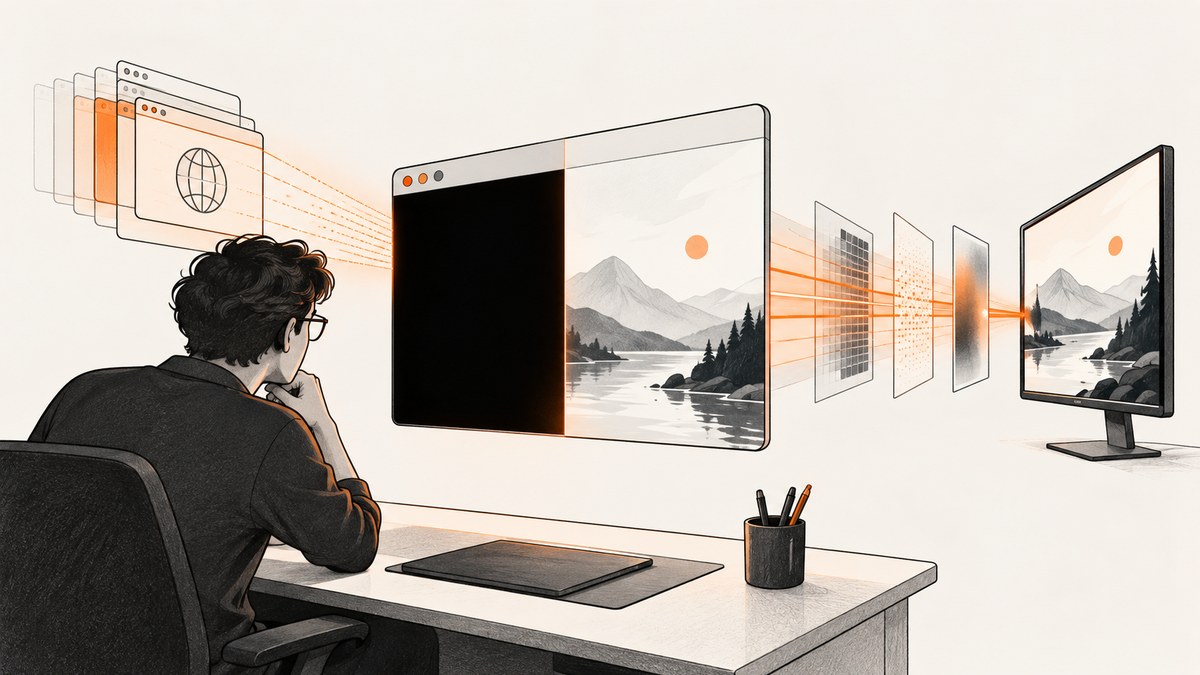
A black window when Playwright launches an Electron app is a symptom, not a diagnosis. Find out which layer failed: Electron may not have launched or created the expected window; the renderer may not have loaded the intended page; or the page may have loaded but failed to paint correctly.
Start by collecting a screenshot, the renderer URL and title, console messages, and load errors. Then compare the same app outside Playwright and, if the evidence points toward graphics, try disabling hardware acceleration as a controlled diagnostic experiment. There is no single documented fix that applies to every app, operating system, and runtime combination.
1. Confirm what Playwright launched
Playwright’s Electron support is experimental. Its Electron API launches an app with _electron.launch() and supports launch options such as args, executablePath, cwd, env, and a startup timeout. Check that your test targets the intended entry point and that any development server required by the renderer is already running. The [Playwright Electron API](https://playwright.dev/docs/api/class-electron) documents the current interface; verify it against your installed Playwright version.
A minimal CommonJS diagnostic script:
const { _electron: electron } = require('playwright');

(async () => {
  const app = await electron.launch({
    args: ['main.js'],
    timeout: 30_000,
  });

  try {
    const window = await app.firstWindow();
    window.on('console', message => {
      console.log('[renderer]', message.type(), message.text());
    });

    console.log('title:', await window.title());
    console.log('url:', window.url());
    await window.screenshot({ path: 'electron-window.png' });
  } finally {
    await app.close();
  }
})().catch(error => {
  console.error(error);
  process.exitCode = 1;
});
Run it from the directory and environment your app expects. If the app uses a development URL, confirm that server is available before launching. If the production app normally starts from a packaged executable, compare against that known-good launch path instead of assuming a development entry point is equivalent.
Useful launch options
| Option | When to use it | Diagnostic value |
|---|---|---|
args |
Pass the main-process entry point or app arguments. | Rules out launching the wrong app entry or omitting an argument the app requires. |
executablePath |
Point to a specific Electron executable. | Helps compare a project binary with another installed runtime. |
cwd |
Set the app’s working directory. | Can expose relative file paths or asset loading that depends on the current directory. |
env |
Provide the environment variables the app expects. | Useful when the renderer URL, API endpoint, or development mode is environment controlled. |
timeout |
Set the maximum startup wait. | A startup timeout is a launch/wait problem; it is different from a successfully created black renderer window. |
Do not change several options at once. Record the exact command, working directory, environment, Electron version, and Playwright version so a second run can be compared meaningfully.
2. Wait for a window and capture evidence
firstWindow() waits for the first application window. Once it exists, inspect the page title and URL, attach a console listener, and save a screenshot. These observations separate “no window was created” from “a window exists but its renderer appears black.” They do not, by themselves, explain why it is black.
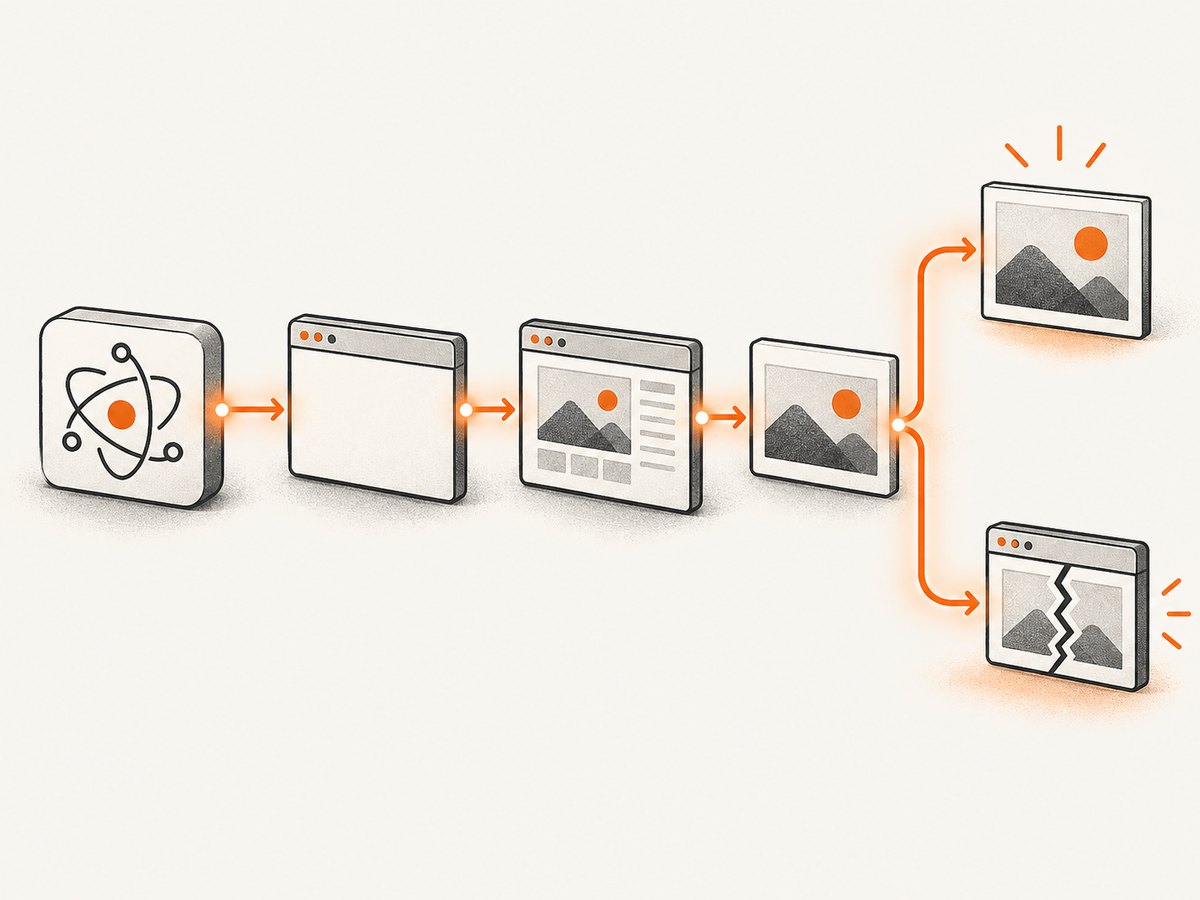
If firstWindow() never resolves, investigate launch, app readiness, and window creation before debugging page painting. If it resolves but the URL is unexpected, investigate navigation and app configuration. If the expected URL appears and the image is black, continue with renderer and graphics evidence.
Keep the screenshot together with the logs from the same run. A useful diagnostic bundle includes the launch options, title, URL, timestamp, operating system, runtime versions, console output, and any load-failure details. Avoid putting credentials or private page contents in logs or bug reports.
3. Check whether the renderer loaded the intended page
Electron’s BrowserWindow.loadURL() and loadFile() return promises. They resolve after the page finishes loading and reject if loading fails. Check the promise where the main process creates the window, and listen for did-fail-load while diagnosing. See Electron’s primary references for [BrowserWindow loading](https://www.electronjs.org/docs/latest/api/browser-window) and [webContents events](https://www.electronjs.org/docs/latest/api/web-contents).
const { app, BrowserWindow } = require('electron');

async function createWindow() {
  const win = new BrowserWindow({ width: 1200, height: 800 });

  win.webContents.on('did-fail-load', (_event, code, description, url) => {
    console.error('Renderer load failed:', { code, description, url });
  });

  try {
    await win.loadURL(process.env.RENDERER_URL || 'http://localhost:3000');
    console.log('Renderer navigation completed:', win.webContents.getURL());
  } catch (error) {
    console.error('Renderer navigation rejected:', error);
  }
}

app.whenReady().then(createWindow);
For a local page, use loadFile() and confirm the path exists relative to the app’s actual packaged or development layout. For a development page, open the configured URL independently and verify that it serves the expected application rather than a server error, blank fallback, or stale build.
A completed navigation is not proof that your application rendered successfully. Look for renderer JavaScript exceptions, missing scripts or stylesheets, failed asset requests, and application startup errors. The URL may be right while the app shell fails during initialization. Pair navigation evidence with console output and the screenshot.
4. Check Electron’s initialization order
Electron emits ready after initialization; app.whenReady() resolves when Electron is initialized. Create windows after readiness when their setup depends on initialized Electron APIs. Conversely, an API that Electron requires before readiness must be called synchronously at the main process’s top level. Consult the [Electron app lifecycle documentation](https://www.electronjs.org/docs/latest/api/app) for the lifecycle rules.
const { app, BrowserWindow } = require('electron');

app.whenReady().then(() => {
  const win = new BrowserWindow({ width: 1200, height: 800 });
  return win.loadFile('index.html');
});
If startup code runs in a different order under automation, compare the app’s normal launch with the Playwright launch. Log when readiness occurs, when the window is created, and when the load promise settles. Do not treat a black screenshot as evidence of a readiness bug until those events support that theory.
5. Test hardware acceleration as a hypothesis
A graphics-path issue is one possible explanation for a page that loads but paints black. Electron exposes app.disableHardwareAcceleration(); it must be called before the app is ready. Use it as a temporary comparison, changing no other variable in that run. Electron documents this API in its [app reference](https://www.electronjs.org/docs/latest/api/app#appdisablehardwareacceleration).
const { app } = require('electron');

// Diagnostic experiment: must run before app readiness.
app.disableHardwareAcceleration();

const { BrowserWindow } = require('electron');
app.whenReady().then(() => {
  const win = new BrowserWindow({ width: 1200, height: 800 });
  return win.loadFile('index.html');
});
Run the same app, test, and environment with acceleration enabled and disabled. If the screenshot changes, that is evidence to investigate the graphics path on the affected machine and runtime. It does not prove that Playwright is generally at fault or that disabling acceleration is the right permanent setting. Keep the setting only if it is an intentional application choice that has been verified for the environments you support.
6. Compare the conditions that differ
When the app works outside Playwright, list the run conditions side by side. Change one factor per comparison so you can tell which change corresponds to a different result.

| What to compare | Record | What a difference may reveal |
|---|---|---|
| Versions | Operating system, Electron, Playwright, and app build. | A runtime-specific behavior or a difference between installed versions. |
| Display environment | Headed versus display-less run and how the display is provided. | A dependency on the graphics or display environment. |
| Launch context | Entry point, arguments, cwd, environment variables, executable path. |
A different app mode, missing configuration, or wrong entry point. |
| Renderer | Target URL or file, navigation outcome, title, load failures. | A renderer that never reached the intended page or failed while loading it. |
| Output | Console messages and screenshot from each run. | Whether the page is blank, partially rendered, or reporting an application error. |
| Graphics experiment | Acceleration on and off, with other inputs held steady. | Whether changing the graphics setting changes the visible result. |
Playwright’s Electron API documentation lists its supported Electron versions and describes the integration as experimental. Match your findings to the versions actually installed. Electron’s testing guide includes a Playwright example annotated with @playwright/test@1.52.0; that annotation is an example version, not a recommendation to downgrade or upgrade every project to it.
Or skip the browser setup
If your goal is to capture a website for a test artifact or report, [ScreenshotNeo](https://screenshotneo.com) can return a screenshot from one GET request. It captures websites; it does not launch or diagnose your local Electron application. Use it for a reachable web page, such as the renderer’s hosted URL, when you need a screenshot without configuring a browser capture flow. See the [ScreenshotNeo API documentation](https://screenshotneo.com/docs/) for request options.
curl -G "https://api.screenshotneo.com/v1/shot" -d access_key=YOUR_API_KEY --data-urlencode url=https://stripe.com -o shot.webpimport requests
r = requests.get(
"https://api.screenshotneo.com/v1/shot",
params={"access_key": "YOUR_API_KEY", "url": "https://stripe.com"},
timeout=90,
)
open("shot.webp", "wb").write(r.content)const q = new URLSearchParams({
access_key: 'YOUR_API_KEY',
url: 'https://stripe.com',
});
const res = await fetch(`https://api.screenshotneo.com/v1/shot?${q}`);
if (!res.ok) throw new Error(`Screenshot request failed: ${res.status}`);
await require('node:fs/promises').writeFile('shot.webp', Buffer.from(await res.arrayBuffer()));ScreenshotNeo removes cookie banners, newsletter popups, and chat widgets before the shot; each cleanup step can be turned off. Bot checks, blank pages, timeouts, failed loads, and cache hits cost nothing, and response headers report the page verdict and billing status. Its MCP server lets Claude, Cursor, and other MCP clients call screenshot, page-info, and PDF tools. The free plan includes 1,000 screenshots a month with no card; paid plans start at $5 for 3,000 shots. [Create a free account](https://screenshotneo.com/account/sign-up/) to get started.
Troubleshooting common outcomes
| Symptom | Likely area to inspect | Next step |
|---|---|---|
firstWindow() waits until timeout |
Launch or window creation. | Verify the entry point, executable, working directory, environment, startup logs, and app readiness. Confirm the app creates a window in a normal launch. |
| Window appears, but URL is unexpected | Renderer navigation or configuration. | Check the configured development URL, arguments, environment variables, and whether the expected server is running. |
| Navigation promise rejects | URL, file path, or failed page load. | Log the rejection and did-fail-load details; correct the URL or local path and fix the server or file error. |
| Expected URL, black screenshot, console errors | Renderer startup or asset loading. | Resolve JavaScript exceptions and missing asset requests; inspect the page outside automation using the same URL. |
| Expected URL, black screenshot, no obvious console error | Painting, display, or graphics path remains possible. | Compare headed and display-less conditions, preserve the screenshot and versions, then try acceleration disabled as a single-variable experiment. |
| Disabling acceleration changes the screenshot | Graphics path is implicated as a hypothesis. | Repeat under the affected runtime and machine. Do not generalize the result; verify before retaining the setting. |
| App works outside Playwright only | Run conditions differ. | Compare versions, display, launch context, renderer target, and environment. Reproduce with one controlled change at a time. |
For every case, preserve the exact versions and a minimal reproduction. A useful report says whether a window was created, what URL it reached, whether the load promise resolved, which console or load errors appeared, and whether acceleration changed the screenshot. The official guidance provides diagnostic APIs, not a universal black-window cause.
Performance, reliability, and cost considerations
Diagnostics add work to a test run: waiting for the first window, collecting logs, and writing a screenshot all consume time or disk space. Capture artifacts when a failure occurs if your test infrastructure supports that pattern, and use bounded startup waits so a launch issue does not stall an entire job indefinitely. Keep diagnostic files scoped to the run and avoid retaining sensitive rendered content longer than necessary.
For reliability, make the renderer target explicit, start required services before Electron, and record runtime versions with artifacts. A screenshot is a visual observation at one moment; console output, URL, title, and navigation outcome provide context. Repeated runs under controlled conditions help distinguish intermittent startup timing from a stable renderer or graphics failure.
For cost, Playwright and Electron are the local automation components in this diagnostic approach; the relevant resources are your machine or CI time and artifact storage. If you choose ScreenshotNeo for a public website capture, its published plans are Free: 1,000 per month; Starter: $5 for 3,000; Growth: $15 for 15,000; Pro: $39 for 60,000; Scale: $99 for 250,000; Business: $249 for 1,000,000. Yearly billing gives two months free, and every feature is on every plan. Those website-capture plans do not diagnose a local Electron window.
Frequently asked questions
Does a black screenshot mean Electron failed to launch?
No. If firstWindow() resolves, Playwright observed a window. Use its URL, title, navigation results, console output, and screenshot to narrow the issue to renderer loading or painting.
Should I always disable hardware acceleration in tests?
No. Treat it as a diagnostic variable. Electron requires the call before readiness, and a changed image points to an area for further investigation rather than proving a general fix.
Is Playwright Electron support stable?
The Playwright documentation describes Electron automation support as experimental. Check the documented support and API behavior against the versions in your project.
Can ScreenshotNeo capture my local Electron window?
No. ScreenshotNeo is a website screenshot API. It can capture a reachable website URL, but it does not launch Electron or inspect a local desktop window.
Diagnostic checklist
- Confirm Playwright launched the intended app entry point with the expected arguments, working directory, and environment.
- Wait for the first window and save its screenshot, title, URL, and renderer console messages.
- Check the
loadURL()orloadFile()promise and listen for load failures. - Verify Electron readiness and the renderer’s expected URL or local file.
- Compare the same app outside Playwright and record OS and package versions.
- Try disabling hardware acceleration before readiness as one controlled experiment, then verify what the result means for your app.
Follow the evidence through launch, navigation, and painting. That sequence turns “black window” into a narrower report another developer can investigate and reproduce.


