How to Fix Playwright Fill Not Working
Fix Playwright fill failures by checking the locator, element state, timing, and event handling with runnable examples and a practical troubleshooting flow.

locator.fill() usually fails for one of four reasons: the locator does not identify the real field, the target is not an editable control, Playwright is still waiting for actionability, or the application needs keyboard events beyond the input event that fill() emits. Start by reading the exact error and call log, then verify the target with an accessible locator and assert the value.
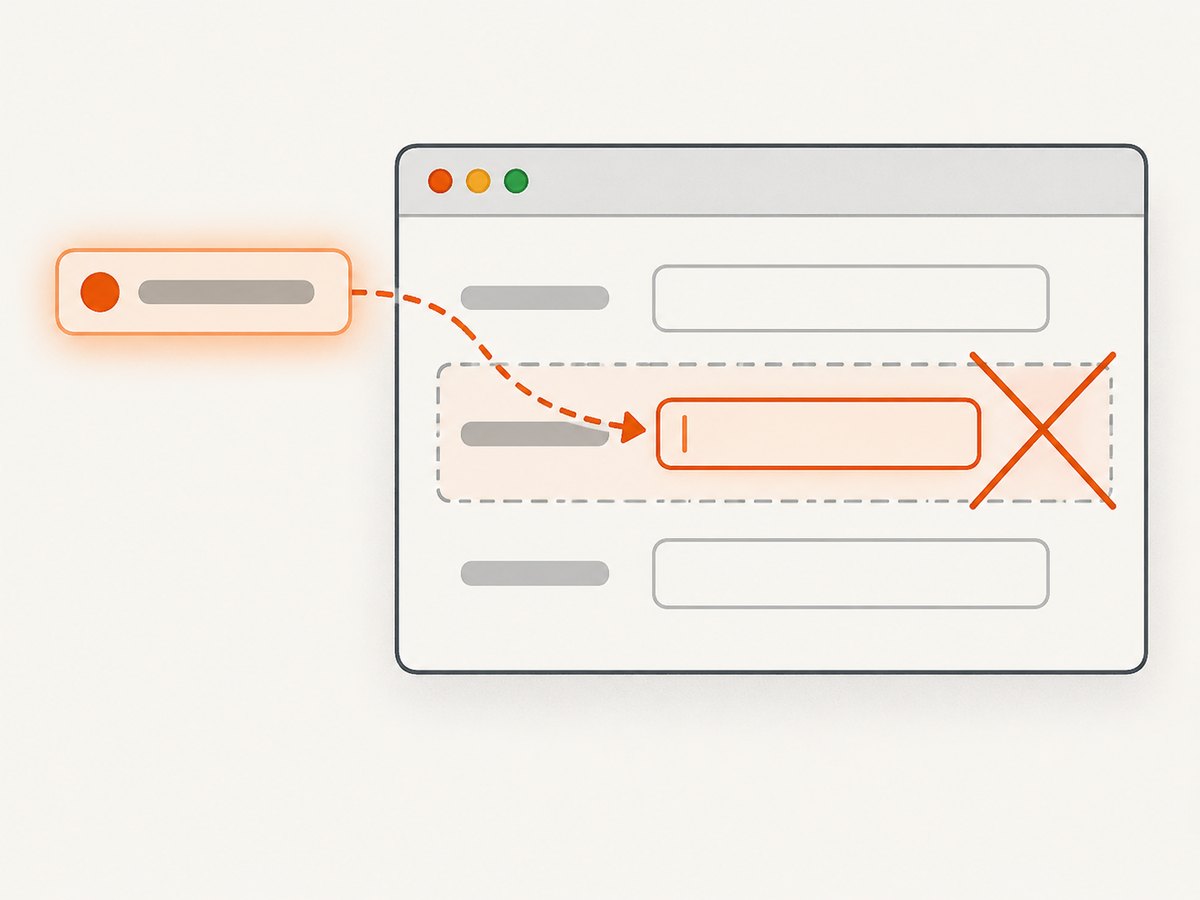
Playwright’s fill() supports <input>, <textarea>, and [contenteditable]. It focuses the element, sets the value, and dispatches an input event. A disabled or readonly control is not editable, and waiting longer will not change that. The examples below use Playwright Test with TypeScript, followed by equivalent patterns for special cases.
1. Read the failure before changing the code
Do not treat every failure as “fill is broken.” The message normally tells you which class of problem you have:
| Failure shape | Likely cause | First check |
|---|---|---|
| Locator resolves to no elements | Wrong selector, wrong page, or field not rendered | Inspect the locator in trace or call log |
| Strict mode violation | More than one element matches | Use a name, label, or a deliberately scoped locator |
| Timeout while waiting | Element is hidden, covered, disabled, readonly, unstable, or not yet attached | Check actionability and page state |
| Unsupported target error | Locator points to a wrapper, select, button, or ordinary div | Inspect the actual editable element |
| Action completes but UI does not react | Application expects keyboard events or another state update | Assert the value, then inspect event handling |
Run the test with a trace when possible. The call log shows which locator Playwright resolved and which actionability check was pending. That evidence is more useful than adding a random delay.
2. Use a locator that describes the field
Prefer a user-facing role and accessible name, or an associated label. These locators survive many layout and class-name changes and make it clear which control the test intends to use.
import { test, expect } from '@playwright/test';

test('fills the email field', async ({ page }) => {
  await page.goto('https://example.com/signup');

  const email = page.getByRole('textbox', { name: 'Email' });
  await email.fill('person@example.com');
  await expect(email).toHaveValue('person@example.com');
});
If the page has a correctly associated <label>, use:
await page.getByLabel('Email').fill('person@example.com');A placeholder can be useful when there is no accessible name, and a configured test ID is appropriate for a complex application:
await page.getByPlaceholder('you@example.com').fill('person@example.com');
await page.getByTestId('email-input').fill('person@example.com');
Avoid selecting a broad class such as .input when several fields match. If you must scope a locator, scope it to the form or dialog that owns the field:
const dialog = page.getByRole('dialog', { name: 'Create account' });
const password = dialog.getByLabel('Password');
await password.fill('correct-horse-battery-staple');
3. Confirm the target is actually editable
fill() is not generic text injection. The target must be an enabled, non-readonly input, textarea, or contenteditable element. A visible field may only be a wrapper around a hidden native input, or a custom widget whose editable surface appears after activation.
const field = page.getByRole('textbox', { name: 'Email' });
await expect(field).toBeVisible();
await expect(field).toBeEnabled();
await expect(field).toBeEditable();
await field.fill('person@example.com');
The documented definition is simple: an element is editable when it is enabled and not readonly. These examples cannot be filled:
<input name="email" readonly value="locked@example.com">
<input name="email" disabled>
<select name="country">...</select>
<div class="fake-input">Email</div>
For a readonly field, fix the page state or test the intended read-only behavior. Do not use force to write into a control the user cannot edit.
4. Make sure the page has reached the right state
Playwright actions auto-wait for actionability. Before filling, the element must resolve and become visible, stable, enabled, and editable. A timeout means one of those conditions did not become true within the action timeout.
await page.goto('https://example.com/signup');
const email = page.getByLabel('Email');
await expect(email).toBeVisible();
await expect(email).toBeEditable();
await email.fill('person@example.com');
When a field appears after navigation or a user action, wait for that meaningful state rather than sleeping:
await page.getByRole('button', { name: 'Continue' }).click();
const address = page.getByLabel('Street address');
await expect(address).toBeVisible();
await address.fill('10 Main Street');
Increase an action timeout only when the application legitimately needs more time:
await email.fill('person@example.com', { timeout: 15000 });Keep the timeout distinction clear: an action timeout controls operations such as fill(), an assertion timeout controls retrying expectations, and the test timeout limits the whole test. A larger timeout cannot repair a wrong selector, a permanently disabled control, or an unsupported target.
5. Check overlays, frames, and changing DOM nodes
An element can be present but covered by a consent dialog, loading mask, or modal. Close the overlay through the same user-visible control a person would use, then fill the field.
const consent = page.getByRole('button', { name: 'Accept all' });
if (await consent.isVisible().catch(() => false)) {
  await consent.click();
}
await page.getByLabel('Email').fill('person@example.com');
If the input is inside an iframe, create a frame locator. A page locator cannot reach into a frame document.
const paymentFrame = page.frameLocator('iframe[title="Payment form"]');
await paymentFrame.getByLabel('Card number').fill('4242424242424242');
Modern front ends often replace an input after validation or route changes. Locators are resolved at action time, so prefer a locator over storing an ElementHandle. Re-query through the locator after the state-changing action.
6. Distinguish a correct value from a correct application state
After fill(), assert the value with toHaveValue(). Then assert the dependent behavior separately, such as an enabled submit button or a validation message.
const email = page.getByLabel('Email');
await email.fill('person@example.com');
await expect(email).toHaveValue('person@example.com');
await expect(page.getByRole('button', { name: 'Create account' })).toBeEnabled();
If the value assertion passes but the application does not update, inspect how the component listens for changes. fill() dispatches an input event. An application that only reacts to individual keydown, keypress, or keyup events may require sequential typing.
7. Use pressSequentially() only for per-key behavior
fill() is the normal, fast way to populate a field. Use pressSequentially() when the component intentionally processes each character, such as a masked input, autocomplete that queries on every key, or a widget with custom keyboard handling.
const search = page.getByRole('textbox', { name: 'Search' });
await search.click();
await search.pressSequentially('playwright', { delay: 40 });
await expect(search).toHaveValue('playwright');
Sequential entry is slower and can expose debouncing, validation, or keyboard shortcuts. It is not a general fix for a bad locator or a readonly field.
8. Inspect custom editors and contenteditable elements
For a contenteditable editor, target the editable node rather than its toolbar or container.
const editor = page.locator('[contenteditable="true"]');
await expect(editor).toBeEditable();
await editor.fill('Release notes');
Some editors render a hidden textarea and a visible canvas or div. Find the node that owns the value and keyboard focus. If the editor exposes a textbox role, use it:
await page.getByRole('textbox', { name: 'Description' }).fill('A detailed description');9. Common errors and fixes
“locator.fill: Timeout exceeded”
Cause: the locator did not resolve, or actionability never passed. Fix: inspect the call log, assert visibility and editability, check for an overlay, and verify that you are on the expected route. Only then consider a longer action timeout.
“strict mode violation”
Cause: two or more elements match. Fix: add the accessible name, scope to a dialog or form, or add a stable test ID. Avoid blindly using first(); it can make the test pass against the wrong field.
“Element is not an <input>, <textarea> or [contenteditable]”
Cause: the locator points at a wrapper, button, select, or ordinary div. Fix: inspect the DOM and target the actual editable control. For a select, use selectOption(); for a checkbox, use check().
“Element is not editable”
Cause: the control is disabled or readonly, or an ARIA widget reports readonly. Fix: perform the prerequisite action that enables it, or change the test to verify its read-only behavior.
The value changes, but validation does not run
Cause: the component depends on individual keyboard events or a blur event. Fix: use pressSequentially() when per-key events are required, then blur deliberately with press('Tab') or a click on the next control. Keep a separate assertion for the resulting validation state.
“Cannot read properties of undefined” after a fill
Cause: test code is reading application state before the UI update completes, or a callback assumes a different event payload. Fix: assert the visible result with a locator and inspect the component’s event handler. Avoid coupling the test to private framework internals.
The test passes locally and fails in CI
Cause: slower loading, a different viewport, a missing environment flag, or an overlay that appears only in CI. Fix: capture a trace, use web-first assertions, make test data deterministic, and remove fixed sleeps. Confirm the same browser and Playwright version are installed in both environments.
10. A complete diagnostic example
import { test, expect } from '@playwright/test';

test('submits a profile form', async ({ page }) => {
  await page.goto('https://example.com/profile');

  const form = page.getByRole('form', { name: 'Profile' });
  const name = form.getByRole('textbox', { name: 'Full name' });

  await expect(name).toBeVisible();
  await expect(name).toBeEnabled();
  await expect(name).toBeEditable();

  await name.fill('Ada Lovelace');
  await expect(name).toHaveValue('Ada Lovelace');

  await form.getByRole('button', { name: 'Save' }).click();
  await expect(page.getByRole('status')).toContainText('Saved');
});
This structure makes each failure local: navigation, locator resolution, editability, value assignment, and application outcome are checked separately.
11. Performance, reliability, and maintainability
- Use locators, not handles: locators re-resolve the current DOM and include auto-waiting and retry behavior.
- Prefer one fill over simulated typing: it is faster and less sensitive to keyboard timing. Reserve sequential entry for components that need it.
- Keep assertions close to actions: a value assertion catches a wrong target immediately.
- Make state explicit: enable fields through documented UI actions and avoid JavaScript assignment that bypasses user behavior.
- Control test data: stable routes, seeded accounts, and predictable feature flags reduce timing failures.
- Use traces for intermittent failures: they show DOM snapshots, screenshots, network activity, and the action call log without adding sleeps to every test.
12. Or skip the browser setup
If your goal is a clean visual capture of a page rather than an interaction test, ScreenshotNeo provides a single screenshot API request. It accepts the consent banner like a visitor, removes more than 60 known consent platforms plus newsletter popups and chat widgets, and lets you turn each cleanup step off. Bot checks, blank pages, timeouts, failed loads, and cache hits are not billed; the response identifies the result with X-Page-Verdict and X-Billed headers.

See the ScreenshotNeo API docs for all options.
curl -G "https://api.screenshotneo.com/v1/shot" -d access_key=YOUR_API_KEY --data-urlencode url=https://stripe.com -o shot.webpimport requests
r = requests.get("https://api.screenshotneo.com/v1/shot", params={"access_key": "YOUR_API_KEY", "url": "https://stripe.com"}, timeout=90)
open("shot.webp", "wb").write(r.content)const q = new URLSearchParams({ access_key: 'YOUR_API_KEY', url: 'https://stripe.com' });
const res = await fetch(`https://api.screenshotneo.com/v1/shot?${q}`);Use it when you need cookie banners, popups, and chat widgets removed before the shot; when failed loads and bot checks should cost nothing; or when an MCP server should let Claude, Cursor, or another MCP client call take_screenshot, get_page_info, and capture_pdf. The Free plan includes 1,000 screenshots each month with no card, and paid plans start at $5 for 3,000 shots. Create a free ScreenshotNeo account.
FAQ
Can I fill a select with fill()?
No. Use selectOption() for a native select or the widget’s documented textbox/control for a custom combobox.
Should I use force: true?
Only for a deliberate, understood case. It bypasses actionability checks and can hide an overlay, wrong target, or unstable page.
Why does page.fill() behave differently?
The Page API form is discouraged in favor of locator-based actions. Use page.getByLabel(...).fill() or another locator so the target and waiting behavior are explicit.
How do I know whether the field is readonly?
Assert toBeEditable() and inspect the DOM for readonly, disabled, or an appropriate readonly ARIA state.
Which timeout should I change?
Change the action timeout for a slow fill, the assertion timeout for a slow expectation, and the test timeout for an unusually long complete test. Fix the locator or state before increasing any timeout.


