How to Fix Playwright Headless Mode Not Working
Playwright headless failures usually trace to missing browser files, Linux libraries, launch settings, or CI differences. Diagnose them in order and apply the fix that matches your runtime.
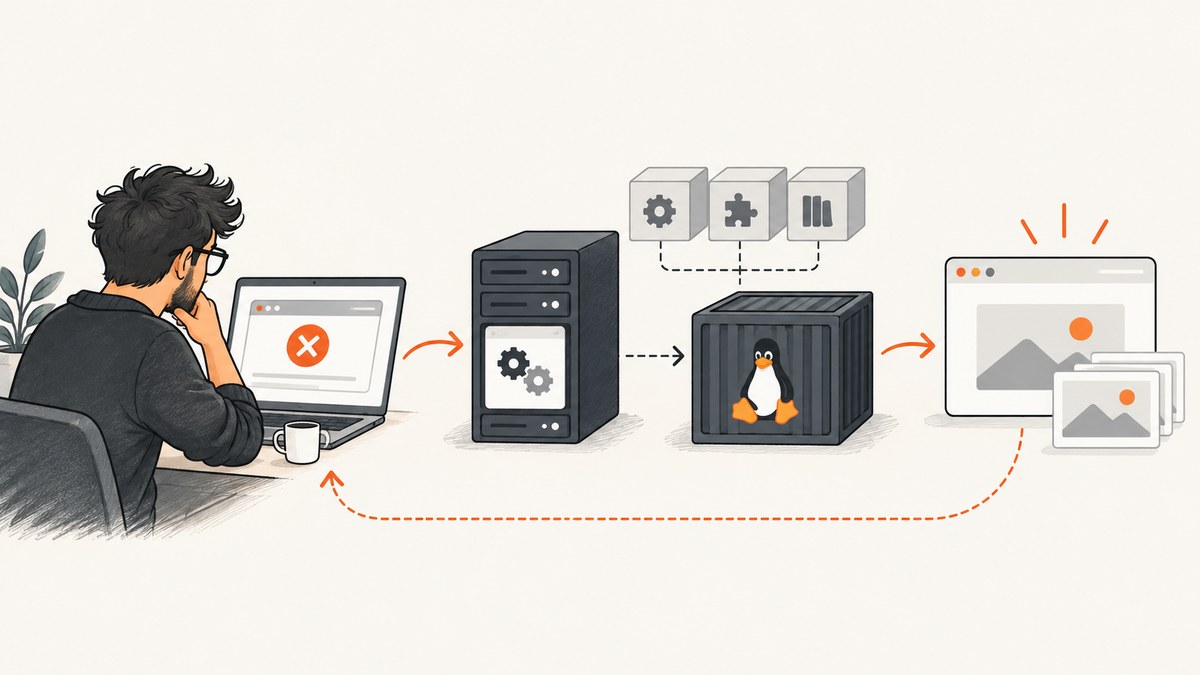
Playwright runs browsers in headless mode by default. When launch fails, check four things in order: whether the matching browser build is installed, whether the runtime has its required system libraries, whether the launch configuration selects a compatible executable and mode, and whether CI or Docker differs from your local machine. For Linux CI, install browsers and dependencies with npx playwright install --with-deps or use the official Playwright Docker image. If you deliberately run headed on Linux, provide Xvfb. Start with launch logs before changing unrelated code.
1. Confirm the mode and capture the first error
A display is not needed for a normal headless run. Check your test configuration and launch options for headless: false, a wrapper that changes the mode, or a project setting that overrides your expectation. Headed mode is useful when you need to watch a browser; Playwright’s debugging guidance also shows slowMo to slow actions down.
Enable browser and API diagnostics in the same shell that starts Playwright:
DEBUG=pw:browser,pw:api npx playwright testOn Windows PowerShell, set the variables first:
$env:DEBUG="pw:browser,pw:api"
npx playwright test
Read the earliest launch failure. It can distinguish a missing executable, unavailable shared library, missing display, or a browser process that exits immediately. Preserve the full error and the runtime details while troubleshooting: Playwright version, OS or container image, browser project/channel, and whether the run is headed.
2. Install the browser build in the runtime that runs the test
Installing the npm package does not guarantee that its browser binaries are present in the environment executing the test. After adding or upgrading Playwright, install its browsers:

npx playwright installFor a Linux CI runner where system libraries may also be absent, install both browsers and OS dependencies:
npx playwright install --with-depsRun the command in the same job, container, user context, and filesystem environment as the tests. A browser installed on a developer laptop or a separate CI setup step that runs in a different container will not fix the test runtime.
Minimal Node.js launch check
This small script checks whether Chromium can launch and produce a page in headless mode. Save as check-browser.cjs in a project with Playwright installed:
const { chromium } = require('playwright');

(async () => {
  const browser = await chromium.launch({ headless: true });
  try {
    const page = await browser.newPage();
    await page.goto('https://example.com', { waitUntil: 'domcontentloaded' });
    console.log(await page.title());
  } finally {
    await browser.close();
  }
})().catch((error) => {
  console.error(error);
  process.exitCode = 1;
});
Use require('playwright') as shown for CommonJS. In an ES module project, use import { chromium } from 'playwright'; and run the same launch, page, navigation, and close steps.
3. Match Chromium’s headless artifact to your configuration
Playwright provides a regular Chromium build for headed operation and a separate Chromium headless shell used by default headless launches. If you intentionally need only the headless shell in a Linux environment, install it with:
npx playwright install --with-deps --only-shellSetting channel: 'chromium' opts into the newer headless mode backed by the full Chromium browser. That configuration needs the corresponding full Chromium artifact installed; a shell-only installation is not a match.
const { chromium } = require('playwright');

(async () => {
  const browser = await chromium.launch({
    headless: true,
    channel: 'chromium'
  });
  await browser.close();
})();
For diagnosis, remove an unnecessary channel override and first verify the bundled default. Then install and select the desired channel deliberately.
4. Check executable paths and launch options
Playwright works best with its bundled Chromium. A custom executablePath can point to an absent or incompatible system Chrome, a path that resolves differently from the test working directory, or a binary whose dependencies are missing. Remove the override to establish whether the bundled browser works.
// Prefer the browser bundled for the installed Playwright version.
const browser = await chromium.launch({ headless: true });
If a custom path is required, verify that it exists inside the test runtime, is executable by the current user, and matches the expected platform and browser. Treat it as a deliberate compatibility choice rather than a default fix.
Other launch settings can change what is being tested. Keep headless explicit during diagnosis. Do not add arbitrary Chromium flags to compensate for a missing browser or library; first resolve the launch error indicated by the logs.
5. Separate headed display failures from headless failures
Linux headed execution needs a display server. On Linux agents, install and run Xvfb when headed execution is intentional:
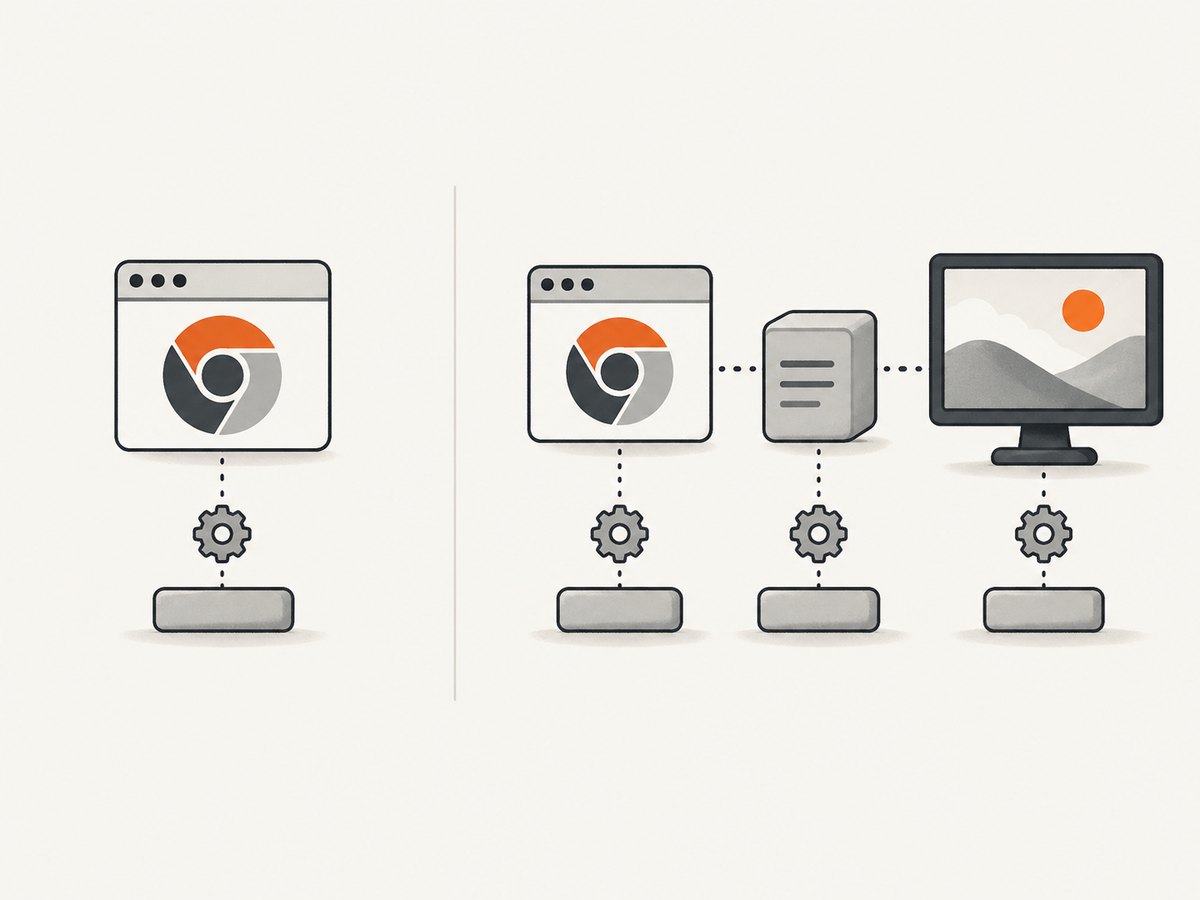
xvfb-run npx playwright testA display-related error in a job expected to be headless suggests that configuration, a helper, or a wrapper may be forcing headed mode. Check the effective Playwright configuration and launch call before adding Xvfb. Headless mode does not need a graphical display.
6. Fix CI and Docker environment mismatches
Use one of these dependency strategies:
| Runtime situation | Remedy |
|---|---|
| Linux CI runner with a suitable base image | Run npx playwright install --with-deps in the job. |
| Container where you want a prebuilt browser environment | Use the official Playwright Docker image and follow its documented version and usage guidance. |
| Only default Chromium headless shell is needed | Use npx playwright install --with-deps --only-shell, and do not configure channel: 'chromium'. |
| Intentionally headed Linux tests | Provide Xvfb and run the test under it. |
Ensure the Playwright package and installed browsers correspond. When you upgrade Playwright, rerun browser installation in the actual runtime. A cache of old browser files can otherwise leave the package and executable out of sync.
7. Troubleshooting by error message
| Symptom | Likely cause | Fix |
|---|---|---|
browserType.launch: Executable doesn't exist |
The matching browser binary was not installed in this runtime, or the configured channel/path does not match the installed artifact. | Run npx playwright install (or npx playwright install --with-deps on Linux CI). Remove custom paths and channel overrides while checking the bundled default. |
| Browser reports missing shared libraries or cannot load a library | Linux OS dependencies are absent from the runner or container. | Run npx playwright install --with-deps in that environment, or use the official Playwright Docker image. |
Missing X server, display connection error, or headed browser exits |
The run is headed on Linux without a display server. | If headed is intentional, run under Xvfb, for example xvfb-run npx playwright test. Otherwise, remove the setting or wrapper that disables headless mode. |
Default headless works but channel: 'chromium' fails |
The full Chromium build selected by that channel is not installed; a shell-only installation may have been used. | Install the full required browser build with npx playwright install and verify the channel choice. |
| Works locally, fails in CI or Docker | Browser files, system dependencies, user permissions, or configuration differ in the runtime. | Install browser and dependencies within the CI/container job. Compare package version, channel, launch options, and working directory. Consider the official Playwright Docker image. |
| Browser starts and then exits immediately | The launch log may reveal an unavailable dependency, incompatible executable, or environment-specific failure. | Use DEBUG=pw:browser,pw:api, preserve the first process error, remove custom paths and flags, then address the specific missing or incompatible component. |
8. Performance, reliability, and cost considerations
Headless mode removes the need for a visible browser window, but it does not remove the work of launching a browser, loading a page, or waiting for application state. For stable runs, install the browser once in the job image or setup phase rather than trying to download it during every test invocation. Keep the installed browser aligned with the Playwright package, and use logs to diagnose startup failures before retrying them.
Container images trade image size and setup work against having browser files and system dependencies ready at runtime. A full browser installation provides flexibility for headed work and channel selection; a headless-shell-only installation is narrower and must match default headless Chromium usage. Custom executables add maintenance and compatibility risk.
Playwright’s browser software is open source, but CI execution, storage, and container usage may have costs from the infrastructure provider. The research documentation provides no universal performance benchmark or CI cost figure, so estimate using your own job duration, image storage, and runner pricing.
Or skip the browser setup
If your goal is to get a page screenshot rather than debug a Playwright test, ScreenshotNeo provides a screenshot API and MCP server. Its capture pipeline accepts cookie and consent banners and removes more than 60 known consent platforms, newsletter popups, and chat widgets before capture. Bot checks, blank pages, timeouts, failed loads, and cache hits are not billed; responses identify the page verdict and billing status in headers. AI agents can use its MCP tools, including take_screenshot, get_page_info, and capture_pdf. The Free plan includes 1,000 shots a month without a card; paid plans start at $5 for 3,000 shots.
curl -G "https://api.screenshotneo.com/v1/shot" -d access_key=YOUR_API_KEY --data-urlencode url=https://stripe.com -o shot.webpPython:
import requests

r = requests.get(
    "https://api.screenshotneo.com/v1/shot",
    params={"access_key": "YOUR_API_KEY", "url": "https://stripe.com"},
    timeout=90,
)
r.raise_for_status()
open("shot.webp", "wb").write(r.content)
Node.js:
const q = new URLSearchParams({ access_key: 'YOUR_API_KEY', url: 'https://stripe.com' });
const res = await fetch(`https://api.screenshotneo.com/v1/shot?${q}`);
if (!res.ok) throw new Error(`Screenshot request failed: ${res.status}`);
await import('node:fs/promises').then(({ writeFile }) => writeFile('shot.webp', Buffer.from(await res.arrayBuffer())));
See the ScreenshotNeo API documentation for request options and the ScreenshotNeo website for product details. Sign up for 1,000 free screenshots a month with no card.
FAQ
Does Playwright need Xvfb in headless mode?
No. Xvfb is for headed execution on Linux when a display server is otherwise unavailable.
Why did a Playwright upgrade break browser launch?
The runtime may still have browser binaries from an earlier package version. Install the matching browser build after upgrading.
Should I use system Chrome instead of bundled Chromium?
Start with bundled Chromium, which is the supported baseline. Use a custom executable or channel only when your setup specifically requires it.
Can I install only the headless browser?
Yes. Playwright documents npx playwright install --with-deps --only-shell for the Chromium headless shell. Do not pair that setup with channel: 'chromium', which selects the full browser for newer headless mode.


