How to Fix Playwright Installation Problems
Fix missing Playwright browsers, Linux dependencies, proxy and certificate errors, and CI or Docker setup problems with the right install commands.

When Playwright reports that a browser executable is missing, installing the language package is only part of the setup. Playwright also needs browser binaries that match the installed Playwright release, plus any operating system libraries those browsers require. Rerun the browser installer for your current package version, install Linux dependencies where needed, and check network, certificate and browser-cache settings if the download fails.
This guide covers Node.js, Python, Java and .NET, with commands for local machines, Linux, CI and Docker. Start with the error that matches what you see, then use the troubleshooting table if the first fix does not resolve it.
1. Check the Playwright version and installed browsers
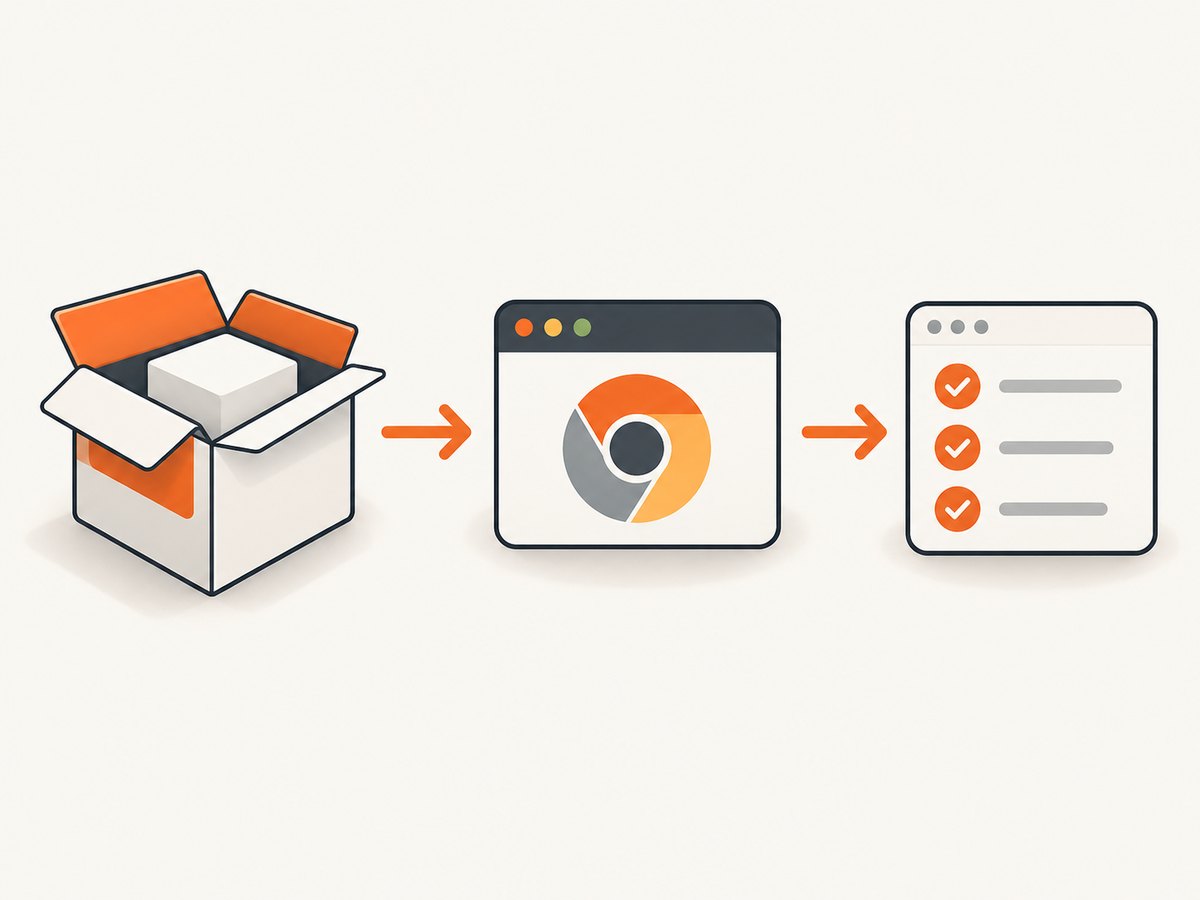
Playwright package installation and browser installation are separate steps. Each Playwright release expects specific browser revisions; after changing or updating the package, run its browser installer again. First check the installed package version and inspect the browser cache.
Node.js
npx playwright --version
npx playwright install --list
If the project does not yet have Playwright installed, add it using the package manager and setup style the project uses. The following is a typical npm setup:
npm install --save-dev @playwright/test
npx playwright install
For an existing project, use its lockfile and package manager conventions. After updating Playwright, rerun npx playwright install so the expected browser revisions are present.
Python
python -m pip show playwright
python -m playwright install
The browser command must run in the same Python environment where the Playwright package is installed. If you use a virtual environment, activate it before running both commands.
Java
Use the Playwright CLI distributed with the Java project. The exact invocation can depend on the build tool and project setup; the official Java installation instructions show the CLI command for the chosen setup. Run its browser installation command after adding or updating the Playwright dependency. See the Playwright Java browser guide.
.NET
After installing the Playwright package and building the project, run the generated installation script for the project. On PowerShell, a common invocation is:
pwsh bin/Debug/netX/playwright.ps1 installReplace netX with the target framework directory produced by your build. Consult the Playwright .NET browser guide for the right script path and shell for your project.
2. Install only the browser you need, with Linux dependencies
If the error identifies one browser, install that browser rather than downloading every supported browser. For example, Node.js can install Chromium with:
npx playwright install chromiumLinux browser launches can fail even when the browser files exist. A fresh Linux host or CI runner may be missing shared system libraries. Install a browser and its operating system dependencies together:
npx playwright install --with-deps chromiumTo install dependencies for the supported browsers without installing browser binaries at the same time, use:
npx playwright install-depsPython uses the corresponding module commands:
python -m playwright install chromium
python -m playwright install --with-deps chromium
python -m playwright install-deps
Java and .NET have equivalent browser and dependency installation commands through their Playwright CLI or generated script. Follow the official browser guide for the syntax in your language: Browsers, Java, and .NET.
On Linux, installing operating system packages may require administrator privileges. If dependency installation runs through a proxy and package downloads fail, run the dependency command as root so the package manager can access the proxy configuration. Use the narrowest required privilege in your environment.
3. Resolve proxy, certificate and download timeout failures
Playwright downloads browser archives from Microsoft’s CDN by default. A corporate proxy, TLS inspection or slow connection can prevent the installer from retrieving them. Fix the network path before repeatedly reinstalling the package.
Configure the proxy
Set HTTPS_PROXY in the shell or CI environment used for the install command. For example, in a POSIX shell:
export HTTPS_PROXY=http://proxy.example.internal:8080
npx playwright install chromium
Use your organization’s actual proxy address. Do not commit proxy credentials into source control; configure secrets through your CI system when authentication is needed. For Python, set the environment variable in the shell that runs python -m playwright install as well.
Trust the corporate certificate authority
If TLS interception causes a self signed certificate in certificate chain error in a Node.js environment, point Node at the trusted organization root certificate:
export NODE_EXTRA_CA_CERTS=/path/to/corporate-root.pem
npx playwright install chromium
Use the certificate file provided by your organization. Keep certificate validation enabled; bypassing TLS verification hides the underlying trust problem and weakens the security of downloads.
Increase the download connection timeout
If an archive begins downloading but stalls or times out, increase the connection timeout. The value is milliseconds:
export PLAYWRIGHT_DOWNLOAD_CONNECTION_TIMEOUT=120000
npx playwright install chromium
Choose a value appropriate for the network and archive size. A longer timeout can help slow links, but it will not fix a blocked CDN, invalid certificate chain or incorrect proxy configuration.
4. Fix browser path and cache mismatches
By default, Playwright stores browsers in its standard cache location. An installer and test process can appear to disagree if they run as different users, in different containers, or with different environment variables. Set PLAYWRIGHT_BROWSERS_PATH consistently for both installation and test execution to use a shared browser cache:
export PLAYWRIGHT_BROWSERS_PATH=/opt/playwright-browsers
npx playwright install chromium
npx playwright test
For a hermetic install under the project package directory, set the variable to 0 when installing and running:
export PLAYWRIGHT_BROWSERS_PATH=0
npm install
npx playwright install chromium
npx playwright test
Do not install as one user and run tests as another unless both users can access the same configured browser path. In containers, a browser installed in one image layer or build stage is not automatically available in an unrelated runtime image.
5. Make CI and Docker installs reproducible
CI should install project dependencies, install browsers and operating system dependencies, then run tests. Keep the browser installation tied to the Playwright version resolved by the project lockfile.
GitHub Actions example for Node.js
name: Playwright tests
on: [push, pull_request]
jobs:
  test:
    runs-on: ubuntu-latest
    steps:
      - uses: actions/checkout@v4
      - uses: actions/setup-node@v4
        with:
          node-version: 20
      - run: npm ci
      - run: npx playwright install --with-deps chromium
      - run: npx playwright test
This example installs Chromium only. Install other browsers if the suite uses them. The action versions and Node version should match the versions your project supports.
Python CI sequence
python -m pip install -r requirements.txt
python -m playwright install --with-deps chromium
python -m pytest
Run these commands in the same environment and job container as the test suite. The official Playwright CI guide documents supported CI patterns and commands for JavaScript, Python, Java and .NET.
Use a Playwright Docker image
For Linux jobs, a Playwright Docker image can provide a reproducible browser runtime and Linux dependencies. Match the image tag to the Playwright version used by the project; mismatched package and image versions can reintroduce browser revision problems. The official Docker guide covers image usage and configuration.
Regardless of whether you use an image or install in CI, make browser setup happen before tests. Avoid relying on a developer’s preexisting browser cache or an install step that runs only on some branches.
6. Match the remedy to your environment
| Situation | What to do | Check |
|---|---|---|
| Missing executable after package update | Run the browser installer for the current Playwright package. | Check package version and install --list. |
| Only Chromium is needed | Install Chromium alone. | Make sure tests do not launch Firefox or WebKit. |
| Linux launch reports missing libraries | Use install --with-deps or install-deps. |
Confirm the command ran on the same host or image as tests. |
| Download blocked on corporate network | Set HTTPS_PROXY. |
Confirm the proxy allows access to Microsoft’s CDN. |
| Certificate chain error | Set NODE_EXTRA_CA_CERTS to the trusted root. |
Use the organization-issued certificate. |
| Download stalls | Raise PLAYWRIGHT_DOWNLOAD_CONNECTION_TIMEOUT. |
Check whether the proxy or network is otherwise reachable. |
| Installer succeeds but test cannot find browser | Use the same user, container and browser path for both steps. | Check PLAYWRIGHT_BROWSERS_PATH. |
| CI behaves differently from local machine | Install browsers and dependencies in the job, or use a matching Playwright image. | Compare package and image versions. |
7. Common errors and fixes
“Executable doesn’t exist” or “browserType.launch: Executable doesn’t exist”
Cause: The package is installed but the expected browser revision is absent, or the test process is looking in a different browser cache. Fix: Run the installer using the project’s current Playwright version, then check the browser list and cache path. Make installation and test execution use the same environment.
“Host system is missing dependencies”
Cause: Linux shared libraries required by the browser are missing. Fix: Run npx playwright install --with-deps chromium or the matching command for your language and browser. In a proxy-based Linux environment, run the OS dependency installation with the required root privileges.
“self signed certificate in certificate chain”
Cause: A corporate TLS inspection certificate is not trusted by Node. Fix: Set NODE_EXTRA_CA_CERTS to your organization’s trusted root certificate and rerun the download.
Download timeout or connection reset
Cause: The CDN is inaccessible through the network, the proxy is unset or misconfigured, or the connection is too slow. Fix: Set and verify HTTPS_PROXY, confirm the network permits the download, and raise PLAYWRIGHT_DOWNLOAD_CONNECTION_TIMEOUT for slow connections.
Works locally, fails in CI
Cause: Local browser cache or OS dependencies are not part of the runner. Fix: Add explicit browser installation before tests, include Linux dependencies, or use a Playwright Docker image that matches the package release.
8. Performance, reliability and cost notes
Installing only the browser your tests use reduces unnecessary downloads and avoids spending setup time on unused browser engines. Installing browsers during every CI run is straightforward and reproducible, though it adds download time and depends on network access. A shared cache can reduce repeated downloads, but only when the installer and test jobs share a compatible path and permissions. A project-local install can make a workspace self-contained, at the cost of keeping those browser files with the project environment.

For reliability, pin project dependencies with a lockfile, install browsers from that resolved Playwright version, and keep the Docker image version aligned if you use one. For network-restricted systems, configure the proxy and trusted certificate before installation. Do not treat a longer timeout as a substitute for network access or OS dependencies.
Or skip the browser setup
If your goal is to capture a website screenshot rather than run browser automation, ScreenshotNeo provides a website screenshot API. It returns a PNG, JPEG, WebP or PDF from one GET request, so there is no Playwright browser installation in your application.
cURL:
curl -G "https://api.screenshotneo.com/v1/shot" -d access_key=YOUR_API_KEY --data-urlencode url=https://stripe.com -o shot.webpPython:
import requests
r = requests.get("https://api.screenshotneo.com/v1/shot", params={"access_key": "YOUR_API_KEY", "url": "https://stripe.com"}, timeout=90)
open("shot.webp", "wb").write(r.content)
Node.js:
const q = new URLSearchParams({ access_key: 'YOUR_API_KEY', url: 'https://stripe.com' });
const res = await fetch(`https://api.screenshotneo.com/v1/shot?${q}`);
if (!res.ok) throw new Error(`Screenshot request failed: ${res.status}`);
const bytes = new Uint8Array(await res.arrayBuffer());
await import('node:fs/promises').then(fs => fs.writeFile('shot.webp', bytes));
See the ScreenshotNeo API documentation for request options. Cookie banners, popups and chat widgets are removed before the shot. Bot checks, blank pages and failed loads are never billed. An MCP server lets AI agents take screenshots. The free plan includes 1,000 screenshots a month with no card; paid plans start at $5 for 3,000. Create a free ScreenshotNeo account.
FAQ
Do I need to install browsers every time I install Playwright?
Usually the browser files can remain in the cache, but install again after Playwright updates if that release expects different browser revisions, or when the runtime cannot access the existing cache.
Can I install just one browser?
Yes. Use the browser name with the installer, such as npx playwright install chromium, and make sure your tests only launch that browser.
Why does browser installation work but launch still fail?
The runtime may use a different browser path, user or container, or the host may lack required Linux libraries. Compare the install and test environments and install OS dependencies where needed.
Does ScreenshotNeo replace Playwright for browser tests?
No. ScreenshotNeo is an API for capturing website screenshots and PDFs. Playwright remains the right tool when you need browser automation and test control.


