How to Fix Playwright Pages Not Rendering JavaScript Before Capture
A successful navigation does not mean a JavaScript app is ready to screenshot. Wait for a meaningful UI condition, then capture the page or element.
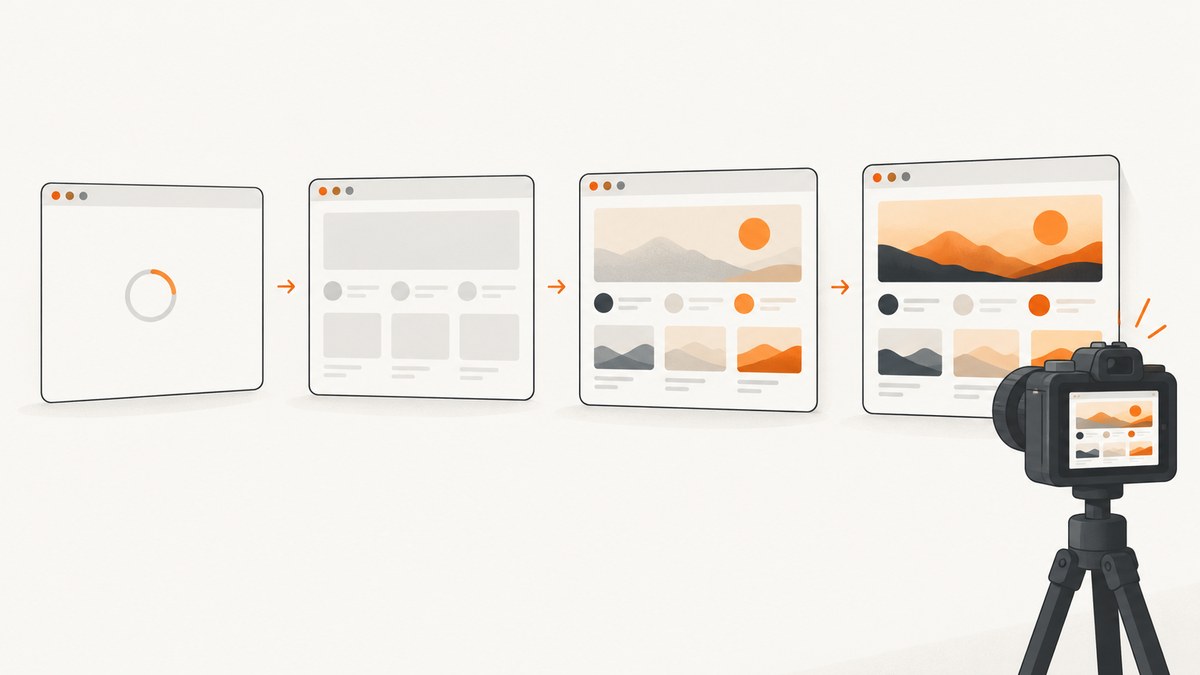
A Playwright navigation can finish while a React, Vue, Angular, or other JavaScript app is still hydrating or waiting for API data. The reliable fix is to wait for a condition that proves the UI you need has rendered, then take the screenshot. Start with a visible, meaningful locator; use page.waitForFunction() when readiness depends on a more specific application state. For iframe content, wait inside the correct frame.
Short version: navigation completion and application readiness are different events. A fixed sleep may hide the timing problem on one run and fail on another. A readiness condition tied to the UI is usually more reliable.
1. Use a UI readiness condition before capture
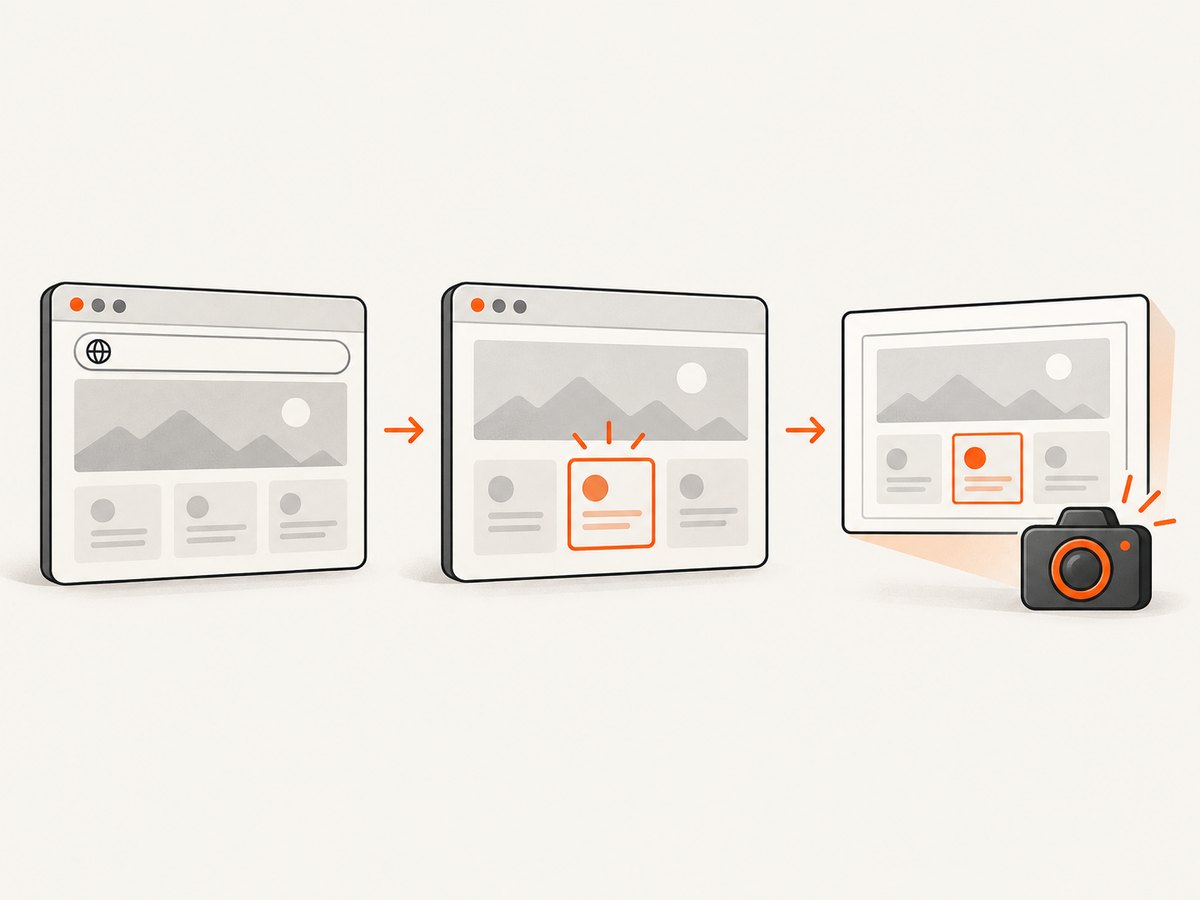
This runnable Node.js example uses Playwright’s Chromium browser. Replace the URL and heading with the page and visible content you expect. Install Playwright with npm install playwright; install its browser with npx playwright install chromium.
const { chromium } = require('playwright');

(async () => {
  const browser = await chromium.launch();
  const context = await browser.newContext();
  const page = await context.newPage();

  try {
    const response = await page.goto('https://example.com/dashboard', {
      waitUntil: 'domcontentloaded',
      timeout: 30_000,
    });

    console.log('HTTP status:', response?.status());

    // Choose a marker that appears only when the desired UI is rendered.
    await page.getByRole('heading', { name: 'Dashboard' }).waitFor({
      state: 'visible',
      timeout: 15_000,
    });

    await page.screenshot({ path: 'dashboard.png', fullPage: true });
  } finally {
    await context.close();
    await browser.close();
  }
})();
Playwright locators are re-resolved as the page changes, and their wait methods retry until the requested state or timeout. A semantic locator such as a heading, main region, or results panel makes a better capture gate than merely checking that a document event fired. See the official Locator API and Page API.
2. Pick the right readiness signal
page.goto() accepts navigation events: commit, domcontentloaded, load, and networkidle. They describe document and network lifecycle, not whether your particular application has finished rendering the data you care about.
| Signal | Use it for | Limit |
|---|---|---|
domcontentloaded |
Starting work once the document has been parsed | Client scripts and data-driven UI may still be pending |
load |
Waiting for the load event and its dependent resources | Does not assert that app hydration or API-driven rendering is complete |
networkidle |
Cases where network quiet is genuinely part of the requirement | Playwright labels it discouraged for testing; background requests can make it hang or become an irrelevant signal |
| Visible locator | Waiting for the user-facing content you need | Visibility alone may not mean a list or chart has finished populating |
waitForFunction |
Waiting for a precise app-specific predicate | Predicate must reflect real readiness and avoid resolving too early |
Playwright defines networkidle as no network connections for at least 500 ms and explicitly advises relying on web assertions to assess readiness instead. This matters for apps with analytics, polling, streaming, or long-lived connections: an idle network is not necessarily proof of a complete page, and an active network is not necessarily proof that the visible content is incomplete.
Wait for the data, not just its container
A results panel may become visible before its request completes. If an empty panel is not a valid result, wait for a stronger condition such as at least one result row or an explicit ready marker.
await page.locator('[data-testid="results"]').waitFor({
  state: 'visible',
  timeout: 15_000,
});

await page.waitForFunction(() => {
  const results = document.querySelector('[data-testid="results"]');
  return results && results.querySelectorAll('li').length > 0;
}, null, { timeout: 15_000 });

await page.screenshot({ path: 'results.png' });
The predicate runs in the page and resolves when it returns a truthy value. Prefer a stable app marker, such as data-ready="true", when you control the application. A marker can represent a completed empty state as well as a populated state, which is more precise than assuming there must always be a result.
await page.waitForFunction(() =>
  document.querySelector('[data-ready="true"]') !== null,
  null,
  { timeout: 15_000 }
);
3. Handle common rendering cases
React, Vue, or Angular hydration
Wait for a visible element that is present only after the relevant component renders, such as the page heading or a primary action. If the element exists in the server-rendered shell before hydration, choose a stronger marker that changes when the app is interactive or populated. Playwright does not infer a framework’s hydration state; the condition must express what “ready” means for your page.
API data arrives after initial render
Wait for the displayed value, completed list, or application marker rather than waiting for an arbitrary number of milliseconds. If the condition times out, inspect the API request and response as well as the UI. A browser cannot render data that the service did not return, and a failed request can look like a rendering delay.
Content lives in an iframe
Use a frame locator so the wait targets the embedded document. The screenshot of the top-level page includes the frame once its content is ready.
const report = page.frameLocator('#report-frame');
await report.getByRole('heading', { name: 'Report' }).waitFor({
  state: 'visible',
  timeout: 15_000,
});
await page.screenshot({ path: 'report.png', fullPage: true });
For cases where you need to inspect or manage the frame directly, Playwright’s Frame API exposes frame-level operations. Cross-origin restrictions can limit what page JavaScript can inspect inside another origin, but Playwright’s frame locators are the right starting point for locating and waiting for embedded UI.
Setup must run before the site’s JavaScript
Use context.addInitScript() for deterministic setup that must happen after the document is created but before the site’s scripts execute—for example, seeding a local-storage preference. It runs for pages and child frames in the context as they are created or navigated. Do not use it as a substitute for waiting for the rendered result.
await context.addInitScript(() => {
  window.localStorage.setItem('captureMode', 'true');
});

await page.goto('https://example.com/dashboard', {
  waitUntil: 'domcontentloaded',
});
await page.getByRole('heading', { name: 'Dashboard' }).waitFor();
See BrowserContext.addInitScript for the execution timing and scope.
The page is rendered, but the screenshot varies
Animations, overlays, scrolling, and DOM replacement can change the captured result. A locator screenshot waits for actionability checks and scrolls the target into view; it can fail if the element detaches. A covered element may still be obscured, and a locator screenshot of a scrollable container shows only its currently scrolled content.
await page.getByRole('main').screenshot({
  path: 'main.png',
  animations: 'disabled',
});
Disabling animations can make a capture more deterministic. Playwright documents how finite and infinite animations are handled in the locator screenshot options. For a full-page capture, use page.screenshot({ fullPage: true }); for a focused capture, use the locator’s screenshot method.
4. Debug a blank or incomplete screenshot
- Check navigation facts. Log the final URL and response status. Redirects, authentication, or an error response can put the browser on a different page than expected.
- Compare before and after the readiness wait. Save one screenshot immediately after navigation and another after the locator resolves. This distinguishes a timing issue from a page that never rendered.
- Listen for runtime errors. Attach handlers before navigation to surface JavaScript exceptions and console errors.
- Inspect failed requests. Log failed requests and check the API response that should populate the view. A failed or unauthorized request is not fixed by waiting longer.
- Confirm the frame. If the content is embedded, locate it through the correct frame and wait there.
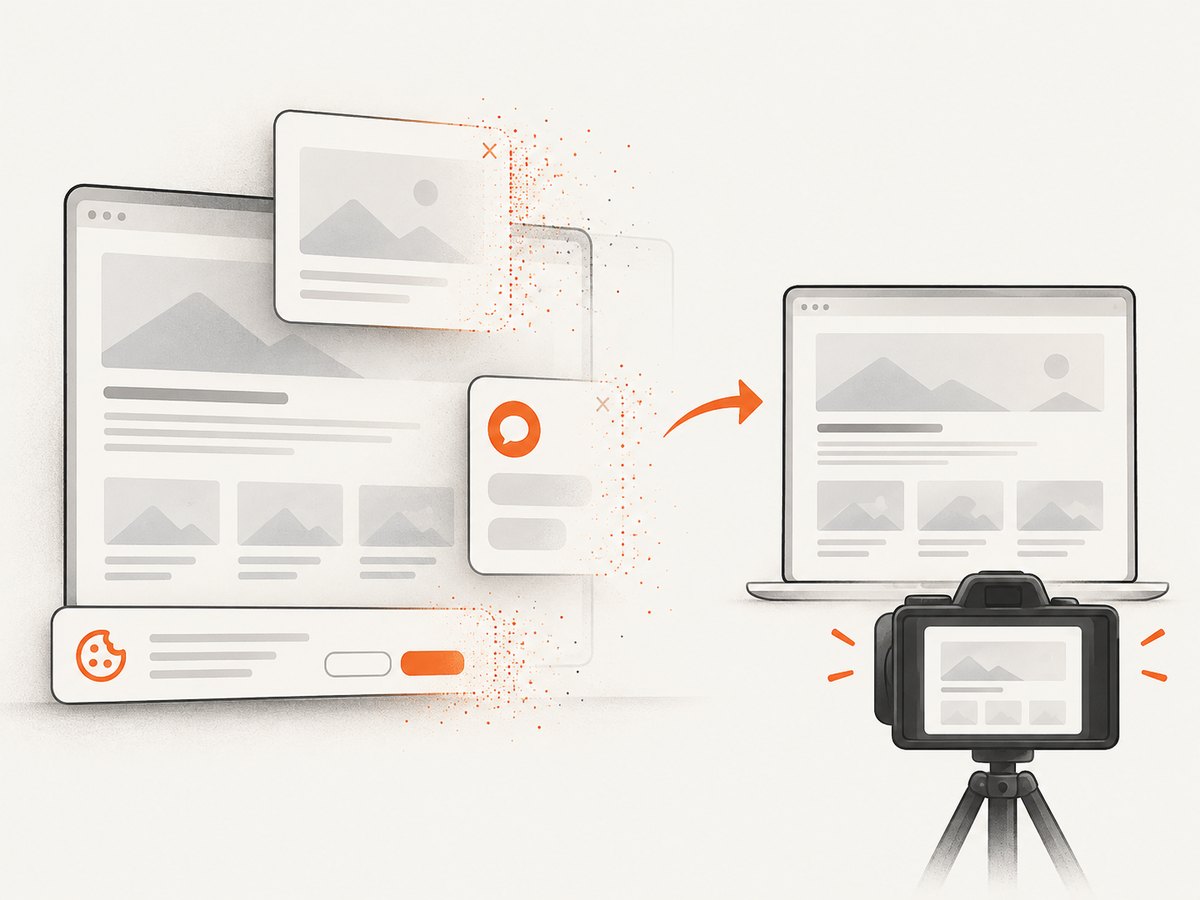
- Check overlays and motion. A cookie banner, modal, chat widget, or animation may cover or alter the target even after it exists.
- Make the timeout informative. Give the readiness condition a bounded timeout, then report which marker was expected and what URL was loaded.
page.on('console', message => {
  if (message.type() === 'error') console.error('console:', message.text());
});
page.on('pageerror', error => console.error('page error:', error.message));
page.on('requestfailed', request => {
  console.error('request failed:', request.url(), request.failure()?.errorText);
});

const response = await page.goto('https://example.com/dashboard', {
  waitUntil: 'domcontentloaded',
});
console.log({ url: page.url(), status: response?.status() });
5. Common errors and fixes
| Symptom or error | Likely cause | Fix |
|---|---|---|
| Screenshot contains a skeleton or empty shell | Navigation finished before hydration or data rendering | Wait for the meaningful visible UI or an app readiness predicate |
| Timeout waiting for a locator | Wrong selector, wrong page state, blocked request, authentication, or content in a frame | Inspect URL, status, console, failed requests, and frame structure; correct the readiness condition |
networkidle never resolves |
Polling, analytics, streaming, or other persistent activity | Wait for the visible app state instead of global network quiet |
| Locator screenshot says element is detached | The app replaced the node between lookup and capture | Use a stable locator and wait for the final state; retry only when replacement is expected and bounded |
| Element screenshot is clipped or partial | Scrollable container or target outside the expected viewport | Scroll intentionally, capture the page, or capture the correct container and state |
| Screenshot has a loading overlay or animation | Overlay remains visible or motion is still active | Wait for the overlay to disappear and disable animations for capture if appropriate |
6. Performance, reliability, and cost
Every wait adds time when its condition is slow, but a readiness wait can reduce wasted captures and flaky retries. Keep the navigation timeout and readiness timeout bounded and appropriate to the site. Use the earliest navigation event that lets your script begin observing the page, then wait for the actual content; waiting for every resource to finish can add delay without improving the screenshot.
Prefer one clear readiness condition over several unrelated waits. If you need multiple pieces of content, wait for the stable parent state or assert each required piece. Do not use a short timeout that fails on normal slow responses, or an unlimited wait that can leave a worker stuck forever. On failure, preserve useful diagnostics—URL, response status, expected marker, console errors, and failed requests—so the next run can distinguish slow rendering from a real application failure.
Browser screenshots also have operational costs beyond the wait itself: browser startup, memory, concurrency, retries, and storage. Reuse a browser process for multiple isolated contexts when your worker design permits it, close contexts and browsers reliably, and avoid retrying permanent errors such as an unauthorized API response. Capture only after the readiness condition succeeds so you do not store blank or skeleton images as if they were valid output.
7. Or skip the browser setup
ScreenshotNeo is a website screenshot API and MCP server. One GET request takes a URL and returns an image or PDF. Its documented options include full-page capture, waiting for a selector, a delay or network idle, custom JavaScript and CSS, and image formats. See the ScreenshotNeo API documentation.
curl -G "https://api.screenshotneo.com/v1/shot" -d access_key=YOUR_API_KEY --data-urlencode url=https://stripe.com -o shot.webpimport requests
r = requests.get(
"https://api.screenshotneo.com/v1/shot",
params={"access_key": "YOUR_API_KEY", "url": "https://stripe.com"},
timeout=90,
)
open("shot.webp", "wb").write(r.content)const q = new URLSearchParams({ access_key: 'YOUR_API_KEY', url: 'https://stripe.com' });
const res = await fetch(`https://api.screenshotneo.com/v1/shot?${q}`);
if (!res.ok) throw new Error(`Screenshot request failed: ${res.status}`);
await Bun.write('shot.webp', res);Before the capture, ScreenshotNeo accepts cookie and consent banners and removes more than 60 known consent platforms, newsletter popups, and chat widgets; each step can be turned off. Bot checks and CAPTCHAs, blank pages, timeouts, failed loads, and cache hits cost nothing, and response headers identify the page verdict and whether the shot was billed. Its MCP server lets AI agents use take_screenshot, get_page_info, and capture_pdf. The free plan includes 1,000 screenshots a month with no card; paid plans start at $5 for 3,000.
Start with 1,000 free screenshots a month—no card required.
8. FAQ
Does Playwright wait for JavaScript automatically?
Playwright auto-waits for many locator actions and assertions, but taking a page screenshot does not mean your application-specific data is ready. Add a condition that expresses the content state you need.
Should I use waitForTimeout()?
Use a fixed delay only as a temporary debugging aid or when a known timed effect is itself what you need to observe. Playwright calls timeout waits discouraged for production because fixed delays are inherently flaky.
Can I wait for a loading indicator to disappear?
Yes, when the indicator reliably represents unfinished work. Wait for it to become hidden or detached, and also confirm the desired content is present if the page can hide the indicator before rendering the result.
What if the page never reaches the expected state?
Treat the timeout as a diagnostic signal. Check the loaded URL, app errors, authentication, CSP or blocked resources, API failures, bot challenges, and whether the desired UI is inside a frame. The correct cause depends on the site.
References
- Playwright Page API: navigation lifecycle,
waitForFunction, and discouraged network-idle guidance. - Playwright Locator API: locator waits and screenshots.
- Playwright BrowserContext API:
addInitScripttiming and scope. - Playwright Frame API: frame-level operations.


