How to Fix Playwright Tests Failing on Mapbox and LineAwesome
Diagnose Mapbox initialization, network, CSP, and Line Awesome asset failures in Playwright with deterministic tests and targeted fixes.

When a Playwright test fails on a page that uses Mapbox GL JS and Line Awesome, the title alone cannot identify the cause. Start with the first failed assertion and browser evidence: determine whether the problem is map initialization, map state or interaction, a blocked or unstable request, or a missing icon style/font. Then make that test deterministic and assert behavior a user can observe.
For Mapbox application-logic tests, Mapbox’s testMode option removes the access-token and visual-rendering requirements while keeping the JavaScript API available against local fixtures. For app requests, use Playwright routing or a HAR. For Line Awesome, verify the stylesheet, font resources, and the icon’s style prefix. These paths answer different questions; no single setting fixes every failure.
1. Classify the failure before changing configuration
Read the first failing expectation, then inspect the Playwright error, trace, browser console, and failed network requests. A timeout only says that an expected condition was not reached; it does not establish that Mapbox or Line Awesome has a defect.
| Symptom | First evidence to inspect | Likely test area |
|---|---|---|
| Map container stays empty or app reports map unavailable | Console errors, map initialization path, and worker/style requests | Initialization, browser APIs, CSP, or network |
| Map loads but click, zoom, or app state assertion times out | Whether the event handler ran and whether the expected state is user-visible | Interaction/state or nondeterministic test setup |
| Map-dependent content varies between runs | Requests made during startup and their responses | Uncontrolled backend or external network dependency |
| Icon element exists but looks blank | Computed font family, stylesheet and font requests, and rendered classes | Line Awesome integration or asset loading |
| Only screenshot comparison fails | Whether the test requires actual map pixels and stable visual assets | Visual rendering path; Mapbox test mode has no visual output |
Use the project’s installed package versions and the first concrete error as the source of truth. The Mapbox overview surfaced in research showed v3.30.0, while the Line Awesome npm listing reported 1.3.0; neither version should be assumed to match a project lockfile. Playwright documentation is rolling, so check behavior against the version installed in the repository. [Mapbox security and testing] [Line Awesome on npm]
2. Use Mapbox test mode for map logic
Mapbox GL JS documents testMode for automated tests of application logic that interacts with a map. It does not require an access token or visual rendering, uses local style and tile fixtures, and retains the JavaScript API for testing interactions and state. That makes it appropriate for tests of app behavior around a map, not for comparing rendered map pixels.
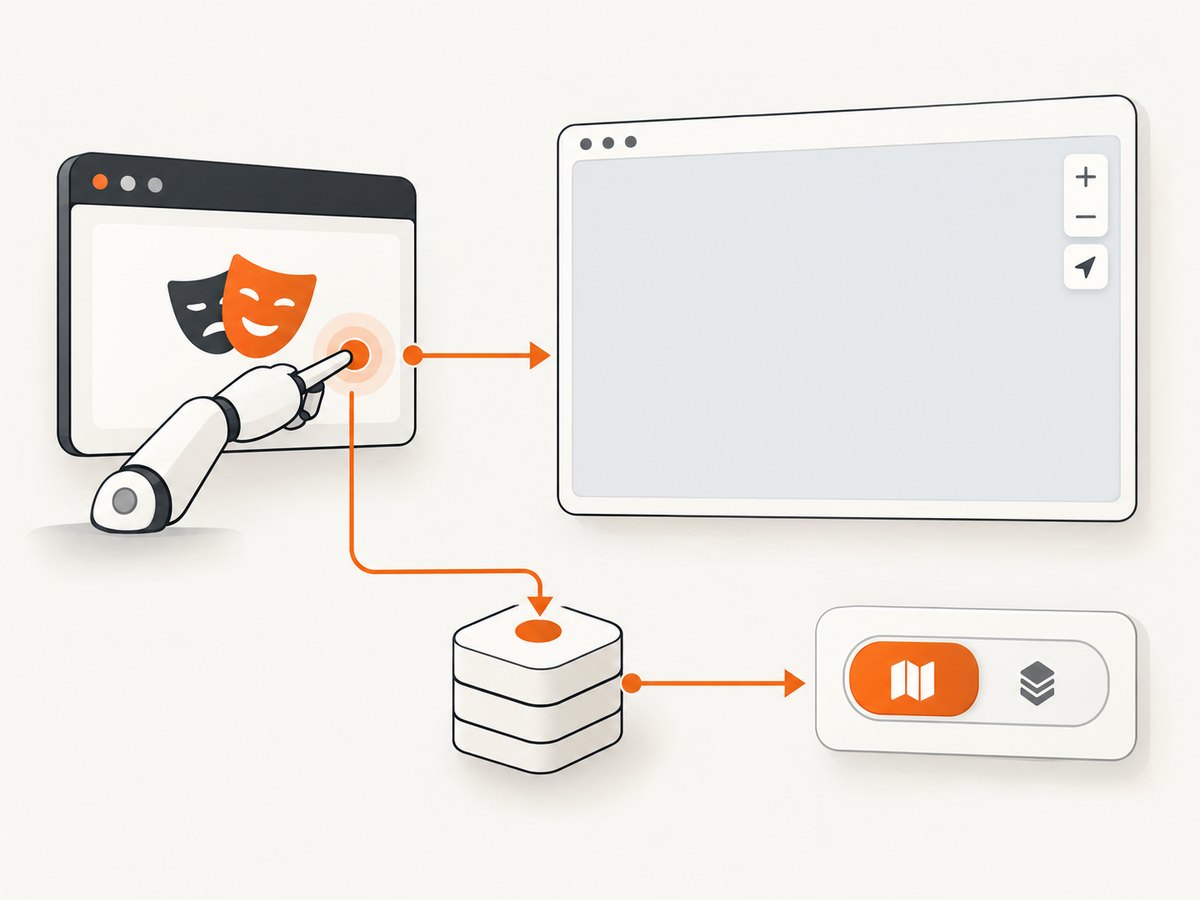
Set the option when constructing the map in a test-specific path. The example below illustrates the configuration shape; adapt the import and fixture details to the Mapbox GL JS version and app setup already used by your project.
import mapboxgl from 'mapbox-gl';

const map = new mapboxgl.Map({
  container: document.querySelector('#map'),
  testMode: true,
  center: [-74.5, 40],
  zoom: 9,
  style: 'mapbox://styles/mapbox/streets-v12'
});

map.on('load', () => {
  map.setZoom(10);
  document.querySelector('#zoom-value').textContent = String(map.getZoom());
});
Use a real Playwright browser context for this test path: Mapbox says the full GL JS library requires a browser or browser-like environment, and names Playwright and Puppeteer for headless browser tests. A Node-only unit test without browser APIs is not equivalent. For a narrower unit test, isolating or mocking the map-facing module is a reasonable engineering choice, but it does not verify Mapbox integration.
Keep the assertion focused on the app outcome, such as visible map-dependent information or a control responding to a map event. Avoid asserting internal class names or implementation details unless those details are explicitly part of the contract. Playwright’s guidance recommends checking user-visible behavior and isolating tests. [Playwright best practices]
3. Make app requests deterministic with Playwright
If app behavior depends on your backend or another request, intercept it before navigation and return a stable response. Playwright supports tracking and mocking HTTP/HTTPS requests, including fetch and XHR, and can use HAR files. Register routes before the page loads when initial startup requests need to be handled.
import { test, expect } from '@playwright/test';

test('shows a location after loading map data', async ({ page }) => {
  await page.route('**/api/locations', async route => {
    await route.fulfill({
      status: 200,
      contentType: 'application/json',
      body: JSON.stringify([{ id: 'loc-1', name: 'Office', longitude: -74.5, latitude: 40 }])
    });
  });

  await page.goto('http://localhost:3000/map');
  await expect(page.getByText('Office')).toBeVisible();
});
This keeps an app-logic test from depending on a live backend response. Use a HAR when recorded request traffic is the useful fixture. Keep tests that specifically verify live Mapbox integration or network behavior separate and controlled; mocking every request in an integration test can remove the behavior that test is meant to prove. [Playwright API mocking]
4. Check CSP, workers, and token referrer restrictions
When console or network evidence shows blocked Mapbox workers, images, styles, or API calls, inspect the active Content Security Policy against Mapbox’s browser requirements. Its guide lists worker-src blob:, img-src data: blob:, and connections to Mapbox API and events endpoints for the standard scenario. Mapbox Standard Style or some 3D features can also require WebAssembly execution permission. Worker behavior can depend on the bundle and worker path, so check the actual application setup before changing policy.
For URL-restricted tokens, the browser request must send a suitable Referer. Mapbox says no-referrer and same-origin policies do not send the needed referrer for these requests. If the test exercises real token-restricted calls, verify the document’s Referrer-Policy and the token’s allowed URL restrictions. If it tests app logic rather than token behavior, prefer test mode or controlled requests rather than introducing a real-token dependency. [Mapbox CSP and token guidance]
5. Fix missing Line Awesome glyphs at the asset boundary
Line Awesome provides three style prefixes: lar for regular, las for solid, and lab for brand icons. The stylesheet and its referenced font resources must be available to the page. An icon element can render in the DOM while its glyph remains invisible if the stylesheet or font did not load, or if the chosen class is not present in the installed version.
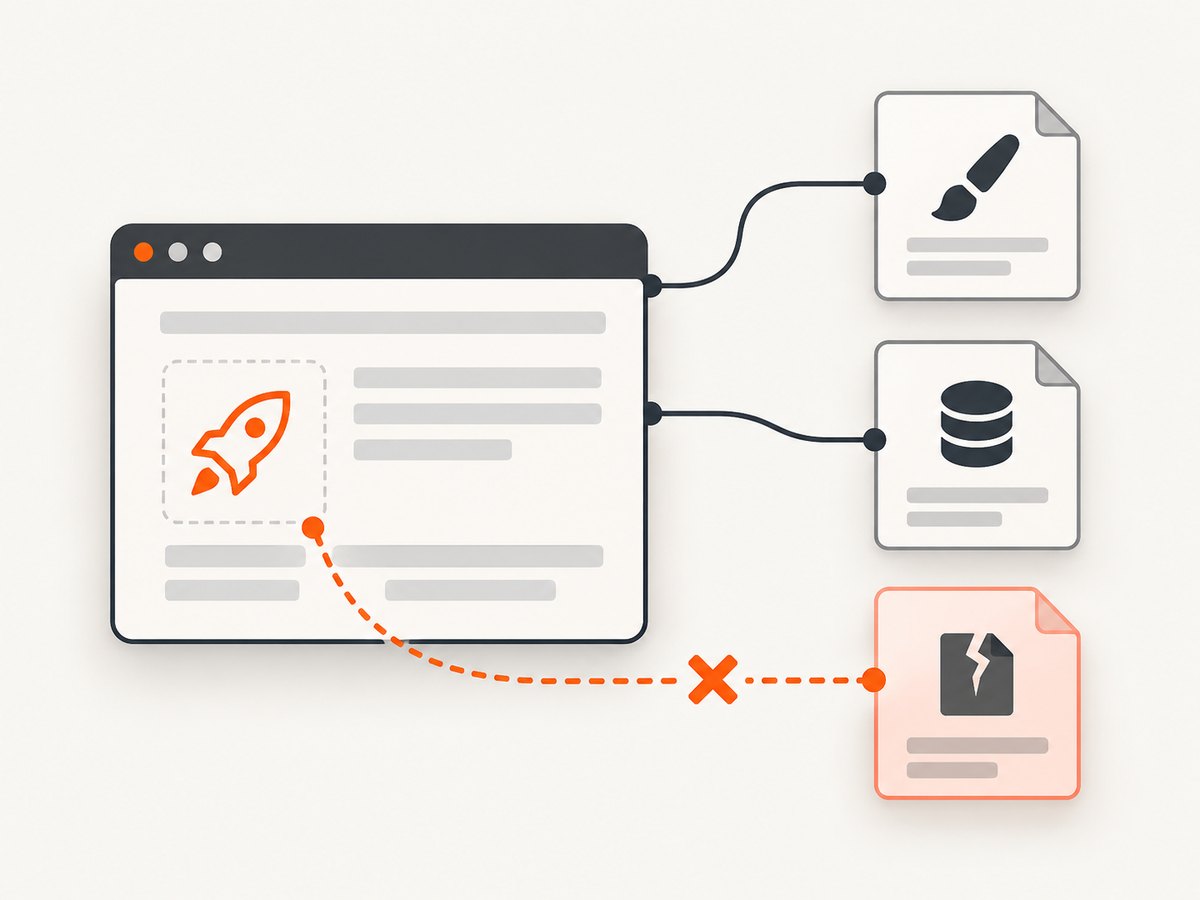
With a package-managed stylesheet, install the package and include its CSS in the app’s test bundle as you do in the normal app. A CDN stylesheet or locally downloaded assets are also documented integration options. Local assets give the project a controlled asset path; CDN delivery introduces external stylesheet and font requests, so a test using it may depend on those requests succeeding. This reliability comparison is operational guidance, not a benchmark.
import 'line-awesome/dist/line-awesome/css/line-awesome.min.css';

// In the component markup:
// <i class="las la-battery-three-quarters" aria-hidden="true"></i>
// <span>Battery status</span>
For React’s react-line-awesome, follow that package’s integration instructions and include the Line Awesome CSS link, hosted or local. In browser devtools or a Playwright trace, check the element’s computed font-family, its class list, and stylesheet/font request results. These are diagnostic checks inferred from the documented stylesheet requirement; a blank glyph can have more than one cause. [Line Awesome documentation] [react-line-awesome package]
6. Choose the test path that matches what you need to prove
| Test goal | Recommended setup | What it proves |
|---|---|---|
| Map-controlled app logic, interaction, or state | Mapbox testMode and stable local fixtures |
The app logic that uses the map API |
| App behavior that depends on backend data | Playwright route fulfillment or a suitable HAR registered before navigation | The UI response to controlled request data |
| Real API, token, or Mapbox network integration | A separate controlled integration test with browser console and network evidence | The configured live request path |
| Rendered map appearance | A rendering-capable browser path with stable dependencies | Visual output; testMode is unsuitable because it does not render visuals |
Keep tests isolated so one test’s state or request handling cannot affect another. Prefer assertions on accessible controls, visible content, and user actions. A CSS class assertion can be appropriate when the class itself is the feature contract, but it is a brittle proxy for whether an icon or control works for a user. [Playwright best practices]
7. Troubleshooting common errors
| Failure | Cause to check | Fix |
|---|---|---|
| Map never reaches the expected ready state | Initialization error, missing browser APIs, blocked worker/style request, or test waiting on visual behavior in test mode | Inspect the first console/network error; use a browser context; assert logic/state rather than map pixels in test mode |
| Map request returns an authorization error | Invalid or restricted token, or missing referrer under the active policy | Check the token’s URL restrictions and referrer policy; remove real-token dependence from app-logic tests |
| Worker, style, image, or API request is blocked | CSP does not allow a required worker source, image source, or connection destination | Compare the deployed policy with Mapbox’s guide and verify the specific bundle and feature requirements |
| Assertion intermittently times out after navigation | Route was added after startup requests began, or the test depends on unstable external data | Register routes before goto; fulfill with stable data or use an appropriate HAR |
| Line Awesome element exists but is blank | Stylesheet/font unavailable, wrong prefix, class absent in installed version, or computed font mismatch | Inspect stylesheet and font responses, computed font family, and lar/las/lab class |
| Snapshot differs across runs | Test relies on live map pixels or externally loaded assets | Use test mode for logic; for visual tests, control the rendering path and asset/network dependencies |
| Mock does not affect the request | Route pattern misses the URL, or registration happened after the request | Confirm the actual request URL in trace/network evidence and install the route before navigation |
8. Performance, reliability, and cost considerations
Use the narrowest test path that proves the requirement. Mapbox test mode and controlled request fixtures avoid relying on live map tiles or backend responses for application-logic checks. This is a reliability choice; the cited documentation does not provide a performance benchmark or guarantee a particular speedup. Visual and live-integration tests still need a rendering-capable route and should be treated as distinct coverage.
Keep Line Awesome assets available through the same path the test is intended to validate. Package-managed local CSS makes the asset path part of the project; a CDN path validates an external dependency as well. If external delivery is not the behavior under test, a controlled local asset path reduces unrelated network variability. Use traces and request failures to distinguish a slow response from a broken asset or policy.
For occasional map screenshots during debugging, a screenshot API can capture a page without maintaining local browser setup. ScreenshotNeo is the first alternative to try: cookie banners, popups, and chat widgets are removed before capture, and only clean shots are billed. See ScreenshotNeo and the API documentation.
Or skip the browser setup
For a captured page image, make one request to ScreenshotNeo. The following example uses the supplied API endpoint and saves the response bytes:
curl -G "https://api.screenshotneo.com/v1/shot" -d access_key=YOUR_API_KEY --data-urlencode url=https://stripe.com -o shot.webpEquivalent Python:
import requests

r = requests.get(
    "https://api.screenshotneo.com/v1/shot",
    params={"access_key": "YOUR_API_KEY", "url": "https://stripe.com"},
    timeout=90,
)
open("shot.webp", "wb").write(r.content)
Equivalent Node.js:
const q = new URLSearchParams({ access_key: 'YOUR_API_KEY', url: 'https://stripe.com' });
const res = await fetch(`https://api.screenshotneo.com/v1/shot?${q}`);
const bytes = new Uint8Array(await res.arrayBuffer());
await import('node:fs/promises').then(fs => fs.writeFile('shot.webp', bytes));
Use your target page URL and API key in these examples. ScreenshotNeo removes cookie banners, popups, and chat widgets before the shot; bot checks, blank pages, and failed loads are never billed. Its MCP server lets AI agents take screenshots. The free plan includes 1,000 screenshots a month with no card, and paid plans start at $5 for 3,000. This is for page capture; it does not replace Playwright assertions for your app’s map interactions or icon behavior.
Sign up for 1,000 free screenshots a month, no card required.
FAQ
Does Mapbox test mode test whether tiles look correct?
No. It does not produce visual output. Use it for application logic that interacts with the map API; use a rendering-capable test path when the actual pixels matter.
Should every Playwright test mock Mapbox?
No. Choose fixtures or test mode for logic checks that do not need live services. Keep a separate controlled integration test for behavior that genuinely depends on Mapbox requests.
Can a successful Line Awesome import still produce a blank icon?
Yes. Confirm the stylesheet and font requests, computed font family, installed icon class, and the correct style prefix.
What information is needed to diagnose a specific failing test?
The first Playwright error, browser console output, failed request details, and installed Mapbox GL JS, Line Awesome, and Playwright versions. Without those, the title does not determine a single root cause.


