How to Fix Playwright page.pdf() Generating Only One Page
Fix Playwright PDFs that contain one page: debug print CSS, wait for rendering, control page size, margins, overflow, and page breaks.
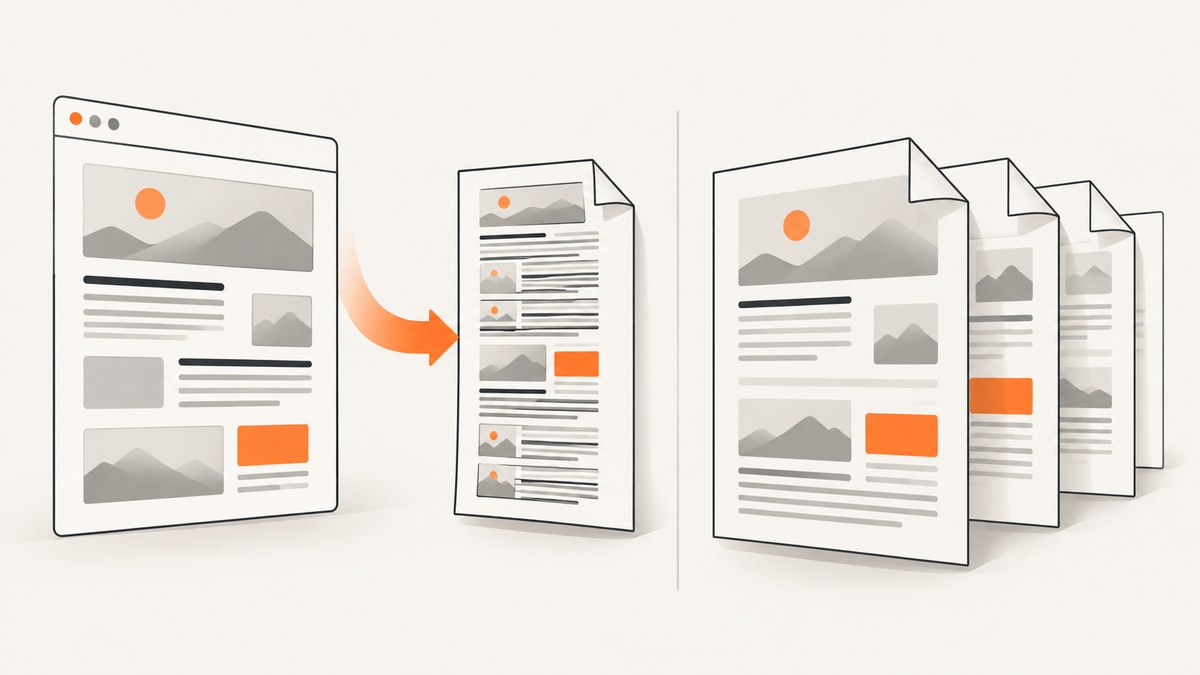
If Playwright’s page.pdf() creates a PDF with only one page, inspect the print layout first. Playwright generates PDFs with print CSS media by default, so print rules can hide content, constrain a wrapper, or change the layout before pagination occurs. If the screen layout is the intended output, call await page.emulateMedia({ media: 'screen' }) before generating the PDF. Then make page size, margins, loading state, and overflow behavior explicit.
The most reliable debugging order is: inspect print CSS, wait for the final application state, set paper geometry, resolve @page precedence, remove clipping containers, and add deliberate page-break rules.
What page.pdf() actually prints
Playwright documents that page.pdf() “generates a pdf of the page with print css media.” See the Page API documentation. This means the browser does not simply photograph the visible screen. It builds a print tree and lays that tree out inside finite page boxes.
Search every stylesheet, component style, and injected style tag for:
@media printrules that setdisplay: noneorvisibility: hidden.- Fixed
heightormax-heighton document, article, or content wrappers. overflow: hiddenoroverflow: autothat clips content instead of allowing it to flow onto more pages.- Absolute or fixed positioning that removes sections from normal document flow.
- Print-only wrappers that contain only the first section.
- Transforms, zoom rules, or layout changes that make the printable content fit inside a single constrained box.
A one-page result does not have one universal cause. These checks follow from print-media rendering and the CSS paged-media model; confirm which rule affects your document.
Minimal JavaScript fix
Start with a deliberately configured PDF call. Use screen media only when the screen design is what you want printed.
import { chromium } from 'playwright';

const browser = await chromium.launch();
const page = await browser.newPage();

await page.goto('https://example.com/report', { waitUntil: 'networkidle' });
await page.evaluate(() => document.fonts?.ready);

// Uncomment when print CSS hides or rearranges content and the screen layout is intended.
// await page.emulateMedia({ media: 'screen' });

await page.pdf({
  path: 'output.pdf',
  format: 'A4',
  printBackground: true,
  preferCSSPageSize: true,
  margin: { top: '12mm', right: '12mm', bottom: '12mm', left: '12mm' }
});

await browser.close();format, width, and height accept unit-labeled values. Playwright documents formats including Letter (8.5in × 11in) and A4 (8.27in × 11.7in); margins default to zero. Setting all four margins while debugging makes the page box predictable.
Step-by-step diagnosis
1. Compare print and screen media
Temporarily generate two files, one with the default print media and one after emulating screen media:
await page.goto(url, { waitUntil: 'networkidle' });
await page.pdf({ path: 'print-media.pdf', format: 'A4', printBackground: true });

await page.emulateMedia({ media: 'screen' });
await page.pdf({ path: 'screen-media.pdf', format: 'A4', printBackground: true });
If the screen-media file contains all sections, inspect @media print and print-specific component rules. Keep the screen setting only if that is the intended document design; otherwise repair the print stylesheet.
2. Wait for application rendering
Single-page output can be an early snapshot taken before a client-rendered report, web fonts, or images have changed the document height. Navigation completion alone is not always enough.
await page.goto(url, { waitUntil: 'networkidle' });
await page.waitForLoadState('networkidle');
await page.evaluate(() => document.fonts?.ready);

await page.waitForFunction(() => {
  const report = document.querySelector('[data-report-ready]');
  return report?.getAttribute('data-report-ready') === 'true';
});

await page.pdf({ path: 'report.pdf', format: 'A4', printBackground: true });
Use an application-specific readiness signal when possible. For images that affect layout, wait for the critical images in page code rather than relying on an arbitrary timeout:
await page.waitForFunction(() => [...document.images]
  .filter(img => !img.complete || img.naturalWidth === 0)
  .length === 0);
3. Make page geometry explicit
Choose either a documented format or explicit dimensions. During diagnosis, set top, right, bottom, and left margins. A mismatch between a very wide layout and a narrow paper size can trigger unexpected wrapping, overflow, or component rules intended for another breakpoint.
await page.pdf({
  path: 'letter.pdf',
  format: 'Letter',
  landscape: false,
  printBackground: true,
  margin: {
    top: '0.5in',
    right: '0.5in',
    bottom: '0.5in',
    left: '0.5in'
  }
});
For a custom page, use units such as mm, cm, in, or px:
await page.pdf({
  path: 'custom.pdf',
  width: '210mm',
  height: '297mm',
  margin: { top: '10mm', right: '10mm', bottom: '10mm', left: '10mm' }
});
4. Resolve @page precedence
If your stylesheet includes @page { size: ... }, pass preferCSSPageSize: true when the CSS size should win. The documented default is false, so without this option the API’s format, width, or height can override the stylesheet. See the preferCSSPageSize option.
@page {
  size: A4 portrait;
  margin: 12mm;
}

.report {
  width: auto;
  max-width: none;
}
await page.pdf({
path: 'css-sized.pdf',
printBackground: true,
preferCSSPageSize: true
});5. Remove clipping from wrappers
A common failure is a screen-oriented shell that owns a fixed viewport height and hides overflow. Override it for print:
@media print {
  .document,
  .content,
  .report-shell {
    height: auto !important;
    min-height: 0 !important;
    max-height: none !important;
    overflow: visible !important;
  }

  .report-shell {
    position: static !important;
  }
}
Also check nested scrolling panels. Removing clipping from the outer wrapper is not enough if an inner table, card list, or article body still has overflow: auto.
6. Control page breaks with CSS
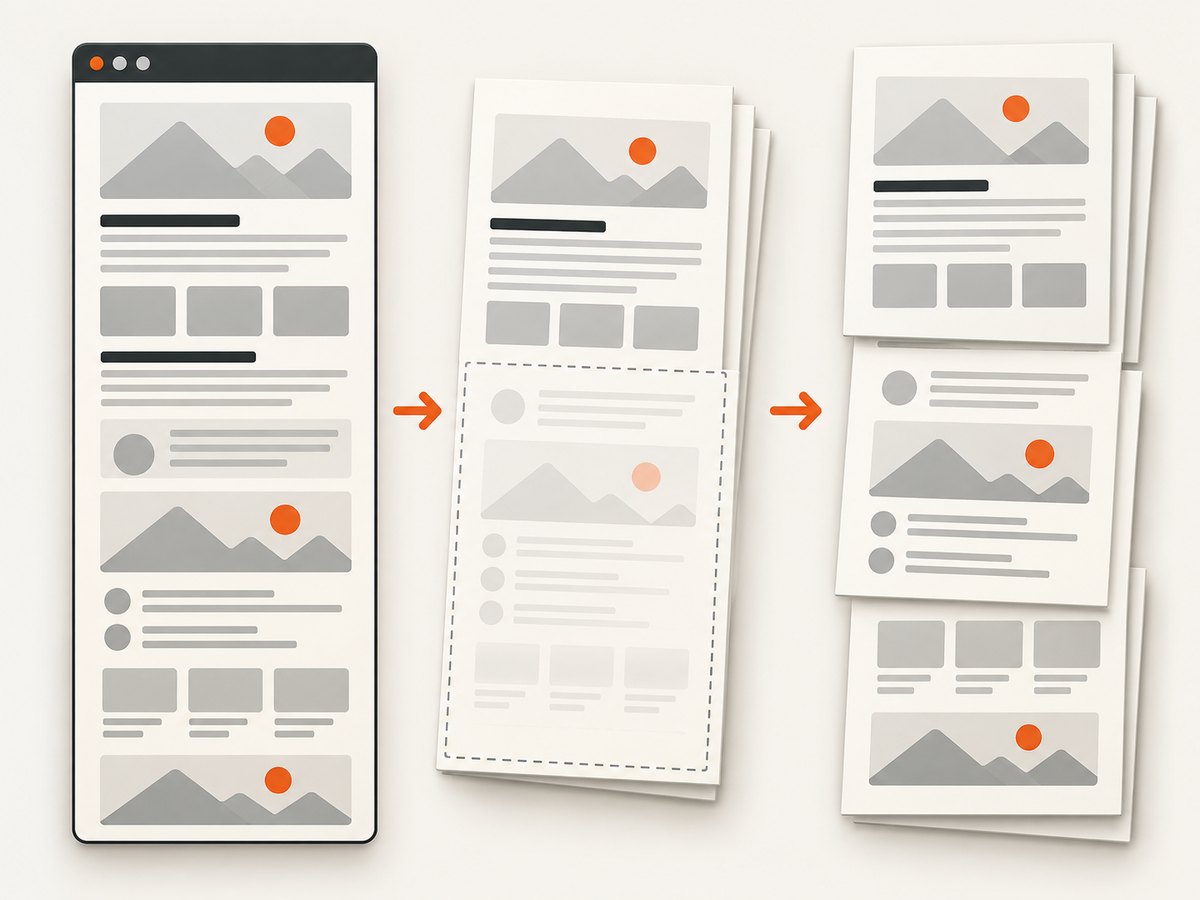
CSS paged media places normal-flow content into finite page boxes. Use modern break-* properties and their older aliases when you need predictable behavior:
@media print {
  .section {
    break-inside: avoid;
    page-break-inside: avoid;
  }

  .new-page {
    break-before: page;
    page-break-before: always;
  }

  .keep-with-next {
    break-after: avoid;
    page-break-after: avoid;
  }
}

@page {
  size: A4;
  margin: 12mm;
}
break-inside: avoid is useful for short cards, headings with their first paragraph, and figures. Do not apply it to a container that is taller than a page; the browser must eventually split content that cannot fit. Avoid forcing every section onto a new page, which can create large blank areas.
Complete diagnostic example
import { chromium } from 'playwright';

const url = process.argv[2] ?? 'https://example.com/report';
const browser = await chromium.launch();
const page = await browser.newPage({ viewport: { width: 1280, height: 900 } });

await page.goto(url, { waitUntil: 'networkidle' });
await page.waitForLoadState('networkidle');
await page.evaluate(() => document.fonts?.ready);
await page.waitForFunction(() => [...document.images]
  .every(img => img.complete && img.naturalWidth > 0));

const metrics = await page.evaluate(() => ({
  scrollHeight: document.documentElement.scrollHeight,
  bodyHeight: document.body.scrollHeight,
  media: matchMedia('print').matches ? 'print' : 'screen',
  hidden: [...document.querySelectorAll('*')]
    .filter(el => getComputedStyle(el).display === 'none')
    .slice(0, 20)
    .map(el => el.tagName.toLowerCase())
}));
console.log(metrics);

await page.emulateMedia({ media: 'screen' });
await page.pdf({
  path: 'output.pdf',
  format: 'A4',
  printBackground: true,
  preferCSSPageSize: true,
  margin: { top: '12mm', right: '12mm', bottom: '12mm', left: '12mm' }
});
await browser.close();
The metrics help distinguish a short DOM from a clipped print layout. If scrollHeight is already the height of one section, the application probably has not rendered the rest or print CSS removed it. If the DOM is tall but the PDF is one page, inspect print styles, fixed heights, overflow, and page-size settings.
Options that affect output
| Option | Use it when | Watch for |
|---|---|---|
format |
You want Letter, A4, or another standard size. | It can compete with CSS @page size. |
width/height |
You need custom paper dimensions. | Always include units. |
margin |
You need predictable printable space. | Defaults are zero. |
preferCSSPageSize |
Your stylesheet owns paper size. | Default is false. |
printBackground |
Background colors or images are part of the design. | It does not fix missing layout. |
landscape |
Tables or wide charts need horizontal space. | It changes the page box and wrapping. |
pageRanges |
You intentionally need a subset of pages. | Remove it while diagnosing missing pages. |
Troubleshooting common errors
Only the first component appears
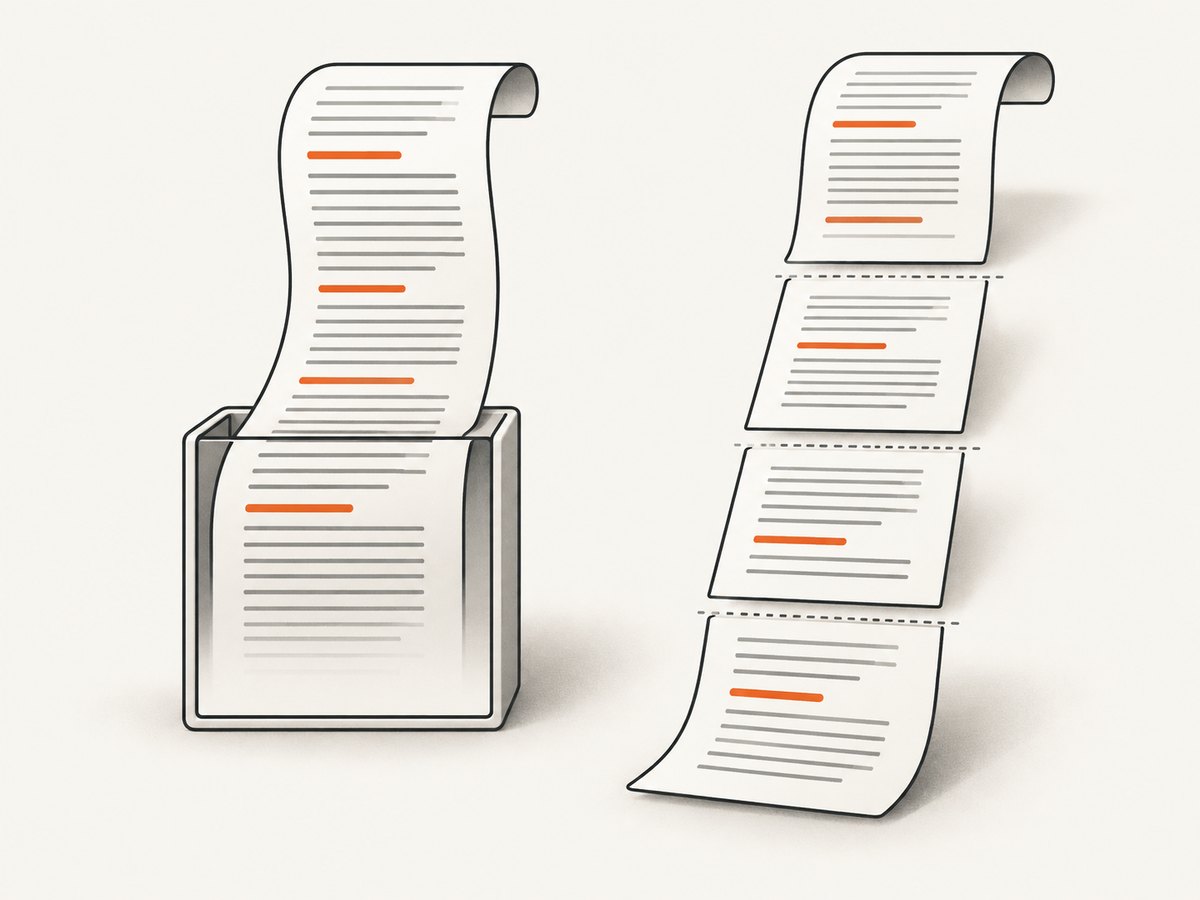
Check for display: none, visibility: hidden, a print-only wrapper, or a parent with fixed height and hidden overflow. Compare computed styles under print media and remove the rule that excludes later sections.
The PDF is blank or nearly empty
The page may be captured before client rendering, behind an authentication redirect, or before fonts and data load. Log the final URL, wait for a page-specific ready marker, and verify that the expected selector exists before calling page.pdf().
Page breaks are ignored
Confirm that the rule applies in print media, that the element is in normal flow, and that no ancestor clips it. Use both break-before/break-inside and the legacy page-break-* aliases for broad browser compatibility.
@page size and margins behave unexpectedly
Set preferCSSPageSize: true when CSS should control size, or remove @page while testing API dimensions. A Playwright issue opened January 15, 2025 against version 1.49.1 reports unexpected margin behavior when @page is present and prefer_css_page_size is false. Record Playwright, browser, operating-system, and language versions in a minimal reproduction and test both explicit API margins and CSS-preferred sizing.
Images or fonts change pagination between runs
Wait for document.fonts.ready and for layout-critical images. Use stable assets, avoid late JavaScript that changes heights, and capture only after the application signals readiness.
A large table is cut off
Look for a scrolling table container. For print, set its height to auto and overflow to visible. If the table cannot split acceptably, repeat headers with print-aware table CSS and allow rows to break where appropriate.
Performance and reliability
Most PDF time is spent loading the page, running application JavaScript, downloading assets, and waiting for fonts and images. Reusing a browser process while creating a fresh page per job reduces startup work. Keep readiness waits targeted: networkidle can be slow on pages with analytics or long-lived connections, so a specific application marker is often more reliable.
For repeatable output, pin Playwright and browser versions, record them with failed jobs, and keep a small fixture page that exercises long content, images, fonts, tables, and forced breaks. Compare generated PDFs after dependency upgrades. Avoid relying on a timeout as the only synchronization mechanism.
PDF size depends on page count, raster images, fonts, and background graphics. Disable unnecessary backgrounds and assets when they are not part of the document. Use pageRanges only when selecting pages is intentional; it cannot repair a layout that was clipped before pagination.
Or skip the browser setup
ScreenshotNeo provides a website capture API and MCP server. It can return PNG, JPEG, WebP, or PDF from one request, with PDF paper size, margins, landscape mode, and page ranges available as options. Before capture it accepts cookie or consent banners like a visitor and removes more than 60 known consent platforms, newsletter popups, and chat widgets; each step can be turned off. Bot checks, blank pages, timeouts, failed loads, and cache hits are not billed, and the response reports the verdict and billing status in X-Page-Verdict and X-Billed headers.
See the ScreenshotNeo API documentation for the complete option list and OpenAPI specification.
curl -G "https://api.screenshotneo.com/v1/shot" -d access_key=YOUR_API_KEY --data-urlencode url=https://stripe.com -o shot.webpimport requests
r = requests.get("https://api.screenshotneo.com/v1/shot", params={"access_key": "YOUR_API_KEY", "url": "https://stripe.com"}, timeout=90)
open("shot.webp", "wb").write(r.content)const q = new URLSearchParams({ access_key: 'YOUR_API_KEY', url: 'https://stripe.com' });
const res = await fetch(`https://api.screenshotneo.com/v1/shot?${q}`);ScreenshotNeo also supports full-page capture with lazy images loaded, custom CSS and JavaScript, waiting for a selector or network idle, custom headers and cookies, device presets, retina scale, element capture, caching with your chosen TTL, signed links, asynchronous jobs with signed webhooks, bulk capture of up to 100 URLs per call, and an MCP server with take_screenshot, get_page_info, and capture_pdf for Claude, Cursor, and other MCP clients.
There are 1,000 free screenshots per month with no card. Paid plans start at $5 for 3,000 shots, and every feature is available on every plan. Create a free ScreenshotNeo account.
FAQ
Does page.pdf() always use print CSS?
Yes, by default. Use emulateMedia({ media: 'screen' }) when the screen stylesheet is the intended output.
Should I use A4 or Letter?
Use the paper size your readers or printer expect. Set it explicitly and define all margins while debugging.
Can JavaScript page breaks force a new PDF page?
JavaScript can add a class or element, but pagination is controlled by CSS paged-media rules such as break-before: page.
Why does networkidle still produce an incomplete PDF?
Applications may render after network activity settles, and fonts or cached resources can change layout later. Wait for a domain-specific ready marker and layout-critical assets.
Can a PDF be one page because the content is genuinely short?
Yes. Compare the document’s measured scroll height and the intended paper geometry before treating one page as a failure.


