How to Fix Playwright Persistent Contexts in Docker
Fix Playwright persistent context failures in Docker with isolated profiles, matching versions, stable Chromium settings, diagnostics, and working code.
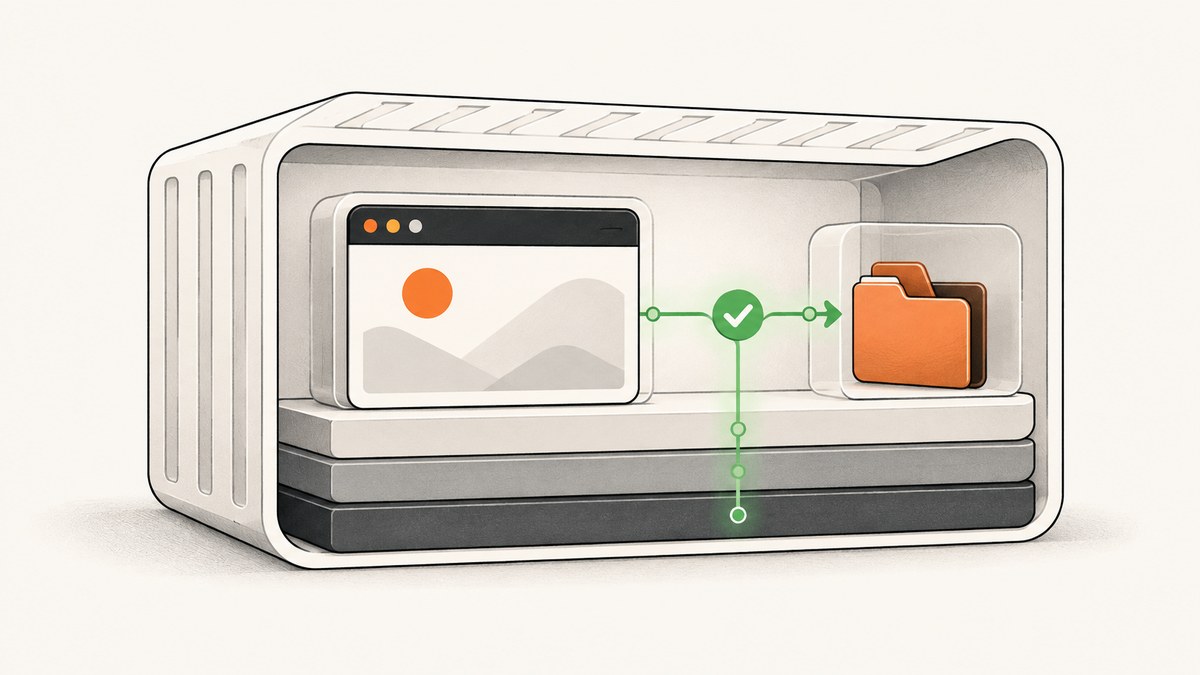
Playwright persistent contexts usually fail in Docker for a small set of repeatable reasons: two browser processes are using one profile directory, automation is pointed at Chrome’s normal profile, the package and container versions do not match, Chromium runs out of shared memory, or a headed browser has no display. Fix those in that order.
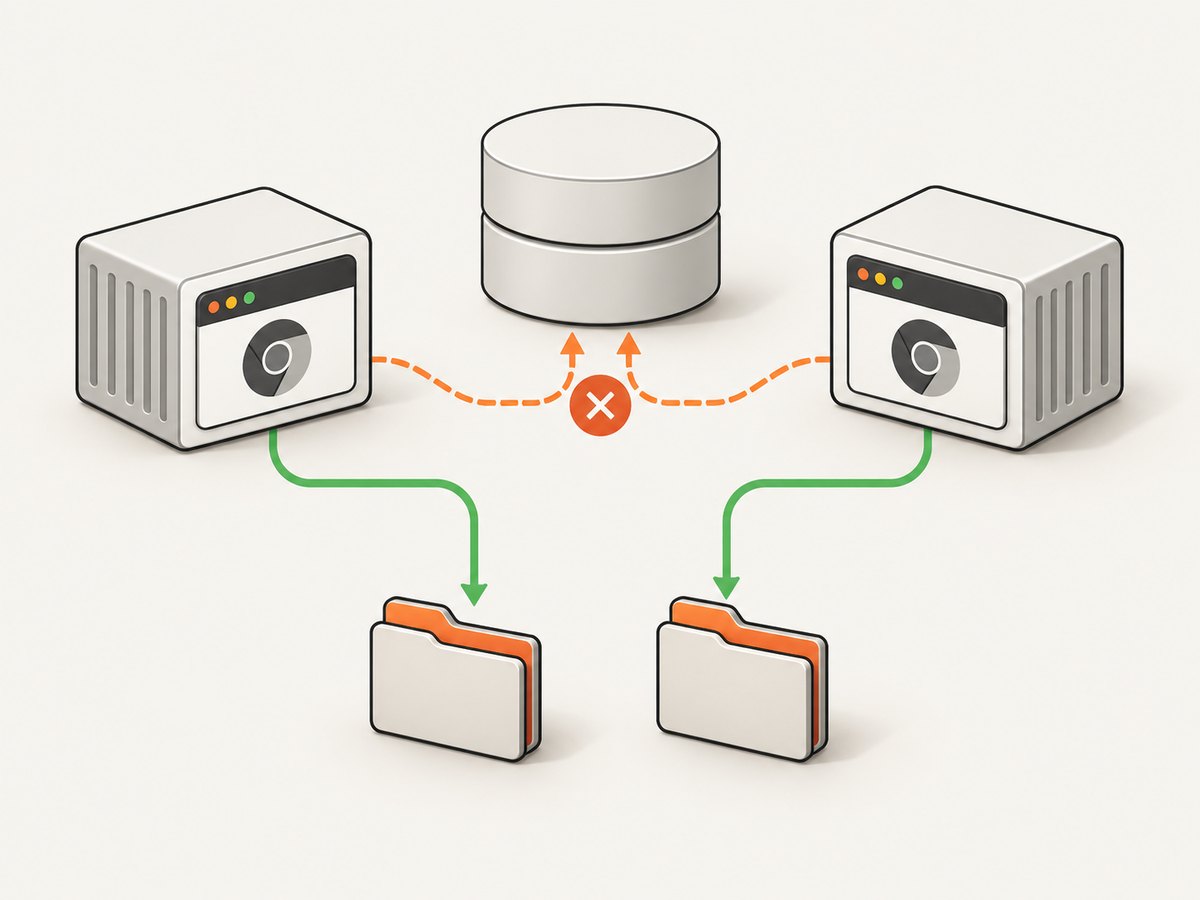
A persistent context is a browser launched with a profile directory on disk. Cookies, local storage, and other session data remain in that directory between runs. Playwright’s launchPersistentContext(userDataDir, options) returns the one context created for that browser; closing the context also closes the browser. A user data directory cannot be shared by simultaneous browser processes.
1. Start with an automation-only profile
Use a directory created for automation, mounted at a known path in the container. Never point automation at your everyday Chrome profile. Recent Chrome policy changes make the default profile unsupported for automation; the Playwright codegen documentation calls out Chrome 136 and later as requiring a separate user-data directory.
import { chromium } from 'playwright';

const browserContext = await chromium.launchPersistentContext('/tmp/playwright-profile', {
  headless: true,
});

const page = await browserContext.newPage();
await page.goto('https://example.com', { waitUntil: 'domcontentloaded' });
console.log(await page.title());

await browserContext.close(); // closes the browser too
For multiple workers, generate one directory per worker. A simple pattern is /profiles/worker-${WORKER_ID}. Do not launch a second process against the same path while the first one is alive. If a previous run crashed, remove or recover the stale profile lock only after confirming no browser still uses the directory.
Docker Compose profile mount
services:
  scraper:
    build: .
    environment:
      WORKER_ID: "0"
    volumes:
      - playwright-profile:/profiles
    init: true
    ipc: host

volumes:
  playwright-profile:
With several replicas, give each replica its own volume or subdirectory. A shared volume is fine for storing separate profiles; it is not permission to share one profile concurrently.
2. Pin and align Playwright versions
The Playwright package installed by your project must match the browser version available in the Docker image. If they differ, Playwright may report that it cannot locate an executable or may fail during launch. Pin both instead of using floating tags.
# package.json (example)
{
  "dependencies": {
    "playwright": "1.51.1"
  }
}

# Dockerfile
FROM mcr.microsoft.com/playwright:v1.51.1-noble
WORKDIR /app
COPY package*.json ./
RUN npm ci
COPY . .
CMD ["node", "capture.js"]
Use the current version you have selected; the important rule is that the image tag and dependency agree. The official image contains browsers and system dependencies, but your application still needs the Playwright package. After changing versions, rebuild the image so an old browser layer is not reused accidentally.
docker build --no-cache -t my-playwright-capture .
docker run --rm --init --ipc=host my-playwright-capture
3. Give Chromium a stable Docker runtime
Playwright recommends --init so PID 1 handles signals and child processes correctly. For Chromium, use --ipc=host; without sufficient shared memory Chromium can run out of memory and crash. These settings address process and memory stability and do not replace profile isolation.
docker run --rm \
  --init \
  --ipc=host \
  -v "$PWD/profiles:/profiles" \
  -e WORKER_ID=0 \
  my-playwright-capture
If your environment cannot use host IPC, increase the container’s shared memory with --shm-size and monitor crashes, but the documented Chromium recommendation is --ipc=host. During local diagnosis, Playwright documents --cap-add=SYS_ADMIN as an experiment for unusual Chromium launch errors. Treat it as a diagnostic step, not a default production setting.
4. Choose the right user and sandbox model
The documented Playwright image runs as root by default, which disables Chromium’s sandbox. Root can be acceptable for trusted end-to-end tests. Scraping or browsing untrusted sites needs a separate non-root user and the supplied seccomp approach so Chromium can use user namespaces while retaining its sandbox.
FROM mcr.microsoft.com/playwright:v1.51.1-noble
RUN useradd --create-home --shell /bin/bash pwuser
USER pwuser
WORKDIR /home/pwuser/app
COPY --chown=pwuser:pwuser package*.json ./
RUN npm ci
COPY --chown=pwuser:pwuser . .
CMD ["node", "capture.js"]
Make sure the mounted profile directory is writable by that user. A permission failure often appears as an immediate browser exit or a profile lock error.
5. Headless versus headed execution
Headless mode is Playwright’s default and does not require a display. Headed Linux execution requires Xvfb. If you need to watch the browser or reproduce a visual-only problem, install or use an image containing Xvfb and prefix the command with xvfb-run.
xvfb-run --auto-servernum node capture.jsAlternatively, keep the browser headless and enable tracing, screenshots, or video for diagnosis. Installing a desktop stack will not fix profile contention or a version mismatch.
6. A complete Docker example
This small project creates a unique profile, persists it under a mounted directory, and closes the context in a finally block.
// capture.js
import { chromium } from 'playwright';
import fs from 'node:fs/promises';

const worker = process.env.WORKER_ID || '0';
const profile = `/profiles/worker-${worker}`;
await fs.mkdir(profile, { recursive: true });

let context;
try {
  context = await chromium.launchPersistentContext(profile, {
    headless: process.env.HEADLESS !== 'false',
    viewport: { width: 1365, height: 900 },
    acceptDownloads: false,
  });
  const page = await context.newPage();
  await page.goto(process.env.TARGET_URL || 'https://example.com', {
    waitUntil: 'networkidle',
    timeout: 60_000,
  });
  await page.screenshot({ path: '/tmp/page.png', fullPage: true });
} finally {
  if (context) await context.close();
}
FROM mcr.microsoft.com/playwright:v1.51.1-noble
WORKDIR /app
COPY package*.json ./
RUN npm ci
COPY capture.js ./
CMD ["node", "capture.js"]docker build -t persistent-context-demo .
docker run --rm --init --ipc=host \
-e TARGET_URL=https://example.com \
-v "$PWD/profiles:/profiles" \
persistent-context-demo7. Diagnostic sequence for “failed to launch” errors
- Read the complete error and container command. Keep the first browser-launch error, not only the final Node exception.
- Check profile ownership. Confirm the path exists, is writable, and is not already used by another process. Try a brand-new empty directory.
- Check the browser profile target. Replace Chrome’s default profile with a dedicated automation directory.
- Check versions inside the image. Compare
npm list playwrightwith the image tag and rebuild after changes. - Run with lifecycle and IPC settings. Add
--init --ipc=host. - Check the execution mode. For headed mode, use Xvfb; for untrusted sites, use a non-root user and seccomp.
- Enable launch logs. Set
DEBUG=pw:browser. For API-level detail,DEBUG=pw:apiis also available.
DEBUG=pw:browser docker run --rm --init --ipc=host my-playwright-capture8. Common errors and fixes
| Symptom | Likely cause | Fix |
|---|---|---|
| “Failed to launch browser” immediately | Profile is locked, unwritable, or points to a normal Chrome profile | Use a new automation directory, correct ownership, and one process per directory |
| Browser exits with no page | Chrome default profile policy, sandbox/user mismatch, or missing display | Use a separate profile; select headless or add Xvfb; choose a user and seccomp model that fits the trust level |
| “Executable doesn’t exist” | Package and image versions do not match, or browsers were not installed | Align the pinned image and dependency; rebuild the image |
| Random Chromium crashes under load | Insufficient shared memory or too many concurrent browsers | Use --ipc=host, reduce concurrency, and give each worker its own profile |
| Permission denied in mounted profile | Container user cannot write the host-mounted directory | Change ownership/permissions or mount a directory writable by the selected user |
| Stale session data | Persistent storage intentionally preserved old cookies/local storage | Delete or rotate the profile when a clean session is required |
9. Reliability, performance, and cost considerations
Persistent profiles reduce repeated login work because cookies and local storage survive restarts. They also make state part of your deployment, so back up or rotate them deliberately and never let concurrent workers write the same directory. A fresh profile is the fastest way to separate browser defects from corrupted state.
Each browser process consumes memory. More workers do not automatically increase throughput if Chromium is competing for IPC or container memory. Start with one process per profile, measure queue time and crash logs, then increase concurrency while watching memory. Reuse a context for a sequence of pages when session continuity matters; close it promptly when the job ends.
Docker itself has no per-screenshot charge. Your infrastructure cost comes from CPU, memory, storage, image pulls, and the websites you access. Pinning an image improves repeatability, while rebuilding only when versions change reduces unnecessary image work.
10. When a persistent context is the wrong tool
Use a regular non-persistent context when every test needs a clean browser state and no session must survive. Use a persistent context when cookies, local storage, extensions, or a logged-in workflow must remain across runs. In either mode, isolate simultaneous browser processes and keep browser/package versions aligned.
Or skip the browser setup
If your goal is a reliable website image rather than browser-session automation, ScreenshotNeo provides a GET endpoint that returns PNG, JPEG, WebP, or PDF. See the API documentation for all options.
curl -G "https://api.screenshotneo.com/v1/shot" -d access_key=YOUR_API_KEY --data-urlencode url=https://stripe.com -o shot.webpimport requests
r = requests.get("https://api.screenshotneo.com/v1/shot", params={"access_key": "YOUR_API_KEY", "url": "https://stripe.com"}, timeout=90)
open("shot.webp", "wb").write(r.content)const q = new URLSearchParams({ access_key: 'YOUR_API_KEY', url: 'https://stripe.com' });
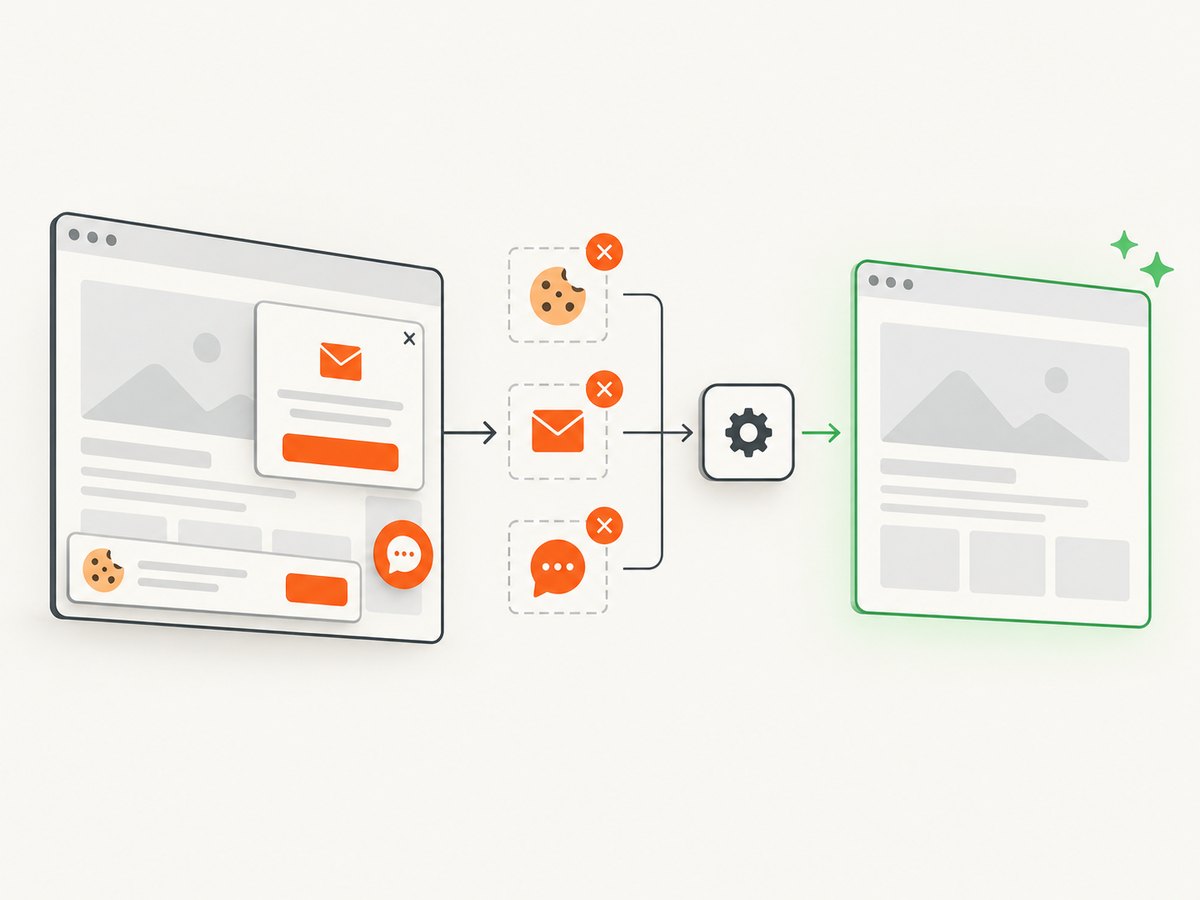
const res = await fetch(`https://api.screenshotneo.com/v1/shot?${q}`);ScreenshotNeo accepts cookie and consent banners before capture and removes more than 60 known consent platforms, newsletter popups, and chat widgets; each step can be turned off. Bot checks, blank pages, timeouts, failed loads, and cache hits are not billed, and response headers identify the page verdict and billing result. Its MCP server gives Claude, Cursor, and other MCP clients take_screenshot, get_page_info, and capture_pdf tools. The free plan includes 1,000 screenshots a month with no card; paid plans start at $5 for 3,000.
Create a free ScreenshotNeo account and try the endpoint without adding a card.
FAQ
Can two Playwright browsers use one user-data directory?
No. Playwright warns that browsers do not permit multiple instances to launch with the same directory. Allocate one directory per simultaneous browser process.
Does closing a persistent context close Chromium?
Yes. The persistent context is the browser’s only context, and closing it automatically closes the browser.
Do I need Xvfb in every Playwright container?
No. Headless mode needs no display. Xvfb is required for headed Linux execution.
Should I disable Chromium’s sandbox to make Docker work?
No universal setting is safe. Root disables the sandbox in the documented image. For untrusted browsing, use a separate user and the documented seccomp approach instead of treating sandbox removal as the fix.
Why does a clean profile work while my mounted profile fails?
The mounted profile may be locked by another process, owned by a different user, or contain state created by an unsupported normal Chrome profile. Test with a new directory, then migrate only the state you actually need.


