How to Fix Playwright Screenshot Errors When the Page Is Closed
A closed-page screenshot error means Playwright lost access to the page or its browser state. Find which object closed, trace cleanup, and isolate crashes, site behavior, and connection mode.
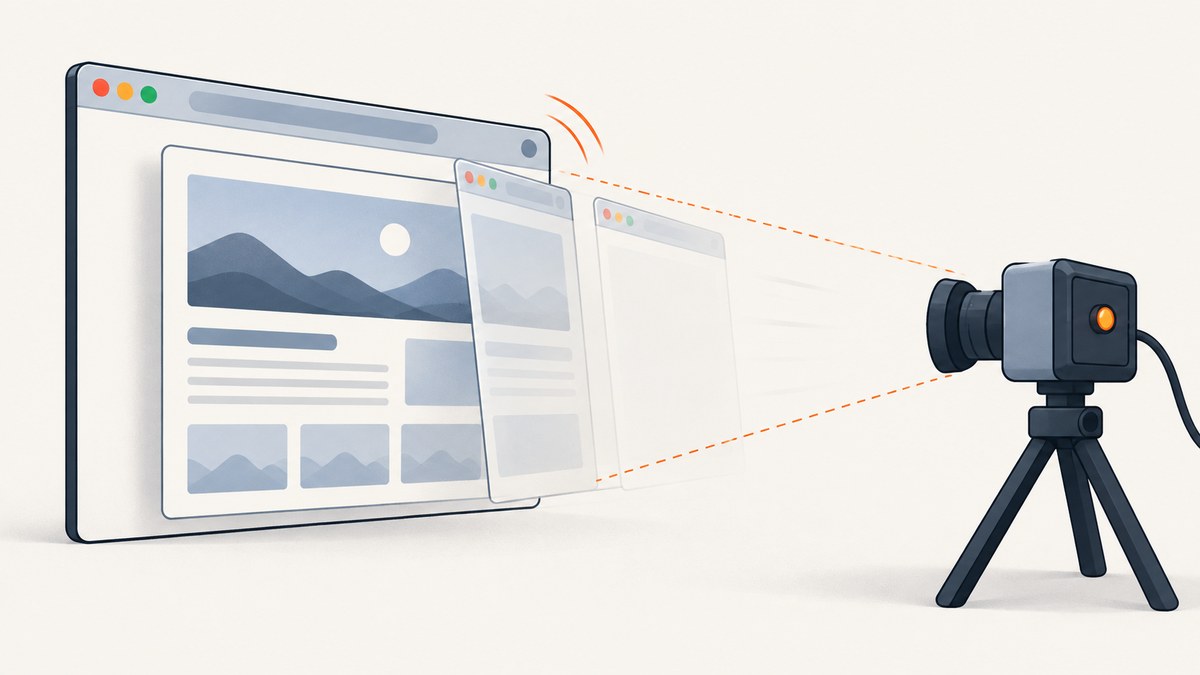
A Playwright screenshot error that says the page, target, context, or browser is closed means the screenshot call lost access to the browser state it needed. The message alone does not identify why. First determine whether the Page, its BrowserContext, or the Browser closed; then trace fixture teardown and explicit cleanup. If those objects are still expected to be alive, investigate a browser crash, resource pressure, the target site, and whether the run uses a remote connection.
The quickest useful check is page.isClosed(), followed by inspection of every page.close(), context.close(), and browser.close() that can run before the screenshot. Playwright documents these lifecycle methods in its Page API reference. The diagnostic steps below help localize the failure; none assumes that one cause explains every report.
1. Identify which browser object closed
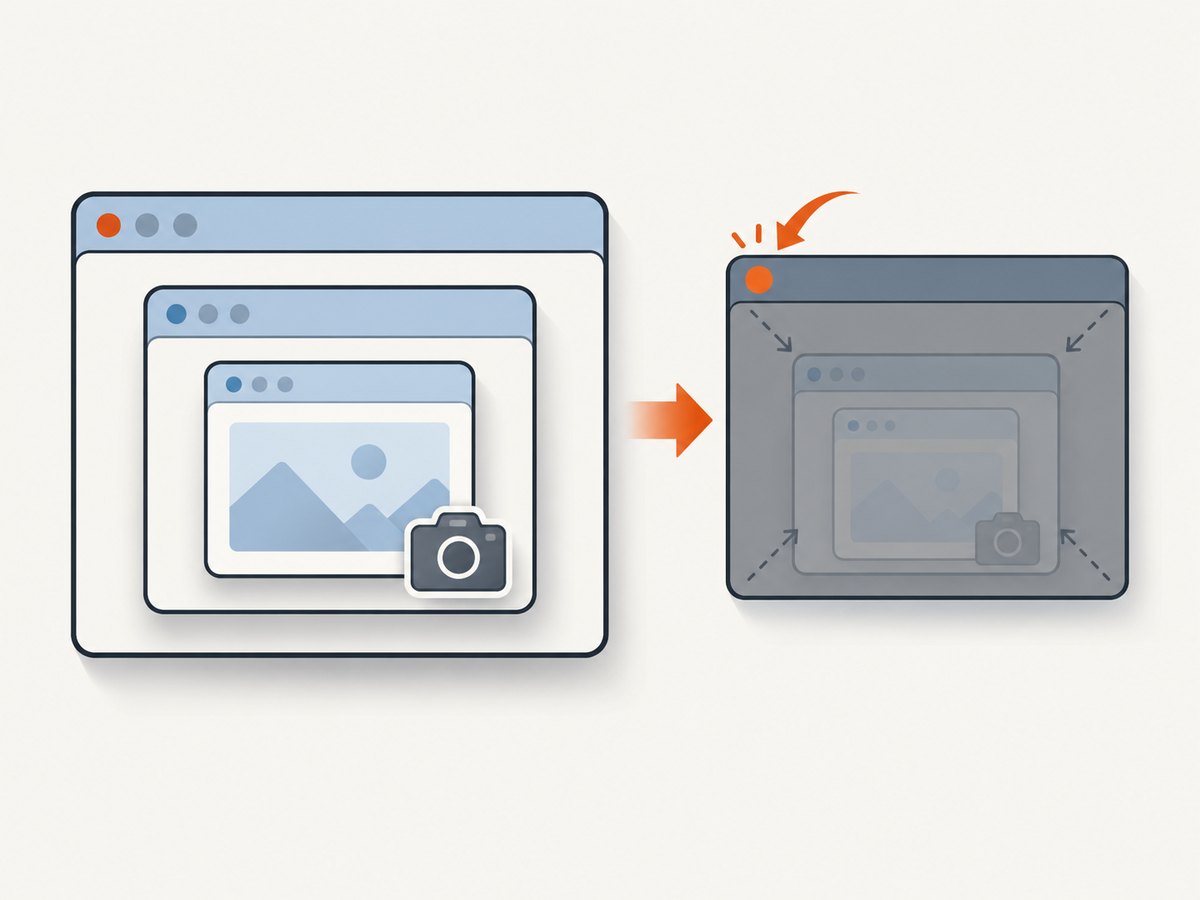
Playwright has several related objects with different lifetimes. A Page is a tab or page, a BrowserContext owns pages and their isolated browser state, and a Browser owns contexts. Closing a parent can make its children unusable. Read the full error and call log, then check the page state immediately before the screenshot.
if (page.isClosed()) {
  throw new Error('Page was already closed before screenshot');
}
await page.screenshot({ path: 'page.png' });
page.isClosed() tells you whether that page has been closed. It does not explain who closed it, prove that the browser process is healthy, or guarantee that a page will remain available after the check. Treat it as a state check, not a complete diagnosis.
Use a narrow reproduction to log the sequence around navigation and capture:
console.log('before navigation, closed:', page.isClosed());
await page.goto('https://example.com');
console.log('before screenshot, closed:', page.isClosed());
await page.screenshot({ path: 'page.png' });
console.log('after screenshot, closed:', page.isClosed());
If the second check already reports a closed page, investigate navigation behavior, test cleanup, and code that runs concurrently. If the page is open immediately before the call but the screenshot fails, preserve the call log and check whether its context or browser disconnected or crashed.
2. Trace cleanup, fixtures, and ownership
Search the code path and test harness for all close calls. A cleanup function can run earlier than expected, especially when screenshot work is started without being awaited or when fixture lifetimes are mixed. Make ownership explicit: the code that creates a browser or context should have a clear place that closes it, after all work using it has completed.
const browser = await chromium.launch();
try {
  const context = await browser.newContext();
  try {
    const page = await context.newPage();
    await page.goto('https://example.com');
    await page.screenshot({ path: 'page.png' });
  } finally {
    await context.close();
  }
} finally {
  await browser.close();
}
This example uses nested try/finally blocks so teardown happens even if navigation or capture throws, while ensuring the screenshot is awaited before the context closes. If the test framework owns a fixture, avoid independently closing a shared page or browser unless that ownership is part of the fixture contract.
In Playwright Test, inspect fixture setup and teardown order, including custom fixtures and editor integrations. A 2023 report for Playwright 1.30.0 described a custom page being closed before a test ran in a particular combination of built-in fixtures and the VS Code extension’s browser reuse option. That report is a reason to inspect fixture ordering in a similar setup, not evidence that VS Code or fixture ordering is the general cause of closed-page errors. See the Playwright issue tracker and retain the specific issue details from your reproduction when comparing behavior.
3. Check for browser crashes and resource pressure
A page can become unavailable because the browser process or renderer crashed. Look for browser-process exit messages, crash output, container logs, memory limits, and abrupt failures that occur before or during capture. Note whether the failure follows many navigations, appears only under parallel load, or affects a long-lived browser process.
Two issue reports illustrate why these checks belong in the diagnosis: a Playwright 1.40.0 report described Chromium running out of memory after thousands of navigations and hanging at a screenshot call; a Playwright 1.45.0 report described occasional Target crashed screenshot failures in a multithreaded, long-lived setup. These are individual reports, not proof that memory exhaustion or concurrency caused your error. See the reports for the memory-related case and the crash case, and compare their environment details with yours.
As a diagnostic, reduce the workload to one browser, one context, one page, and one screenshot. If that works, gradually restore concurrency or repeated navigation while monitoring the browser process. Do not assume increasing a timeout will repair a process that has crashed or a page that has been closed.
4. Isolate the site, screenshot mode, and connection mode
Change one variable at a time. Compare the failing site with a minimal known-good page, a viewport screenshot with a full-page screenshot, a local launch with a remote connection, and short-lived use with the long-running workload that fails. Keep the Playwright version and browser engine explicit for every comparison.
| Comparison | What it can help localize | What it cannot prove |
|---|---|---|
| Failing site vs. minimal page | Whether the behavior is tied to the target page or its loading behavior | That the site alone is the root cause |
| Viewport vs. full-page capture | Whether the failure is associated with the larger capture path | That full-page mode is generally defective |
| Local launch vs. remote connection | Whether the connection or deployment setup changes the result | That every remote browser setup is affected |
| Single capture vs. repeated or parallel work | Whether lifetime, resource use, or concurrency correlates with failure | A specific resource cause without supporting logs |
A Playwright 1.39.0 report described a 30-second full-page screenshot timeout on one site while other sites worked. An older report described a screenshot hang in a BrowserServer connection scenario, with different behavior under local launch in that reported environment. These reports motivate the comparisons above; they do not establish universal fixes. The issue results vary by version and setup, so keep those details attached to every reproduction.
5. Build a minimal reproduction and capture the right details
Reduce the failing case until it has one page, one navigation, and one awaited screenshot. Keep the same target and execution mode while removing unrelated test work. Record:
- The exact error text, stack, and Playwright call log.
- Playwright package and language-binding version, browser engine, and browser version if available.
- Operating system or container image and relevant resource limits.
- Whether the browser is launched locally or reached through a remote connection.
- Whether capture is viewport or full-page, and any capture options.
- How long the browser and page have been running, plus navigation count and concurrency.
- Fixture setup/teardown code and nearby close calls.
A small reproduction plus these details makes it possible to distinguish a lifecycle race from a site-specific or environment-specific issue. The issue reports reviewed for this topic involve different Playwright versions and execution environments; there is no population-level prevalence figure that would justify calling any one cause typical.
Runnable diagnostic examples
Use these examples to test a minimal local flow. They check the page before capture and wait for screenshot completion before closing its owning objects. Replace the URL with the failing page only after the minimal page works.
JavaScript (Playwright)
const { chromium } = require('playwright');

(async () => {
  const browser = await chromium.launch();
  try {
    const context = await browser.newContext();
    try {
      const page = await context.newPage();
      await page.goto('https://example.com', { waitUntil: 'domcontentloaded' });
      console.log('Page closed before capture:', page.isClosed());
      if (page.isClosed()) throw new Error('Page closed before screenshot');
      await page.screenshot({ path: 'diagnostic.png' });
    } finally {
      await context.close();
    }
  } finally {
    await browser.close();
  }
})().catch(error => {
  console.error(error);
  process.exitCode = 1;
});
Python (Playwright)
from playwright.sync_api import sync_playwright

with sync_playwright() as p:
    browser = p.chromium.launch()
    try:
        context = browser.new_context()
        try:
            page = context.new_page()
            page.goto("https://example.com", wait_until="domcontentloaded")
            print("Page closed before capture:", page.is_closed())
            if page.is_closed():
                raise RuntimeError("Page closed before screenshot")
            page.screenshot(path="diagnostic.png")
        finally:
            context.close()
    finally:
        browser.close()
cURL and the Playwright connection boundary
cURL does not control a Playwright page, so it cannot check page.isClosed() or fix a Playwright lifecycle error. It is useful for checking whether the target URL responds independently of the browser automation. This command follows redirects and prints response headers; a successful response does not prove that the browser can render or capture the site.
curl -L -D - -o /dev/null --max-time 30 https://example.comFor the Playwright screenshot itself, run the JavaScript or Python diagnostic above. If you need a screenshot without managing a browser lifecycle, use the API option below.
Or skip the browser setup
ScreenshotNeo takes a screenshot with one GET request. Its clean capture flow accepts cookie/consent banners like a visitor and removes known consent platforms, newsletter popups, and chat widgets before the shot. Bot checks or CAPTCHAs, blank pages, timeouts, failed loads, and cache hits are not billed; response headers say the page verdict and billing outcome. It also provides an MCP server for AI agents, with screenshot, page-info, and PDF tools. See the ScreenshotNeo API documentation for request options.

curl -G "https://api.screenshotneo.com/v1/shot" \
  -d access_key=YOUR_API_KEY \
  --data-urlencode url=https://example.com \
  -o shot.webp
Equivalent Python and Node.js requests:
import requests

r = requests.get(
    "https://api.screenshotneo.com/v1/shot",
    params={"access_key": "YOUR_API_KEY", "url": "https://example.com"},
    timeout=90,
)
open("shot.webp", "wb").write(r.content)
const q = new URLSearchParams({
access_key: 'YOUR_API_KEY',
url: 'https://example.com'
});
const res = await fetch(`https://api.screenshotneo.com/v1/shot?${q}`);
if (!res.ok) throw new Error(`Screenshot request failed: ${res.status}`);
await require('node:fs/promises').writeFile('shot.webp', Buffer.from(await res.arrayBuffer()));Cookie banners, popups, and chat widgets are removed before the shot; bot checks, blank pages, and failed loads are never billed; an MCP server lets AI agents take screenshots; and 1,000 screenshots a month are free with no card, with paid plans starting at $5 for 3,000. Sign up for the free plan.
Performance, reliability, and cost considerations
For a local Playwright workflow, shorten diagnostic loops by starting with one page and one capture, then add the real target and workload. A full-page capture, a long-running browser, or parallel pages changes what is being exercised; compare those conditions separately. If failures emerge only after repeated navigation or concurrency, capture resource and browser-process evidence before changing timeouts or retry policies.
Retries can help with genuinely transient failures, but retrying a page that has already closed will not restore it. Recreate the required page or context only when the application’s lifecycle design allows it, and preserve the original error and logs. Avoid silently retrying indefinitely: it can conceal a deterministic fixture-order bug or a browser process that is no longer healthy.
Local browser automation has no per-screenshot API charge, but it uses your compute and requires browser lifecycle management. ScreenshotNeo offers 1,000 shots per month free without a card; paid plans are Starter $5 for 3,000, Growth $15 for 15,000, Pro $39 for 60,000, Scale $99 for 250,000, and Business $249 for 1,000,000. Yearly billing gives two months free, and every feature is on every plan. Because failed loads, bot checks/CAPTCHAs, blank pages, timeouts, and cache hits are not billed, inspect the response billing headers when estimating usage.
Troubleshooting checklist
| Symptom | Likely area to inspect | Next action |
|---|---|---|
page.isClosed() is true before capture |
Explicit close call, fixture teardown, navigation or test ordering | Trace ownership and await all page work before cleanup |
| Page check is false, but screenshot reports a closed target | Parent context/browser closure or process failure during capture | Inspect browser disconnect/exit logs and context lifetime |
| Failure happens after many navigations | Long-lived state or resource pressure | Reproduce with fewer navigations and monitor process resources |
| Failure appears only under parallel load | Concurrency, shared objects, or process stability | Run one worker and one page, then increase concurrency gradually |
| Only one site or full-page capture fails | Target-specific behavior or capture mode | Compare a minimal site and viewport capture, changing one factor at a time |
| Remote connection fails while local launch works | Connection or deployment mode | Keep both reproductions and record the remote browser setup |
These are diagnostic directions, not guaranteed root causes. Confirm any suspected cause against the exact version, browser engine, and environment involved.
FAQ
Does the error prove that my code called page.close()?
No. The page, its context, or its browser may have closed through cleanup or a failure elsewhere. Trace ownership and use page.isClosed() to check the page state.
Should I just increase the screenshot timeout?
Only investigate a timeout setting if the error is actually a timeout and the browser remains healthy. A closed target indicates lost access to browser state; more time does not reopen it.
Is a full-page screenshot always the cause?
No. Compare full-page and viewport captures in your reproduction. A report involving one site and a full-page timeout is a case-specific example, not a general rule.
What should I include when asking for help?
Include the exact error and call log, versions, browser engine, OS/container, local or remote mode, screenshot options, workload duration, and fixture or cleanup code.
Can I use a screenshot API instead of Playwright?
Yes. ScreenshotNeo provides a GET screenshot API and MCP server, so you can capture a page without owning a Playwright browser lifecycle. Review its docs for supported options and sign up for 1,000 free screenshots a month with no card.


