How to Fix Playwright TypeScript Clicks That Do Not Work
Diagnose Playwright click failures by reading actionability errors, refining locators, and fixing timing, overlays, frames, and browser state.
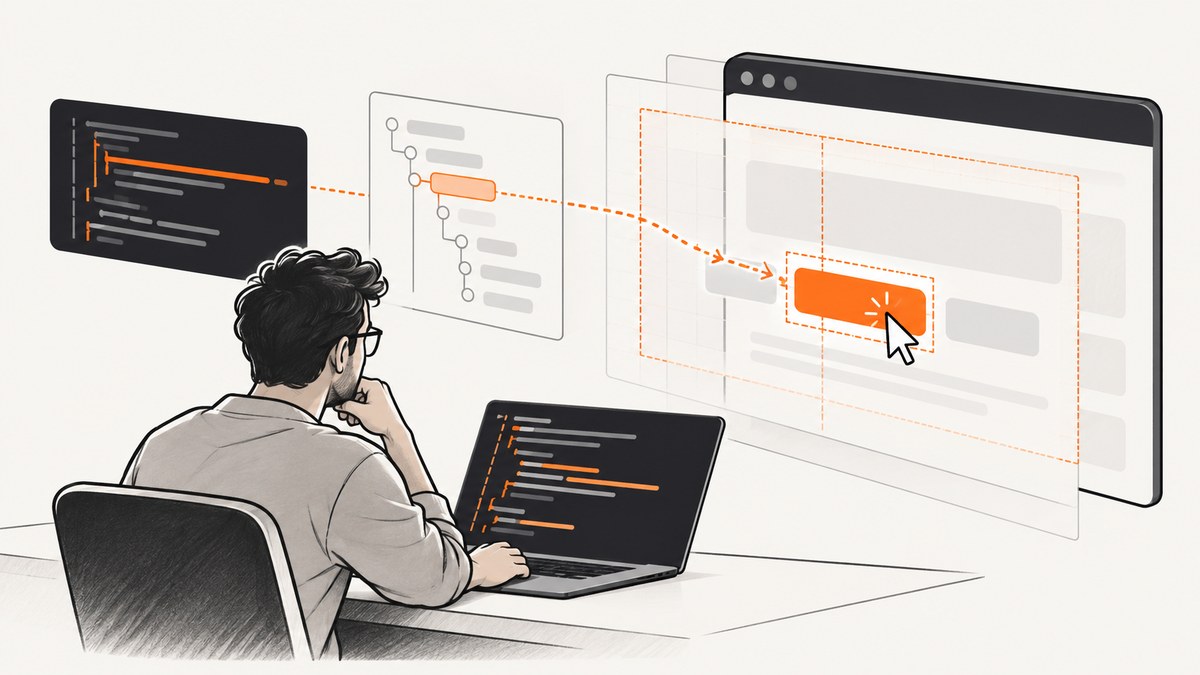
When a Playwright TypeScript click does not work, start with the exact error and call log. A locator click must resolve to one intended element, and Playwright waits for that element to be visible, stable, enabled, and able to receive pointer events before clicking. Fix the condition named by the log instead of adding a blind sleep or immediately using force.
The reliable workflow is:
- Read whether the failure is a strict-mode error, timeout, navigation problem, or assertion failure.
- Prove that the locator identifies the intended control exactly once.
- Inspect actionability logs for visibility, movement, disabled state, or an intercepting element.
- Correct the page state, frame, overlay, or locator that caused the failure.
- Increase a timeout only when the condition is legitimately slow.
- Keep real interaction checks enabled unless the test intentionally covers a programmatic event.
What Playwright checks before a click
locator.click() performs actionability checks before dispatching the pointer action. The target must be attached, visible, stable, enabled, and able to receive events. Playwright scrolls it into view when needed, then performs the click. See the official actionability documentation.
| Observed symptom | Likely condition | First fix to try |
|---|---|---|
| Strict mode violation | Locator matches multiple elements | Use a more specific role/name, test ID, or region scope |
| Timeout while waiting | Locator is wrong, element is hidden, moving, disabled, covered, or never loads | Read the call log and inspect the page state |
| Click intercepted | Another element receives the pointer event | Close the overlay, wait for it to disappear, or target the correct control |
| Element is outside the frame | Target lives in an iframe | Use frameLocator() or the matching frame |
| Click succeeds but test fails later | Navigation or asynchronous UI update was not awaited | Wait for the URL, response, or resulting UI state |
1. Read the exact error and call log
Do not treat every click failure as a timing issue. A strict-mode error and an actionability timeout require different fixes.
import { test, expect } from '@playwright/test';

test('opens account menu', async ({ page }) => {
  await page.goto('https://example.test');
  await page.getByRole('button', { name: 'Account' }).click();
});
A timeout normally includes a call log describing what Playwright tried and what remained true. For example, repeated messages about an element being covered point to an overlay; repeated resolution to no element points to a locator or page-state problem. Run with a headed browser, tracing, or the Playwright Inspector when the terminal output is not enough. The debugging guide documents these tools.
npx playwright test tests/account.spec.ts --debug

# Run headed and keep a trace for failed tests
npx playwright test --headed --trace on
2. Make the locator identify one intended element
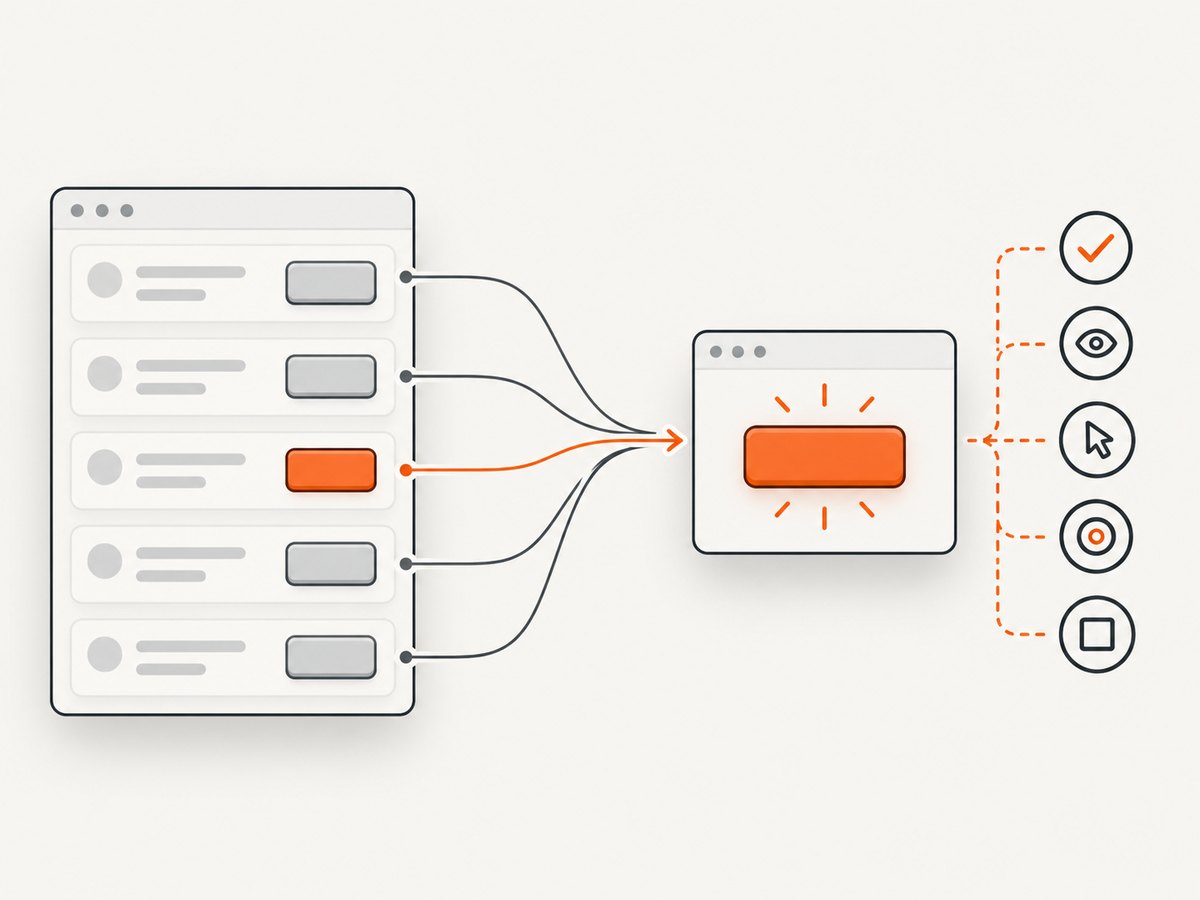
Playwright actions are strict: an action aimed at one element fails when the locator resolves to more than one match. Prefer user-facing locators such as an accessible role and name, or a stable test ID. The locator guide explains the trade-offs.
Prefer role and accessible name
await page.getByRole('button', { name: 'Save changes' }).click();
await page.getByRole('link', { name: 'Billing' }).click();
await page.getByLabel('Email address').fill('dev@example.com');
Scope a repeated control to a meaningful region
const settings = page.getByRole('region', { name: 'Settings' });
await settings.getByRole('button', { name: 'Save' }).click();
Use a test ID when the UI text is not a stable contract
await page.getByTestId('checkout-submit').click();CSS and XPath can be appropriate for legacy markup, but long chains tied to layout are fragile. Avoid making .first(), .last(), or .nth() the default fix. Positional selection can hide duplicate controls and can click a different element after a harmless page change. Use it only when position is the behavior you are intentionally testing.
Verify the match during diagnosis
const save = page.getByRole('button', { name: 'Save changes' });
console.log('matches:', await save.count());
await expect(save).toHaveCount(1);
await expect(save).toBeVisible();
await expect(save).toBeEnabled();
await save.click();
If the count is zero, inspect the URL, authentication state, feature flags, and rendered text. If it is greater than one, refine the locator instead of choosing an arbitrary match.
3. Fix visibility, movement, disabled state, and overlays
Playwright waits for a target to become actionable, but it cannot make an application state correct. Common blockers include a loading mask, cookie banner, modal, sticky header, animation, disabled submit button, or an element that was replaced by a framework render.
Close or wait for an overlay
const consent = page.getByRole('dialog', { name: /cookies|privacy/i });
if (await consent.isVisible().catch(() => false)) {
  await consent.getByRole('button', { name: /accept|agree/i }).click();
}

await expect(page.getByTestId('loading-mask')).toBeHidden();
await page.getByRole('button', { name: 'Continue' }).click();
If an overlay is part of the product flow, interact with it. If it is only test infrastructure, remove it through a supported test configuration or fixture. Do not hide every element matching a broad selector because that can alter the behavior under test.
Handle animation and layout movement
A moving target fails the stability check. Wait for a state that represents the end of the transition, or disable animations in a controlled test stylesheet. A fixed sleep may pass on one machine and fail on another because it does not express the condition you need.
await expect(page.getByTestId('results')).toHaveAttribute('data-state', 'ready');
await page.getByRole('button', { name: 'Refresh results' }).click();
Wait for an enabled control
const submit = page.getByRole('button', { name: 'Submit order' });
await expect(submit).toBeEnabled();
await submit.click();
4. Check frames, shadow DOM, and page state
A locator in the main page cannot see an element inside an iframe. Use a frame locator and continue using role-based locators inside it.
const payment = page.frameLocator('iframe[title="Payment form"]');
await payment.getByLabel('Card number').fill('4242424242424242');
await payment.getByRole('button', { name: 'Pay' }).click();
For a new tab or popup, keep the event and the click in the same awaited operation:
const popupPromise = page.waitForEvent('popup');
await page.getByRole('link', { name: 'Open report' }).click();
const popup = await popupPromise;
await popup.waitForLoadState();
When a click triggers navigation, Playwright usually waits for the navigation associated with the action. For a single-page application, wait for the resulting URL or UI state explicitly:
await page.getByRole('link', { name: 'Projects' }).click();
await expect(page).toHaveURL(/\/projects/);
await expect(page.getByRole('heading', { name: 'Projects' })).toBeVisible();
5. Use click options deliberately
The locator click API supports options for special interaction cases. Keep the default behavior unless the test requirement calls for a different gesture.
| Option | Use | Caution |
|---|---|---|
button |
Choose left, right, or middle |
Right and middle clicks exercise different application paths |
clickCount |
Double or triple click | Use only when the UI defines that gesture |
delay |
Pause between mouse down and up | Can slow tests; use for a real long-press-like behavior |
modifiers |
Hold keys such as Control or Shift |
Platform-specific shortcuts may differ |
position |
Click an offset within the element | Coordinates are sensitive to layout changes |
timeout |
Override this action’s timeout | Does not fix a wrong locator or blocked target |
force |
Bypass actionability checks | Can click through a real usability problem |
trial |
Run checks without performing the click | Useful for diagnosing readiness |
const menu = page.getByRole('button', { name: 'More actions' });
await menu.click({ trial: true }); // proves actionability, does not click
await menu.click({ modifiers: ['Control'] });
6. Set timeouts only when evidence supports them
There are several timeout layers: the per-action timeout, the configured action timeout, the test timeout, and assertion timeouts. Change the narrowest layer that matches the known delay.
import { defineConfig } from '@playwright/test';

export default defineConfig({
  use: {
    actionTimeout: 10_000,
  },
  expect: {
    timeout: 5_000,
  },
});
await page.getByRole('button', { name: 'Generate report' }).click({
timeout: 20_000,
});A larger timeout is justified when a documented backend operation or cold-start path genuinely takes longer. It is not a remedy for flaky tests caused by an unstable locator, an overlay, or missing synchronization. The official timeout guide recommends finding the underlying cause of flakiness.
7. Understand force and dispatchEvent
force: true bypasses actionability checks, including whether another element can receive the pointer event. This can be useful for a specialized test of a handler, but it no longer proves that a user can click the control.
// Use only when bypassing hit testing is the explicit test goal.
await page.getByTestId('canvas-hotspot').click({ force: true });
dispatchEvent('click') sends a programmatic DOM event. It does not model pointer movement, hit testing, visibility, or enabled state.
// Tests a DOM event handler, not a real user interaction.
await page.getByTestId('custom-control').dispatchEvent('click');
For end-to-end interaction coverage, fix the locator or page state and keep the normal click checks.
8. A complete TypeScript diagnostic example
import { test, expect } from '@playwright/test';

test('submits profile changes', async ({ page }) => {
  await page.goto('/profile');

  const form = page.getByRole('form', { name: 'Profile' });
  const save = form.getByRole('button', { name: 'Save changes' });

  await expect(form).toBeVisible();
  await expect(save).toHaveCount(1);
  await expect(save).toBeVisible();
  await expect(save).toBeEnabled();

  // This reports actionability without changing the page.
  await save.click({ trial: true });

  await save.click();
  await expect(page.getByRole('status')).toHaveText(/saved/i);
});
9. Common errors and fixes
| Error or symptom | Cause | Fix |
|---|---|---|
| “strict mode violation” | More than one match | Use a unique accessible name, scope to a region, or add a stable test ID |
| “waiting for locator” until timeout | Wrong route, missing login, changed text, or late rendering | Log the URL, inspect the DOM, and verify fixture state |
| “element is not visible” | Hidden tab, collapsed panel, or CSS state | Open the containing UI and assert visibility before clicking |
| “element is not enabled” | Validation or async work has not completed | Fix required input and wait for the enabled state |
| “intercepts pointer events” | Modal, toast, header, or consent layer covers it | Dismiss or wait for the covering element; verify with the inspector |
| Click in an iframe fails | Locator searches the main document | Use frameLocator() and locate inside the frame |
| Click causes unexpected navigation | Missing URL, popup, or response synchronization | Await the expected event and assert the resulting state |
| Works headed but fails headless | Viewport, timing, fonts, or environment differences | Set an explicit viewport, remove timing assumptions, and inspect a trace |
10. Performance and reliability practices
- Use one precise locator instead of repeatedly querying the page and then clicking a guessed index.
- Prefer web-first assertions such as
toBeVisible()andtoHaveText(); they poll for the state and document intent. - Keep test data and authentication fixtures deterministic so a disabled button is meaningful.
- Use traces on retries to diagnose intermittent failures without slowing every local run.
- Avoid global long action timeouts. They make genuine failures take longer and can hide a broken selector.
- When a page is animation-heavy, provide a test mode that disables nonessential animation while retaining the same DOM and interaction rules.
Or skip the browser setup
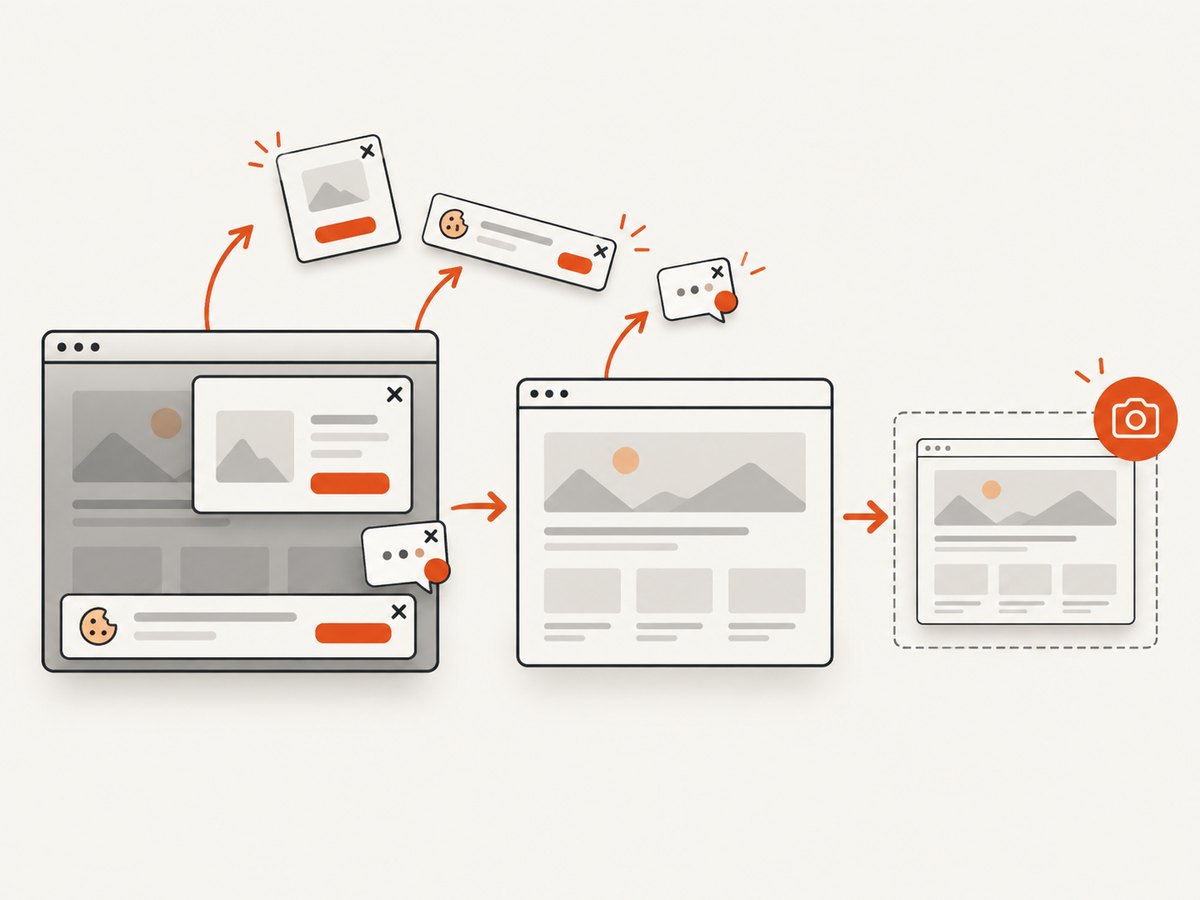
If your goal is to capture a page for a visual check, documentation, or an agent workflow rather than exercise a click, ScreenshotNeo returns a screenshot or PDF through one request. Its capture flow accepts cookie and consent banners as a visitor and removes more than 60 known consent platforms, newsletter popups, and chat widgets before the shot. Bot checks, blank pages, timeouts, failed loads, and cache hits are not billed, and response headers identify the page verdict and billing result.
See the ScreenshotNeo API documentation for all options. A minimal request is:
curl -G "https://api.screenshotneo.com/v1/shot" -d access_key=YOUR_API_KEY --data-urlencode url=https://stripe.com -o shot.webpimport requests
r = requests.get(
"https://api.screenshotneo.com/v1/shot",
params={"access_key": "YOUR_API_KEY", "url": "https://stripe.com"},
timeout=90,
)
r.raise_for_status()
open("shot.webp", "wb").write(r.content)const q = new URLSearchParams({ access_key: 'YOUR_API_KEY', url: 'https://stripe.com' });
const res = await fetch(`https://api.screenshotneo.com/v1/shot?${q}`);
if (!res.ok) throw new Error(`Screenshot failed: ${res.status}`);
const buffer = Buffer.from(await res.arrayBuffer());
await Bun.write('shot.webp', buffer);You can request full-page shots with lazy images loaded, a CSS-selected element, dark mode, device presets or a custom viewport, retina scale, PDF paper settings, custom CSS and JavaScript, clicks before capture, selector hiding, selector or network-idle waits, blocked ads and resource types, custom headers/cookies/user agents, timezone and geolocation, transparent backgrounds, resizing, a chosen cache TTL, signed links, asynchronous jobs with signed webhooks, bulk capture of up to 100 URLs, and usage data. An MCP server exposes take_screenshot, get_page_info, and capture_pdf to Claude, Cursor, and other MCP clients.
ScreenshotNeo has 1,000 free shots each month with no card. Paid plans start at $5 for 3,000 shots; yearly billing gives two months free, and every feature is included on every plan. Create a free ScreenshotNeo account.
FAQ
Should I use page.click() instead of a locator?
Use a locator and call locator.click(). The Page API click method is discouraged in favor of locator-based actions because locators carry the strictness and waiting behavior that make tests easier to diagnose.
Why does adding waitForTimeout() seem to fix the test?
It gives the page extra time by chance. The underlying condition may still vary with load, animation, or network timing. Wait for the specific UI state instead.
When is force: true acceptable?
Use it when bypassing hit testing is the behavior you explicitly want to test. For normal end-to-end coverage, it can conceal an overlay or an inaccessible control.
How do I prove a click is ready without clicking?
Call locator.click({ trial: true }). It runs the actionability checks and skips the actual click, which is useful while isolating a blocker.
What should I capture for a bug report?
Include the exact locator, URL, browser and viewport, the complete call log, a trace or screenshot at failure, and whether the target is inside a frame or covered by an overlay. That information distinguishes selector errors from page-state and environment problems.


