How to Fix Playwright WebKit Launch and Screenshot Failures
Fix WebKit launch and screenshot failures in Playwright with a repeatable install, CI, debugging, and visual-readiness workflow.
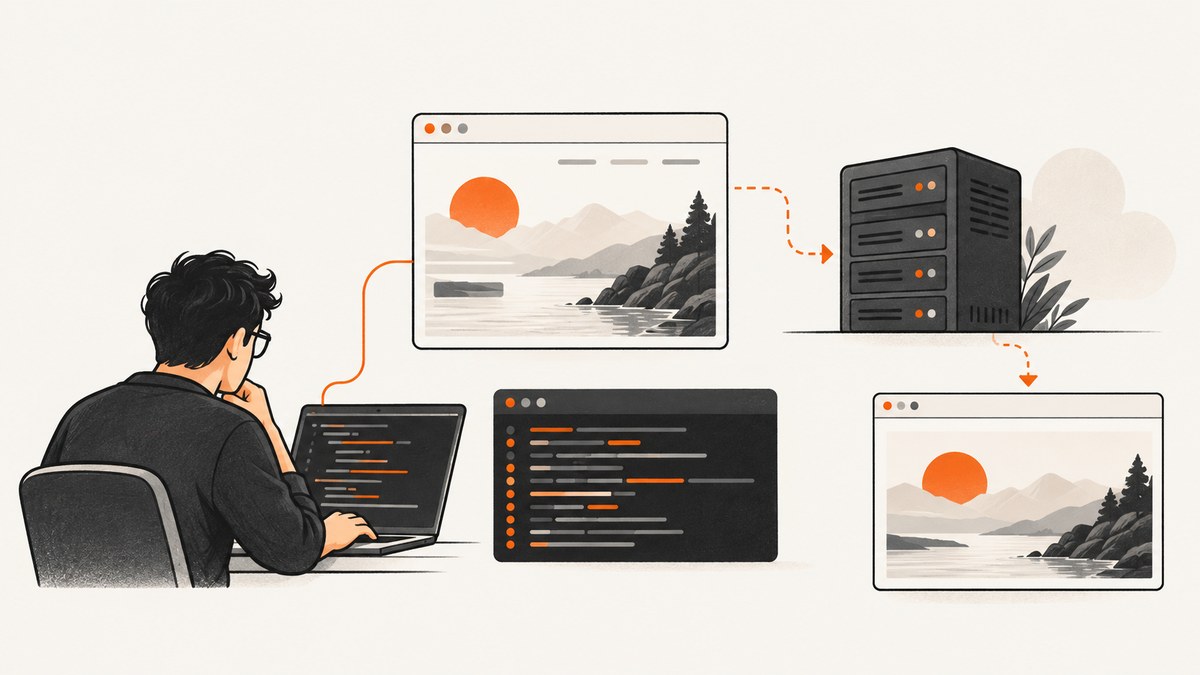
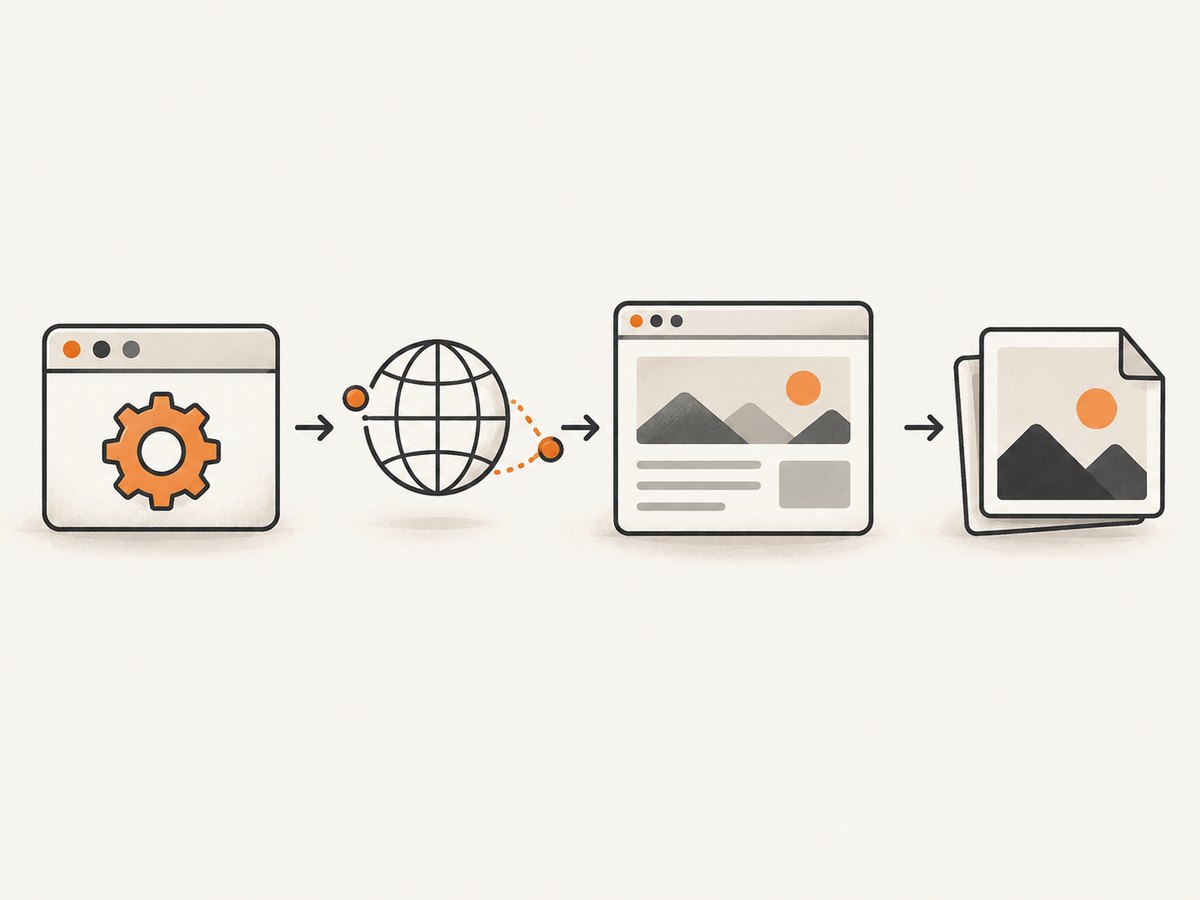
Playwright WebKit failures usually come from one of four stages: the browser process cannot start, the page cannot navigate, the page has not reached its visual-ready state, or the screenshot cannot be written. Fixing the stages in order is faster than changing selectors or adding arbitrary delays.
Install the WebKit revision that matches your Playwright package, install Linux dependencies when needed, prove that a minimal awaited script works, then add diagnostics for the failing stage. This guide covers local machines, containers, Linux CI, headed debugging, blank images, timing problems, and reliable screenshot practices.
1. Install the matching WebKit browser first
Playwright downloads and manages its own Chromium, Firefox, and WebKit binaries. A package update does not guarantee that the browser binary in an existing environment is still present or compatible. Start by recording the installed version:
npx playwright --versionInstall WebKit in the same environment, user account, container image, and working directory used by the failing test:
npx playwright install webkitOn Linux, install the browser and required operating-system libraries together:
npx playwright install --with-deps webkitThe Playwright browser documentation lists the supported browser installation commands. After updating the Playwright package, run the version check again and reinstall WebKit so the browser revision matches the package.
Do not switch to a random system WebKit while diagnosing
The BrowserType API exposes executablePath(), but Playwright is designed around its bundled browsers. Pointing WebKit at an unrelated system executable introduces another variable: different patches, launch flags, libraries, and sandbox behavior. First prove that the bundled browser works. Only investigate a custom executable after the bundled path is known to be healthy.
2. Run a minimal WebKit smoke test
Before running your application, test only launch, navigation, screenshot, and shutdown. This separates environment failures from application failures.
const { webkit } = require('playwright');

(async () => {
  const browser = await webkit.launch();
  const page = await browser.newPage();
  await page.goto('https://playwright.dev/');
  await page.screenshot({ path: 'example.png' });
  await browser.close();
})();
Save this as smoke-webkit.js and run:
node smoke-webkit.jsIf the process fails before page.goto(), focus on installation, permissions, executable startup, and operating-system dependencies. If navigation succeeds but the screenshot fails, inspect the destination directory, filesystem permissions, page lifecycle, and visual readiness.
A more diagnostic smoke test
const { webkit } = require('playwright');

(async () => {
  const browser = await webkit.launch({ headless: true });
  try {
    const page = await browser.newPage({
      viewport: { width: 1280, height: 800 },
      deviceScaleFactor: 1
    });
    page.on('console', message => console.log('[console]', message.type(), message.text()));
    page.on('pageerror', error => console.error('[pageerror]', error));
    page.on('requestfailed', request => {
      console.error('[requestfailed]', request.url(), request.failure()?.errorText);
    });

    const response = await page.goto('https://playwright.dev/', {
      waitUntil: 'domcontentloaded',
      timeout: 30_000
    });
    console.log('status:', response?.status());
    await page.screenshot({ path: './artifacts/webkit-smoke.png', fullPage: true });
  } finally {
    await browser.close();
  }
})();
Create ./artifacts before running this version. The finally block ensures the browser closes after an error, while the event handlers reveal client-side and resource-loading failures.
3. Fix Linux and CI launch failures
Linux launch errors often mean a required shared library, font package, or other operating-system dependency is absent. In a disposable CI image, the most repeatable fix is:
npx playwright install --with-deps webkitRun it during image creation or the job setup, rather than relying on a developer laptop’s packages. Keep the Node package installation and browser installation in the same image layer or job environment when possible.
Headless versus headed mode
Playwright runs browsers headless by default. Ordinary CI should remain headless unless headed rendering is required. Headed Linux execution needs an X server; the official CI guidance states that Linux agents require Xvfb. Invoke the test through Xvfb:
xvfb-run npx playwright testIf your project uses another Playwright language binding, use the equivalent test command after xvfb-run. A headed failure on a workstation can therefore be an X display problem, while the same test passes headless in CI.
When a job reports Error: Failed to launch browser, enable browser-process logging and capture the complete output:
DEBUG=pw:browser npx playwright testLook for the first missing-library, permission, sandbox, or process-start message. The final timeout is often only a consequence of that earlier error.
Container checks
- Confirm the WebKit cache exists inside the container, not only on the host.
- Run the smoke test as the same user that runs the test suite.
- Use a writable working directory for screenshots and traces.
- Install fonts needed by the page if visual comparisons depend on text metrics.
- Check that the container has enough shared memory and process permissions for the browser.
4. Diagnose the exact failing stage
Stage A: browser process
Symptoms include an immediate exit, “failed to launch browser,” missing executable errors, or a timeout before a page exists. Recheck npx playwright --version, reinstall WebKit, add --with-deps on Linux, and run with DEBUG=pw:browser. Do not change page selectors until launch succeeds.
Stage B: navigation
If launch succeeds but page.goto() times out, inspect DNS, TLS, proxy settings, redirects, authentication, and the target’s availability from the CI network. Log the response status and use request-failure events. Choose a navigation wait condition deliberately:
await page.goto(url, { waitUntil: 'domcontentloaded', timeout: 30_000 });domcontentloaded means the initial document is parsed; it does not mean images, fonts, or application data are ready. load waits for load events. networkidle can be useful for applications that settle, but long polling and analytics can prevent it from becoming idle.
Stage C: visual readiness
A successful navigation can still produce a blank, stale, or half-rendered image. Wait for the application’s actual ready signal rather than adding an arbitrary sleep:
await page.goto('https://example.com', { waitUntil: 'domcontentloaded' });
await page.waitForSelector('[data-page-ready="true"]', { state: 'visible', timeout: 15_000 });
await page.screenshot({ path: 'ready.png', fullPage: true });
If no ready selector exists, combine a bounded delay with a concrete condition such as visible content, a known image, or a completed API response. Use page.waitForLoadState('networkidle') only when the application really becomes idle.
Stage D: file output
The screenshot operation is asynchronous. Keep await page.screenshot(...) and close the browser only after it resolves. Confirm the parent directory exists and is writable. Prefer an absolute or explicitly resolved path in CI:
const path = require('node:path');
const output = path.resolve(process.cwd(), 'artifacts', 'page.png');
await page.screenshot({ path: output });
For API-style use, omit path and consume the returned buffer:
const image = await page.screenshot({ type: 'png' });
require('node:fs').writeFileSync('artifacts/page.png', image);
5. Make screenshots deterministic
Visual output depends on more than the URL. Record and control the viewport, device scale factor, browser revision, operating system, fonts, locale, timezone, and test data. A stable baseline starts with an explicit context:
const context = await browser.newContext({
  viewport: { width: 1440, height: 900 },
  deviceScaleFactor: 1,
  locale: 'en-US',
  timezoneId: 'UTC'
});
const page = await context.newPage();
Use fullPage: true when the whole document is required. Use a fixed viewport screenshot when the assertion concerns the visible fold. For a component, capture a locator after it is visible:
const card = page.locator('[data-testid="invoice-card"]');
await card.waitFor({ state: 'visible' });
await card.screenshot({ path: 'artifacts/invoice-card.png' });
Animations and caret blinking can cause differences between runs. Disable them with a stylesheet or application test mode:
await page.addStyleTag({ content: `
  *, *::before, *::after {
    animation: none !important;
    transition: none !important;
    caret-color: transparent !important;
  }
` });
If a difference is limited to antialiasing or text wrapping, compare the operating system, Playwright version, WebKit revision, viewport, device scale factor, and installed fonts before changing screenshot thresholds.
6. Use headed mode, slow motion, and traces
Reproduce locally with a visible browser when the failure involves timing or rendering:
const browser = await webkit.launch({ headless: false, slowMo: 150 });slowMo makes each Playwright operation easier to observe. The Playwright debugging guide documents headed mode and slow motion. WebKit Inspector has a special limitation: launching it during execution can stop the script and reset preconfigured user-agent and device emulation. Treat that as a debugging constraint, not proof that the test is fixed.
Tracing records DOM snapshots, the action timeline, console messages, network activity, and errors. In the test runner:
import { test } from '@playwright/test';

test('capture page', async ({ page, context }) => {
  await context.tracing.start({ screenshots: true, snapshots: true, sources: true });
  try {
    await page.goto('https://example.com', { waitUntil: 'domcontentloaded' });
    await page.screenshot({ path: 'artifacts/example.png' });
  } finally {
    await context.tracing.stop({ path: 'artifacts/trace.zip' });
  }
});
Open the resulting archive with Trace Viewer and find the first divergence: a failed request, an unexpected DOM state, a late image, or an output error. This is more useful than inspecting only the final timeout.
7. Common errors and fixes
| Error or symptom | Likely cause | Fix |
|---|---|---|
| Executable doesn’t exist | WebKit was not installed in this environment | Run npx playwright install webkit; verify the same user and container. |
| Failed to launch browser on Linux | Missing shared libraries or permissions | Run npx playwright install --with-deps webkit; inspect DEBUG=pw:browser. |
| Headed mode cannot connect to display | No X server in Linux CI | Use headless mode or invoke through xvfb-run. |
| Navigation timeout | Network, redirect, TLS, proxy, or page never settles | Log request failures, check response status, set a deliberate timeout and wait condition. |
| Blank screenshot | Capture occurred before app rendering or an overlay covers content | Wait for the real ready selector, inspect trace DOM snapshots, and disable test-only overlays. |
| Images or fonts missing | Resources are still loading or blocked in CI | Wait for the relevant element, inspect failed requests, and install required fonts. |
| Screenshot path error | Parent directory is absent or unwritable | Create the directory and test write permissions; use an explicit path. |
| Works locally, fails after package update | Browser revision no longer matches package | Run npx playwright --version and reinstall WebKit. |
| Flaky visual diff | Animation, timing, fonts, data, or platform rendering differs | Freeze data and viewport, disable motion, record environment details, and use traces. |
8. Reliability and performance practices
- Install once per image: bake the matching WebKit binary and dependencies into a CI image instead of downloading on every test.
- Reuse browsers carefully: launch one browser per worker and create isolated contexts for pages. Close contexts and browsers in cleanup hooks.
- Set bounded timeouts: use a navigation timeout and a selector timeout that fail with a useful error rather than hanging indefinitely.
- Wait for evidence: a selector, response, or application-ready marker is more reliable than a large fixed sleep.
- Keep artifacts: retain the failing screenshot, trace, browser log, console output, and request failures in CI.
- Control concurrency: too many parallel WebKit processes can exhaust CPU, memory, file descriptors, or process limits. Increase workers gradually.
- Separate environments: compare like with like. A laptop and a minimal Linux image can render different fonts and antialiasing even with identical test code.
Screenshot speed is usually dominated by browser startup, page navigation, resource loading, and application readiness. Reusing a browser process, keeping pages small, blocking irrelevant third-party resources in a controlled test environment, and waiting on a precise readiness signal reduce wasted time. Do not block resources that are part of the visual assertion.
9. Or skip the browser setup
If your goal is a clean image or PDF rather than maintaining browser binaries in your own runner, ScreenshotNeo provides a one-request website screenshot API and an MCP server for AI agents. The direct call is:
curl -G "https://api.screenshotneo.com/v1/shot" -d access_key=YOUR_API_KEY --data-urlencode url=https://stripe.com -o shot.webpSee the ScreenshotNeo API documentation for all parameters. The same request in Python:
import requests

r = requests.get(
    "https://api.screenshotneo.com/v1/shot",
    params={"access_key": "YOUR_API_KEY", "url": "https://stripe.com"},
    timeout=90,
)
r.raise_for_status()
open("shot.webp", "wb").write(r.content)
And Node.js:
const q = new URLSearchParams({ access_key: 'YOUR_API_KEY', url: 'https://stripe.com' });
const res = await fetch(`https://api.screenshotneo.com/v1/shot?${q}`);
if (!res.ok) throw new Error(`HTTP ${res.status}`);
require('node:fs').writeFileSync('shot.webp', Buffer.from(await res.arrayBuffer()));
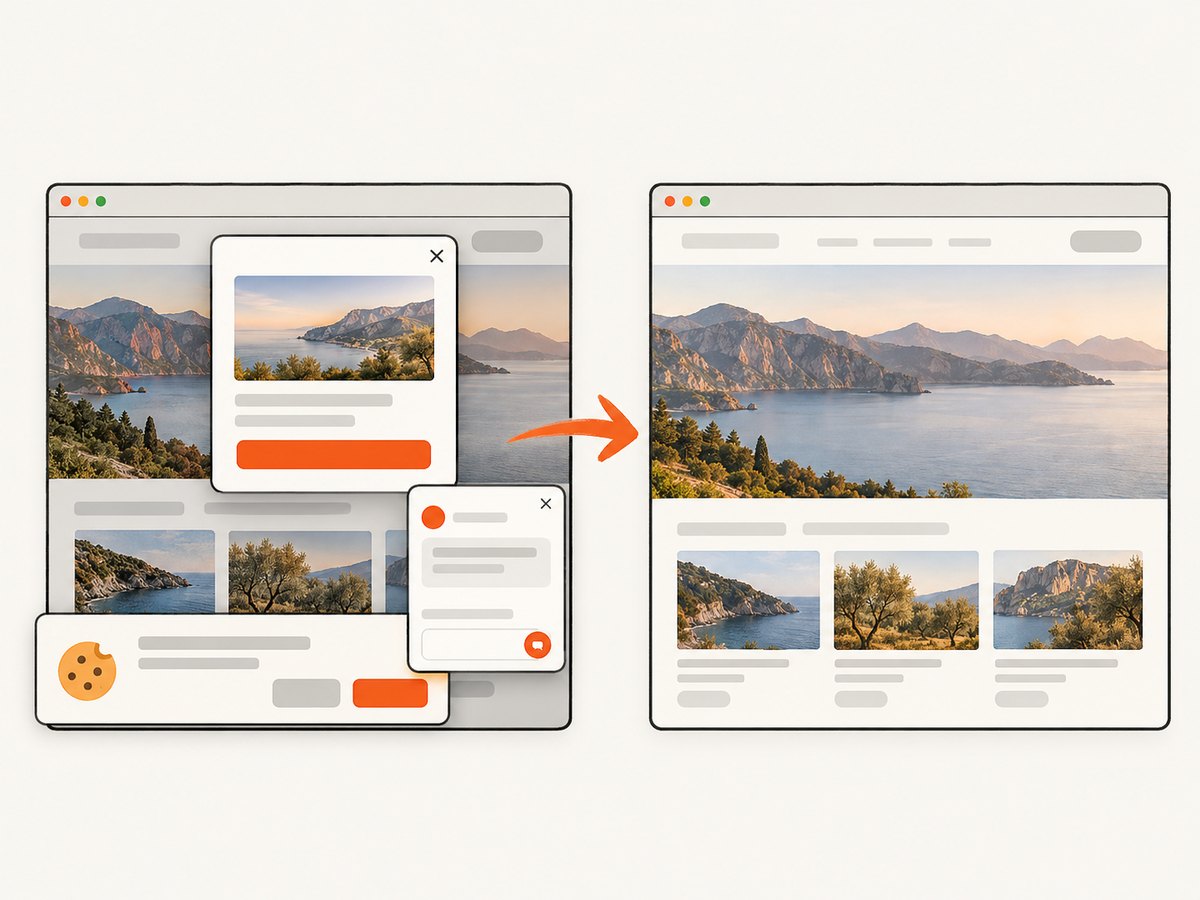
ScreenshotNeo removes cookie and consent banners, newsletter popups, and chat widgets before capture; each cleanup step can be turned off. Bot checks or CAPTCHAs, blank pages, timeouts, failed loads, and cache hits cost nothing, and the response identifies the result with X-Page-Verdict and X-Billed headers. Its MCP server exposes take_screenshot, get_page_info, and capture_pdf for Claude, Cursor, and other MCP clients.
Options include full-page capture with lazy images loaded, CSS-selector element capture, dark mode, device presets or custom viewports, retina scale, PDF paper sizes and margins, custom CSS and JavaScript, pre-capture clicks, selector or network-idle waits, blocked requests and resource types, custom headers, cookies, user agents, authorization, timezone, geolocation, transparent backgrounds, resizing, configurable caching TTLs, signed image links, asynchronous jobs with signed webhooks, bulk capture of up to 100 URLs per call, and a usage API. Existing parameter names used by other screenshot APIs also work, which simplifies migration.
The Free plan includes 1,000 shots per month with no card. Paid plans start at $5 for 3,000 shots; yearly billing gives two months free, and every feature is included on every plan. Create a free ScreenshotNeo account.
10. Cost, reliability, and security notes
For self-hosted Playwright, account for browser downloads, Linux dependency maintenance, CI minutes, CPU and memory, artifact storage, and the engineering time needed to keep revisions aligned. Pin the Playwright package and rebuild images deliberately so a browser update does not silently change visual output.
For ScreenshotNeo, usage is based on clean shots; failed loads and cache hits are not billed. Choose a cache TTL when repeated captures are acceptable, and use signed links for public image tags rather than exposing an access key in browser code. Keep API keys on the server, pass sensitive headers and cookies only when required, and avoid logging them with debug output.
FAQ
Does WebKit need to be installed separately from Playwright?
Yes. Install the matching bundled browser with npx playwright install webkit, and use --with-deps on Linux when system libraries may be absent.
Should I always use networkidle before a screenshot?
No. It can hang on pages with analytics, polling, or websockets. Prefer a page-specific ready selector or response, and use network idle only when it represents a real settled state.
Why does headed mode fail only in CI?
Linux headed execution requires a display server. Run headless or start the job with xvfb-run.
Can a successful navigation still produce a blank image?
Yes. Navigation completion does not guarantee that client-side rendering, fonts, images, or application data are ready. Inspect the DOM and trace, then wait for the visual state your test needs.
When should I use a screenshot API instead of Playwright?
Use Playwright when you need custom browser automation and full control of the test environment. Use an API when you want repeatable captures without maintaining browser binaries, CI dependencies, and cleanup code.


