How to Fix Poor pre Text Rendering in HTML-to-PDF Output
Fix wrapped, clipped, blurry, or incorrectly spaced <pre> blocks in HTML-to-PDF output with print CSS, fonts, geometry, and engine-specific settings.

Direct answer: Poor <pre> rendering usually comes from print CSS, unavailable fonts, or PDF page geometry rather than the markup itself. Set the print media type deliberately, define the font and whitespace rules explicitly, choose a wrapping policy, wait for fonts, and match the PDF paper size to your CSS. Then compare the same fixture in Chromium and wkhtmltopdf if the output still differs.
1. Make the rendering rules explicit
The HTML Standard gives pre a monospace font and white-space: pre by default. That baseline preserves spaces and line breaks, but it does not guarantee that your chosen font exists in the PDF environment or that long lines fit the paper. Use print CSS to control every property that affects the block.
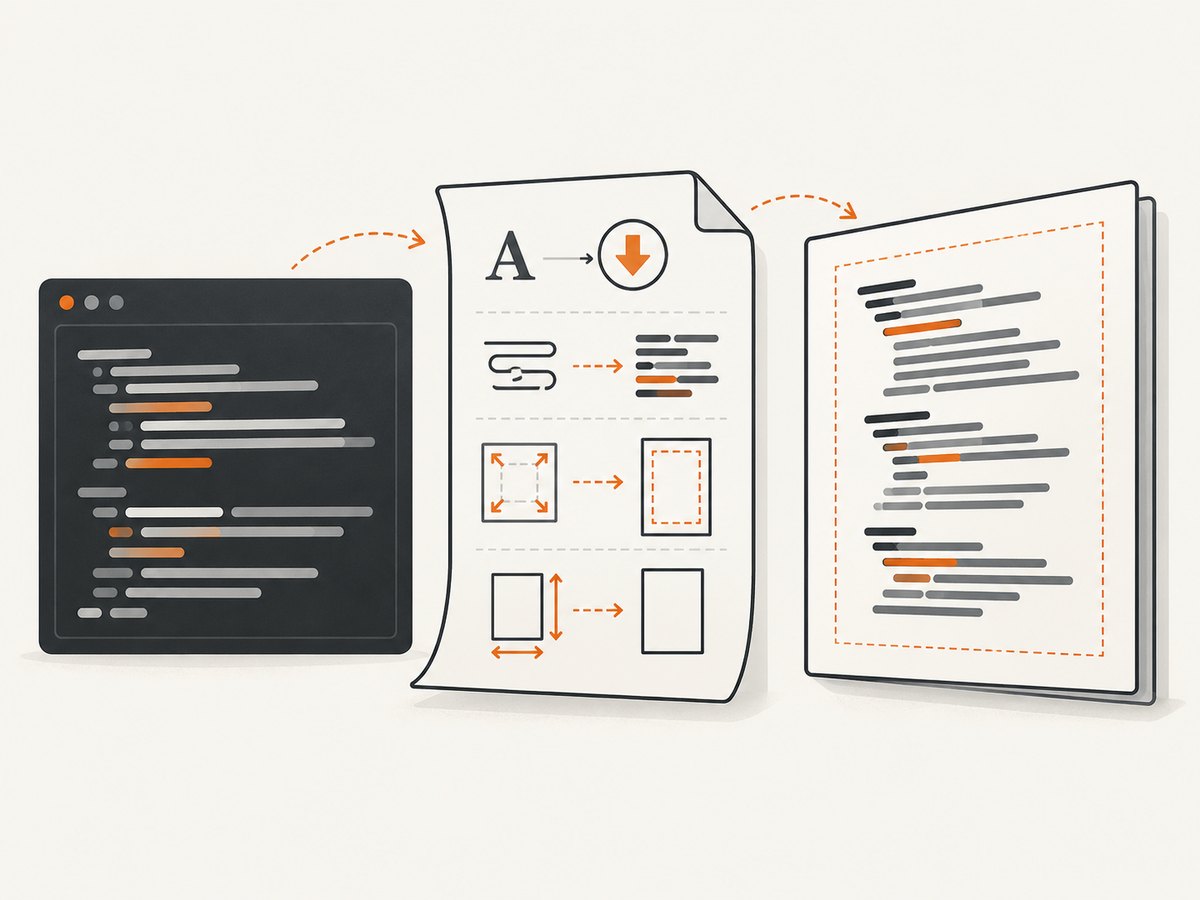
Puppeteer generates PDFs with the print CSS media type. If your screen stylesheet is the intended design, call page.emulateMediaType('screen') before creating the PDF. Otherwise, keep print styles authoritative.
<!doctype html>
<html>
<head>
  <meta charset="utf-8">
  <style>
    @page {
      size: A4;
      margin: 16mm;
    }

    :root {
      --code-size: 9pt;
      --code-leading: 1.35;
    }

    pre {
      font-family: "DejaVu Sans Mono", "Courier New", monospace;
      font-size: var(--code-size);
      line-height: var(--code-leading);
      white-space: pre;
      overflow-wrap: normal;
      word-break: normal;
      tab-size: 4;
      color: #111;
      background: #fff;
      margin: 0;
    }

    @media print {
      pre {
        font-family: "DejaVu Sans Mono", "Courier New", monospace;
        font-size: 9pt;
        line-height: 1.35;
        white-space: pre;
        overflow-wrap: normal;
        word-break: normal;
        tab-size: 4;
        color: #111;
        background: #fff;
      }
    }
  </style>
</head>
<body>
  <pre>function greet(name) {
  return `Hello, ${name}`;
}

// A deliberately long line helps reveal the selected overflow policy.
</pre>
</body>
</html>
Use white-space: pre when source fidelity matters. Use pre-wrap when keeping text inside the paper width matters more than preserving long lines on one line. Add overflow-wrap: anywhere only when breaking long tokens, such as minified URLs or hashes, is acceptable.
2. Choose a wrapping and overflow policy
| Goal | CSS | Trade-off |
|---|---|---|
| Preserve source layout | white-space: pre; overflow-wrap: normal |
Long lines can run past the printable width or be clipped. |
| Keep every line inside the page | white-space: pre-wrap; overflow-wrap: normal |
Long lines wrap while spaces and newlines remain meaningful. |
| Break any unbreakable token | white-space: pre-wrap; overflow-wrap: anywhere |
URLs, hashes, and identifiers can split at arbitrary positions. |
| Prevent horizontal scrolling in a browser preview | overflow-x: auto |
PDF engines may ignore scrolling and still clip or paginate the content. |
Do not use word-break: break-all for ordinary source code. It can split identifiers and make copied code difficult to use.
3. Verify fonts in the PDF environment
A browser on your workstation may have a font that is missing in a container, CI runner, or server. The renderer then falls back to another monospace face with different glyph widths, ascent, descent, and line height. Verify the actual font files and loading path. For dynamically loaded web fonts, wait for document.fonts.ready; Puppeteer also waits for fonts as part of PDF generation, but an explicit wait makes a custom workflow easier to diagnose.
await page.goto('http://localhost:3000/fixture.html', { waitUntil: 'networkidle0' });
await page.evaluate(() => document.fonts.ready);
console.log(await page.evaluate(() => ({
  status: document.fonts.status,
  mono: getComputedStyle(document.querySelector('pre')).fontFamily
})));
await page.pdf({ path: 'output.pdf', printBackground: true });
Use a bundled or system font with a known path when reproducibility matters. Avoid assuming that a developer’s local font installation exists on the rendering host.
4. Set page geometry before changing font size
Paper dimensions, margins, scale, and CSS page size all change the available width. Shrinking the entire document to compensate for an incorrect paper size often makes code unreadably small. Define @page, use preferCSSPageSize when CSS owns the paper size, and then tune margins or the code font.
await page.pdf({
  path: 'output.pdf',
  format: 'A4',
  preferCSSPageSize: true,
  printBackground: true,
  scale: 1,
  margin: {
    top: '16mm',
    right: '16mm',
    bottom: '16mm',
    left: '16mm'
  }
});
Keep the CSS @page size and the API’s paper settings consistent. If you specify both, check which setting wins in your engine and avoid mixing an A4 CSS page with a letter-sized API option.
5. Complete Puppeteer example
This script creates a controlled fixture, waits for resources, selects print or screen media intentionally, and writes a PDF. Install Puppeteer with npm install puppeteer.
const puppeteer = require('puppeteer');

(async () => {
  const browser = await puppeteer.launch({ headless: true });
  try {
    const page = await browser.newPage();
    await page.setViewport({ width: 1280, height: 900, deviceScaleFactor: 1 });
    await page.setContent(`
      <!doctype html>
      <html>
      <head>
        <meta charset="utf-8">
        <style>
          @page { size: A4; margin: 16mm; }
          body { color: #111; }
          pre {
            font-family: "DejaVu Sans Mono", "Courier New", monospace;
            font-size: 9pt;
            line-height: 1.35;
            white-space: pre-wrap;
            overflow-wrap: normal;
            word-break: normal;
            tab-size: 4;
            background: #fff;
          }
        </style>
      </head>
      <body>
        <h1>Code fixture</h1>
        <pre>const value = {
  tabs: "    four spaces",
  unicode: "λ ✓ 中文",
  long: "This line is intentionally long so wrapping can be inspected."
};</pre>
      </body>
      </html>`, { waitUntil: 'networkidle0' });

    await page.emulateMediaType('print');
    await page.evaluate(() => document.fonts.ready);
    await page.pdf({
      path: 'output.pdf',
      preferCSSPageSize: true,
      printBackground: true,
      scale: 1,
      margin: { top: '16mm', right: '16mm', bottom: '16mm', left: '16mm' }
    });
  } finally {
    await browser.close();
  }
})();
If your design is written only for the screen, replace the media call with await page.emulateMediaType('screen') and verify that the screen stylesheet sets the same font, line height, and wrapping policy you expect in the PDF.
6. wkhtmltopdf settings that affect pre
wkhtmltopdf uses Qt WebKit and has a separate option set from Chromium. Its DPI, zoom, minimum font size, page size, margins, JavaScript delay, and local-file access can all change the result.
wkhtmltopdf \
  --page-size A4 \
  --margin-top 16mm \
  --margin-right 16mm \
  --margin-bottom 16mm \
  --margin-left 16mm \
  --dpi 96 \
  --zoom 1 \
  --minimum-font-size 9 \
  --javascript-delay 500 \
  input.html output.pdf
Use --enable-local-file-access only when the document intentionally loads local assets. If JavaScript inserts the code block or loads its font, increase the JavaScript delay and confirm the resulting DOM before generating the PDF.
7. Diagnose with a minimal fixture
- Create one page containing long lines, tabs, Unicode characters, a background color, and the exact font declaration.
- Render it with the same command, container, and operating-system image used in production.
- Inspect computed styles and confirm the font is loaded.
- Change one variable at a time: media type, wrapping, font, page size, margins, then scale.
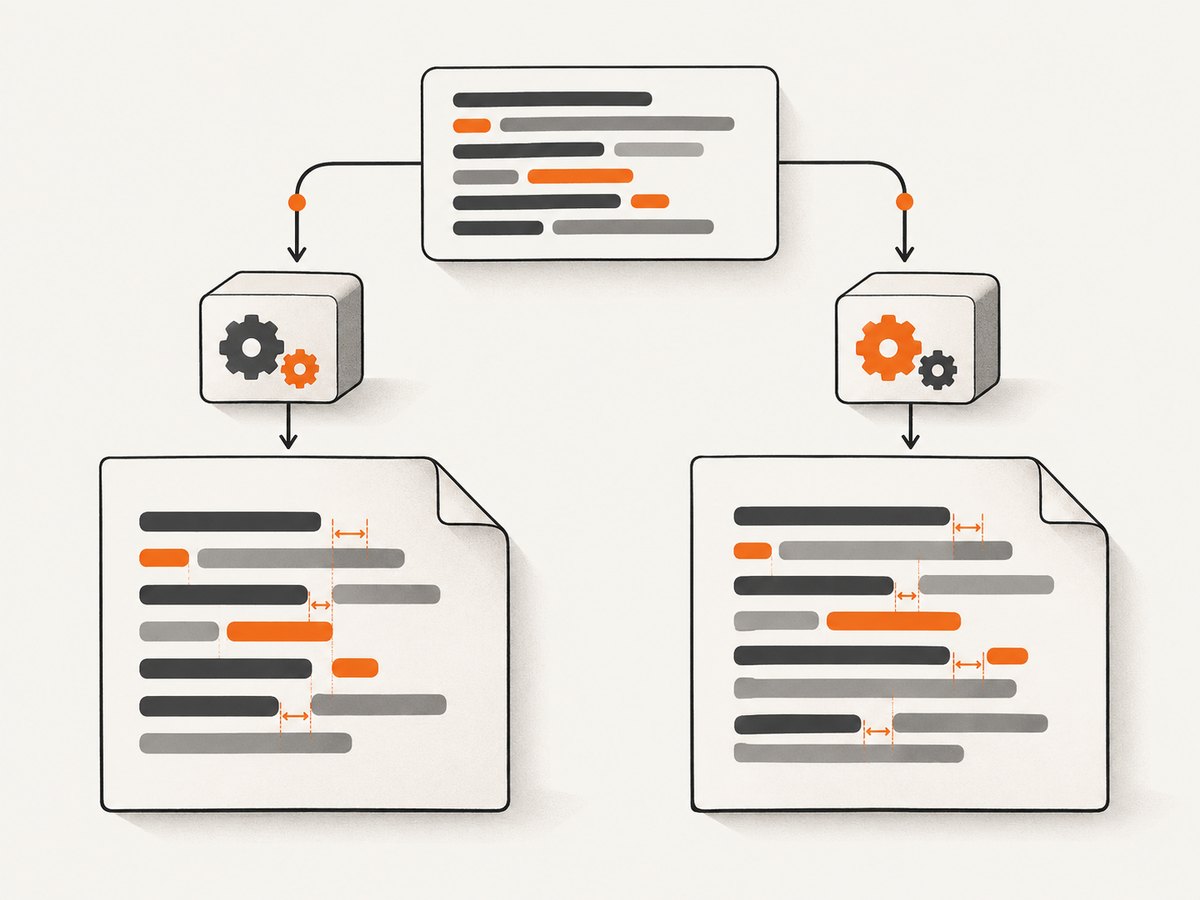
- Render the fixture in Chromium and wkhtmltopdf. A difference points to engine support or resource availability rather than the
preelement alone.
8. Troubleshooting common failures
| Symptom | Likely cause | Fix |
|---|---|---|
| Long lines are clipped | white-space: pre exceeds the printable width. |
Use pre-wrap, widen the page, reduce margins, or intentionally accept horizontal overflow. |
| Code wraps unexpectedly | Print CSS overrides screen CSS, or the selected font is wider. | Inspect computed white-space, overflow-wrap, font family, paper size, and margins. |
| Text is tiny | Wrong paper size, excessive margins, or a scale below 1. | Align @page and PDF options, restore scale: 1, then tune the code font. |
| Background disappears | Print backgrounds are disabled. | Use Puppeteer’s printBackground: true and set a print background explicitly. |
| Spacing differs from the browser | Print media rules or a font fallback changed metrics. | Set print typography explicitly and verify document.fonts.ready. |
| Tabs look too wide or narrow | Different default tab stops. | Set tab-size explicitly, commonly to 4 or 8. |
| Unicode glyphs are missing | The selected font lacks those glyphs. | Install or bundle a font covering the characters and verify it loads in the renderer. |
| Dynamic code is absent | PDF creation ran before JavaScript finished. | Wait for the relevant selector, network idle, fonts, and any application-specific readiness signal. |
| wkhtmltopdf differs from Chromium | Qt WebKit has different CSS and JavaScript support. | Compare a minimal fixture, then choose the engine whose feature and maintenance profile matches the document. |
9. Puppeteer or wkhtmltopdf?
| Criterion | Puppeteer | wkhtmltopdf |
|---|---|---|
| Rendering engine | Modern Chromium print pipeline. | Qt WebKit. |
| Media behavior | Page.pdf() uses print CSS; screen media can be selected explicitly. |
Uses its own command-line rendering behavior. |
| Controls | Paper dimensions, margins, scale, CSS page size preference, and backgrounds. | DPI, zoom, minimum font size, JavaScript delay, local-file access, page size, and margins. |
| Best comparison method | Render the same fixture with identical font files and geometry. | Investigate engine-specific CSS support when output diverges. |
Choose based on print-media behavior, CSS and font support, whitespace and wrapping fidelity, pagination controls, JavaScript execution, reproducibility across operating systems, and maintenance burden.
10. Performance, reliability, and cost
- Reuse a browser process when generating many PDFs, but create a fresh page per document to isolate state.
- Wait only for the readiness conditions the document needs. A blanket network-idle wait can be slow on pages with long-lived connections.
- Bundle fonts and static assets close to the renderer to reduce network variability.
- Keep a fixed fixture in CI so changes to the browser version, fonts, CSS, or page geometry are visible in output comparisons.
- Do not shrink text globally to hide clipping. Correct the page width, margins, and wrapping policy first.
- For third-party pages, expect bot checks, consent banners, popups, failed loads, and dynamic content to affect capture reliability.
11. Or skip the browser setup
ScreenshotNeo provides a website screenshot and PDF API. One request captures a URL, while options cover full-page capture, waiting, custom CSS and JavaScript, headers, cookies, user agents, blocking, caching, and PDF paper size, margins, orientation, and page ranges. See the ScreenshotNeo documentation for the complete parameter list.
curl -G "https://api.screenshotneo.com/v1/shot" -d access_key=YOUR_API_KEY --data-urlencode url=https://stripe.com -o shot.webpimport requests
r = requests.get("https://api.screenshotneo.com/v1/shot", params={"access_key": "YOUR_API_KEY", "url": "https://stripe.com"}, timeout=90)
open("shot.webp", "wb").write(r.content)const q = new URLSearchParams({ access_key: 'YOUR_API_KEY', url: 'https://stripe.com' });
const res = await fetch(`https://api.screenshotneo.com/v1/shot?${q}`);Cookie banners, newsletter popups, and chat widgets are removed before the shot. Bot checks, blank pages, timeouts, failed loads, and cache hits are not billed, and response headers identify the page verdict and whether it was billed. An MCP server lets AI agents use take_screenshot, get_page_info, and capture_pdf. The Free plan includes 1,000 screenshots per month with no card; paid plans start at $5 for 3,000 shots.
Create a free ScreenshotNeo account and start with 1,000 screenshots a month without a card.
12. FAQ
Why does the PDF use a different font?
The renderer cannot access the browser’s local font or the web font has not finished loading. Provide a reachable font and wait for document.fonts.ready.
Should code always wrap in a PDF?
No. Use pre for source fidelity; use pre-wrap when fitting the paper width is more important.
Why does changing the font size not fix clipping?
Clipping can be caused by paper size, margins, scale, or a wider fallback font. Inspect geometry and computed styles before shrinking text.
Can I use screen CSS for the PDF?
Yes. In Puppeteer, call page.emulateMediaType('screen'), then verify that the screen rules define the desired code typography and backgrounds.
How do I compare engines fairly?
Render the same minimal fixture with identical assets, font files, viewport, paper size, margins, and readiness waits, then compare the output.


