How to Fix prerender.io Headless Chrome Startup Failures
Diagnose prerender.io Chrome startup failures by tracing the exact stage: executable, libraries, permissions, container storage, or page rendering.
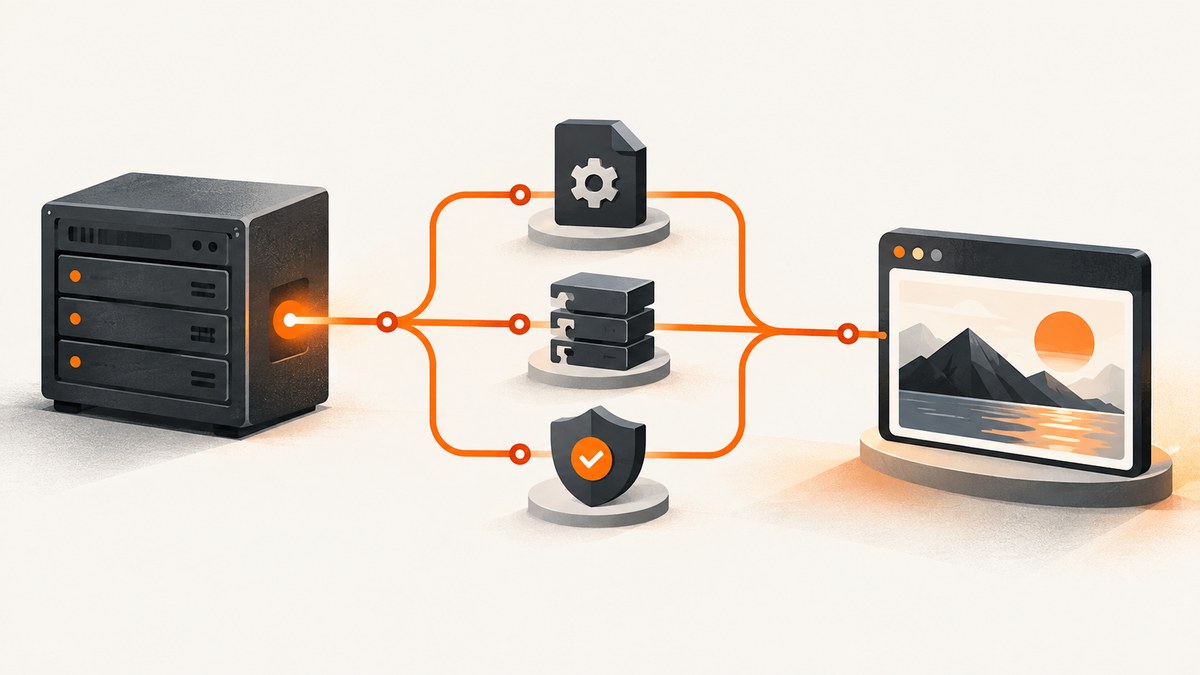
“Failed to launch Chrome” is a wrapper message, not a diagnosis. The underlying failure may be a missing executable, an incompatible binary, an unresolved Linux shared library, a sandbox or permission problem, an unwritable profile directory, or a page that launches successfully but never becomes renderable.
This guide covers both systems that developers commonly call “prerender.” In a self-hosted deployment of the open-source Prerender server, your runtime starts a Chrome binary. In the hosted Prerender.io service, Prerender.io manages the browser; your failures are more likely to involve request forwarding, page readiness, scripts, assets, access rules, or the returned response. Identify the system first, then follow the matching path.
1. Identify where Chrome is supposed to run
| System | What you control | First evidence to collect |
|---|---|---|
| Self-hosted Prerender server | Browser path, OS packages, user, sandbox, writable storage, container image | Chrome stderr and the exact runtime filesystem |
| Hosted Prerender.io | Integration, URL access, page code, CDN rules, readiness behavior | Render log, resource log, HTTP response, and cache result |
Do not install libraries on your application server to fix a hosted render that already runs in Prerender.io’s infrastructure. Conversely, changing page JavaScript will not repair a self-hosted process that cannot execute its browser binary.
2. Capture the complete startup error
Begin with the complete Chrome stderr and application log. Save the original error, including the first operating-system message and the final exit code. “Failed to launch” alone hides the useful line.
Run the configured executable directly
Use the same host or container, deployment image, account, environment variables, and working directory as the Prerender process. Replace the path with your configured value:
/usr/bin/google-chrome --headless --version
/usr/bin/google-chrome --headless --no-sandbox --disable-gpu about:blank
printf 'exit code: %s\n' "$?"
If the command says the file does not exist, investigate the path. If it reports a shared library, investigate system dependencies. If it exits with a sandbox, profile, or crashpad message, investigate permissions and writable directories. If it launches, repeat the application’s exact request and compare its process environment.
The Prerender server checks known Chrome locations and supports a chromeLocation override; confirm the option name and behavior against the upstream release you deploy. Puppeteer’s launch documentation also covers executable and browser-cache configuration: Puppeteer configuration.
3. Fix a missing or incompatible executable
Verify the path in the runtime
command -v google-chrome || true
command -v chromium || true
ls -l /usr/bin/google-chrome /usr/bin/chromium 2>/dev/null || true
uname -m
file /usr/bin/google-chrome 2>/dev/null || true
A path that exists on the host may not exist inside a container. A host-installed ARM binary will not run in an x86 image, and the reverse is also true. Check that the configured path points to a binary built for the operating system and architecture shown by uname -m. Ensure the service account can execute it:
id
namei -l /usr/bin/google-chrome
[ -x /usr/bin/google-chrome ] && echo executable || echo not-executable
When Puppeteer downloads a browser, its cache location and the application user matter. Configure the cache during image build or set the documented cache directory to a persistent, readable location. Avoid assuming that a browser downloaded under root is available to an unprivileged runtime user.
4. Resolve missing Linux shared libraries
If Chrome exists but exits with error while loading shared libraries, inspect dependencies in the same Linux image where the service runs:
ldd /usr/bin/google-chrome | grep 'not found' || true
ldd /usr/bin/chromium | grep 'not found' || true
The exact package list varies by distribution and Chrome version. Use the current requirements for your distribution and browser instead of copying an old list from an unrelated image. Puppeteer’s troubleshooting guide documents the dependency check and distribution-specific packages: Puppeteer troubleshooting.
For a Docker deployment, install dependencies in the Dockerfile so production and local environments match. A conceptual pattern is:
FROM node:22-bookworm
# Install the browser and the packages required by your selected browser version.
# Keep this list aligned with the current Puppeteer/Chromium documentation.
COPY package*.json ./
RUN npm ci --omit=dev
COPY . .
USER node
CMD ["node", "server.js"]
Do not diagnose libraries on your laptop and assume they exist in a slim production image. Run ldd after the final image is built.
5. Check sandbox, user, and writable storage
Chrome needs a suitable process user and writable locations for its profile, configuration, cache, and crash reporting. Inspect the account that starts Prerender:
id
printf 'HOME=%s\nXDG_CONFIG_HOME=%s\nXDG_CACHE_HOME=%s\n' "$HOME" "$XDG_CONFIG_HOME" "$XDG_CACHE_HOME"
test -w "${HOME:-/tmp}" && echo home-writable || echo home-not-writable
A read-only container or a home directory owned by another user can prevent Chrome from reaching the DevTools connection. Point the relevant user-data and cache paths at directories owned by the process, or mount writable volumes. The error chrome_crashpad_handler: --database is required is one signal that the crash-reporting location is not usable.
Sandbox errors need a security decision, not a blind flag. Puppeteer documents --no-sandbox for some constrained CI environments, but disabling the sandbox changes a security boundary. Prefer a non-privileged user and a runtime that supports Chrome’s sandbox. Use the flag only when your deployment has assessed the isolation trade-off:
google-chrome --headless --disable-gpu --no-sandbox about:blankIf this works only with --no-sandbox, treat it as evidence about the runtime, not as proof that the flag is the permanent fix.
6. Separate startup failures from page-render failures
A browser that starts and returns empty or partial HTML has a different failure stage. For hosted Prerender.io, the documented default render timeout is 20 seconds. A URL near that limit can be returned before asynchronous content is complete.
For pages with custom readiness behavior, set window.prerenderReady to the boolean false early, then set it to true when the page is ready to capture:
<script>
  window.prerenderReady = false;
</script>
<script src="/app.js"></script>
// In application code, after data and critical UI are ready:
window.prerenderReady = true;Use the readiness flag only when your integration and Prerender.io configuration support it. Otherwise, remove unnecessary blocking work, make critical data available sooner, or adjust the service’s documented timeout settings where available.
7. Diagnose hosted Prerender.io responses
- Inspect the dashboard render log. Look for page JavaScript errors, navigation failures, and timeout messages.
- Inspect the resource log. Identify CSS, JavaScript, font, image, or API requests returning 401 or 403.
- Check access controls. Firewall rules, geo restrictions, staging authentication, IP allowlists, and CDN user-agent filtering can block the renderer.
- Check unsupported rendering assumptions. GPU-dependent content such as WebGL may not work in the hosted headless environment.
- Verify the response body. An
X-Prerender-Raw-Dataresponse header indicates that the service could not render and returned the original source.
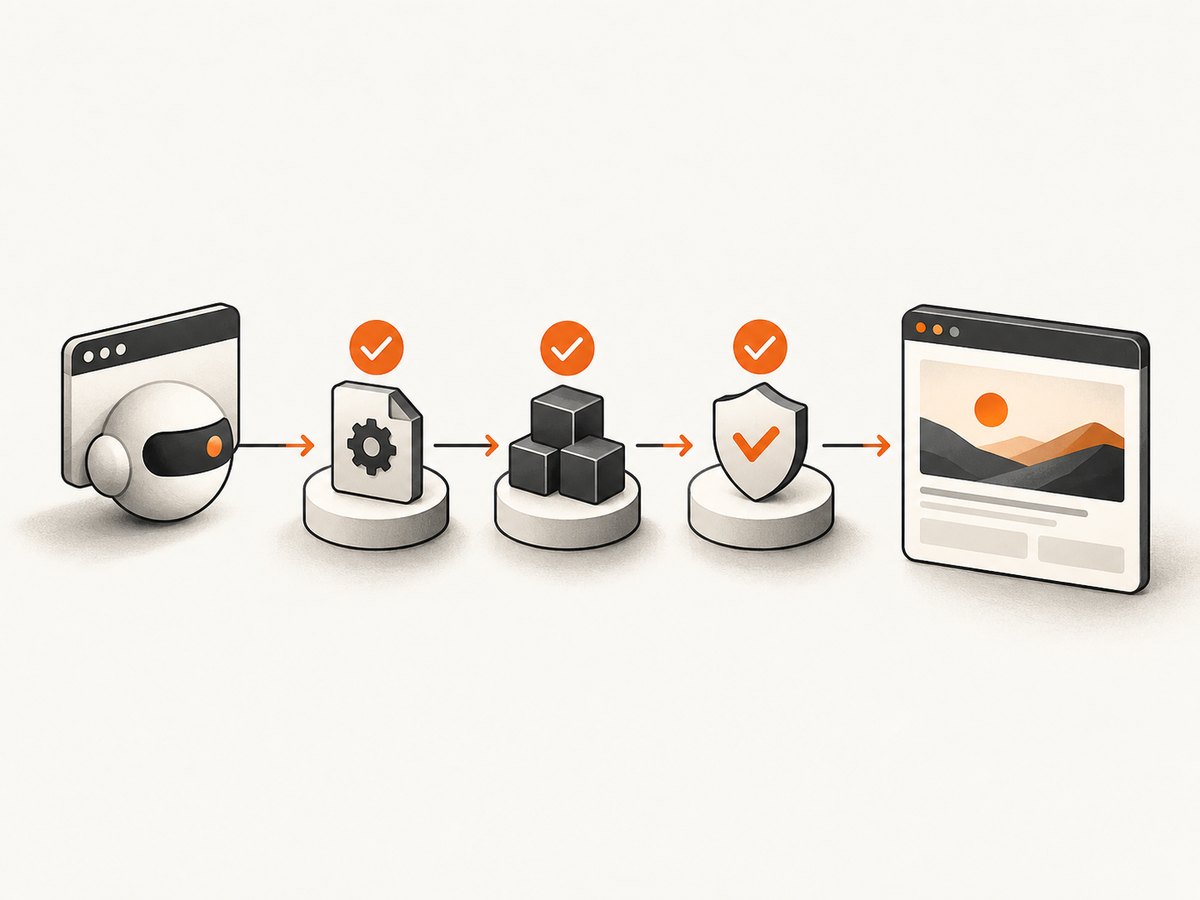
The documented request flow is crawler request, integration forwarding, Prerender.io fetch and render, and HTML response. Middleware order, firewall rules, and CDN behavior can fail before or after Chrome is involved. Test with the renderer’s user agent or inspect the cached page in the dashboard, then confirm that the returned HTML contains the rendered content.
8. A repeatable self-hosted verification checklist
- Record the full stderr and application log.
- Run the configured Chrome binary directly in the target image and user account.
- Confirm the path, execute bit, architecture, and browser version.
- Run
lddand resolve every missing library in that image. - Confirm sandbox permissions and a non-privileged service account.
- Confirm writable profile, cache, configuration, and crash-report directories.
- Retry the exact Prerender request with the same environment.
- Verify rendered HTML, rather than treating a successful process exit as proof.
9. Common errors and fixes
| Observed message or symptom | Likely cause | Fix |
|---|---|---|
ENOENT, “Chrome executable not found” |
Wrong path or browser absent from the image | Install the browser in the image and set the path used by your Prerender release. |
error while loading shared libraries |
Missing OS dependency | Run ldd ... | grep not in the target image and install matching packages. |
| “Running as root without –no-sandbox” | Unsafe or unsupported root launch | Run under a suitable non-root user; use --no-sandbox only after assessing isolation. |
chrome_crashpad_handler: --database is required |
Crashpad or profile path is not writable | Provide writable, process-owned configuration and cache directories. |
| Browser starts, page is blank | Page script error, blocked asset, timeout, or readiness race | Inspect render and resource logs, fix 401/403 assets, and implement readiness signaling. |
HTML is original source with X-Prerender-Raw-Data |
Hosted service could not render | Use logs to fix access, scripts, assets, timeout, or integration forwarding. |
10. Performance, reliability, and cost considerations
Keep the browser image stable and build dependencies into it. Repeatedly downloading Chrome at startup increases cold-start time and introduces an external dependency. Reuse a browser process where your Prerender architecture supports it, but isolate profiles and clean temporary data so one request cannot contaminate another.
Make the critical render path short: serve essential HTML and data quickly, defer nonessential analytics, and avoid blocking on third-party widgets. For hosted rendering, measure the slowest resources in the resource log and remove or permit the ones that delay readiness. A 20-second default timeout is a hard practical boundary for pages that do not complete sooner.
Budget for the layer that actually fails. Self-hosted costs include container CPU, memory, storage, and operational time for browser updates. Hosted Prerender.io failures are usually integration or page-access issues rather than missing packages on your server. Validate each fix with the exact production-like request and inspect the final HTML.
11. Or skip the browser setup
If your goal is a clean visual capture rather than operating a Chrome renderer, ScreenshotNeo provides a website screenshot API and MCP server. One GET request returns PNG, JPEG, WebP, or PDF. It accepts cookie and consent banners before capture and removes more than 60 known consent platforms, newsletter popups, and chat widgets; each step can be turned off. Bot checks, CAPTCHAs, blank pages, timeouts, failed loads, and cache hits are not billed, and the response reports the result through X-Page-Verdict and X-Billed headers.

See the complete option list and authentication details in the ScreenshotNeo documentation. The following calls are runnable; replace the URL and key.
cURL
curl -G "https://api.screenshotneo.com/v1/shot" -d access_key=YOUR_API_KEY --data-urlencode url=https://stripe.com -o shot.webpPython
import requests
r = requests.get("https://api.screenshotneo.com/v1/shot", params={"access_key": "YOUR_API_KEY", "url": "https://stripe.com"}, timeout=90)
r.raise_for_status()
open("shot.webp", "wb").write(r.content)
Node.js
const q = new URLSearchParams({ access_key: 'YOUR_API_KEY', url: 'https://stripe.com' });
const res = await fetch(`https://api.screenshotneo.com/v1/shot?${q}`);
if (!res.ok) throw new Error(`Screenshot failed: ${res.status}`);
const fs = await import('node:fs/promises');
await fs.writeFile('shot.webp', Buffer.from(await res.arrayBuffer()));
ScreenshotNeo also supports full-page captures with lazy images loaded, CSS-selector element capture, dark mode, 12 device presets or custom viewports, retina scale, PDF paper and margin settings, custom CSS and JavaScript, clicks, selector or network-idle waits, ad and tracker blocking, custom headers, cookies, user agents and authorization, timezone and geolocation, transparent backgrounds, resizing, selectable cache TTLs, signed links, asynchronous jobs with signed webhooks, bulk capture for 100 URLs per call, usage reporting, and an OpenAPI specification. Its MCP server exposes take_screenshot, get_page_info, and capture_pdf to Claude, Cursor, and other MCP clients.
There is a free allowance of 1,000 screenshots per month with no card. Paid plans start at $5 for 3,000 shots; yearly billing gives two months free, and every feature is available on every plan. Create a free ScreenshotNeo account.
12. FAQ
Does a successful Chrome version command prove Prerender is fixed?
No. It proves the binary can start in that shell. Re-run the application request with the same user, environment, profile paths, and container image, then verify the returned rendered HTML.
Should I always add --no-sandbox?
No. It changes a security boundary. Prefer a supported non-root runtime and use the flag only for a constrained environment whose isolation has been assessed.
Why does a hosted page work in my browser but fail in Prerender.io?
The renderer may receive different access rules, blocked CDN assets, geo restrictions, unsupported GPU-dependent content, JavaScript errors, or a response after the 20-second default timeout.
How can I tell whether the failure is Chrome or my integration?
For self-hosting, run the binary directly and inspect OS stderr. For hosted rendering, compare render and resource logs, HTTP status, response headers, and the cached page. An X-Prerender-Raw-Data header means the original source was returned.


