How to Fix Print-to-PDF Screenshots That Aren’t Working
Fix blank previews, empty PDFs, missing backgrounds, and choose the right screenshot workflow with browser steps and automation options.
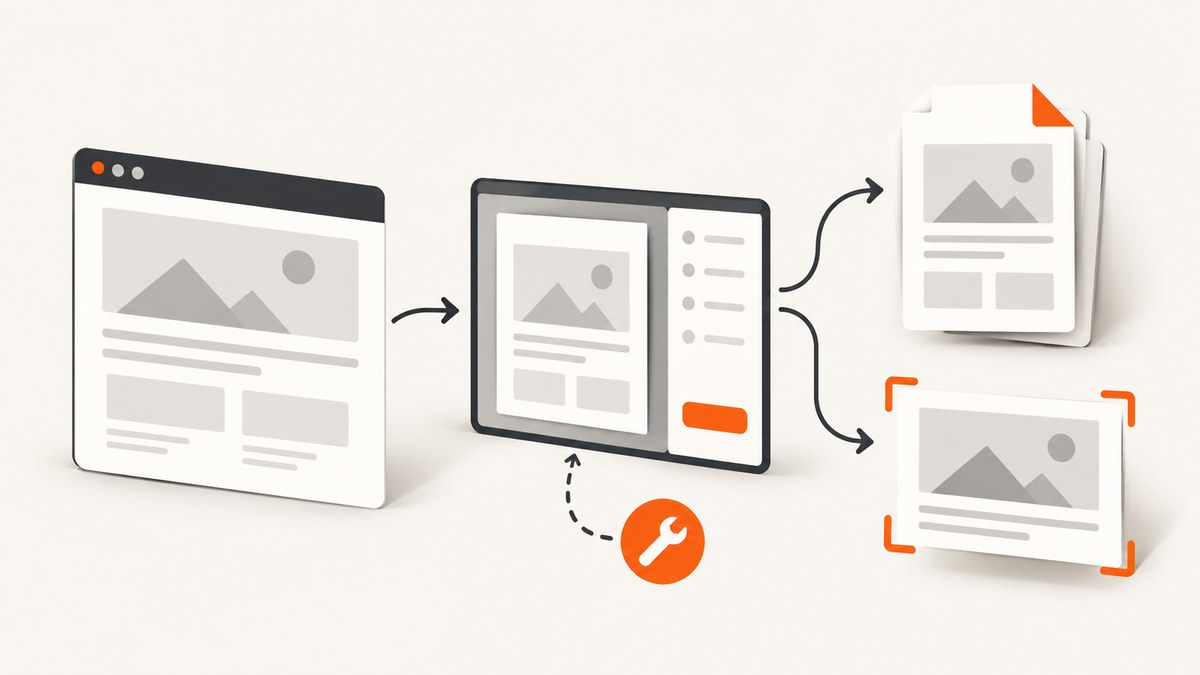
When print-to-PDF screenshots fail, first identify the output you actually need. A PDF is a paginated document produced by a print layout; a screenshot is an image of a selected region or an entire page. A blank preview, an empty PDF, and a missing-background PDF have different fixes.
1. Identify the failure before changing settings
Write down your browser and version, operating system, destination (Save to PDF, a physical printer, or an extension), the exact symptom, and any error text. Then test a second website or document with the same print settings. Microsoft’s Edge guidance recommends this split: if another page works, the original page or its styles may be involved; if every page fails, investigate the browser and print path. Its troubleshooting scope includes the website or document, Edge, the printer driver, Windows, and connectivity or hardware, so a driver is only one possible cause. Microsoft’s troubleshooting guide lists these diagnostic categories.
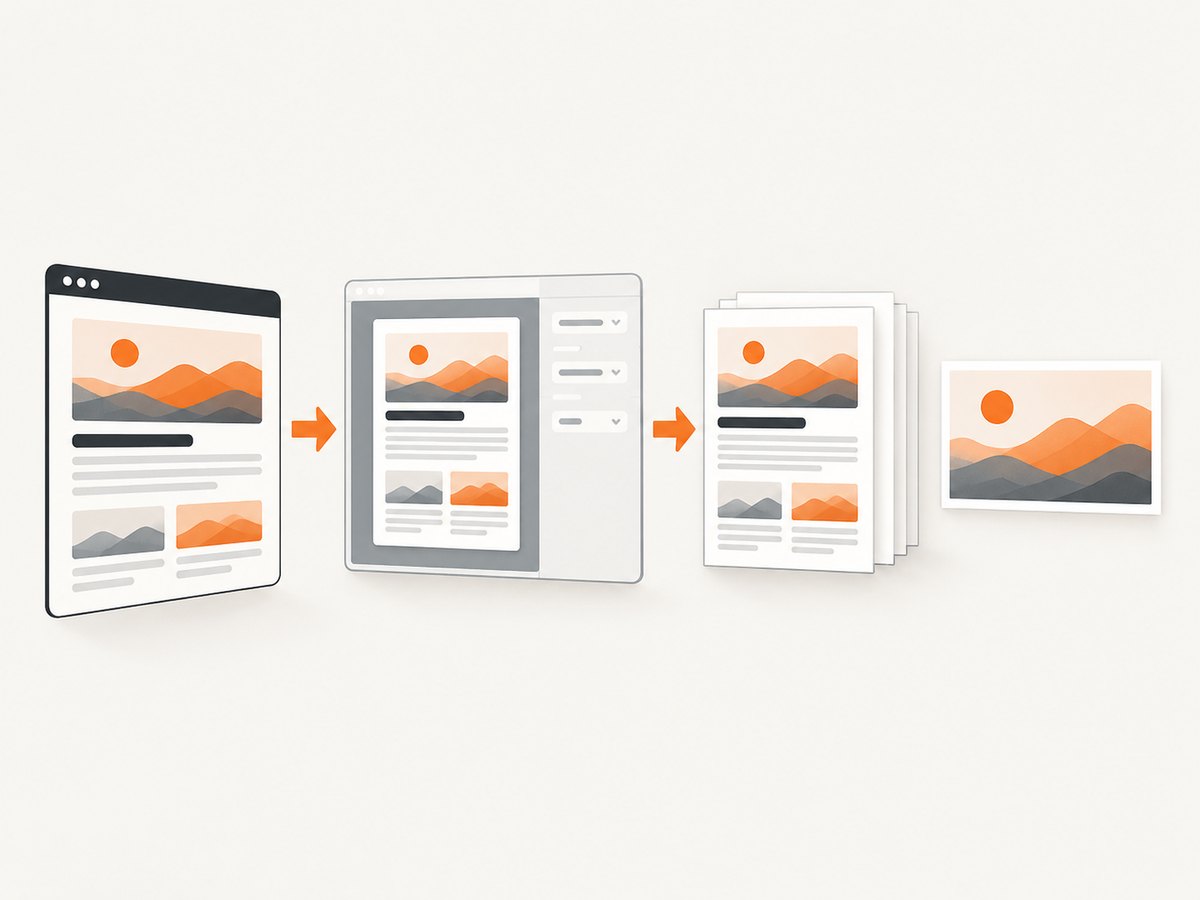
| Symptom | Likely scope | First action |
|---|---|---|
| Print preview is blank or says it failed | Browser preview, destination, or page load | Retry, restart the browser, and test another destination |
| PDF saves but content is empty or cut off | Page scripts, lazy content, print CSS, or timing | Wait for content, inspect print settings, and try another page |
| Layout differs or backgrounds vanish | Print stylesheet and print options | Enable background graphics and compare print preview |
| You need a picture, not a document | Wrong capture method | Use a browser screenshot feature or an image API |
2. Fix a blank or failed print preview
Edge: retry the print path
- Cancel the preview and open Print again.
- Restart Edge, then retry the same page.
- Choose another available printer or destination. Microsoft notes that an unavailable or incorrectly installed destination can trigger preview failure.
- If Edge still fails, test a different site or document. A page-specific failure points you toward that page’s markup or styles.
Edge can open the operating system’s print dialog directly: press Ctrl+Shift+P on Windows or Option+Command+P on macOS. This bypasses Edge’s preview surface while keeping the system print pipeline. See Microsoft’s Print in Edge instructions for menu details.
Chrome and Firefox fallback routes
In Chrome, open the print command and select Save as PDF as the destination; Google documents this route in Print from Chrome. Firefox exposes Save to PDF in its destination menu, as described in Mozilla’s printing guide. Menu names vary slightly by operating system. Switching browsers is a diagnostic step, not a guarantee: if the page’s own scripts or print CSS are broken, another browser may show a different version of the same problem.
3. Repair a PDF that is empty, incomplete, or visually wrong
Wait for dynamic content
Modern pages often load text, charts, and images after the initial HTML arrives. Scroll through the page once, wait for network activity to settle, and then open print preview. If a section appears only after clicking, expand it before printing. A screenshot tool that captures immediately can also miss lazy images; use a full-page mode that waits for them when available.
Enable background graphics
If the PDF exists but colors, cards, or images are missing, open Edge’s print settings and turn on More settings > Background graphics. Print CSS can intentionally remove backgrounds, so compare the preview with the screen and expect some differences. When a page is cluttered or its styles are causing trouble, Edge’s Immersive Reader can provide a simpler printable view on eligible sites. These options are documented by Microsoft in its print instructions.
Check page ranges and scale
Set the page range explicitly when a long page produces only the first section. Try the default scale before selecting a custom percentage; extreme scaling can push content outside printable bounds. Use portrait or landscape to match the page’s aspect ratio, and check margins if columns are clipped. A PDF is paginated, so a long scrolling canvas will become multiple pages rather than one tall image.
When a PDF extension is involved
If the failing step prints an already-open PDF through a browser extension, verify the browser’s PDF viewing behavior. Adobe’s browser-extension troubleshooting article points to Chrome and Edge settings that control whether PDFs open in the browser or download. Those settings apply to extension-based PDF printing, not every webpage-to-PDF failure.
4. Decide whether you need a screenshot instead
Use a PDF when readers need selectable text, pagination, searchable content, or a file suitable for printing. Use an image when you need a visual reference for a bug report, a design review, a social preview, or a single viewport. An image is not a searchable, paginated PDF.
Edge’s Screenshot tool can capture a selected area or a full page, then save or copy the result; feature availability and controls vary by browser, device, and version. Firefox also documents downloading a screenshot image. See Edge Screenshot and Mozilla’s support material for current UI paths.
5. A repeatable do-it-yourself browser workflow
- Load the page in a current browser and wait until the content you need is visible.
- Test print preview on a second page to separate page-specific problems from browser-wide problems.
- For PDF output, select Save as PDF/Save to PDF, enable backgrounds when visual fidelity matters, choose orientation and page range, and save.
- For image output, use the browser’s full-page or selected-area screenshot command and choose PNG or another supported image format.
- Open the resulting file independently. Confirm that text, images, backgrounds, and all expected sections are present.
/* Optional print CSS you control on your own site */
@media print {
  .cookie-banner, .chat-widget, .newsletter { display: none !important; }
  body { color: #000; background: #fff; }
  a { color: inherit; text-decoration: none; }
}
Print CSS only affects pages you control. Do not inject it into a third-party site unless you have permission; use the browser’s settings or a capture service instead.
6. Or skip the browser setup
ScreenshotNeo is a website screenshot API and MCP server. One GET request returns a PNG, JPEG, WebP, or PDF. Before capture it accepts the cookie or consent banner like a visitor and removes more than 60 known consent platforms, newsletter popups, and chat widgets; each step can be turned off. Only clean shots are billed: bot checks or CAPTCHAs, blank pages, timeouts, failed loads, and cache hits cost nothing, and response headers report X-Page-Verdict and X-Billed.

See the ScreenshotNeo documentation for authentication and options. This minimal call saves a WebP:
curl -G "https://api.screenshotneo.com/v1/shot" -d access_key=YOUR_API_KEY --data-urlencode url=https://stripe.com -o shot.webpimport requests
r = requests.get("https://api.screenshotneo.com/v1/shot", params={"access_key": "YOUR_API_KEY", "url": "https://stripe.com"}, timeout=90)
open("shot.webp", "wb").write(r.content)const q = new URLSearchParams({ access_key: 'YOUR_API_KEY', url: 'https://stripe.com' });
const res = await fetch(`https://api.screenshotneo.com/v1/shot?${q}`);For PDFs, pass the PDF options documented by the API, including paper size, margins, landscape mode, and page ranges. Other capture controls include full-page mode with lazy images loaded, a CSS selector for one element, dark mode, 12 device presets or any viewport, retina scale, custom CSS and JavaScript, click-before-capture, hide selectors, waits for a selector, delay, or network idle, and transparent backgrounds. You can also block ads, trackers, requests, or resource types; send custom headers, cookies, a user agent, or Authorization; set timezone and geolocation; resize images; cache with a TTL you choose; create signed links for public <img> tags; run async jobs with signed webhooks; capture up to 100 URLs per bulk call; and read usage through the usage API. An OpenAPI specification is available, and parameter names used by other screenshot APIs also work.
For AI workflows, the MCP server exposes take_screenshot, get_page_info, and capture_pdf for Claude, Cursor, and any MCP client. Plans include 1,000 shots per month free with no card, Starter $5 for 3,000, Growth $15 for 15,000, Pro $39 for 60,000, Scale $99 for 250,000, and Business $249 for 1,000,000; yearly billing gives two months free, and every feature is on every plan. Create a free ScreenshotNeo account to start with 1,000 screenshots a month and no card.
7. Troubleshooting checklist
| Error or result | Cause to investigate | Fix |
|---|---|---|
| “Print preview failed” | Preview process or destination unavailable | Cancel and retry, restart Edge, then choose another destination or the system dialog |
| Blank PDF | Page content had not loaded or page-specific script failed | Wait, scroll, test another page, and capture after a selector or network idle |
| Images missing | Lazy loading or blocked resources | Scroll before printing, enable backgrounds, or allow the required resource types |
| Background colors absent | Background graphics disabled or print CSS removes them | Enable Background graphics; inspect your own print stylesheet |
| Only part of a page appears | Page range, viewport, or print pagination | Choose all pages, landscape where appropriate, or use full-page capture |
| CAPTCHA or bot-check page captured | Site challenged automation | Do not retry blindly; use a permitted authenticated flow and inspect the verdict header |
| API response is not an image | Authentication, URL, or request option error | Check the access key, URL encoding, response status, and API docs before writing bytes to disk |
8. Performance, reliability, and cost considerations
Browser printing is free but manual and difficult to reproduce at scale. Dynamic pages need a deliberate wait, and every browser, extension, and operating-system update can change menu behavior. For repeatable captures, pin your viewport and device settings, use selector or network-idle waits, and keep a copy of the request parameters with the output.
With an API, cache stable pages using a chosen TTL, use bulk capture for up to 100 URLs, and prefer asynchronous jobs plus signed webhooks for long pages or batches. Block unnecessary ads, trackers, and resource types to reduce load time, while allowing fonts and images required for visual fidelity. Treat a timeout or bot check as a state to handle: ScreenshotNeo reports verdict and billing headers, and those failed states are not billed.
9. FAQ
Why is my print preview blank but the page looks fine?
The preview may be racing page scripts or failing on a specific document. Wait for content, test another page, restart the browser, and try the system print dialog or another destination.
Can I make a screenshot into a PDF?
Yes, but it will be an image inside a PDF and may not contain selectable text. Use browser print for a document PDF or an API PDF capture when pagination matters.
Why does my PDF look different from the screen?
Print styles, margins, pagination, and disabled background graphics change the result. Enable backgrounds and compare orientation and scale settings.
What should I automate for a dashboard?
Use a selector or full-page capture with a wait condition, fixed viewport, and optional authentication headers or cookies. Cache unchanged pages and process batches asynchronously.
Are failed automated captures charged?
ScreenshotNeo bills only clean shots. Bot checks or CAPTCHAs, blank pages, timeouts, failed loads, and cache hits are not billed, and the response identifies the verdict and billing state.


