How to Fix Protractor Screenshots Failing in Jenkins
Trace Protractor screenshot failures through Chrome startup, WebDriver, capture, and Jenkins artifact publishing, with runnable configuration and fixes.
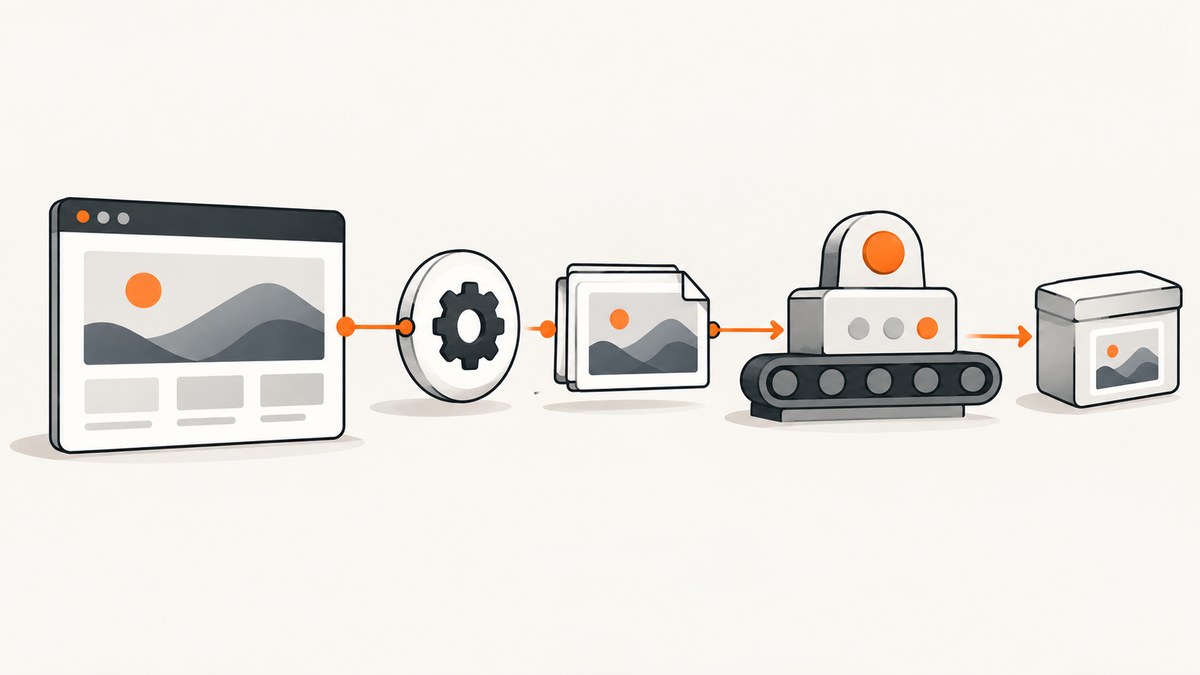
When Protractor screenshots fail in Jenkins, first find out which stage failed: Chrome did not start, WebDriver did not establish a session, the test never called the screenshot code, the image was written somewhere unexpected, or Jenkins did not archive it. Those failures need different fixes. Compare Jenkins with a working local run using the same Chrome and ChromeDriver binaries, arguments, job user, and working directory before changing browser flags.
This guide follows the full path from browser startup to retained artifact. It includes a minimal Protractor capture, a Jenkins pipeline example, diagnosis for common errors, and a hosted screenshot option for cases where the job does not need to exercise your application through a local browser.
1. Identify the failing stage
Read the Jenkins console output and answer these questions in order:
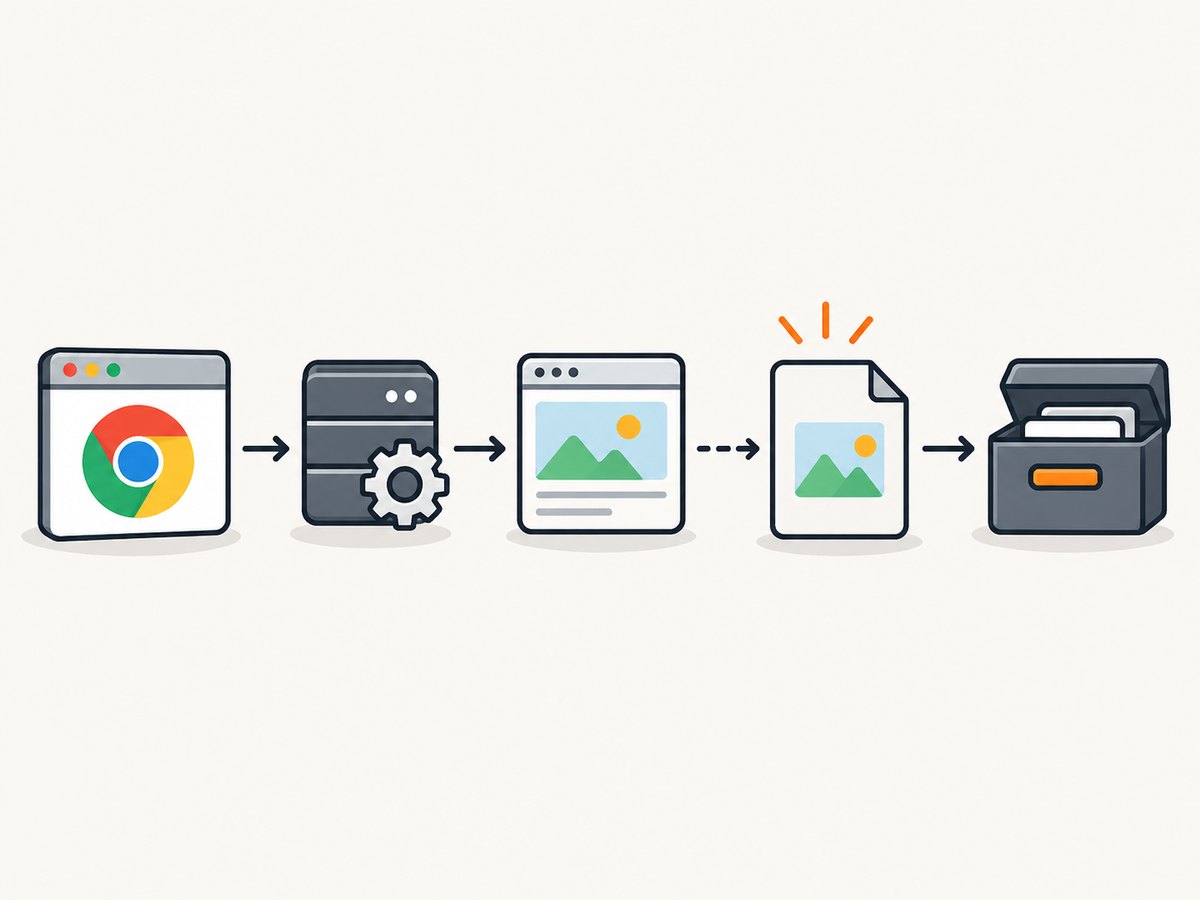
- Did Chrome start? Look for ChromeDriver startup messages, a browser process, and the first Chrome-specific error.
- Was a WebDriver session created? A session creation error happens before the test can navigate or capture.
- Did the test reach the screenshot call? A failed assertion or navigation can skip later capture code.
- Was a file written? Check the exact path, relative to the process working directory.
- Did Jenkins retain it? Confirm the artifact step includes the path where the file was actually written.
Write down the failing stage, exception, Chrome version, ChromeDriver version, binary paths, Jenkins account, launch arguments, and working directory. For startup failures, ChromeDriver’s troubleshooting guidance specifically recommends confirming the binary and arguments it uses, then attempting the same launch outside the test harness. Its guide explicitly includes continuous build systems such as Jenkins: ChromeDriver: Chrome doesn’t start or crashes immediately.
2. Compare Jenkins and local browser environments
“It works on my machine” often means the two runs are not actually using the same environment. A developer shell may use a desktop Chrome installation and user profile, while the Jenkins service uses another account, a different PATH, and a different working directory.
| Check | What to record on both machines | Why it matters |
|---|---|---|
| Browser | Chrome binary path and version | ChromeDriver may start a different binary than expected. |
| Driver | ChromeDriver path and version | A different driver can fail to create a session with the browser installed on the agent. |
| Account | Operating-system user running Jenkins and local test | Service accounts have different permissions and browser startup context. |
| Arguments | Every Chrome option passed by Protractor or the environment | A working local launch may depend on flags or configuration absent in Jenkins. |
| Filesystem | Working directory, writable output directory, and resolved screenshot path | Relative paths resolve from the process directory, not necessarily the repository root. |
| Resources | Whether the agent has a display and sufficient memory and shared memory | A headful browser may not have a display in a service or container context. |
Add a temporary environment diagnostic step to the Jenkins job. Adapt commands to the operating system and installed binary names:
sh 'whoami || true'
sh 'pwd'
sh 'which google-chrome || which chromium || true'
sh 'google-chrome --version || chromium --version || true'
sh 'chromedriver --version || true'
sh 'ls -la'
On Windows agents, use equivalent PowerShell commands such as whoami, Get-Location, Get-Command chrome, and the browser and driver --version commands. The key is to inspect the environment from the actual Jenkins job, not from an administrator’s interactive terminal.
Then try launching the same Chrome binary under the Jenkins account with the same arguments. If direct launch fails, resolve the browser installation, permissions, or environment first. If direct launch succeeds but WebDriver fails, turn on ChromeDriver logging and compare the recorded binary and arguments with your expected configuration.
3. Configure Chrome for a display-less CI agent
If the Jenkins agent has no graphical display, configure Chrome to run headless. Headless is intended for environments such as servers and CI pipelines. For repeatable automation, pin a Chrome for Testing build and use its matching ChromeDriver; Google provides a versioned availability dashboard for both: Chrome headless documentation and Chrome for Testing availability.
Protractor is a Node.js test runner, so a typical Chrome capability configuration looks like this. Keep only options that match your agent and policy:
// protractor.conf.js
exports.config = {
  framework: 'jasmine',
  specs: ['./e2e/**/*.spec.js'],
  capabilities: {
    browserName: 'chrome',
    'goog:chromeOptions': {
      args: [
        '--headless',
        '--window-size=1440,1000'
      ]
    }
  },
  jasmineNodeOpts: {
    defaultTimeoutInterval: 30000
  }
};
Protractor and Selenium version changes can affect option names and driver setup, so check the capabilities accepted by the versions pinned in your project. If you configure a custom browser binary, ensure it is the one used by the job. For older setups, that may be configured with Chrome options’ binary property.
Do not add --no-sandbox as a routine Jenkins fix. ChromeDriver says running Chrome as root on Linux is a common startup-crash cause and calls the --no-sandbox workaround unsupported and highly discouraged. The recommended direction is to run Chrome as a regular user. See the ChromeDriver startup guidance.
4. Check Protractor’s driver and Selenium configuration
Protractor can run Chrome locally through its driver setup or connect to a Selenium server through seleniumAddress. The Protractor tutorial describes webdriver-manager update and webdriver-manager start for obtaining binaries and starting a Selenium server, then configuring the server address: Protractor tutorial.
For a project that still uses webdriver-manager, an illustrative setup is:
# Run in the project environment; pin the project dependencies separately.
npx webdriver-manager update
npx webdriver-manager start
// protractor.conf.js
exports.config = {
seleniumAddress: 'http://127.0.0.1:4444/wd/hub',
framework: 'jasmine',
specs: ['./e2e/**/*.spec.js'],
capabilities: {
browserName: 'chrome',
'goog:chromeOptions': {
args: ['--headless', '--window-size=1440,1000']
}
}
};Older Protractor and webdriver-manager combinations may not manage newer ChromeDriver releases as expected. Treat compatibility reports and old installation snippets as version-specific leads: verify the actual installed Protractor, Selenium, Chrome, and ChromeDriver versions, and check which executable the job launches. Do not assume that a successful webdriver-manager update selected a compatible pair.
If local browser hosting on the Jenkins agent is the problem, a remote Selenium endpoint is another execution model. The Jenkins agent must be able to reach the endpoint, and the remote environment must have a compatible browser and driver. Protractor’s tutorial establishes this address-based configuration; it does not select or recommend a hosted provider. Decide where the tests and screenshots should execute and how resulting files will be transferred or retained.
5. Make screenshot capture explicit and use a stable path
A screenshot call only runs if test control flow reaches it. For a useful failure artifact, capture in a failure handler or test teardown and write to a directory that Jenkins can archive. Protractor’s browser screenshot API returns a base64-encoded image; decode it before writing a PNG file.
// e2e/helpers/capture.js
const fs = require('fs');
const path = require('path');

async function saveScreenshot(fileName) {
  const outputDir = path.resolve(process.cwd(), 'artifacts', 'screenshots');
  fs.mkdirSync(outputDir, { recursive: true });

  const base64 = await browser.takeScreenshot();
  const outputPath = path.join(outputDir, fileName);
  fs.writeFileSync(outputPath, Buffer.from(base64, 'base64'));
  return outputPath;
}

module.exports = { saveScreenshot };
Call it from a failure hook appropriate to your Protractor and Jasmine versions. For example, a Jasmine 2 spec-level hook can preserve a screenshot when a spec fails:
// In a spec or a support file loaded by the test runner
const { saveScreenshot } = require('./helpers/capture');

afterEach(async function () {
  if (this.currentTest && this.currentTest.failedExpectations.length > 0) {
    const safeName = this.currentTest.fullName
      .replace(/[^a-z0-9_-]+/gi, '-')
      .slice(0, 100);
    await saveScreenshot(`${safeName || 'failed-spec'}.png`);
  }
});
Hook context differs between Jasmine versions and Protractor configurations. If this exact hook context does not match your installed runner, use that runner’s documented failure callback and retain the helper. Also consider wrapping capture so a screenshot failure is logged without hiding the original assertion failure.
Check the output immediately after the test command with find artifacts -type f -maxdepth 3 on Linux or Get-ChildItem artifacts -Recurse on Windows. This separates “capture did not happen” from “artifact publication did not happen.”
6. Archive the files in Jenkins
Jenkins can only retain files that exist under the workspace and match the artifact pattern. A Declarative Pipeline example:
pipeline {
  agent any
  stages {
    stage('E2E') {
      steps {
        sh 'npm ci'
        sh 'npm run e2e'
      }
      post {
        always {
          archiveArtifacts artifacts: 'artifacts/screenshots/**/*.png',
                           allowEmptyArchive: true
        }
      }
    }
  }
}
allowEmptyArchive: true keeps the post action from failing solely because there were no screenshots, but it can also conceal a path mismatch. During diagnosis, inspect the workspace and console log so that an empty archive is visible as an unresolved capture issue. In a Freestyle job, configure artifact archiving with the same workspace-relative pattern.
If you use a Protractor screenshot plugin, check its configured screenshot directory and capture conditions. The protractor-screenshoter-plugin documentation describes capture on expectation or spec success/failure, output directory configuration, and optional console logs and raw HTML. It also documents that its Selenium screenshot is limited to the visible browser window. Thus, a short or clipped image may reflect viewport capture rather than a missing file or failed archive.
7. Troubleshooting common errors
| Symptom | Likely cause | What to do |
|---|---|---|
Chrome failed to start or Chrome exits immediately |
Invalid browser path, unavailable display, permissions, or a service-user startup issue | Confirm the exact binary from ChromeDriver logs. Launch it directly as the Jenkins user. Use headless mode if there is no display. |
session not created |
Chrome and ChromeDriver versions or paths do not match the intended pair | Print both versions from the job, pin a compatible Chrome for Testing and matching driver, and verify the driver executable selected by Protractor. |
| Works locally, fails only in Jenkins | Different account, PATH, arguments, working directory, or filesystem permissions | Compare those values from inside both runs. Reproduce with the Jenkins account and environment. |
| Chrome is running as root | Linux service/container runs under root; sandbox startup fails | Run Chrome as a regular user. ChromeDriver strongly discourages using --no-sandbox as a workaround. |
| Test failed but no screenshot exists | The screenshot hook did not run, browser session was already gone, or the write failed | Log entry into the hook, preserve the original error, create the destination directory, and check write permissions. |
| Screenshot exists locally in workspace but not in build | Artifact path does not match the actual output path or archive step was skipped | Resolve the absolute output path, list the files before the post action, and archive a workspace-relative glob that matches them. |
| Screenshot shows only part of page | WebDriver captured the visible viewport | Set the viewport deliberately or use a full-page capture method. Plugin and Selenium capture behavior may be viewport-limited. |
| Screenshot is blank or captures the wrong page | Capture ran before navigation, rendering, or asynchronous content finished | Wait for the expected selector or application-ready condition before capturing; avoid relying on a fixed delay unless necessary. |
| Intermittent browser crashes under load | Agent resource pressure or too many parallel browser sessions | Reduce parallel instances, inspect agent memory and process usage, and give each job a predictable browser profile and output directory. |
8. Performance, reliability, and cost considerations
Browser startup and test execution consume Jenkins agent capacity. Pinning browser and driver versions reduces unexpected changes between runs; it does not eliminate application timing or infrastructure failures. Keep installation and version checks in the job so the logs describe the actual environment. When parallelizing, increase browser instances gradually and watch memory, CPU, and shared-memory pressure. More simultaneous sessions can make startup and page rendering less reliable on a constrained agent.
Capture only when it helps diagnose a failure. Saving a screenshot after every successful expectation increases file count, archive size, and build retention use. Failure-only capture usually gives a smaller diagnostic set. Keep screenshots out of source control unless they are intentional test fixtures, and apply the same access and retention practices used for other build artifacts because screenshots can contain page data.
For remote Selenium, account for network reachability, endpoint capacity, and the cost and location of storing artifacts. The research for this guide does not establish a particular hosted provider’s capabilities or price, so compare those against your test requirements directly. If the goal is simply to save a screenshot of a public page, launching and maintaining Chrome plus ChromeDriver inside Jenkins may be unnecessary.
Or skip the browser setup
When you need a screenshot of a URL rather than a Protractor end-to-end test of your own application, ScreenshotNeo provides a website screenshot API and MCP server. One GET request can return PNG, JPEG, WebP, or PDF. See the ScreenshotNeo API documentation for parameters and response details.
curl -G "https://api.screenshotneo.com/v1/shot" \
  -d access_key=YOUR_API_KEY \
  --data-urlencode url=https://stripe.com \
  -o shot.webp
import requests
r = requests.get(
"https://api.screenshotneo.com/v1/shot",
params={"access_key": "YOUR_API_KEY", "url": "https://stripe.com"},
timeout=90,
)
open("shot.webp", "wb").write(r.content)const q = new URLSearchParams({
access_key: 'YOUR_API_KEY',
url: 'https://stripe.com'
});
const res = await fetch(`https://api.screenshotneo.com/v1/shot?${q}`);
if (!res.ok) throw new Error(`Screenshot request failed: ${res.status}`);
await Bun.write('shot.webp', res);ScreenshotNeo accepts cookie and consent banners like a visitor, then removes 60+ known consent platforms, newsletter popups, and chat widgets before capture; each cleanup step can be turned off. Bot checks and CAPTCHAs, blank pages, timeouts, failed loads, and cache hits are not billed, and the response identifies the page verdict and billing status in headers. Its MCP server gives AI agents tools named take_screenshot, get_page_info, and capture_pdf. The free plan includes 1,000 shots per month with no card; paid plans start at $5 for 3,000 shots.
Create a free ScreenshotNeo account for 1,000 screenshots a month with no card.
FAQ
Does headless mode change what the screenshot captures?
It runs Chrome without a displayed window. Keep the viewport explicit and compare the resulting image with your intended test size; headless mode does not by itself mean full-page capture.
Can Jenkins archive a screenshot if Protractor exits with an error?
Yes, when the archive action runs in an unconditional post/finally step and the image was written inside the workspace before that action.
Should I switch from Protractor to a screenshot API?
Keep Protractor when you need browser interactions and assertions against your application. A screenshot API is useful for capturing a URL without running that end-to-end suite.
Why does a screenshot plugin produce a viewport-sized image?
Some WebDriver screenshot implementations capture only the visible browser window. Check the plugin’s capture scope and distinguish that behavior from an image-writing or Jenkins artifact problem.


