How to Fix Puppeteer “Browser Has Disconnected” Errors in Docker
Diagnose Puppeteer browser disconnects in Docker with browser logs, container checks, and a step-by-step troubleshooting guide.
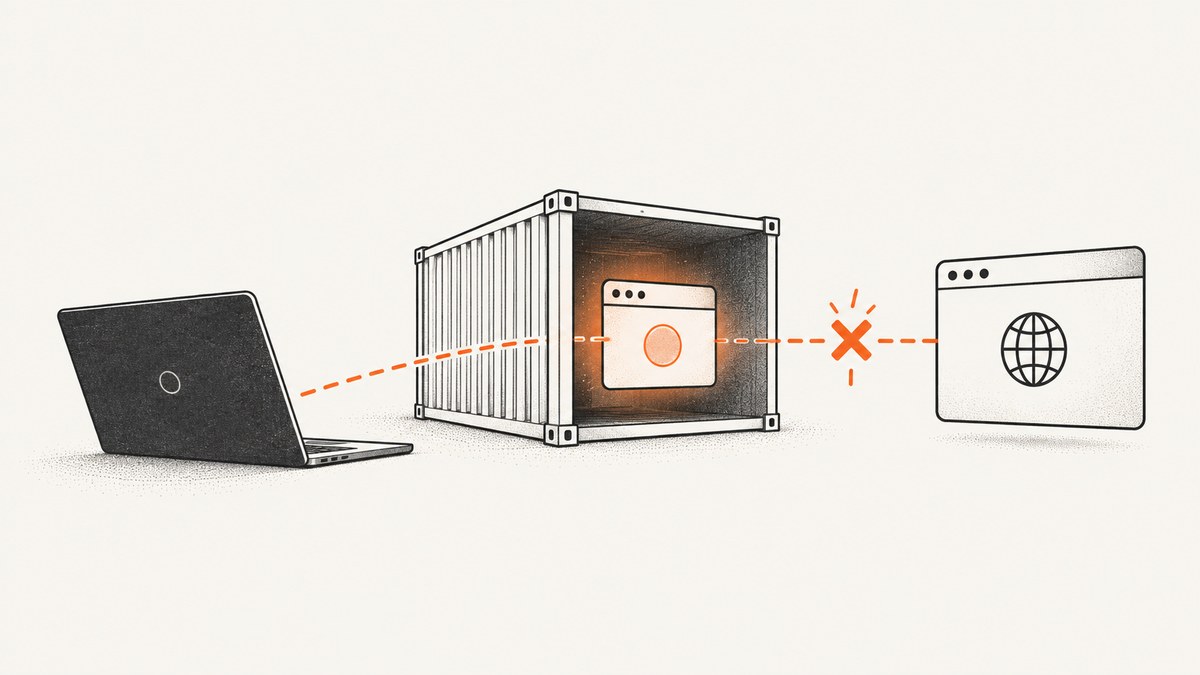
Short answer: Puppeteer’s “Browser has disconnected” error means its client lost its connection to Chrome or Chromium. It does not identify why. The browser may have crashed or exited, the container runtime may have terminated it, or application code may have disconnected Puppeteer. Capture Chrome’s own output with dumpio: true, then check your browser and Puppeteer versions, Linux dependencies, sandbox configuration, writable paths, and Docker process management.
Start with the exact image, runtime settings, and browser logs. Change one condition at a time and use a minimal page to tell a browser-process exit apart from a navigation or application error. Puppeteer’s official guidance covers [Docker setup](https://pptr.dev/guides/docker), [troubleshooting](https://pptr.dev/next/troubleshooting), and [browser API behavior](https://pptr.dev/api/puppeteer.browser.disconnect).
1. What the error means
Messages such as Navigation failed because browser has disconnected! describe a lost connection between the Puppeteer client and its browser. They do not prove that navigation caused the failure. A page load can fail while Chrome remains alive; a browser disconnect means Puppeteer can no longer communicate with that browser.
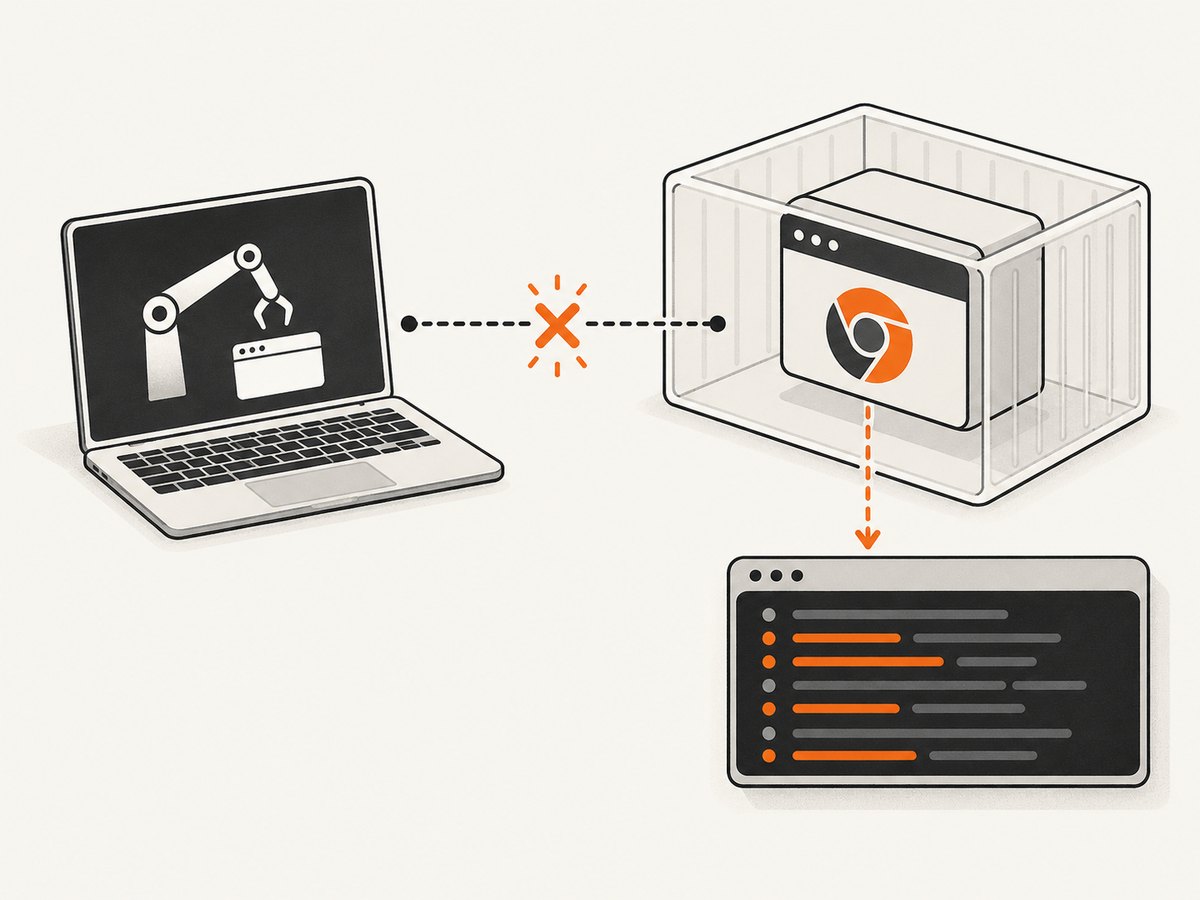
There are three broad possibilities to distinguish:
- Chrome exited or crashed. Browser stderr, process exit information, and container logs may give clues.
- The container or runtime stopped Chrome. Check restarts, termination signals, resource limits, and process management.
- Your application detached or closed it. Search for
browser.disconnect(),browser.close(), signal handlers, and cleanup code.
Historical issue reports show the same symptom in different environments. They are useful reminders that there is no universal cause or launch flag to infer from the message alone.
2. Collect evidence before changing settings
Record the environment
Write down the Docker image and tag, base distribution, Node.js and Puppeteer versions, actual Chrome or Chromium executable and version, container user, launch options, runtime command, and CPU, memory, and shared-memory limits. Include whether the container is read-only or restarted by an orchestrator. Version and platform details matter because browser dependencies and supported configurations vary.
Inside the running image, useful checks include:
node --version
node -e "console.log(require('puppeteer/package.json').version)"
which google-chrome || which chromium || which chromium-browser
Run the browser’s version command using the executable path your app actually launches. If the browser is installed in a nonstandard location, record that path too. Do not assume the browser bundled or downloaded for one Puppeteer version is interchangeable with an unrelated system browser.
Forward browser output
Set dumpio: true when launching. Puppeteer recommends forwarding browser process output when Chrome unexpectedly crashes or fails to launch. Preserve the logs from just before and after the disconnect, including the container’s stdout and stderr.
const puppeteer = require('puppeteer');

async function main() {
  const browser = await puppeteer.launch({
    headless: true,
    dumpio: true,
  });

  try {
    const page = await browser.newPage();
    await page.goto('https://example.com', { waitUntil: 'domcontentloaded' });
    console.log('Page title:', await page.title());
  } finally {
    await browser.close();
  }
}

main().catch(error => {
  console.error(error);
  process.exitCode = 1;
});
This CommonJS example is runnable in a project with Puppeteer installed. Use a stable simple page first. If it works, add your target URL and workload incrementally. A failure on the simple page points toward the runtime, browser, or application setup; a failure only after adding the real workload narrows the investigation.
Check whether your code detached the browser
Puppeteer’s browser.disconnect() stops the client controlling the browser while leaving the browser process running. browser.close() closes the browser. Search the whole application, including shared helpers and shutdown handlers, for both calls and for process signals. A cleanup path that runs earlier than expected can make a later navigation report a disconnect.
Also check whether asynchronous work is still running when cleanup executes. Await the navigation and page operations that must finish before closing the browser. Adding await can fix a race in your own code, but it cannot repair a browser process that has crashed or been terminated.
3. Check the Docker image and browser dependencies
Puppeteer’s troubleshooting guide describes checking Chrome’s Linux shared-library dependencies with ldd. In the container, run it against the actual browser executable:
ldd /path/to/chromeReplace the path with the executable used by your launch configuration. Look for libraries reported as “not found” and install compatible packages for the distribution and browser build you use. Puppeteer’s troubleshooting guide lists common Debian dependencies and warns that Chrome does not work on Alpine out of the box without compatible dependencies.
If you use Alpine, treat it as a separate compatibility case. Verify the current Puppeteer guidance for the exact versions rather than applying a version-specific issue note as a permanent rule. A Debian-based image or Puppeteer’s maintained Docker image may be simpler when you do not specifically need Alpine.
Confirm that Puppeteer and the browser binary form a supported pairing. Record both versions and consult the project guidance for the deployed version. A successful install step does not by itself establish that a separately supplied system browser has the dependencies or compatibility the application needs.
4. Check sandboxing and process management
Puppeteer’s official Docker image includes Chrome for Testing and required dependencies. Its documented example runs with --init --cap-add=SYS_ADMIN; the image runs Chrome sandboxed and documents the capability requirement. The guide also recommends an init process, either Docker’s --init or a suitable custom entrypoint, so browser child processes are managed correctly.
For that documented image, the run command is:
docker run --init --cap-add=SYS_ADMIN \
  --rm your-puppeteer-image
Use the actual image and command from the official guide for the version you deploy. These settings are not a universal recipe for every custom base image or container runtime. Compare your image’s user, capabilities, entrypoint, and security policy with the guidance, then adapt deliberately.
Do not make --no-sandbox the default fix. Puppeteer strongly discourages running without Chrome’s sandbox because the sandbox protects the host from untrusted web content. Its documentation presents disabling the sandbox only for content the operator absolutely trusts. Prefer a runtime configuration that supports sandboxed Chrome and follow the instructions for the image in use.
Likewise, do not paste a collection of old Chromium flags as a diagnosis. The researched issue reports do not establish --single-process, --disable-dev-shm-usage, or any universal flag bundle as a fix for this error. Old reports show that some deployments used such flags; they do not demonstrate that those flags solved the disconnect.
5. Make Chrome’s profile and cache paths writable
Chrome needs writable locations for its profile and related configuration or cache data. A restricted or read-only container can prevent startup or cause failures during use if those paths point somewhere unwritable. Puppeteer’s troubleshooting guidance describes directing XDG configuration and cache locations to /tmp and setting an explicit writable userDataDir where necessary.
const puppeteer = require('puppeteer');

async function main() {
  const browser = await puppeteer.launch({
    headless: true,
    dumpio: true,
    userDataDir: '/tmp/puppeteer-profile',
    env: {
      ...process.env,
      XDG_CONFIG_HOME: '/tmp/.config',
      XDG_CACHE_HOME: '/tmp/.cache',
    },
  });

  try {
    const page = await browser.newPage();
    await page.goto('https://example.com', { waitUntil: 'domcontentloaded' });
    console.log(await page.title());
  } finally {
    await browser.close();
  }
}

main().catch(error => {
  console.error(error);
  process.exitCode = 1;
});
Ensure the configured directories exist and are writable by the user running Node. If your Puppeteer version or launch wrapper does not accept an env option, set the environment variables in the container definition instead. Use a distinct profile directory for concurrent browser processes; do not have separate Chrome instances write to the same profile.
6. Reduce the failure to a reproduction
- Launch Chrome with browser output enabled and visit a simple stable page.
- Repeat with the same container user and runtime flags used in production.
- Add the real destination and compare where the logs diverge.
- Add waits, external resources, PDF generation, and concurrency one at a time.
- Record whether Chrome exited, the container restarted, or application cleanup disconnected the client.
Navigation waits such as networkidle0, external assets, and HTTPS or certificate problems can affect a particular reproduction. They are not, on their own, proof of why the browser connection was lost. Distinguish a navigation timeout from a process exit by checking whether the browser remains responsive and by examining the browser and container logs.
Once the minimal case is understood, restore the production workload gradually. This can reveal whether the trigger is a particular page, an unusually long operation, the concurrency level, or an interaction with resource limits. Historical reports include different navigation and concurrency contexts, but do not establish any of them as a general cause.
7. Troubleshooting common symptoms
| Symptom | Possible cause to check | Next step |
|---|---|---|
| Chrome exits at launch | Missing shared library, incompatible browser build, or an unwritable profile/cache path | Capture dumpio output, check the executable and versions, run ldd, and verify writable directories. |
| It works locally but not in Docker | Different Linux libraries, user permissions, sandbox capabilities, or runtime configuration | Record the image and user, compare with Puppeteer’s Docker guidance, and reproduce with the same container command. |
| It fails in a read-only container | Chrome configuration, cache, or profile paths may not be writable | Point those paths at writable storage such as /tmp; configure a writable userDataDir if needed. |
| It fails after a navigation wait | The page may be waiting on ongoing network activity, or Chrome may have exited during navigation | Try a minimal page and a simpler wait condition; inspect browser output to determine whether the process actually exited. |
| It fails after a code path or shutdown | Application code may have called disconnect() or close() too early |
Search cleanup and signal handlers; await required work before cleanup and log browser lifecycle events. |
| It appears under load | Concurrency or container limits may be involved, but the message alone cannot establish that | Reduce concurrency, capture runtime and browser logs, and reintroduce load gradually while observing process exits. |
| A copied launch flag changes nothing | The flag may be unrelated to the actual failure | Remove speculative flags and investigate the supported image setup, logs, versions, and dependencies. |
If browser output is inconclusive, Puppeteer documents protocol diagnostics with NODE_DEBUG="puppeteer:*" and inspection of browser.debugInfo.pendingProtocolErrors for outstanding protocol calls. These logs can contain URLs, headers, or other sensitive details; review and redact them before sharing.
NODE_DEBUG="puppeteer:*" node app.jsUse protocol logging only while diagnosing, since it can produce substantial output. Preserve enough context to see which browser operation was active when the connection failed.
8. Reliability, performance, and cost considerations
Browser stability depends on a reproducible image, compatible browser dependencies, correct process lifecycle, and sufficient runtime resources for the workload. Pin image and package versions so deployments do not silently change the browser environment. Use the official maintained image when its base and sandbox requirements fit; maintaining a custom image gives you control but means owning dependency compatibility and updates.
For a persistent service, make cleanup explicit: close pages and browsers when work is complete, and avoid reusing a browser after Puppeteer reports it disconnected. If a browser process exits, create a new browser instance only after recording the exit evidence. Keep concurrency within the capacity of the container and measure behavior under your own workload; the available evidence does not provide a universal safe concurrency number or resource benchmark.
Keep slow network conditions and expensive page work separate from the diagnosis. Start with a simple navigation, then add page features and waits. This reduces wasted debugging time and helps distinguish browser startup, page loading, and rendering costs. The research does not establish a general price or performance figure for running Puppeteer in Docker; calculate costs from your own compute, image, storage, and workload settings.
9. Or skip the browser setup
If your task is to capture a website rather than operate Chromium yourself, ScreenshotNeo is a website screenshot API and MCP server. It returns a PNG, JPEG, WebP, or PDF from one GET request. The API documentation describes its options.

curl -G "https://api.screenshotneo.com/v1/shot" \
  -d access_key=YOUR_API_KEY \
  --data-urlencode url=https://stripe.com \
  -o shot.webp
import requests
r = requests.get(
"https://api.screenshotneo.com/v1/shot",
params={"access_key": "YOUR_API_KEY", "url": "https://stripe.com"},
timeout=90,
)
r.raise_for_status()
with open("shot.webp", "wb") as f:
f.write(r.content)const q = new URLSearchParams({
access_key: 'YOUR_API_KEY',
url: 'https://stripe.com',
});
const res = await fetch(`https://api.screenshotneo.com/v1/shot?${q}`);
if (!res.ok) throw new Error(`Screenshot request failed: ${res.status}`);
const bytes = new Uint8Array(await res.arrayBuffer());
await import('node:fs/promises').then(fs => fs.writeFile('shot.webp', bytes));Cookie and consent banners, newsletter popups, and chat widgets are removed before capture; each cleanup step can be turned off. Bot checks, blank pages, timeouts, failed loads, and cache hits are not billed, and the response identifies the verdict and billing status in headers. An MCP server gives AI agents such as Claude, Cursor, or any MCP client the tools take_screenshot, get_page_info, and capture_pdf.
There are 1,000 screenshots per month on the free plan with no card; paid plans start at $5 for 3,000. Every feature is available on every plan, and yearly billing gives two months free. Sign up for 1,000 free screenshots a month, with no card.
10. FAQ
Does this error always mean Chrome crashed?
No. It means the Puppeteer client lost its browser connection. Chrome may have exited, the runtime may have stopped it, or your code may have detached or closed it. Logs and lifecycle inspection distinguish these cases.
Will adding await fix it?
It can fix an application race where cleanup runs before an operation finishes. It does not fix missing libraries, an incompatible browser, a runtime termination, or a crash.
Should I always use --no-sandbox in Docker?
No. Puppeteer strongly discourages disabling the sandbox. Follow the documented sandbox configuration for your image and runtime.
Is --disable-dev-shm-usage the standard fix?
The sources here do not establish it as a universal solution. Diagnose from browser output and the deployed container configuration before adding flags.
What information helps someone else diagnose the problem?
Share the image and base distribution, Node/Puppeteer/browser versions, launch options, runtime command and limits, a minimal reproduction, and relevant redacted browser and container logs.


