How to Fix Puppeteer’s “Browser Is Not Downloaded” Error on Linux
Fix Puppeteer’s missing-browser error on Linux by checking the package, installing or selecting a browser, and verifying cache, permissions, and proxy settings.
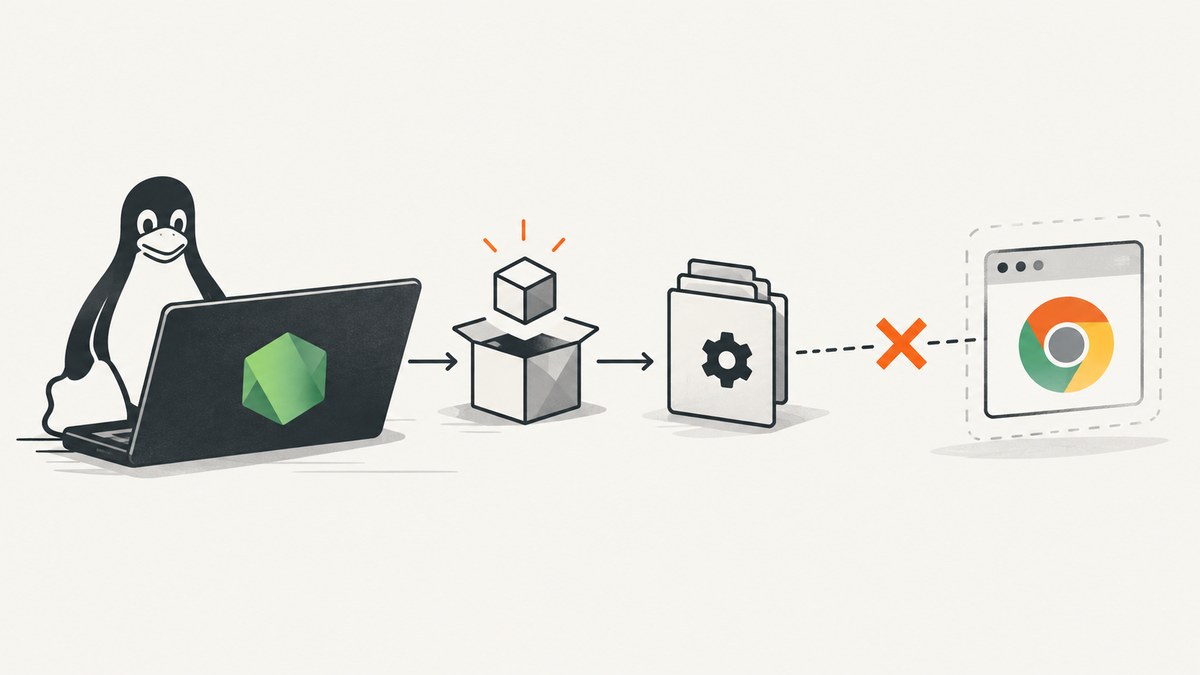
Puppeteer’s “Browser is not downloaded” error means the runtime cannot find a browser build it can launch. The wording varies by Puppeteer version; newer versions may report Could not find Chrome (ver. ...). First identify whether your project uses puppeteer or puppeteer-core. The full puppeteer package normally downloads a compatible Chrome for Testing browser, while puppeteer-core expects you to provide or connect to a browser. If you use the full package and its install script was skipped, run npx puppeteer browsers install from the project. ([Puppeteer installation guide](https://pptr.dev/guides/installation))
This guide walks through diagnosis, clean installation, Linux deployment and cache boundaries, system Chrome configuration, proxy failures, and common launch errors. It also includes minimal runnable Node.js code and equivalent cURL and Python examples for capturing a page without maintaining a local browser.
1. Confirm which Puppeteer package and version your app loads
Run these commands from the application directory—the same project whose script produces the error:
npm ls puppeteer puppeteer-core
node -p "require('puppeteer/package.json').version"
The second command works when puppeteer is installed. If it fails, check whether the project uses puppeteer-core instead:
node -p "require('puppeteer-core/package.json').version"With npm workspaces, a monorepo, or a globally installed script, make sure these commands run in the same package and runtime context as the failing application. A browser installed for a different dependency tree, user, container image, or build stage may not be visible to the process that launches Puppeteer.
| Package | Browser behavior | What to configure |
|---|---|---|
puppeteer |
Downloads a compatible Chrome for Testing build during installation, unless installation scripts or download settings prevent it. | Install the managed browser and make its cache accessible at runtime. |
puppeteer-core |
Does not download a browser. | Pass a browser executable path or channel, or connect to an existing browser. |
Puppeteer works best with its paired Chrome for Testing build. Another Chrome or Chromium version may work, but Puppeteer does not guarantee compatibility with every external version. ([Puppeteer configuration](https://pptr.dev/guides/configuration), [Puppeteer launch API](https://pptr.dev/api/puppeteer.puppeteernode.launch))
2. Install the browser managed by Puppeteer
If the project uses puppeteer and the browser is absent, install it explicitly from the project directory:
npx puppeteer browsers installThis is the documented remedy when a package manager blocks dependency install scripts. After it completes, run the original script again as the same user that will run it in production.
To see the browser-management commands supported by the installed version, use:
npx puppeteer browsers --helpPackage managers may require an explicit setting to permit install scripts. For npm, Puppeteer’s current installation guide documents the allowScripts setting as one option. Follow the configuration appropriate to your package manager and version; then reinstall dependencies or run the browser installation command. Do not assume that a successful JavaScript dependency install also means a browser download occurred. ([Installation guide](https://pptr.dev/guides/installation))
A clean project-level recovery sequence is:
npm install
npx puppeteer browsers install
node app.js
Replace app.js with your entry point. If the download fails, keep the package install and browser download as separate checks: one installs JavaScript dependencies, the other obtains the browser binary.
3. Check the browser cache, Linux user, and deployment stage
Puppeteer’s default managed-browser cache is $HOME/.cache/puppeteer. The value of $HOME depends on the user running the command. For example, a browser installed as a developer may be under that user’s home directory, while a service or container runs as another user and looks elsewhere. A multistage build can create the same mismatch if the browser is installed in one stage but omitted from the final runtime image. ([Installation guide](https://pptr.dev/guides/installation))
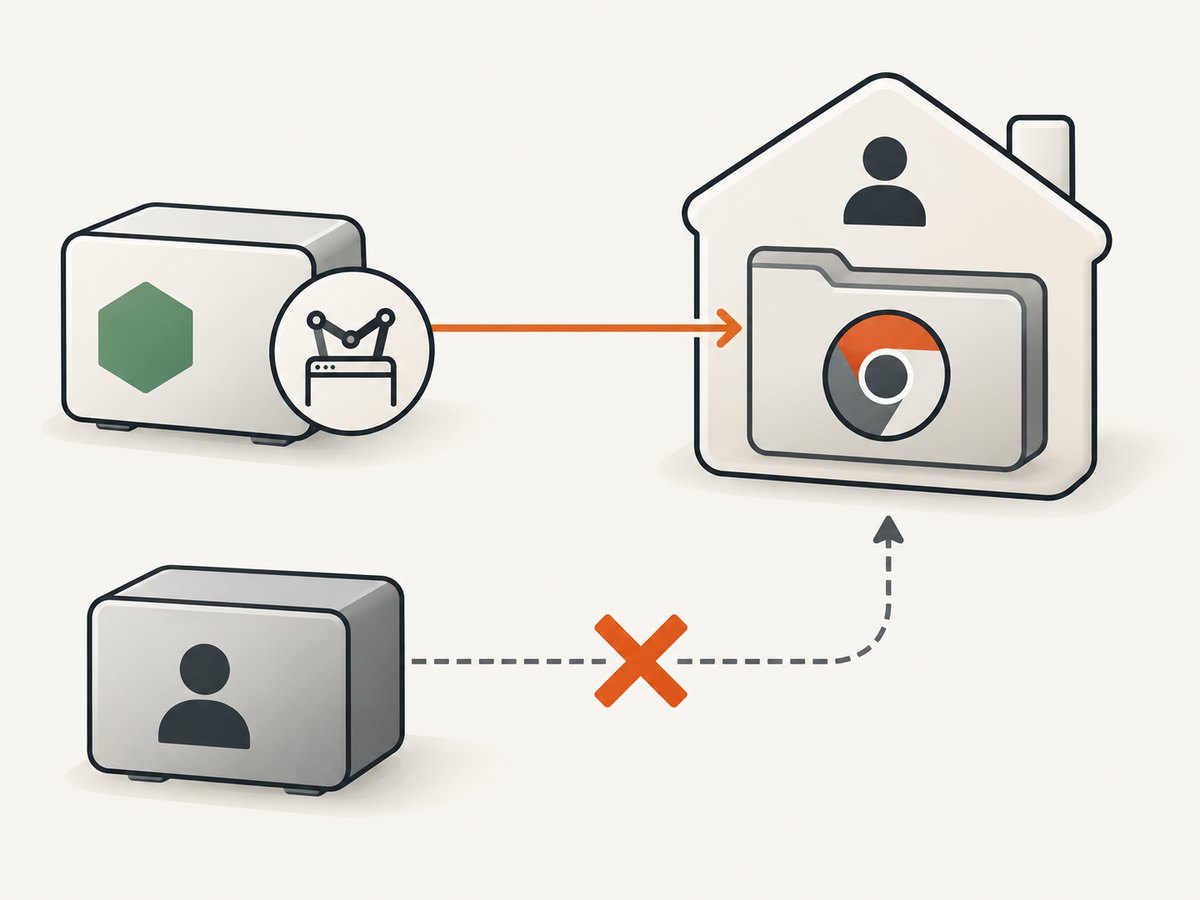
Check the runtime identity and cache directory:
whoami
printf 'HOME=%s\n' "$HOME"
ls -la "$HOME/.cache/puppeteer"
If the cache is missing or belongs to a different user, choose a stable directory that is present in the runtime, configure Puppeteer’s cacheDirectory, then install the browser into that location. Keep the configuration available to both the installation process and the application. Puppeteer specifically warns that a globally cached browser can cause problems when a packaged application is moved to a fresh location. ([Configuration guide](https://pptr.dev/guides/configuration))
// .puppeteerrc.cjs
const path = require('node:path');

module.exports = {
  cacheDirectory: path.join(__dirname, '.cache', 'puppeteer'),
};
npx puppeteer browsers installEnsure the runtime user can read and execute the installed browser files. Avoid installing as root and then assuming a restricted service account can traverse every directory in the cache path. If the browser is present but launch reports a permissions error, inspect ownership and directory traversal permissions along the full path.
4. Select an externally managed Linux browser
If your deployment intentionally supplies Chrome or Chromium, select it explicitly. Installing a distribution package does not automatically tell Puppeteer to use it. With puppeteer-core, the launch API requires an executablePath or a channel. The executable path must match the actual location in that Linux image. ([Launch API](https://pptr.dev/api/puppeteer.puppeteernode.launch))
const puppeteer = require('puppeteer-core');

(async () => {
  const browser = await puppeteer.launch({
    executablePath: '/usr/bin/chromium', // use the path present in your image
    headless: true,
  });
  try {
    const page = await browser.newPage();
    await page.goto('https://example.com', { waitUntil: 'domcontentloaded' });
    console.log(await page.title());
  } finally {
    await browser.close();
  }
})();
Find the executable rather than guessing its path:
command -v chromium
command -v chromium-browser
command -v google-chrome
Use the command that returns a real path in the runtime environment. If using the full puppeteer package with an external browser, you can also pass executablePath. A channel can select a browser installed in a standard location where supported. Pin and maintain the external browser yourself, and check compatibility when upgrading Puppeteer. The managed browser is the simpler option when you want Puppeteer to obtain its paired version.
5. Verify the launch with a minimal Node.js script
Once the browser is installed or selected, reduce the failing program to a short launch and navigation check. This separates browser discovery from application logic:
const puppeteer = require('puppeteer');

(async () => {
  const browser = await puppeteer.launch({ headless: true });
  try {
    const page = await browser.newPage();
    await page.goto('https://example.com', {
      waitUntil: 'domcontentloaded',
      timeout: 30000,
    });
    console.log(await page.title());
  } finally {
    await browser.close();
  }
})().catch((error) => {
  console.error(error);
  process.exitCode = 1;
});
For puppeteer-core, replace the import with puppeteer-core and supply executablePath or a supported channel. Once this succeeds, restore the application’s selectors, waits, screenshot settings, and network behavior one at a time.
6. If the browser download fails behind a proxy
A missing-browser error can be downstream of a failed download. Puppeteer documents HTTP_PROXY, HTTPS_PROXY, and NO_PROXY for proxy configuration used to download and run the browser. Downloads through a proxy require the optional proxy-agent package. Check your network policy, proxy values, and whether the install process can reach the download host. ([Configuration guide](https://pptr.dev/guides/configuration))
npm install --save-dev proxy-agent
HTTPS_PROXY=http://proxy.example:8080 \
HTTP_PROXY=http://proxy.example:8080 \
  npx puppeteer browsers install
Use your organization’s real proxy endpoint; the example hostname is a placeholder. Add internal hosts that should bypass the proxy to NO_PROXY as needed. Do not put proxy credentials in source control or publish them in build logs.
7. Common errors and how to fix them
| Symptom | Likely cause | Fix |
|---|---|---|
Browser is not downloaded or Could not find Chrome (ver. ...) |
The managed browser was not installed, or Puppeteer cannot see its cache. | Check the package, run npx puppeteer browsers install, and confirm cache path and runtime user. |
Browser is missing while using puppeteer-core |
puppeteer-core does not download a browser. |
Provide executablePath or channel, or connect to a browser your environment manages. |
| Install succeeds, but the service still cannot find Chrome | Installation and runtime use different users, home directories, stages, or cache configuration. | Install the browser in the final runtime context or configure a shared cache path and permissions. |
| Browser download fails or times out | Proxy, DNS, firewall, or network restrictions prevent the download. | Check HTTP_PROXY/HTTPS_PROXY, NO_PROXY, and proxy-agent setup. |
| Executable path does not exist | The configured path differs from the Linux image’s actual browser location. | Run command -v in the same image and set the returned path. |
| Browser launches but exits immediately | The executable may be incompatible, inaccessible, or missing required system libraries. | Confirm the binary runs in the image, permissions allow execution, and the selected browser version is compatible. |
| Error appears only after moving the app | The browser was cached globally outside the packaged app’s new location. | Use a deliberate cacheDirectory in the deployment and install the browser there. |
8. Choose the browser ownership model
| Approach | Browser installation and updates | Runtime responsibility | Compatibility |
|---|---|---|---|
puppeteer managed browser |
Puppeteer downloads the paired Chrome for Testing browser; rerun the browser install command if scripts were blocked. | Preserve the cache and permissions where the app runs. | Best aligned with Puppeteer’s supported pairing. |
puppeteer-core plus external browser |
Your OS image or deployment process installs and updates Chrome/Chromium. | Pass the correct executable path or channel and ensure it is accessible. | External versions may not match Puppeteer’s preferred build. |
Choose the managed browser when you want Puppeteer to control the browser version. Choose an external browser when your deployment already owns browser installation and you can keep the path, version, and runtime permissions consistent.
9. Performance, reliability, and cost considerations
The Puppeteer installation guide gives an approximate Linux browser download size of about 282 MB for the documented version. Treat this as a planning estimate, not a permanent size guarantee. Browser installation adds network transfer and storage to a build or deployment; caching dependencies and the browser in the appropriate build environment can avoid repeating downloads, provided the runtime receives the same compatible files. ([Installation guide](https://pptr.dev/guides/installation))
For reliability, make the browser installation an explicit deployment step and fail the build if the expected executable or cache is absent. Keep the runtime user consistent, or set a stable cache directory and permissions deliberately. When using an externally managed browser, pin its source and version according to your deployment process and test upgrades alongside the Puppeteer package.
There is no per-screenshot charge from Puppeteer itself, but self-hosting uses your compute, memory, storage, bandwidth, and engineering time. The research dossier does not provide benchmark figures for launch speed or resource use, so size your own deployment from its workload rather than relying on an assumed universal number.
10. Or skip the browser setup
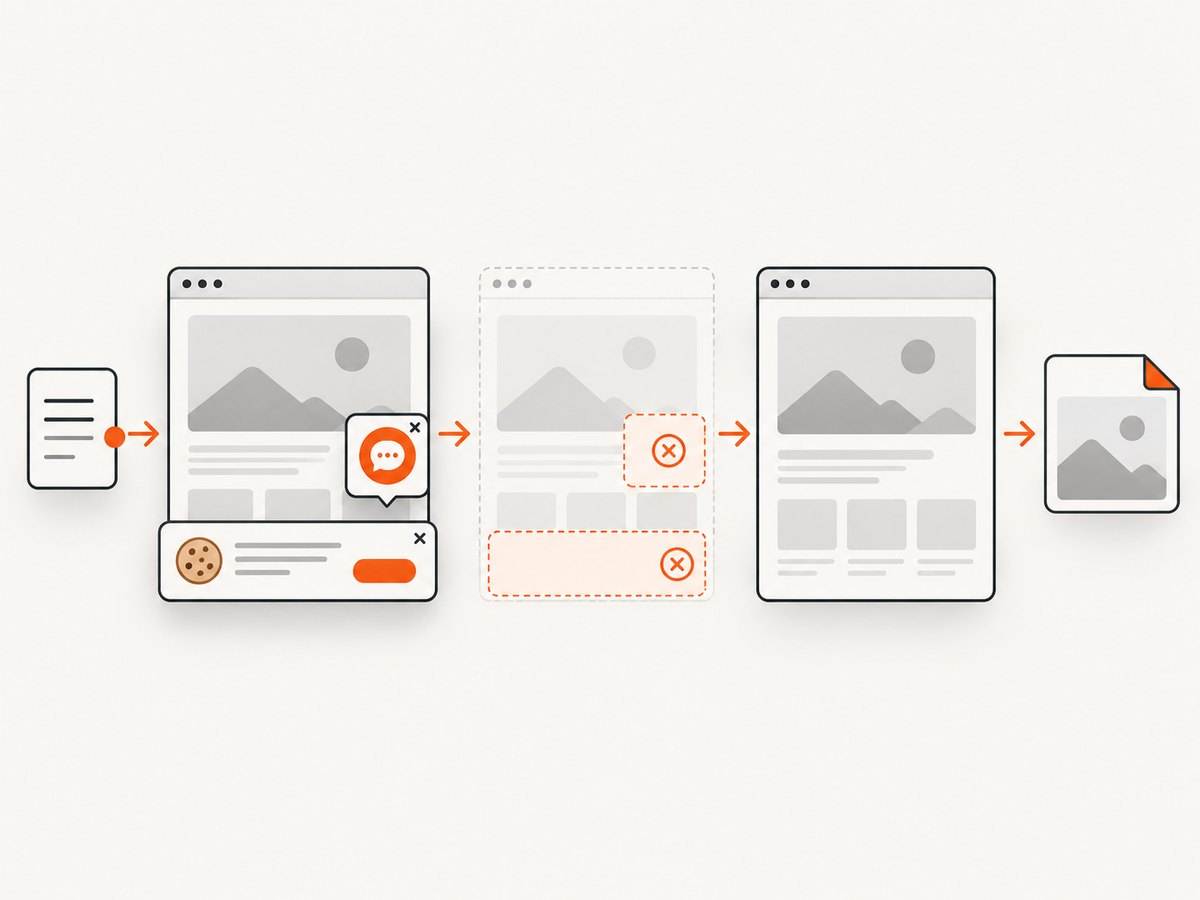
If your goal is simply to capture a website, ScreenshotNeo provides a screenshot API and MCP server for developers. A single GET request returns a PNG, JPEG, WebP, or PDF. Its capture flow accepts consent banners like a visitor and removes 60+ known consent platforms, newsletter popups, and chat widgets before the shot; each step can be turned off. Bot checks/CAPTCHAs, blank pages, timeouts, failed loads, and cache hits cost nothing, and response headers report the page verdict and whether the shot was billed. AI agents can use its MCP server tools take_screenshot, get_page_info, and capture_pdf. See the ScreenshotNeo site and API documentation.
curl -G "https://api.screenshotneo.com/v1/shot" -d access_key=YOUR_API_KEY --data-urlencode url=https://stripe.com -o shot.webpimport requests
r = requests.get(
"https://api.screenshotneo.com/v1/shot",
params={"access_key": "YOUR_API_KEY", "url": "https://stripe.com"},
timeout=90,
)
r.raise_for_status()
open("shot.webp", "wb").write(r.content)const q = new URLSearchParams({ access_key: 'YOUR_API_KEY', url: 'https://stripe.com' });
const res = await fetch(`https://api.screenshotneo.com/v1/shot?${q}`);
if (!res.ok) throw new Error(`Screenshot request failed: ${res.status}`);
await Bun.write('shot.webp', res);The Node.js example uses Bun’s file writer to save the response. In Node.js, use this runnable version instead:
const fs = require('node:fs/promises');

(async () => {
  const q = new URLSearchParams({ access_key: 'YOUR_API_KEY', url: 'https://stripe.com' });
  const res = await fetch(`https://api.screenshotneo.com/v1/shot?${q}`);
  if (!res.ok) throw new Error(`Screenshot request failed: ${res.status}`);
  await fs.writeFile('shot.webp', Buffer.from(await res.arrayBuffer()));
})();
ScreenshotNeo supports full-page and element captures, device presets and custom viewports, custom CSS and JavaScript, wait conditions, request blocking, headers and cookies, caching, signed image links, async jobs, bulk capture, usage reporting, and more. Its parameter names also match those used by other screenshot APIs to make switching easier. Every feature is on every plan. Plans include 1,000 screenshots a month free with no card; paid plans start at $5 for 3,000 screenshots. Sign up free and get 1,000 screenshots a month with no card.
11. Frequently asked questions
Does installing Chromium with apt fix the error?
Only if you configure Puppeteer to use that installed executable. Installing a system browser does not automatically select it. Set executablePath or a supported channel.
Why does the error mention a Chrome version?
Puppeteer expects a compatible browser build associated with its package version. The exact error text can change; the underlying issue is often that the expected browser is missing or not visible to the runtime.
Can I use Puppeteer without downloading a browser?
Yes. Use puppeteer-core with an externally managed browser or connect to a browser already available to your environment. Supply the required browser selection or connection details.
Should I reinstall all Node dependencies?
Usually not as the first step. Check which Puppeteer package is loaded and whether the browser exists in its configured cache. Then install the managed browser explicitly if that is the chosen setup.


