How to Fix Puppeteer Installation Issues on CentOS 7
Fix Puppeteer on CentOS 7 by separating browser downloads, shared libraries, sandbox permissions and the platform’s end-of-life constraints.
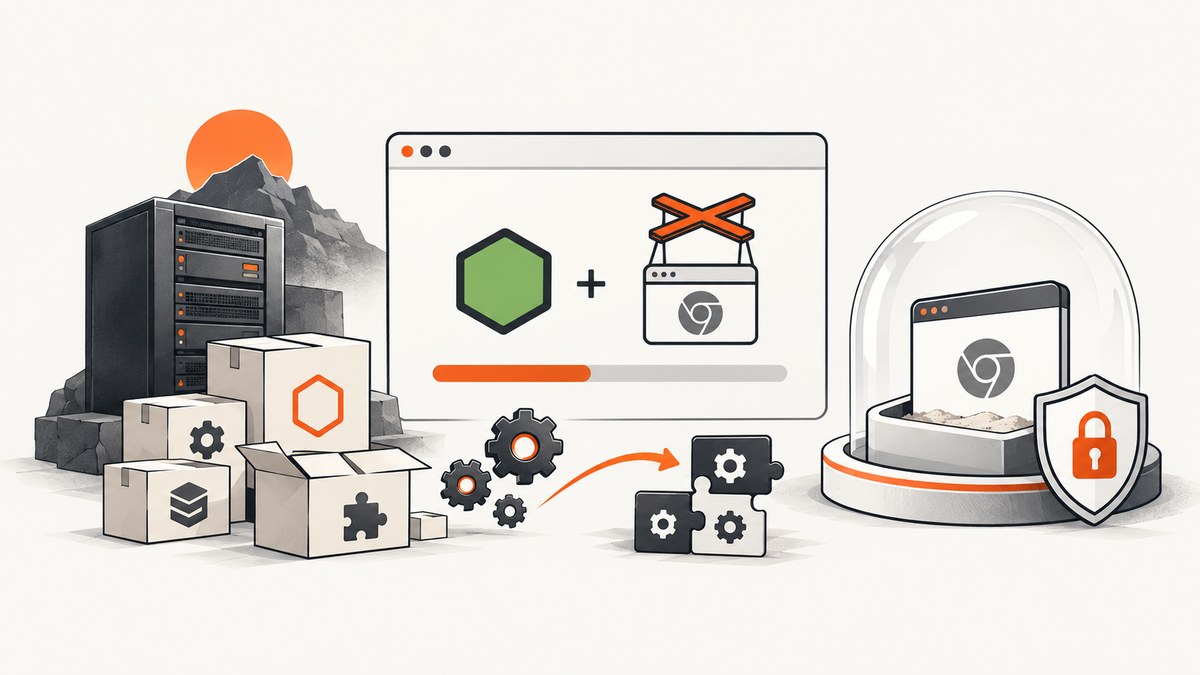
Puppeteer installation failures on CentOS 7 usually come from four separate problems: the npm package installed but Chrome did not, Chrome cannot load a required shared library, the runtime user cannot read the browser cache, or Linux cannot provide a usable Chrome sandbox. Diagnose those layers separately instead of repeatedly reinstalling npm packages.
CentOS Linux 7 reached end of life on June 30, 2024. A repaired installation can keep an existing service running temporarily, but a durable plan should move the workload to a maintained distribution or supported enterprise platform.
1. Check the runtime before changing packages
Use a maintained Node.js release supported by your Puppeteer version. Puppeteer’s system requirements follow the latest Node.js maintenance LTS line; old Node releases can produce module-resolution errors before Chrome is ever launched. See the Puppeteer system requirements.
node --version
npm --version
whoami
echo "HOME=$HOME"
uname -m
pwd
ls -ld . "$HOME"
Run these commands as the same account that starts the service. A successful installation under root does not prove that a systemd service running as app can read the browser or its cache.
Confirm project and cache permissions
test -w . && echo "project is writable"
test -r "$HOME" && echo "home is readable"
find "$HOME/.cache/puppeteer" -maxdepth 3 -type f -perm -u+x -print 2>/dev/null | head
If your service uses a different HOME, set it explicitly in the service definition. Also choose a cache directory that the runtime user owns. Puppeteer normally stores downloaded browsers under $HOME/.cache/puppeteer.
2. Install Puppeteer and verify Chrome
The npm package and the browser executable are related but separate installation stages. The normal installation downloads a compatible Chrome for Testing build. Dependency scripts can be disabled by a package manager, CI policy or an environment variable, leaving npm installed while Chrome is absent.
mkdir -p ~/puppeteer-centos7
cd ~/puppeteer-centos7
npm init -y
npm install puppeteer
npx puppeteer browsers install
The npx puppeteer browsers install command is the documented repair when the postinstall download was skipped. The official installation guide is at pptr.dev/guides/installation.
Use a shared cache deliberately
If deployment and execution use different accounts, configure one shared cache before installing. The directory must be writable during installation and readable and executable at runtime.
sudo mkdir -p /var/cache/puppeteer
sudo chown -R app:app /var/cache/puppeteer
export PUPPETEER_CACHE_DIR=/var/cache/puppeteer
npm install puppeteer
npx puppeteer browsers install
For a systemd service, set the same variable in the unit or an environment file, then restart the service. Do not copy a browser directory from one host and assume its permissions, architecture and libraries match another host.
3. Install CentOS 7 libraries and fonts
Chrome can exit immediately when one of its dynamic libraries is missing. Puppeteer’s CentOS troubleshooting list includes the following packages:
sudo yum install -y \
  alsa-lib.x86_64 \
  atk.x86_64 \
  cups-libs.x86_64 \
  gtk3.x86_64 \
  ipa-gothic-fonts \
  libXcomposite.x86_64 \
  libXcursor.x86_64 \
  libXdamage.x86_64 \
  libXext.x86_64 \
  libXi.x86_64 \
  libXrandr.x86_64 \
  libXScrnSaver.x86_64 \
  libXtst.x86_64 \
  pango.x86_64 \
  xorg-x11-fonts-100dpi \
  xorg-x11-fonts-75dpi \
  xorg-x11-fonts-cyrillic \
  xorg-x11-fonts-misc \
  xorg-x11-fonts-Type1 \
  xorg-x11-utils
sudo yum update nss -y
Repository configuration and CPU architecture affect package availability. Keep the complete yum error if a package cannot be found; do not silently replace it with an unrelated library.
Find the exact missing dependency
First locate the downloaded Chrome executable:
find "${PUPPETEER_CACHE_DIR:-$HOME/.cache/puppeteer}" -type f \
  \( -name chrome -o -name chrome-wrapper \) -perm -u+x -print
Run ldd against the executable path you found:
ldd /path/to/chrome | grep notNo output means this check found no unresolved shared-library entries for that executable. It does not prove that fonts, permissions, sandboxing or display configuration are correct. Run the check as the service user when possible.
4. Run a minimal Puppeteer capture
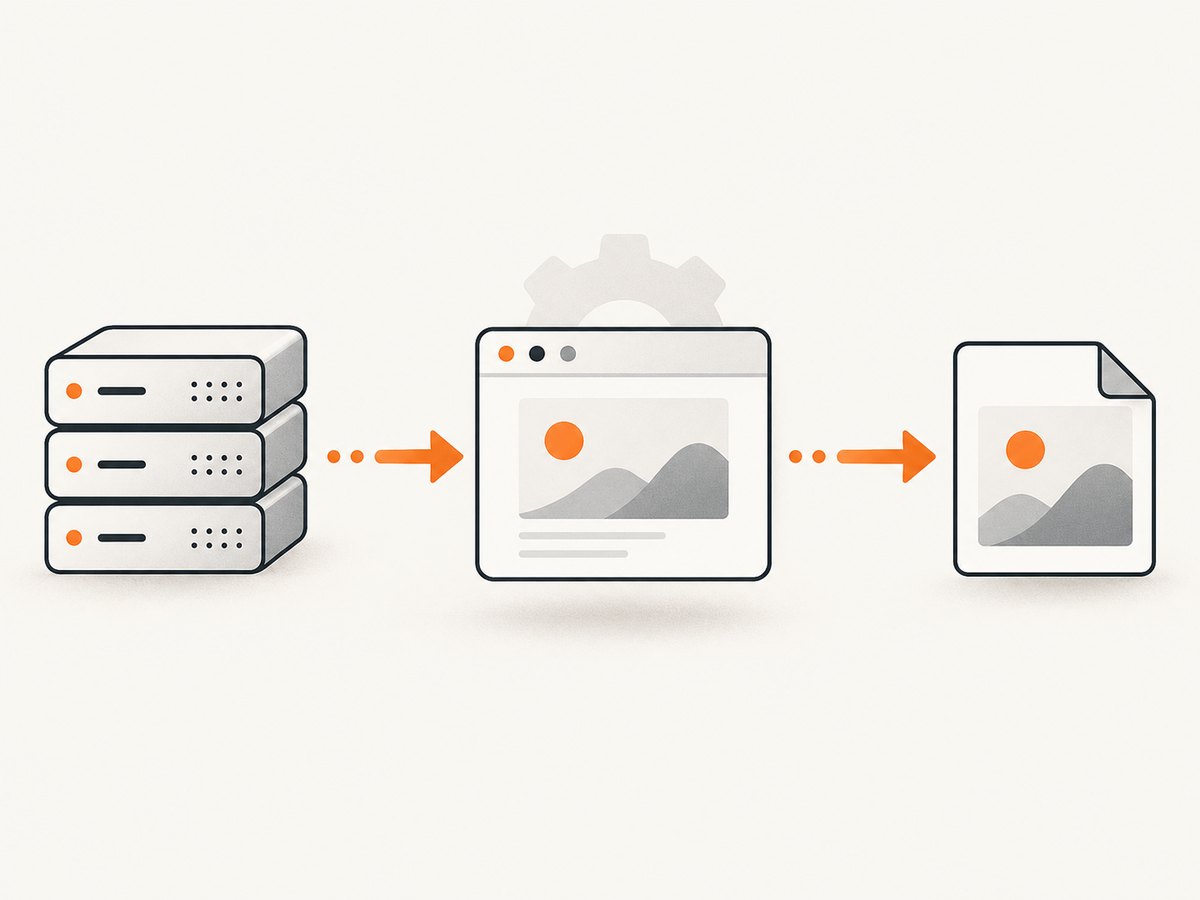
Create a small script that exercises browser launch, navigation and rendering independently of your application.
const puppeteer = require('puppeteer');

(async () => {
  const browser = await puppeteer.launch({
    headless: true,
  });

  try {
    const page = await browser.newPage();
    await page.goto('https://example.com', {
      waitUntil: 'networkidle2',
      timeout: 60000,
    });
    await page.screenshot({ path: 'example.png', fullPage: true });
    console.log('capture complete');
  } finally {
    await browser.close();
  }
})().catch((error) => {
  console.error(error);
  process.exit(1);
});
node capture.js
file example.pngUse a real URL from your application when diagnosing a site-specific failure. A simple page proves that the browser can start; it does not prove that a target with authentication, large assets, bot protection or unusual JavaScript will load.
5. Fix “No usable sandbox!” safely
The error No usable sandbox! means Chrome cannot access a suitable Linux sandbox, usually because of host restrictions, incorrect privileges or an unsuitable runtime user. Puppeteer documents this as a security and privilege problem, not as a missing npm module. Read the Puppeteer troubleshooting guide.
- Run Chrome as a non-root service account.
- Keep the real sandbox enabled and verify the host permits the required namespace and setuid behavior.
- Inspect service hardening, container restrictions and executable permissions.
- Retest with the minimal script before adding application flags.
If the environment cannot provide a sandbox and the page is fully trusted, the narrowly scoped fallback is:
const browser = await puppeteer.launch({
  headless: true,
  args: ['--no-sandbox'],
});
Running without a sandbox is strongly discouraged because it changes Chrome’s security boundary. Do not use this flag as a general installation fix, and do not use it for untrusted pages or multi-tenant workloads.
6. Diagnose errors by symptom
| Symptom | Likely cause | Fix |
|---|---|---|
Could not find Chrome (ver. …) |
Postinstall was blocked, the cache moved, or the service user differs from the installer. | Run npx puppeteer browsers install; inspect HOME, PUPPETEER_CACHE_DIR and ownership; reinstall with the final runtime configuration. |
Chrome exits immediately; ldd shows not found |
CentOS shared libraries are missing. | Install the documented package list, update NSS and rerun ldd. |
No usable sandbox! |
The host sandbox is unavailable or permissions are unsuitable. | Configure a real sandbox and use a non-root user. Use --no-sandbox only for fully trusted content as a last resort. |
| Text appears as squares or is missing | X11 or font packages are absent. | Install the listed X11 and font packages, then retest pages containing the affected scripts. |
| Module-resolution errors on an old Node release | The Node.js version is unsupported by the Puppeteer version. | Move to a maintained Node.js release and reinstall dependencies. |
| Works in a shell but fails in systemd | Different user, HOME, PATH, cache or filesystem permissions. |
Print those values from the service, set them explicitly and grant the service account access to the cache and executable. |
7. Make the repair reproducible
- Commit
package-lock.jsonand deploy withnpm ci. - Pin the Puppeteer version that your application supports instead of accepting an accidental major upgrade.
- Install the browser during image or host provisioning, not on the first production request.
- Keep the cache path fixed and owned by the runtime account.
- Record Node.js, Puppeteer, Chrome and CentOS package versions in deployment logs.
- Run a smoke capture after every image or package update.
For reliability, separate browser startup failures from page failures in logs. Record the target URL, navigation timeout, effective user, cache path and the first browser error, while removing secrets such as cookies and authorization headers.
8. Performance, reliability and cost considerations
Browser startup is expensive compared with reusing an existing browser process. A long-running worker can launch one browser and create a fresh page per job, closing pages after capture. Set navigation and operation timeouts so a broken target cannot hold a worker forever. Limit concurrency according to available memory and CPU, and monitor temporary storage because screenshots and browser profiles can accumulate.

Full-page captures may trigger lazy-loaded images and therefore take longer than viewport screenshots. Fonts, third-party scripts, analytics and advertising requests also affect completion time. If a page is deterministic, caching the resulting image in your application can reduce repeated browser work. Never treat a timeout as proof that the target is permanently unavailable; retry with a bounded backoff and a maximum attempt count.
CentOS 7 is an end-of-life host. The CentOS Project records the June 30, 2024 end-of-life date, and Red Hat describes migration to RHEL and optional extended support as continuity choices. Plan a migration to a maintained operating system, then repeat the dependency and sandbox checks there. A local RPM repair on an EOL host is an interim operational measure, not a long-term security strategy.
Or skip the browser setup
If your goal is a reliable website image rather than managing Chrome on CentOS, ScreenshotNeo provides a website screenshot API. The request below returns an image directly; parameter names used by other screenshot APIs also work, which makes switching simpler. Full API options are in the ScreenshotNeo documentation.
curl -G "https://api.screenshotneo.com/v1/shot" -d access_key=YOUR_API_KEY --data-urlencode url=https://stripe.com -o shot.webpimport requests
r = requests.get(
"https://api.screenshotneo.com/v1/shot",
params={"access_key": "YOUR_API_KEY", "url": "https://stripe.com"},
timeout=90,
)
r.raise_for_status()
open("shot.webp", "wb").write(r.content)const q = new URLSearchParams({ access_key: 'YOUR_API_KEY', url: 'https://stripe.com' });
const res = await fetch(`https://api.screenshotneo.com/v1/shot?${q}`);
if (!res.ok) throw new Error(`Screenshot failed: ${res.status}`);
require('fs').writeFileSync('shot.webp', Buffer.from(await res.arrayBuffer()));ScreenshotNeo accepts cookie and consent banners like a visitor, then removes more than 60 known consent platforms, newsletter popups and chat widgets before capture; each step can be turned off. Bot checks, blank pages, timeouts, failed loads and cache hits are not billed. Response headers identify the page verdict and whether the request was billed with X-Page-Verdict and X-Billed.
You can also choose full-page capture with lazy images, an element by CSS selector, dark mode, device presets or a custom viewport, retina scale, PDF output, custom CSS and JavaScript, click and wait actions, blocked requests, custom headers and cookies, timezone and geolocation, transparent backgrounds, resizing, caching with a chosen TTL, signed links, asynchronous jobs with signed webhooks, bulk capture for up to 100 URLs per call, usage data and an OpenAPI specification. An MCP server provides take_screenshot, get_page_info and capture_pdf for Claude, Cursor and other MCP clients.
The Free plan includes 1,000 shots each month with no card. Paid plans start at $5 for 3,000 shots; yearly billing gives two months free and every feature is available on every plan. Create a free ScreenshotNeo account.
FAQ
Why did npm install succeed when Puppeteer cannot find Chrome?
The package can be present while its browser postinstall download was skipped or stored in a cache unavailable to the runtime user. Install the browser explicitly and verify the effective cache path.
Does an empty ldd | grep not result prove Puppeteer is fixed?
No. It only says that this executable has no unresolved entries in that check. Sandbox, permissions, fonts, display settings and target-page failures can remain.
Should I always add --no-sandbox on CentOS?
No. Preserve the sandbox and run as a non-root user whenever possible. Disable it only for fully trusted content when the host cannot provide a sandbox.
Can I keep CentOS 7 in production after this repair?
You can operate an existing system temporarily, but CentOS 7 is past end of life. Schedule migration to a maintained platform and validate the browser there.
When is an API preferable to local Puppeteer?
An API is useful when you do not want to own browser downloads, OS libraries, sandbox configuration, cache permissions and worker capacity. It is especially useful for batch captures or AI-agent workflows.


