How to Fix Puppeteer Checkbox Clicks That Don’t Work
A complete guide to reliable Puppeteer checkbox interactions: locators, fill(), frames, Shadow DOM, navigation, debugging, and failure fixes.
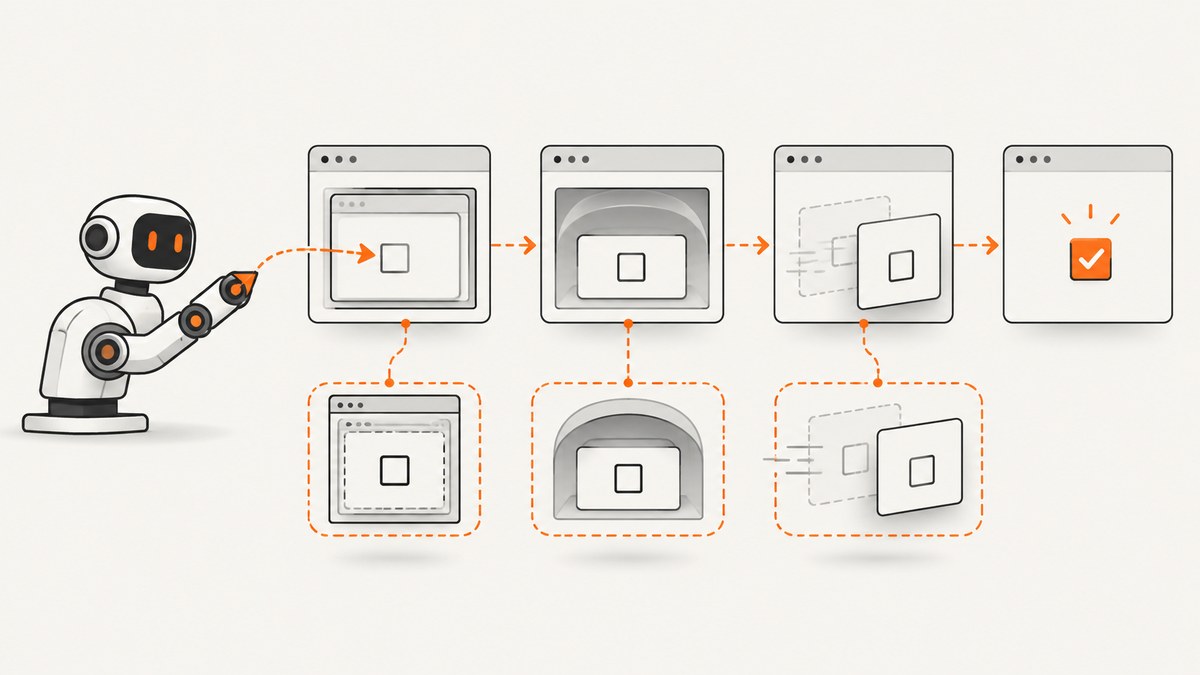
Puppeteer checkbox clicks fail for a small set of repeatable reasons: the selector targets the wrong input, the element is not ready, the checkbox is inside an iframe or Shadow DOM, a rerender replaced the node, or the click changed the box but not the application state. The reliable fix is to identify the exact control, use a locator, choose between a real click and deterministic state setting, and verify the result.
For a known final state, use Puppeteer’s locator API:
const checkbox = page.locator('input[type="checkbox"][name="terms"]');
await checkbox.fill(true); // Use false to leave it unchecked

const checked = await checkbox.map(el => el.checked).wait();
if (!checked) {
  throw new Error('The terms checkbox did not become checked');
}
Use click() when you are testing the user-facing click path, such as a label handler or a framework event. In both cases, read the resulting state and wait for the application outcome you actually need. A fulfilled click promise means Puppeteer completed its action; it does not prove that your application accepted the change.
1. Start with a precise locator
Puppeteer describes locators as the recommended way to select and interact with elements. A locator waits for action preconditions and retries when the target is not ready. Those checks include presence, visibility, enabled state, viewport placement, and a stable bounding box across animation frames. See the official Page interactions guide.
Avoid a broad selector such as input[type=checkbox] if the page contains more than one checkbox. Prefer stable attributes and a relationship to the visible label:
const terms = page.locator('input[type="checkbox"][name="terms"]');
const newsletter = page.locator('#newsletter');
const shipping = page.locator('input[type="checkbox"][data-testid="shipping"]');
Before acting, inspect what the selector found. This catches duplicate controls, disabled inputs, and a selector that matched a hidden template element.
const details = await page.locator('input[type="checkbox"][name="terms"]').map(el => ({
  checked: el.checked,
  disabled: el.disabled,
  type: el.type,
  name: el.name,
  id: el.id,
})).wait();

console.log(details);
If the result contains multiple elements, narrow the locator. A selector that matches a checkbox is not necessarily selecting the checkbox a user can see.
2. Choose click() or fill() deliberately
Use fill(true) or fill(false) for a known state
A click toggles the current value. If a previous test, retry, or saved page state already changed the box, a second click can produce the opposite result. Puppeteer’s Locator.fill() accepts booleans for checkbox inputs, radio buttons, and switches. It expresses the desired state directly:
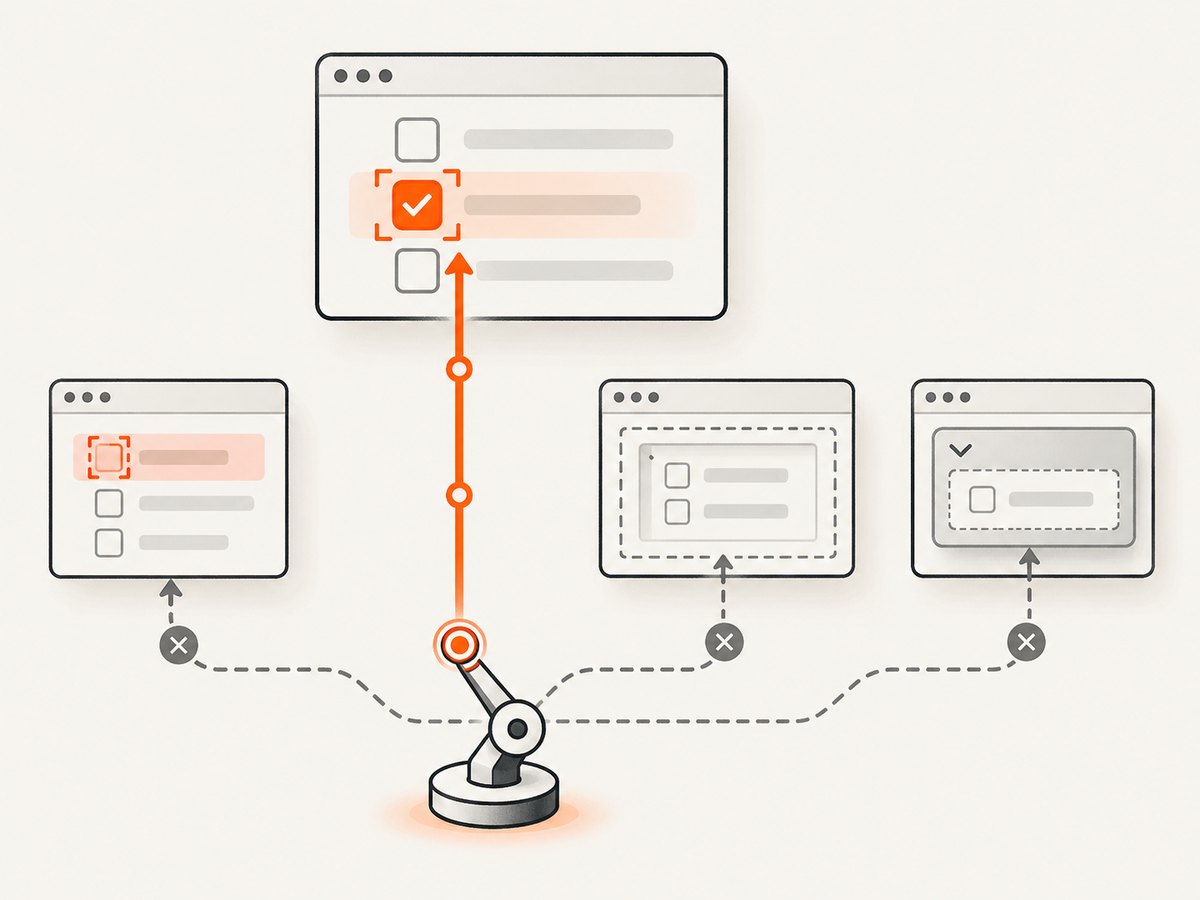
await page.locator('#newsletter').fill(true);
await page.locator('#newsletter').fill(false);
Use a postcondition assertion:
const newsletter = page.locator('#newsletter');
await newsletter.fill(true);

const isChecked = await newsletter.map(el => el.checked).wait();
if (!isChecked) throw new Error('Newsletter checkbox is still unchecked');
Use click() to exercise real interaction
Use click() when the test must cover the actual click behavior, including a label’s event handler or a custom control that updates application state.
const terms = page.locator('input[type="checkbox"][name="terms"]');
await terms.click();

const checked = await terms.map(el => el.checked).wait();
if (!checked) throw new Error('Click did not check the terms box');
If the input is visually hidden and the visible interaction is a label, click the associated label instead:
await page.locator('label[for="terms"]').click();
const checked = await page.locator('#terms').map(el => el.checked).wait();
if (!checked) throw new Error('Label click did not update the checkbox');
Do not use a forced click as the first fix. Bypassing readiness checks can hide a wrong selector, an overlay, a disabled control, or a layout problem.
3. Understand waiting: presence is not readiness
page.waitForSelector(selector) waits for a matching element to appear. By default, it does not require the element to be visible. The visible option checks that the element is not hidden by display: none or visibility: hidden; it does not prove that the selector found the intended checkbox or that an event handler finished. The documented default timeout is 30 seconds and can be changed globally or per call. See the Page.waitForSelector API.
await page.waitForSelector('input[name="terms"]', {
  visible: true,
  timeout: 15_000,
});

await page.locator('input[name="terms"]').click();
For new code, prefer one locator action because it combines selection and action readiness:
await page.locator('input[name="terms"]').click();A manually acquired ElementHandle is lower-level. A handle can become stale if a framework rerenders the component after you selected it. Reacquire through a locator immediately before the action.
// More fragile when the page rerenders:
const handle = await page.$('#newsletter');
await page.evaluate(el => el.click(), handle);

// Prefer a locator that can reacquire the current node:
await page.locator('#newsletter').click();
If you must use a handle, verify it is still connected and dispose of it when finished. A successful JavaScript call on an old node does not guarantee that the current UI changed.
4. Check if the checkbox is disabled or covered
Inspect the input’s properties before changing your test:
const state = await page.locator('#newsletter').map(el => ({
  checked: el.checked,
  disabled: el.disabled,
  ariaDisabled: el.getAttribute('aria-disabled'),
  offsetWidth: el.offsetWidth,
  offsetHeight: el.offsetHeight,
})).wait();
console.log(state);
A native disabled input cannot be clicked. Some component libraries leave the native input disabled and make a wrapper or label responsible for the interaction. In that case, target the enabled visible control and assert the native input’s final state.
Locator actionability also checks viewport placement, visibility, enabled state, and stable geometry. If an animation, sticky header, cookie dialog, or loading overlay keeps changing the geometry, wait for the page to settle or interact with the correct overlay first. Do not assume that a selector wait solves an overlay problem.
5. Handle iframes correctly
An iframe has its own document. A top-level page locator cannot select an input inside it. Find the correct frame and create the locator from that frame:
const frame = page.frames().find(f => f.url().includes('/checkout'));
if (!frame) throw new Error('Checkout frame was not found');

const consent = frame.locator('input[type="checkbox"][name="terms"]');
await consent.fill(true);

const checked = await consent.map(el => el.checked).wait();
if (!checked) throw new Error('Frame checkbox was not checked');
When the iframe is selected by an element, wait for its frame and use the frame’s locator. The important rule is that the query and the action must occur in the document that owns the checkbox.
6. Reach controls inside open Shadow DOM
Standard CSS descendant selectors do not cross a Shadow DOM boundary. Puppeteer documents a deep descendant combinator for open shadow roots:
const consent = page.locator(
  'consent-panel >>> input[type="checkbox"]'
);
await consent.fill(true);
The component must expose an open shadow root for this approach. If the root is closed, a normal page selector cannot reach the internal input; use the component’s public API or interact with its exposed host and verify the resulting state.
7. Wait for the result of the interaction
Checkboxes often trigger validation, a state update, a request, or navigation. Wait for that concrete result rather than adding an arbitrary delay.
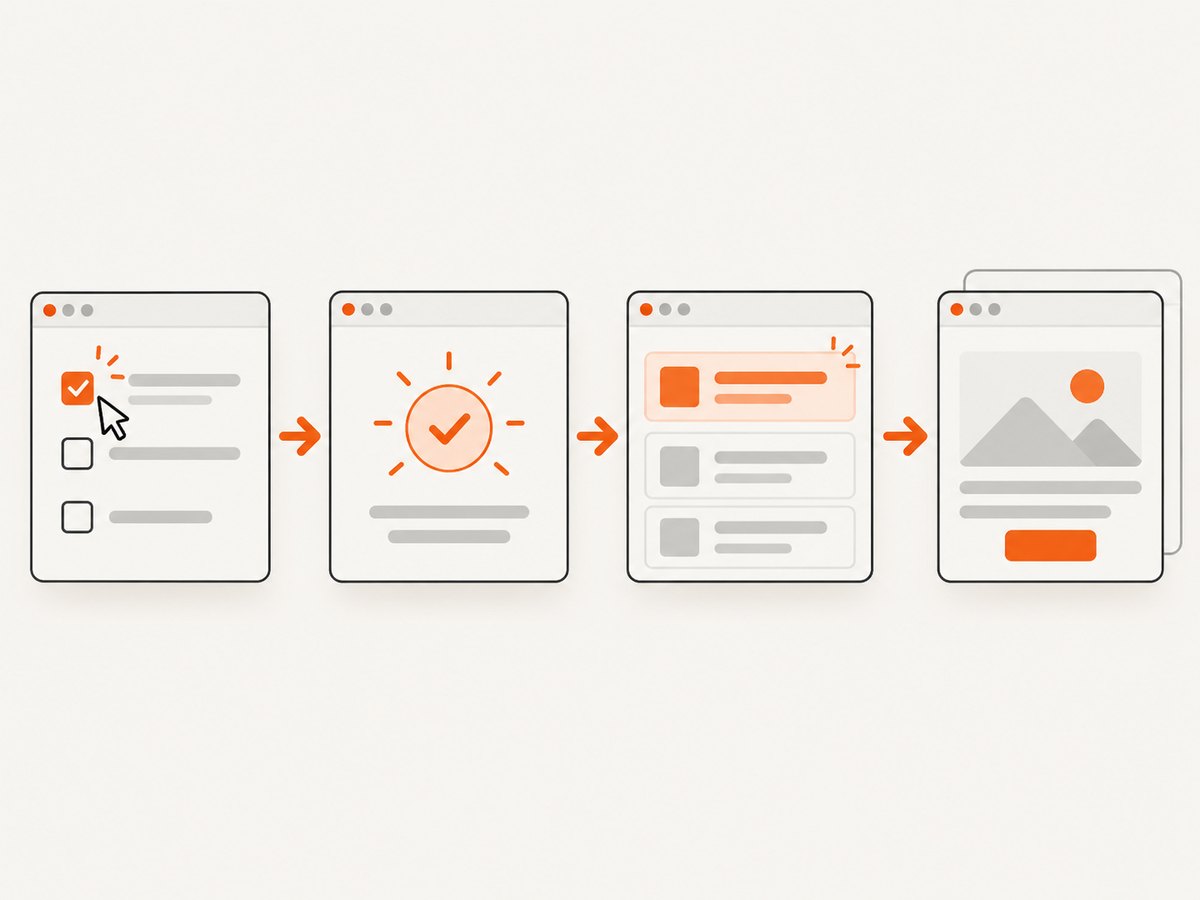
For an in-page update:
await page.locator('#terms').fill(true);
await page.locator('[data-testid="checkout-enabled"]').wait();
For navigation, prepare the navigation wait before the click. Puppeteer warns that waiting afterward can race with a fast navigation:
const [response] = await Promise.all([
  page.waitForNavigation(),
  page.locator('#continue-checkbox').click(),
]);

console.log(response?.status());
Only use waitForNavigation() when the interaction is expected to navigate. For an XHR, SPA route change, or validation message, wait for the resulting DOM or application state instead.
8. A complete diagnostic script
This example loads a page, identifies the intended checkbox, sets its state, and waits for an application result. Replace the URL and selectors with the page under test.
import puppeteer from 'puppeteer';

const browser = await puppeteer.launch({ headless: true });
try {
  const page = await browser.newPage();
  await page.goto('https://example.com/signup', {
    waitUntil: 'domcontentloaded',
    timeout: 30_000,
  });

  const checkbox = page.locator(
    'input[type="checkbox"][name="terms"]'
  );

  const before = await checkbox.map(el => ({
    checked: el.checked,
    disabled: el.disabled,
    id: el.id,
    name: el.name,
  })).wait();
  console.log('Before:', before);

  await checkbox.fill(true);

  const checked = await checkbox.map(el => el.checked).wait();
  if (!checked) throw new Error('Checkbox did not become checked');

  await page.locator('[data-testid="terms-accepted"]').wait({
    timeout: 10_000,
  });
} finally {
  await browser.close();
}
9. Troubleshooting checklist
| Symptom | Likely check | Fix |
|---|---|---|
| Click completes but the box remains unchecked | Read checked; inspect selector uniqueness |
Use fill(true) for a deterministic state, or click the visible label when testing user interaction. |
| Locator times out | Selector, frame, visibility, disabled state, and page timing | Use the correct frame and selector; set a timeout appropriate to the page. |
| Element exists but action does not proceed | Overlay, animation, changing geometry, or disabled input | Wait for the real readiness condition and let the locator retry. |
| Selector finds nothing | Iframe or Shadow DOM boundary | Use a frame locator or the documented >>> deep selector. |
| State changes but workflow does not advance | Missing event, validation, request, or route wait | Await the resulting DOM state, request, or navigation. |
| Intermittent failures after rerenders | Stale ElementHandle |
Reacquire through a locator immediately before acting. |
10. Logging and debugging techniques
When a test fails, capture facts about the element and page instead of adding a longer sleep:
console.log('URL:', page.url());
console.log('Checkbox count:', await page.locator('#newsletter').count());

const state = await page.locator('#newsletter').map(el => ({
  checked: el.checked,
  disabled: el.disabled,
  outerHTML: el.outerHTML,
})).wait();
console.dir(state, { depth: null });

await page.screenshot({ path: 'checkbox-debug.png', fullPage: true });
Check whether the page loaded the expected route, whether authentication redirected you, and whether a consent or bot page replaced the application. Inspect the browser console and network failures when the checkbox depends on JavaScript loaded after the initial HTML.
11. Performance, reliability, and cost considerations
Use the narrowest locator that identifies one control. It reduces ambiguity and avoids waiting on unrelated elements. Prefer event-driven waits over fixed delays, because delays either waste time on fast pages or remain too short for slow pages.
Keep one browser process alive when running a suite, create isolated pages or contexts for tests, and close pages and browsers in cleanup blocks. Reusing a browser avoids repeated startup overhead while preserving test isolation.
For reliability, make the desired state idempotent with fill(true) or fill(false). Assert both the input state and the application result. Record the URL, frame, selector, and relevant element properties when a failure occurs.
Puppeteer itself does not provide a fixed success rate or universal timing guarantee. Page complexity, network conditions, animations, framework rerenders, and third-party scripts determine how long an interaction takes. Set timeouts from the behavior you need and keep them visible in test configuration.
12. Or skip the browser setup
If your goal is a clean screenshot after a checkbox-driven page interaction, ScreenshotNeo can handle the capture through one API request. Its API accepts custom JavaScript, selectors, waits, cookies, headers, user agents, and other capture options, so you can keep browser orchestration out of your application. Read the ScreenshotNeo documentation for the complete parameter list.
curl -G "https://api.screenshotneo.com/v1/shot" -d access_key=YOUR_API_KEY --data-urlencode url=https://stripe.com -o shot.webpimport requests
r = requests.get("https://api.screenshotneo.com/v1/shot", params={"access_key": "YOUR_API_KEY", "url": "https://stripe.com"}, timeout=90)
open("shot.webp", "wb").write(r.content)const q = new URLSearchParams({ access_key: 'YOUR_API_KEY', url: 'https://stripe.com' });
const res = await fetch(`https://api.screenshotneo.com/v1/shot?${q}`);ScreenshotNeo removes cookie and consent banners, newsletter popups, and chat widgets before the shot. Bot checks, blank pages, failed loads, timeouts, and cache hits are not billed, and each response reports the result through X-Page-Verdict and X-Billed headers. Its MCP server lets Claude, Cursor, and other MCP clients call take_screenshot, get_page_info, and capture_pdf. The Free plan includes 1,000 screenshots each month with no card; paid plans start at $5 for 3,000 screenshots. Create a free ScreenshotNeo account.
FAQ
Should I click the label or the input?
Click the input when you are testing the native control. Click the associated visible label when the page’s user interaction is label-based. In either case, assert the input’s checked property afterward.
Why does waitForSelector() succeed but click() fail?
The selector wait proves that a matching node exists. It does not prove visibility, enabled state, stable geometry, absence of overlays, correct frame, or application readiness. A locator action performs the relevant readiness checks.
When should I use fill(true) instead of click()?
Use fill(true) or fill(false) when the final state matters and the current state may vary. Use click() when the click event itself is what you need to exercise.
Can a CSS selector find a checkbox in an iframe?
No. Query the iframe’s frame document and use that frame’s locator.
What if the checkbox is custom and has no input?
Locate the component’s accessible role or visible control, click it, and assert the page’s exposed state. If a native input exists behind the component, inspect that input as an additional verification.
Why did a second test run undo the checkbox?
A click toggles. A retry or persisted page state can make the second click uncheck the box. Set the desired value with fill(true) or reset the page state before clicking.


