How to Fix Puppeteer 16.1.1 with chrome-aws-lambda 10.1.0
Puppeteer 16.1.1 and chrome-aws-lambda 10.1.0 are from different compatibility lines. Align the versions or select a browser package using Puppeteer’s support guidance.
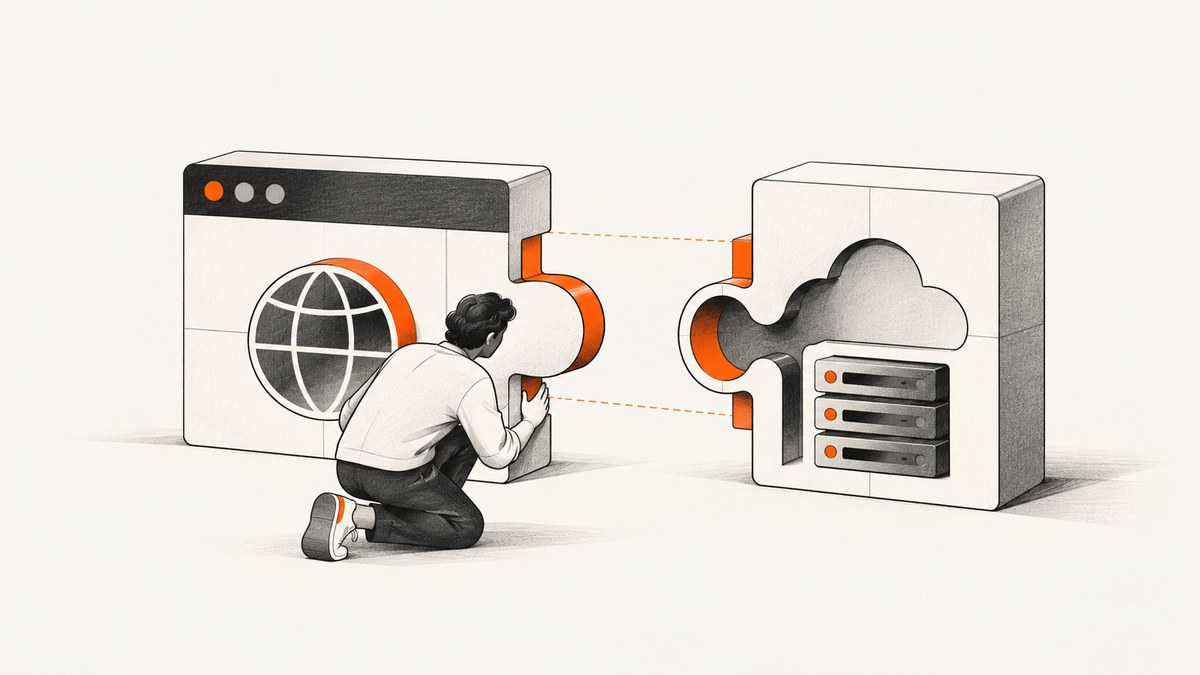
Direct answer: chrome-aws-lambda 10.1.0 is documented for Puppeteer 10.1.*, not Puppeteer 16.1.1. The package’s 10.1 line bundles Chromium revision 884014 (Chromium 92.0.4512.0). If you need to keep chrome-aws-lambda 10.1.0, align Puppeteer or puppeteer-core with version 10.1.*. If you must keep Puppeteer 16.1.1, choose a Chromium integration using Puppeteer’s browser support guidance rather than assuming the 10.1 binary is compatible. The available documentation does not establish an exact alternative package version for Puppeteer 16.1.1.
A version change may fix a dependency mismatch, but it cannot fix a missing executable, incomplete Lambda bundle, incompatible runtime, insufficient memory, or other launch failure. Check those separately if the error remains.
1. Confirm the compatibility mismatch
The chrome-aws-lambda project’s compatibility table pairs its 10.1.* releases with Puppeteer 10.1.* and Chromium revision 884014. That is the primary compatibility evidence. A 2022 package-manager issue also reports a peer dependency warning for chrome-aws-lambda@10.1.0 and puppeteer-core@^10.1.0; treat that issue as a report, while using the project table as the documented pairing.
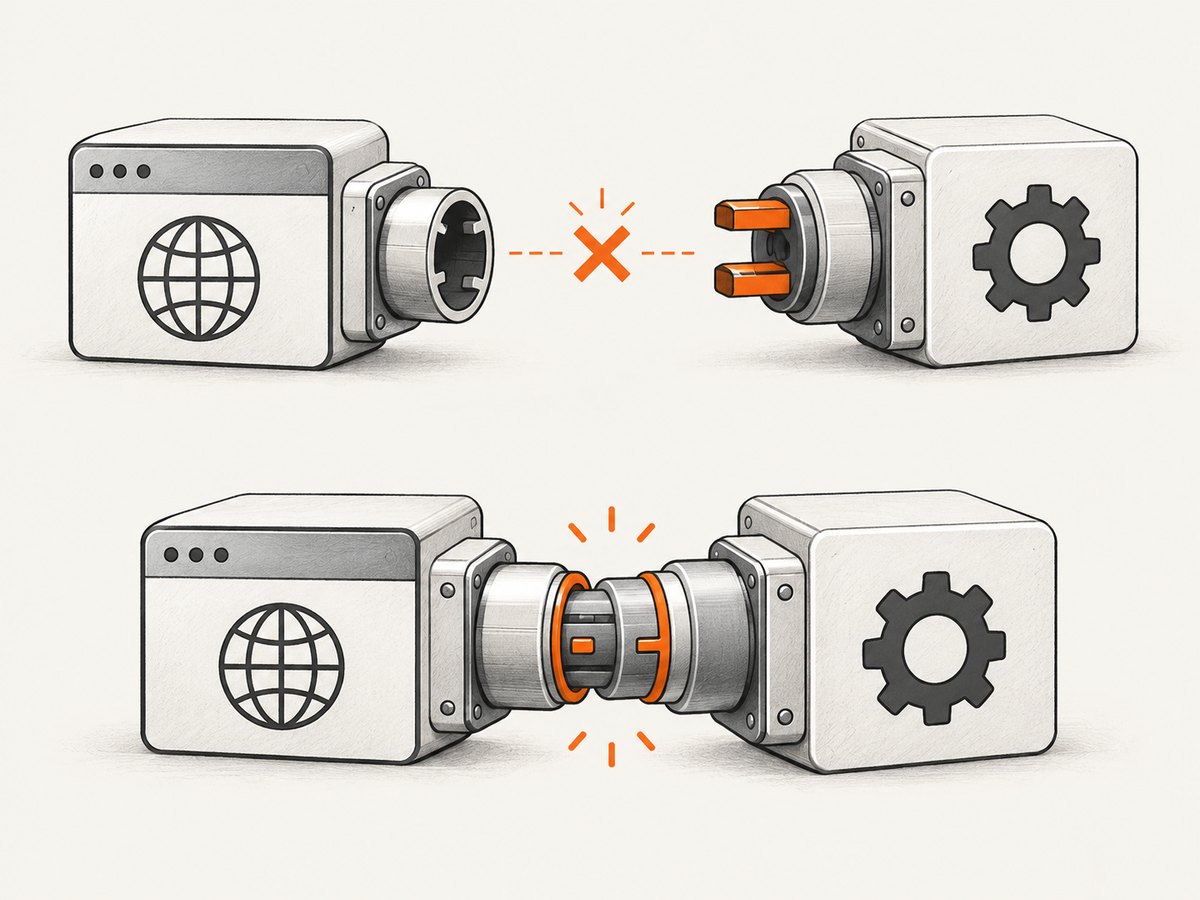
Inspect the versions actually installed, not just the ranges in package.json. A lockfile, workspace resolution, or transitive dependency can leave a different version in the deployed artifact.
npm ls puppeteer puppeteer-core chrome-aws-lambda
npm explain puppeteer-core
For Yarn, use yarn why puppeteer and yarn why puppeteer-core. With pnpm, use pnpm why puppeteer and pnpm why puppeteer-core. Review the lockfile after changing dependencies and make sure CI and deployment install from that same lockfile.
2. Choose a repair path
Path A: Keep chrome-aws-lambda 10.1.0
Use this route when your application relies on the package’s existing integration and can run on Puppeteer’s 10.1 line. The project recommends installing the corresponding Puppeteer or puppeteer-core version. For Lambda, puppeteer-core is commonly suitable when the browser is supplied separately by chrome-aws-lambda.
# Choose one package manager and commit its updated lockfile.
npm install puppeteer-core@^10.1.0 chrome-aws-lambda@10.1.0
If your code imports puppeteer rather than puppeteer-core, either update the import to match the dependency you install or install the corresponding puppeteer 10.1.* package as documented by the project. Avoid keeping both packages at unrelated versions without a specific reason. Redeploy the newly built artifact, then verify the installed dependency tree in the build output.
Path B: Keep Puppeteer 16.1.1
If Puppeteer 16.1.1 is a requirement, do not treat chrome-aws-lambda 10.1.0 as its matching browser package. Select a Chromium integration by consulting Puppeteer’s browser support guidance for the Puppeteer version you deploy. The @sparticuz/chromium project describes its package as Chromium for serverless platforms, says it is not tied to a specific Puppeteer version, and directs users to Puppeteer’s Chromium support information when choosing a package version. The sources here do not verify an exact @sparticuz/chromium version for Puppeteer 16.1.1, so confirm the pairing against the guidance and your deployment environment before shipping.
When the browser is managed separately, Puppeteer distinguishes puppeteer-core from puppeteer: puppeteer downloads a compatible Chrome during installation, while puppeteer-core does not download a browser and is intended for managed-browser setups. See the official Puppeteer installation guide. In the managed setup, your launch configuration must point to the supplied executable.
| Question | Align to 10.1.* | Keep Puppeteer 16.1.1 |
|---|---|---|
| Must Puppeteer 16.1.1 stay? | No | Yes |
| Keep chrome-aws-lambda hooks and setup? | Usually the more direct route | May require changing the browser integration |
| What browser pairing is established here? | chrome-aws-lambda 10.1.* with Puppeteer 10.1.* | Select using Puppeteer’s browser support guidance; no exact version is established here |
| What still needs checking? | Bundle, runtime, memory, executable | Bundle, runtime, memory, executable, selected package compatibility |
3. Use the documented Lambda launch pattern
For the chrome-aws-lambda route, pass its launch arguments, default viewport, executable path, and headless setting into Puppeteer. The executable path is asynchronous. Close the browser in a finally block so it is closed on both success and failure.
const chromium = require('chrome-aws-lambda');
const puppeteer = require('puppeteer-core');

exports.handler = async () => {
  let browser;
  try {
    browser = await puppeteer.launch({
      args: chromium.args,
      defaultViewport: chromium.defaultViewport,
      executablePath: await chromium.executablePath,
      headless: chromium.headless,
    });

    const page = await browser.newPage();
    await page.goto('https://example.com', { waitUntil: 'networkidle2' });
    const screenshot = await page.screenshot({ type: 'png' });

    return {
      statusCode: 200,
      headers: { 'content-type': 'image/png' },
      body: Buffer.from(screenshot).toString('base64'),
      isBase64Encoded: true,
    };
  } finally {
    if (browser) await browser.close();
  }
};
Use the package’s documented arguments and executable rather than substituting a local Chrome path that does not exist in Lambda. If you replace the browser package while keeping Puppeteer 16.1.1, follow the selected package’s own launch instructions and pass its executable and serverless arguments as required. Do not copy a launch example for one Chromium integration into another without checking its documentation.
4. Check Lambda packaging and runtime
A successful local install does not prove that the deployed function contains Chromium and all required files. Puppeteer’s troubleshooting guide identifies Lambda deployment package size as a challenge and points to Sparticuz Chromium as a library supporting modern Chromium. Check the actual deployment archive or layer, not only your source directory.
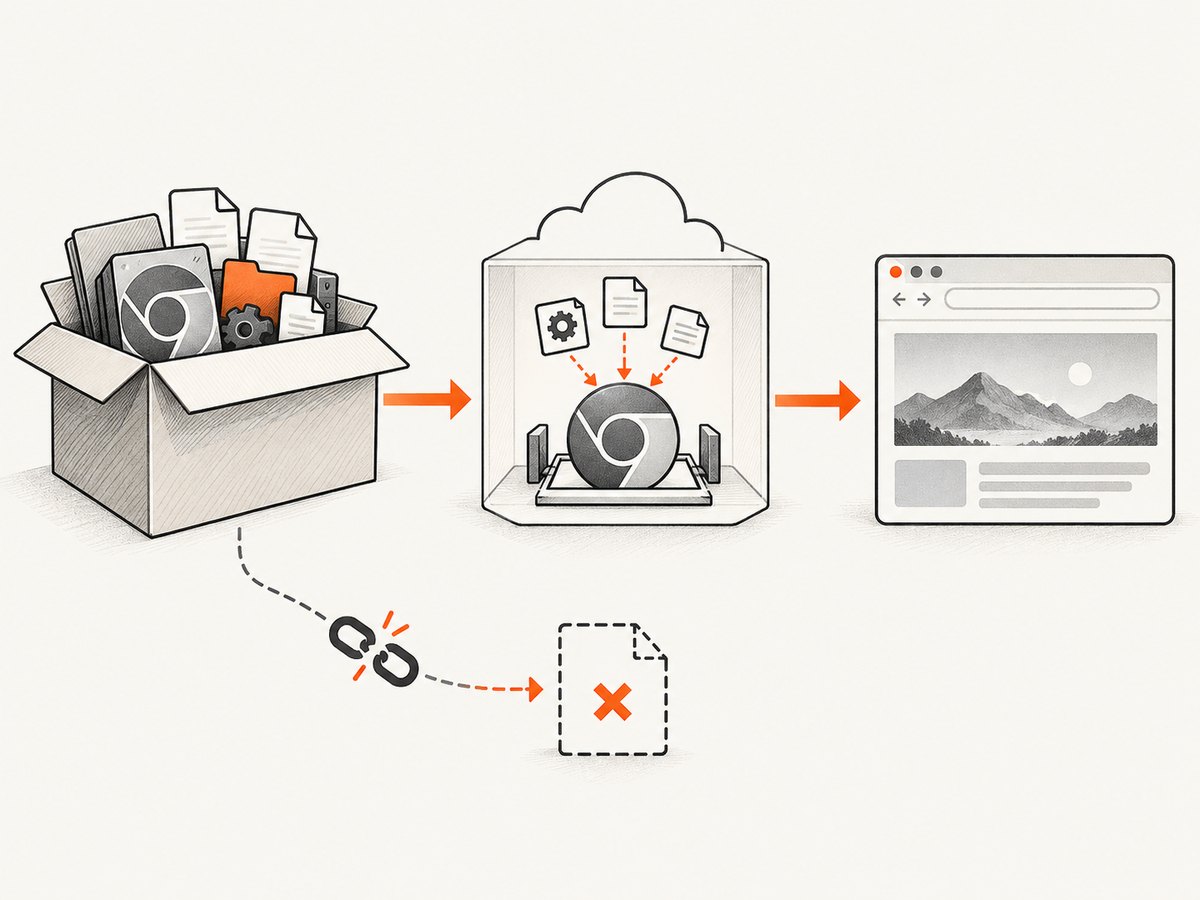
- Check the deployed files. Confirm the chosen Chromium executable and its required support files are included in the function bundle or layer. Verify that the runtime can read and execute them.
- Check your runtime. Confirm the Node.js runtime is compatible with the package and deployment artifact you selected. The sources cited here do not establish one universal runtime setting for every combination.
- Check memory. The chrome-aws-lambda project recommends at least 512 MB of Lambda memory and recommends 1600 MB or more. Treat this as the project’s configuration guidance, not a performance guarantee.
- Check deployment size and extraction. If the browser is omitted, truncated, or cannot be extracted to the expected location, changing the Puppeteer version alone will not resolve the executable failure.
- Check the exact launch error. Keep the complete stack trace and determine whether the failure happens during module loading, executable resolution, browser launch, navigation, or screenshot capture.
For a separate-browser setup using puppeteer-core, provide that browser’s executable path in the launch options. For chrome-aws-lambda, its documented executablePath is resolved asynchronously. A path that works on a developer workstation may not exist in the deployed Lambda environment.
5. Troubleshooting common failures
| Symptom | Likely cause | What to do |
|---|---|---|
| Peer dependency warning mentions Puppeteer 10.1 | chrome-aws-lambda@10.1.0 is paired with Puppeteer 16.1.1 |
Choose a repair path: align to Puppeteer 10.1.* or select a browser integration using Puppeteer 16.1.1’s support guidance. Reinstall from a consistent lockfile. |
Cannot find module puppeteer or puppeteer-core |
Code imports a package that is not installed, or the bundler excluded it | Match the import to the installed package and confirm it is present in the deployment artifact. |
| Executable path is missing or launch says browser not found | Chromium files are absent, not extracted, or the wrong executable path is used | Inspect the deployed bundle/layer and use the selected package’s documented executable path. |
| Browser launches locally but not in Lambda | Deployment packaging, runtime, filesystem, arguments, or memory differs | Reproduce with the deployed artifact and runtime configuration. Check files, permissions, launch arguments, and memory allocation. |
| Browser process exits or times out during launch | Could be a launch configuration, resource, or environment issue; the version mismatch is only one possibility | Capture the full launch error, verify the package pairing, then inspect Lambda memory, runtime and included browser files. |
| Navigation times out after the browser starts | The page did not reach the chosen navigation condition within the application’s timeout | Separate launch from navigation in logs. Review the target page and wait condition; do not assume a dependency change fixes slow or never-ending page requests. |
| Works in development but deployed code still warns | CI or deployment resolved dependencies from a different lockfile or cache | Check the installed tree in the build job and deploy the artifact produced by that build. |
Do not use a generic “upgrade Chromium” fix without verifying compatibility. The package version, Puppeteer version, executable, serverless arguments, runtime, and deployment files form one launch configuration.
6. Performance, reliability and cost considerations
This compatibility information does not provide measured launch times, throughput, or a performance comparison between the two repair paths. Do not choose one on an assumed speed advantage. For reliable operation, close browser instances in a finally block, log the stage that failed, and test the artifact in the target Lambda runtime. If a function handles multiple requests in one process, define browser lifecycle and concurrency deliberately; do not leave a browser open after an invocation error.
Lambda memory and package size affect whether the browser can be launched and kept available, but the cited guidance supplies a memory recommendation rather than a benchmark. Validate the memory setting and deployment packaging against your function’s own workload. The monetary cost depends on your Lambda configuration and invocation pattern; no cost figures are established by the source material here.
Or skip the browser setup
If your goal is to capture a website rather than operate Chromium inside Lambda, ScreenshotNeo is a website screenshot API and MCP server. Make one request with a URL to receive a PNG, JPEG, WebP, or PDF. See the API documentation for request options.
curl -G "https://api.screenshotneo.com/v1/shot" -d access_key=YOUR_API_KEY --data-urlencode url=https://stripe.com -o shot.webpimport requests
r = requests.get(
"https://api.screenshotneo.com/v1/shot",
params={"access_key": "YOUR_API_KEY", "url": "https://stripe.com"},
timeout=90,
)
open("shot.webp", "wb").write(r.content)const q = new URLSearchParams({ access_key: 'YOUR_API_KEY', url: 'https://stripe.com' });
const res = await fetch(`https://api.screenshotneo.com/v1/shot?${q}`);
if (!res.ok) throw new Error(`Screenshot request failed: ${res.status}`);
const image = Buffer.from(await res.arrayBuffer());- Cookie banners are accepted and removed before capture, along with known newsletter popups and chat widgets; each step can be turned off.
- Bot checks, blank pages, failed loads, timeouts, and cache hits are not billed. Response headers report the page verdict and billing status.
- An MCP server lets AI agents, including Claude and Cursor, use screenshot tools.
- The free plan includes 1,000 screenshots per month with no card. Paid plans start at $5 for 3,000 screenshots.
Sign up free for 1,000 screenshots a month, with no card required.
FAQ
Can I keep Puppeteer 16.1.1 and chrome-aws-lambda 10.1.0?
The project’s documented pairing does not support that combination: 10.1.* is paired with Puppeteer 10.1.*. Select a browser integration for Puppeteer 16.1.1 using its support guidance.
Does the peer warning prove that the deployed function cannot launch?
No. It signals a dependency mismatch to resolve, but launch failures can also come from packaging, executable paths, runtime, arguments, or memory.
Is @sparticuz/chromium a verified exact replacement for Puppeteer 16.1.1?
The project describes serverless Chromium and directs users to Puppeteer’s browser support guidance. The materials cited here do not establish an exact package version for 16.1.1.
What information helps diagnose a remaining failure?
Collect the package manifest and lockfile, Node.js and Lambda runtime, package manager, bundle-versus-layer deployment details, and the full launch error. Those details help distinguish a compatibility mismatch from an environment or packaging problem.


