How to Fix Puppeteer’s Chrome ENOENT Launch Error
Fix Puppeteer’s Chrome ENOENT error by checking the executable path, browser download, cache, runtime user, and Linux dependencies.
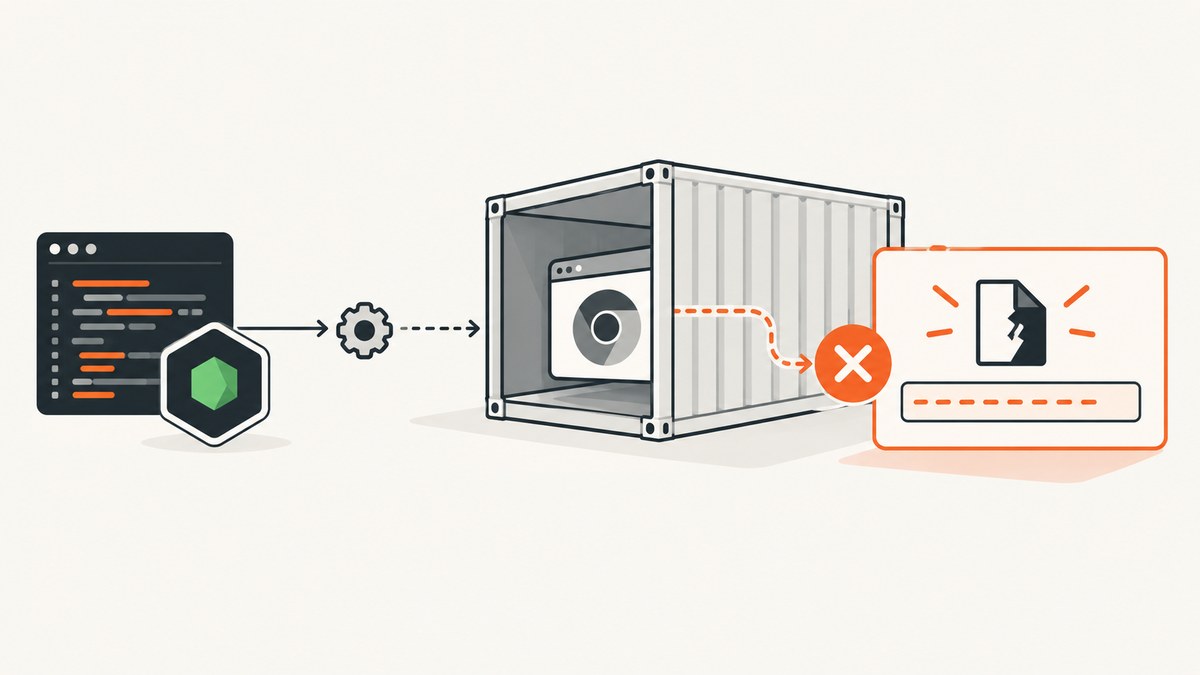
Direct answer: Puppeteer’s Chrome ENOENT error means the process tried to spawn a browser executable at a path that does not exist in the environment where your script is running. Check the exact path first, then confirm that Chrome was downloaded, that the install and runtime users can see the same cache, and that the deployment image contains the browser’s Linux dependencies. Do not treat --no-sandbox as a generic ENOENT fix: a missing executable and a sandbox failure are different problems.
The most recognizable form is:
Error: Failed to launch chrome!
spawn /usr/bin/chromium-browser ENOENT
This guide gives a repeatable diagnosis for local development, CI, Docker, serverless deployments, and projects using either puppeteer or puppeteer-core. It also shows how to avoid managing Chrome entirely with ScreenshotNeo after the repair steps.
1. Understand what ENOENT is reporting
ENOENT is the operating system’s “no such file or directory” result. In this context, Node attempted to start the executable supplied to Puppeteer, but that file was unavailable to the process. The path may be wrong, Chrome may never have been installed, or the runtime may be looking in a different filesystem, cache, user home directory, or container image than the installation step.
The error does not by itself prove that Chrome crashed. If the executable exists but cannot start because a shared library is missing, the symptom and remedy are different. If Chrome starts and then reports a sandbox problem, that is also a separate failure.
What the error usually means
| Observation | Likely cause | First action |
|---|---|---|
Path ends in chromium-browser or another missing file |
Stale or incorrect executable path | Check the path inside the actual runtime |
puppeteer-core is installed |
No browser download is expected | Provide a real browser path or managed remote browser |
| Works locally, fails in CI or Docker | Different image, user, filesystem, or install stage | Inspect the runtime image and cache as the deployment user |
| Executable exists, launch still fails | Missing shared libraries or platform dependencies | Run ldd against Chrome and inspect missing entries |
| Error mentions sandbox | Chrome security configuration issue | Diagnose sandbox permissions separately |
2. Identify your Puppeteer browser-management model
Your first diagnostic question is which package and installation model the project uses.

puppeteer
The regular puppeteer package normally downloads a compatible Chrome for Testing browser during installation. If the download succeeds, your launch code can usually use Puppeteer’s managed browser without an explicit executable path.
puppeteer-core
puppeteer-core does not download Chrome. Puppeteer’s installation documentation describes it as a library for driving anything that supports the DevTools protocol and says that it is fully programmatic, with no defaults assumed. You must provide a browser yourself, connect to a remote browser, or use another browser-management system.
Check the dependency:
npm ls puppeteer puppeteer-coreIf your application uses puppeteer-core accidentally after a dependency migration, installing the package alone will not put Chrome on disk.
3. Follow the diagnosis in order
Step 1: Print the runtime and configured path
Run these commands in the same shell, container, CI job, service account, or deployment image that launches your application:
node --version
npm ls puppeteer puppeteer-core
command -v google-chrome || true
command -v chromium || true
command -v chromium-browser || true
ls -l /usr/bin/google-chrome /usr/bin/chromium /usr/bin/chromium-browser 2>/dev/null || true
printf 'HOME=%s\n' "$HOME"
printf 'PUPPETEER_CACHE_DIR=%s\n' "$PUPPETEER_CACHE_DIR"
A path that exists on your laptop is irrelevant if it does not exist in the deployment runtime. Likewise, a browser installed during a build stage may be invisible in the final image.
Step 2: Check whether installation scripts were blocked
Package-manager settings can block dependency installation scripts. When that happens, puppeteer may be present while its Chrome for Testing download is absent. The documented manual remedy is:
npx puppeteer browsers installRun it in the project and environment that will execute the code. If you changed Puppeteer’s browser-download configuration, reinstall the browser after the change. In CI, make browser installation an explicit build step instead of assuming a developer’s local cache will be available.
Step 3: Verify the cache location and runtime user
Puppeteer’s default browser cache is ~/.cache/puppeteer. The tilde is user-specific: installing as one user and running as another can produce an apparent missing browser. The cache can be changed through Puppeteer configuration or the PUPPETEER_CACHE_DIR environment variable.
echo "$HOME/.cache/puppeteer"
find "${PUPPETEER_CACHE_DIR:-$HOME/.cache/puppeteer}" -maxdepth 4 -type f -perm -111 2>/dev/null | head
For a container or multi-stage build, make the cache path deterministic and copy it into the final image, or install the browser again in the final image. Confirm ownership and permissions for the account that starts Node.
Step 4: Use an explicit executable path when Chrome is system-managed
If your operating system or base image installs Chrome or Chromium, pass its actual path:
const puppeteer = require('puppeteer-core');

(async () => {
  const browser = await puppeteer.launch({
    executablePath: process.env.CHROME_BIN || '/usr/bin/google-chrome',
    headless: true
  });
  const page = await browser.newPage();
  await page.goto('https://example.com', {waitUntil: 'networkidle2'});
  console.log(await page.title());
  await browser.close();
})();
Replace the example path with the path found inside the runtime. Do not copy a path from a different distribution or image without checking it. If your project uses a Puppeteer configuration file or environment variables, remember that puppeteer-core does not use Puppeteer’s default configuration behavior; configure the browser through its programmatic launch options.
Step 5: Separate missing files from missing libraries
When the executable exists, inspect its dynamic dependencies on Linux:
ldd /path/to/chrome | grep notAny unresolved library must be installed for the specific distribution and image. The required package names vary by operating system and browser version, so use the current dependency list for your distribution. Docker images are especially likely to omit libraries that a desktop installation already provides.
4. Working launch examples
Managed Chrome with puppeteer
const puppeteer = require('puppeteer');

(async () => {
  const browser = await puppeteer.launch({headless: true});
  try {
    const page = await browser.newPage();
    await page.goto('https://example.com', {
      waitUntil: 'networkidle2',
      timeout: 30000
    });
    await page.screenshot({path: 'example.png', fullPage: true});
  } finally {
    await browser.close();
  }
})();
System Chrome with puppeteer-core
const puppeteer = require('puppeteer-core');

(async () => {
  const executablePath = process.env.CHROME_BIN;
  if (!executablePath) throw new Error('Set CHROME_BIN to a browser executable');

  const browser = await puppeteer.launch({executablePath, headless: true});
  try {
    const page = await browser.newPage();
    await page.goto('https://example.com', {waitUntil: 'domcontentloaded'});
    console.log(await page.title());
  } finally {
    await browser.close();
  }
})();
Minimal Docker verification
Do not debug only from the host. Add a temporary diagnostic command to the image or CI job:
docker run --rm your-image sh -lc 'whoami; echo "$HOME"; command -v google-chrome || true; command -v chromium || true; find /root/.cache/puppeteer /home -maxdepth 5 -type f -perm -111 2>/dev/null | head'This establishes the user, home directory, executable visibility, and cache visibility in one place.
5. CI, Docker, and deployment edge cases
- Build and runtime images differ: installing Chrome in a builder stage does not make it available in the final stage unless the browser and required libraries are copied or installed again.
- Different users: a root build may populate
/root/.cache/puppeteer, while the service runs as an unprivileged user with another home directory. - Read-only filesystems: launch may fail later if Chrome cannot write its profile or temporary files. Give the process a writable temporary location appropriate to your platform.
- Blocked postinstall scripts: package installation can finish without the browser. Run
npx puppeteer browsers installexplicitly. - Environment-specific paths: macOS, Linux, Windows, and container images place system browsers differently. Discover the path in each target environment.
- Remote browser services: with
puppeteer-core, connecting to a remote DevTools endpoint can be valid; there is no local Chrome binary to find.
Chrome for Testing downloads are large: the installation guide gives approximate sizes of 170 MB on macOS, 282 MB on Linux, and 280 MB on Windows. Account for that storage and network cost in ephemeral CI workers and image layers.
6. Common errors and fixes
| Error or symptom | Cause | Fix |
|---|---|---|
spawn /usr/bin/chromium-browser ENOENT |
The configured executable is absent at that path | Install a browser in the runtime or set executablePath to the real path |
puppeteer-core launches with no path |
The package does not download Chrome | Provide a local executable or connect to a managed browser |
Works after local npm install, fails in CI |
Install scripts or browser cache are unavailable in CI | Allow the download or run npx puppeteer browsers install in CI |
| Browser is present in build logs but absent at runtime | Cache or browser was left in another stage, user home, or image | Align cache paths and copy/install into the final runtime |
ldd reports not found |
System libraries are missing | Install the packages required by the target distribution |
| Sandbox error after the binary is found | Security or user configuration, not ENOENT | Fix the sandbox and permissions; do not disable it as a universal workaround |
| Path exists locally but not in production | Different operating system or container filesystem | Discover and configure the path inside production |
7. Reliability and performance practices
- Install the browser once during image build or an explicit CI setup phase, then verify it before running application tests.
- Keep the browser cache path stable across installation and runtime. Set
PUPPETEER_CACHE_DIRwhen the default home directory is not stable. - Log the package type, runtime user, cache directory, executable path, and browser version at startup. These values turn an opaque launch failure into a diagnosable record.
- Reuse a browser process for multiple pages when your workload permits it, while closing pages and the browser in
finallyblocks. - Set navigation and operation timeouts deliberately. A launch fix does not solve pages that never finish loading.
- Keep CI images and production images close enough that browser paths and shared libraries do not drift.
- Pin and review browser and Puppeteer updates as a pair. Installation requirements and supported platforms can change over time.
8. Or skip the browser setup
If your goal is a reliable website image rather than maintaining Chrome in every runtime, ScreenshotNeo provides a single HTTP request to return a PNG, JPEG, WebP, or PDF. Its capture flow accepts cookie and consent banners like a visitor, then removes more than 60 known consent platforms, newsletter popups, and chat widgets before the shot; each step can be turned off.

Only clean shots are billed. Bot checks and CAPTCHAs, blank pages, timeouts, failed loads, and cache hits cost nothing, and the response identifies the result with X-Page-Verdict and X-Billed headers. An MCP server also lets Claude, Cursor, and other MCP clients call take_screenshot, get_page_info, and capture_pdf.
See the ScreenshotNeo API documentation for the full request options. The basic call is:
cURL
curl -G "https://api.screenshotneo.com/v1/shot" -d access_key=YOUR_API_KEY --data-urlencode url=https://stripe.com -o shot.webpPython
import requests
r = requests.get("https://api.screenshotneo.com/v1/shot", params={"access_key": "YOUR_API_KEY", "url": "https://stripe.com"}, timeout=90)
open("shot.webp", "wb").write(r.content)
Node.js
const q = new URLSearchParams({ access_key: 'YOUR_API_KEY', url: 'https://stripe.com' });
const res = await fetch(`https://api.screenshotneo.com/v1/shot?${q}`);
ScreenshotNeo also supports full-page captures with lazy images loaded, CSS-selector element capture, dark mode, 12 device presets plus custom viewports, retina scale, PDF paper sizes and page ranges, HTML/CSS rendering, custom CSS and JavaScript, clicks, selector or network-idle waits, request and resource blocking, custom headers and cookies, user agents, authorization, timezone and geolocation, transparent backgrounds, resizing, selectable cache TTLs, signed links, asynchronous jobs with signed webhooks, bulk capture for up to 100 URLs per call, a usage API, and an OpenAPI specification.
The Free plan includes 1,000 screenshots each month with no card. Paid plans start at $5 for 3,000 shots; yearly billing gives two months free, and every feature is available on every plan. Create a free ScreenshotNeo account.
9. Puppeteer ENOENT checklist
- Read the complete error and copy the exact executable path.
- Run
command -vandls -linside the failing runtime. - Confirm whether the project uses
puppeteerorpuppeteer-core. - If using
puppeteer, verify the browser download and runnpx puppeteer browsers installwhen needed. - Check
~/.cache/puppeteer,PUPPETEER_CACHE_DIR, the runtime user, and multi-stage image boundaries. - Set
executablePathonly to a path that exists in that runtime. - If the file exists, run
ldd chrome | grep notand install missing libraries. - Diagnose sandbox errors independently and avoid using
--no-sandboxas an ENOENT remedy.
10. FAQ
Does reinstalling Node fix Chrome ENOENT?
Usually no. ENOENT points to the browser executable or its environment. Reinstalling Node helps only if it also changes a broken dependency installation; inspect the path and browser cache first.
Should I always set executablePath?
No. Managed puppeteer can use its downloaded browser. Set it when Chrome is installed by the operating system, supplied by a container, or managed outside Puppeteer.
Why does puppeteer-core not download Chrome?
That package is designed for programmatic control of an existing or remotely managed DevTools-compatible browser. Supplying the browser is part of the application’s configuration.
Can missing shared libraries produce ENOENT?
The executable path problem and missing-library problem should be distinguished. If the file exists, inspect its dependencies with ldd and resolve the libraries required by the target image.
Will --no-sandbox fix this error?
No. It addresses a sandbox configuration failure, not a missing executable. Keep the browser sandbox enabled unless you have a specific, reviewed reason and an appropriate security configuration.


