How to Fix Puppeteer Chrome Errors When Deploying to Render
Puppeteer works locally but cannot find or launch Chrome on Render? Trace the build and runtime logs, then install a compatible browser and verify its path, libraries and permissions.
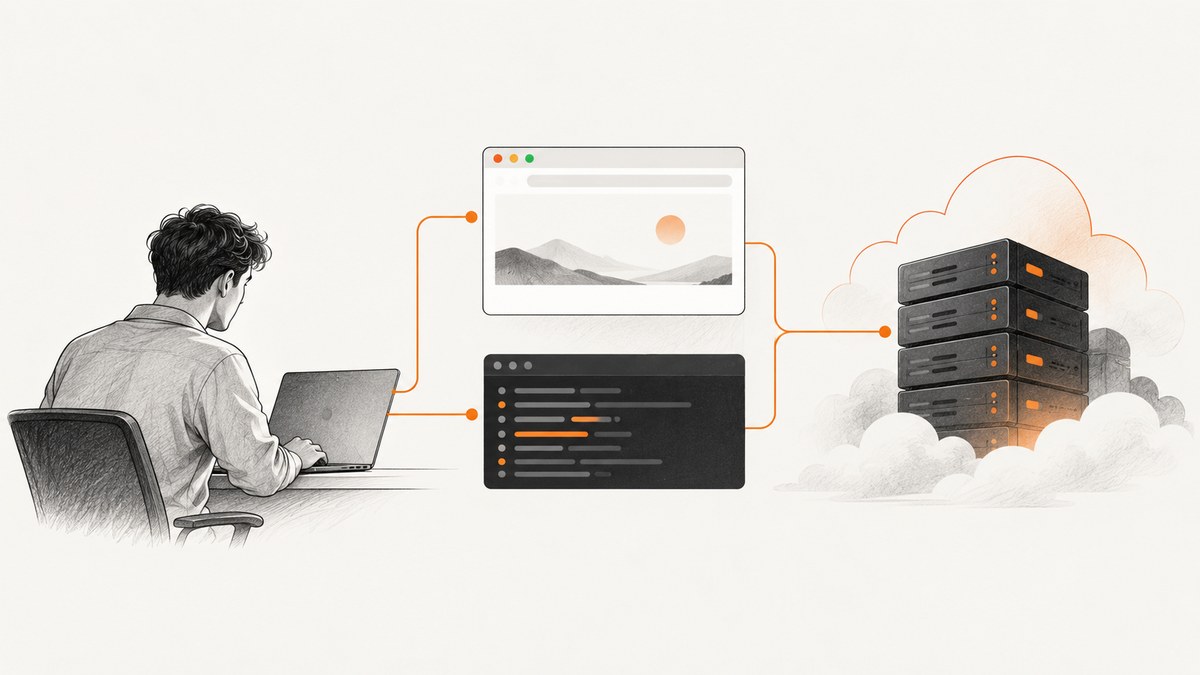
If Puppeteer works on your laptop but Render reports Could not find Chrome or a Chrome launch error, the usual cause is that the deployed environment does not contain the browser binary Puppeteer expects, or cannot run it. Check the Render build and runtime logs first. Then make the browser installation reproducible in the build, keep Puppeteer and its browser compatible, and verify filesystem paths, Linux libraries and permissions.
For most Node services, the simplest repair is to install the project from its lockfile and explicitly install Puppeteer’s browser during the Render build when package-manager scripts may be blocked. Prefer that bundled browser over a machine-specific executablePath. Puppeteer documents that it only guarantees compatibility with its bundled browser; alternate binaries need additional care. Render’s deploy troubleshooting guide and Puppeteer’s troubleshooting guide are useful references while comparing your logs.
1. Locate the failure in Render’s logs
A local installation may differ from Render in Node version, environment variables, installed tools and dependency versions. Render recommends starting with logs when an app misbehaves. Open the failed deploy’s log from the service’s Deploys page to inspect installation and startup. If deployment succeeded but requests fail, inspect the service’s runtime logs instead. Search around the first Chrome-related error, not only the final stack trace.
- Record the complete error, including the Puppeteer version and any browser version or path in the message.
- Check whether the build command completed dependency installation and whether it ran Puppeteer’s browser install step.
- Check whether the error appears during app startup or only when a request tries to launch Chrome.
- Confirm the service runtime, Node version, build command, start command and relevant environment variables match your intended configuration.
The distinction matters. A missing executable points toward a download, cache or path problem. An executable that exists but exits immediately often points toward missing libraries, sandbox restrictions, permissions or an unwritable profile. A service that never starts may instead have a Render start-command or Docker configuration issue.
2. Install Puppeteer and its browser during the Render build
The puppeteer package normally downloads a compatible Chrome for Testing during installation. Puppeteer’s current installation documentation also describes a chrome-headless-shell download from v21.6.0 onward. The downloads are substantial; the documented Linux Chrome download is about 282 MB, though the figure can change by release. If your package manager blocks install scripts, the browser download can be skipped even though the JavaScript package is installed.
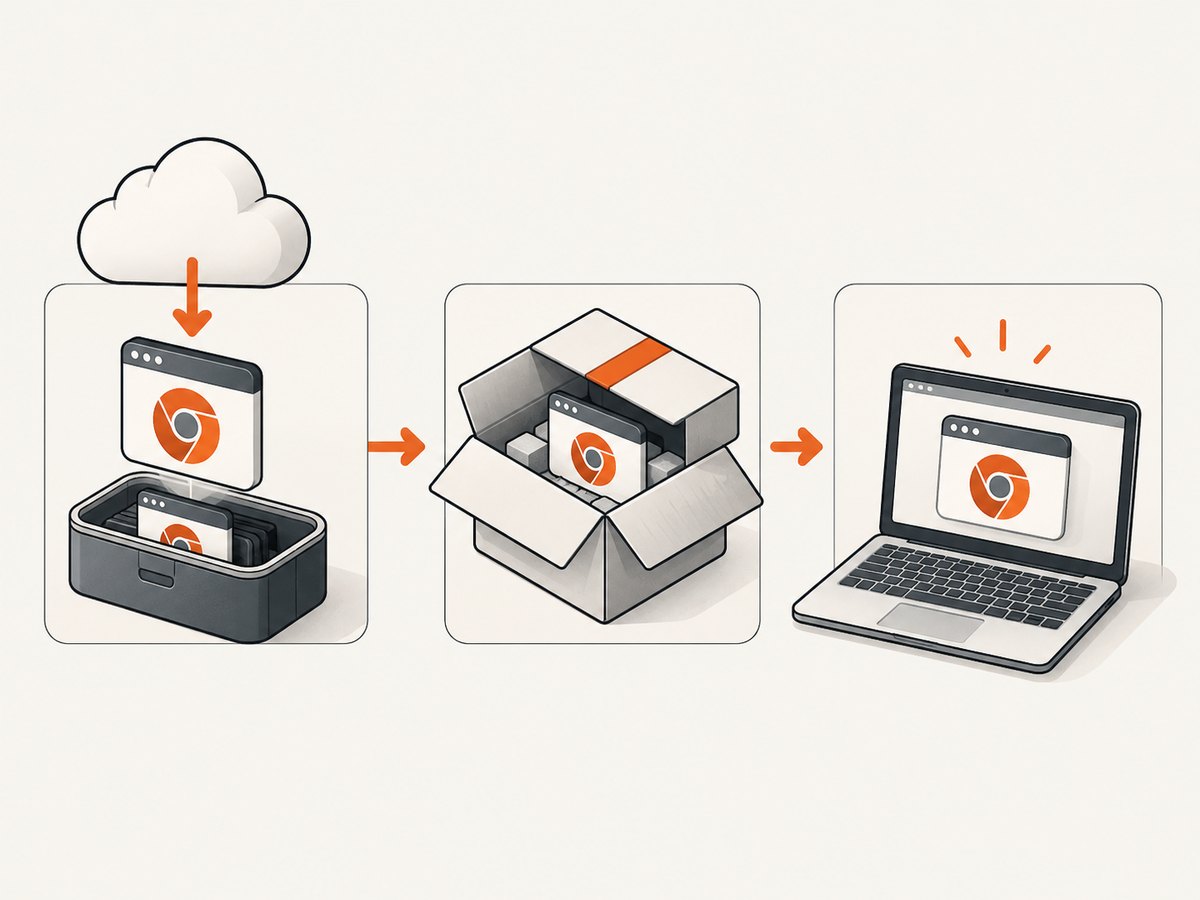
Commit both package.json and the matching lockfile. For npm, set the Render build command to install from that lockfile and then explicitly run Puppeteer’s supported browser installer:
npm ci && npx puppeteer browsers installUse the equivalent frozen/locked install command for your package manager, followed by its documented Puppeteer browser-install command. Avoid adding a second, unpinned browser package simply to silence a missing-Chrome error. The explicit install uses the installed Puppeteer version’s browser configuration. Puppeteer documents this command for cases where install scripts are blocked: Puppeteer installation.
If the project is intentionally configured to skip browser downloads, inspect PUPPETEER_SKIP_DOWNLOAD and relevant Puppeteer config files. Remove or correct that setting if you expect Puppeteer to manage Chrome. Package managers and deployment settings can vary; verify the actual build log rather than assuming the postinstall script ran.
Check Puppeteer’s browser cache
Since Puppeteer v19, its default browser cache is $HOME/.cache/puppeteer. A changed HOME, custom cache setting, moved package tree or build/runtime packaging difference can make a successfully downloaded browser appear missing at runtime. Puppeteer supports PUPPETEER_CACHE_DIR and a configuration-file cacheDirectory setting. Keep the chosen cache available to the running service and use the same setting while installing and launching.
To make the cache location explicit, for example:
# Render build command (example; adjust to your app’s package manager)
PUPPETEER_CACHE_DIR=/opt/render/project/.cache/puppeteer npm ci && \
PUPPETEER_CACHE_DIR=/opt/render/project/.cache/puppeteer npx puppeteer browsers install
Use a directory that is actually retained in the deployed filesystem. Do not assume an absolute path copied from a local computer exists on Render. For more cache configuration details, see Puppeteer’s configuration reference.
3. Launch the browser Puppeteer installed
With the full puppeteer package installed and its browser downloaded in the same deployment, launch without an explicit path. This keeps Puppeteer’s version and browser selection coupled:
// app.mjs
import puppeteer from 'puppeteer';

const browser = await puppeteer.launch({
  headless: true,
  args: [],
});

try {
  const page = await browser.newPage();
  await page.goto('https://example.com', {
    waitUntil: 'domcontentloaded',
    timeout: 30_000,
  });
  console.log(await page.title());
} finally {
  await browser.close();
}
The important diagnostic choice is omitting executablePath when relying on Puppeteer’s bundled browser. Adding a path is not a general Render fix: a path from macOS or Windows will not refer to a Linux executable, and a guessed Linux path may not exist in the service image. Also check the import. puppeteer-core does not download Chrome; if you use it, you must manage the browser and provide a compatible executable path or channel.
4. If you manage Chrome yourself, discover its deployed path
A system-managed Chrome or Chromium can be appropriate when your image owns the browser lifecycle. Install it as part of the Render build or Docker image, then find the real executable path in that environment. Never copy a developer laptop path such as a macOS application bundle into Render settings.
For a Debian/Ubuntu-based Docker image, an illustrative diagnostic step is:
RUN which chromium || which chromium-browser || which google-chrome || truePackage names and paths depend on the base image. Once verified, pass the discovered path explicitly:
import puppeteer from 'puppeteer-core';

const browser = await puppeteer.launch({
  executablePath: process.env.CHROME_BIN,
  headless: true,
});
Set CHROME_BIN in the service environment to the actual path printed by the deployed image. Fail fast if it is missing so the log names the configuration issue:
import fs from 'node:fs';

const chromePath = process.env.CHROME_BIN;
if (!chromePath || !fs.existsSync(chromePath)) {
  throw new Error(`CHROME_BIN does not point to a file: ${chromePath ?? '(unset)'}`);
}
Puppeteer’s API explicitly warns that its compatibility guarantee is for the bundled browser. With a system browser, pin and maintain the browser source alongside Puppeteer, validate launches after upgrades, and check for missing shared libraries. Alpine deserves extra care: Puppeteer’s troubleshooting guidance says Chrome does not support Alpine out of the box, so browser and distribution compatibility need deliberate validation.
5. Check Linux dependencies, user and profile permissions
When the browser path is valid but Chrome fails to start, inspect the first stderr lines. Messages about shared objects usually mean the image lacks a required system library. Use a compatible base image or install the dependencies documented for that image; Puppeteer’s troubleshooting page lists Linux dependency guidance. Do not assume that installing the Node package also installs every operating-system library.
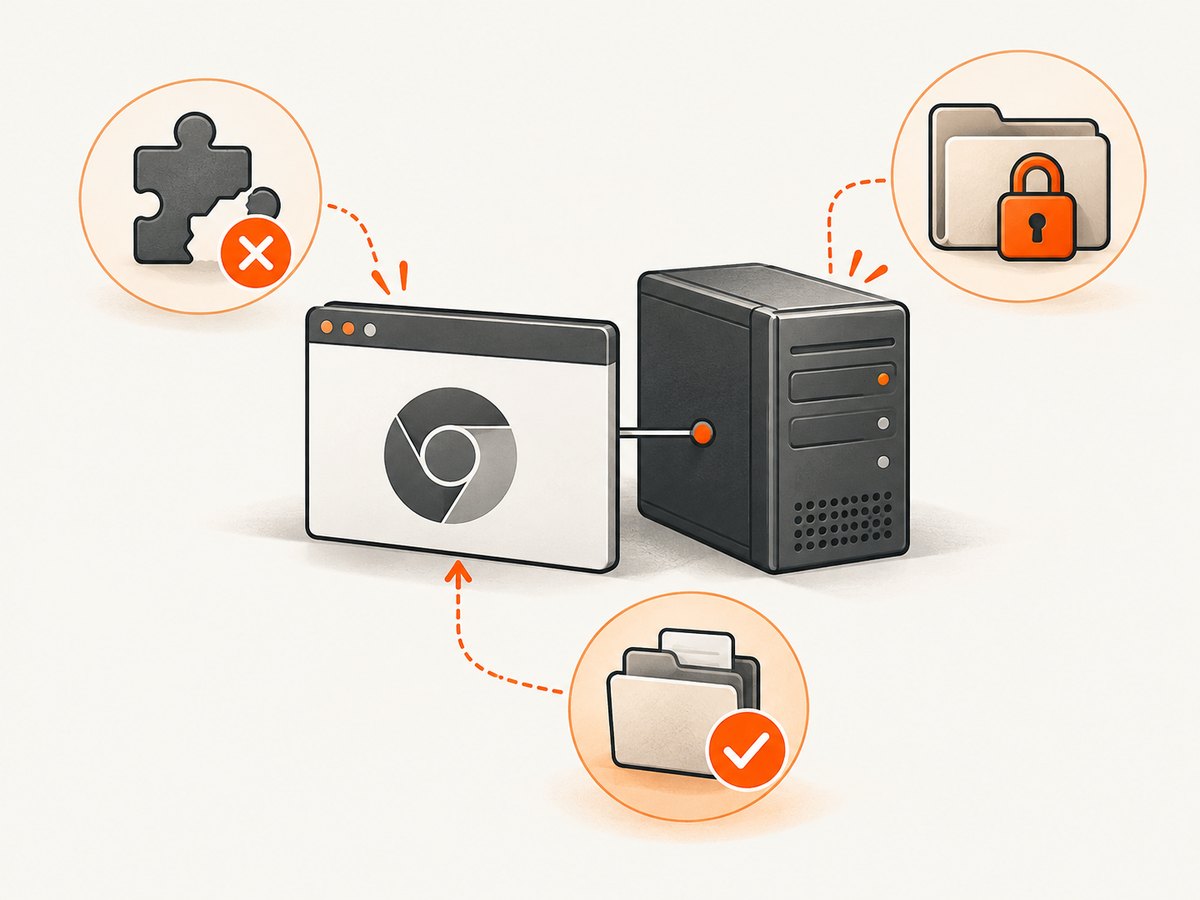
Chrome also needs to run as the service’s user and write temporary profile data. Keep the service user non-privileged where possible, and give Puppeteer an explicit writable profile directory if the default location is unavailable:
import os from 'node:os';
import path from 'node:path';
import puppeteer from 'puppeteer';

const browser = await puppeteer.launch({
  headless: true,
  userDataDir: path.join(os.tmpdir(), `puppeteer-${process.pid}`),
});
Ensure the temporary directory can be created by the deployed process, and close the browser so profile files and child processes do not accumulate. Sandbox errors need a separate judgment. Do not add --no-sandbox as a reflex; first confirm the runtime’s user and sandbox constraints. Treat that flag as an environment-specific last resort after understanding the implications for isolation.
6. Configure Render’s service or Docker image correctly
For a native Node service, the build command must install dependencies and the start command must start the application entry point. Set required environment variables in Render’s service settings or your Blueprint configuration. The browser install belongs in the build phase, not a request handler or a process that runs only after the service has started.
For Docker, install the browser and compatible libraries in the image, ensure the runtime user can execute the browser and write its profile, and include a CMD or ENTRYPOINT. Render’s Docker documentation notes that the image’s command is used by default; a Dockerfile missing both may appear to hang. Keep browser installation reproducible in Docker layers and rebuild the image when changing the browser or Puppeteer version. See Render’s Docker documentation and deploy configuration reference.
7. Troubleshooting common errors
| Error or symptom | Likely cause | What to change |
|---|---|---|
Could not find Chrome |
Install script blocked, skipped download, wrong cache, or package/browser files not present at runtime. | Run npx puppeteer browsers install in the build; inspect skip-download settings and keep the install cache available at runtime. |
Failed to launch the browser process |
Often missing shared libraries, incompatible browser, or denied execution. | Read Chrome stderr, install required image libraries, verify the path and executable permissions, and align browser/Puppeteer versions. |
ENOENT for Chrome |
The configured executable path does not exist in the deployed Linux filesystem. | Remove the path to use bundled Chrome, or discover and set the actual system-browser path inside the deployed image. |
| Sandbox or namespace error | Runtime user or container sandbox constraints. | Run with an appropriate non-root user and inspect the container setup. Consider --no-sandbox only as a deliberate environment-specific workaround. |
| Cannot create profile / permission denied | Chrome’s user-data directory is not writable by the service user. | Set userDataDir to a writable temporary directory and ensure its parent is writable. |
| Works in build, fails after deploy | Browser cache or binary is not in the runtime filesystem, or HOME differs. |
Use a retained path and consistent PUPPETEER_CACHE_DIR; check deploy packaging and startup logs. |
| Deploy hangs or service does not start | Incorrect start command, or Docker image lacks CMD/ENTRYPOINT. |
Check Render’s start phase and define the command that launches the service. |
| Fails after dependency update | Lockfile or Puppeteer/browser version changed. | Record and pin the deployed dependency set; reinstall the matching browser and compare versions in logs. |
8. Bundled Chrome versus system Chrome
| Consideration | Puppeteer-managed browser | System-managed browser |
|---|---|---|
| Version compatibility | Best default: downloaded for the installed Puppeteer version. | Must be checked and maintained by your deployment. |
| Reproducibility | Repeat the browser install with the lockfile during each build. | Pin image and browser package versions; avoid floating system packages. |
| Executable path | Automatically resolved unless cache/config differs. | Must be discovered in the deployed image and configured. |
| Linux libraries | Still requires system libraries suitable for Chrome. | Same requirement, plus your image owns dependency coverage. |
| Storage and upgrades | Browser download increases build/cache size; updates follow Puppeteer. | Image size and browser updates are your responsibility. |
| Permissions | Browser cache and profile must be accessible to the app user. | Executable, libraries and profile permissions must all be correct. |
9. Reliability, performance and cost considerations
Chrome for Testing downloads take space and time, so install once in the build rather than downloading at app startup or per screenshot. The documented Linux browser download size is around 282 MB, subject to release changes. A stable lockfile and explicit install step make failures easier to reproduce; switching cache directories or browser sources adds more state to diagnose.
For request-driven screenshots, launch overhead and concurrent browser processes can affect response time and memory use. Reuse a browser process where your application architecture safely supports it, create isolated pages or contexts for separate jobs, close them when finished, and impose navigation and job timeouts. Watch the runtime logs for process crashes and profile cleanup problems. These are operational choices, not a substitute for proving that a single browser launches correctly in the deployed environment.
Render charges for its hosting according to the selected service and plan; the dossier does not specify Render pricing. Puppeteer itself does not make browser deployment cost-free: account for build time, downloaded browser storage and the service resources used while Chrome runs. If screenshot generation is occasional or you do not want to package and maintain a browser, a screenshot API can move browser installation and launch management out of your service.
Or skip the browser setup
If the goal is to capture a webpage rather than automate Chrome itself, ScreenshotNeo provides a website screenshot API and MCP server. One GET request returns an image or PDF; the API accepts common screenshot parameter names to make switching easier. Here is the one-call cURL example, with Python and Node.js equivalents. See the ScreenshotNeo API documentation alongside the code.
curl -G "https://api.screenshotneo.com/v1/shot" \
  -d access_key=YOUR_API_KEY \
  --data-urlencode url=https://stripe.com \
  -o shot.webp
import requests
r = requests.get(
"https://api.screenshotneo.com/v1/shot",
params={"access_key": "YOUR_API_KEY", "url": "https://stripe.com"},
timeout=90,
)
open("shot.webp", "wb").write(r.content)const q = new URLSearchParams({
access_key: 'YOUR_API_KEY',
url: 'https://stripe.com',
});
const res = await fetch(`https://api.screenshotneo.com/v1/shot?${q}`);
if (!res.ok) throw new Error(`Screenshot request failed: ${res.status}`);
await import('node:fs/promises').then(fs => fs.writeFile('shot.webp', Buffer.from(await res.arrayBuffer())));- Cookie and consent banners, newsletter popups and chat widgets are removed before the shot; each cleanup step can be turned off.
- Bot checks, blank pages, failed loads, timeouts and cache hits are not billed; response headers report the page verdict and billing status.
- An MCP server provides
take_screenshot,get_page_infoandcapture_pdftools for AI agents and MCP clients. - The free plan includes 1,000 screenshots a month with no card. Paid plans start at $5 for 3,000 screenshots.
Sign up free for 1,000 screenshots a month, with no card required.
FAQ
What executablePath should I use on Render?
If you installed Puppeteer and its matching browser, usually omit executablePath. If you manage Chrome yourself, discover the path inside the deployed image and configure that exact path.
Should I use puppeteer or puppeteer-core?
Use puppeteer when you want its installation workflow to download a compatible browser. Use puppeteer-core when connecting to a remote browser or managing the browser yourself.
Why did this start after an upgrade?
A dependency or lockfile change may alter the expected browser version or download behavior. Compare the deployed Puppeteer version, browser version, cache path and build log to the last working deploy.
Can I deploy Chrome on Alpine?
Do not assume the standard Chrome setup applies. Puppeteer warns that Chrome does not support Alpine out of the box; validate the chosen Chromium build, libraries and compatibility for that image.
Deployment checklist
- Read the full Render build or runtime log and identify the first Chrome error.
- Commit the package manifest and lockfile and verify Render installs them.
- Explicitly install Puppeteer’s browser in the build if install scripts can be blocked.
- Keep the browser cache in the runtime filesystem, or use Puppeteer’s bundled browser without a guessed path.
- Check Linux libraries, non-root execution, writable profile paths and sandbox constraints.
- Confirm Render’s start command or Docker
CMD/ENTRYPOINT, then redeploy and compare logs.
After a successful redeploy, record the Puppeteer version, browser version, build and start commands, cache setting and any custom executable path. Those details turn the next browser upgrade into a comparison against a known working deployment.


