How to Fix Puppeteer Chromium Issues When Spawned from Electron
Diagnose Puppeteer launch failures in Electron by symptom, then fix browser paths, version mismatches, Linux dependencies, sandbox errors, and process setup.
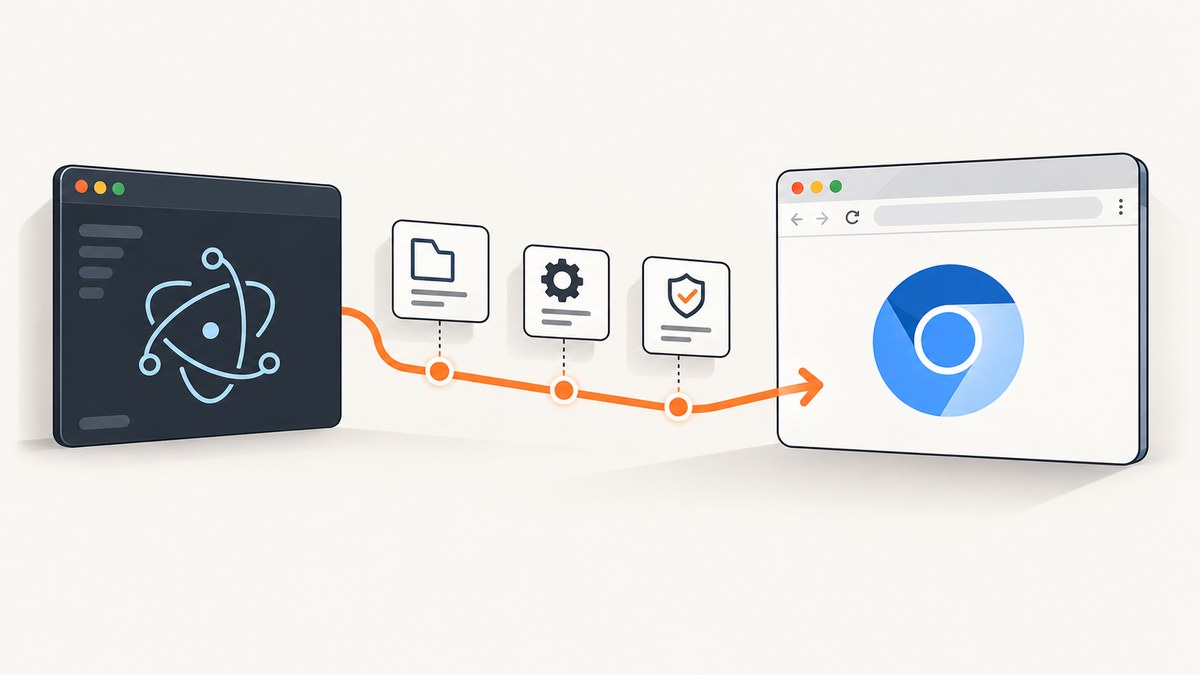
If Puppeteer cannot launch Chromium from Electron, the right fix depends on the failure: ENOENT usually points to a missing or incorrect executable path; an immediate browser exit may indicate a version or Linux dependency problem; “No usable sandbox!” is a sandbox configuration issue; and a renderer process may not be allowed to spawn a browser at all.
Start by recording the exact error and the Electron, Puppeteer, Node.js, operating system, architecture, browser, and packaging versions. Then follow the matching branch below. There is no single Electron-specific launch flag that fixes all of these cases.
1. Identify which Electron process launches Puppeteer
Electron’s main process runs in a Node.js environment. Sandboxed renderer processes do not have Node.js, and privileged work such as starting subprocesses should be delegated to the main process. Electron’s process model and sandbox documentation describe these boundaries: Electron process model and renderer process sandboxing.
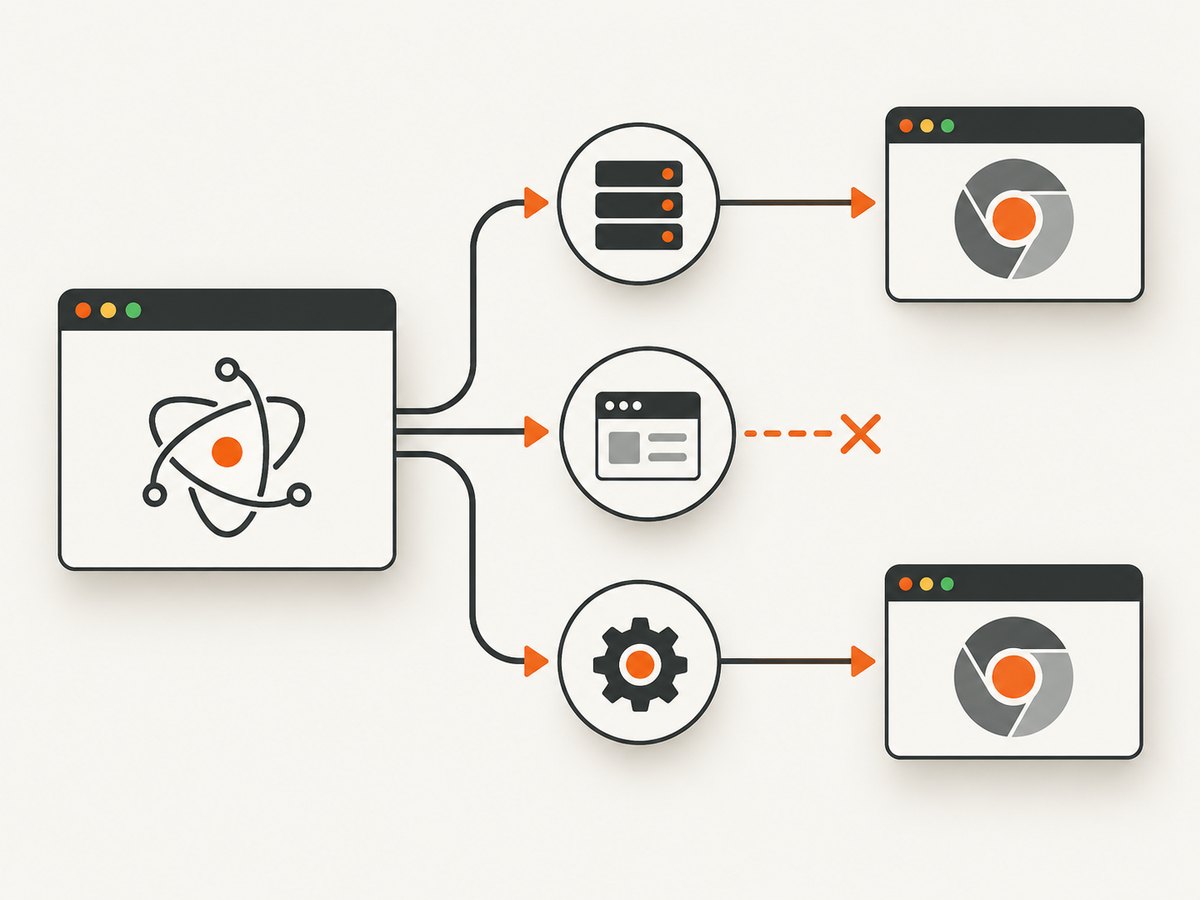
First locate the Puppeteer call. Is it in the main process, a utility process, or a renderer? If it is in a renderer, move the launch operation to the main process and expose a narrow IPC handler. Do not expose arbitrary command execution through IPC.
Example: launch from the main process
// main.js (ES modules)
import { app, ipcMain } from 'electron';
import puppeteer from 'puppeteer';

ipcMain.handle('capture-page', async (_event, url) => {
  const parsed = new URL(url);
  if (!['http:', 'https:'].includes(parsed.protocol)) {
    throw new Error('Only http and https URLs are supported');
  }

  const browser = await puppeteer.launch({ headless: true });
  try {
    const page = await browser.newPage();
    await page.goto(parsed.href, { waitUntil: 'domcontentloaded', timeout: 30000 });
    return await page.screenshot({ type: 'png' });
  } finally {
    await browser.close();
  }
});

app.whenReady().then(() => {
  // Create the application window here.
});
Use a preload script and a constrained API to call this handler from the renderer. Keep browser lifecycle management in the process that launched it, and close the browser in a finally block so navigation or screenshot errors do not leave Chromium running.
For an isolated Node-capable child process, Electron also provides utilityProcess.fork(), which can only be called after the app’s ready event. Electron recommends the UtilityProcess API for many standalone-process cases. Its documentation covers stdio and lifecycle events: utilityProcess API. Check Electron’s fuses if child_process.fork unexpectedly throws: disabling the runAsNode fuse can affect that API.
2. Fix ENOENT and missing Chromium executables
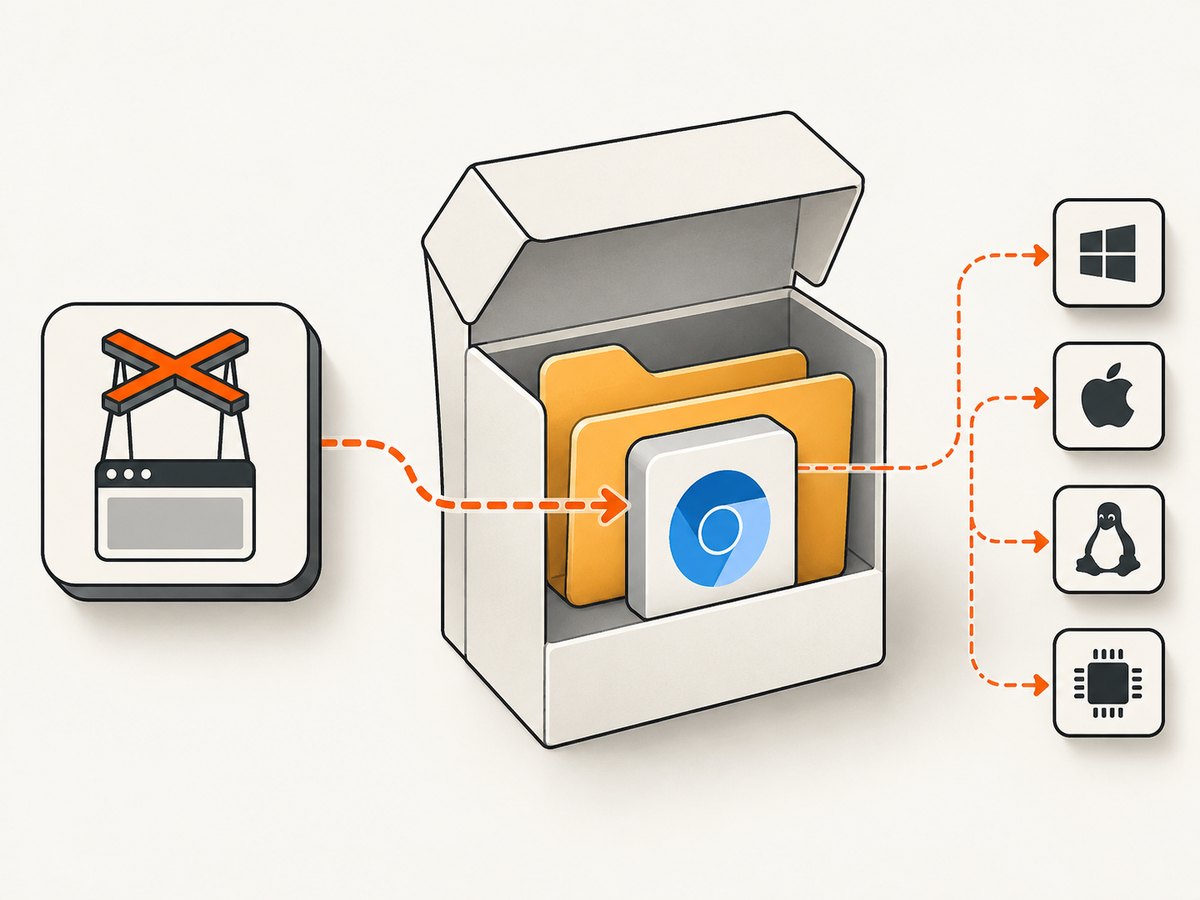
spawn ENOENT means the operating system could not find the executable at the path being used. Log the path passed to Puppeteer and test that exact path in the installed application on the affected machine. A path that works from a development checkout may not exist after packaging.
- Print
process.platform,process.arch,process.resourcesPath, and the configured browser path in the main process. - Check whether the installed app actually contains the browser binary, and whether it is executable.
- Check whether browser installation was skipped by
PUPPETEER_SKIP_DOWNLOADor Puppeteer configuration. - Check which Puppeteer cache directory the packaged process uses and whether that directory is present and accessible.
- Test the packaged app on each target OS and architecture, rather than relying on a development-only absolute path or current working directory.
Puppeteer exposes executablePath to select a browser. The relevant launch and configuration options are documented in the LaunchOptions interface and Configuration interface.
import fs from 'node:fs';
import puppeteer from 'puppeteer';

const executablePath = process.env.PUPPETEER_EXECUTABLE_PATH;
console.info({
  platform: process.platform,
  arch: process.arch,
  resourcesPath: process.resourcesPath,
  executablePath,
  exists: executablePath ? fs.existsSync(executablePath) : null,
});

const browser = await puppeteer.launch({
  ...(executablePath ? { executablePath } : {}),
  headless: true,
  dumpio: true,
});
This diagnostic snippet logs whether the configured path exists, but it does not solve packaging by itself. Electron exposes process.resourcesPath, and application content is placed under Electron’s resources area. ASAR affects how app files are stored; ensure any browser that must be executed is available as a real executable at the chosen path. Packaging tools differ, so verify the resulting installed layout rather than assuming one universal ASAR configuration.
If using puppeteer-core, provide an executablePath or channel; it does not provide Puppeteer’s bundled browser setup. Avoid hard-coding a developer machine path such as a locally installed Chrome location into a cross-platform app.
3. Check the Puppeteer and Chromium version pairing
Puppeteer guarantees compatibility with its bundled browser. Using an arbitrary system Chrome or Chromium through executablePath is at your own risk, as the official launch options documentation explains. A browser mismatch can show up as a launch failure, protocol error, or behavior that changes between machines.
- Record the installed Puppeteer version from the lockfile or package manager.
- Record the browser version that the packaged app actually launches.
- Prefer the browser downloaded for that Puppeteer version, unless you have a specific reason to manage a separate browser.
- If you use a custom browser, consult Puppeteer’s supported browsers table for the exact Puppeteer release in use.
Version numbers in current documentation are snapshots, not permanent mappings. For example, the Puppeteer 25.12.0 supported-browser page pairs that version with Chrome for Testing 154.0.8037.57. Do not apply that pairing to another Puppeteer release without checking its table. Puppeteer v20 and later use Chrome for Testing; older releases may follow different browser download behavior.
Also distinguish regular headless Chrome from legacy headless shell. Puppeteer documents headless: 'shell' as selecting the separate chrome-headless-shell program. Do not switch modes as a guess; choose the mode you intend to package and verify that its executable is available.
4. Separate Linux library errors from sandbox errors
On Linux, a browser that exists can still exit immediately because a required shared library is missing. That differs from “No usable sandbox!”, which points to sandbox support or host restrictions. Capture stderr first, then investigate the branch that matches the message.
Missing shared libraries
Use ldd on the actual Chromium executable in the target environment to identify unresolved shared libraries. Install the dependencies required by that Linux distribution and architecture, using Puppeteer’s current troubleshooting guide and the target distribution’s package information. Dependency names and availability can change across distributions; do not assume a package list for one image applies to another.
“No usable sandbox!”
Check whether the host permits the sandbox mechanism Chromium expects, including relevant namespace or AppArmor restrictions. Resolve host policy or sandbox configuration where possible. Puppeteer strongly discourages running Chrome with --no-sandbox, because it reduces browser protection.
If you use --no-sandbox as a tightly scoped diagnostic, treat it as evidence about the sandbox path, not a production fix. Only consider it for a controlled environment and trusted content after assessing the security impact. Do not add it automatically to every Electron launch configuration.
5. Capture Chromium’s real output before changing flags
Enable dumpio: true to forward browser stdout and stderr to the Node.js process. Save the full error and logs, then change one variable at a time so you can tell which change affected the launch.
const browser = await puppeteer.launch({
  headless: true,
  dumpio: true,
  timeout: 30000,
});
If a utility process starts the browser worker, configure its stdio to pipe output and listen for its error and lifecycle events. Electron documents the available options in its utilityProcess API. Puppeteer also documents NODE_DEBUG=puppeteer:* for protocol-level debugging. Debug logs may contain sensitive details, so handle and share them carefully. See the Puppeteer debugging guide.
6. Use a repeatable diagnostic checklist
- Error: What is the exact message and stack trace? Does Chromium exit immediately, or does DevTools connection time out?
- Process: Does the launch run in the Electron main process, a utility process, or a renderer?
- Versions: What are the Electron, Puppeteer, Node.js, and actual browser versions?
- Target: What OS and architecture is the installed app running on?
- Path: What exact executable path did Puppeteer receive? Does it exist in the installed app?
- Packaging: Was the browser downloaded, included, and made executable in the packaged layout?
- Output: What does Chromium stderr say with
dumpioenabled? - Isolation: Does the same launch work in a minimal Node script on that target machine?
The last check helps separate Electron process and packaging behavior from browser and host dependencies. Keep the URL and launch options consistent while comparing. If only the packaged app fails, inspect its environment and files. If the minimal Node script also fails, focus first on executable path, browser compatibility, Linux dependencies, or sandbox configuration.
7. Troubleshooting common errors
| Symptom | Likely area | What to check |
|---|---|---|
spawn ENOENT |
Executable path | Log the path; confirm the browser exists and is executable in the installed app. |
Could not find Chrome |
Download or cache | Check skipped downloads, Puppeteer configuration, and the runtime cache location. |
| Browser starts then exits on Linux | System libraries | Inspect stderr and unresolved dependencies with ldd on the target system. |
No usable sandbox! |
Host sandbox | Check namespace and AppArmor restrictions; avoid treating --no-sandbox as the default fix. |
| DevTools connection timeout | Crash, startup delay, or wrong binary | Enable dumpio; verify browser version and inspect whether the process exits or remains alive. |
child_process.fork throws in packaged Electron |
Electron configuration | Check the runAsNode fuse and consider utilityProcess.fork(). |
| Works in development but not installed build | Packaging or environment | Inspect resources layout, browser inclusion, permissions, cache path, OS, and architecture. |
| Protocol or browser behavior errors after an update | Version mismatch | Align Puppeteer and browser versions using the supported-browser table for that release. |
8. Reliability, performance, and cost considerations
For reliability, test the packaged artifact on each supported OS and architecture and include at least one cold launch. A warm development cache can hide a missing download or an incorrect cache path. Set explicit navigation timeouts, close pages and browsers, and capture launch output in a way that can be diagnosed without exposing sensitive page data.
For performance, startup and navigation are separate costs. Reusing a long-lived browser can avoid repeated startup work in a persistent process, but requires clear lifecycle handling and limits on concurrent pages. For short-lived capture workers, a fresh browser can simplify cleanup while adding launch overhead. Choose based on the app’s workload and verify behavior on target machines; the cited documentation does not establish universal timing figures.
For cost, account for the browser binary’s packaging and distribution size, Linux runtime dependencies, and the operational work of keeping browser and Puppeteer versions aligned. A custom system browser may change independently of your application. A bundled browser makes the compatibility target clearer, while requiring you to include and update that browser as part of your release process.
Or skip the browser setup
If the job is simply to capture a website, ScreenshotNeo provides a website screenshot API and MCP server. One GET request returns an image or PDF, without packaging Chromium in your Electron app. See the ScreenshotNeo API documentation.
curl -G "https://api.screenshotneo.com/v1/shot" \
  -d access_key=YOUR_API_KEY \
  --data-urlencode url=https://stripe.com \
  -o shot.webp
import requests
r = requests.get(
"https://api.screenshotneo.com/v1/shot",
params={"access_key": "YOUR_API_KEY", "url": "https://stripe.com"},
timeout=90,
)
r.raise_for_status()
open("shot.webp", "wb").write(r.content)const q = new URLSearchParams({
access_key: 'YOUR_API_KEY',
url: 'https://stripe.com',
});
const res = await fetch(`https://api.screenshotneo.com/v1/shot?${q}`);
if (!res.ok) throw new Error(`Screenshot request failed: ${res.status}`);
await Bun.write('shot.webp', res);Cookie banners, popups, and chat widgets are removed before the shot. Bot checks, blank pages, and failed loads are never billed. An MCP server lets AI agents use screenshot tools. The free plan includes 1,000 screenshots a month with no card; paid plans start at $5 for 3,000. Sign up for the free plan.
FAQ
Does Puppeteer run inside an Electron renderer?
Not in a sandboxed renderer, which does not have Node.js. Delegate browser work to the main process or a suitable utility process.
Should I always set executablePath?
No. Puppeteer’s bundled browser is its guaranteed configuration. Set a custom path only when you intentionally manage a separate browser and can verify its location and compatibility.
Is --no-sandbox the fix for Electron?
No. It addresses a particular sandbox failure by lowering browser protection. Diagnose the host sandbox first and use that flag only in a narrowly considered context.
Why does it work locally but fail in the installer?
The installed app can have a different browser path, cache, permissions, process environment, OS architecture, or packaged file layout. Inspect the installed artifact and its launch logs.
Primary documentation
- Puppeteer LaunchOptions
- Puppeteer configuration
- Puppeteer supported browsers
- Puppeteer troubleshooting
- Puppeteer system requirements
- Electron process model
- Electron utilityProcess API
- Electron application packaging
- Electron fuses
Documentation version note: Puppeteer browser mappings, Node requirements, Linux dependencies, and Electron APIs are version-sensitive. Check the documentation for the exact versions shipped by your application.


