How to Fix Puppeteer’s Chromium-Browser ENOENT Launch Error
Fix Puppeteer’s Chromium ENOENT launch error by checking the runtime path, browser install, libraries, containers, CI, and sandbox separately.
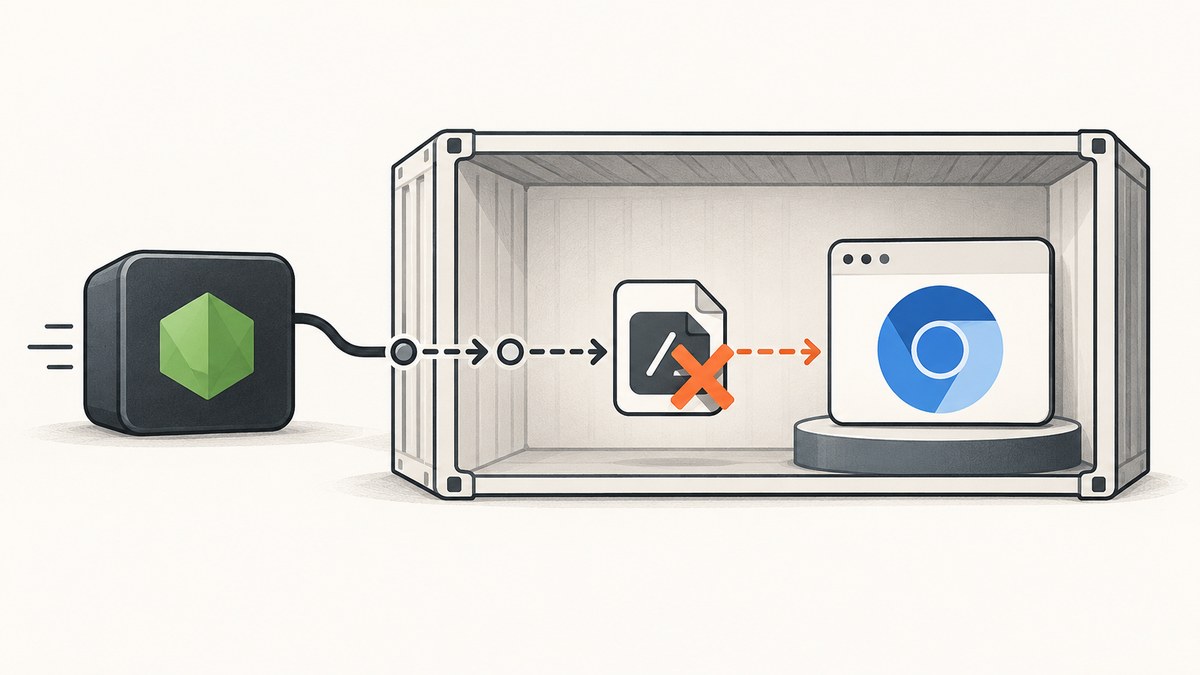
Direct answer: Puppeteer’s spawn /usr/bin/chromium-browser ENOENT error means the Node process cannot find the executable at the configured path in the environment where it is running. Check the path inside the failing machine, CI job, container, or cloud runtime; verify that the file exists and is executable; make sure Puppeteer’s browser installation step was allowed to run; and only then investigate missing libraries or sandbox errors. Those later failures have different causes.
The path shown in the error is not universal. /usr/bin/chromium-browser may exist on one Linux image and be absent on another. A path that works on your laptop also says nothing about the final Docker image or CI worker.
1. Confirm what Puppeteer is trying to launch
Start with the puppeteer.launch() call and every environment variable that can change it. Look for executablePath, PUPPETEER_EXECUTABLE_PATH, Docker build arguments, and deployment configuration.
const puppeteer = require('puppeteer');

const browser = await puppeteer.launch({
  executablePath: process.env.PUPPETEER_EXECUTABLE_PATH,
  headless: true,
});
If the variable is set to a path that does not exist in the runtime, remove the override and use Puppeteer’s managed browser, or replace it with the real path discovered in that environment. Puppeteer’s API reference defines executablePath as an alternate browser binary and warns that “Puppeteer is only guaranteed to work with the bundled browser, so use this setting at your own risk.” See the LaunchOptions documentation.
Print the value immediately before launch while diagnosing:
console.log({
  executablePath: process.env.PUPPETEER_EXECUTABLE_PATH || '(Puppeteer default)',
  node: process.version,
  platform: process.platform,
  arch: process.arch,
});
Do not treat the example path from a CI guide as a recommendation for every distribution. Package names, symlinks, and binary locations vary by operating system, image, architecture, and browser package.
2. Verify the executable inside the failing runtime
Run these checks in the same CI job, container, or cloud instance that launches Node. Checking your workstation is insufficient.
printf 'Configured path: %s\n' "$PUPPETEER_EXECUTABLE_PATH"

if [ -n "$PUPPETEER_EXECUTABLE_PATH" ]; then
  test -f "$PUPPETEER_EXECUTABLE_PATH" && echo "file exists" || echo "file missing"
  test -x "$PUPPETEER_EXECUTABLE_PATH" && echo "file executable" || echo "file not executable"
fi

command -v chromium || true
command -v chromium-browser || true
command -v google-chrome || true
Also check the user that runs the application:
id
ls -l /path/to/the/browser
A multi-stage Docker build can copy application files while leaving the browser behind in the builder stage. A CI cache can restore node_modules without restoring Puppeteer’s browser cache. A cloud runtime can use a different base image than the build job. The existence test must happen after the final image is assembled and under the production user.
3. Restore Puppeteer’s managed browser download
Puppeteer normally installs a compatible browser during its installation process. Package-manager policies can block install scripts, leaving the JavaScript package present while the browser is absent. The official troubleshooting guide calls out npm policies, pnpm, Yarn Berry, Bun, and Deno as environments where install scripts may be disabled or require explicit approval.
After allowing the package’s install step, install the browser manually:
npx puppeteer browsers installRun this command in the image or environment that will execute the application. Then launch without a custom path:
const puppeteer = require('puppeteer');

const browser = await puppeteer.launch({
  headless: true,
});

try {
  const page = await browser.newPage();
  await page.goto('https://example.com', { waitUntil: 'networkidle2' });
  console.log(await page.title());
} finally {
  await browser.close();
}
If the default cache location is unavailable, configure a cache directory with PUPPETEER_CACHE_DIR or the equivalent Puppeteer configuration. Ensure the directory is populated during the image build and readable at runtime. A cache path on a temporary build layer will not help a later container unless it is copied into the final image or installed again there.
4. Make CI and Docker installation reproducible
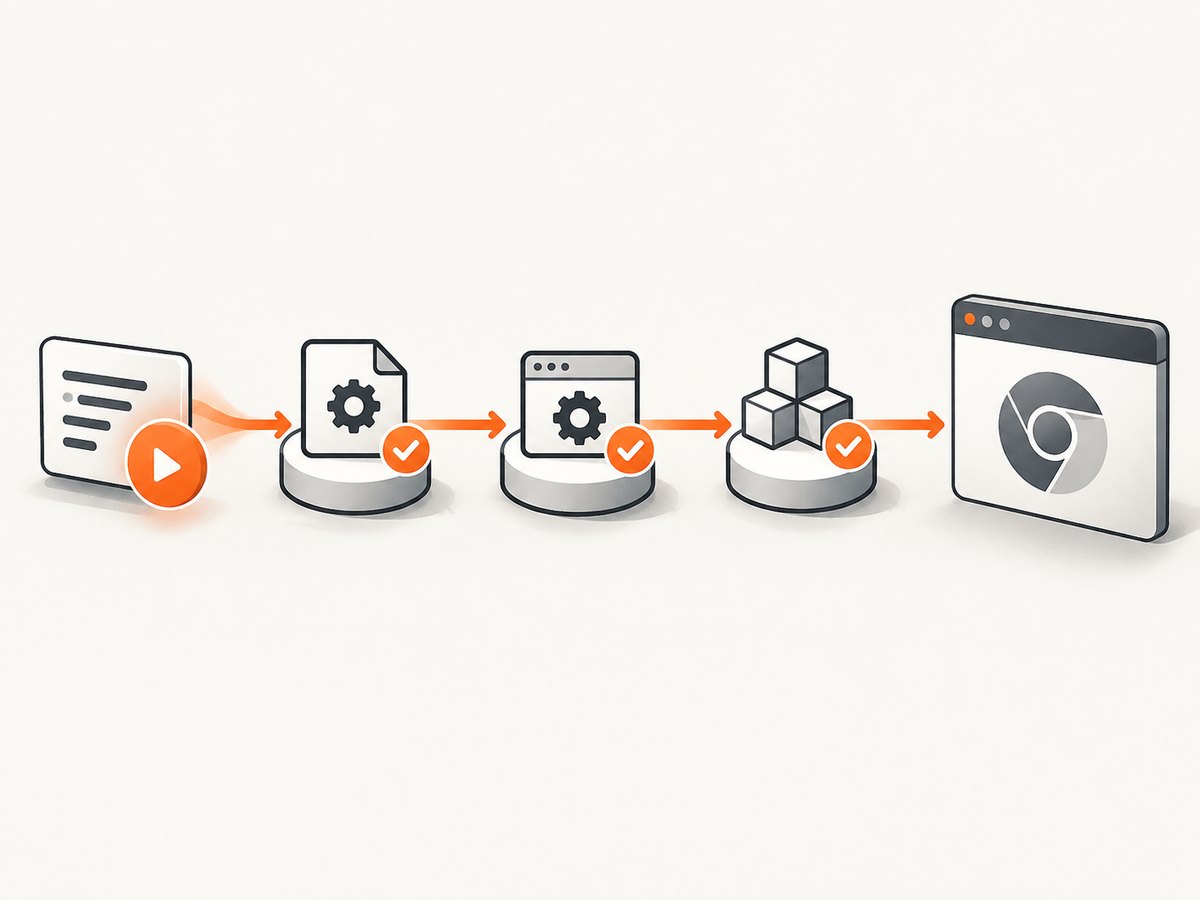
Keep browser installation and application startup in the same deployment story. A reliable pipeline usually does the following:
- Installs dependencies with the package-manager policy required by your project.
- Runs
npx puppeteer browsers installwhen the managed browser is not already present. - Verifies the browser from inside the final image or CI job.
- Runs a small launch smoke check before accepting the artifact.
- Uses the same Node user and filesystem paths at build and runtime.
For GitLab CI or another runner, put the checks in the job that invokes Node:
script:
  - npm ci
  - npx puppeteer browsers install
  - node -e "const p=require('puppeteer'); p.launch().then(async b => { await b.close(); console.log('browser launch ok') }).catch(e => { console.error(e); process.exit(1) })"
  - npm test
In Docker, the exact instructions depend on the base image and architecture. The important boundary is the final runtime image: it must contain the browser, its shared libraries, fonts required by your pages, and a writable or readable Puppeteer cache as appropriate. Copying only node_modules from a builder does not guarantee that the browser cache was copied.
5. Separate ENOENT from missing shared libraries
If the executable exists and is executable, but Chrome exits with a message about a shared object or library, you have moved past ENOENT. Diagnose the new error independently. On Linux, Puppeteer documents:
ldd /path/to/chrome | grep notInstall the missing packages for the specific distribution and browser build. Puppeteer lists common Debian and Ubuntu dependencies and links to Chromium’s package requirements, but package lists change. Use the requirements for your actual browser version rather than copying an old list into a new image.
Typical clues include libX11, font, NSS, GTK, or audio libraries reported as “not found.” If ldd reports no missing libraries, capture the complete browser stderr output and inspect permissions, architecture, and the next startup message.
6. Handle sandbox errors only when the error is a sandbox error
“No usable sandbox” and permission-denied messages are not ENOENT. They mean the browser was found but could not create its security sandbox. Puppeteer strongly discourages disabling the sandbox. Prefer configuring a supported sandbox for the container or runtime and running as a user with the required permissions.
Do not add --no-sandbox as a generic fix for a missing executable. Consider it only when the observed error is specifically a sandbox failure, and review the security consequences for your deployment.
7. Environment-specific checks
Linux distributions
Binary names differ. Debian-based images may expose chromium; another image may provide chromium-browser or a Google Chrome binary. Resolve the path with command -v in the target image instead of hard-coding a name copied from another machine.
Alpine
Puppeteer’s documentation notes that Chrome does not support Alpine out of the box. Compatible browser and dependency versions must be selected deliberately. An old Alpine snippet may fail after a Puppeteer or browser upgrade, so verify the versions together.
Cloud Run and similar managed runtimes
Puppeteer’s troubleshooting guide says the default Node.js Cloud Run runtime does not include the system packages needed for Headless Chrome. A custom Dockerfile is required. This is deployment setup, not a universal ENOENT cure: the final image still needs a browser at the path your code uses.
Architecture and version drift
Record the Puppeteer version, Node version, browser version, operating system, and architecture when investigating. Check the requirements for the released version you use. A “Next” or unreleased documentation page may describe requirements ahead of your package.
8. A compact diagnostic decision tree
| Observed result | Likely cause | Next action |
|---|---|---|
spawn ... ENOENT |
Configured executable is absent or the path is wrong | Check the path inside the failing runtime; remove or correct the override |
| Browser file exists but is not executable | Permissions or ownership | Fix mode and ownership for the Node user |
| Browser download is absent | Install script was blocked or cache was lost | Allow the install step and run npx puppeteer browsers install |
| “error while loading shared libraries” | Runtime packages are missing | Run ldd ... | grep not and install distro-specific libraries |
| “No usable sandbox” | Sandbox configuration or permissions | Configure a supported sandbox; do not treat it as ENOENT |
9. Reliability, performance, and cost considerations
Browser startup is expensive compared with reusing a browser process. For a service that captures many pages, keep one browser process alive and create isolated pages or contexts per job, while limiting concurrency to the CPU and memory available. Close pages and browsers in finally blocks so failed navigations do not leak processes.

Cache the browser installation in your build system, but verify that the cache belongs to the current Puppeteer version, operating system, and architecture. A stale cache can create a different failure after the ENOENT issue is fixed. Pin versions where reproducibility matters and rebuild when the base image changes.
At runtime, distinguish a failed page from a failed browser. Log the launch configuration, browser stderr, URL, timeout, and environment identity without logging secrets such as cookies or authorization headers. Set navigation and overall job timeouts, and retry only transient navigation failures. Repeatedly retrying a missing executable wastes time and can hide the deployment defect.
Or skip the browser setup
If your goal is a reliable screenshot endpoint rather than maintaining Chromium in every runtime, ScreenshotNeo provides a hosted website screenshot API. It handles the browser environment for you, while still exposing options such as full-page capture, element selectors, device presets, retina scale, custom CSS and JavaScript, waits, request blocking, cookies, headers, user agents, geolocation, PDFs, caching, async jobs, bulk capture, and signed links. See the ScreenshotNeo documentation.
curl -G "https://api.screenshotneo.com/v1/shot" -d access_key=YOUR_API_KEY --data-urlencode url=https://stripe.com -o shot.webpimport requests
r = requests.get("https://api.screenshotneo.com/v1/shot", params={"access_key": "YOUR_API_KEY", "url": "https://stripe.com"}, timeout=90)
open("shot.webp", "wb").write(r.content)const q = new URLSearchParams({ access_key: 'YOUR_API_KEY', url: 'https://stripe.com' });
const res = await fetch(`https://api.screenshotneo.com/v1/shot?${q}`);Cookie banners, newsletter popups, and chat widgets are removed before the shot. Bot checks, blank pages, failed loads, timeouts, and cache hits are never billed, and the response identifies the result with X-Page-Verdict and X-Billed headers. An MCP server lets Claude, Cursor, and other MCP clients use take_screenshot, get_page_info, and capture_pdf. The free plan includes 1,000 screenshots a month with no card; paid plans start at $5 for 3,000.
Create a free ScreenshotNeo account and start with 1,000 screenshots per month without a card.
10. Troubleshooting checklist
- Is the configured path printed by the failing process?
- Does that exact path exist inside the final runtime?
- Is it executable by the Node user?
- Did package-manager policy block Puppeteer’s install script?
- Did you run
npx puppeteer browsers installin the deployed environment? - Is the browser cache present and readable?
- Are you diagnosing the final image rather than the builder or laptop?
- If the file exists, does
lddshow missing libraries? - Does the new error mention sandboxing instead of ENOENT?
- Do Node, Puppeteer, browser, OS, and architecture versions match your supported setup?
FAQ
Does ENOENT always mean Chromium is not installed?
It means the process cannot find the executable at the path it attempted to spawn. The browser may be installed under another name or location, so inspect the exact configured path in the failing runtime.
Should I hard-code /usr/bin/chromium-browser?
No. Treat it as an environment-specific example. Discover the real path in the target image or use Puppeteer’s managed browser.
Can I use any system Chrome with Puppeteer?
You can select one with executablePath, but Puppeteer guarantees compatibility with its bundled browser, not every alternate installation.
Why does it work locally but fail in CI?
Your local machine and CI job have different filesystems, users, package policies, architectures, or browser caches. Repeat the existence, permission, and installation checks inside CI.
Is --no-sandbox the fix?
Only for a confirmed sandbox error, and it weakens browser isolation. It does not repair a missing executable path.


