How to Fix Puppeteer Chromium Startup Failures with Phusion Passenger
Diagnose Puppeteer startup failures under Phusion Passenger by checking the app entry point, browser install, Linux libraries, sandbox, and runtime permissions.
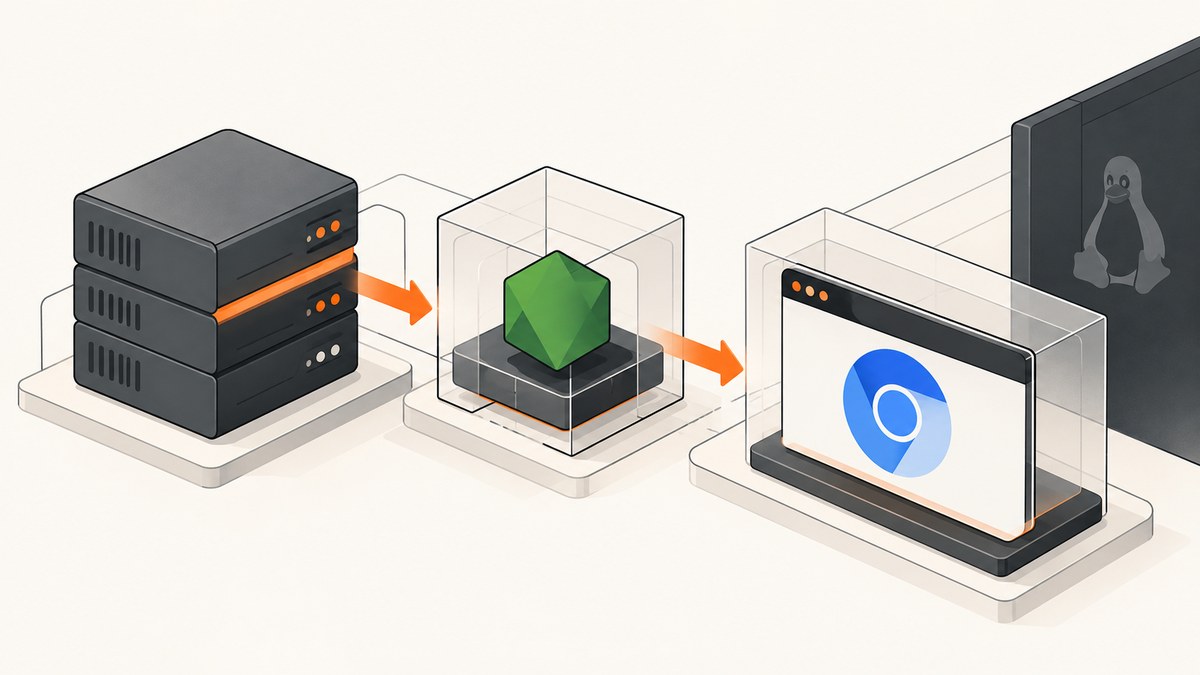
When Puppeteer’s Chromium will not start under Phusion Passenger, Passenger is only one part of the launch path. Passenger starts your Node.js application; that application then starts Chrome or Chromium as a child process. The browser must be installed, compatible with its runtime libraries, accessible to Passenger’s Unix user, and able to initialize its sandbox.
Start with the complete application log and Chromium’s stderr. The exact error separates the likely causes: Could not find Chrome points to browser installation or path; a dynamic linker error points to missing system libraries; No usable sandbox! points to sandbox support or host policy. If the Node.js app itself does not start, first verify Passenger’s application type and startup file.
There is no single Passenger-specific fix that applies to every deployment. Work through the checks below in order, changing one layer at a time. The details of package names, browser behavior, and security policy depend on your Puppeteer version and Linux environment.
1. Preserve the full error and identify the failure stage
Do not diagnose from “Passenger” alone. Capture the application log around startup and the browser’s stderr, including the first error and any lines immediately before it. Record whether the app starts, whether Puppeteer reaches launch(), and whether Chromium starts and exits. Those are different failure stages with different fixes.
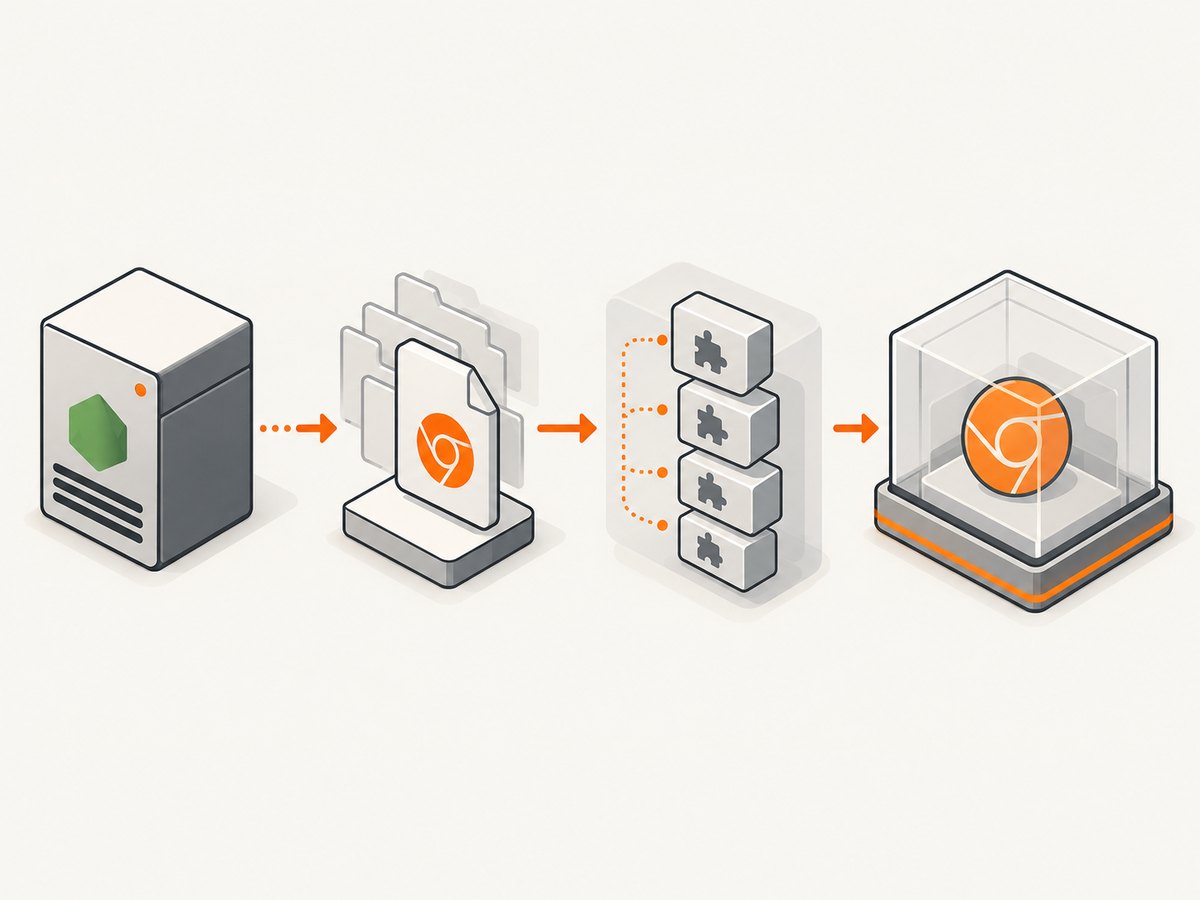
| Observed symptom | Likely layer to inspect |
|---|---|
| Passenger reports an app startup or missing-file error | App root, Node.js app type, startup file, and application logs |
Could not find Chrome or executable not found |
Puppeteer browser download, cache location, and executable path |
error while loading shared libraries |
Linux runtime libraries in the deployed image |
No usable sandbox! |
Kernel/user-namespace support and host security policy |
| Works in a shell but not through Passenger | Effective runtime user, environment, file access, cache, and writable paths |
Keep the exact Puppeteer and Passenger versions, Linux distribution or container image, browser revision, effective runtime user, and launch options with the log. These details make the failure reproducible and help distinguish a deployment change from an application-code change.
2. Confirm Passenger starts the intended Node.js file
Passenger’s Node.js convention is app.js. An Express-generator application commonly starts from bin/www. If your application uses another file, configure the startup file and application type for your Passenger mode. A wrong entry point may mean the code that initializes your service—or calls Puppeteer—never runs.
For Passenger Standalone, inspect the app type, application root, and startup file in the configuration or command used to launch the app. Confirm that the configured file exists relative to the application root and that it is the intended Node.js entry point. Passenger documents its configuration options in the Standalone configuration reference and its deployment flow in the Node.js deployment guide.
Log a clear message immediately before calling puppeteer.launch(), and log the caught error and stack trace. This establishes whether Passenger reached the browser-launch code. Avoid swallowing a launch rejection: it can make a browser startup problem look like a hung or partially initialized app.
3. Verify Puppeteer installed a browser that is still available
Puppeteer’s install process normally downloads a compatible Chrome for Testing browser. If package-manager policy disables install scripts, the download may not happen. A deployment can also install dependencies in one environment and run the app in another, or fail to preserve the browser cache. In those cases, the Node package can exist while its expected browser executable does not.
Check the deployment install logs for the browser download and inspect the configured Puppeteer cache or executable path in the same environment where Passenger runs. Confirm that the binary exists and is executable by the runtime account. If you manage Chrome or Chromium separately, Puppeteer supports executablePath; its documentation says operation is only guaranteed with the browser bundled for that Puppeteer version. An external browser can therefore introduce version-compatibility problems.
A small diagnostic in the app can report the path Puppeteer intends to launch:
const puppeteer = require('puppeteer');

console.log('Puppeteer executable:', puppeteer.executablePath());

(async () => {
  try {
    const browser = await puppeteer.launch();
    console.log('Browser started:', await browser.version());
    await browser.close();
  } catch (error) {
    console.error('Puppeteer launch failed:', error);
    process.exitCode = 1;
  }
})();
Run this through the same Passenger-managed application and deployment path where the error occurs. A local developer-machine result only verifies that machine’s browser, libraries, user, and environment.
If you intentionally use a separately installed browser, set its path explicitly and verify it in the deployed host. For example:
const browser = await puppeteer.launch({
  executablePath: '/path/to/chrome',
  headless: true
});
Replace the example path with the actual executable on your system. Do not assume a path copied from another distribution or image exists in production. Compare the external browser version with the Puppeteer version and consult the Puppeteer launch options.
4. Check Chromium’s Linux shared libraries
An installed browser can still fail before opening a page if a shared library is missing. Puppeteer’s troubleshooting guide recommends checking the browser executable with ldd. Run the command against the actual Chrome executable in the Passenger host or container:
ldd /path/to/chrome | grep notReplace /path/to/chrome with the executable path reported by your installation. Output containing not found indicates an unresolved shared library. No matching output means this particular check did not report missing libraries; it does not verify sandbox support, permissions, or browser compatibility.
Install the missing runtime dependencies appropriate to the Linux distribution and browser revision you actually deploy. Package names and dependency lists vary, so avoid copying a list from a different base image without checking it. Puppeteer’s troubleshooting guide covers library diagnostics and links to Chrome dependency information. Rebuild or update the production image, then run the same diagnostic again.
5. Treat sandbox failures as a security and host-configuration issue
If Chromium reports No usable sandbox!, investigate sandbox availability, kernel/user-namespace support, and host security policy. Puppeteer documents an AppArmor interaction on Ubuntu 23.10 and later that can affect user namespaces for Chrome for Testing. Check the guidance for the exact distribution and browser build rather than assuming every Linux host has the same cause.
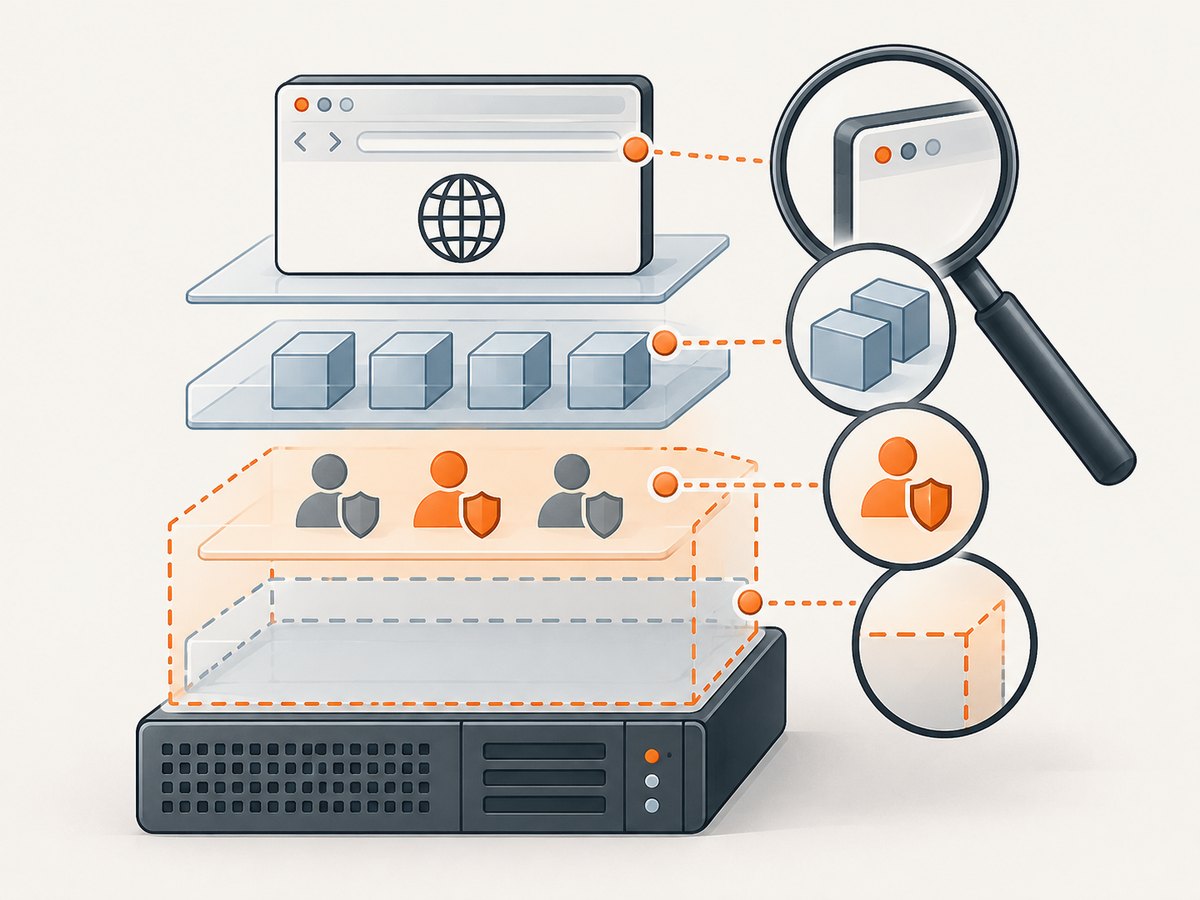
Puppeteer’s documentation is explicit: “Running without a sandbox is strongly discouraged.” The --no-sandbox option disables a browser security boundary; it is not equivalent to restoring a usable sandbox. Puppeteer documents it only for cases where the content is absolutely trusted. Do not make it the routine production fix for a Passenger deployment. If an operator considers it for a constrained, trusted-content environment, they need to understand and accept the security reduction and assess the host-specific risk.
Prefer resolving the host’s sandbox support or policy issue. Review the relevant sections of the Puppeteer troubleshooting documentation and the applicable Chromium/AppArmor guidance for your system.
6. Reproduce as Passenger’s Unix user
A command that works as an administrator does not prove it will work for the Passenger application. Passenger’s Unix user sandboxing guidance says the runtime user needs read access to application files and read/write access to logs. The same identity also needs access to the browser executable and cache.
Check permissions and ownership for:
- The application root, startup file, and installed Node.js dependencies.
- The Puppeteer browser cache or externally managed executable and its parent directories.
- Any user-data or profile directory configured for Chromium.
- Temporary directories Chromium uses, and any application log directory.
As a diagnostic inference from the child-process model, a profile or temporary path that is inaccessible or unwritable by the Passenger user can prevent Chromium from starting or operating correctly. Verify the actual effective user and environment used by your Passenger deployment; do not infer them from the shell account used for installation.
Passenger explains its Unix user isolation in the user sandboxing guide. Correct ownership or permissions at the relevant path, then retest as the application user.
7. Change one layer, restart, and capture the next result
After changing the entry point, browser installation, system libraries, host policy, or permissions, restart the Passenger application and capture the new logs. Change one variable per attempt where practical. Otherwise, a successful restart may not reveal which fix addressed the cause, and a remaining error may be harder to classify.
- Confirm Passenger starts the expected Node.js file.
- Confirm Puppeteer’s browser exists and is accessible to the Passenger user.
- Run
lddagainst that executable and resolve missing libraries for the deployed distribution. - If the error names a sandbox, investigate the host’s support and policy.
- Verify readable application files and writable log, profile, and temporary paths.
- Record the versions, runtime user, environment, and launch options alongside the new error.
Common errors and fixes
| Error or pattern | Cause to verify | Next action |
|---|---|---|
Could not find Chrome |
Browser download did not run, cache was not deployed, or path differs | Check install logs and the runtime-visible cache; configure a real executablePath only if managing the browser separately. |
spawn ... ENOENT |
The executable path or a required command is missing | Check the exact path and that it exists in the Passenger environment. |
error while loading shared libraries |
A runtime library is absent from the host image | Use ldd on the deployed executable; install the distribution-appropriate dependency. |
No usable sandbox! |
Sandbox cannot initialize under host/kernel/security policy | Investigate host support and policy, including applicable Ubuntu/AppArmor guidance. |
| Permission denied | Passenger’s user cannot read the browser or write a profile/temp/log path | Check effective user and permissions on each path involved. |
| App fails before launch logging | Passenger may use the wrong app type, root, or startup file | Verify the configured Node.js entry point and inspect Passenger’s app startup log. |
Performance, reliability, and deployment cost
Browser startup is a separate process launch, so deployment and runtime conditions matter in addition to application code. For reliable diagnosis, keep the browser installation with the deployed environment, use a known Puppeteer/browser pairing, and make the Passenger runtime user’s access to browser and temporary paths explicit. A separate browser installation can simplify centralized browser management, but it adds path and compatibility details to maintain.
Do not infer a performance bottleneck from a startup failure. First establish that the browser launches, then measure the application behavior relevant to your workload. This documentation-based guide does not establish a universal startup time, performance benchmark, failure rate, or hosting cost. Host dependencies and package requirements should be checked against your current image and software versions.
Or skip the browser setup
If your goal is to produce website screenshots rather than run a browser inside your Passenger app, ScreenshotNeo provides a website screenshot API and MCP server. One GET request returns a PNG, JPEG, WebP, or PDF. Its browser setup is managed by the service, so your app does not need to install and launch Chromium for the capture.
Here is a cURL example:
curl -G "https://api.screenshotneo.com/v1/shot" -d access_key=YOUR_API_KEY --data-urlencode url=https://stripe.com -o shot.webpPython:
import requests

r = requests.get(
    "https://api.screenshotneo.com/v1/shot",
    params={"access_key": "YOUR_API_KEY", "url": "https://stripe.com"},
    timeout=90,
)
open("shot.webp", "wb").write(r.content)
Node.js:
const q = new URLSearchParams({ access_key: 'YOUR_API_KEY', url: 'https://stripe.com' });
const res = await fetch(`https://api.screenshotneo.com/v1/shot?${q}`);
See the ScreenshotNeo API documentation for request details. Cookie banners, newsletter popups, and chat widgets are removed before the shot; each step can be turned off. Bot checks, blank pages, and failed loads are never billed, and response headers identify the page verdict and billing status. An MCP server gives AI agents tools to take screenshots, get page information, and capture PDFs. The free plan includes 1,000 screenshots a month with no card; paid plans start at $5 for 3,000.
Sign up for 1,000 free screenshots a month, with no card required.
FAQ
Does Passenger require a special Puppeteer launch option?
The documented causes do not establish a universal Passenger-specific launch option. Check the actual browser error, runtime identity, and host environment before changing launch settings.
Should I switch from Puppeteer to a system Chromium package?
That is a deployment choice, not a general fix. Puppeteer supports an explicit executable path, but guarantees compatibility with its bundled browser. If you use a system browser, verify its availability and compatibility in the deployed environment.
Will restarting Passenger fix Chromium?
A restart is needed to retest configuration or deployment changes, but it does not install a missing browser or library, correct permissions, or restore sandbox support by itself.
What information should I include in a bug report?
Include the complete launch error, Puppeteer and Passenger versions, browser version or revision, Linux distribution or image, effective Passenger user, entry point, and launch options. Remove secrets such as API keys, cookies, and authorization headers.


