How to Fix Headless Chromium Closing Immediately on Raspberry Pi 4 with Puppeteer
Diagnose why Chromium exits on Raspberry Pi 4, capture the real launch error, and fix common path, architecture, sandbox, install, and resource problems.
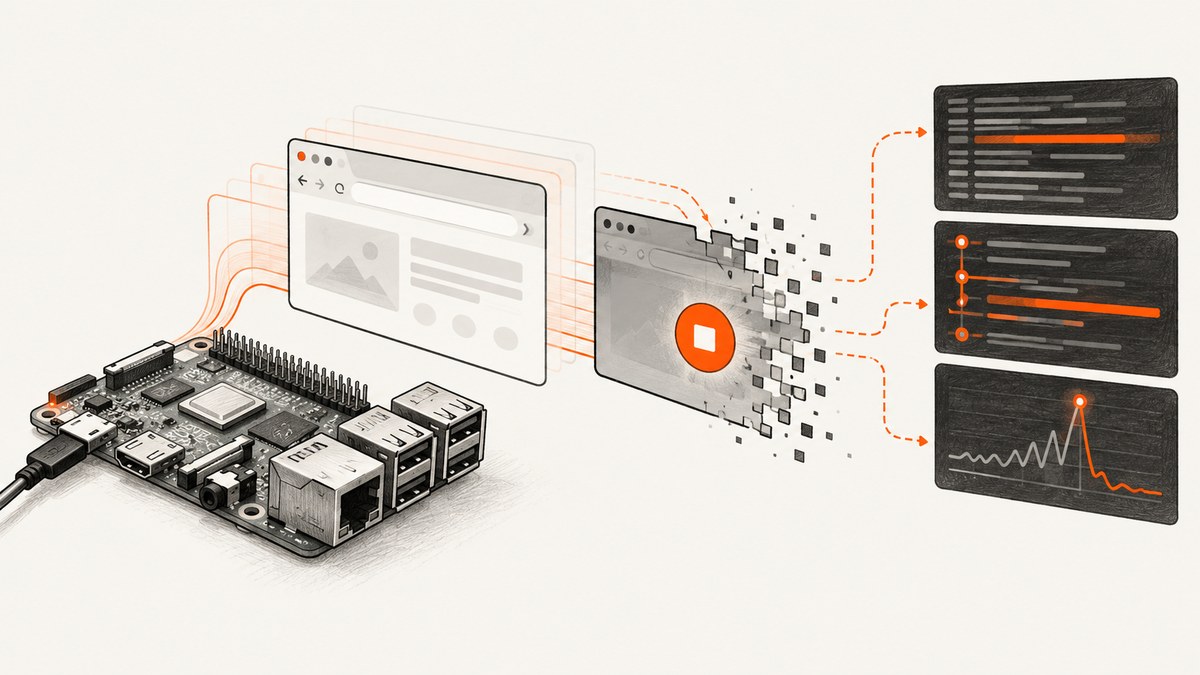
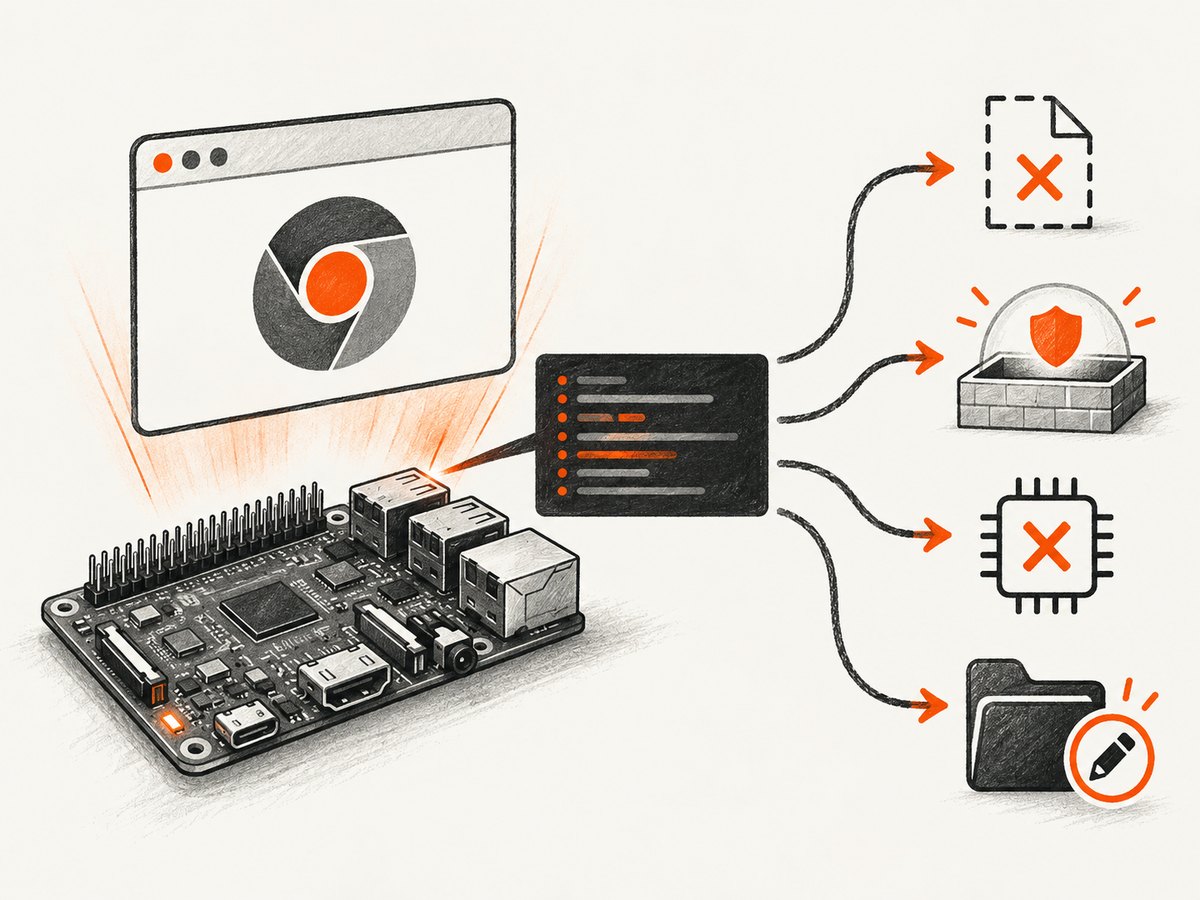
When Chromium closes immediately after Puppeteer launches it on a Raspberry Pi 4, start by capturing the browser’s stderr. The exit is a symptom; the log usually points to the cause: an incorrect executable, architecture mismatch, missing shared library, unusable sandbox, failed profile directory, or resource pressure.
This guide shows how to identify the browser Puppeteer is starting, run it independently, expose launch diagnostics, and choose a compatible setup. It also explains when --no-sandbox is a risky diagnostic workaround and how to check whether Puppeteer’s managed browser download was skipped.
1. Capture the launch error before changing flags
Puppeteer’s dumpio launch option forwards the browser’s stdout and stderr to the Node process. Use it with a bounded launch timeout and an explicit writable profile directory. Avoid adding a large set of copied flags: they can hide the original failure or introduce new ones.
const puppeteer = require('puppeteer');

(async () => {
  let browser;
  try {
    browser = await puppeteer.launch({
      executablePath: process.env.CHROMIUM_PATH || '/usr/bin/chromium',
      headless: true,
      dumpio: true,
      timeout: 30_000,
      userDataDir: '/tmp/puppeteer-pi4-profile',
    });

    const page = await browser.newPage();
    await page.goto('https://example.com', { waitUntil: 'domcontentloaded' });
    console.log('Page title:', await page.title());
  } catch (error) {
    console.error('Puppeteer launch or navigation failed:', error);
    process.exitCode = 1;
  } finally {
    if (browser) await browser.close();
  }
})();
Save this as diagnose.js and run node diagnose.js. If you use ES modules, replace require with import puppeteer from 'puppeteer'. Change the executable path to the result of which in the next step. A temporary profile is useful for diagnosis; do not point multiple concurrent browser processes at the same profile.
timeout limits how long Puppeteer waits for the browser to start; it does not fix a browser that exits. dumpio makes its output visible. The userDataDir gives Chromium a known profile location whose permissions you can inspect.
2. Confirm the executable and architecture
First determine which Chromium binaries are installed and what Node and Puppeteer versions your process is using:
which chromium || true
which chromium-browser || true
readlink -f "$(which chromium 2>/dev/null)" 2>/dev/null || true
node --version
node -p "process.arch"
npm ls puppeteer puppeteer-core
On a Raspberry Pi, the executable must be a Linux browser build compatible with the Pi’s architecture and operating system. Do not infer compatibility from the name of the binary. Puppeteer’s current system-requirements page lists Chrome for Testing on Debian/Ubuntu Linux x64 and arm64; check the official requirements for the exact Puppeteer version and environment you use. The requirements page currently identifies Puppeteer 25.12.0 and Node 22.12 or newer.
For the Puppeteer-managed browser, ask Puppeteer for its expected executable path:
node -e "const p=require('puppeteer'); console.log(p.executablePath())"If the command fails with a missing-browser message or prints a path that does not exist, investigate the browser installation before changing launch flags. If you intentionally use Raspberry Pi OS Chromium, set executablePath to the path returned by which. Puppeteer guarantees compatibility with its bundled browser; a system browser is a deliberate compatibility choice and may not match the Puppeteer release.
3. Run Chromium without Puppeteer
This separates browser and operating-system failures from Puppeteer configuration. Use the resolved executable path and retain the complete stderr output:
CHROMIUM_PATH="$(command -v chromium)"
"$CHROMIUM_PATH" --headless --dump-dom https://example.com
If the binary is named chromium-browser, substitute that command. If the Pi has no network connection, use a local HTML file instead of a remote URL. If Chromium exits here too, Puppeteer is not the root cause. Look at the error for missing shared libraries, sandbox setup, permissions, or an incompatible binary.
If Chromium works alone but not from Puppeteer, compare the exact executable path, environment, user account, working directory, and profile directory. A service or scheduled job may run as a different user from your interactive shell and lack access to the profile or temporary directory.
4. Diagnose the common launch failures
| Observed error or behavior | Likely cause | What to do |
|---|---|---|
No usable sandbox! |
Chrome cannot find a usable Linux sandbox configuration. | Repair or configure the sandbox for the operating system and user. Use --no-sandbox only as a controlled test with trusted local content; see the security section. |
Could not find Chrome (ver. ...) |
The browser Puppeteer expects was not downloaded, may have been removed, or is not at the expected cache path. | Run npx puppeteer browsers install and check whether your package manager blocked Puppeteer’s install script. |
| “Exec format error” or immediate exit with no useful browser output | The selected executable may not be built for the Pi’s CPU architecture or operating system. | Verify the binary provenance and architecture. Select a compatible ARM Linux browser build or the Raspberry Pi OS package, then set its explicit path. |
| Missing library or shared object in stderr | A runtime dependency required by the browser is absent. | Use the distribution’s package manager to install the named dependency, or use a browser package built for that OS. Retest Chromium outside Puppeteer. |
| Cannot create profile, lock file, or temporary file | The service user cannot write to the profile or temporary directory, or an old process is holding a profile lock. | Choose a writable, per-process profile directory; verify ownership and free space. Close stale processes cleanly before reusing a profile. |
| Browser starts, then dies during page load | Memory pressure, a heavy page, a failed network dependency, or a system-level kill may be involved. | Check available memory and system logs, try a small local page, and reduce concurrent browser processes. |
Error wording varies by Chromium build. Treat the stderr from the actual browser invocation as the strongest clue; do not apply a workaround solely because another Pi user reported a similar symptom.
5. Resolve sandbox errors with the security tradeoff in view
A sandbox restricts what browser content can do if it is compromised. Puppeteer’s troubleshooting guide says Chrome can crash when no usable Linux sandbox exists and strongly discourages running without one. The preferred fix is to make a supported sandbox available to the user and environment that launches Chromium.
Only when stderr explicitly reports that no usable sandbox exists, and only for a controlled test against trusted content, you can try:
const browser = await puppeteer.launch({
  executablePath: process.env.CHROMIUM_PATH || '/usr/bin/chromium',
  headless: true,
  dumpio: true,
  args: ['--no-sandbox'],
});
This removes a security boundary. Do not use it as a routine production setting for arbitrary URLs, user-submitted pages, or other untrusted content. If the test works only with this flag, it identifies a sandbox configuration problem; it does not make the unsandboxed configuration a safe general solution.
6. Check how Puppeteer installed its browser
Puppeteer normally downloads a compatible browser as part of installation. Some package managers or deployment policies block dependency install scripts. In that case the package can be present while its expected browser is absent, leading to Could not find Chrome (ver. ...).
- Check whether
node -p "require('puppeteer').executablePath()"points to an existing browser. - If the browser is missing, run
npx puppeteer browsers installin the project environment. - Review your package manager’s install-script policy and allow Puppeteer’s browser installation if that is permitted in your environment.
- For a self-managed system Chromium, set
executablePathexplicitly and maintain browser updates yourself.
The bundled browser is Puppeteer’s compatibility baseline. The official installation documentation gives an approximate Chrome for Testing download size of 282 MB, so account for the download and cache space on a Pi’s storage. A system browser can avoid that particular managed download, but you own the pairing and update compatibility.
7. Compare headless modes as a diagnostic
Puppeteer supports three useful settings:
| Setting | What it selects | Diagnostic use |
|---|---|---|
headless: true |
Current headless mode. | The standard first test for a headless workflow. |
headless: 'shell' |
The separate chrome-headless-shell binary. |
Checks whether behavior differs with the shell binary; that binary must also be available and compatible. |
headless: false |
Headful Chrome. | A control test when a display environment is available. It may need a graphical session and is not a headless deployment solution. |
Change one setting at a time and preserve stderr. If all modes fail at startup, prioritize the executable, dependencies, sandbox, permissions, or architecture rather than assuming a headless-only regression. If only one mode fails, record the browser provenance and Puppeteer version when narrowing down compatibility.
8. Check Pi storage, power, memory, and process lifetime
Chromium needs working storage and enough available memory to start and render pages. Confirm that the account can write to the profile and temporary directories, the filesystem has free space, and the process is not being killed under memory pressure. On a small Pi, avoid launching a new browser for every URL in a batch. Reuse one browser process for sequential pages, limit concurrency, and close pages and the browser when finished.
Raspberry Pi’s official setup information specifies a 15 W USB-C power supply and a microSD card with Raspberry Pi OS. These are basic setup prerequisites, not proof that a browser crash is caused by power or storage. Check system stability and logs if Chromium is killed after it starts, and test with a known-good supply and storage when there are broader device symptoms.
9. Make a batch capture process more reliable
Once the basic launch works, use one browser per worker and ensure cleanup happens even when navigation fails. Bound navigation time separately from browser startup, and log the URL and error without swallowing the failure.
const puppeteer = require('puppeteer');

(async () => {
  const browser = await puppeteer.launch({
    executablePath: process.env.CHROMIUM_PATH || '/usr/bin/chromium',
    headless: true,
    dumpio: true,
    timeout: 30_000,
  });
  try {
    const page = await browser.newPage();
    page.setDefaultNavigationTimeout(45_000);
    for (const url of ['https://example.com', 'https://example.org']) {
      try {
        await page.goto(url, { waitUntil: 'domcontentloaded' });
        console.log('Loaded:', url, await page.title());
      } catch (error) {
        console.error('Failed:', url, error.message);
      }
    }
  } finally {
    await browser.close();
  }
})();
For isolation, create a separate browser context or profile per independent job where needed. Keep concurrency modest and watch memory. A page’s network requests can hang or a site can block automated browsing; a longer startup timeout will not resolve either condition.
10. Troubleshooting checklist
- Executable: Does
whichidentify the intended binary, and doesexecutablePathpoint to it? - Architecture: Is the browser an ARM-compatible Linux build for this Pi and OS?
- Standalone test: Does the same executable render a local page with
--headless --dump-dom? - Diagnostics: Did you enable
dumpioand retain stderr? - Sandbox: Does the output say
No usable sandbox!? If so, fix sandbox configuration before considering a narrowly scoped diagnostic workaround. - Install: Is Puppeteer’s expected browser actually downloaded? Were install scripts blocked?
- Filesystem: Can the runtime user write the profile and temporary directories, and is storage available?
- Resources: Does one browser and one light page work when concurrency and memory pressure are low?
- Environment: Does the same command run under the service account used in production?
- Basics: Is the Pi using a suitable supply and healthy Raspberry Pi OS storage?
11. Or skip the browser setup
If your goal is to get website screenshots rather than maintain Chromium on a Pi, ScreenshotNeo provides a website screenshot API. The request below returns an image; see the API documentation for options and response details.

curl -G "https://api.screenshotneo.com/v1/shot" -d access_key=YOUR_API_KEY --data-urlencode url=https://stripe.com -o shot.webpEquivalent Python and Node.js calls:
import requests
r = requests.get("https://api.screenshotneo.com/v1/shot", params={"access_key": "YOUR_API_KEY", "url": "https://stripe.com"}, timeout=90)
open("shot.webp", "wb").write(r.content)
const q = new URLSearchParams({ access_key: 'YOUR_API_KEY', url: 'https://stripe.com' });
const res = await fetch(`https://api.screenshotneo.com/v1/shot?${q}`);
if (!res.ok) throw new Error(`ScreenshotNeo returned ${res.status}`);
await require('node:fs/promises').writeFile('shot.webp', Buffer.from(await res.arrayBuffer()));ScreenshotNeo removes cookie banners, newsletter popups, and chat widgets before the shot. Bot checks, blank pages, and failed loads are never billed. Its MCP server lets AI agents take screenshots. The free plan includes 1,000 screenshots a month with no card; paid plans start at $5 for 3,000. Sign up for 1,000 free screenshots a month, no card required.
12. Frequently asked questions
Which Chromium path should I use on Raspberry Pi OS?
Use which chromium or which chromium-browser on the machine where the script runs, then set Puppeteer’s executablePath to that resolved system-browser path. Verify that it runs independently first.
Should I always use --no-sandbox on a Pi?
No. Use a working sandbox where possible. The flag disables a security boundary and is only a controlled diagnostic for trusted content when the error specifically identifies the sandbox.
Does headless: 'shell' fix every immediate exit?
No. It selects a separate binary, so it cannot fix a bad executable path, missing dependencies, incompatible architecture, unwritable directories, or a generally broken sandbox.
Why does the script work in a terminal but fail as a service?
The service may use a different user, environment, executable path, temporary directory, or permissions. Run the diagnostic under the same account and environment as the service.
Is a Raspberry Pi 4-specific crash rate known?
The authoritative material used for this guide provides no Pi 4-specific Puppeteer or Chromium crash-rate statistic. Diagnose the individual launch from its browser output and system conditions.


